
Put your app live
Coming from another platform? Publishing is the same thing as deploying - what other tools call deploy, deployment, or redeploy, Emergent calls Publish and Re-publish.
One click turns your preview into a real, live website anyone can visit - at a permanent web address that stays up 24/7.
Two environments: Preview and Production
Before the buttons make sense, know the two places your app exists:
- Preview: your private workspace copy, where you and the agent build and test. It sleeps after ~30 minutes of inactivity and is not meant for real users.
- Production: your live app: the public version running 24/7 at its own web address (like
https://your-app-name.emergent.host). It only ever changes when you publish.
Everything below is about moving your app from Preview to Production.
Which button, when?
| You want to… | Use | What happens |
|---|---|---|
| Build, test, and iterate | Preview | Your workspace copy updates as the agent works. Nothing is public. |
| Take the app live for the first time | Publish | Emergent packages your app and puts it on its own permanent web address. Your publishing tier's monthly credit fee starts. |
| Push your latest preview changes to the live app (in the same job) | Re-publish | The live app updates to your current preview code with zero downtime. The address stays the same. Re-publishing does not add a new tier fee. |
| Put a different job live at this same app (only for forked jobs) | Replace | A zero-downtime swap: the other job takes over the live address (you choose whether to keep the existing database or start fresh). |
One button drives all of this: the top-toolbar button reads Publish (first time) and Re-publish once you're live, and clicking Re-publish doesn't immediately push anything: it opens the Manage Publishing panel, where you confirm updates, manage domains, secrets, and shutdown.
Making your app live
In the workspace, find the Publish button. This starts the process - Emergent sets up the infrastructure and packages your app for the web.
The first time takes around 15 minutes while the platform sets up servers, runs health checks, and spins up your app. Grab a coffee - you'll see progress updates in the workspace.
When it finishes, you'll receive a permanent, public web address like https://your-app-name.emergent.host. This link works immediately and stays live as long as your app is running.
Share the web address with anyone - no login required unless you've built authentication into your app. The link is permanent and won't change when you update your app later.
Your live app runs separately from preview
When you make changes in preview - fixing a bug, tweaking how it looks, adding a feature - those updates stay in preview only. Your live app keeps serving the last version you published, so you never accidentally break things for real users while you're still experimenting.
To push updates to your live app, click Re-publish. Details in Preview vs Published.
This separation means you can test freely in preview without worrying about your live users. Publish updates only when you're ready.
What it costs to keep your app live
A live app costs 50-1,100 credits per month (depending on your publishing tier) while it's running. This covers hosting, bandwidth, health monitoring, and automatic scaling.
For details on topping up credits, see Managing credit usage.
Taking your app offline
You can take your live app offline at any time, and it does not touch your subscription.
Taking an app offline only stops that app's monthly hosting charge. Your subscription, your credit balance, your project, its code, and its chat history are all untouched. You can bring the app back online whenever you like.
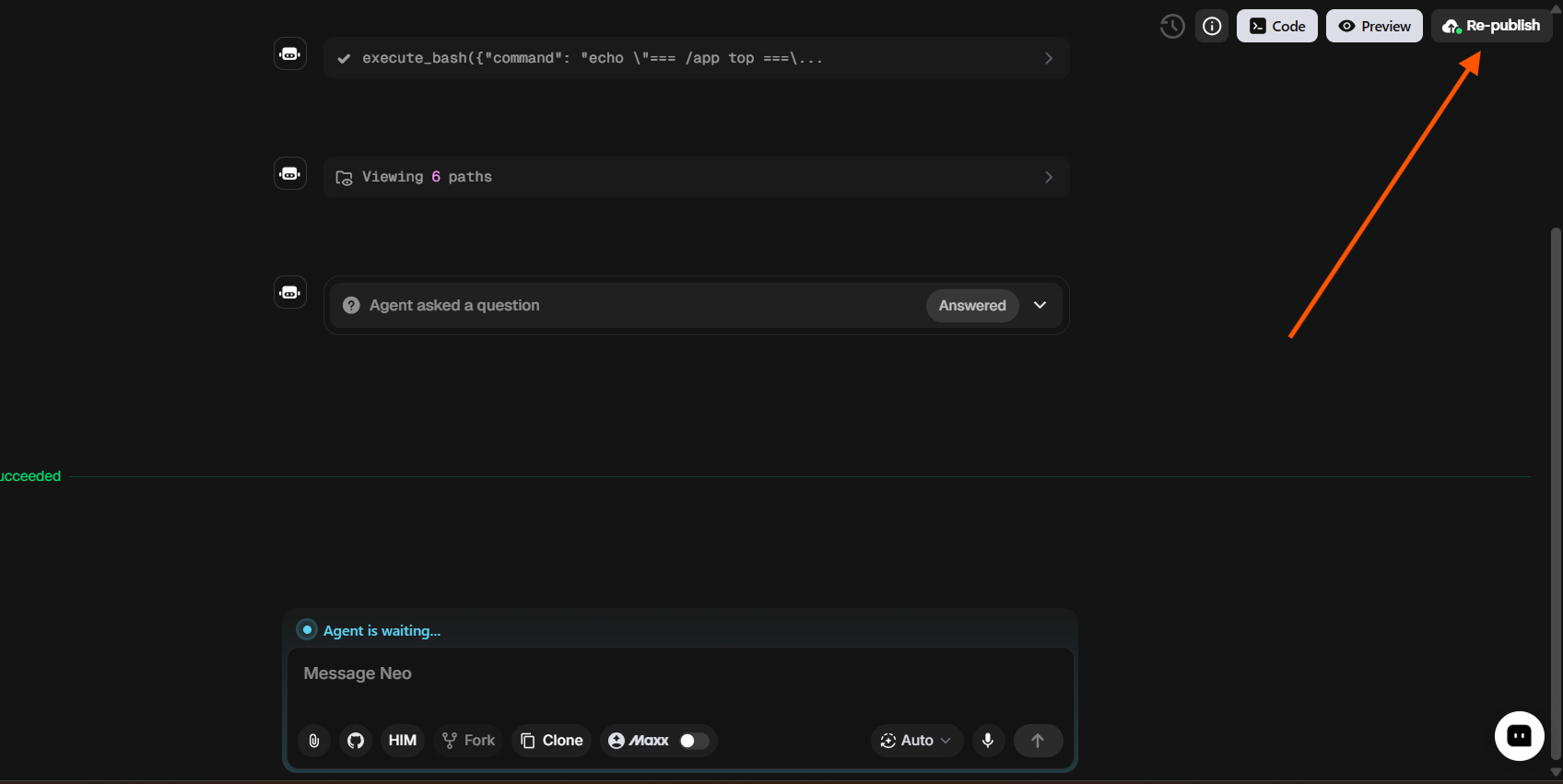
In the top toolbar of your app, click Re-publish.
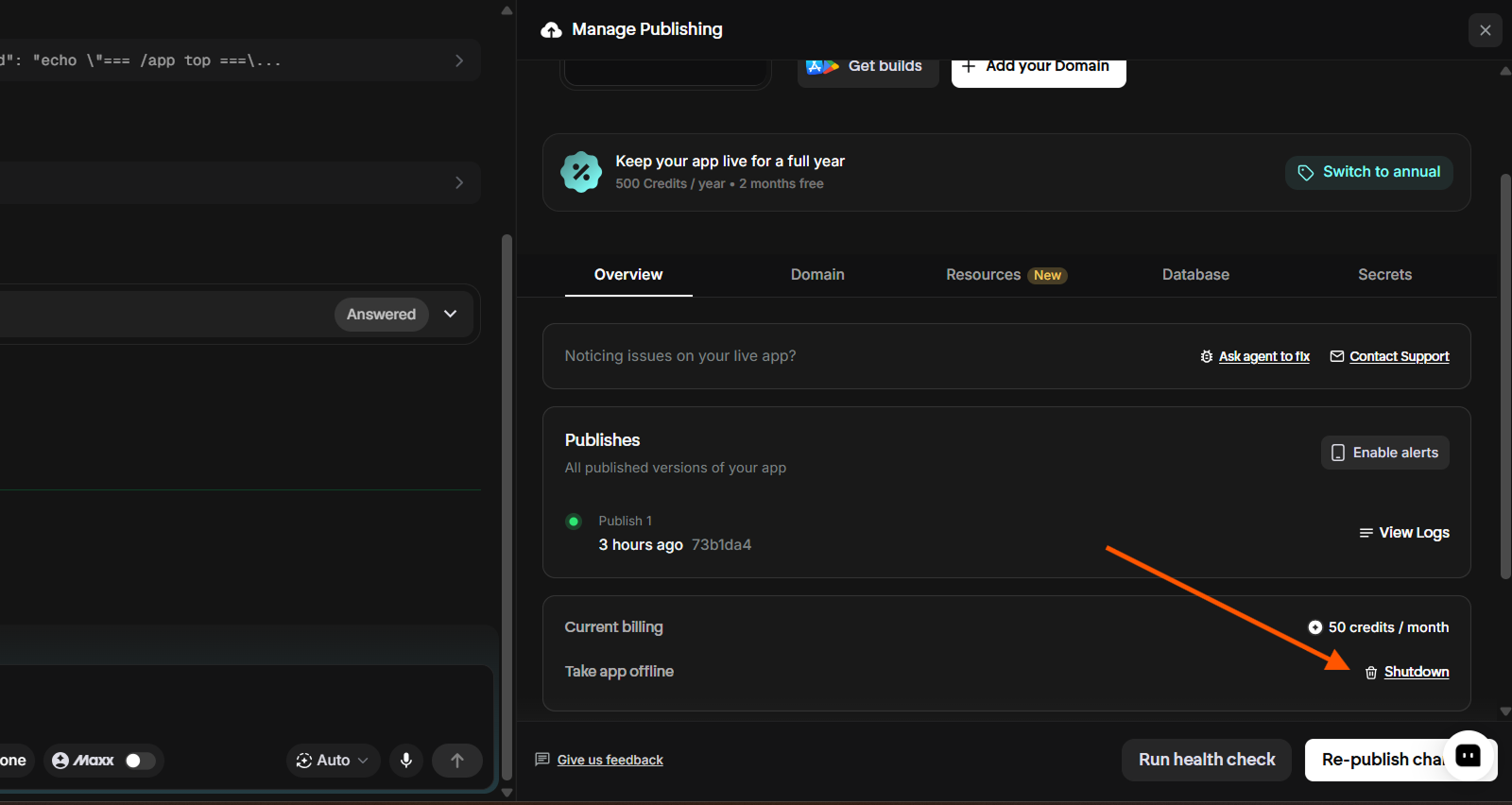
In the Overview tab, scroll down to the "Take app offline" row and click Shutdown, the app is taken offline.
What stops, what stays
| Stops immediately | Stays |
|---|---|
| The app being reachable at its web address | Your project, code, and chat history |
| The monthly publish (hosting) charge | Your subscription and credit balance |
| Your preview workspace, you can keep building |
Shutting down does not delete any databases or external services your app uses. If you want to remove data, delete those resources separately. See Database (MongoDB).
Custom domains, and coming back
- If a custom domain is linked to this app, shutting down removes the link, it is not restored automatically when you publish again. Re-add the domain in the Domain tab afterwards. See Use your own web address.
- To bring the app back online, click Publish again. The revived publish starts on the base tier, if you had upgraded the publishing tier before, set it again after publishing.
- If the app still responds at its address a minute after shutdown, refresh without cache or try a private browser window. If it persists, contact support@emergent.sh.
If something looks wrong
After your first publish, open the web address in a fresh browser tab (or on your phone) and walk through your app as a user would. The live version is optimized differently from preview, so it's worth a quick check.
If you spot an issue, make the fix in preview, test it thoroughly, then Re-publish. The web address stays the same - your users won't notice anything except that the bug disappeared.
For monitoring tools, logs, and troubleshooting slow or crashed apps, see Publishing your web app.
Go deeper: Publishing plan levels

