

Introducing the Emergent MCP Connector: Build Apps Straight From Claude or ChatGPT

You already use ChatGPT or Claude to run parts of your business. Drafting emails, answering questions, planning projects. Now that same assistant can build working software for you, without opening a new tab.
Today we're launching the Emergent MCP Connector, a secure link between the AI chat you already use and your Emergent account. Describe what your business needs in plain language, and Emergent builds it in the background while you stay in the conversation. When the app is ready, you get a live preview link so you can see it working before you deploy.
No new platform to learn. No code to write. No toggling between dashboards.
What we built
The connector is a secure bridge between your AI assistant and your Emergent account. Once connected, you can type something like "build me a client intake form that saves to a database" directly in Claude or ChatGPT, and Emergent kicks off a real build.
Your assistant relays the agent's questions back to you in the chat. You guide the build by answering, not by configuring settings or writing specifications. When the build finishes, you get a live preview link to a working app, not a mockup.
You can also manage your builds without leaving the chat: list all your active projects, check the status of a specific build, get a preview URL for an in-progress app, pause a job, or iterate on something you built earlier.
One important note: the connector handles building and previewing. For deployment and publishing, you move to Emergent directly. The connector gives you the fastest path from idea to working preview, and Emergent's platform handles the rest.
Why we built it
Most business owners who use ChatGPT or Claude treat them as thinking tools. Planning, drafting, brainstorming. The conversation ends when the work begins, because turning that plan into actual software still meant hiring a developer or learning a new platform.
We built the MCP Connector to remove that handoff. The AI assistant you already use becomes the front door to Emergent, which handles the full stack behind the scenes: frontend design, backend code, database, authentication, and integrations with services like Stripe, Google OAuth, and MongoDB.
Everything consolidates into one place. You don't stitch together separate tools for payments, login, and hosting. You describe what you need, and Emergent's multi-agent architecture coordinates to produce a working system you can deploy to your own custom domain.
So when you tell ChatGPT "build me a booking app," you're not getting a list of suggestions or a link to a template. You're getting a live application with a real database behind it.
How to connect Emergent to Claude
Connecting takes about 60 seconds. No extra settings to enable, no toggles to flip.
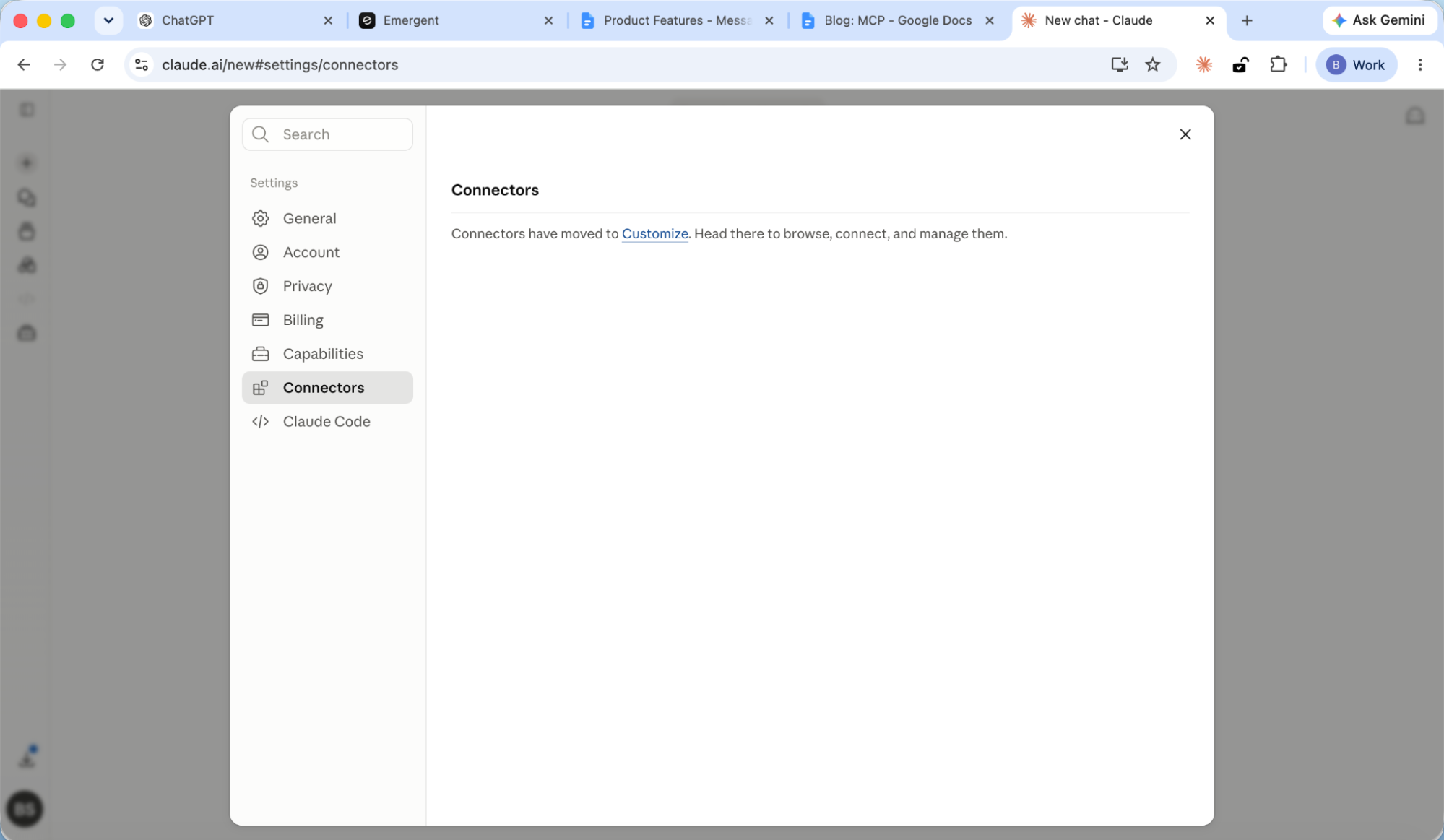
1. Open settings and go to Connectors
Click your profile icon in the bottom-left corner of Claude, then select Settings. In the Settings sidebar, click Connectors.

Claude may redirect you to the Customize page, which is where connectors now live. Either path gets you to the same place.
2. Add a custom connector
On the Connectors page, click the + button in the top-right corner, then select Add custom connector.
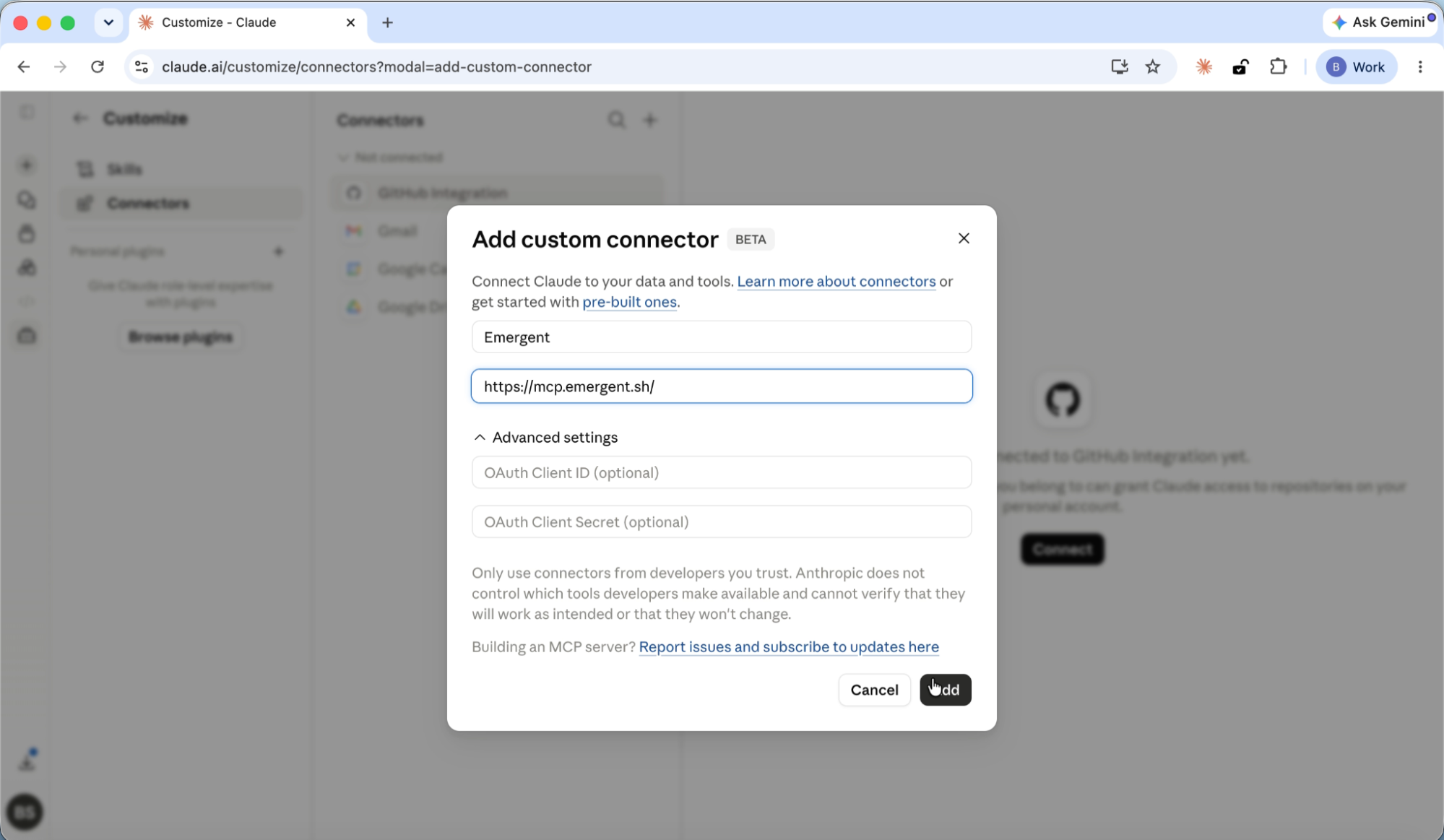
A dialog box appears. Enter the following:
- Name: Emergent
- URL: https://mcp.emergent.sh/
The trailing slash matters. Include it exactly as shown. Leave the Advanced settings fields (OAuth Client ID, OAuth Client Secret) empty. Click Add.
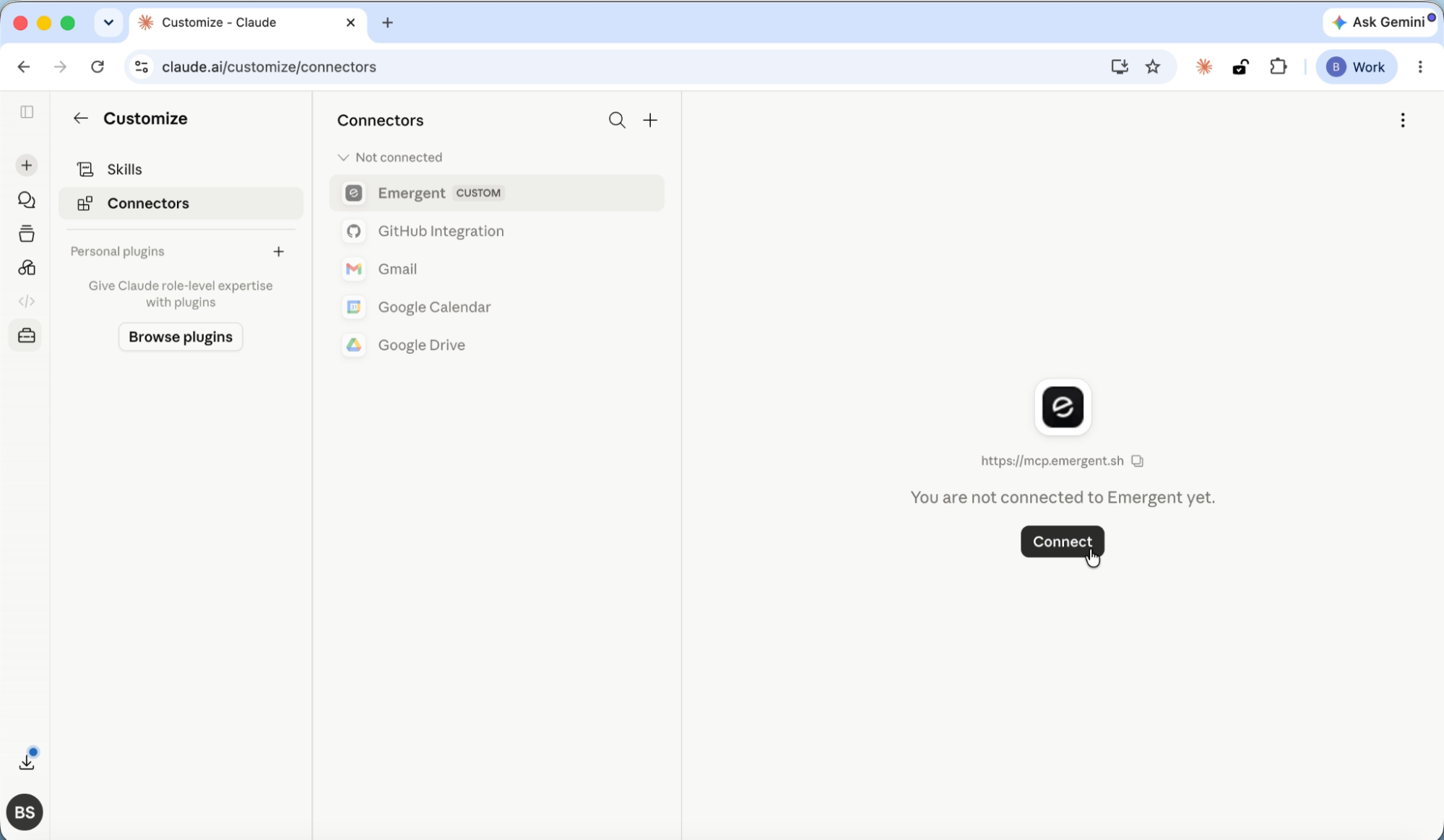
3. Connect to Emergent
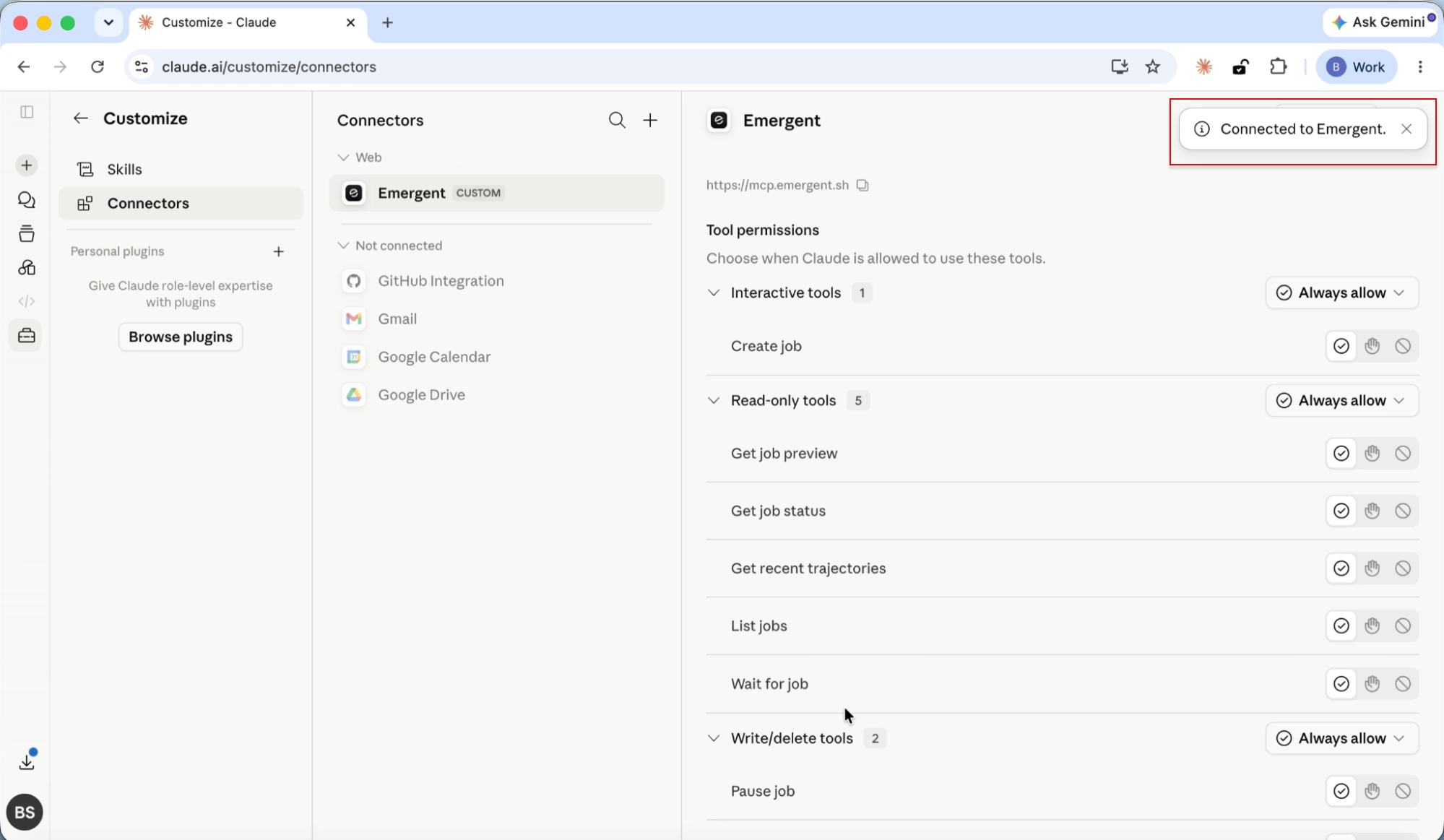
Emergent now appears in your connectors list with a CUSTOM badge. Click on it, then click the Connect button.
4. Approve permissions
Your browser opens the Emergent consent page. Log into your Emergent account if you're not already signed in.
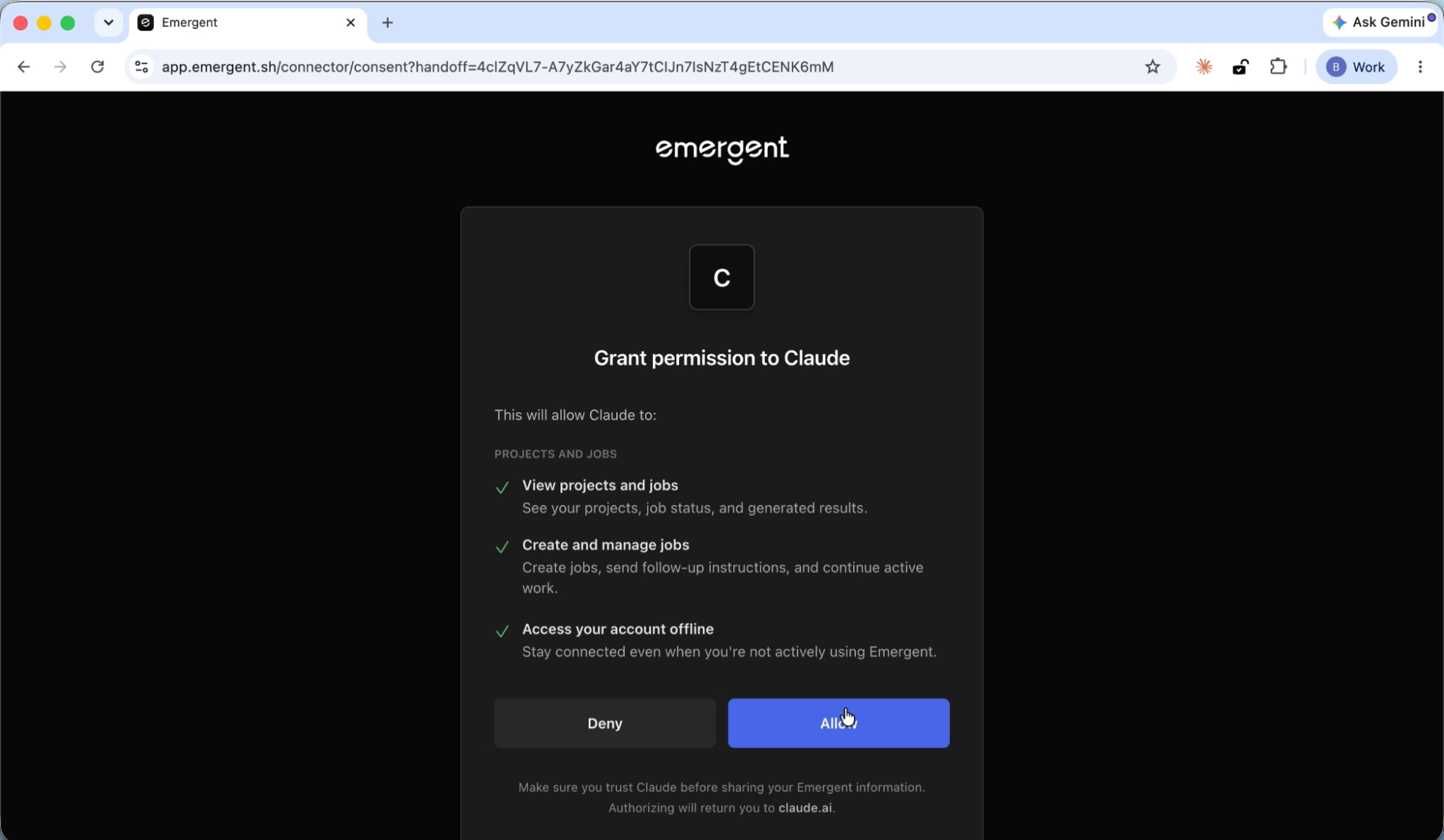
The consent screen shows three permissions:
- View projects and jobs: See your projects, job status, and generated results.
- Create and manage jobs: Create jobs, send follow-up instructions, and continue active work.
- Access your account offline: Stay connected even when you're not actively using Emergent.
Click Allow.
5. Start building
You're returned to Claude with a "Connected to Emergent" confirmation banner. The connector is ready to use immediately.
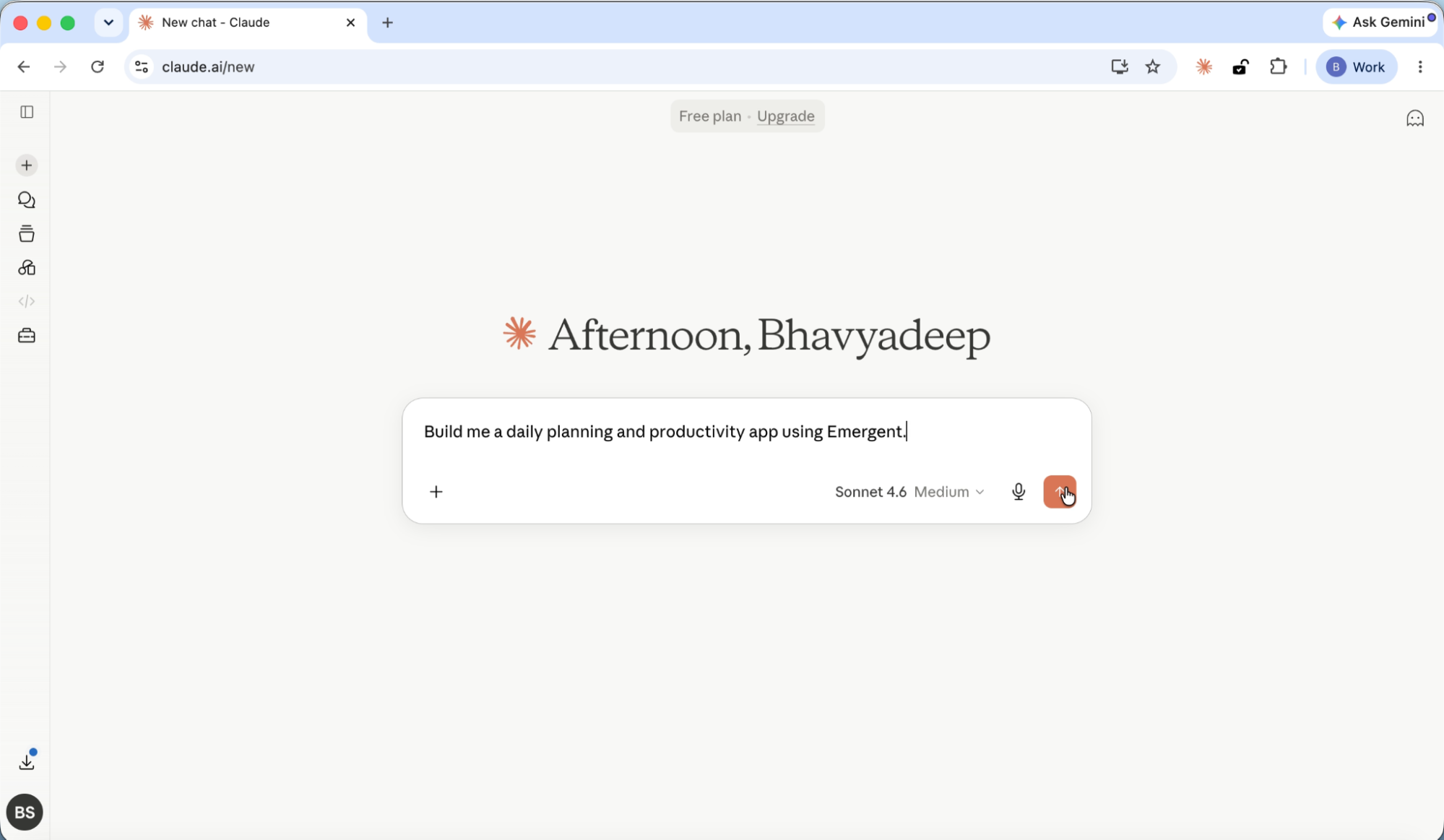
Open a new chat and type your build prompt. For example: "Build me a daily planning and productivity app using Emergent."
Claude asks a few clarifying questions to get the build right on the first pass, then kicks off the job.

Once you've answered, the build starts. A live card appears showing the build progress, with an "Open in Emergent" button to view the full project.
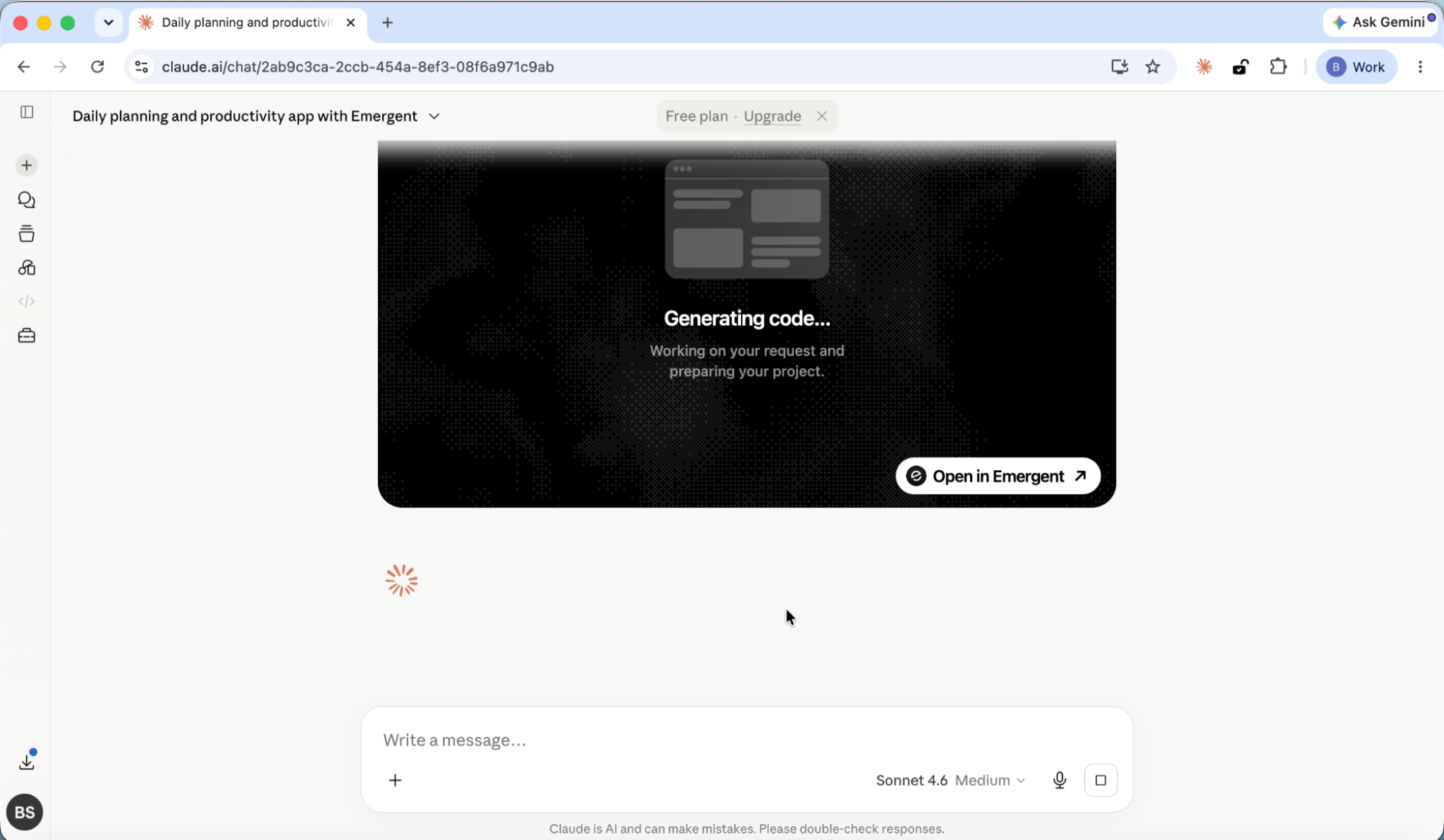
That's it for Claude. Four steps to connect, a few clarifying questions, and your app starts building. The whole process from opening Settings to seeing a live build card takes under two minutes.
How to connect Emergent to ChatGPT
ChatGPT's setup takes one extra step: you need to enable Developer mode in the Apps settings. Despite the name, this is a single toggle flip. You're not writing code or configuring anything technical.
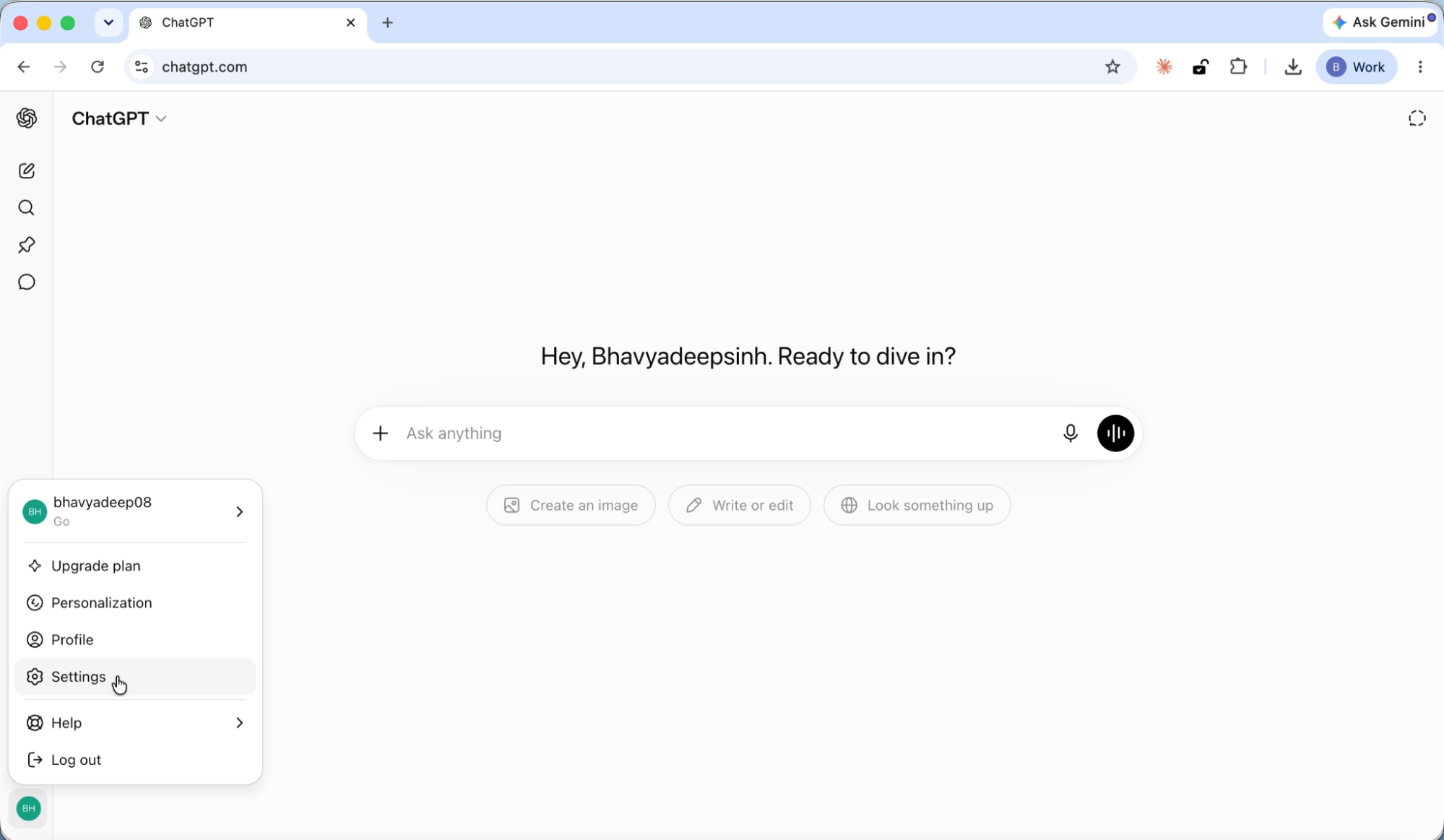
1. Open settings
Click your profile icon in the bottom-left corner of ChatGPT, then select Settings.
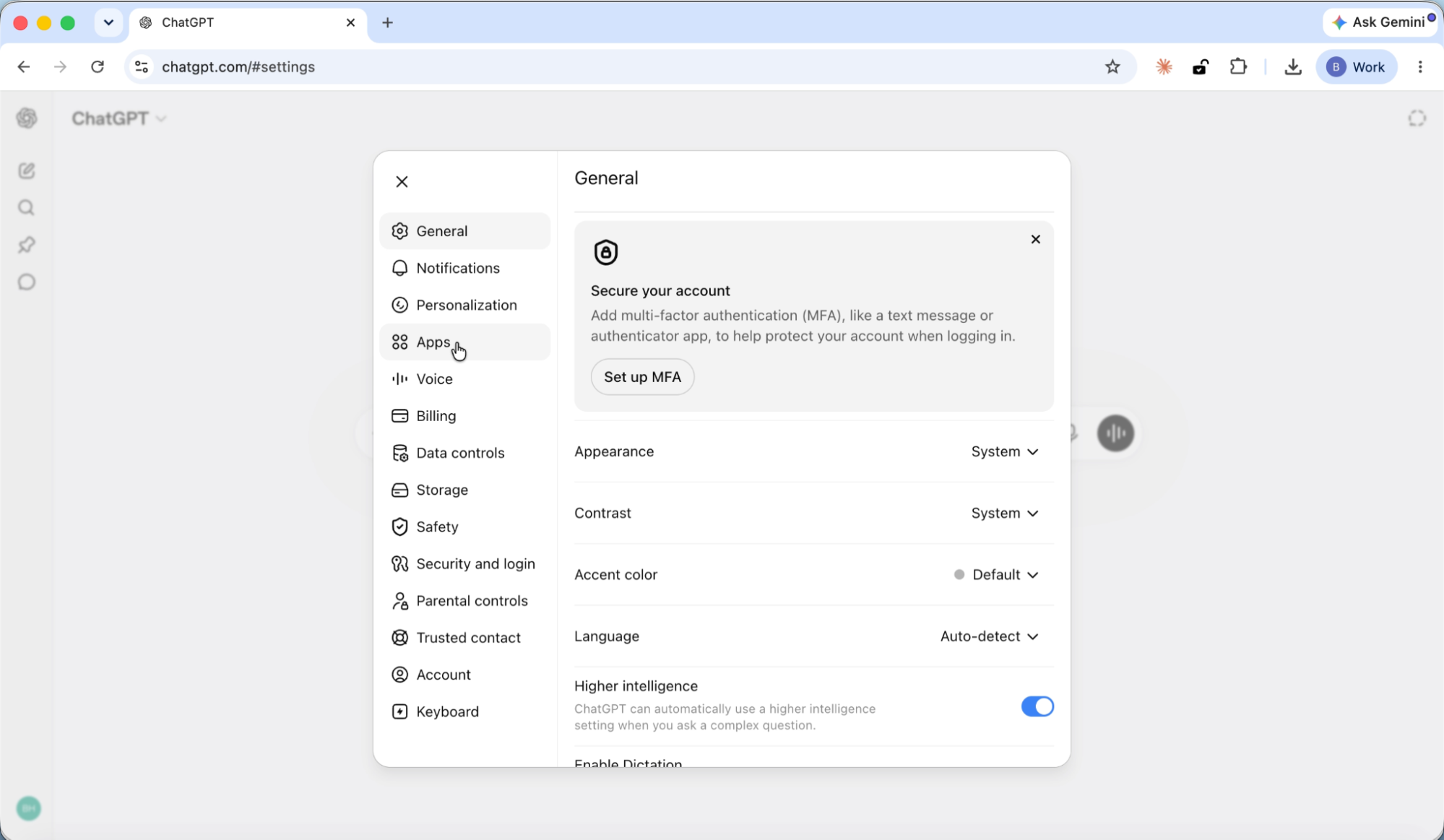
2. Navigate to Apps
In the Settings sidebar, click Apps. You'll see the Apps management page with an Advanced settings option at the bottom.
3. Enable Developer mode
Click Advanced settings, then toggle Developer mode on. ChatGPT shows a warning label ("Elevated Risk") because this setting allows custom connectors. This is normal and not a security concern for your account. You're just enabling the ability to add connectors like Emergent.
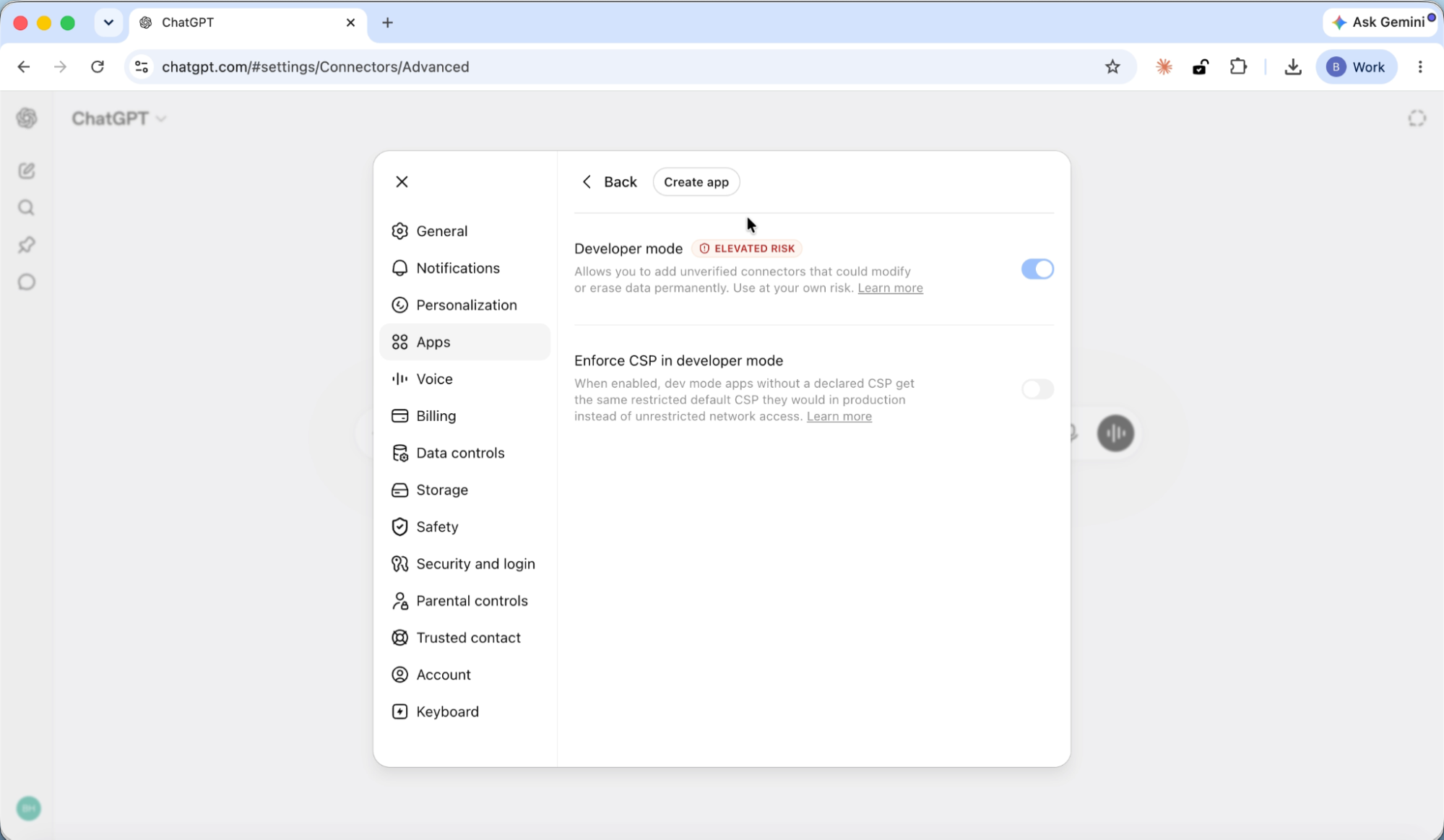
Once Developer mode is on, a Create app button appears at the top of the page.
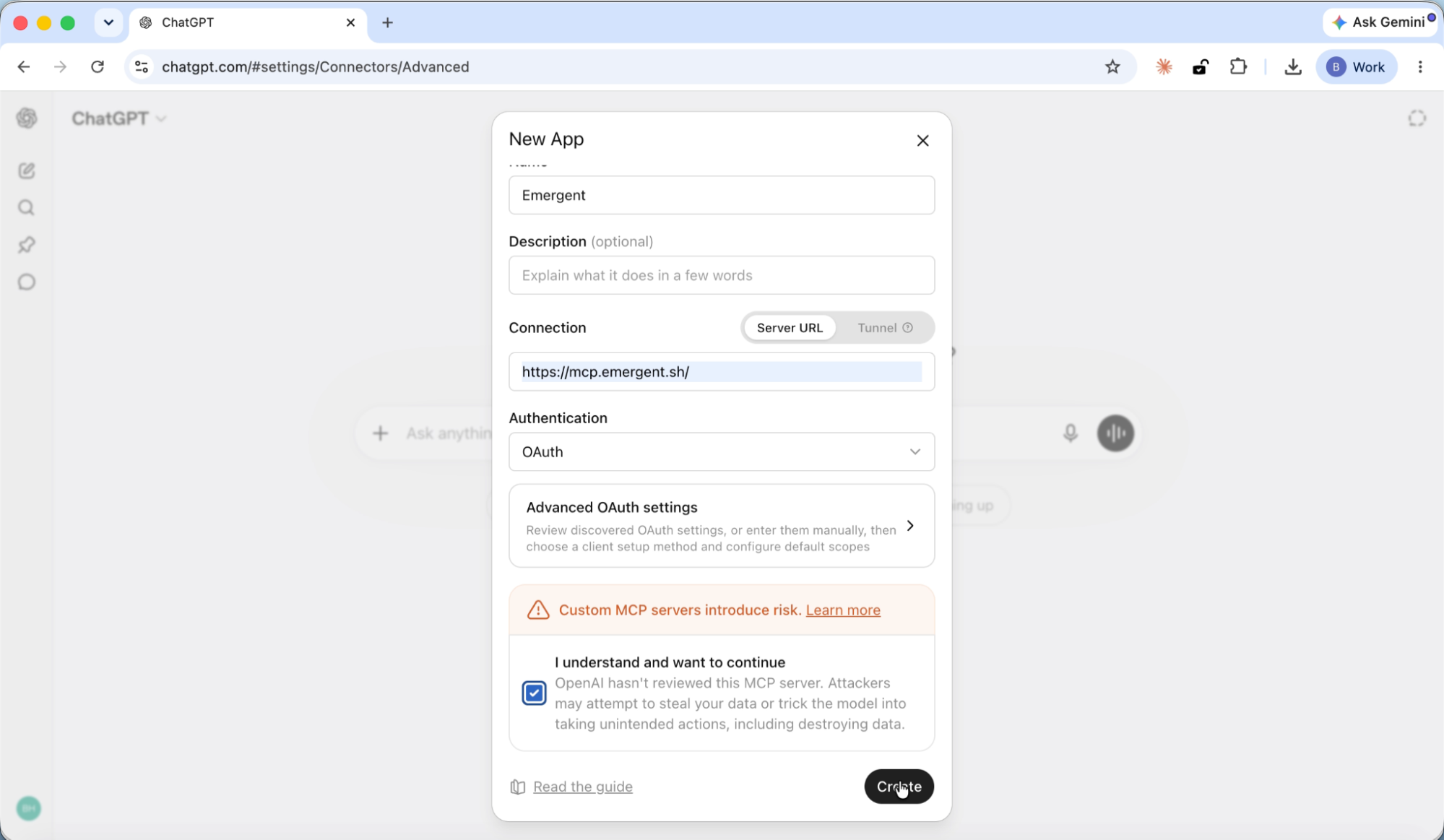
4. Create the Emergent connector
Click Create app. A form appears with these fields:
- Name: Enter Emergent
- Connection: Select Server URL, then paste https://mcp.emergent.sh/
- Authentication: Select OAuth from the dropdown
You'll see a consent checkbox about custom MCP servers at the bottom. Check the box and click Create.
5. Sign in and approve
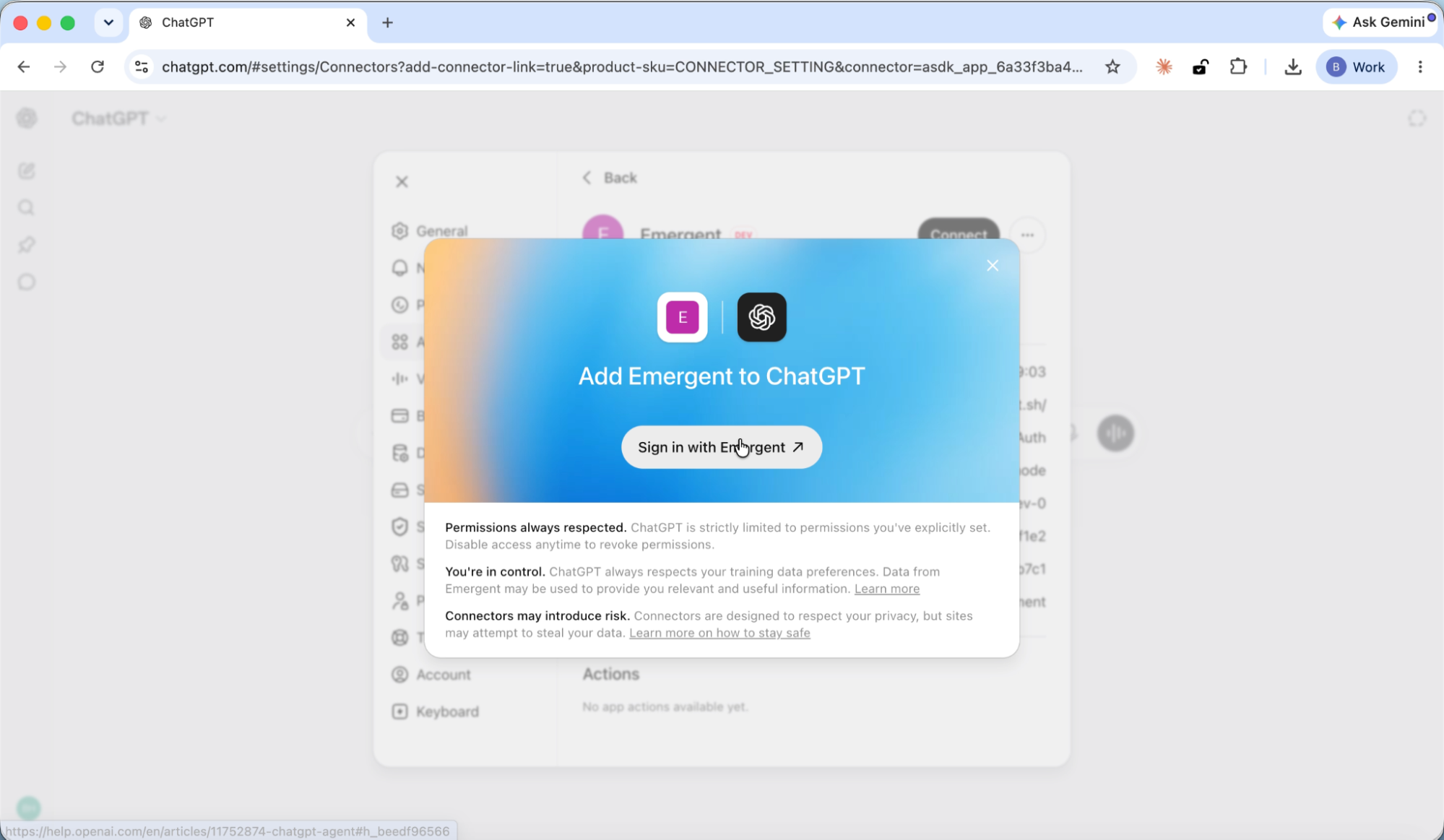
An "Add Emergent to ChatGPT" screen appears. Click Sign in with Emergent. Your browser opens the Emergent sign-in page. Log in, then approve the permissions on the consent screen.
Emergent asks for two permissions:
- View projects and jobs: So your assistant can check build status and list your projects.
- Create and manage jobs: So your assistant can start builds and send follow-up instructions.
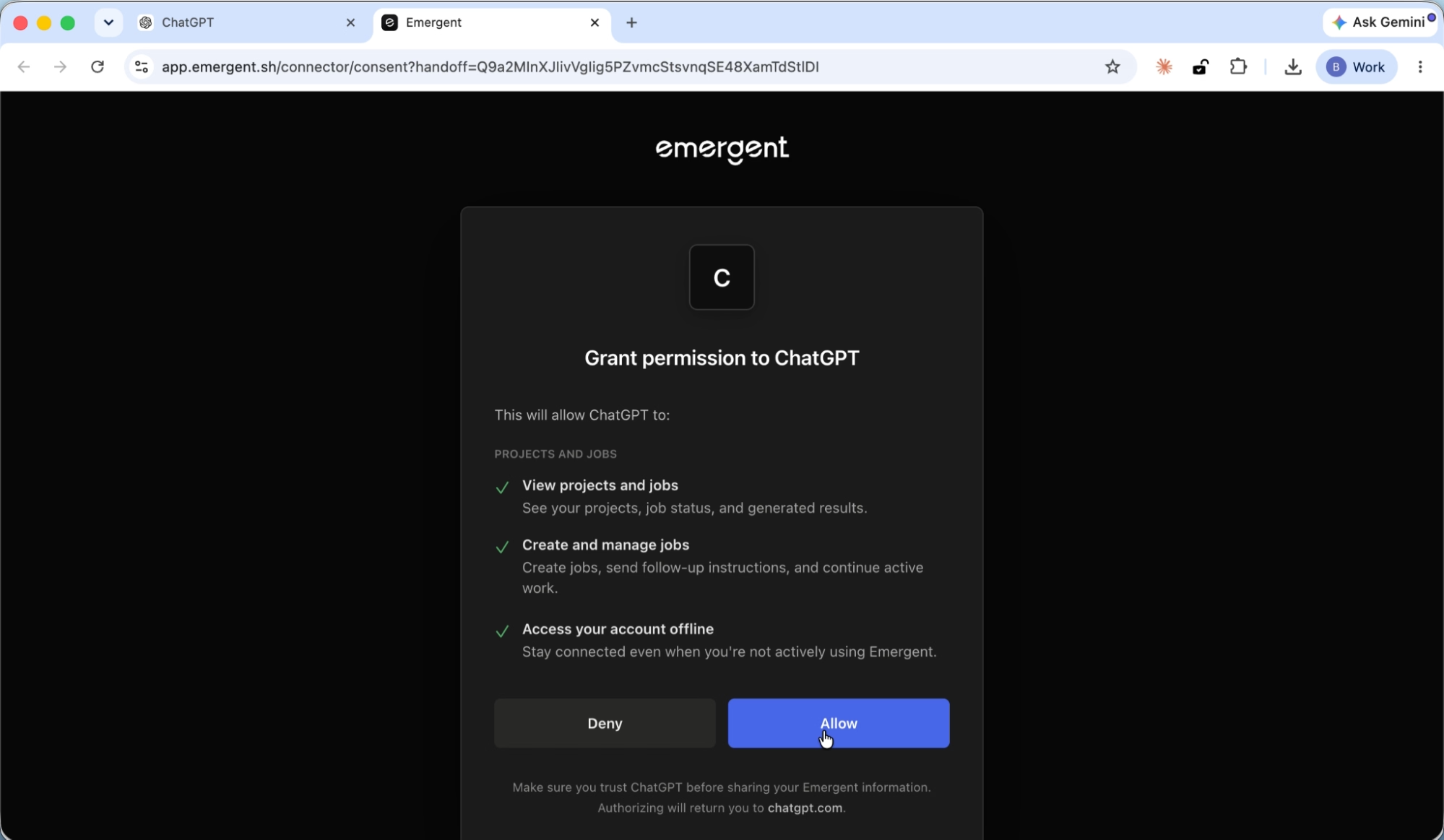
Click Allow. You're redirected back to ChatGPT, and a green banner confirms "Emergent is installed."
6. Start building
Open a new chat in ChatGPT. Click the + icon in the message box, then select More. You'll see Emergent listed under your available tools. Click it to enable Emergent for this conversation.
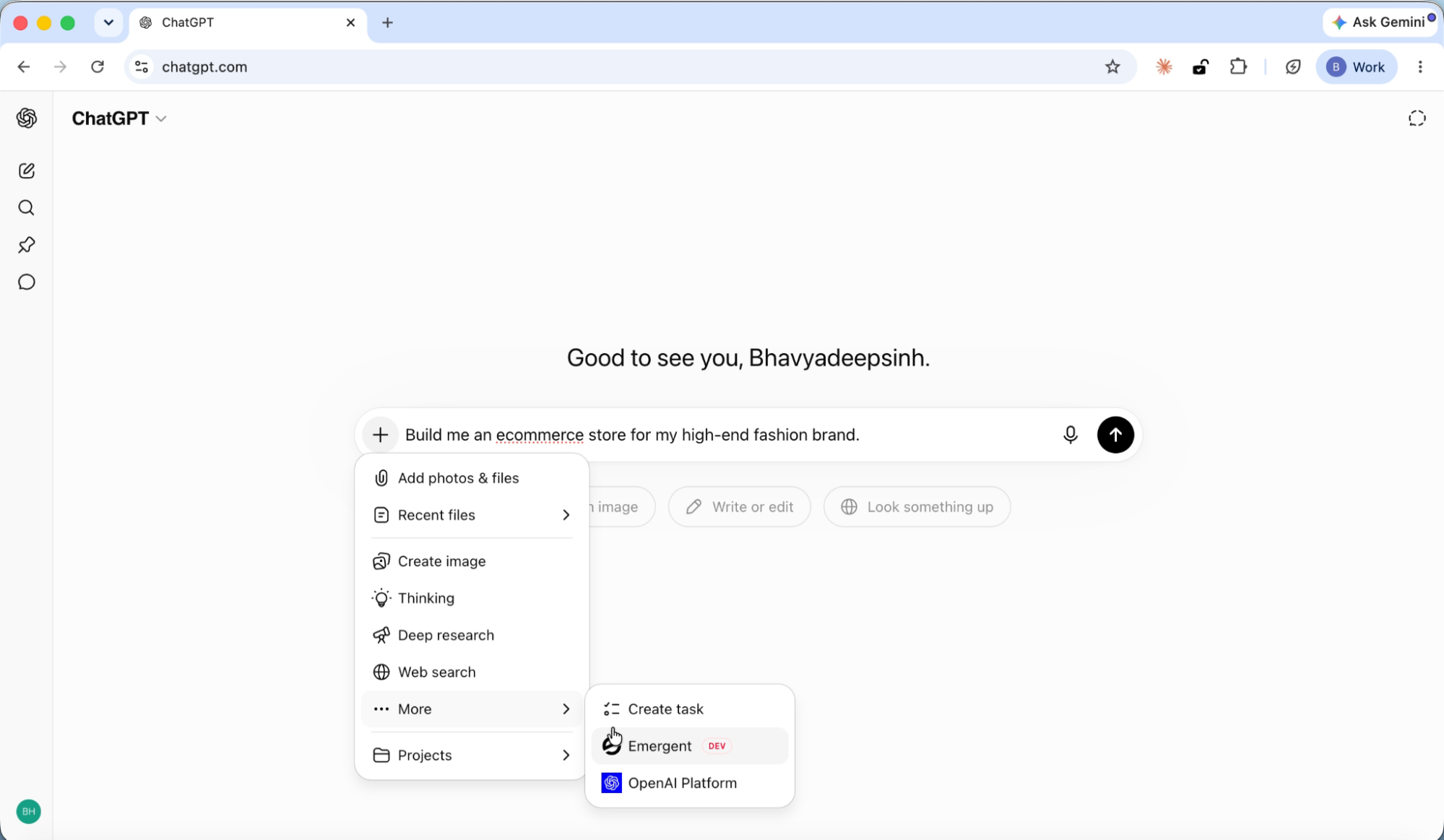
Type your prompt and hit send. ChatGPT calls Emergent, the build starts, and you'll see a live job card showing your app come together in real time.
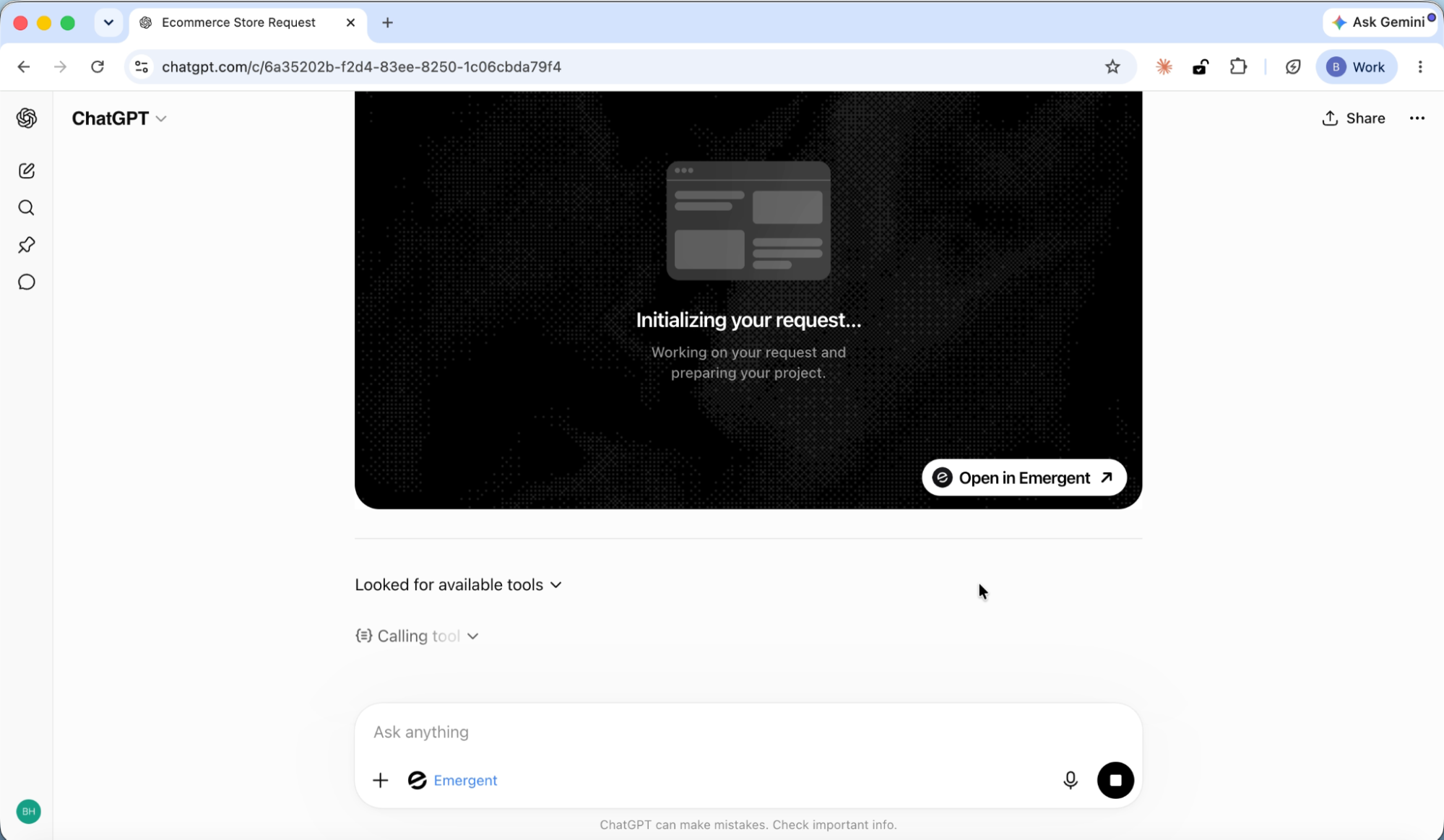
That's the ChatGPT setup. Six steps because of the Developer mode toggle, but the extra step takes a few seconds. Once connected, ChatGPT's live job card lets you follow the build as it happens.
What you can do once connected
Once the connector is set up, your assistant becomes the control panel for your Emergent builds. Here's what you can ask, directly in the chat:
Start a new build: "Build me a booking app using Emergent."
Check build status: "What's the status of my todo app from yesterday?"
List your projects: "List the apps I've built this week."
Get a preview link: "Give me a preview of the app getting built."
Pause a build: "Pause the current Emergent build."
Iterate on an existing project: "Add a dark mode toggle to my fashion store app."
Building through the connector doesn't mean building with less. You get the same output as building directly on Emergent: real database, live preview links (not localhost), Google login, and access to multiple AI models in the same app through the Universal LLM Key.
The connector just changes where the conversation starts. You brainstorm and refine in the chat. Emergent's agents handle the building.
Watch the full build process
The step-by-step walkthroughs above cover getting connected. If you want to see what happens next, these two tutorials walk through the complete journey: connecting the MCP Connector, describing an app, guiding the build through the chat, and deploying it live on a custom domain.
Each tutorial starts from a blank chat and ends with a deployed, working application.
Building and deploying from Claude
In this walkthrough, we connect the Emergent MCP Connector to Claude, describe a daily planning and productivity app, answer the agent's clarifying questions, and follow the build through to a live preview. Then we move to Emergent to deploy it.
Building and deploying from ChatGPT
Here, we connect the Emergent MCP Connector, ask ChatGPT to build an e-commerce store, and watch the live job card track the build progress. Then we deploy the finished app from Emergent.
From preview to live
The connector takes you from idea to working preview without leaving your chat. When you're ready to take it live, head to Emergent to deploy. Publishing to a live URL with a custom domain happens inside the platform, where you can configure your deployment settings and push to production.
Security
Your Emergent password never touches Claude, ChatGPT, or any intermediary. The connector uses a standard OAuth flow, the same kind of authentication behind "Sign in with Google." You approve the connection once through Emergent's own sign-in page, and the connector receives a secure token. Not your credentials.
Disconnect anytime from the same settings page where you connected. The token is revoked immediately.
Get started
If you already have an Emergent account, connecting takes under two minutes. If you don't, create an account and connect in the same session.
Pick whichever assistant you already use. The connector works the same way in both.
For developers: The connector also works in Claude Code and Codex through terminal setup. The same connector URL applies, but the configuration steps differ.
Ready to build from your next conversation? Start Building on Emergent.

on Emergent today