Over a few days, I focused on how to build a CRM for a small moving company to track leads from the first call to the booked job. This is the step-by-step I would follow again, including the spots where "simple" starts getting harder.
What Is a CRM, and Should You Build a CRM at All?
To build a CRM, map your customer journey and build a tiny core of pipeline, notes, and reminders before you add anything else.
A customer relationship management (CRM) system tracks your contacts, conversations, deals, tasks, and follow-ups in one place. Instead of a deal living in your inbox and your head, it lives somewhere the whole team can see it.
Before I built anything, I listed what the moving company did each day. Leads came in by phone, web form, and quote request, and every one needed a follow-up that happened on time. The deciding question was whether the team would abandon an off-the-shelf CRM within a month because it was too heavy.
That is the build-versus-buy question I would answer first.
Build It vs. Buy It vs. Customize
You can build a CRM from scratch, buy one off the shelf, or customize the workflow with an AI app builder. Each path fits a different kind of workflow.
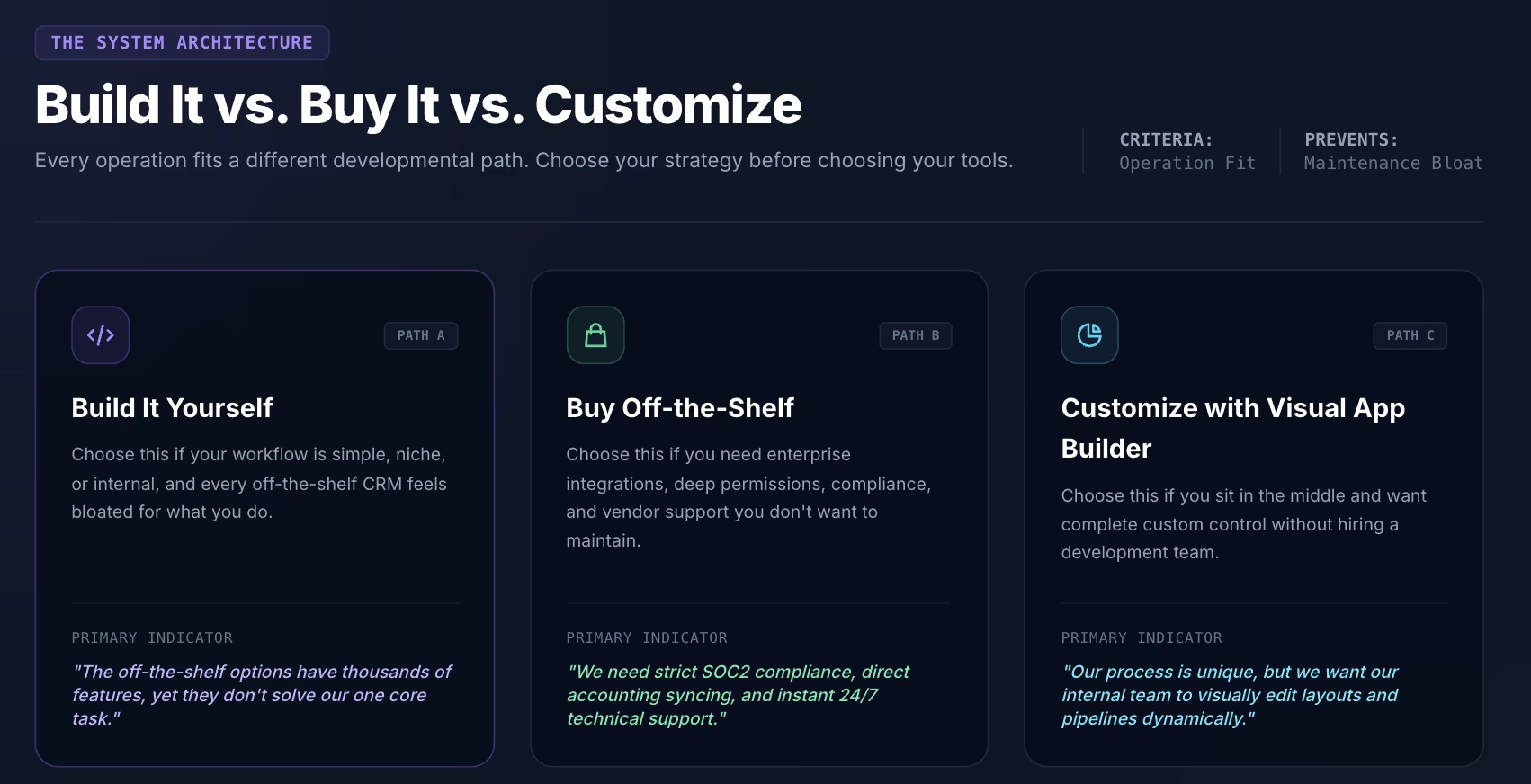
Building costs money, even when you don't write the code yourself. A from-scratch product can run into months of work and serious salary costs. The lower-cost path is usually a small build using visual or AI tools for a workflow you already understand well. The moving company sat squarely in the build-it lane, so that's the path this guide follows.
Also read our guide on the best no-code software builders in 2026 to find the right tool before you start building.
What You'll Need Before You Build
I started with a one-page list of the moving company's stages and the five facts I needed for every lead. Then I picked a visual app builder to assemble the CRM. Most of the prep happens before you touch a tool.
Before you pick a tool, decide what a win looks like. For a small team, that might be faster follow-up, fewer missed reminders, cleaner lead ownership, or a shorter time from first inquiry to booked job.
A CRM build gets messy fast when the goal is too vague, like "better organization." Pick two or three outcomes you can measure, because they decide which fields, reminders, and reports belong in the build.
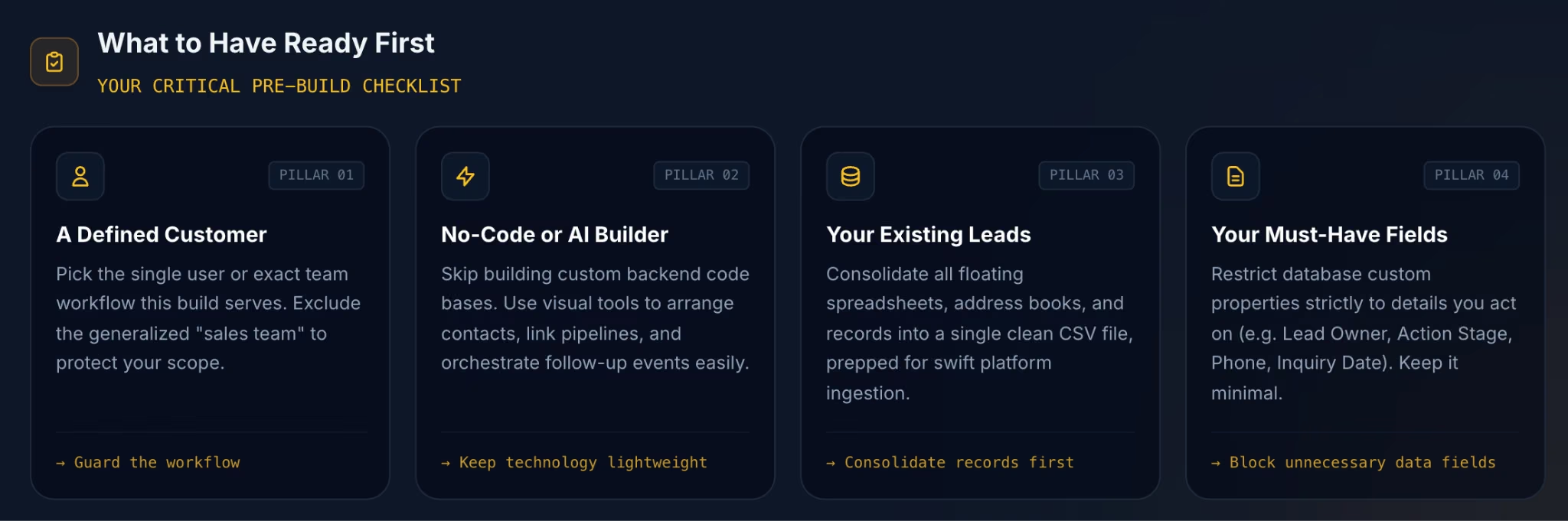
Time required: A few focused days for a visual app build with a pipeline, notes, and reminders. A custom-coded product with permissions and integrations runs into weeks or months. Build time depends on scope, so treat any estimate with caution.
How to Build a CRM: Step-by-Step
I built the CRM in this order, and I note where each step started to get more complicated. Build the simple core first, then add the harder layers once people trust the basics.
Step 1: Map the Customer Journey
On one line, I mapped the moving company's path from New Lead to Contacted, Quote Sent, and Booked, then to Completed or Lost. Then I refused to add any stage that didn't change what I did next.
Your pipeline is the spine of the whole CRM, so map how leads move before you build a screen. Mark the points where a follow-up decides whether the deal moves or dies. For the movers, that was right after Contacted and right after Quote Sent. Fewer stages beat more, and a stage you can't act on is a column nobody updates.
Before you lock the stages, write down the customer touchpoints around them. For a moving company, that usually means first call, quote request, quote sent, follow-up, booking, job completion, and any after-service issues.
That extra pass helps you catch gaps between the pipeline and the real customer journey, especially when one team hands work to another.
Step 2: Pick the Minimum Feature Set (Keep It Small)
A field stayed only if it helped me make a follow-up decision. I cut everything else. That one rule kept the build small.
A simple CRM needs contacts, deals or jobs, a visual pipeline, notes, tasks, follow-up reminders, and basic search. That's the whole list. Every extra field nobody fills in is a reason the team drifts back to a spreadsheet.
Simplicity is what makes the CRM usable. A busy person should be able to update the CRM in seconds. Keeping it that simple also makes the system easier to expand later.
Add fields later, only when you keep reaching for one you don't have.
Step 3: Design a Simple Data Model
On paper, I first sketched the contact, job or deal, notes, tasks, owner, and pipeline stage. Getting those core entities clean meant the pipeline had something solid to sit on.
A data model sounds technical, but it only decides what connects to what. A contact has many notes. A job belongs to one contact. One person owns each lead.
It also helps to sort your fields by type before you build them. Keep contact data, job details, transaction details, and interaction history separate, even if they all show up on one screen. That makes imports cleaner, reporting easier, and later automation much less fragile.
Real relationships get messy, since a contact can belong to several companies. Keep it flexible, but don't over-engineer it on day one. You can loosen the model later once you see the real edge cases. Assign one owner per lead from the start, because shared ownership means no ownership.
Step 4: Define Workflows and Handoffs
The first handoff I wrote down was the quote-sent-to-follow-up jump, because that's where leads kept falling through. A CRM needs fields, stages, and workflow rules. Those rules define who does what, when a lead changes hands, and what happens after a quote, a missed call, or a completed job. Write those handoffs down before you automate them.
Otherwise, you end up recording the same confusion in a cleaner interface.
Step 5: Build the Pipeline View
The CRM stopped feeling like a spreadsheet when I saw the jobs as cards I could drag from New to Booked. That visual shift is the point of a pipeline.
A pipeline view shows every deal's status at a glance and lets you drag a card to update its stage. You can move the card and go without opening menus or forms. The goal is one screen where the next action is obvious for every lead on it.
If your pipeline makes someone hunt for what to do next, it isn't done yet.
Step 6: Add Notes, History, and an Activity Timeline
I timed myself finding the last note on a repeat caller, and it took three clicks too many. Once I pinned notes and history to the contact, that dropped to one.
Every contact needs a running timeline with notes, past activity, and the full history in one place. For the movers, that meant the move date, distance, stairs, packing needs, insurance, and the quoted price. When a customer calls back two weeks later, you pick up where you left off instead of starting cold. Keep that history together in one place, because notes scattered across three places are as good as no notes.
Once the core is stable, the next useful additions are usually documents and quotes. Being able to store a quote, attach a contract, or mark an invoice as sent keeps the record complete and cuts down on tool switching. I would still treat these as phase-two features, after notes, reminders, and clean data are working.
Step 7: Build the Follow-Up Engine
I set a reminder after sending a quote, then deliberately ignored it for a day to see if the overdue view would catch it. It did, and that was the point where the build started to prove its value.
The follow-up engine is reminders, a next-action date, an overdue view, and a clear owner for each task. "I'll follow up next month" only becomes real when it's a dated reminder you can't miss. A missed follow-up after a quote is a lost booking.
Build this before any dashboard. The reminders stop leads from slipping, while a chart only describes the leak.
Reminders before reports. Build what prevents lost deals before you build what counts them.
Step 8: Prevent Bad Data Before It Starts
I created the same lead twice on purpose, once from a web form and once from a phone call. I wanted to see if the build would catch the duplicate before save. That test exposed the hardest layer in any CRM.
Dirty data sneaks in through duplicates, free-text typos, and blank stage fields. To stop it, add duplicate detection before save, merge rules, dropdowns instead of free text, an owner field, and a basic history log. These guardrails keep your reports honest later.
Requiring fields at stage transitions instead of at record entry fixes more than most other rules. An entry gate makes people type junk to get past it. Asking for the quote amount only when a deal moves to Quote Sent gives you clean data exactly when you need it.
Prevent bad data at input. Cleaning it up after the fact is a job that never ends.
Step 9: Add Automation Carefully
After adding a new-lead alert and a stale-deal nudge, I stopped. More rules would have outrun what I used day to day.
Useful automation stays small and obvious. A new-lead notification, a follow-up reminder, a stale-deal alert, lead assignment, and maybe an email template trigger cover most of it. Each one should remove a step you're already doing by hand.
Don't build complex workflows before the basics get used. Automation on top of an unused CRM only hides that nobody's in it.
Also read our guide on the best AI workflow builders in 2026 to find the right tool before you automate.
Step 10: Connect Integrations (Where Things Break)
Email and calendar were the first integrations I connected, and that sync was the first thing to wobble. Integrations are where a clean build meets the messy real world.
Common connections are email, calendar, web forms, website leads, optional SMS or WhatsApp, and tools like Zapier, Make, or webhooks. Each one adds power, but each one also adds ways it can break: hitting usage limits, odd behavior from the tool you connected, and syncs that fail silently.
Every integration you add multiplies the ways things can break. So add them one at a time and watch each one before moving on.
One layer that early builds skip is production readiness. Decide who can see pricing and edit deal stages. Set record-deletion permissions, then define what the mobile experience needs to handle in the field. A CRM that works on a laptop for one builder can still break for a real team if permissions are loose or the phone view is unusable.
If your CRM stores customer data, treat privacy and security as part of the build, too. The FTC's Protecting Personal Information guide is the baseline for deciding what data to keep, how to protect it, and how to plan for incidents.
Start with one integration, prove it works for a week, then add the next.
Step 11: Add Reporting (Plan It Early, Build It Last)
The first report I built was one I'd open every morning for overdue follow-ups. Then I added a simple win-loss count. I checked those two every day.
Useful reports cover lead source, conversion rate, overdue follow-ups, pipeline value, and win-loss. Plan which reports you need early because they decide what data you collect. Build them last, once the data is flowing.
A report is only as honest as the data under it. That's why Step 8 comes first: A duplicate deal counts twice, and a blank stage drops a deal out of the forecast entirely.
Step 12: Test It With Real Users
To test the build, I handed it to someone cold and watched whether they could add a lead in under 30 seconds and find the last note. Where they hesitated showed me exactly what to fix.
Real-user testing is the cheapest fix you'll ever run. Sit someone down and ask them to add a lead, find the last note, see the next follow-up, import a contact, and update a stage. Watch where they stall, then smooth that spot.
If a new user can't add a lead and trust what they see in under a minute, the CRM isn't ready. A clean data model doesn't save it.
Step 13: Migrate Data and Launch
I imported a spreadsheet of 200-odd past leads via CSV, then waited until the import finished to check for duplicates. Migration is where most switches die, so I treated it as part of the build.
Plan the move from day one. You want a CSV import, field mapping, an import preview, duplicate detection, and data validation after the import lands. Then set up a sample pipeline, write a one-page guide, name an admin owner, and schedule a weekly cleanup.
People won't switch to a new CRM if moving their contacts, notes, and history feels like rebuilding the business from scratch. Make the import painless, and the launch gets much easier.
Wait until the import is complete to validate the data. You catch real-world mess that a clean test never shows.
Common Mistakes to Avoid When Building a CRM
Most of these are traps I either walked into on the moving-company build or barely dodged. Each one is easy to avoid once you've seen it sink a project.
- Building before you pick a customer: A generic CRM built for "everyone" fits no one's daily workflow, so teams abandon it fast.
- Cramming in too many fields and stages: Bloat is a common reason small teams quit a CRM and go back to a spreadsheet.
- Requiring fields at entry: Entry gates make people type junk to get past them, so require fields at stage transitions instead.
- Skipping migration until launch day: If the import is painful, the team never fully moves over, and you run two systems forever.
- Making AI the foundation: AI works best as a layer on top of a working CRM after the foundation is in place.
- Automating before the basics get used: Complex workflows on an empty CRM hide the fact that nobody's using it.
How Emergent Helps Small Teams Build a CRM Without a Dev Team
Contacts, a pipeline, notes, and reminders make up the simple core of a CRM, and that core assembles fast. A hand-built project stalls on the hard layers. These include reliable deduplication, email and calendar sync that doesn't wobble, real permissions, and a painless migration. Those specific steps decide whether anyone keeps using the CRM.
A tool like Emergent starts to make sense on those harder steps. You describe the CRM you want, and the platform builds toward a working app with login, stored data, a pipeline, and reminders. For a small team, having the platform build toward the working app can remove a lot of setup work from the first version.
That's not just theoretical. A local service contractor used Emergent to build a custom CRM with a four-stage lead pipeline, live revenue metrics, and one-click Google review requests. The app went from a plain-English description to a working dashboard in a single session, without an in-house development team.
It's one option for teams that want the outcome without wiring every hard layer themselves. The same rule still applies: build the simplest CRM that makes the next customer action clear.
Most AI app builders stop at prototypes. Emergent creates production-ready apps you can actually launch.
- Production-ready apps
- Web & mobile apps
- Deploy in minutes