


This hands-on approach separates tools that hold up under a deadline from tools that only look good on a pricing page.
Of the 30+ I tested against these five categories, 12 consistently delivered usable output across all of them. The rest failed on at least one. Too many workarounds, pricing that didn't survive two months of real use, or output that needed a second tool to fix.
12 Best AI Tools for Freelancers: Quick Comparison
Twelve tools, one table. Prices and plans were verified against each vendor's official pricing page.
| Tool | Strengths | Best For | Starting Price |
|---|---|---|---|
| ChatGPT | Writing, research, multimodal input, memory | Writers, generalists, client communication | $8/month (Go, with ads) / $20/month (Plus) |
| Grammarly | Real-time grammar, tone, plagiarism check | Polishing client-ready deliverables | $12/month (Pro) |
| Canva AI | Templates, Magic Design, image generation | Visual content without a designer | $12/month (Pro) |
| Perplexity | Cited answers, deep research, doc summarization | Fast, sourced research | $20/month (Pro) |
| Notion AI | Agents, meeting notes, workspace search | Client project management | $24/month per user (Business) |
| Emergent | Prompt-to-app, multi-agent build, vibe coding | Building client-facing tools | $20/month (Standard) |
| Descript | Text-based video edit, filler removal, voice clone | Video and audio editing by text | $24/month (Hobbyist) |
| Zapier | App-to-app automation, AI steps, triggers | Automating repetitive workflows | $19.99/month (Professional) |
| Otter.ai | Live transcription, meeting summaries, AI chat | Meeting transcription and client notes | $16.99/month per user (Pro) |
| Devin | Autonomous coding, ticket-to-PR, concurrent sessions | Dev freelancers shipping code faster | $20/month (Pro) |
| Claude | Long context, structured writing, complex briefs | Long-form writing and complex briefs | $20/month (Pro) |
| Lindy | Inbox drafting, iMessage delegation, meeting prep/follow-up | Daily inbox and calendar delegation | $49.99/month |
How I Researched and Tested These AI Tools for Freelancers
I spent four weeks testing the best AI tools for freelancers on paid work across three active client accounts. The sessions covered everything from client proposals and video edits to app builds that shipped to a live URL before the week ended.
- Features: Whether core tasks like drafting, transcribing, building, editing, or deploying produce client-ready output without a second tool to fix what the first one broke. I paid specific attention to what breaks when the work gets more complex, beyond what a features page will tell you.
- Usability: Time from first login to first result that I could use in a deliverable, without a tutorial. I noted where I had to Google something, where I hit an unexplained limit, and where the interface got in the way of the actual task.
- Integrations: How each tool connects to the stack most freelancers already run: Google Workspace, Notion, Slack, Zoom, and GitHub. I tested both native connectors and workarounds to see where the gaps show up in practice.
- Pricing: What the entry-level paid plan unlocks versus what it walls off. Credit-based models, usage caps, and per-seat fees all behave differently when a deadline hits, so I mapped what a solo freelancer would realistically pay after two months of consistent use.
- Use cases: How each tool held up across the five scenarios that drove revenue during the test period: long-form content, visual deliverables, client calls, video editing, and custom tool builds for clients.
This hands-on approach separates tools that hold up under a deadline from tools that only look good on a pricing page.
1. ChatGPT: Best for Writing, Research, and Client Communication
What it does: A conversational AI assistant that handles writing, research, planning, coding help, file analysis, and client communication across web, iOS, and Android.
Best for: Freelancers who work across multiple deliverable types and need one tool that covers the full range of daily tasks without switching between platforms.
I used ChatGPT Plus daily for four weeks across three active client accounts, writing proposals, summarizing briefs, drafting email sequences, and building content outlines. The memory feature across projects was the part that changed how I worked on repeat client accounts.
Client tone, preferences, and standing instructions were loaded at the start of every session without re-explaining anything to the model.
Where it earned less trust was the research. For fact-checking tasks requiring cited sources, I had to cross-reference outputs manually. The Plus plan's deep research mode helped, but it runs on a usage cap that dries up faster than expected during heavy weeks.
Key Features
- Extended context and reasoning access: Plus gives you extended context limits and access to multiple reasoning models, including GPT-5.5 Thinking, which handles long client documents and multi-file projects within a single session
- Custom GPTs and projects: Build reusable assistants pre-loaded with a client's brand voice, documents, and instructions, then call them up on any new project without setting anything up again
- Voice mode with video and screensharing: Available on Plus, this turns ChatGPT into a real-time meeting assistant that can review what's on screen and respond live
Pros and Cons
Pros:
- Handles more task types out of one interface than any other tool in this list
- Custom GPTs and persistent project memory mean repeat clients need no re-briefing. The context is already there
- Available on web, iOS, Android, and macOS desktop with code editing built in
Cons:
- Deep research on Plus runs on a usage cap that dries up faster than expected during high-output weeks
- Full GPT-5.5 capability requires Business at $25/user/month or Pro at $100/month
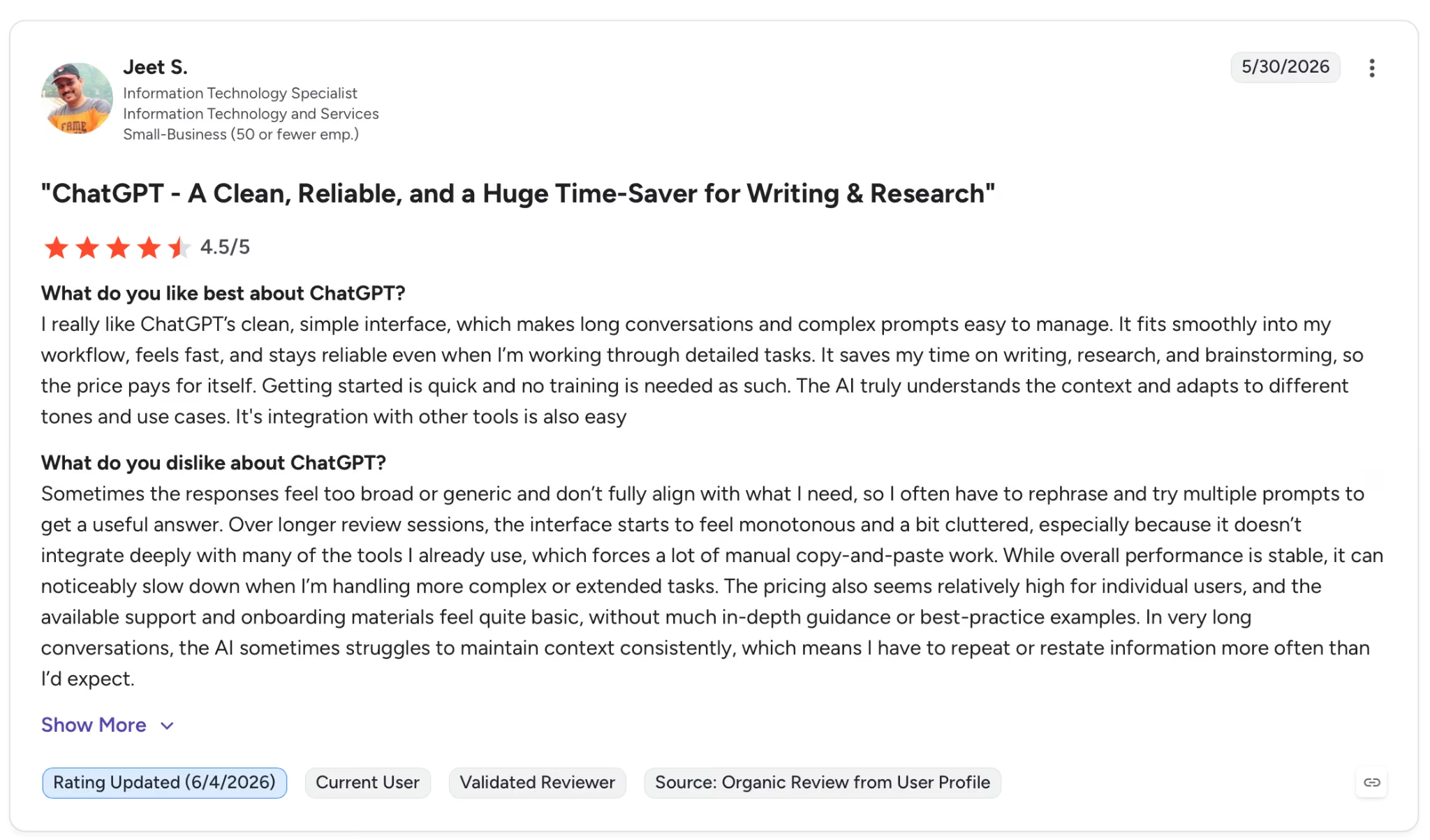
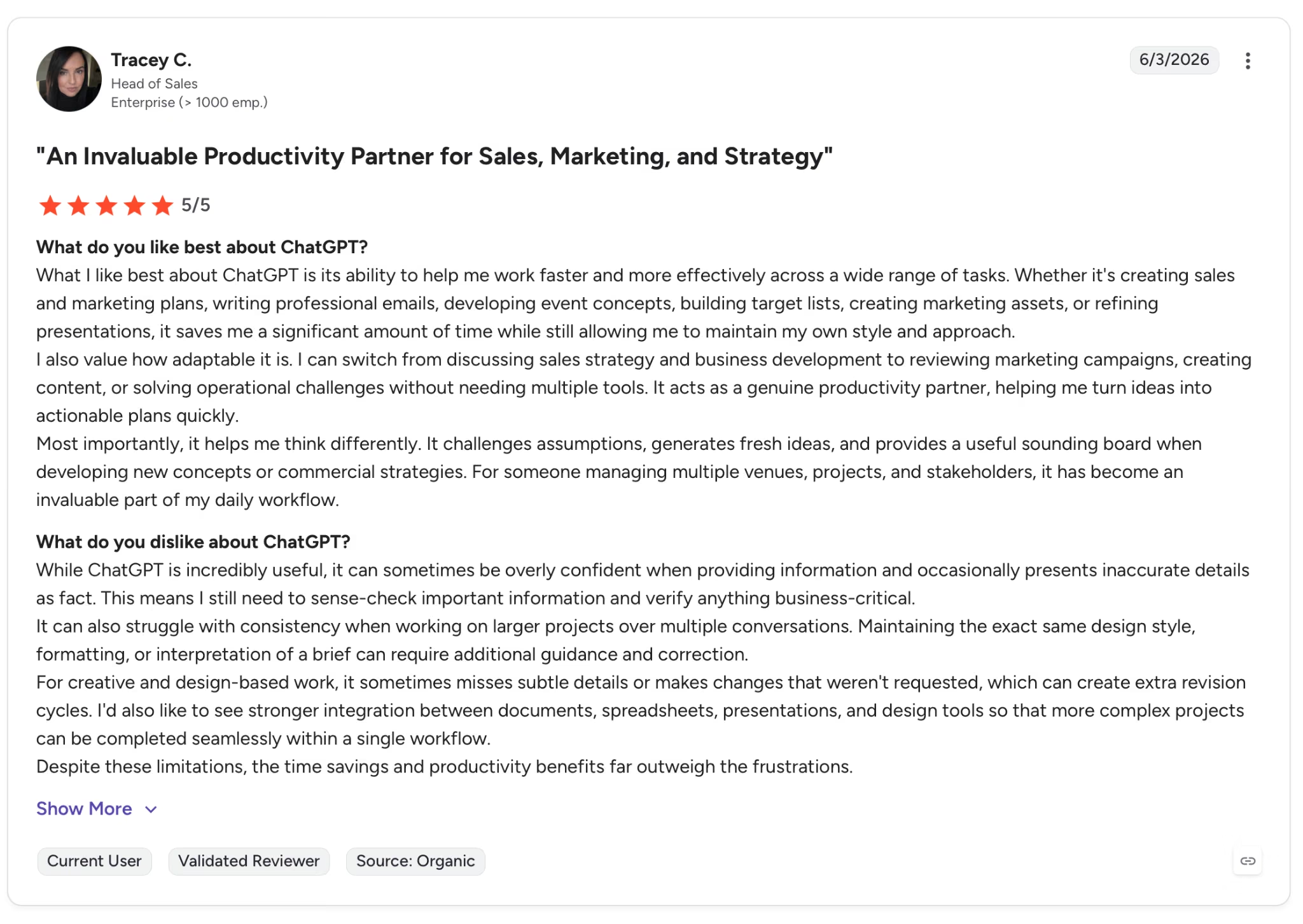
"While ChatGPT is incredibly useful, it can sometimes be overly confident when providing information and occasionally presents inaccurate details as fact." — Tracey S., G2
Pricing
Plus runs $20/month, billed monthly. Pro at $100/month removes limits and adds early model access.
Bottom Line
Four weeks in, ChatGPT Plus stayed open in more sessions than anything else on this list. It covers a wider range of daily work than any single-purpose tool here. If your work leans heavily toward cited research or long-form document analysis, Perplexity and Claude handle those better.
ChatGPT Plus handles a wide range of work, but AI tools have real limits once you start building. Read our Vibe Coding Limitations uide to know where to expect friction before you hit it.
2. Grammarly: Best for Polishing Client-Ready Deliverables
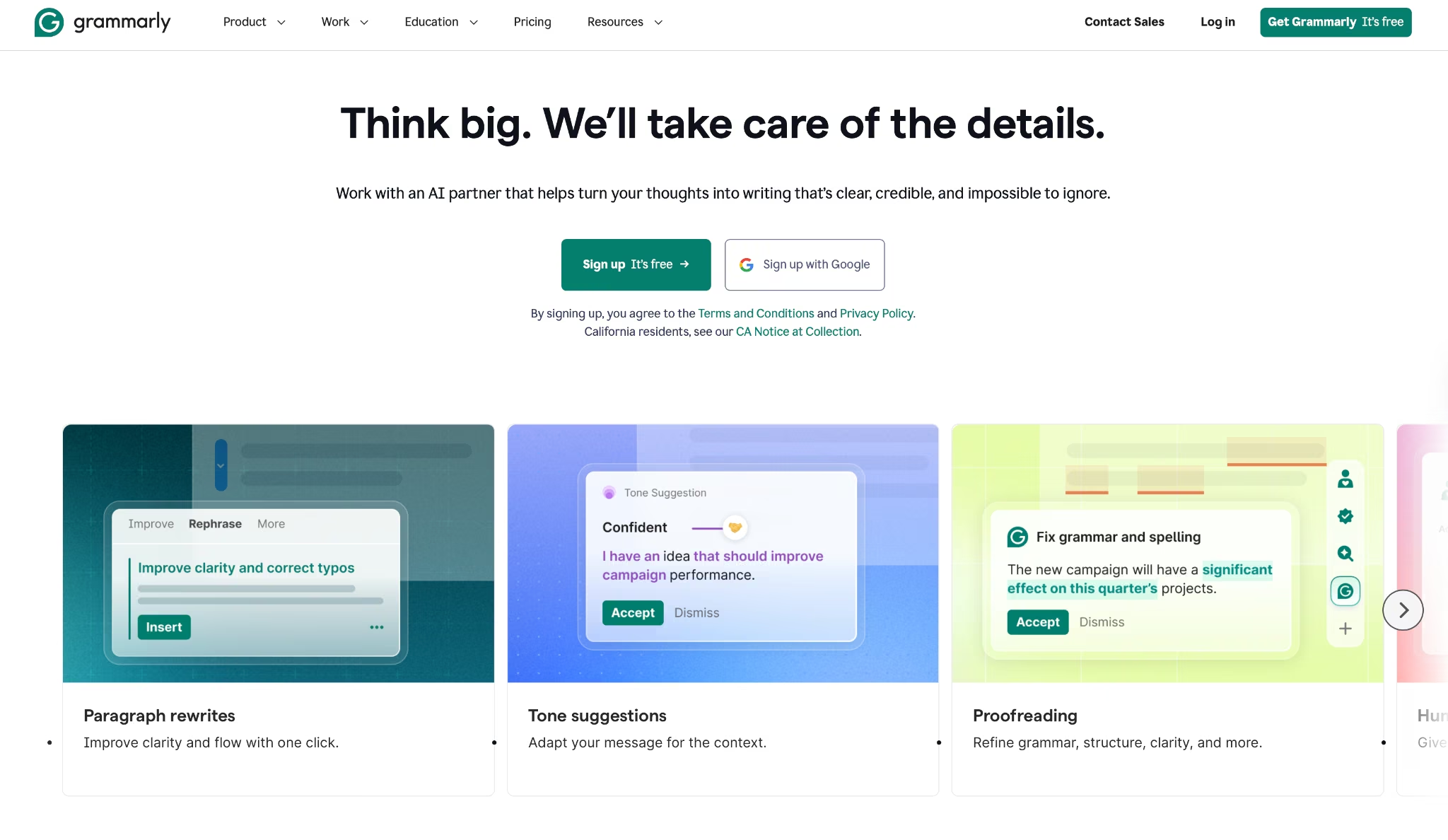
What it does: An AI writing assistant that catches grammar errors, rewrites full sentences, adjusts tone, and detects plagiarism across 1 million+ apps, browsers, and devices.
Best for: Freelancers who deliver written work to clients and need a second pass that catches what a tired eye misses before anything goes out the door.
Grammarly ran in the background across every tab and app I tested it in: Google Docs, Gmail, Notion, Slack, and even Figma. The tone detector flagged three emails in one afternoon that read more aggressively than I intended, and the one-click rewrite saved the client relationship on at least one of them.
That said, the AI side of it has a ceiling. The 2,000 AI prompt cap on Pro sounds generous until a heavy revision week arrives. On a project involving 11 client deliverables in five days, I burned through half the monthly allowance in 48 hours.
Key Features
- Full-sentence rewrites: Rewrites entire paragraphs in one click, keeping the original meaning while improving clarity, structure, and tone
- Reader Reactions agent: Set a target reader (client, manager, technical reviewer) and get fast feedback on how the message will land before it goes out
- Plagiarism and AI-generated text detection: Scans for accidental copying and flags AI-generated content, useful for freelancers whose clients require proof of original, human-authored work
Pros and Cons
Pros:
- Works across 1M+ apps and websites without copy-pasting, including Gmail, Docs, Notion, Slack, Word, and Figma
- Brand tone and style guide on Pro lets freelancers lock in a client's voice and apply it consistently across every deliverable
- Multilingual support across 23 languages with inline translation and paragraph-level rewrites
Cons:
- The 2,000 AI prompt cap on Pro runs out faster than expected on heavy revision weeks
- Enterprise pricing requires a sales call through Superhuman Go before you get a number, which isn't ideal when you just want to know the cost
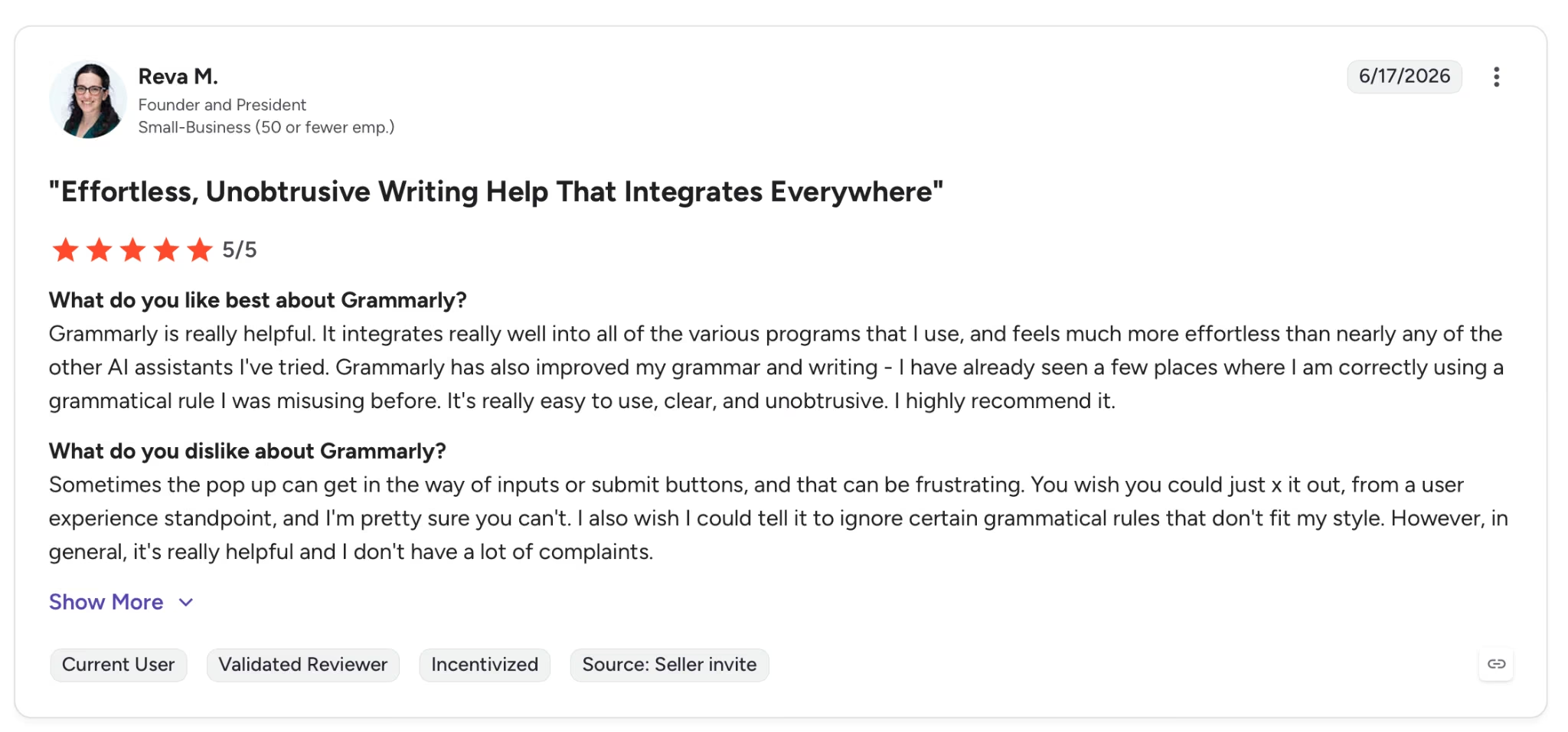
"It integrates really well into all of the various programs that I use, and feels much more effortless than nearly any of the other AI assistants I've tried." — Reva M., G2
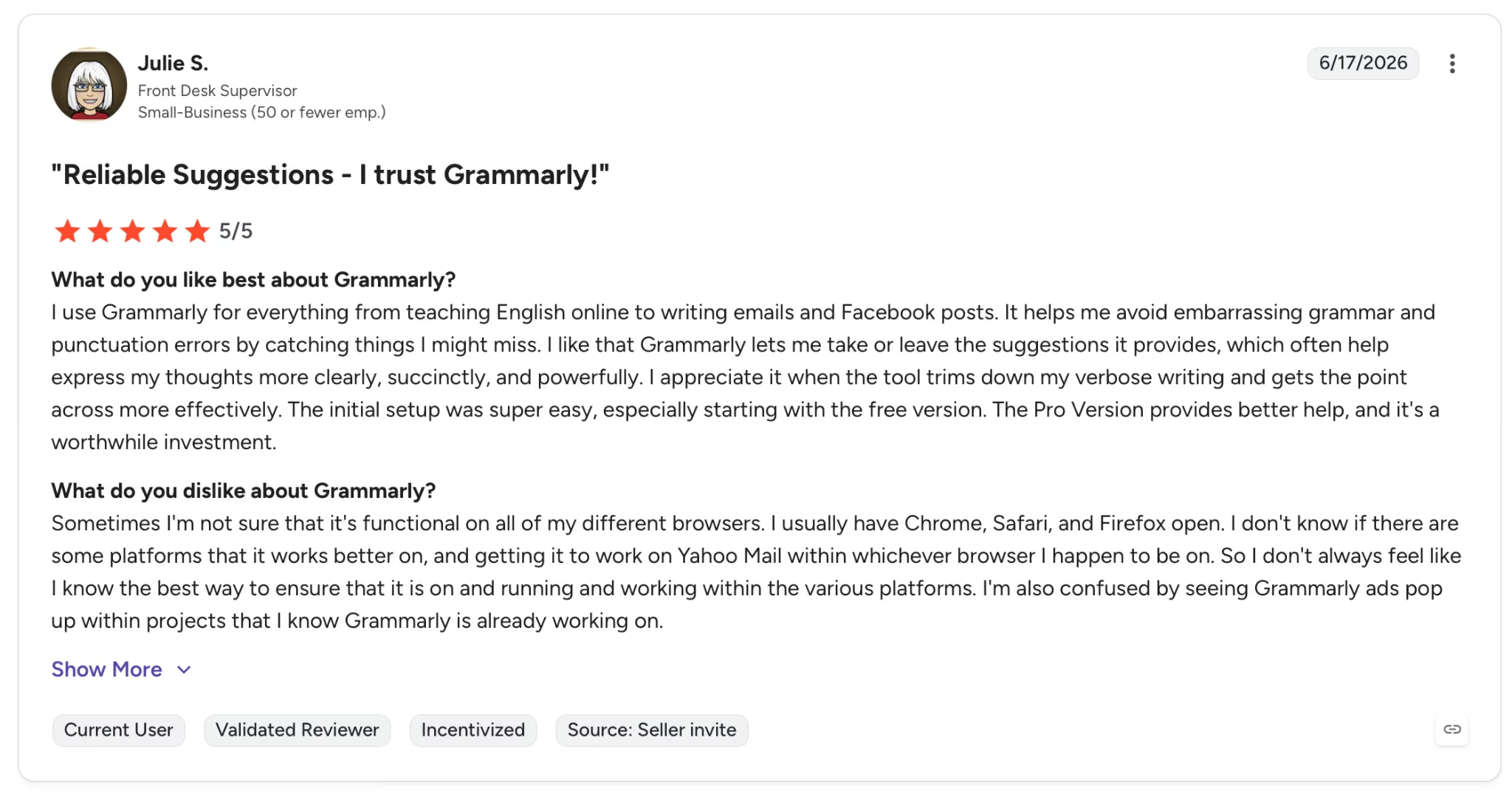
"Sometimes I'm not sure that it's functional on all of my different browsers." — Julie S., G2
Pricing
Pro runs $12/month billed annually. Enterprise is custom-priced through Superhuman Go.
Bottom Line
If you're sending written work to clients, $12/month for Grammarly Pro is easy to justify one flagged email before it goes out. For code, video, or design-first work, the prompt cap hits before the value does.
3. Canva AI: Best for Visual Content Without a Designer
What it does: A design platform with a full AI layer that generates images, resizes formats, removes backgrounds, writes copy, and produces video clips from text prompts, all inside one browser tab.
Best for: Freelancers who handle social content, presentations, or branded deliverables for clients and need professional output without hiring a designer or switching between tools.
Building a full set of social assets for a client campaign took 40 minutes in Canva Pro, including eight different format sizes. Magic Resize handled the reformatting across Instagram, LinkedIn, and Twitter dimensions in one click with zero manual cropping.
Video clip generation via Google Veo 3 draws from the Ultra AI tier and runs through the monthly credit pool faster than any other feature. Veo 3 video generation drains the AI credit pool fast, the real ceiling on video-heavy weeks.
Key Features
- Magic Resize: Converts any design to a different format size instantly, handling aspect ratios, text reflow, and element repositioning automatically
- Dream Lab image generation: Creates original images from text prompts with around 200 AI credits per month on Pro, enough for regular visual production without hitting a wall mid-project.
- Brand Kits: Stores fonts, colors, logos, and templates per client. Five clients, five brand identities, zero asset confusion between them
- Magic Write at scale: Generates and rewrites copy directly inside designs
Pros and Cons
Pros:
- Magic Resize and Background Remover on Pro eliminates the two most time-consuming manual tasks in client visual work
- Multiple Brand Kits on Pro make it easy to juggle several clients at once without mixing up their assets
Cons:
- Veo 3 video generation draws from the Ultra AI credit pool faster than image or copy features, exhausting the monthly allowance fast on video-heavy weeks
- Business at $250/year per person is a steep jump for solo freelancers who only need approval workflows
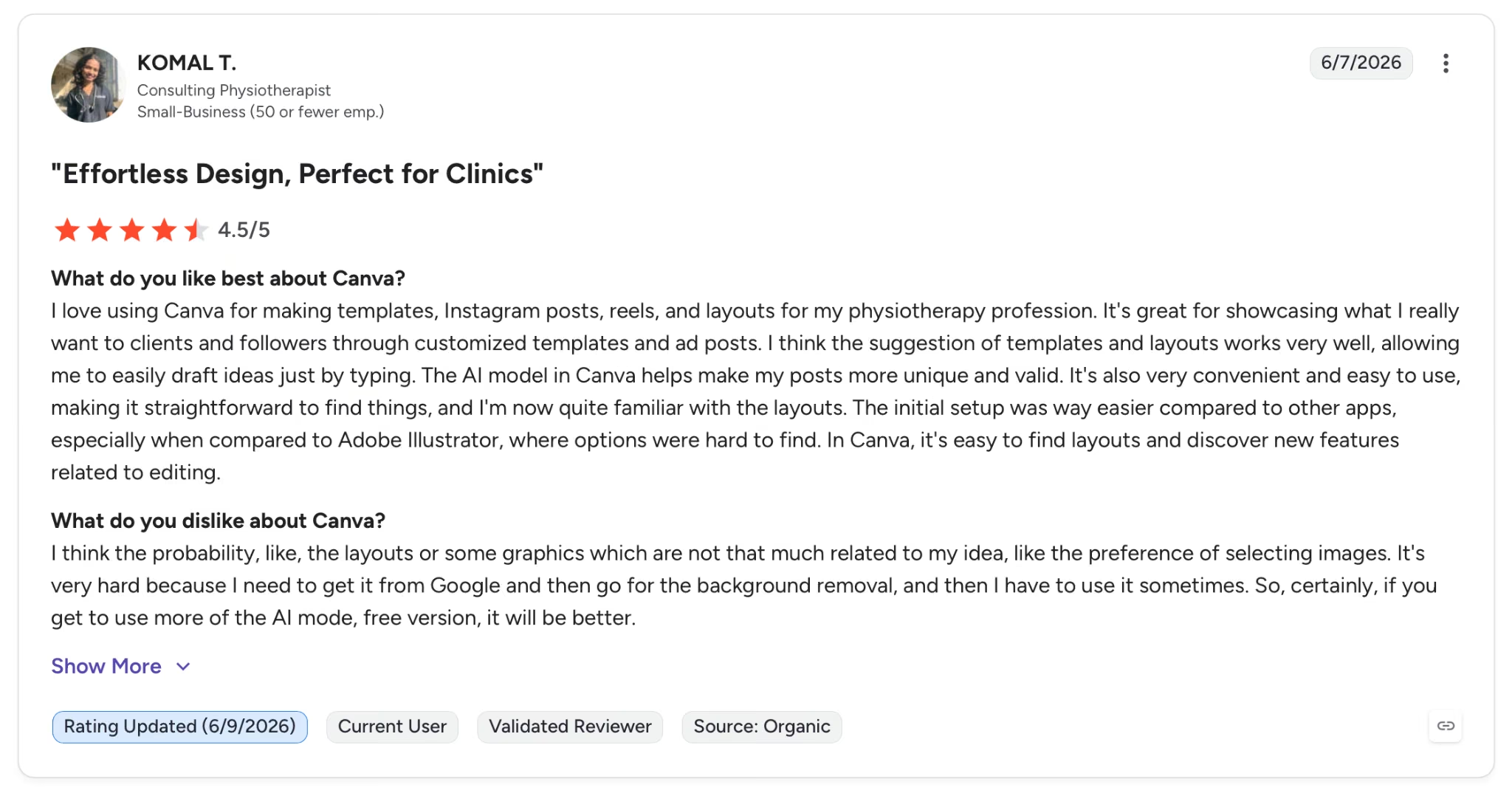
"It's great for showcasing what I really want to clients and followers through customized templates and ad posts." — Komal T., G2
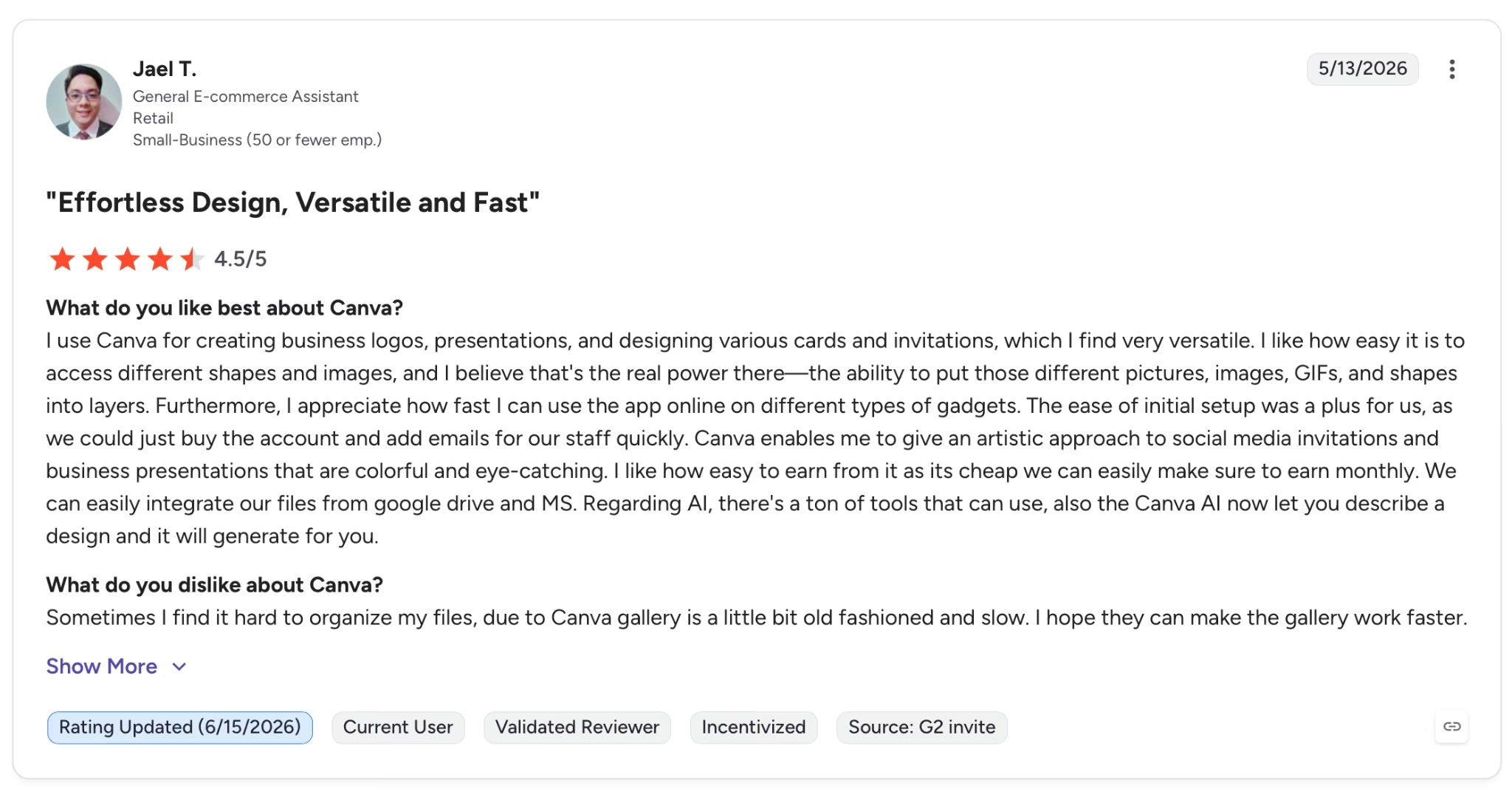
"Sometimes I find it hard to organize my files, due to Canva gallery is a little bit old fashioned and slow." — Jael T., G2
Pricing
Pro runs $12/month billed annually. Business starts at $250/year per person.
Bottom Line
Canva Pro covers the full visual workflow for freelancers handling social content or branded decks. If the work is primarily video-first, Veo 3 will drain the credit pool before the week is out.
4. Perplexity AI: Best for Fast, Sourced Research
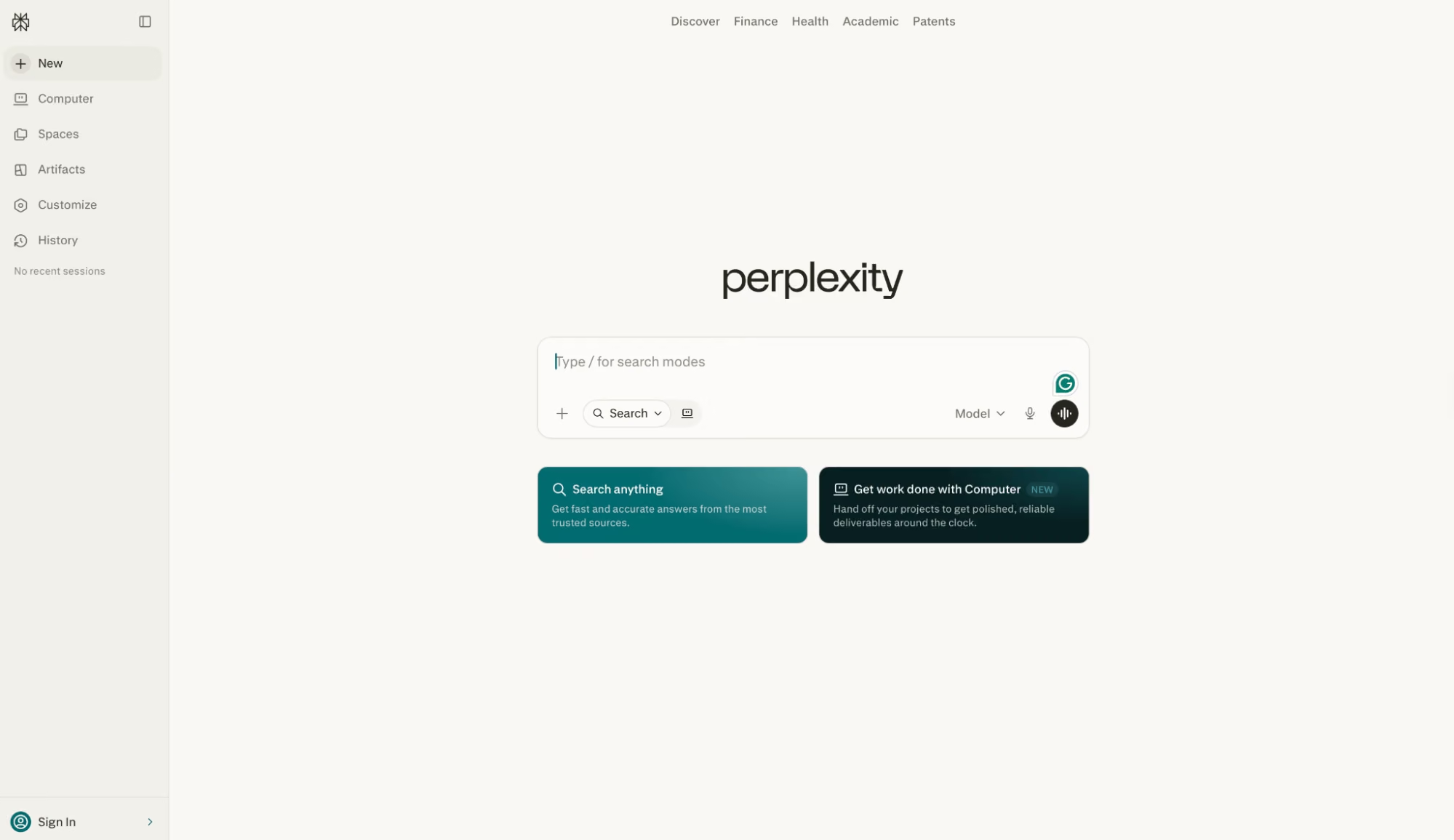
What it does: An AI answer engine that searches the web in real time and returns answers with inline citations, source links, and follow-up question suggestions across Search, Research, and Labs modes.
Best for: Freelancers who spend significant time on research tasks and need verified, source-backed answers they can reference in client deliverables without a separate fact-checking pass.
Switch from ChatGPT to Perplexity for research, and the difference shows up on the first query. Every answer arrives with numbered citations linked directly to the original source. For a client article requiring eight data points with verifiable references, the research phase dropped to under 20 minutes.
Research mode goes deeper but runs slower. Sometimes several minutes per query, which stalls you mid-draft if you're working against a deadline.
Key Features
- Real-time web search with inline citations: Every answer pulls from live sources and links each claim directly, so verifying or expanding on a finding takes one click instead of a separate search
- Spaces with file uploads: Upload PDFs, reports, and briefs into a dedicated Space, then ask questions across all files and the web simultaneously inside one project view
- Labs mode for interactive builds: Generates dashboards, code apps, and structured documents from a prompt, useful for turning research outputs into client-ready deliverables without switching tools
Pros and Cons
Pros:
- Citations are inline and linked, so the manual verification pass that drags out research projects largely disappears
- Spaces keep all project files, web searches, and threads together. No toggling between a research tab and a writing tab
- Works across the web, iOS, and Android with no app installation required beyond a browser
- Supports file uploads, including PDFs and documents, directly inside Spaces, so client briefs and background reports stay in the same session
Cons:
- Research mode queries can take several minutes to complete, a genuine problem on tight deadlines when the next task is already waiting
- Labs builds are useful for prototypes but not production-ready, so anything requiring deployment needs a separate tool
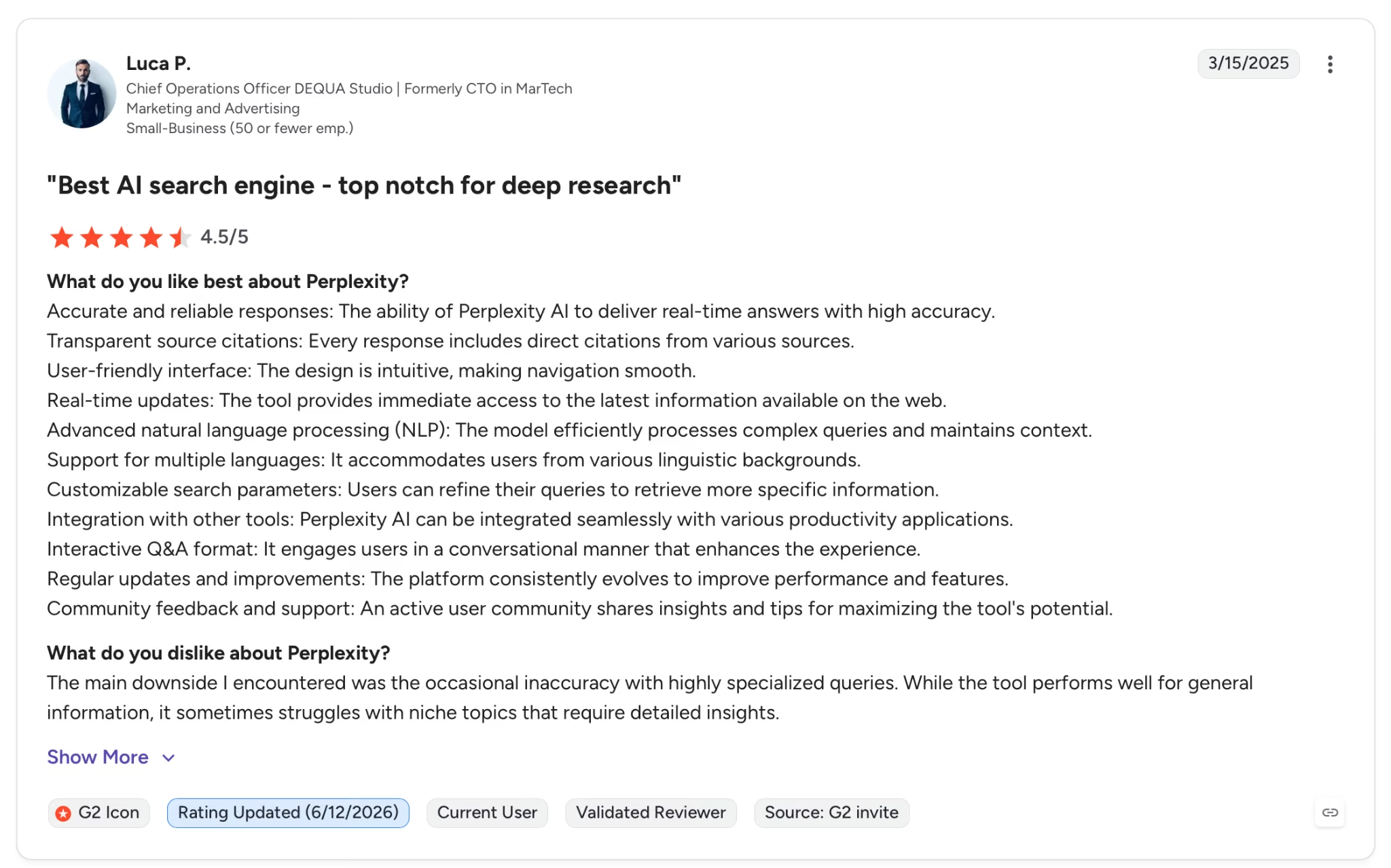
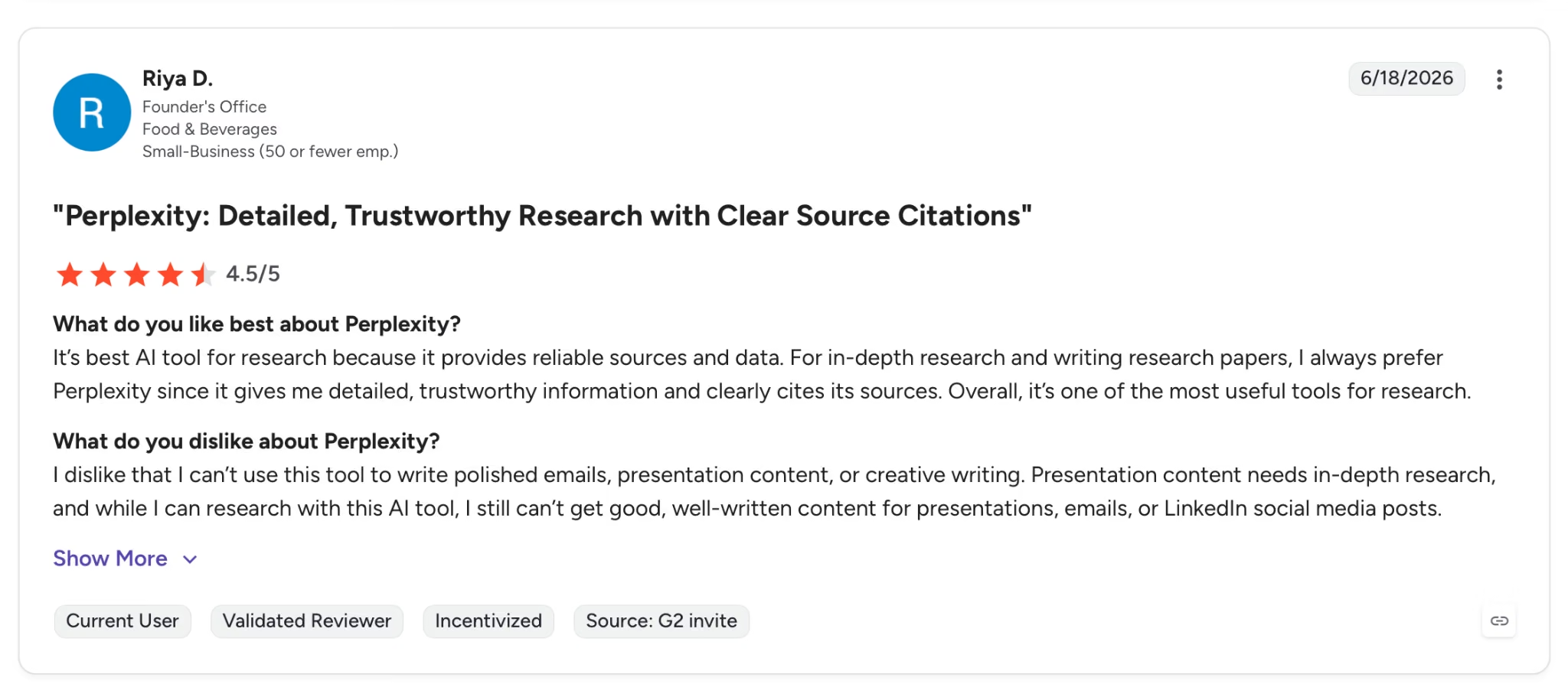
"I dislike that I can’t use this tool to write polished emails, presentation content, or creative writing." — Riya D., G2
Pricing
Pro runs $20/month billed monthly and includes unlimited searches, file uploads, Spaces, and Labs mode.
Bottom Line
For content-heavy or research-intensive work, Perplexity Pro cuts the fact-checking loop faster than any other tool in this list. Writing or design work with minimal research? The free tier handles it.
Still figuring out which one fits your research workflow? Our Perplexity vs ChatGPT vs Claude breakdown covers the real differences before you commit.
5. Notion AI: Best for Client Project Management
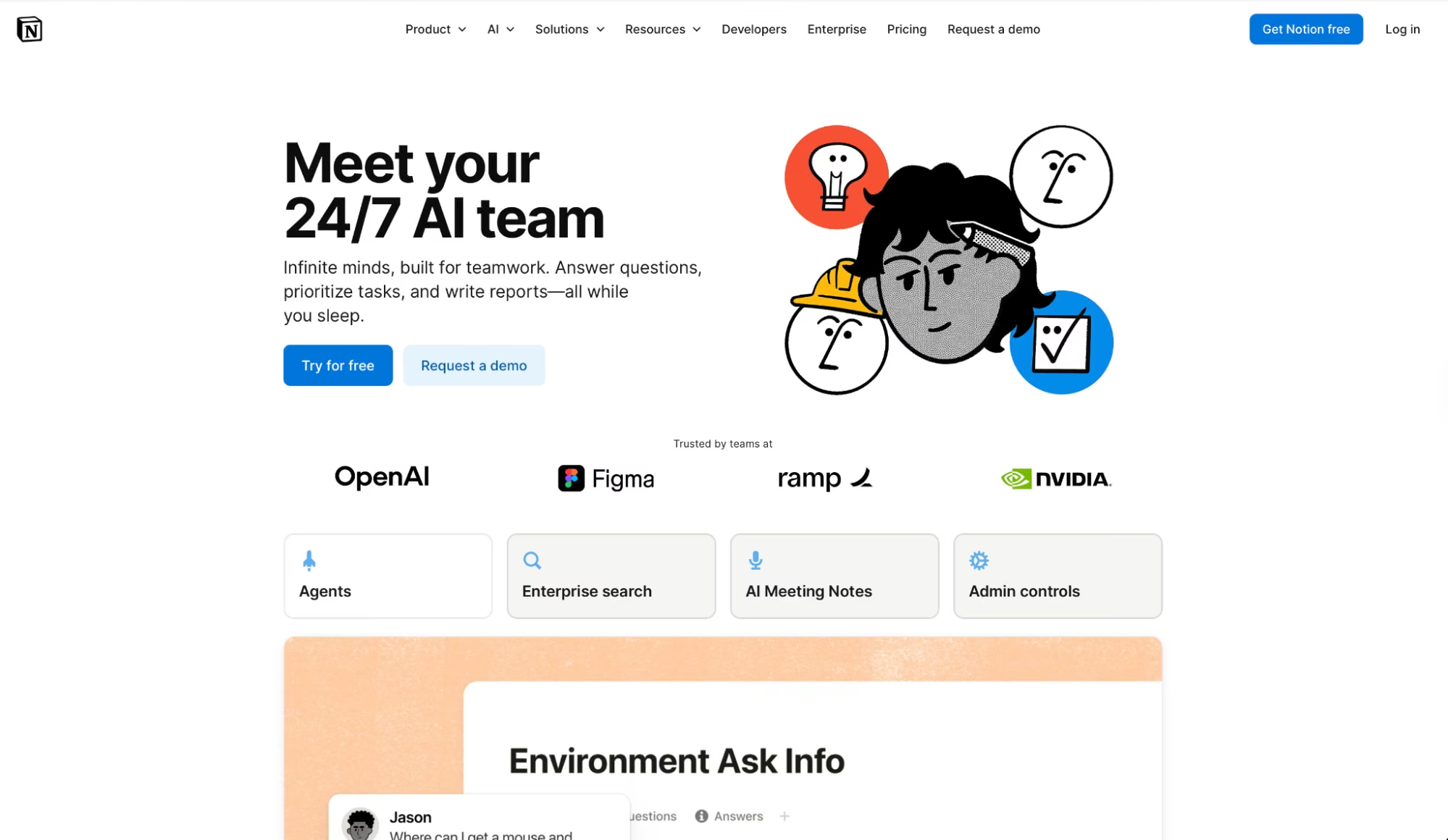
What it does: A workspace with a full AI layer that combines project management, document creation, meeting notes, and autonomous agents inside one platform, with Enterprise Search across Slack, Google Drive, and GitHub.
Best for: Freelancers managing multiple client projects simultaneously who need a single workspace where briefs, tasks, meeting notes, and deliverables live and update together.
In one session, the Notion Agent edited a project database and drafted a client status update without me opening another tab. It pulled the action items directly from a meeting summary that was already sitting in the same workspace.
The meeting summary pulled those items from AI Meeting Notes, which had transcribed a 45-minute call earlier. Research Mode is still in Beta and occasionally produces incomplete outputs.
Key Features
- Notion Agent: Takes multi-step actions directly inside your workspace. It creates pages, edits databases, drafts documents, and routes tasks based on instructions, with no separate automation tool needed
- AI Meeting Notes: Joins calls, transcribes the full conversation, and auto-generates summaries and action items inside the relevant project page where the team can act on them immediately
- Enterprise Search: One query searches Notion, Slack, Google Drive, GitHub, and Microsoft Teams simultaneously. If the file exists, it's in the results
- Custom Agents: Automates recurring workflows on a trigger or schedule, such as routing new client intake forms, summarizing weekly updates, or posting project status to Slack automatically
Pros and Cons
Pros:
- Notion Agent executes multi-step tasks inside the workspace with no external automation tool or separate setup required
- AI Meeting Notes handles the transcription and surfaces action items directly in the relevant project page
- Enterprise Search across Slack, Google Drive, and GitHub from one query cuts the time spent hunting for files or threads across disconnected apps
Cons:
- Business plan is $20/member/month. Invite a client or collaborator to the workspace and that seat goes on the bill
- Custom Agents require Notion credits as an add-on after the free period, so the total cost of heavy automation is hard to predict before the first bill arrives
- Research Mode is still in Beta and can produce incomplete outputs, so it isn't consistent enough yet for client-facing research deliverables

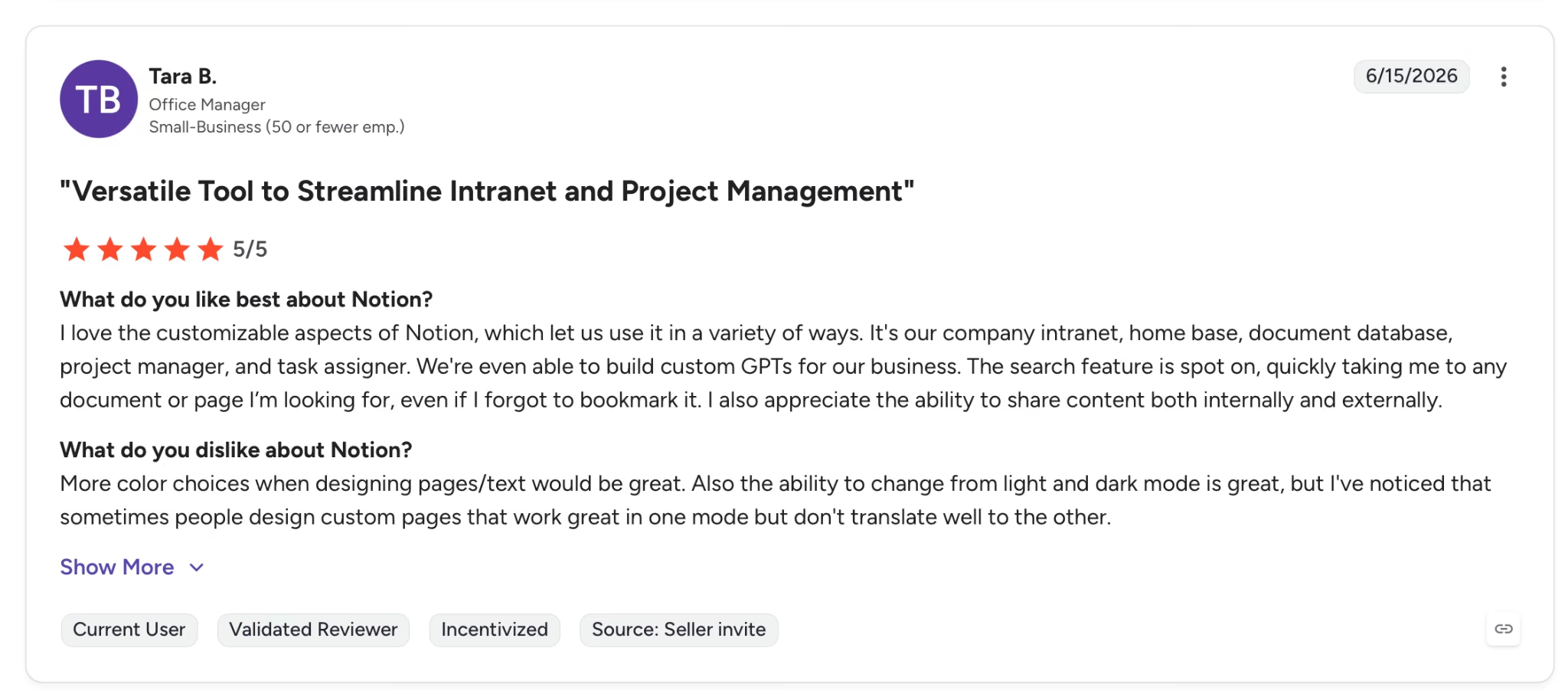
"More color choices when designing pages/text would be great." — Tara B., G2
Pricing
Business runs $24/member/month ($20/member/month billed annually) and includes Notion Agent, AI Meeting Notes, and Enterprise Search. The Plus plan, at $12/member/month, has a limited AI trial only.
Bottom Line
For freelancers running several client accounts at once, Notion AI on Business is the strongest workspace option on this list. If you need a writing assistant or research tool rather than a full workspace, ChatGPT or Perplexity can get there at a lower cost.
Ready to take your work beyond documents and into a real product? Read our guide on how to build a website with AI in 10 simple steps.
6. Emergent: Best for Building the Tools Your Clients Need
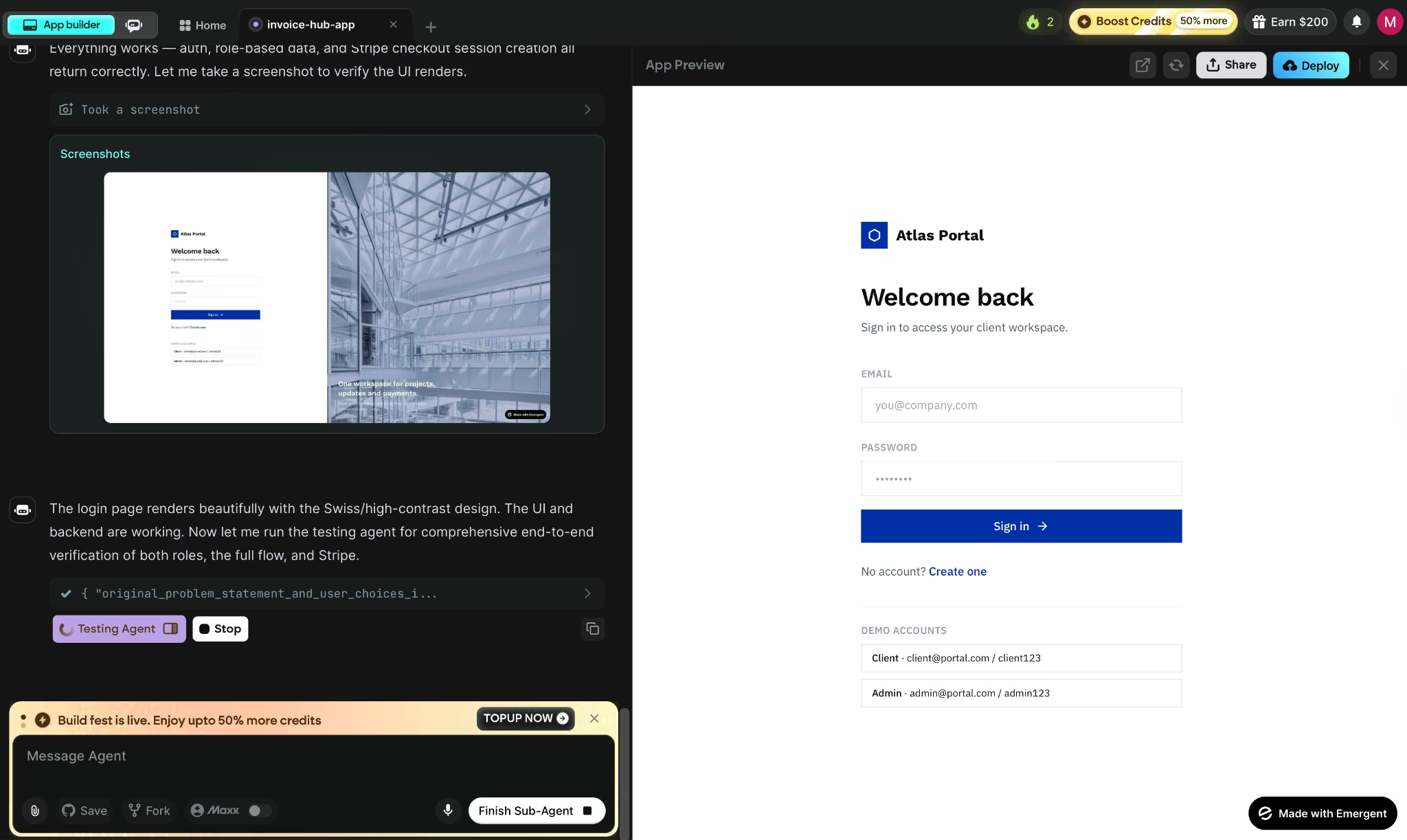
What it does: Agentic coding platform where you describe what you want and specialized agents build, test, and deploy a working web or mobile app, with hosting and Emergent Auth included.
Best for: Freelancers, non-technical founders, and ops teams who need to deliver custom software to clients without an engineering team or a development budget.
Building a client portal on Emergent took two prompts and was live on a hosted URL with SSL before the end of the session. The app came with sign-in, a database, and a Stripe integration added by asking for it in plain English, with no configuration file touched.
The testing agent caught a regression mid-build and flagged it before deployment, which on a traditional stack would have meant a separate QA cycle.
The build went smoothly, and specialized agents caught regressions before anything shipped. The friction showed up after a few deployment cycles. The only options were replace or revert, which meant any live data in between was gone.
Key Features
- Multi-agent architecture: Specialized agents handle the full build in parallel as a coordinated system, which keeps the output stable as the app grows
- Live app monitoring: Analytics, health checks, error logs, and mobile alerts run automatically on every deployed app
- Automated regression testing: The testing layer catches errors before they ship, so large builds stay coherent as you iterate
- Universal LLM Key: Plug Claude, GPT, or Gemini into your app using Emergent credits without needing your own API keys
Pros and Cons
Pros:
- From idea to deployed app faster than any other route I tested. Design, code, testing, and deployment are handled without a developer on the team
- Automated regression testing runs on every build. That's what keeps larger, multi-layered apps from breaking as they grow
- Code exports to GitHub on Standard and above, so you own the codebase and can move it to any hosting provider later
Cons:
- Prompt quality matters. Vague descriptions produce vague apps, and fixing them means rewriting the prompt, not tweaking the output
- After three or four deployment cycles, the preview database can diverge from the live version with no merge option, only replace or revert
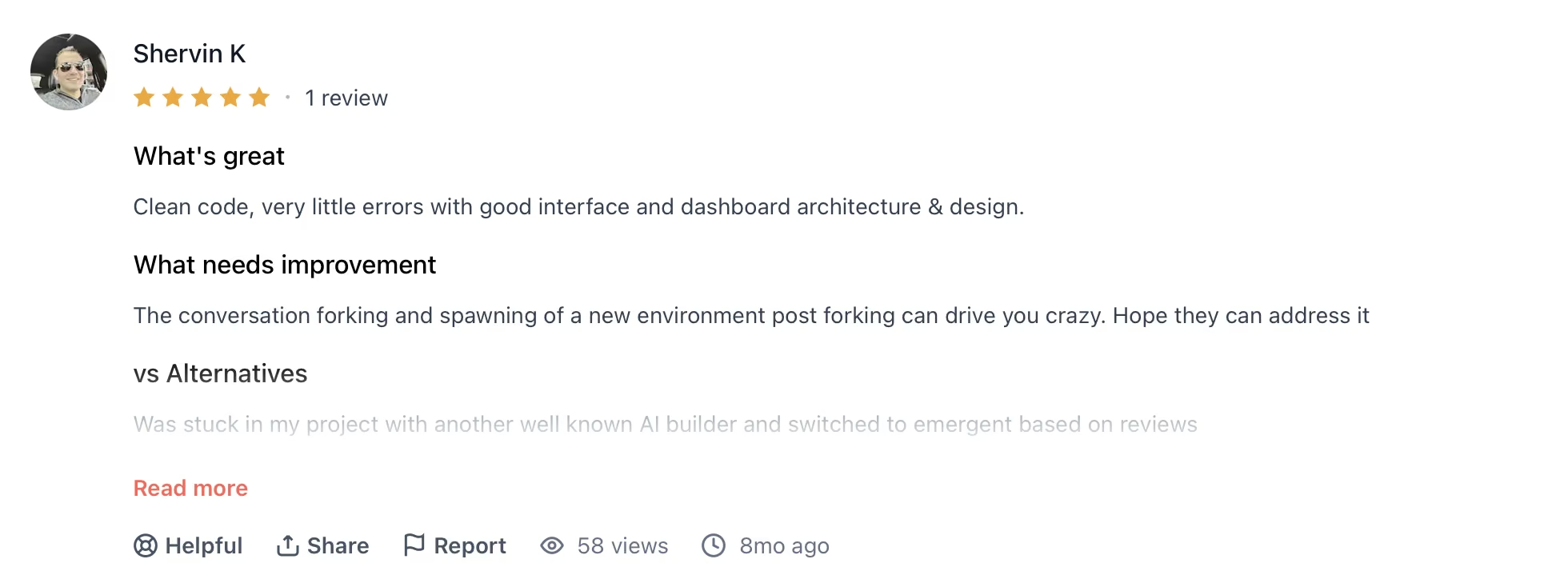
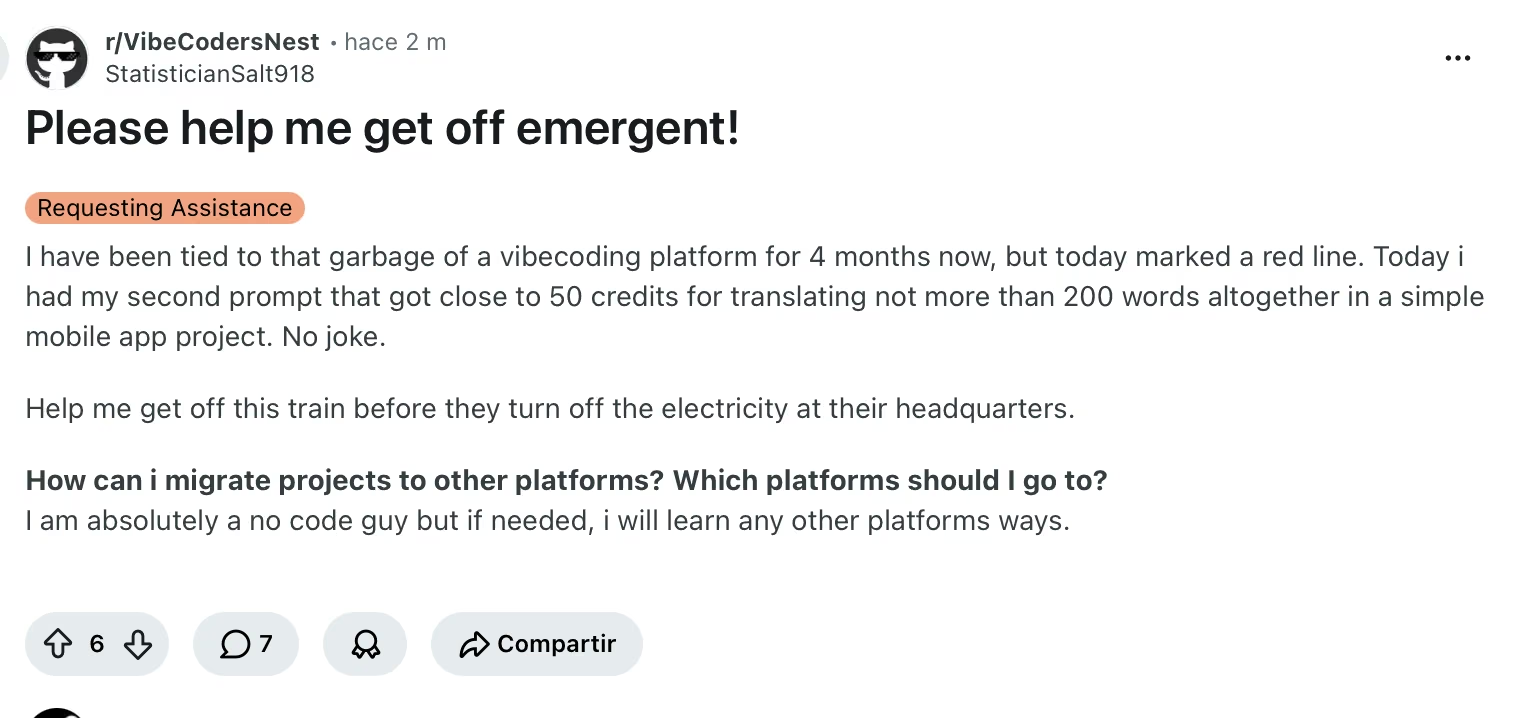
"Today I had my second prompt that got close to 50 credits for translating not more than 200 words altogether in a simple mobile app project." — Verified User, Reddit
Pricing
Standard starts at $20/month ($17/month billed annually) for 100 credits and GitHub sync. Pro at $200/month adds 750 credits and Ultra thinking.
Bottom Line
For freelancers delivering custom portals or internal tools without an engineer, Emergent is faster and cheaper than patching together a stack of SaaS subscriptions to cover the same ground.
7. Descript: Best for Video and Audio Editing by Text
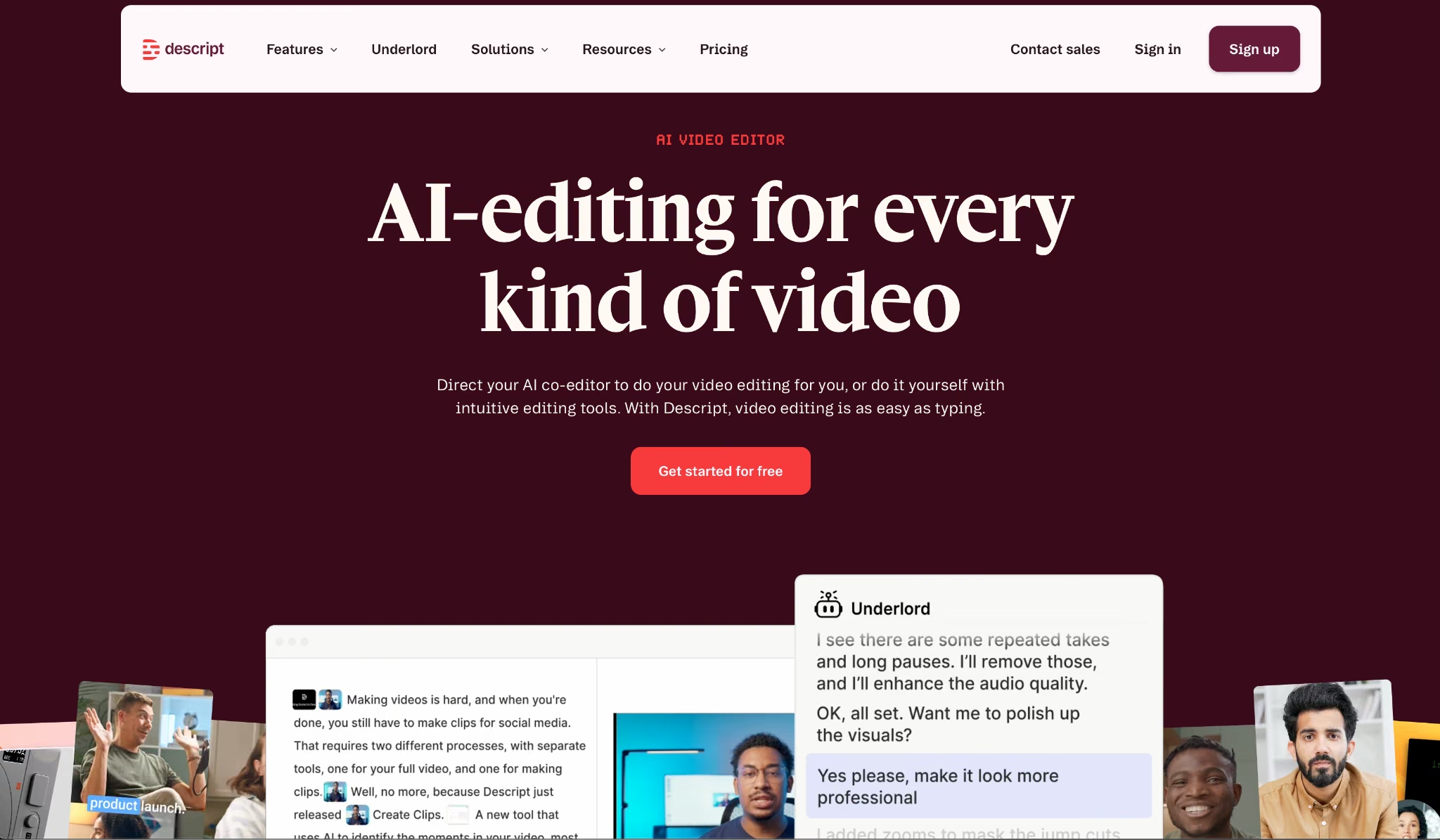
What it does: A video and audio editor that works through a transcript: delete a word in the text and the corresponding clip disappears, rearrange sentences and the footage follows, all without touching a timeline.
Best for: Freelancers who produce video content, podcasts, or training materials for clients and spend most of their editing time on cuts, filler removal, and cleanup rather than motion graphics or color grading.
Editing a 35-minute client interview in Descript took minutes. It removed filler words and cleared every "um" and "like" in one pass without me touching the timeline. Studio Sound fixed a recording taken in a coffee shop well enough to send directly to the client without a second take.
The catch is the monthly allowance. Ten media hours on Hobbyist run out faster than it sounds. A single 40-minute interview plus two short clips consumed 80% of it in one session.
Key Features
- Remove filler words: Scans the full transcript and highlights every repeated phrase for bulk removal in one click, with no manual scrubbing through the timeline
- Studio Sound: Removes background noise and enhances speech quality on any recording
- Overdub: Records a voice sample and generates a personal AI voice that can regenerate words or phrases to fix audio mistakes without re-recording the original clip
- Underlord AI co-editor: Generates clips from long recordings, writes social posts, and show notes. Also repurposes content across formats, and builds a complete video from a prompt inside the same editor
Pros and Cons
Pros:
- Text-based editing cuts the time spent on interview and podcast projects more than any timeline-based editor tested in this category
- Studio Sound and Remove Filler Words work in one click and produce client-ready audio from recordings taken in non-studio environments
- Overdub means a mispronounced word or dropped phrase gets fixed in the editor, with no client callback or second recording session
Cons:
- Hobbyist at 10 media hours per month isn't enough for freelancers who produce more than two or three long-form videos regularly
- Video dubbing in 24+ languages and Brand Studio are Business-only features, sitting two plan tiers above the entry price
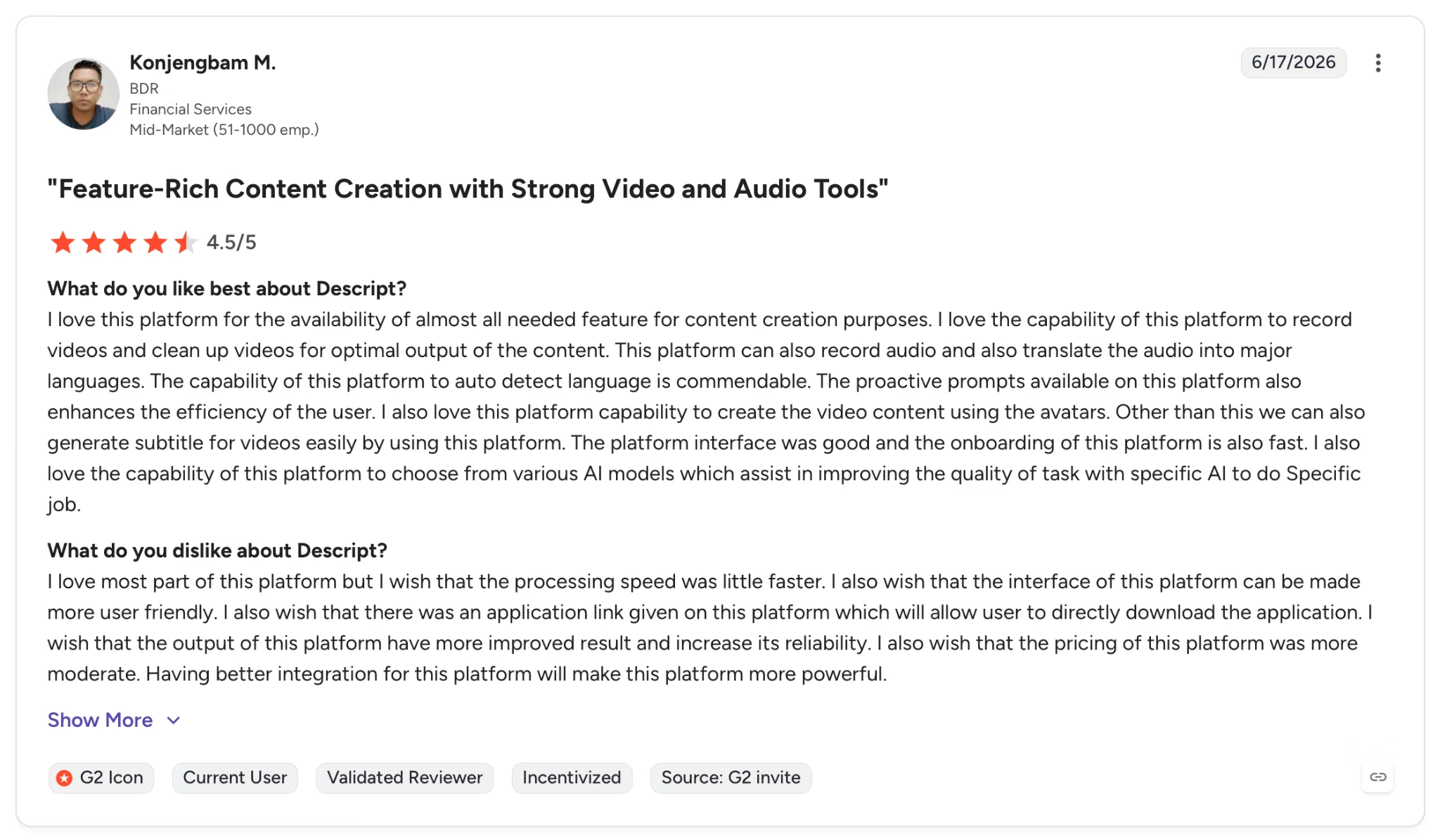
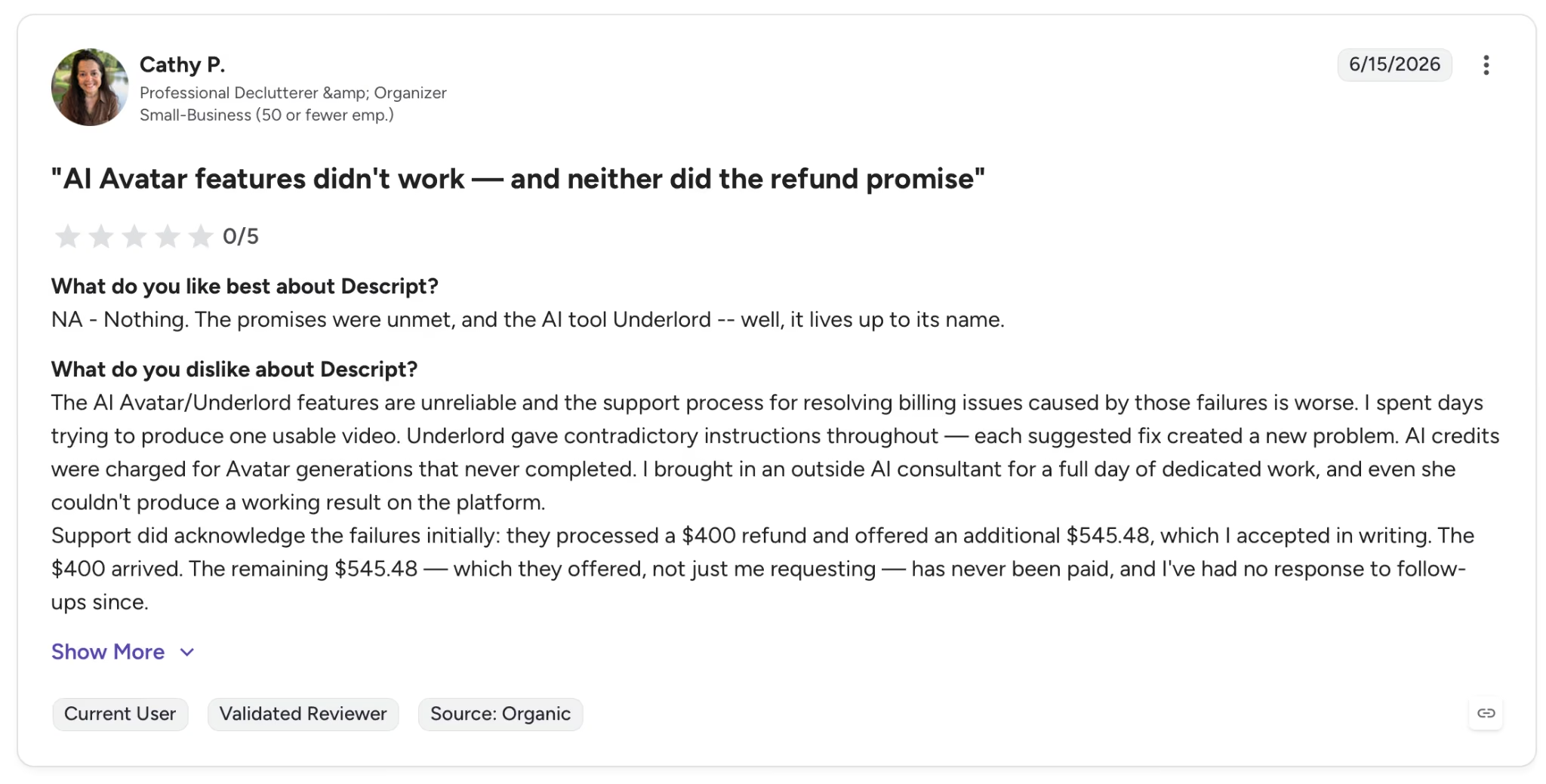
"The AI Avatar/Underlord features are unreliable and the support process for resolving billing issues caused by those failures is worse." — Cathy P.., G2
Pricing
Hobbyist runs $24/month ($16 per person/month billed annually) and includes 10 media hours, Studio Sound, and Remove Filler Words. Creator at $35/month adds 30 hours and 4K export.
Bottom Line
For spoken-word video and podcast editing, Descript is worth the subscription. Motion graphics, animation, or color-heavy production work sit outside what it does well, and a dedicated timeline editor will serve those better.
8. Zapier: Best for Automating Repetitive Client Workflows
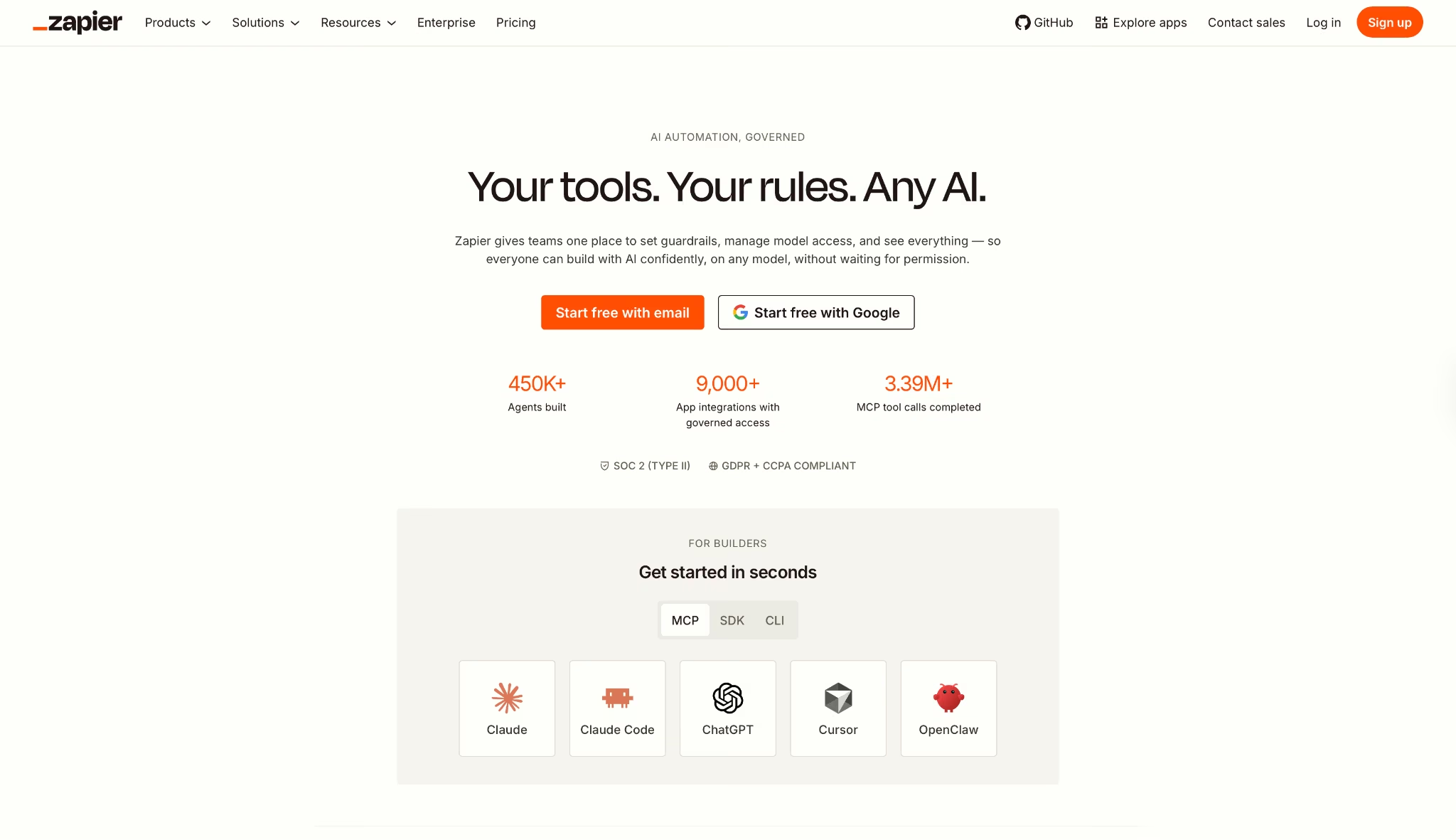
What it does: An automation platform that connects apps through trigger-and-action workflows, with AI steps, MCP support, Tables for data storage, and Forms for intake. All inside one task-based system.
Best for: Freelancers who spend time on repetitive manual tasks between apps and want to automate without writing code or managing a developer setup.
Three Zaps I built in the first session are still running six weeks later without a single intervention. A new Typeform submission creates a Notion project, sends a Slack notification, and adds a row to a Google Sheet, all in under ten minutes of setup.
The multi-step visual editor lays out the logic in a way that's easy to walk a client through if they ask how their data is being handled.
The task-based pricing model is where the math gets complicated. AI steps and MCP tool calls pull from the same shared task pool at different rates, which makes cost harder to predict than the plan page suggests.
Key Features
- 9,000+ app integrations with unlimited Zaps on paid plans: Connects to more apps than any other automation tool here, covering every combination of CRM, inbox, calendar, form, sheet, and communication tool a freelancer is likely to use
- AI steps inside Zaps: Adds an AI processing layer directly inside a workflow to classify, summarize, extract, or transform data between steps, with no external AI tool or API key required
- Zapier MCP: Connects the Model Context Protocol to your full app stack, so agents running in ChatGPT, Claude, or Cursor can trigger Zapier workflows directly without leaving their environment
- Tables and Forms included: Stores structured data and collects client inputs natively inside Zapier, removing the need for a separate database or form tool for straightforward intake workflows
Pros and Cons
Pros:
- Multi-step Zaps with filters, paths, delays, and loops handle conditional logic without code, covering the scenarios freelancers run into: client intake, status updates, and cross-tool data sync
- MCP support lets AI agents built outside Zapier trigger actions across connected apps. As agent-based workflows become more common, this matters more
- Tables and Forms are included in every plan, so basic data collection and storage workflows need no additional tools
Cons:
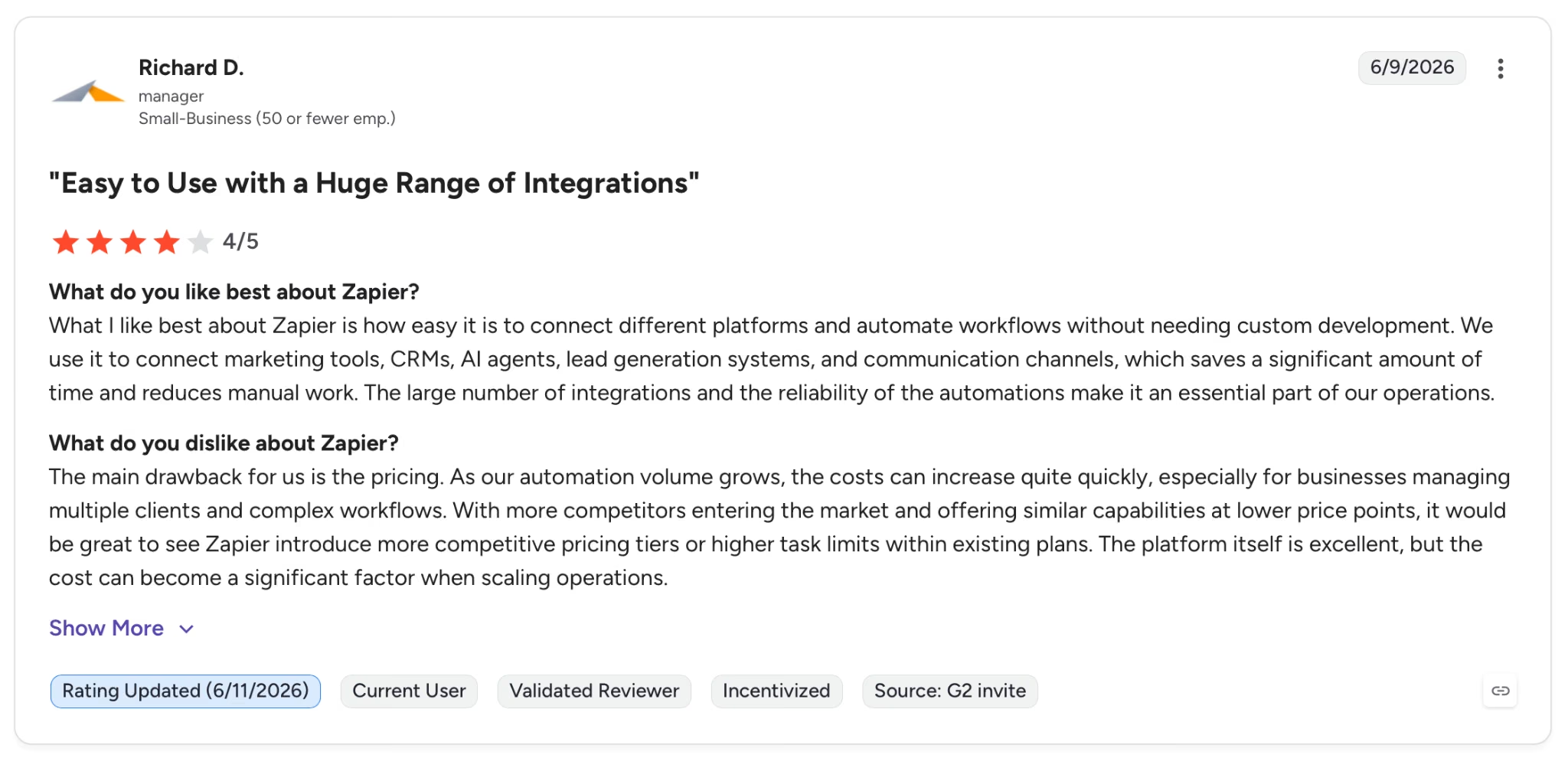
- AI steps, MCP calls, and code steps consume tasks at higher rates than standard actions, making cost harder to predict on workflows that mix automation with AI processing
- Free plan is limited to 2-step Zaps and 100 tasks per month, which isn't enough for any multi-step freelance workflow
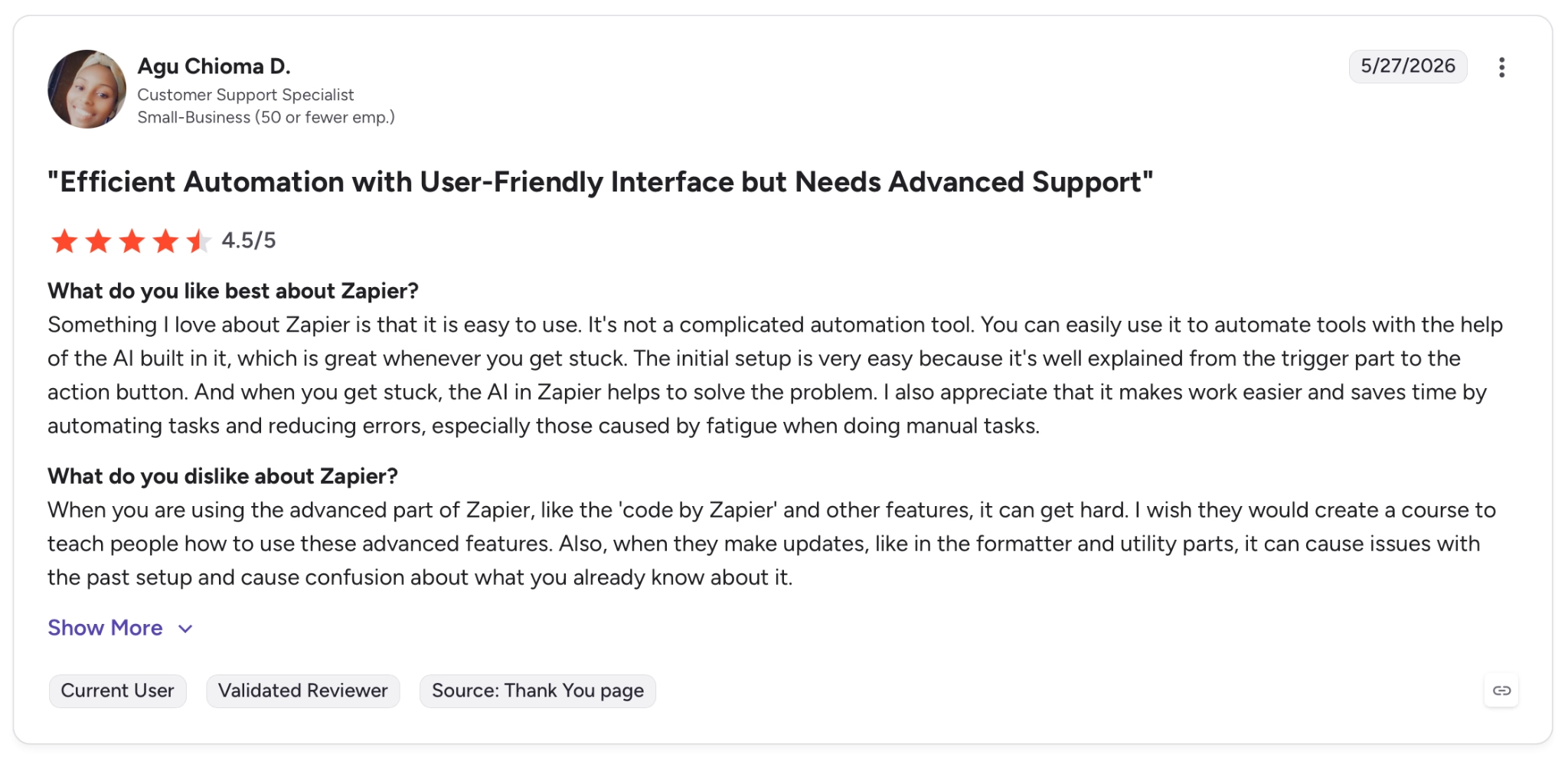
"When you are using the advanced part of Zapier, like the 'code by Zapier' and other features, it can get hard." — Agu Chioma D., G2
Pricing
Professional starts at $29.99/month ($19.99/month billed annually) with task volume determining the final price, and includes multi-step Zaps and unlimited premium apps. Team starts at $103.50/month.
Bottom Line
For connecting apps a freelancer already uses without writing a line of code, nothing on this list comes close to Zapier's coverage. Building something new for a client rather than connecting what's already there? Emergent is the better call.
Already hitting Zapier's limits or paying for more than you use? Our best Zapier alternatives breakdown covers what else is worth trying in 2026.
9. Claude: Best for Long-Form Writing and Deep Analysis
What it does: An AI assistant designed for extended reasoning, long-form writing, and agentic task execution. With Projects for persistent context, Cowork for delegating tasks across local files and cloud apps, and Research for deep multi-source web search.
Best for: Freelancers who work with long, multi-layered documents and need an AI that maintains context across a full project without losing track of instructions, tone, or prior decisions.
I tested Claude handling a 12,000-word client research report across four sessions without losing the brief, the tone guide, or the prior edits. Extended thinking mode worked through ambiguous sections by reasoning out loud before committing to a direction.
Cowork is the feature that had the biggest effect on my day-to-day. It executed a multi-step task involving a Google Doc and a local folder without any manual stitching between steps.
The tradeoff is that Research and extended thinking both draw from the same Pro usage pool, so sessions that lean heavily on either hit the limit faster than standard chat.
Key Features
- Projects with persistent context: Stores instructions, documents, tone guides, and conversation history inside a named project so every session picks up exactly where the last one ended, with no re-briefing required
- Claude Cowork: Delegates multi-step tasks across local files and cloud-connected apps, including Google Workspace and Slack, with step-by-step approval before anything is executed
- Extended thinking: Activates a visible reasoning layer where Claude works through difficult problems before responding, which produces more dependable outputs on analytical or multi-part tasks than a standard prompt
- Research mode: Runs deep multi-source web searches and synthesizes results into a structured, cited output inside the same session where the writing is happening
Pros and Cons
Pros:
- Extended thinking produces measurably stronger outputs on long analytical tasks than standard prompt-and-response
- Cowork handles multi-step task delegation across local files and cloud apps with per-step approval
- Projects maintain full context, tone guides, and document history across sessions
Cons:
- Pro usage limits drop faster during Research and extended thinking sessions than during standard chat. The Max plan starts at $100/month, a steep jump with no middle tier
- Claude Fable 5, the top model on the roadmap, is currently listed as unavailable on the pricing page, with no confirmed release date
What Users Say
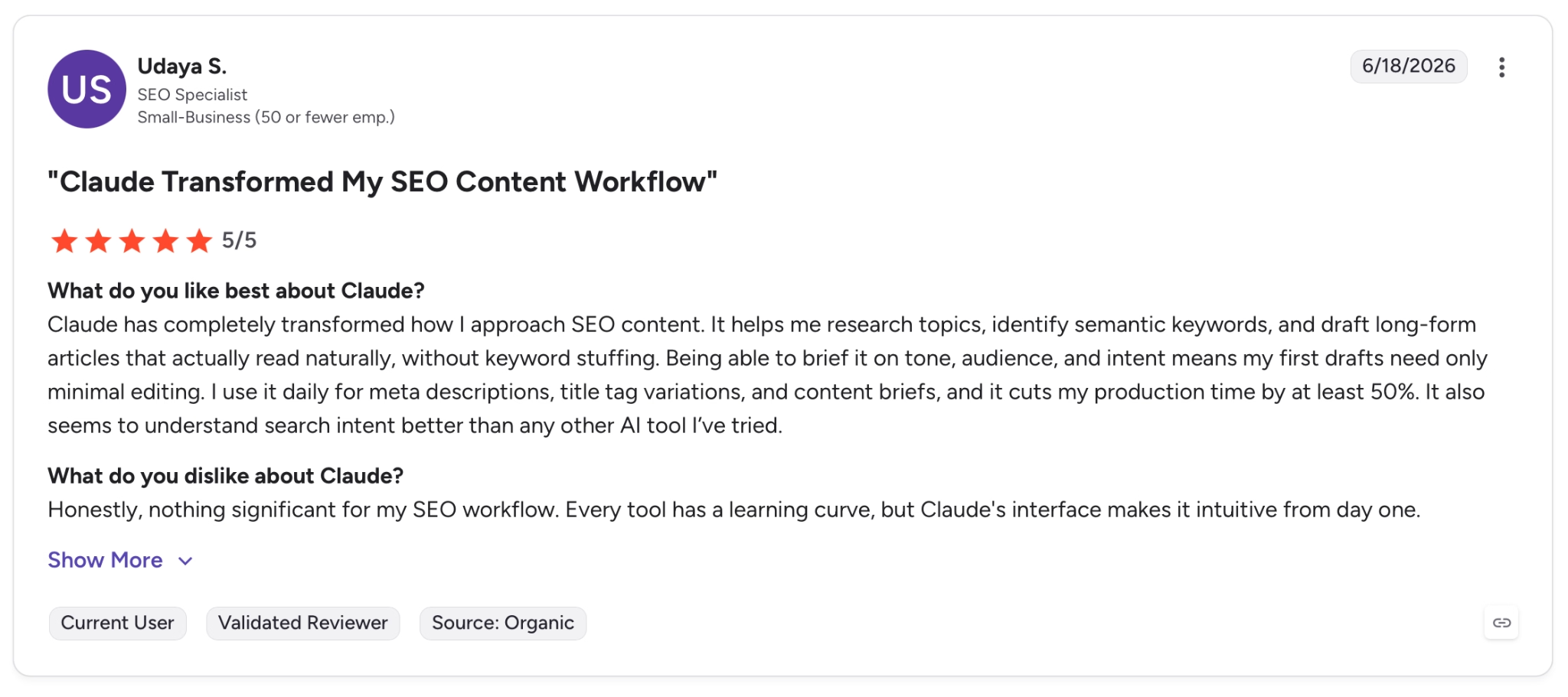
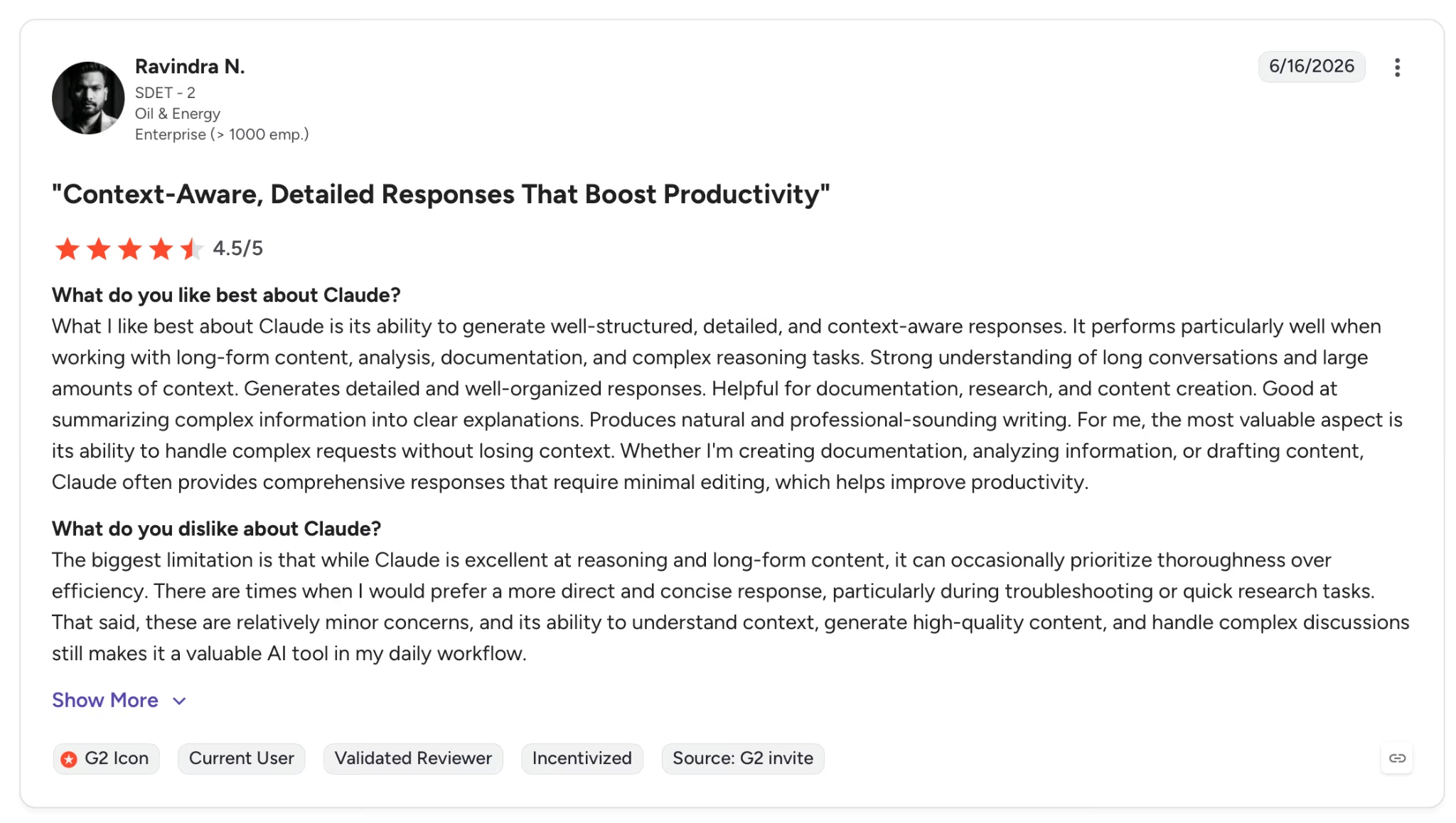
"The biggest limitation is that while Claude is excellent at reasoning and long-form content, it can occasionally prioritize thoroughness over efficiency." — Ravindra N., G2
Pricing
Pro runs $20/month ($17/month billed annually) and includes Projects, extended thinking, Cowork, and Research. Max starts at $100/month with 5x to 20x more usage than Pro.
Bottom Line
Claude Pro holds up better across all three than anything else I tested. Long documents, multi-session client projects, analytical writing. Quick research lookups belong in Perplexity; visual output belongs in Canva.
10. Otter.ai: Best for Meeting Transcription and Client Call Notes
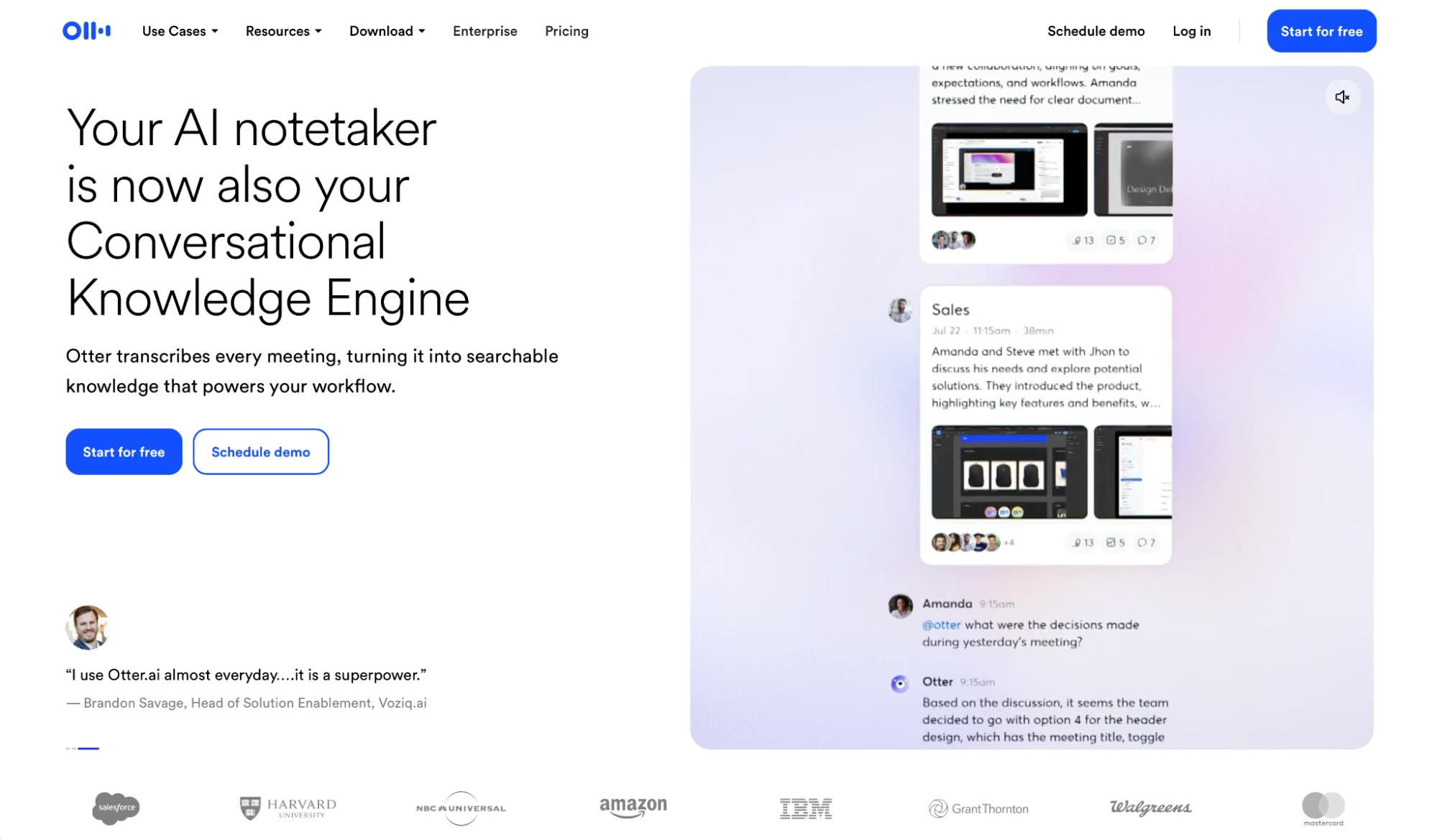
What it does: An AI meeting assistant that joins Zoom, Google Meet, and Microsoft Teams automatically, transcribes conversations with speaker identification, generates summaries with action items, and syncs notes directly to Salesforce or HubSpot.
Best for: Freelancers who run frequent client calls and need accurate, searchable transcripts with action items without spending time on manual note-taking after every meeting.
Otter joined a 52-minute client discovery call on Zoom without any manual intervention. It had a structured summary with action items ready before the call ended.
Speaker identification worked from the first exchange without any manual setup. The custom vocabulary feature picked up a client's product names and internal acronyms after one training session.
The first constraint shows up at 90 minutes. Any client workshop or recorded training session that runs longer requires the Business Plan. A meaningful price jump for a single-person operation.
Key Features
- Automatic meeting join across Zoom, Teams, and Meet: Otter joins scheduled calls from the calendar without any manual trigger and starts transcribing immediately, with no host permission required on Pro
- Speaker identification with custom vocabulary: Labels each speaker by name and learns up to 200 custom names and 200 domain-specific terms per user, so client-specific jargon shows up correctly in the transcript from the second meeting onward
- AI Chat over transcripts: Query any past call or the full recording library in natural language. Ask "what did the client say about the timeline in the March call" and it returns the exact timestamp
Pros and Cons
Pros:
- Joins calls automatically and delivers a structured summary with action items before the meeting ends
- Transcript search by speaker, keyword, and date range turns six months of client calls into a searchable record
Cons:
- Pro caps individual conversations at 90 minutes, so any client workshop or training session that runs longer gets cut mid-transcript
- Salesforce and HubSpot sync maxes out at 1 user on Business, not workable for freelancers running separate CRM accounts per client
- Transcription covers only six languages (English, Spanish, French, German, Japanese, Chinese)
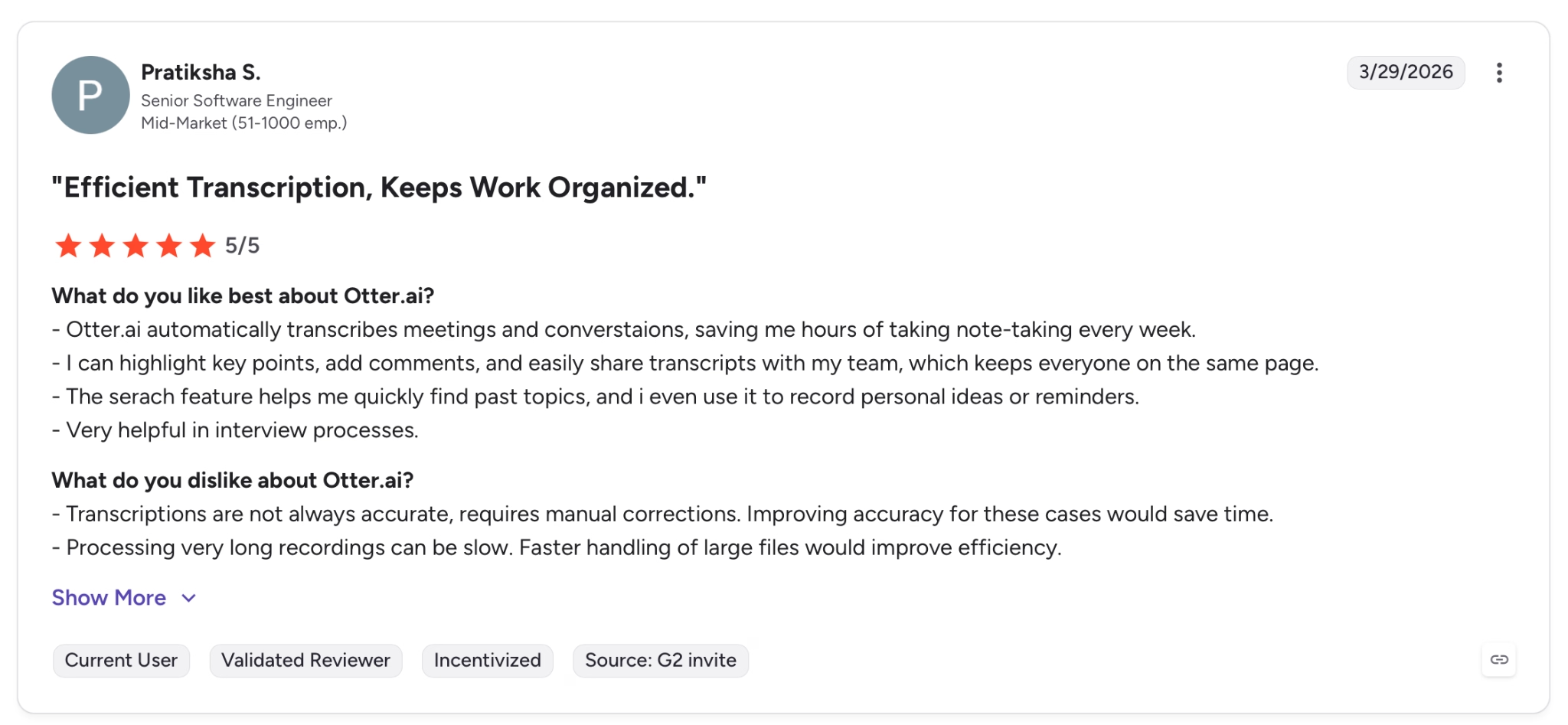
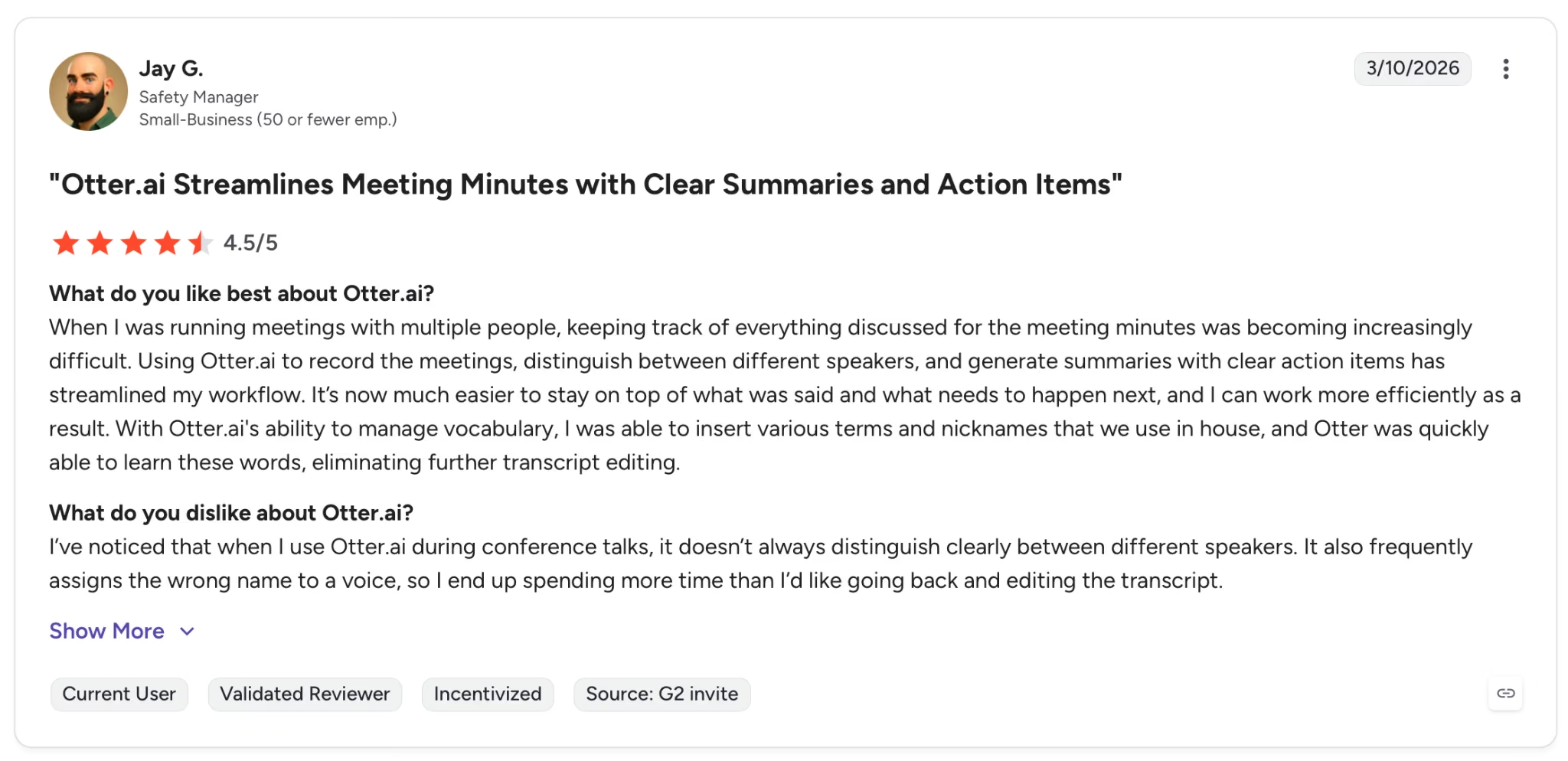
"I’ve noticed that when I use Otter.ai during conference talks, it doesn’t always distinguish clearly between different speakers." — Jay G., G2
Pricing
Pro runs $16.99/month ($8.33/user/month billed annually). Business at $19.99/user/month removes the minute cap and adds 4-hour sessions and CRM sync.
Bottom Line
At $8.33/month, Otter.ai Pro handles transcription and action items for every client call in its six supported languages. Calls that regularly run past 90 minutes or accounts that need CRM sync both require Business.
11. Devin: Best for Dev Freelancers Who Want to Ship More Code
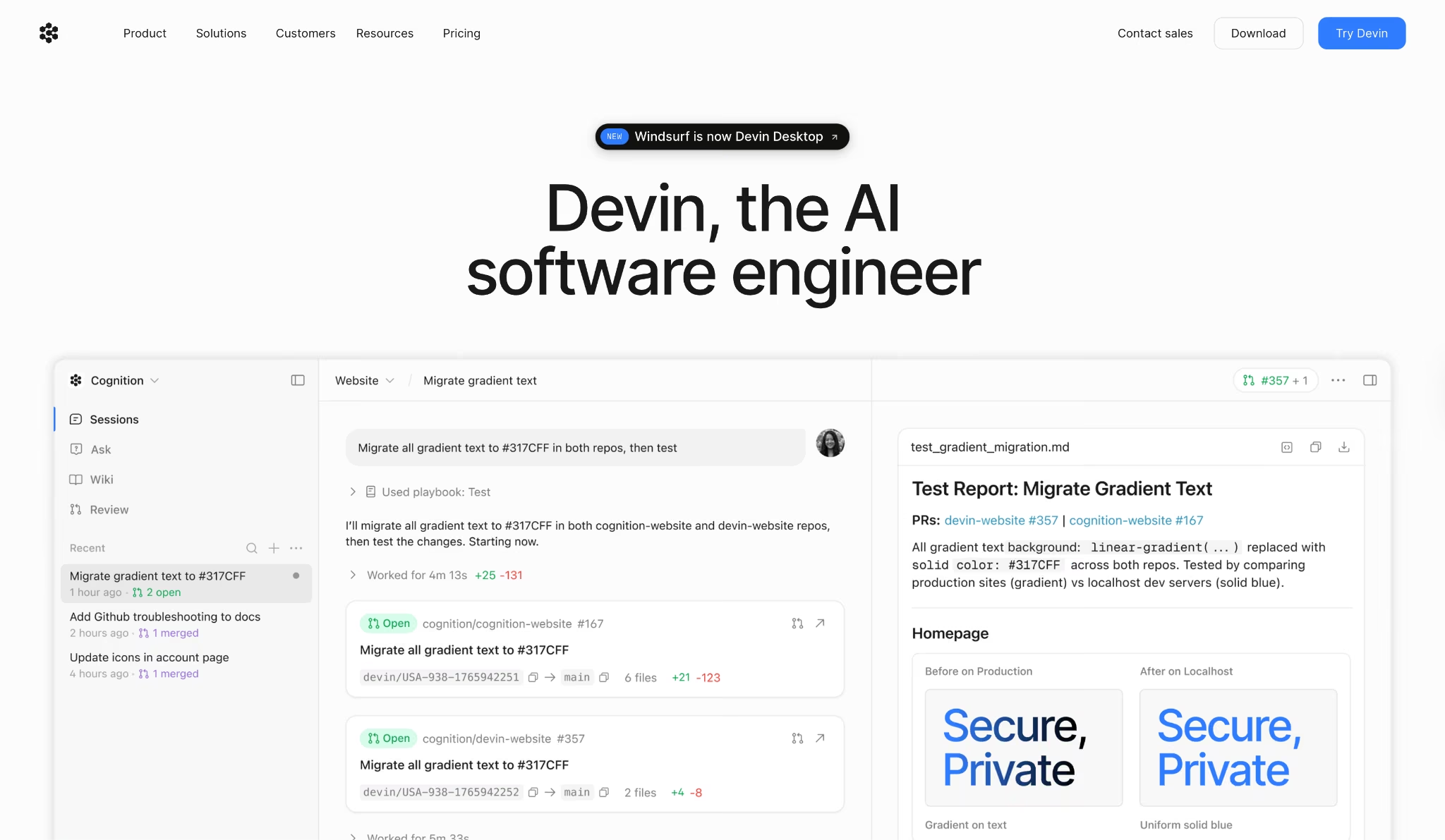
What it does: An autonomous AI software engineer that writes, runs, and tests code end to end, handles Linear and Jira tickets, fixes bugs, builds internal tools, and opens PRs directly inside your existing GitHub, GitLab, or Bitbucket workflow.
Best for: Freelance developers and technical founders who want to delegate well-scoped coding tasks and return to finished pull requests instead of writing every line manually.
I assigned Devin a bug ticket from Linear with instructions to reproduce the issue, trace the root cause, and open a PR with test coverage included. It came back with a working fix before I had finished reviewing the next item in the queue.
The "three-hour rule" from the official docs holds up in practice. Well-scoped tasks with a verifiable output succeed consistently. Anything requiring deep architectural judgment or undocumented codebase context comes back as a first draft that still needs work.
Key Features
- SWE 1.6 included free on Pro: Cognition's own software engineering model runs at no additional cost on Pro, handling the majority of standard dev tasks without consuming extra quota from frontier model usage
- Parallel concurrent sessions: Runs up to 10 tasks simultaneously on Pro, so a freelancer can queue bug fixes, feature builds, and documentation updates across multiple client repos and return to finished drafts
- Native integrations with Linear, Jira, GitHub, GitLab, Bitbucket, Slack, and Teams: Devin plugs directly into the tools already in a dev freelancer's stack, with no custom connector or middleware required
- Devin Desktop as command center: Manages and monitors all active agent sessions from a single interface, with context preserved across tasks, so switching between client projects doesn't require re-briefing each time
Pros and Cons
Pros:
- Handles the full cycle from ticket to PR autonomously on well-scoped tasks
- SWE 1.6 is included free on Pro and handles standard engineering tasks well. Expensive frontier model quota stays available for the harder jobs
- Native integrations plug into what's already there with no reconfiguration
Cons:
- Tasks requiring deep architectural judgment or undocumented codebase context consistently come back needing significant rework
- 10 concurrent session cap on Pro limits throughput on busy days when multiple client projects are active simultaneously
What Users Say
Pricing
Pro runs $20/month and includes SWE 1.6 free, full model access, and up to 10 concurrent sessions. Max at $200/month adds unlimited concurrency.
Bottom Line
Devin Pro is made for dev freelancers who want to delegate well-scoped coding tasks and return to finished pull requests. If you need to build apps but don't write code, Emergent is the better starting point.
12. Lindy: Best for Delegating the Work That Repeats Every Day

What it does: An AI assistant that manages your inbox, calendar, and follow-ups through iMessage or SMS. No dashboard required.
Best for: Freelancers running back-to-back client calls whose mornings disappear into email triage and whose follow-ups slip the moment something more urgent lands.
The first morning I gave Lindy access to my inbox, replies were already drafted before I opened my laptop. Three emails triaged, two meetings rescheduled, and a prep brief sitting in Slack for a call I'd forgotten was at nine.
From there, I ran it entirely through iMessage. Texted "reschedule Thursday's call with Marco and follow up after" and it handled both without asking a single clarifying question. Not a summary of what I could do next. The task was already done.
Where it showed limits was on heavier tasks. A multi-step research request during a deadline week burned through the monthly allowance faster than I'd planned, and there's no live indicator until you're already close to the cap.
Key Features
- iMessage and SMS access: Text Lindy from anywhere to trigger real actions across your calendar, inbox, and connected tools. Works on Android via SMS; no app required.
- Inbox drafting in your voice: Lindy drafts replies based on your writing style and prior emails, ready to review before anything sends.
- Meeting prep and follow-up: Pulls attendee history, email context, and agenda items before each call. After it ends, it sends a summary with action items and handles follow-ups automatically.
- Computer use on Pro: Lindy operates browser-based tools on your behalf, handling tasks inside platforms that don't have a direct connector.
Pros and Cons
Pros:
- The iMessage interface turns delegation into a text. No app to open, no dashboard to navigate. Send a message from wherever you are, and it becomes a completed task
- Meeting prep and post-call follow-up run automatically across every client call
Cons:
- Heavier tasks burn through the usage allowance faster than simple ones, and the ceiling isn't visible until you're already close to it
- The setup investment is real. Connecting inboxes, setting tone preferences, and refining recurring tasks takes time before Lindy runs without correction
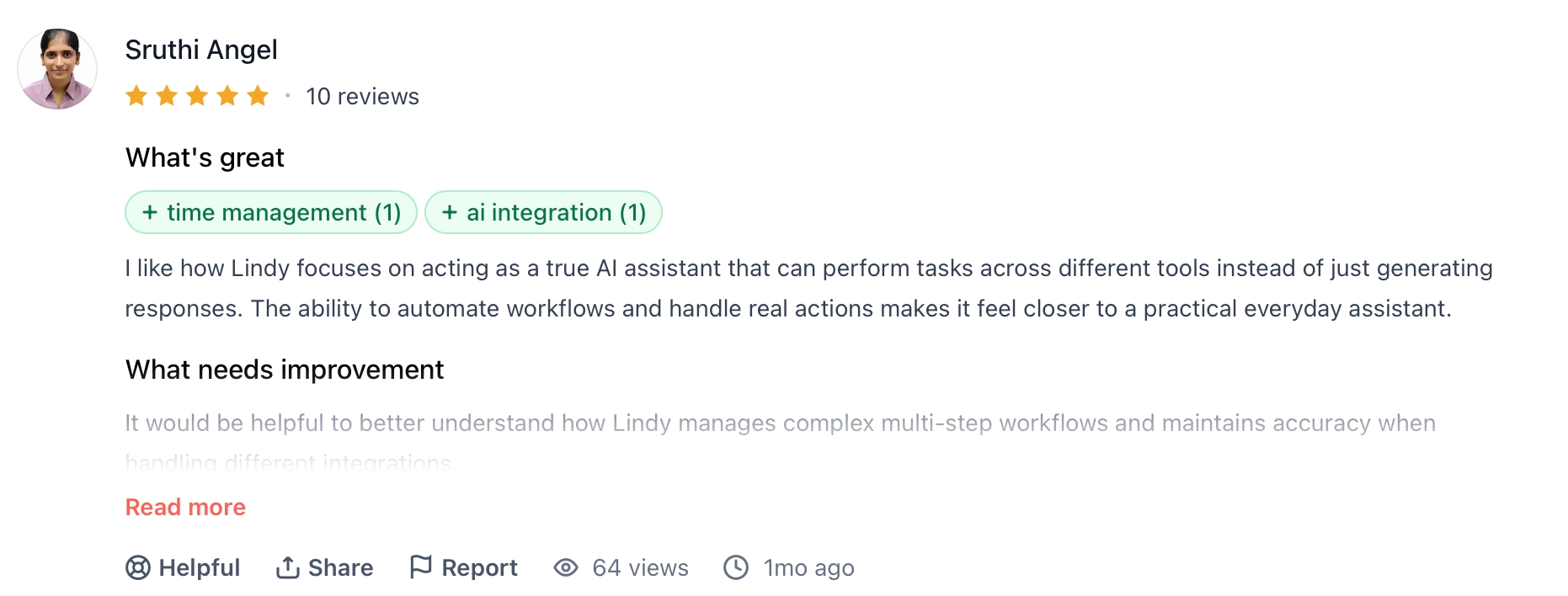
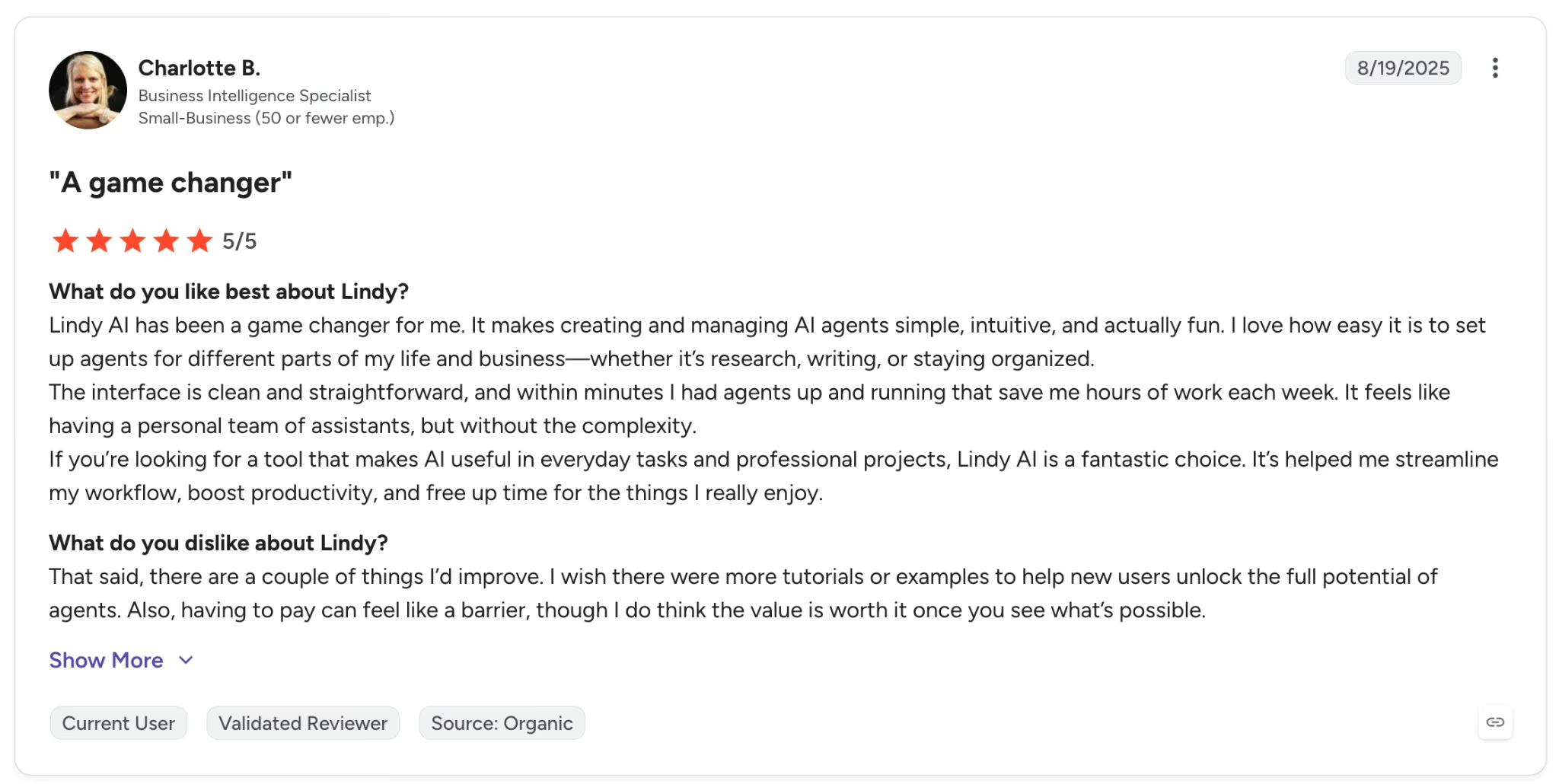
"I wish there were more tutorials or examples to help new users unlock the full potential of agents." — Charlotte B., G2
Pricing
Plus runs $49.99/month with standard usage, up to 2 connected inboxes, iMessage access, and a 7-day free trial. Pro at $99.99/month adds 3x usage, a third inbox, and computer use for browser-based tasks.
Bottom Line
Lindy won't make sense for freelancers who check email twice a day or run a light meeting schedule. It's built for the person whose inbox and calendar eat the first two hours of every morning.
Which AI Tool for Freelancers Should You Choose?
The right AI tool for freelancers comes down to what your actual billable work looks like day to day.
Choose ChatGPT if you:
- Work across multiple deliverable types (writing, research, code, planning) and want one tool that covers nearly all of them
- Manage repeat clients and need persistent memory and custom assistants that load pre-configured for each account
Choose Grammarly if you:
- Deliver written work directly to clients and need a fast, consistent second pass before anything goes out
- Work inside Google Docs, Gmail, or Notion already and want corrections inline without switching tools
Choose Canva AI if you:
- Handle social content, presentations, or branded visuals for clients and produce across multiple format sizes regularly
- Manage more than one client brand and need Brand Kits that keep each identity separate and ready to use
Choose Perplexity AI if you:
- Spend significant time on research tasks and need cited, source-linked answers you can reference in deliverables
- Need a research tool that works in a browser with no setup and returns verifiable results faster than a manual search
Choose Notion AI if you:
- Run multiple client projects at the same time and need one workspace where briefs, tasks, meeting notes, and deliverables all live together
- Want an AI agent that operates inside your project workspace rather than in a separate chat window
Choose Emergent if you:
- Want to build and deliver custom tools, portals, or lightweight apps to clients without hiring a developer
- Need a live hosted URL with authentication and a database, not just a prototype or a design mockup
Choose Descript if you:
- Edit spoken-word video, interviews, or podcast content for clients and spend the bulk of your editing time on cuts and cleanup
- Need Studio Sound and filler word removal to fix recordings taken outside a studio environment
Choose Zapier if you:
- Have repetitive manual tasks between apps that run on a predictable trigger, and want them automated without writing code
- Already use a stack of tools and need them connected rather than replaced
Choose Otter.ai if you:
- Run regular client calls on Zoom, Google Meet, or Teams, and need accurate transcripts with action items without manual note-taking
- Want a searchable archive of past client calls, with what was said in January findable in thirty seconds in July
Choose Claude if you:
- Work primarily with long documents, multi-session analytical projects, or ongoing client briefs where context needs to persist
- Need an AI that reasons visibly through difficult problems before committing to a direction
Choose Devin if you:
- Are a dev freelancer who wants to delegate well-scoped coding tasks and return to finished pull requests
- Need an agent that plugs directly into Linear, Jira, GitHub, and your existing client repos without reconfiguration
Choose Lindy if you:
- Run back-to-back client calls and need meeting prep, notes, and follow-ups handled automatically without a separate tool for each step
- Want to delegate inbox triage and scheduling from your phone, without opening a dashboard or switching apps
Skip AI tools for freelancers entirely if:
- Your client work is entirely relationship-driven and the deliverable is your personal judgment, not a document, design, or build
- You are just starting out and the cost of multiple subscriptions outweighs the time savings at your current volume
Final Verdict
Grammarly, Otter.ai, Descript, and Zapier each own one job: writing, calls, video, and apps. Emergent is the only one that builds something that didn't exist before you sat down. It takes a tool your client needs that doesn't exist yet and turns it into a live URL by the end of the afternoon.
If what your client needs doesn't exist yet, build it on Emergent instead.
Ready to Build the Tool Your Clients Are Waiting For?
Every app you build on Emergent ships with the infrastructure already handled, so you can focus on what the client asked for instead of configuring the stack around it.
- No dev team needed: Emergent's multi-agent system handles design, code, testing, and deployment from a plain-English description, with no engineers required.
- Agents run automatically: Dedicated agents for design, testing, integrations, and troubleshooting activate as part of every build without any configuration on your end.
- Deployment is included: Every app ships to managed infrastructure with authentication, a database, SSL, and a live URL. No DevOps setup required.
- Post-launch visibility built in: Analytics, health checks, error logs, and mobile alerts give you a read on how the app is running after it goes live.
- You own the code: On Standard and above, every build syncs to a GitHub repository under your account and can be exported to any hosting service you choose.
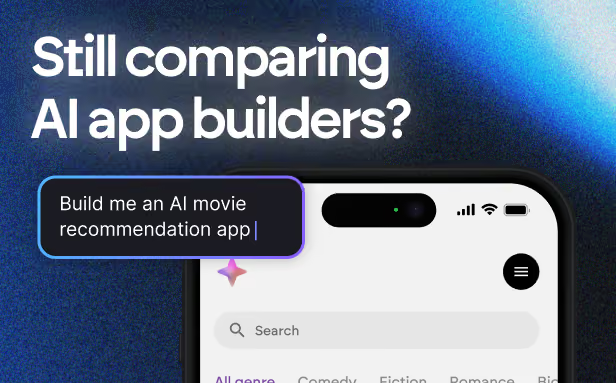
Most AI app builders stop at prototypes. Emergent creates production-ready apps you can actually launch.
- Production-ready apps
- Web & mobile apps
- Deploy in minutes