After building a handful of internal tools with Emergent this year, here's how to create a task manager web app your team will actually use, in an afternoon.
Why Build Your Own Task Manager Web App?
Building your own task manager web app makes sense when off-the-shelf tools force your team to work their way instead of yours. Asana, Trello, and ClickUp all get you most of the way there, then make you bend your process around a layout someone else designed.
And the more separate tools a team stitches together, the more time disappears just moving between them. Research published in Harvard Business Review found the average worker toggles between apps and websites nearly 1,200 times a day, losing just under four hours a week reorienting.
A custom tool fits the way you already work. You describe the tracker your team needs in plain English, and you get a working web app you own, with your roles, your stages, and your fields. No monthly per-seat fees stacking up as you add people.
What You'll Need Before Starting
You'll build this with an AI web app builder, a tool that turns a plain-English description into working software. I used Emergent for this walkthrough because it builds the whole app, deploys it, and lets you keep the code, which matters when the tool has to run a team's daily work.
Here's what to have ready:
- An Emergent account: This build runs on the E3 agent on the Pro plan ($200/month), an autonomous agent that plans, builds, and tests on its own. You can start on a lower plan with a simpler agent; check Emergent's current pricing for the tiers.
- A clear picture of your team: You should know who creates the work, who does it, and who only needs to watch progress.
- About 30 to 60 minutes: That's the realistic window from a blank screen to a live app for a first version.
Time required: Plan for an afternoon once you factor in the back-and-forth tweaks.
How to Create a Task Manager Web App: Step-by-Step
Here's the full process, using a five-person home-remodeling crew in Austin as the running example. Each job is a project, each task is a punch-list item, and three roles keep everyone in their lane.
Step 1: Map the Tasks, Statuses, and Roles First
Spend 10 minutes on paper before you touch the builder. The quality of your first build depends almost entirely on how clearly you can describe the app, and that clarity comes from this step.
Start with what a single task needs to hold. For the remodeling crew, every task has a title, a short description, an assignee, a due date, and a priority (low, medium, or high).
Then decide the stages a task moves through. A clean four-stage flow works for most teams: To Do, In Progress, In Review, and Done. This one decision shapes the whole board, so settle it now.
Last, map who can do what. The detail most people skip is writing down what each role cannot do, because that's what keeps the app from breaking the moment a second person logs in.
| Role | Can do |
|---|---|
| Owner (admin) | Create jobs, assign tasks, edit anything, see every project |
| Crew member | Update only the tasks assigned to them, move their own cards |
| Client (viewer) | View one job in read-only mode, no edits |
Pro Tip
If your team has more than five distinct actions, write them as a numbered list before prompting. AI translates structured input into clean software far better than a wall of text.
Step 2: Write Your First Prompt
Head to Emergent, create your account, and you'll land on a large prompt box with a few build types to choose from. You may also see a Brainstorm tab next to them. It's a paid feature, so it won't show up on the free plan, and don't worry if your screen looks a little different from mine.
Pick the E3 agent. Emergent offers several agents, and you choose the one that fits the job. E3 is the autonomous orchestrator: It interviews you about the app, plans it, builds it, and runs its own tests, which suits a multi-role app like this better than a simpler step-by-step agent.
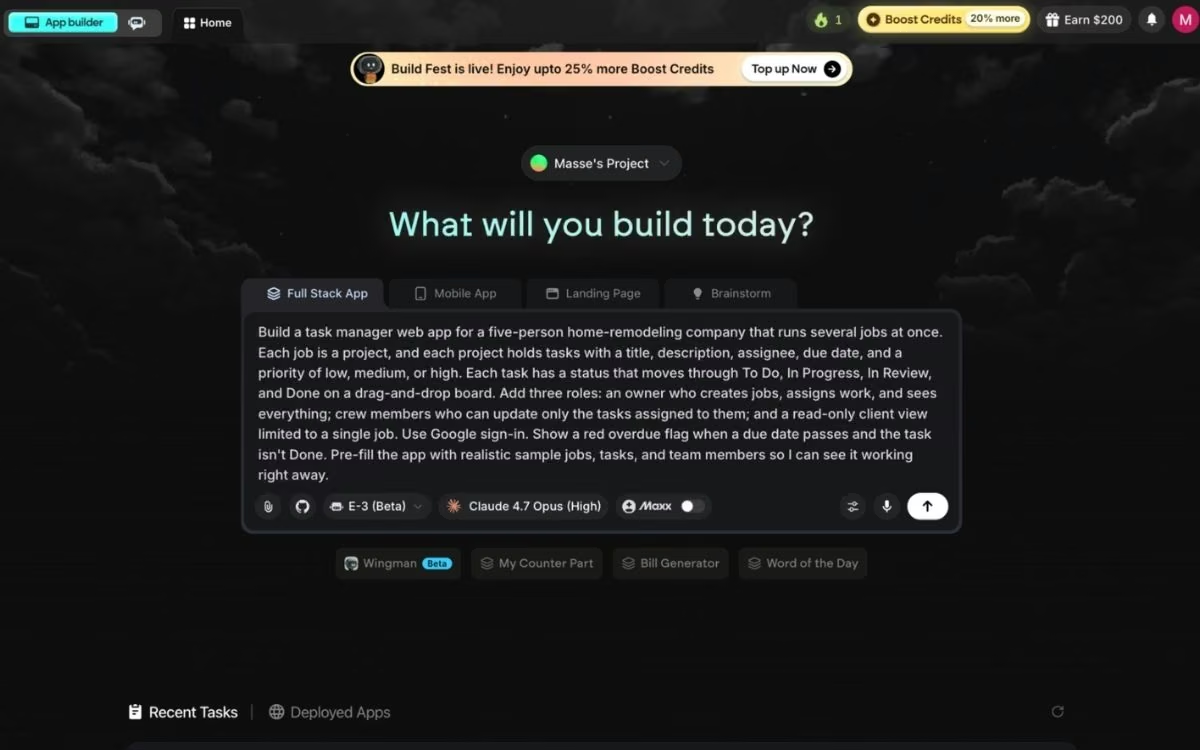
The Pro plan also includes Maxx, which gives the agent more room to reason carefully through tough build decisions and uses more credits, though you won't need it for a first task manager.
Now paste a detailed prompt. Here's the one I used for the remodeling crew:
Build a task manager web app for a five-person home-remodeling company that runs several jobs at once. Each job is a project, and each project holds tasks with a title, description, assignee, due date, and a priority of low, medium, or high.
Each task has a status that moves through To Do, In Progress, In Review, and Done on a drag-and-drop board. Add three roles: An owner who creates jobs, assigns work, and sees everything; crew members who can update only the tasks assigned to them; and a read-only client view limited to a single job.
Use Google sign-in. Show a red overdue flag when a due date passes and the task isn't Done. Pre-fill the app with realistic sample jobs, tasks, and team members so I can see it working right away.
Notice the prompt names Google sign-in. Emergent has built-in Google sign-in (Emergent Auth), so one line in your prompt sets up the whole login flow and ties it to your roles.
That last sentence about sample data matters too. It tells the agent to fill the app with mock content, so the first build comes back looking like a working tool instead of an empty shell.
Step 3: Answer Emergent's Setup Questions
The agent doesn't jump straight into building. It talks through the plan first, then lays out a phased build: The foundation first, then the full board and roles on top. Before it starts, it asks a short round of setup questions to confirm a few choices your prompt left open.
For this build, the questions and my answers were:
- Sample-data security key: The agent asked whether it should create the protected key that guards the sample-data loader, or whether I'd supply one. I let it auto-generate the key, which is the recommended option and one less thing to manage.
- How the sample data loads: It asked whether to load the sample data automatically every time the app starts, and also gave me a manual way to reload it. I chose both, so the app always opens with data, and I can refresh it whenever I want.
- Sign-in setup: It asked me to confirm that it should use Emergent Auth instead of building a custom login from scratch. I confirmed since the built-in option is simpler and more secure.
- First version look: It asked whether the first rough version of the screens should look clean and simple or completely bare. I went with clean and simple.
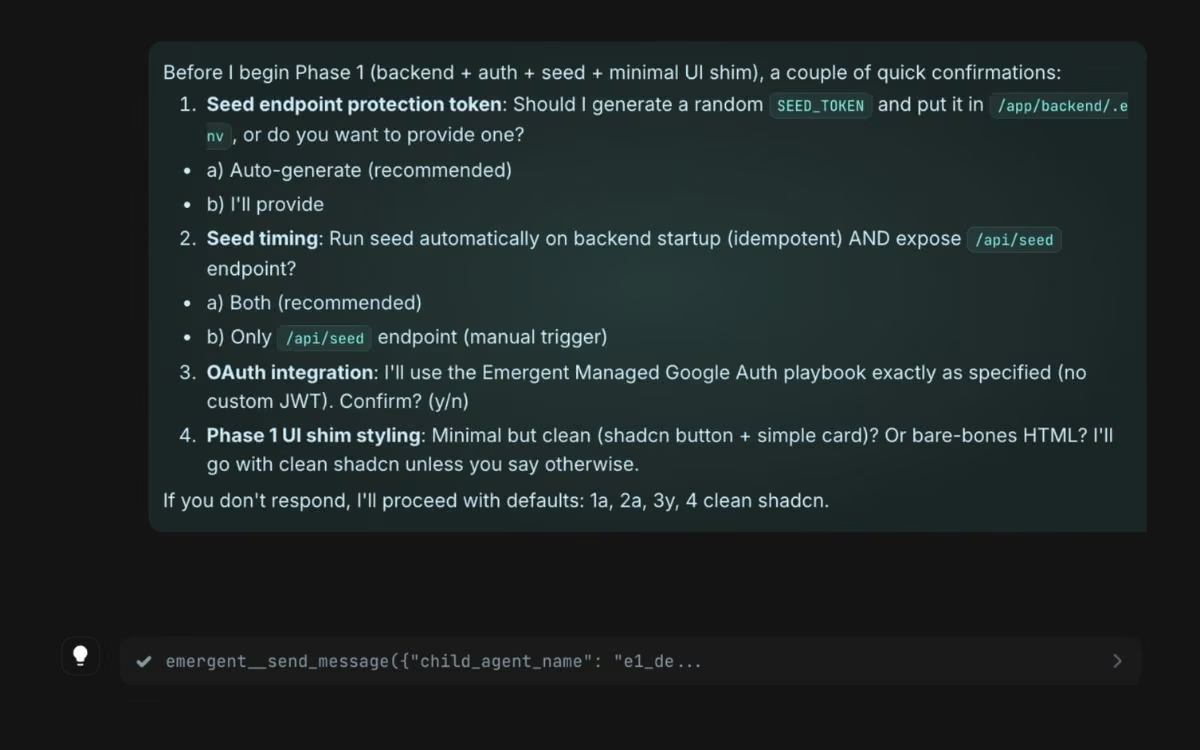
Each question comes with a recommended default, so most of the time you can read it, confirm, and move on.
When the agent asks for a follow-up or wants you to confirm something, answer it. If you're not sure, say in plain words what you want the app to do. The clearer you are about the outcome, the closer the first build lands.
And if a question uses a term you don't know, ask for an explanation before you answer. The agent is happy to walk you through anything.
Step 4: Let the Agent Build It in Phases
With the setup confirmed, the agent builds in phases. The first phase lays the foundation: It sets up sign-in, loads your sample data, and puts up a basic screen to prove the core works. Then it builds out the full drag-and-drop board, the three roles, the priorities, and the overdue flag from your prompt.
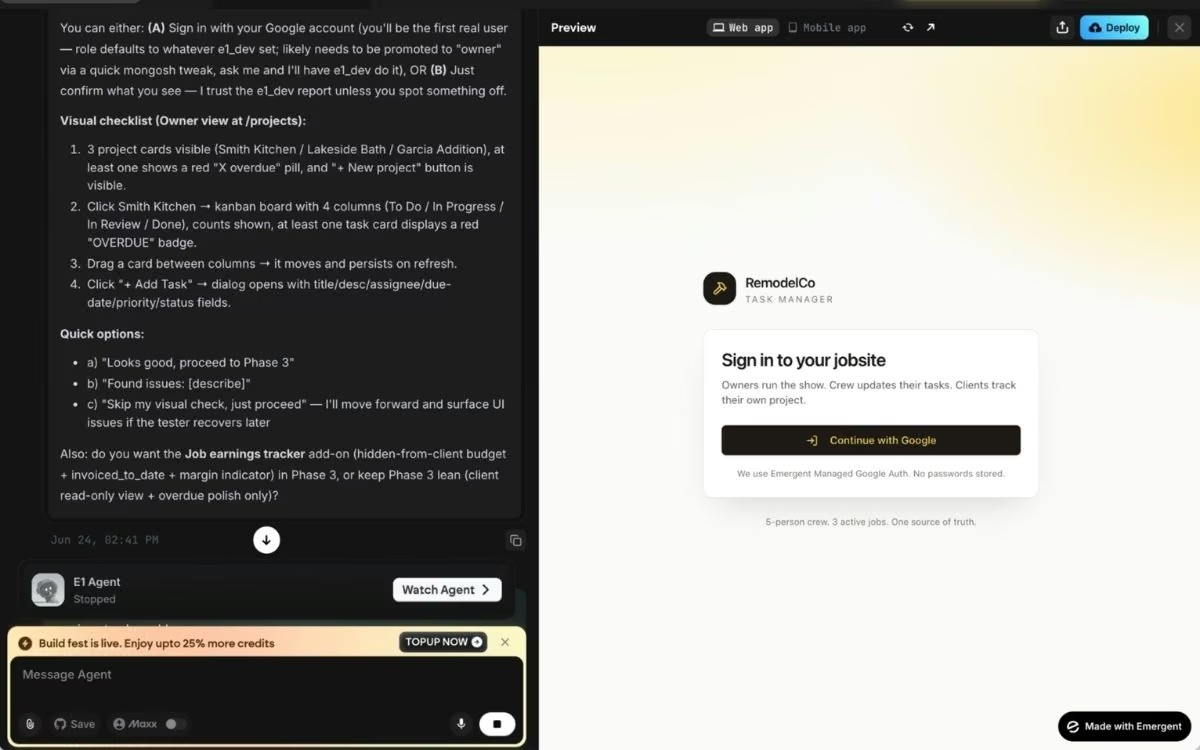
Behind the scenes, Emergent handles the design, the code, and the testing in parallel, running the app end to end and fixing anything that breaks before it hands the build back. The first version usually lands in about 5 to 15 minutes, depending on how much you asked for.
Open the build, and because you asked for sample data, it's already populated: Example jobs, a board full of tasks across all four stages, and a short list of team members. You can judge the layout right away, before you've entered anything of your own.
Step 5: Test Every Role Before You Trust It
Open the live preview and run the app the way your team will. Sign in as the owner first, and you should see a list of all your projects on the home dashboard.
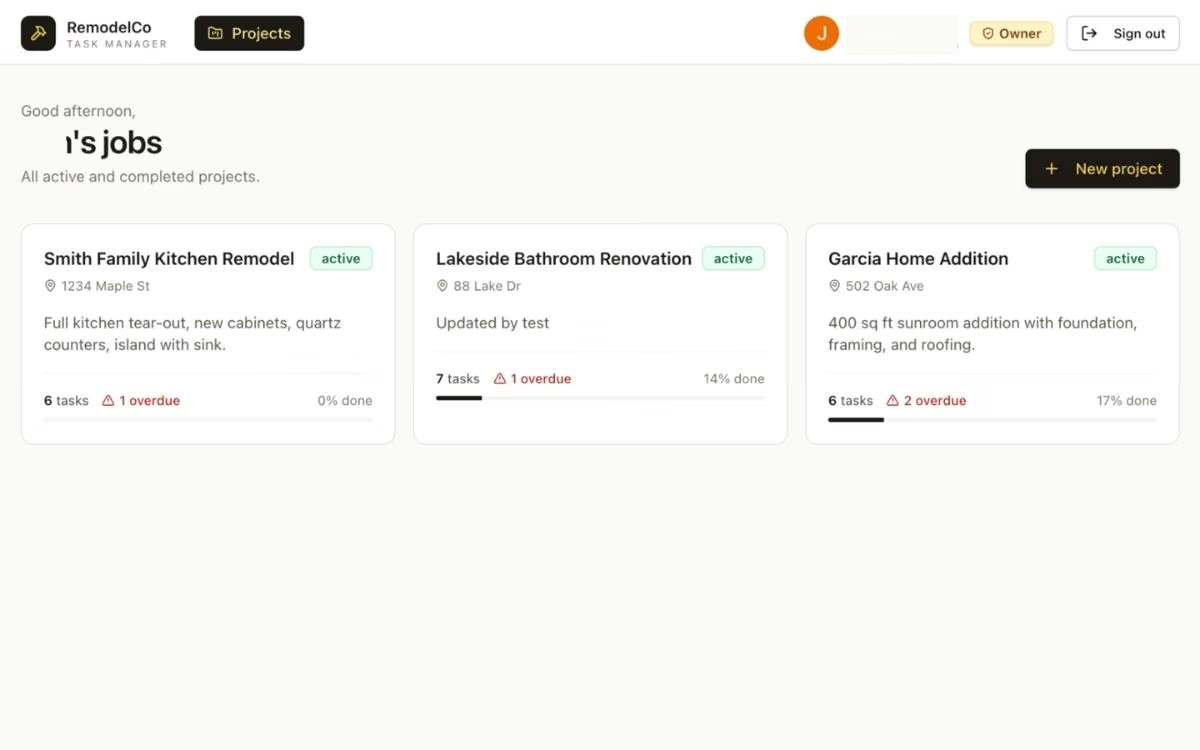
Open a project, create a job, and drag a task across the board from To Do to Done. Refresh the page and confirm the change has persisted.
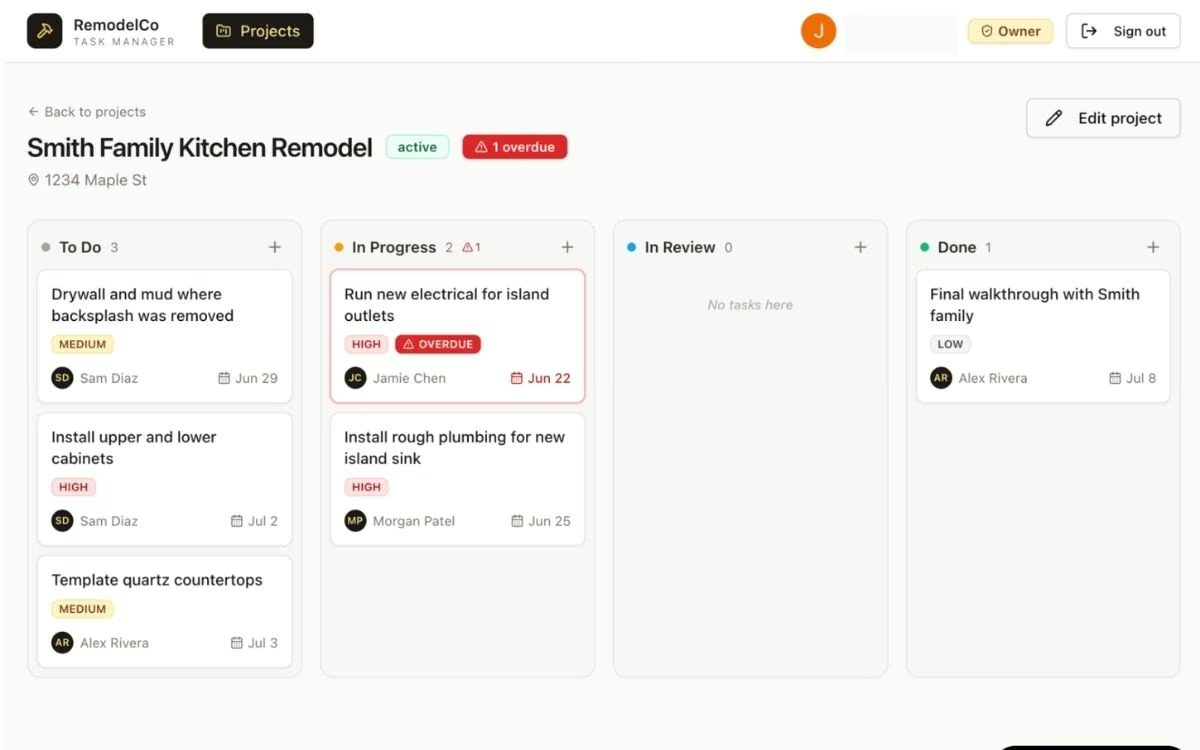
From here, you can add, delete, and edit tasks. You can also reassign a task to a different team member and notify them.
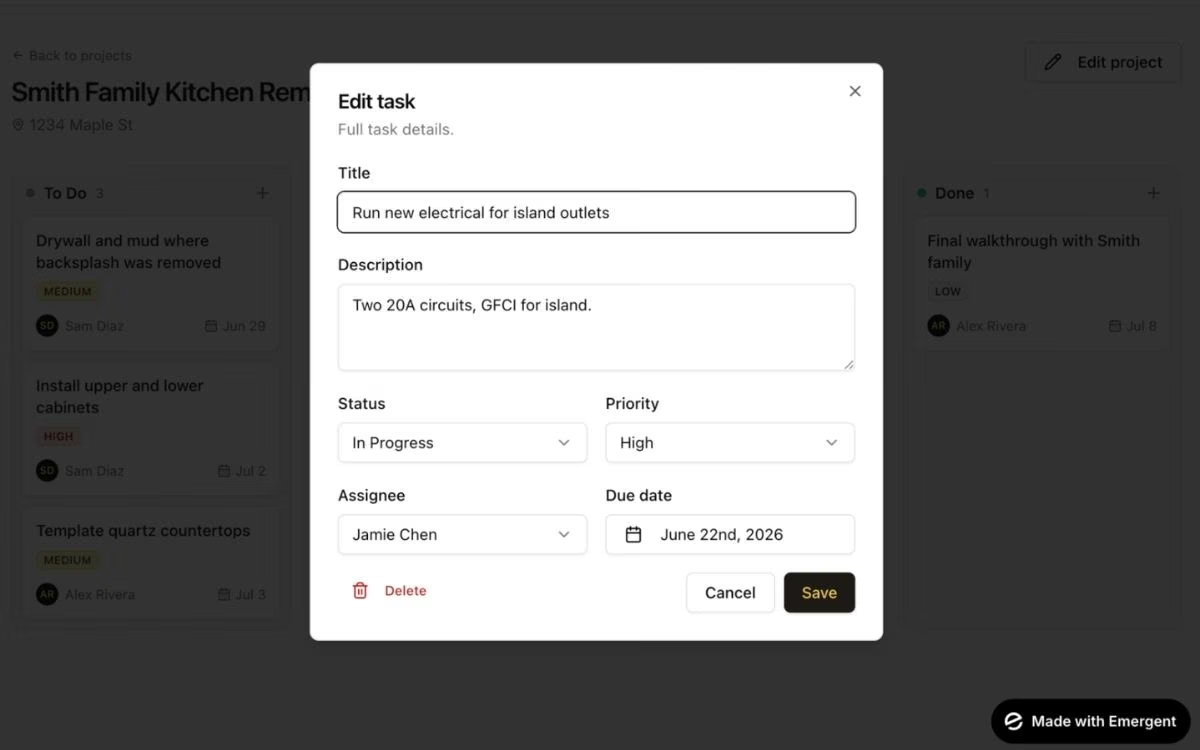
Then switch accounts and test the limits. Sign in as a crew member and try to edit a task that isn't yours; the app should block it. Open the client link and confirm it's read-only and shows only the one job.
Permission bugs are the most common way these apps break, and they're easy to catch when you can see both sides.
When something's off, describe it in plain English in the chat: "The client link can edit task titles. Make it read-only." The agent finds the problem and patches the software for you.
Pro Tip
Test with at least two accounts (one owner, one crew member) before you spend time on design improvements. It's the fastest way to spot access problems early.
Step 6: Deploy and Share
When the app works the way you want, click the Deploy button. After roughly 10 to 15 minutes, your task manager is live on its own yourapp.emergent.host address that you can share with the crew. Deploying costs 50 credits a month per app, and you can redeploy updates for free.
Want your own web address instead of the default one? You can buy and connect a custom domain right inside Emergent through its built-in integration with the domain registrar IONOS.
Once it's live, invite the team, and you have a working task tracker shaped around how your crew runs its jobs.
Common Mistakes to Avoid When Building a Task Manager Web App
A few missteps trip up most first builds. Watch for these:
- Vague prompts: "Build me a task app" gets you a generic tool nobody wants. The detailed prompt in Step 2 gets you something usable on the first try, because the roles, fields, and stages are all spelled out.
- Untested roles: An app that works for the owner can still be broken for everyone else. Sign in as each role and confirm the permissions hold before you share the link.
- Skipped code backups: On the Standard plan and up, syncing to GitHub gives you a saved copy of every version, so you can roll back when a new build breaks something that worked an hour ago.
Where to Take Your Task Manager Next
Once the core tracker works, a few additions turn it into a tool the team leans on. Try these when you're ready:
- Email alerts: Ask the agent to email the task creator when work moves to In Review, so nobody has to keep checking the board.
- A branded web address: Swap the default address for your own domain so the link looks professional when you send it to clients.
- Client billing: If you want clients to pay through the app, add a Stripe checkout in a single line, and Emergent wires up the payment flow. If you’re unsure how, use this Stripe integration guide to lead the way.
For a wider look at building internal tools this way, Emergent's guide on how to build a business app covers the same process applied to other use cases.
Final Thoughts
Building your own task manager web app used to mean a real budget and weeks of waiting on a developer. Now it's an afternoon's work. The custom tracker I built for the remodeling crew would have cost thousands to commission a few years ago, and it came together with one prompt and a handful of follow-up questions.
The first few build attempts won't be perfect, and that's normal. Your first prompt won't capture everything, and you'll go back and forth a few times before the permissions and the board feel right. The fix is almost always a clearer prompt rather than a change to the code.
Emergent runs on credits. Every round of changes costs some, and bigger or more complex builds burn through them faster. That is another reason to start with a tight prompt and a small first scope.
If your team has been getting by on group texts and a shared spreadsheet, you're about one focused hour away from a working app.
Ready to Build Your Own Task Manager Web App?
If the six steps above made the process feel doable, here's what makes Emergent a good place to run it.
- Get a working team task tracker live by end of day: Describe the app once, and a team of specialized agents handles the planning, design, build, and testing in parallel from a single prompt.
- Set up sign-in without the busywork: Mention Google sign-in in your prompt, and Emergent builds the whole login flow and ties it to your roles for you.
- Keep full ownership of your code: The app is yours to take with you, so if you bring in a developer later, they can pick up the code and keep going.
- See it working from the first build: Ask the agent to pre-fill the app with sample tasks and team members, and the first version lands populated instead of empty.
- Skip the per-seat bill: You're building a tool you own, so adding the tenth or twentieth teammate doesn't raise a monthly subscription.
Try building your first app on Emergent and see how far one prompt gets you.

Describe what you want and Emergent builds it. A real, production-ready app you can launch the same day.
- One prompt to build
- Zero code required
- Deploy in minutes