Intermediate
•
How to Build a Financial News-to-Notion Dashboard That Helps You Make Smarter Market Decisions using Emergent
Build your own auto-updating market dashboard
Written By :

Avilasha Chalki

Hey there!
In this tutorial, we’re going to build a simple but powerful app, a Financial News-to-Notion Dashboard, using Emergent.
The idea is simple; instead of jumping between finance sites and trying to keep up with market trends, this app does it for you.
Basically, we'll build an automated dashboard that:
Scrapes the latest financial headlines from Yahoo Finance
Analyzes each story with AI (summary, category, impact level)
Delivers structured insights straight to your Notion workspace
Updates with one click
Using this, you can glance at your Notion page and instantly see what’s happening, why it matters, and what you might want to do next.
By the end of this guide, you’ll have your own auto-updating market dashboard, built entirely on Emergent, that helps you stay informed and make sharper, quicker decisions without doing any manual work.
Let’s get started!
Why Notion
So here’s the thing - we’re using Notion because it just makes life easier.
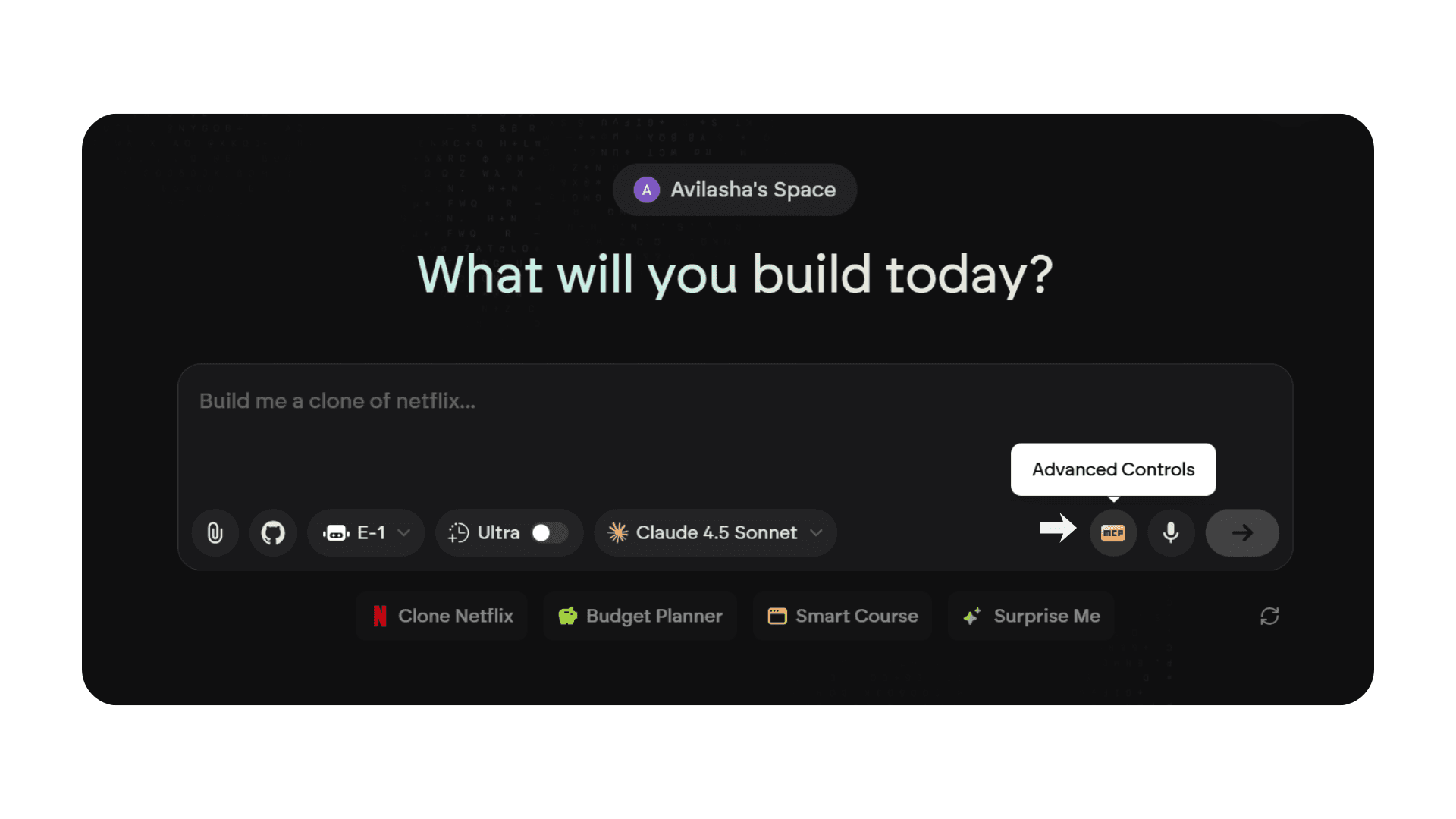
In Emergent, click the MCP / Advanced Controls button. You'll find the Notion MCP pre-installed and ready to configure, just add your Notion API key and you're connected.
Btw, this feature requires Emergent Pro. Not a Pro user yet? Join thousands of builders creating custom AI agents with access to advanced MCPs, enhanced capabilities, and priority support.
This setup works perfectly for what we’re building:
It’s familiar. Most people already use Notion for notes, tasks, or structured data. So instead of moving to a new platform, we’re building on top of something you already know.
It’s collaborative. You can share the dashboard with teammates, friends, or whoever you’re tracking markets with.
No extra setup. You don’t need SQL, new dashboards, or external databases since everything lives inside Notion.
It’s secure and easy to connect.
So instead of creating an entirely new backend, we’re simply transforming your existing Notion workspace into a live, auto-updating financial dashboard
Understanding the Integration
Let’s break down what the Notion MCP integration actually does in simple terms:
At its core, it allows Emergent to read and write data directly to your Notion databases.
Think of it like this:
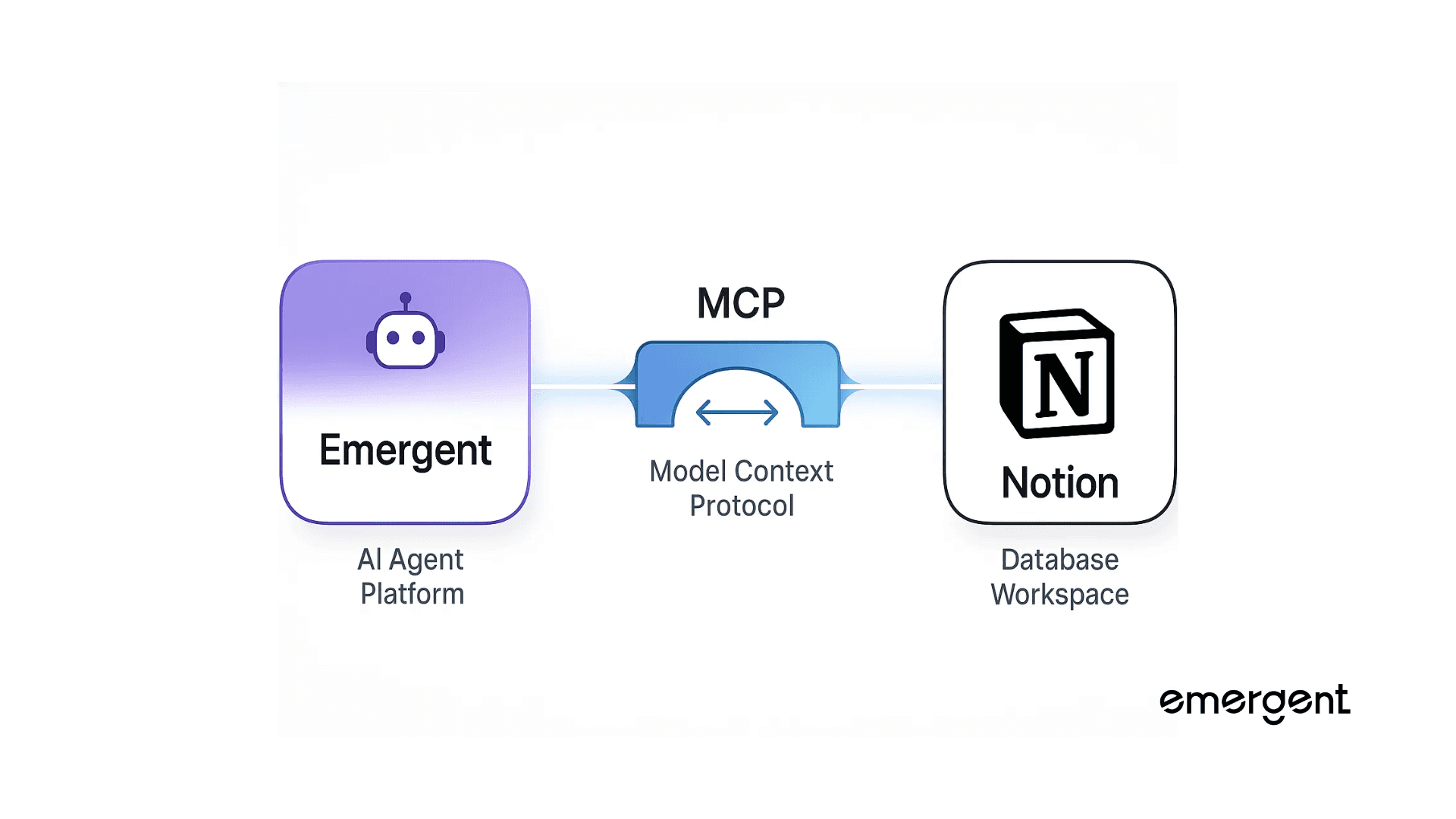
Notion = your data workspace, where all your headlines, summaries, and insights live.
MCP (Model Context Protocol) = the bridge, it safely connects Emergent to your Notion workspace.
Emergent = the app interface, where the logic, AI analysis, and automation happen.
With this setup, here’s what you can do:
Fetch pages, databases, and specific properties from Notion
Create new entries automatically
Sync updates in real time between your app and your Notion dashboard
In short, the MCP lets Emergent and Notion “talk” to each other seamlessly, turning your Notion database into a live, automated dashboard without any manual work.
Setting Up Your Notion Database
Step-by-step setup:
Create a new database in Notion
Give it a name like “Financial News Digest”Add fields:
Field | Type | Description |
Headline | Title | Financial news headline |
Summary | Text | AI-generated summary |
Category | Select | Stock, Crypto, Macro, Earnings |
Impact | Select | High / Medium / Low |
Suggested Action | Text | Short, actionable insight |
Date Published | Date | When the news was published |
Getting Your API Credentials
To connect Emergent to Notion, you’ll need two things:
Notion API Key (Integration Token)
Database ID
Step-by-step:
Go to Notion Integrations (https://www.notion.so/my-integrations)
Click “New integration”
Give it a name like “Emergent MCP” and select your workspace
Copy the Internal Integration Token - this is your API key. It’s going to look like this
ntn_xxxxxxShare your Notion database with the integration so it has access. To do this, open your database, click the “•••” menu on top right scroll down to “Connections”, and select the token you just created.
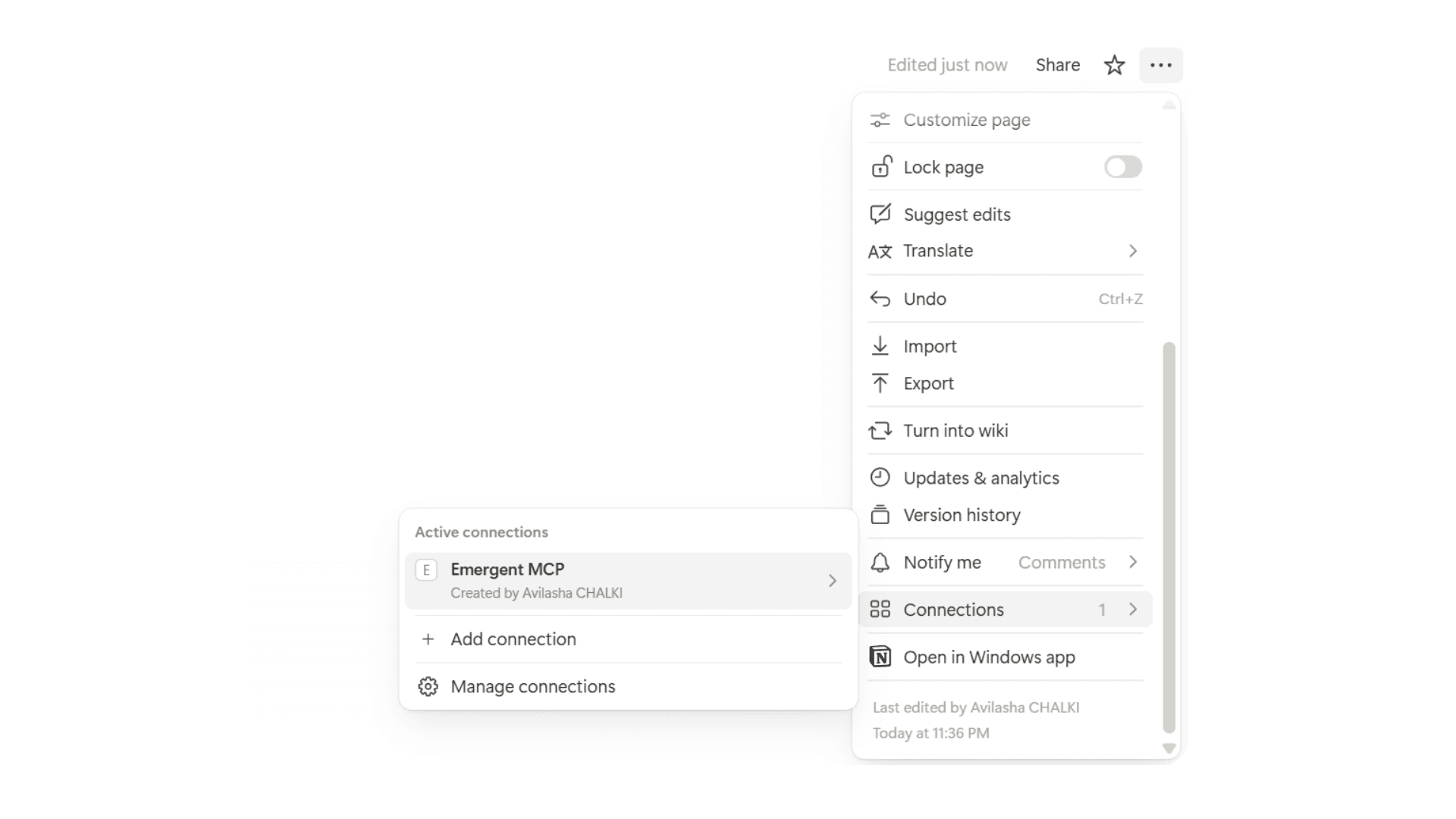
Find your Database ID from the URL:
Open your database in Notion
Copy the 32-character string in the URL before the
?v=parameter
Once you have both, Emergent can start sending your financial news straight into Notion.
Building the Financial News-to-Notion Dashboard on Emergent
Now that your Notion database and API credentials are ready, it’s time to build the app. Don’t worry, it’s much simpler than it sounds.
Step 1: Connecting the MCP to Emergent
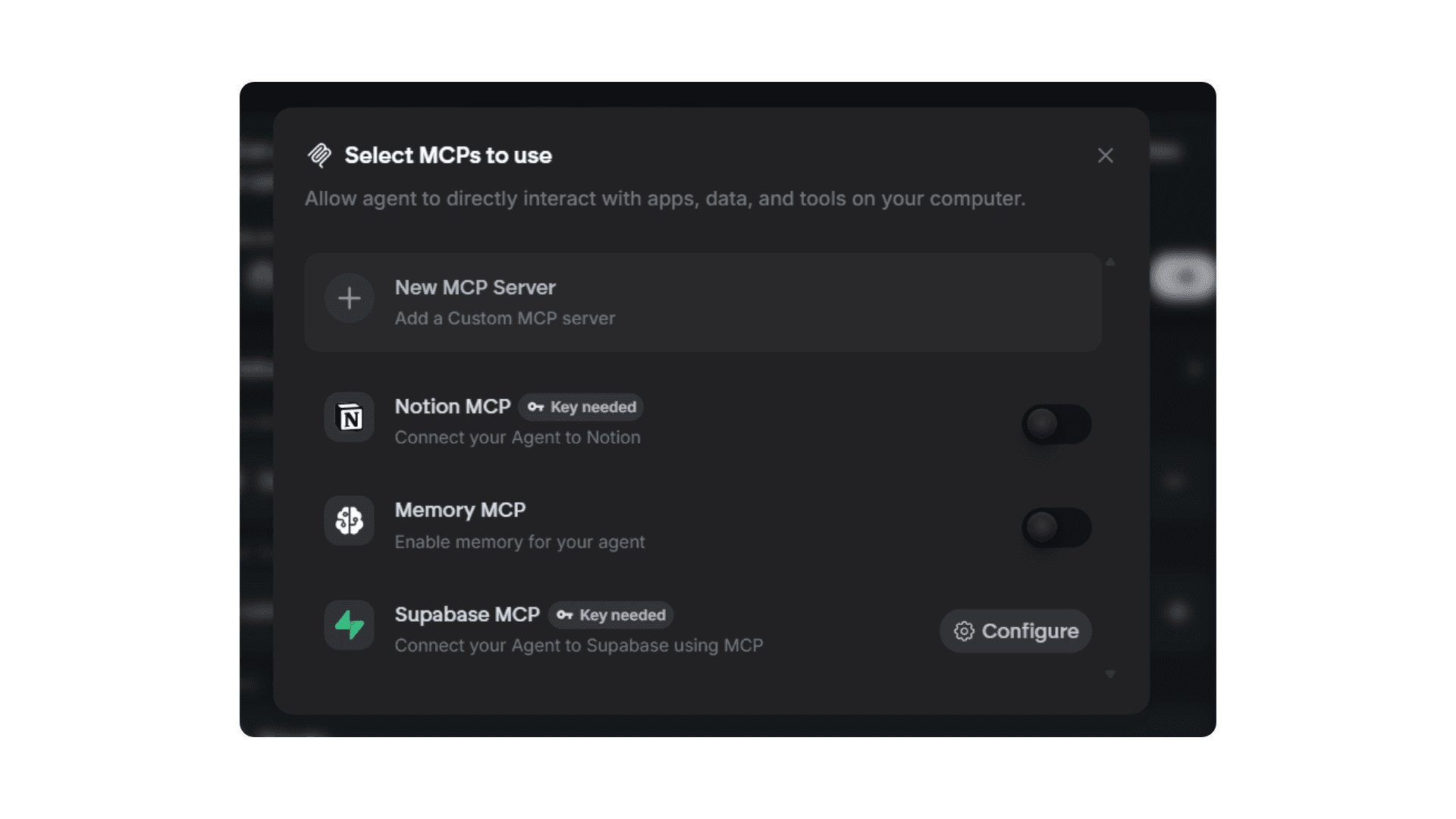
First, head over to the MCP button on Emergent’s landing page and select Notion MCP. You’ll be asked to enter your Notion integration token.
Once you add it and save, make sure your database is shared with the integration so Emergent can access it.
Step 2: Writing the Prompt
Next, you need to tell Emergent what your app should do. We use a clear, detailed prompt that is simple enough so the agent can easily understand our instructions without getting overloaded.
Here is the exact prompt I used :
“Build an app that automatically collects the latest financial headlines from Yahoo! Finance, summarizes them using AI, and sends the results to a Notion database using Notion MCP.
Workflow steps:
Fetch the latest 10–15 financial news headlines from Yahoo! Finance.
Summarize each headline in plain language.
Categorize each news item and assess its impact.
Provide a concise suggested action based on the news.
Create or update the Notion database using Notion MCP.
Keep it simple - focus only on summarizing, categorizing, assessing impact, and suggesting a next step. Do not add extra features like graphs, filters, or notifications.”
Step 3: Answering Clarifying Questions
After entering the prompt, the agent will ask a few questions to finalize the setup:
Which AI model to use? We chose GPT-5 for the most accurate analysis (you can use more models like OpenAI GPT-5, Claude Sonnet or Gemini 2.5 Pro)
API Key? Emergent provides a universal LLM key, so no separate OpenAI key is needed.
Notion database setup? Provide your Database ID if you already have a database, or allow the agent to create one.
Execution mode? Decide between manual trigger (click a button) or automated updates. We use a manual trigger for this tutorial.
UI preferences? You can select colors and styles, or leave it to the agent to create a clean, modern financial dashboard (we have a great design agent!)
After you answer the agent’s questions the agent gets to building the tool. This is how it looks like: (Hack : If you want a specific UI, you can upload reference pictures and have the agent replicate that!)
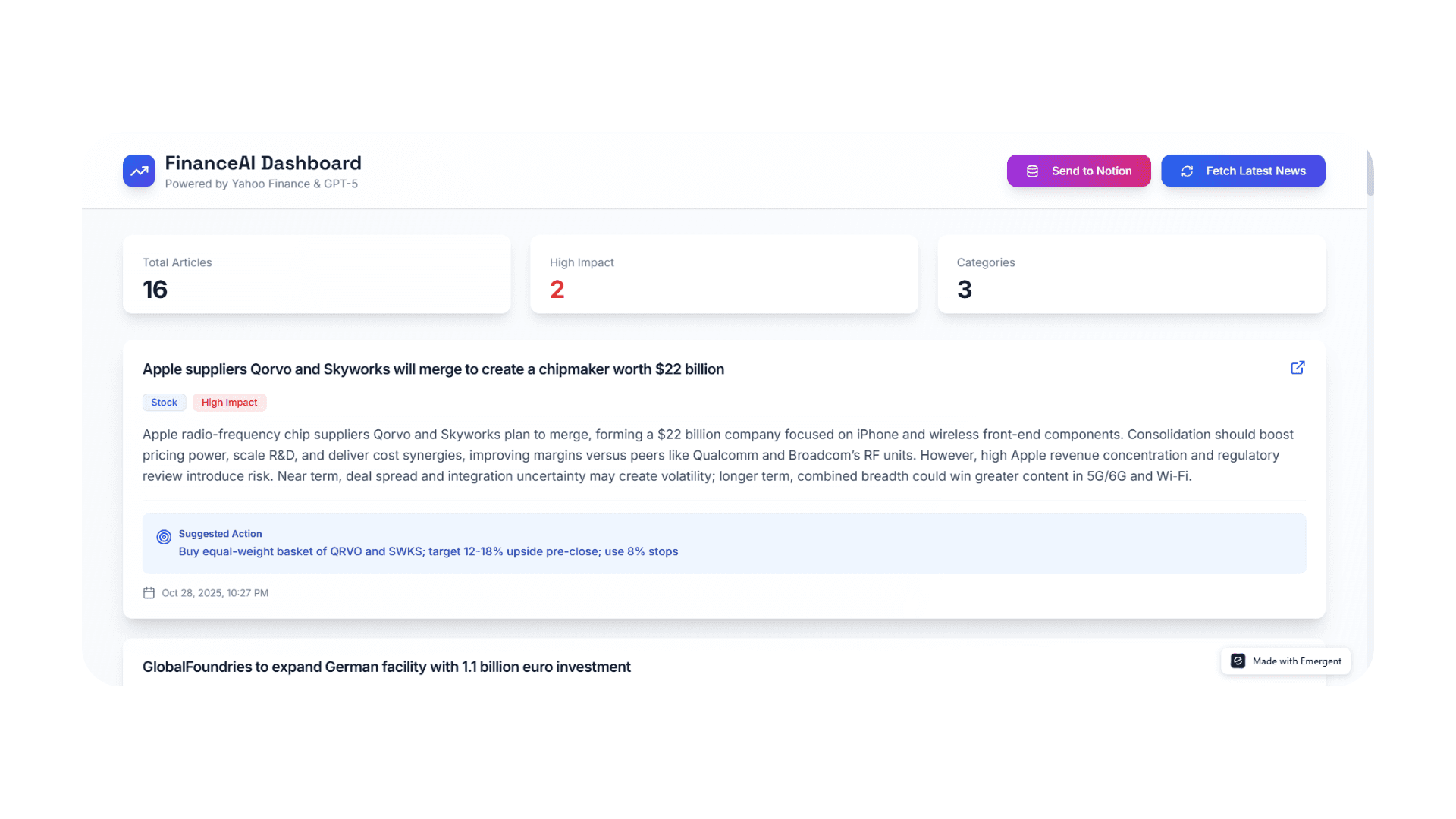
You can even click on the news article and be redirected to the original article it scraped on Yahoo!
The app scrapes financial news, generates AI insights, and provides a button to send updates to Notion.
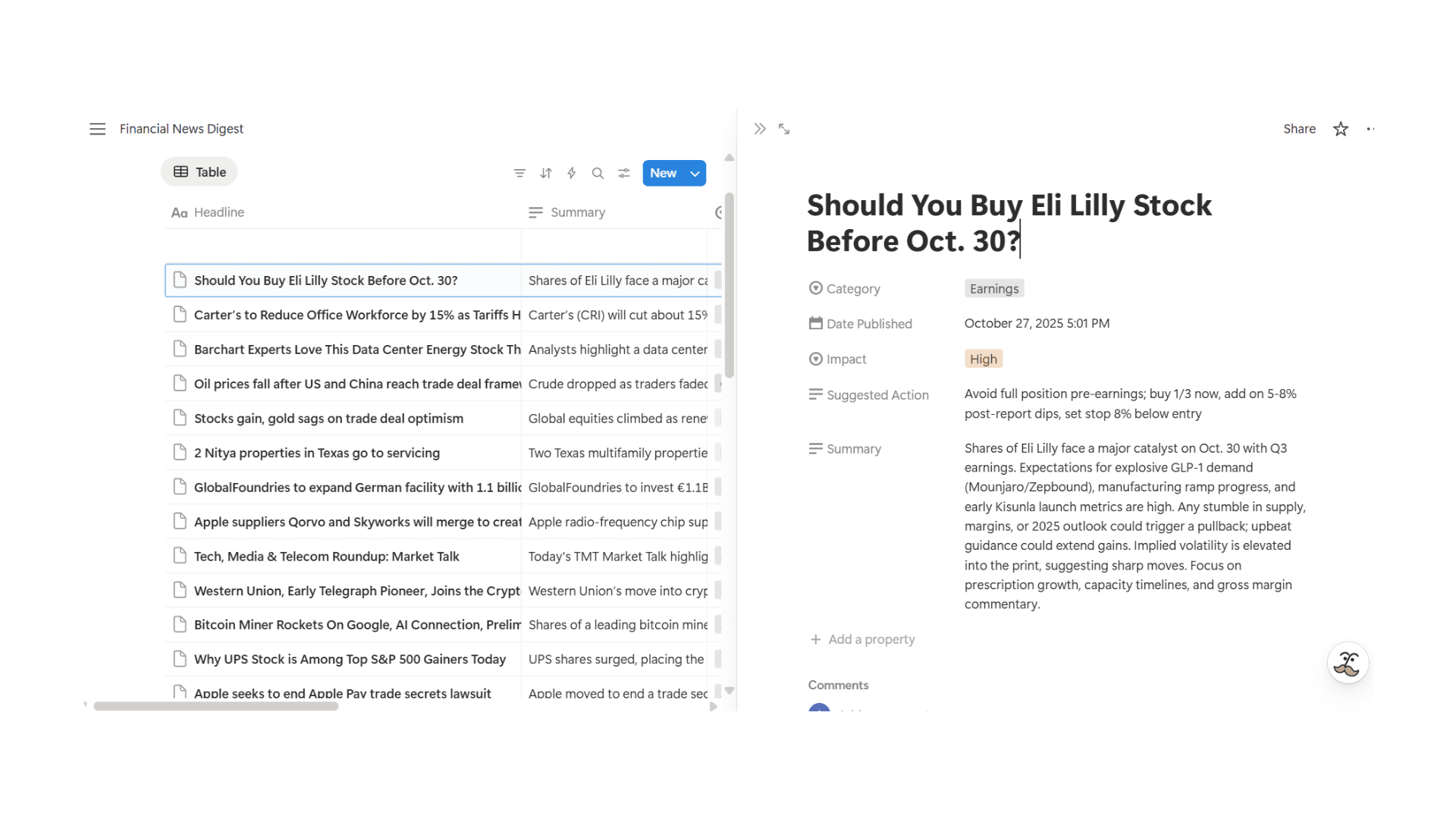
Click the button, and your Notion database updates automatically with the latest: headline, summary, category, impact, suggested action, and date published.
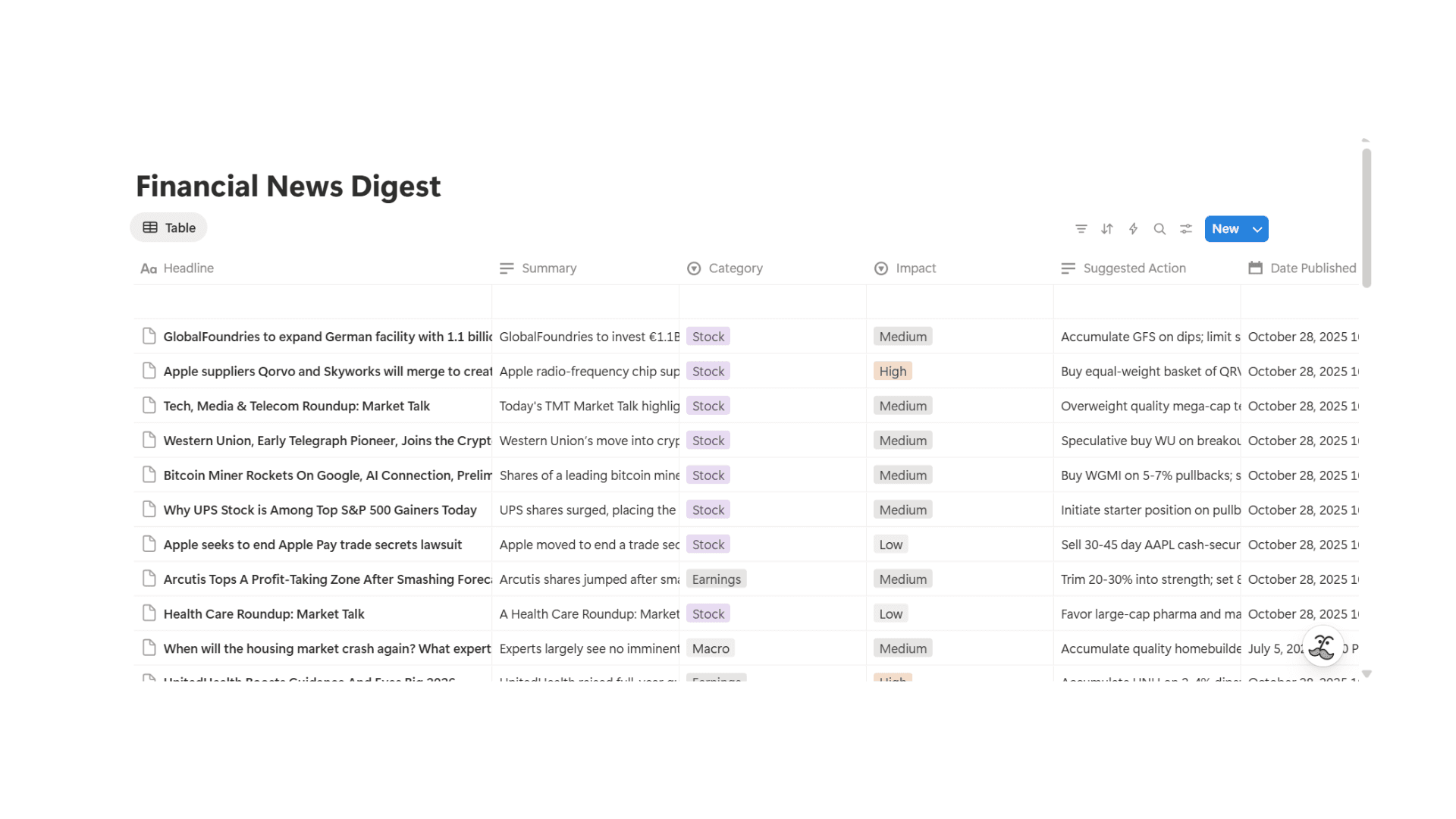
Here is what it looks like if you click on any headline :
Testing, Debugging, and Improving Your Dashboard
Once your Financial News-to-Notion Dashboard is live, the next step is making sure it actually works and delivers useful insights. Even the best setups can hit small bumps, so testing and iterating is essential.
I started by using the manual trigger button to see if the headlines, summaries, categories, impact, suggested actions, and dates were showing up correctly in Notion.
Most of the time it works smoothly, but occasionally you might see an error like “Fail to process news, please try again.”
When that happened to me, I just took a screenshot of the error and shared it with the Emergent agent.
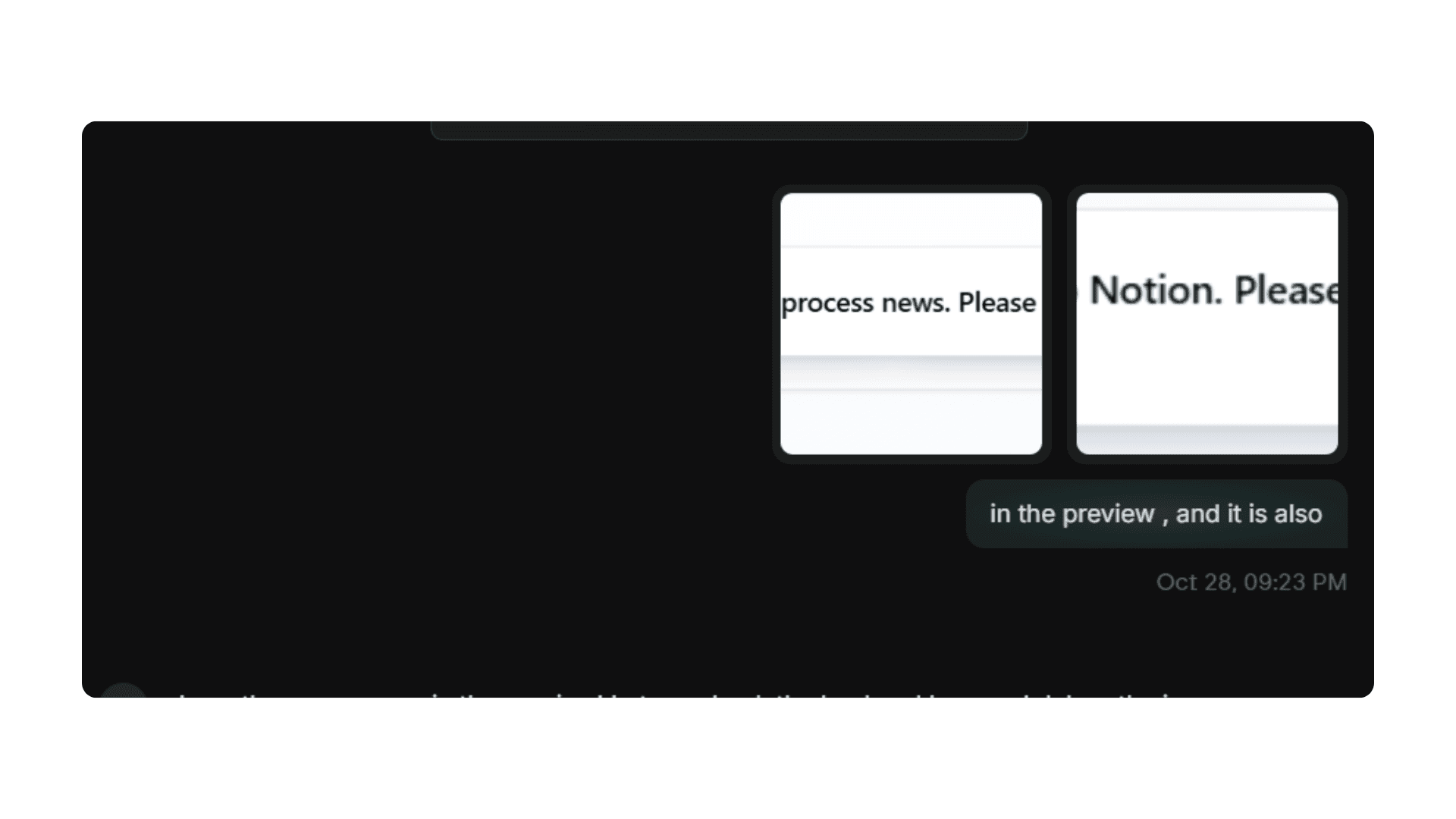
The cool part is that Emergent agents can debug themselves. They can analyze the problem, figure out what went wrong, and even suggest or apply fixes automatically.
In my case, it identified a timeout issue with the news scraping, adjusted the workflow so articles load faster, and even updated the /app/frontend/src/App.js to make the changes live.
Beyond fixing errors, you can also use the agent to improve the output.
In my case, I saw that the summaries were too generic or the insights weren’t actionable, so I asked the agent to fix the problem.
So, the agent went ahead and significantly improved the GPT-5 prompt to generate much more specific and actionable insights and edited the /app/backend/server.py file.
It then started generating much more precise summaries and actionable recommendations.
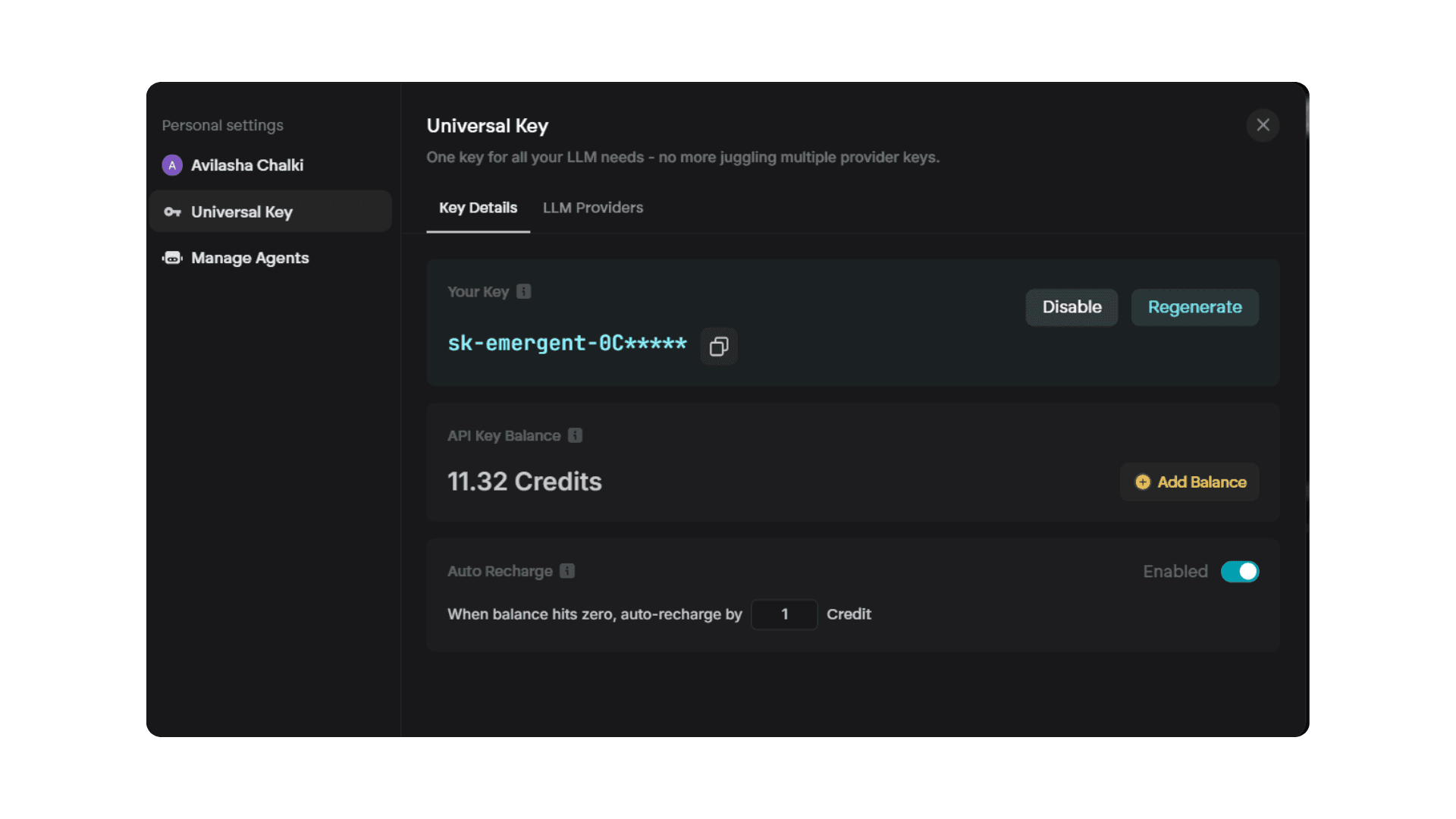
Another thing to watch is your Universal LLM Key credits. If you run low, the agent will notify you, and you can top up directly in your Emergent account under Universal Key.
Once that’s done, the system keeps running smoothly without interruptions.
The best part is that with this setup, your dashboard isn’t just functional, it can self-debug, improve, and evolve over time, giving you reliable, actionable financial insights without constant manual intervention.
Deploying the App
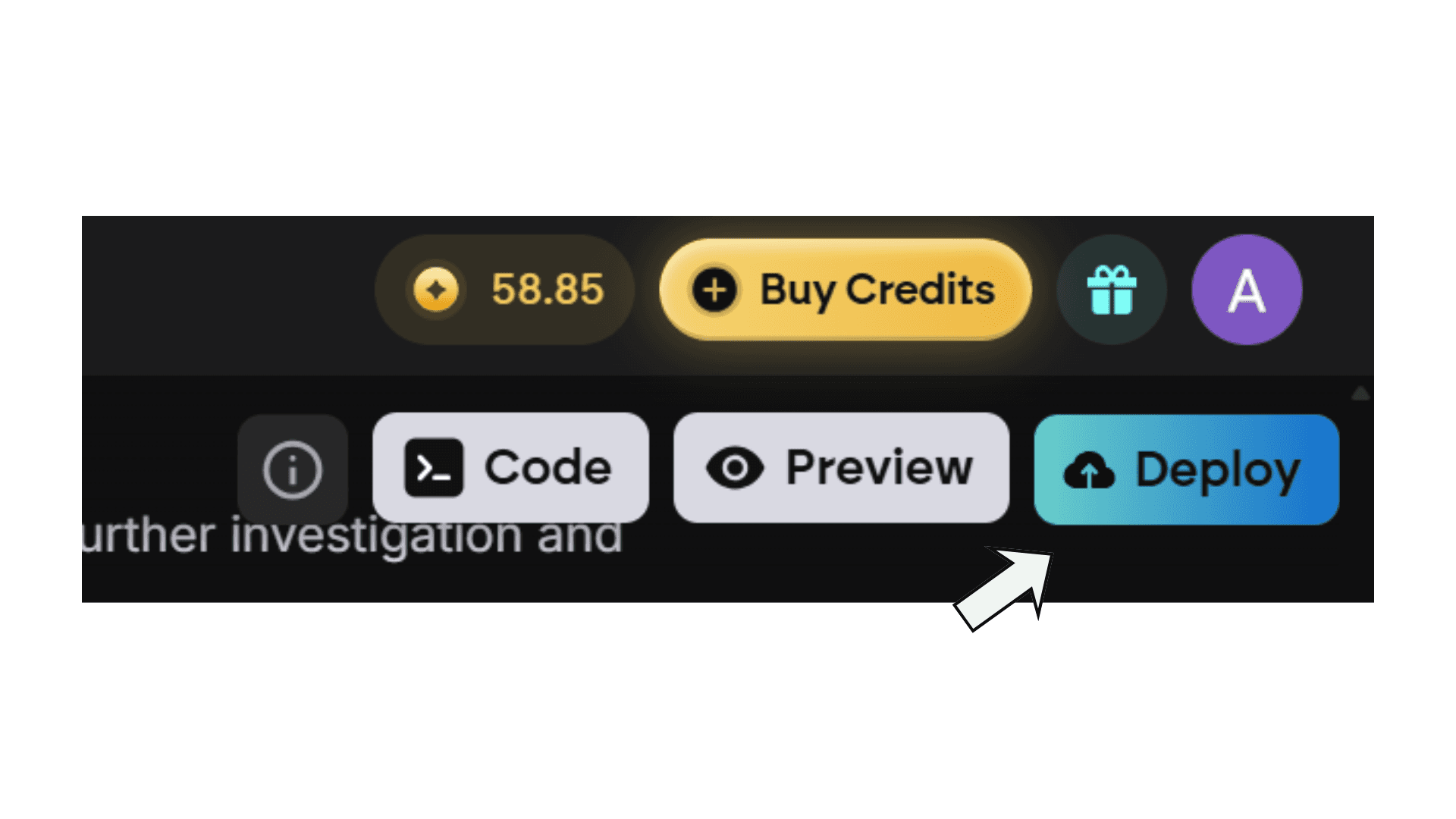
Once everything is set up and tested, deploying your dashboard is a breeze. Emergent lets you deploy your full-stack app with just one click, so it’s live and accessible immediately. You can also connect a custom domain if you want a more professional look.
Don’t worry about security - all your API keys and credentials stay safely stored within Emergent, so you don’t have to manage them separately.
What You Can Build Next
1. Turn It into a Market Alert Chrome Extension
You can convert your financial news dashboard into a Chrome Extension using Emergent’s Chrome Extension builder. This would let users browse financial websites or news platforms and instantly extract relevant headlines, summaries, and actionable insights without opening the full dashboard. Imagine visiting Yahoo Finance or CNBC and seeing a sidebar with the latest stock, crypto, or macro updates, complete with suggested actions, that’s exactly what you can do with Emergent’s extension workflow.
2. Add Export and Analytics Features
Make your dashboard even more useful by allowing users to:
Download updates as Excel or JSON files for further analysis
Save snapshots of market news to track trends over time
Visualize sector performance, stock movement, or macro trends with simple charts
Emergent handles the backend, database storage, and visualization setup, all you need to do is describe what you want.
3. Automate Scheduled Updates
You can set the dashboard to automatically fetch and process news daily or weekly. This way, your Notion database is always up-to-date, and you can even get automated summaries or alerts in Notion or email. Perfect for keeping a pulse on the market without constantly opening your dashboard.
4. Expand to Multi-Source Financial Insights
Take it further by integrating multiple news sources, APIs, or even social sentiment analysis. Combine Yahoo Finance, Twitter, and company press releases to create a centralized, AI-powered market insights hub. The AI can prioritize news based on impact, generate weekly market briefs, and highlight actionable opportunities for you or your team.
Wrapping up
You just built something powerful: a financial intelligence system that works 24/7 without you lifting a finger.
Thousands of Emergent users are building tools like this to automate research, streamline workflows, and make faster decisions.
Some are tracking crypto sentiment, others are monitoring competitor news, and many are creating custom market intelligence systems far beyond what we covered here.
Your turn: What will you automate next?
Link to the deployed app : https://yahooai-notion.emergent.host/
Link to the notion dashboard : https://www.notion.so/29a82137b1cc80c3b58ac288379a7414?v=29a82137b1cc80abb125000c4b312e2d&source=copy_link