


Picking the right application development tools in 2026 is harder than it should be. The market doubled in two years, and half of these tools overlap. I tested tools that cover a full dev workflow, from writing code to shipping to prod.
How These 7 Application Development Tools Compare
These are the seven tools I kept using after three weeks of testing. Each one covers a distinct layer of the dev workflow.
| Tool | Strengths | Best For | Starting Price |
|---|---|---|---|
| Visual Studio Code | Extensible, multi-language, massive plugin library | Developers who need a fast, configurable daily editor | Free |
| GitHub + GitHub Actions | Version control + CI/CD in one ecosystem | Teams shipping code collaboratively with automated pipelines | $4/user/month |
| Docker | Same environment across dev, staging, and prod | Teams eliminating "works on my machine" issues | $11/user/month |
| Emergent | App building from a plain prompt, multi-agent architecture, live deploy | Founders and teams who need a shipped app without a dev team | $20/month |
| Cursor | AI-native editor with full codebase context, multi-file edits | Developers who code daily and want AI with whole-project awareness | $20/month |
| Firebase | Auth, database, hosting, and functions without managing servers | Solo devs and small teams building web or mobile apps fast | Free |
| Playwright | Cross-browser E2E testing with auto-wait and codegen | QA engineers and devs who need stable, modern test suites | Free |
How I Tested These Application Development Tools
Each tool ran through three scenarios: a web app built from scratch, a CI/CD pipeline on a fresh repo, and a Node.js service containerized for local and staging. Testing ran over three weeks on a MacBook Pro M3, Node.js 20, and a fresh GitHub organization to avoid carry-over configuration.
For the tools with AI features, I also pushed on codebase context and multi-file edits to see how much time sat between the first prompt and a live result.
For each tool, I tracked five things:
- Features: Whether core functionality works as advertised when the build gets long and the data gets messy.
- Usability: Time from install to first working output, and how much friction appears after that.
- Integrations: How each tool behaves when connected to GitHub, Docker, and Firebase in the same workflow.
- Pricing: Where free tiers cut off under actual usage, and whether the first paid tier solves the actual constraint.
- Use Cases: Coverage across prototyping, CI/CD, containerized deploys, AI-assisted coding, and cross-browser end-to-end (E2E) testing.
Every tool starts to wobble in the same place: once the build gets complicated and the data gets messy, well past the guided demo stage.
1. Visual Studio Code: Best for Developers Who Switch Between Stacks
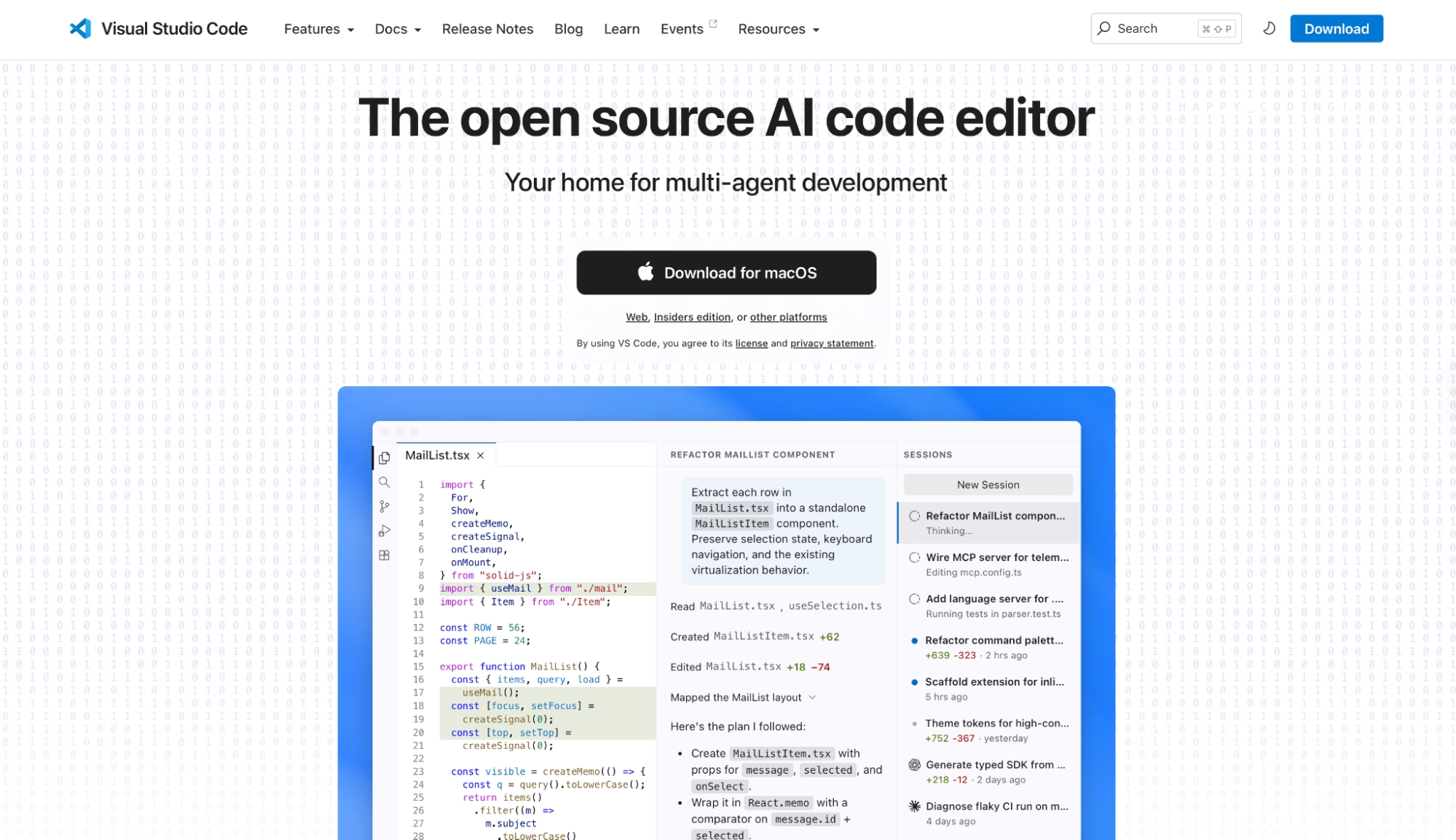
What it does: A free, open-source code editor that supports any programming language through extensions, with a terminal, Git integration, and GitHub Copilot built in.
Best for: Individual developers and teams who want a lightweight editor they can configure precisely for any stack without paying for an IDE license.
The first thing I noticed when I opened a project in Visual Studio Code was how little gets in the way. You can split the editor with Ctrl+\, open the terminal without leaving the window, and jump to any file with Ctrl+P.
Because everything lives in one place, I didn't switch to a browser or a separate terminal at all during my Node.js build.
The friction showed up in extension management. Adding Python support, a Docker extension, and a linter at the same time caused enough startup lag that I had to disable two of those extensions before VS Code felt responsive again.
Key Features
- Extension Marketplace: Thousands of extensions covering languages, debuggers, linters, and themes, installed and managed directly from the Activity Bar without leaving the editor.
- Terminal and Git: Run shell commands, manage commits, and view diffs without switching applications. Git operations, including staging, diffing, and pushing, are available in the Source Control panel.
- GitHub Copilot agent mode: Copilot in VS Code can plan multi-step tasks, run terminal commands, and edit across several files in one pass, all without leaving the editor.
- Side-by-side editing with floating windows: Open as many editor groups as needed vertically or horizontally, and detach any editor tab into a floating window for multi-monitor setups.
Pros and Cons
Pros:
- Runs on Windows, macOS, and Linux with identical behavior, so there are no per-platform setup surprises when team members switch machines.
- The Command Palette (
Ctrl+Shift+P) surfaces every editor function by name, making it faster to access features than navigating through menus. - Workspace settings stored in
.vscode/settings.jsonlet you commit editor configuration to the repository, ensuring a consistent setup for everyone who clones the project.
Cons:
- Heavy extension stacks can slow startup and overall performance, especially when running 15 or more extensions, requiring careful extension management.
- For large enterprise Java or C# projects, Visual Studio Code's refactoring capabilities are less comprehensive than JetBrains IDEs, which can become a productivity bottleneck.
What Users Say
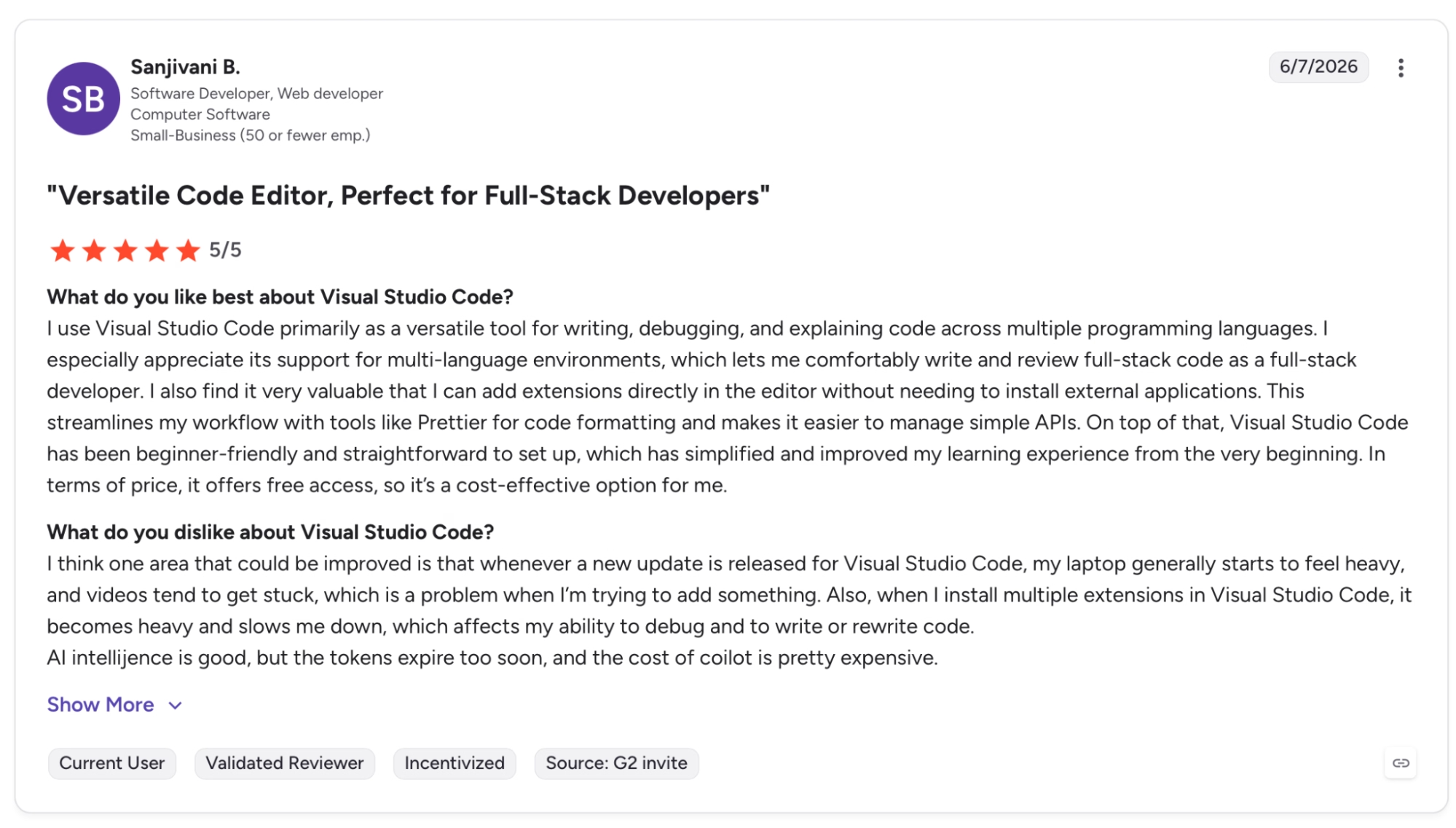
"I use Visual Studio Code primarily as a versatile tool for writing, debugging, and explaining code across multiple programming languages." — Sanjivani B., G2
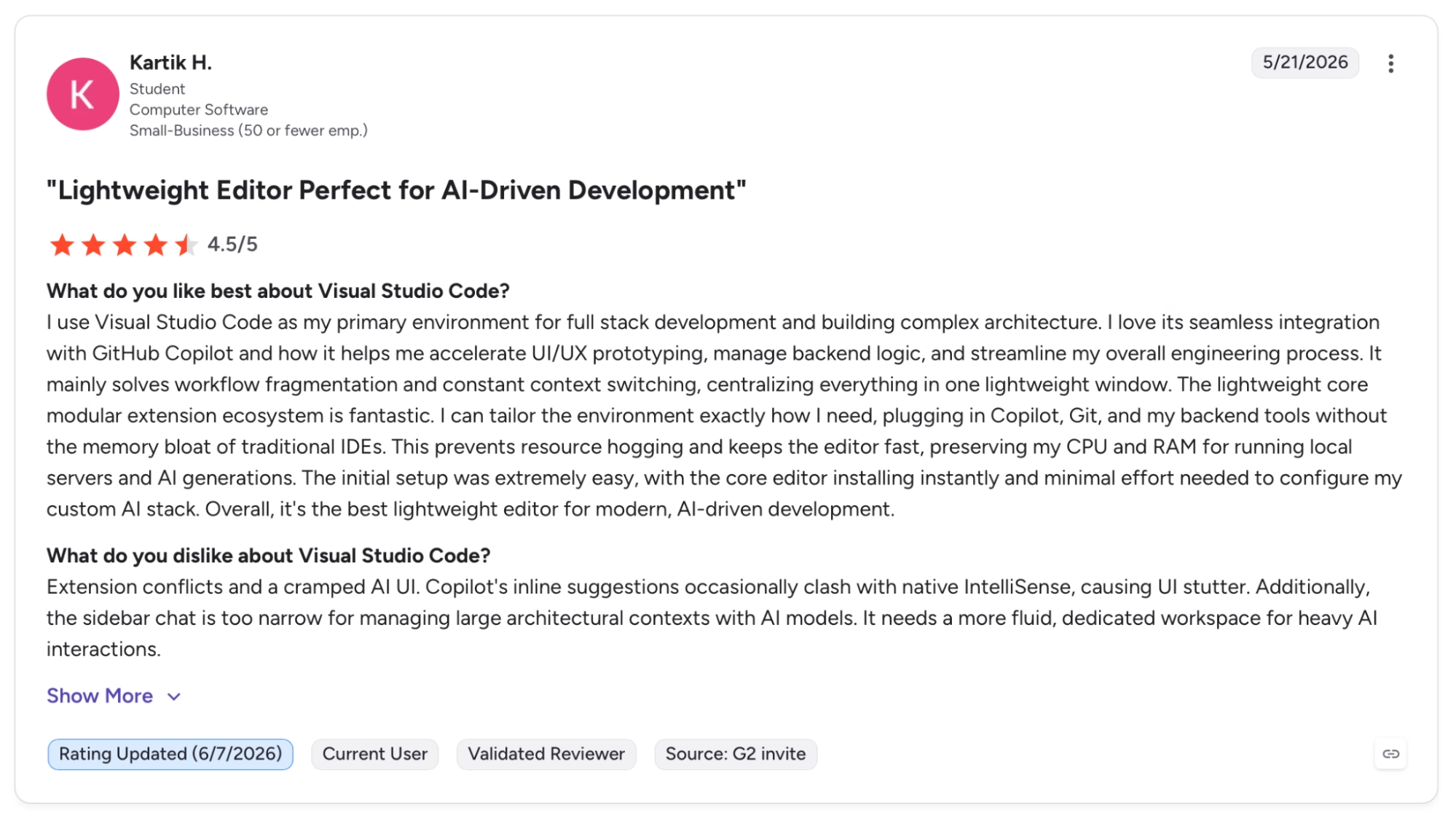
"Extension conflicts and a cramped AI UI. Copilot's inline suggestions occasionally clash with native IntelliSense, causing UI stutter." — Kartik H., G2
Pricing
VS Code is free and open source under the MIT license. GitHub Copilot, the AI coding assistant that runs inside the editor, starts at $10/month per user
Bottom Line
VS Code works well as a daily editor for many developers. It's fast to start, configurable by language, and free. If your workflow is heavily Java or C# and refactoring depth matters, JetBrains IDEs are worth the license cost.
2. GitHub and GitHub Actions: Best for Version Control and CI/CD in One Place
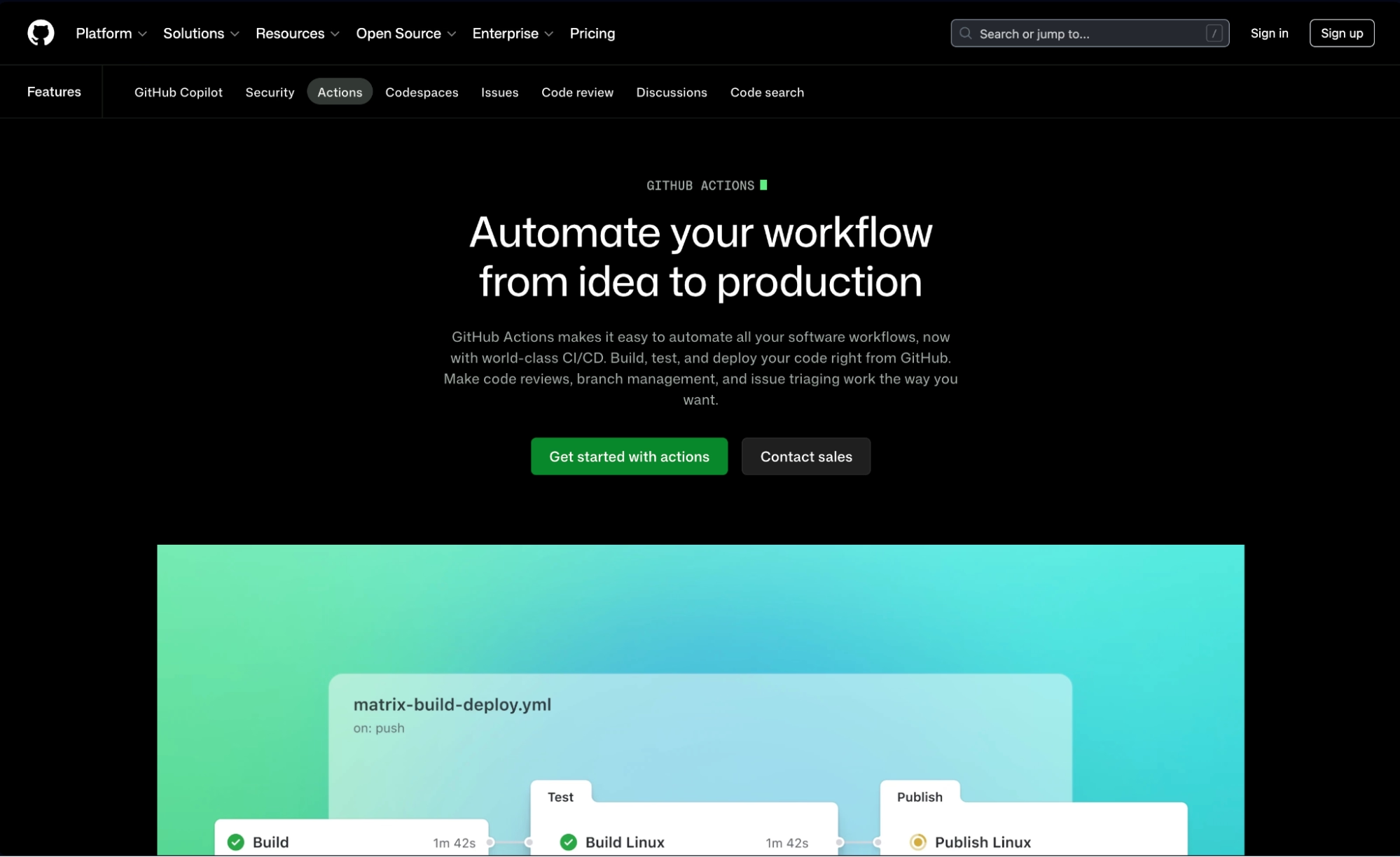
What it does: A Git hosting platform with a CI/CD layer that triggers automated workflows on any repository event, from push and pull requests to scheduled cron jobs and manual dispatch.
Best for: Engineering teams that want version control, code review, and deployment pipelines on the same platform.
Setting up a pipeline from scratch on a fresh repo took under 20 minutes. I pushed a .github/workflows/deploy.yml file, defined three jobs, and watched them run in parallel on the Actions tab without touching any external configuration.
The pull request that triggered the build also showed the test results inline, right in the review thread.
The one place I hit friction was matrix builds. Running the same job across five Node.js versions and two operating systems generated 10 parallel runners. On the Free plan, that ate through the monthly minute allowance faster than the documentation suggests.
Key Features
- YAML-based workflows in the repo: Pipelines live in .github/workflows alongside the code, versioned and reviewed the same way as any other file in the repository.
- GitHub-hosted and self-hosted runners: Jobs run on GitHub-managed Linux, Windows, or macOS machines, or on your own infrastructure if compliance or performance requires it.
- Actions Marketplace: Reusable actions for building, testing, deploying, and notifying are available directly from the Marketplace and can be added to any workflow with a single uses: line.
- Branch protection and required status checks: Enforce that specific workflow jobs must pass before a pull request can merge, making CI a required gate on every pull request.
Pros and Cons
Pros:
- Workflow results appear inline inside the pull request, so reviewers see test status without leaving the code review.
- Public repositories get unlimited Actions minutes on standard runners at no cost, which handles most open-source workflows without any plan upgrade.
- The Marketplace has ready-made actions for most deployment targets, including AWS, Azure, GCP, and Docker, plus dozens of SaaS integrations.
Cons:
- The 2,000 free minutes/month on the Free plan runs out quickly on teams with frequent matrix builds or long test suites
- Workflow YAML syntax has a steep learning curve for teams with no prior CI/CD experience. Indentation errors and context variable scoping produce cryptic failures
- GitHub-hosted macOS runners consume minutes at 10 times the rate of Linux runners per GitHub's official billing docs
What Users Say
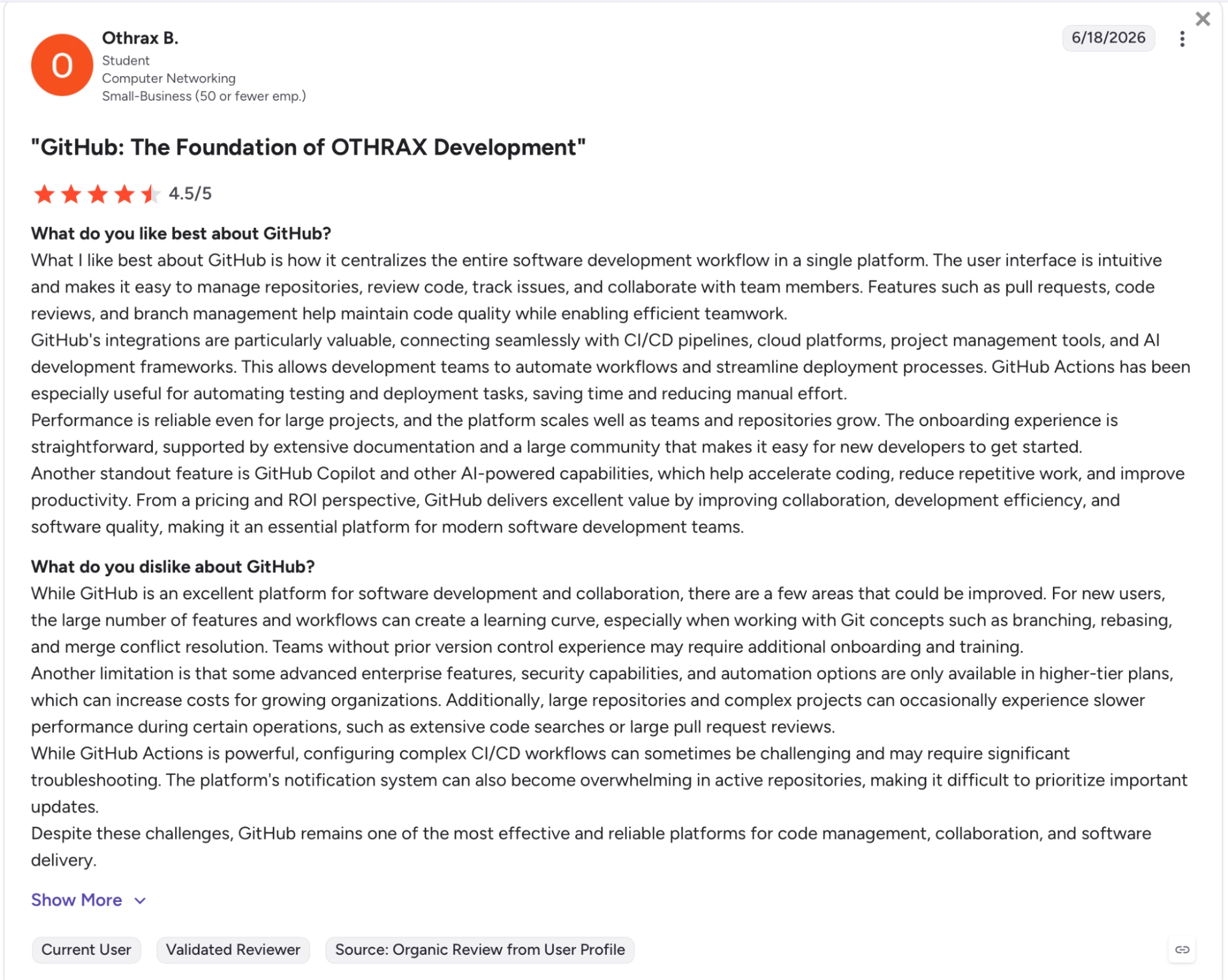
"GitHub Actions has been especially useful for automating testing and deployment tasks, saving time and reducing manual effort." — Othrax B., G2
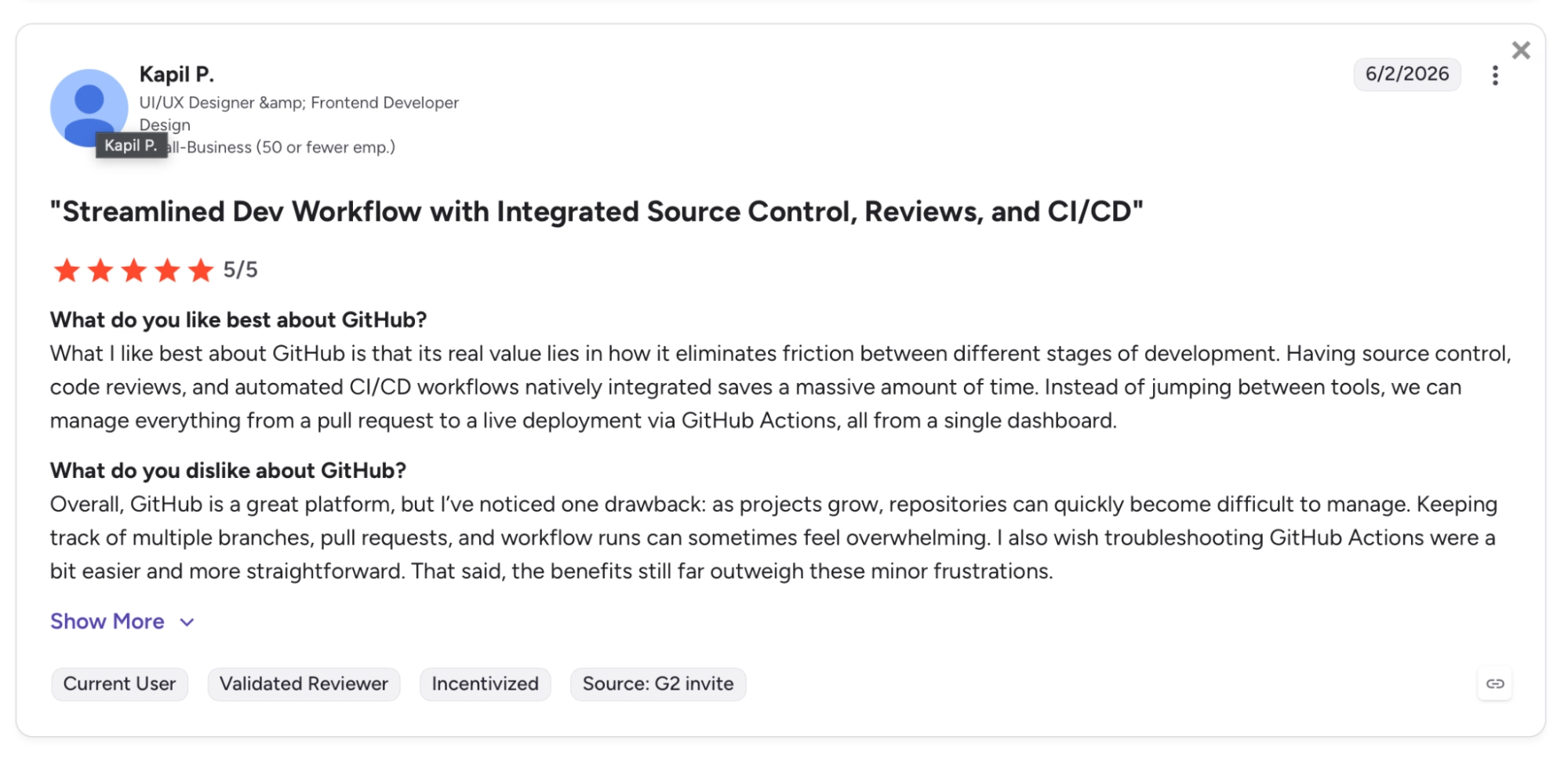
"Overall, GitHub is a great platform, but I’ve noticed one drawback: as projects grow, repositories can quickly become difficult to manage." — Kapil P., G2
Pricing
Team runs $4/month per user with 3,000 Actions minutes/month, protected branches, and required reviewers.
Bottom Line
GitHub and GitHub Actions work well for teams that want version control and CI/CD on the same platform without wiring up separate services. Teams running air-gapped infrastructure or already invested in Jenkins pipelines will find a self-hosted setup fits their constraints better.
Still figuring out how AI-assisted development fits into your existing workflow? Our Vibe Coding vs Traditional Coding breakdown gives you a developer's honest take.
3. Docker: Best for Consistent Environments Across Every Machine
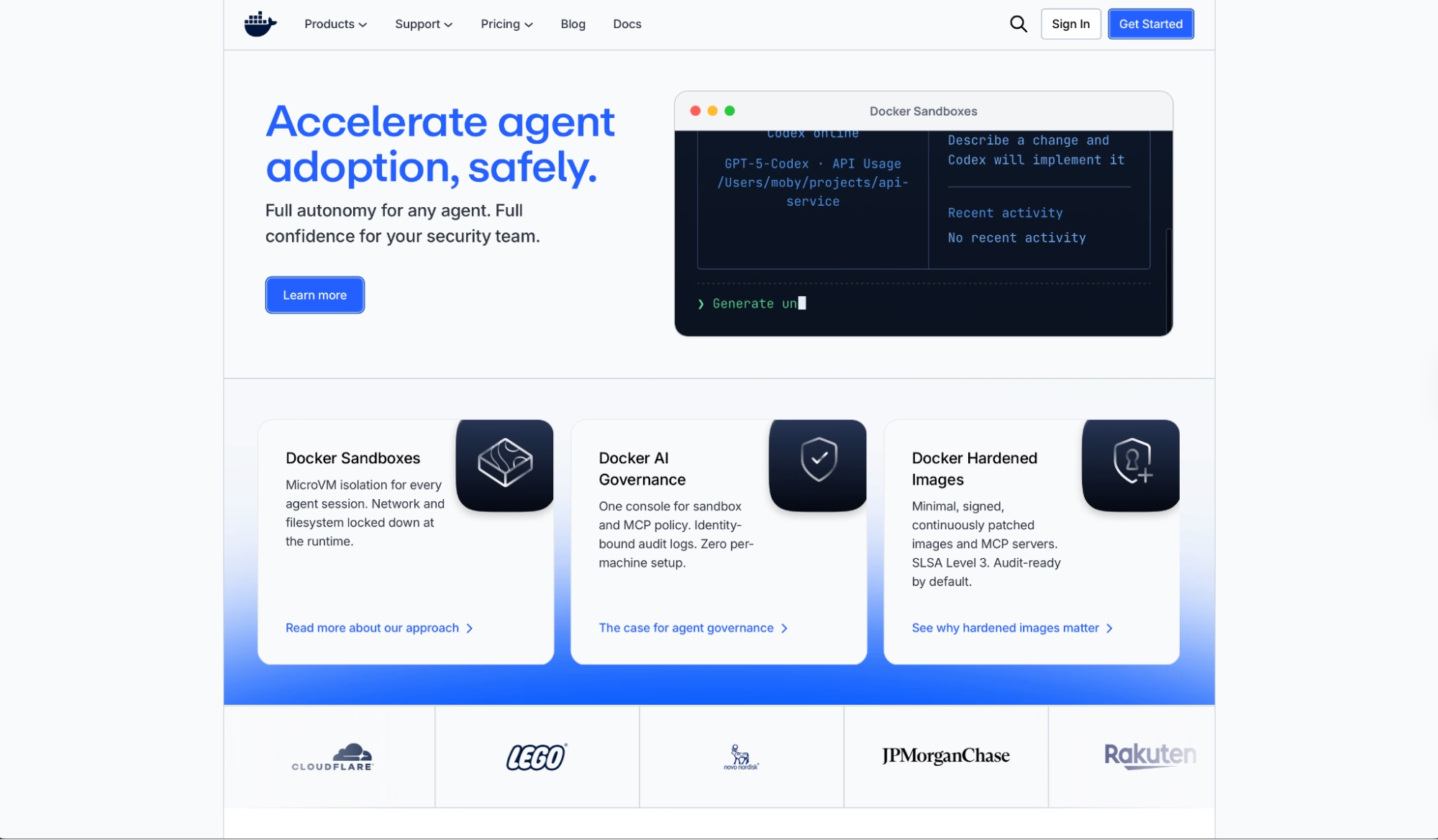
What it does: An open platform that packages applications and their dependencies into containers so the same build runs identically on a developer's laptop, a CI runner, and a production server.
Best for: Development and DevOps teams who have burned time debugging environment-specific failures and need a single, portable unit that behaves the same everywhere.
The Node.js service I containerized ran on my machine, passed on the GitHub Actions runner, and deployed to staging without a single configuration change.
That mattered because a Node version mismatch on the CI runner had already cost 40 minutes on a previous build. Pinning the version in the Dockerfile meant it couldn't drift between machines anymore.
Where Docker adds friction is storage. Images accumulate fast, and teams that skip regular cleanup will see disk space on local machines disappear within weeks of active development. Upgrading to the Team plan moves builds to Docker Build Cloud, which takes that problem off local machines entirely.
Key Features
- Dockerfile and image layering: Each instruction in a Dockerfile creates a layer. When the file changes, only the modified layers rebuild, which keeps subsequent builds fast even in large projects.
- Docker Compose for multi-container apps: Define an entire application stack (app server, database, cache) in a single docker-compose.yml file and bring it all up with one command.
- Docker Hub registry: Public and private image storage with official images for Node.js, Python, Postgres, Redis, Nginx, and hundreds of other runtimes.
- Docker Build Cloud: Offloads image builds to cloud-based builders, removing the local disk and CPU overhead of building large images on developer machines and CI runners.
Pros and Cons
Pros:
- Containers share the host OS kernel, start in seconds, and use a fraction of the memory a VM would
- Docker Compose makes it possible to replicate a production-like multi-service stack locally with a single docker compose up, which catches integration issues before they reach CI
- Official images for Node.js, Python, Postgres, Redis, Nginx, and hundreds of other runtimes mean most stacks start from a verified base without building from scratch
Cons:
- Image layers accumulate on local machines without warning. Teams that skip regular cleanup will run into disk space issues within weeks on active projects
- Container isolation is lighter than a VM. For workloads with strict security boundaries between tenants, that difference matters and requires additional hardening
What Users Say
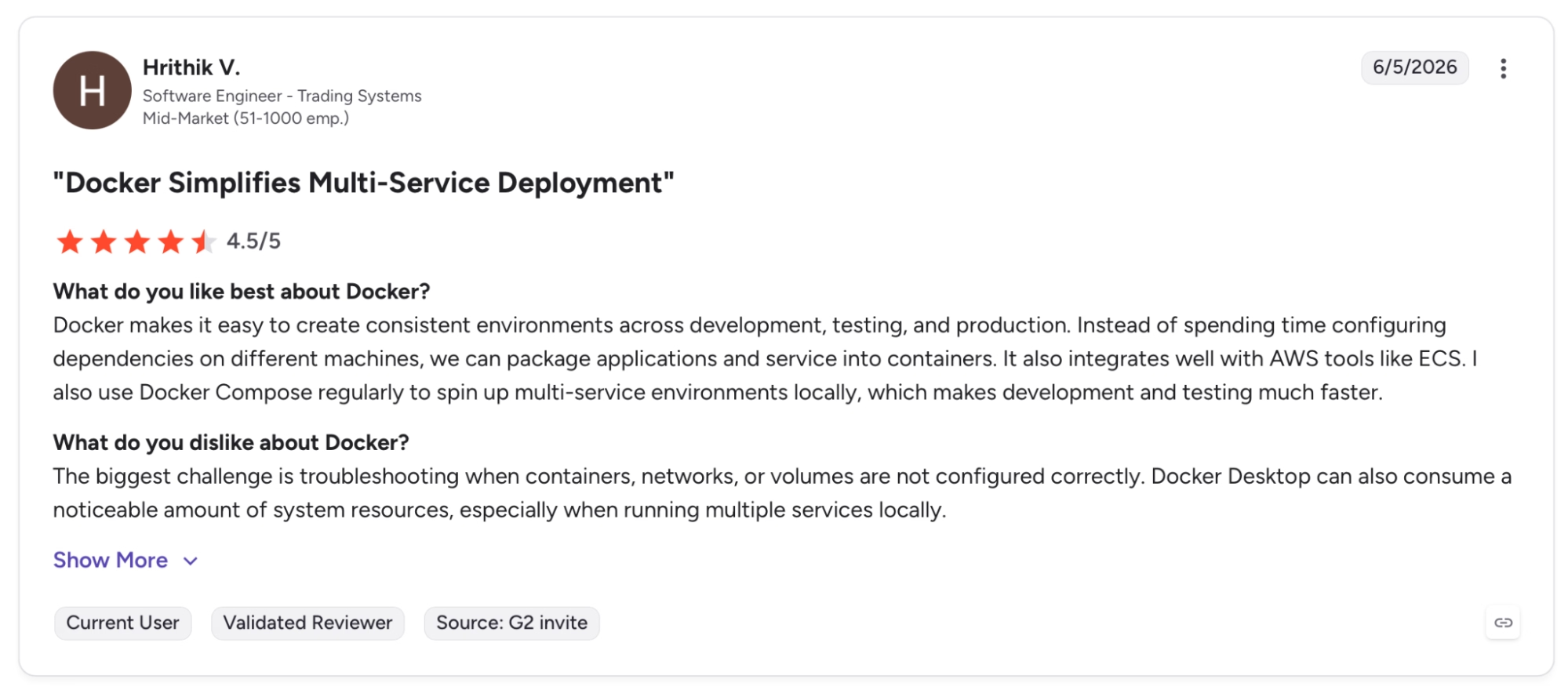
"Docker makes it easy to create consistent environments across development, testing, and production. Instead of spending time configuring dependencies on different machines." — Hrithik V., G2
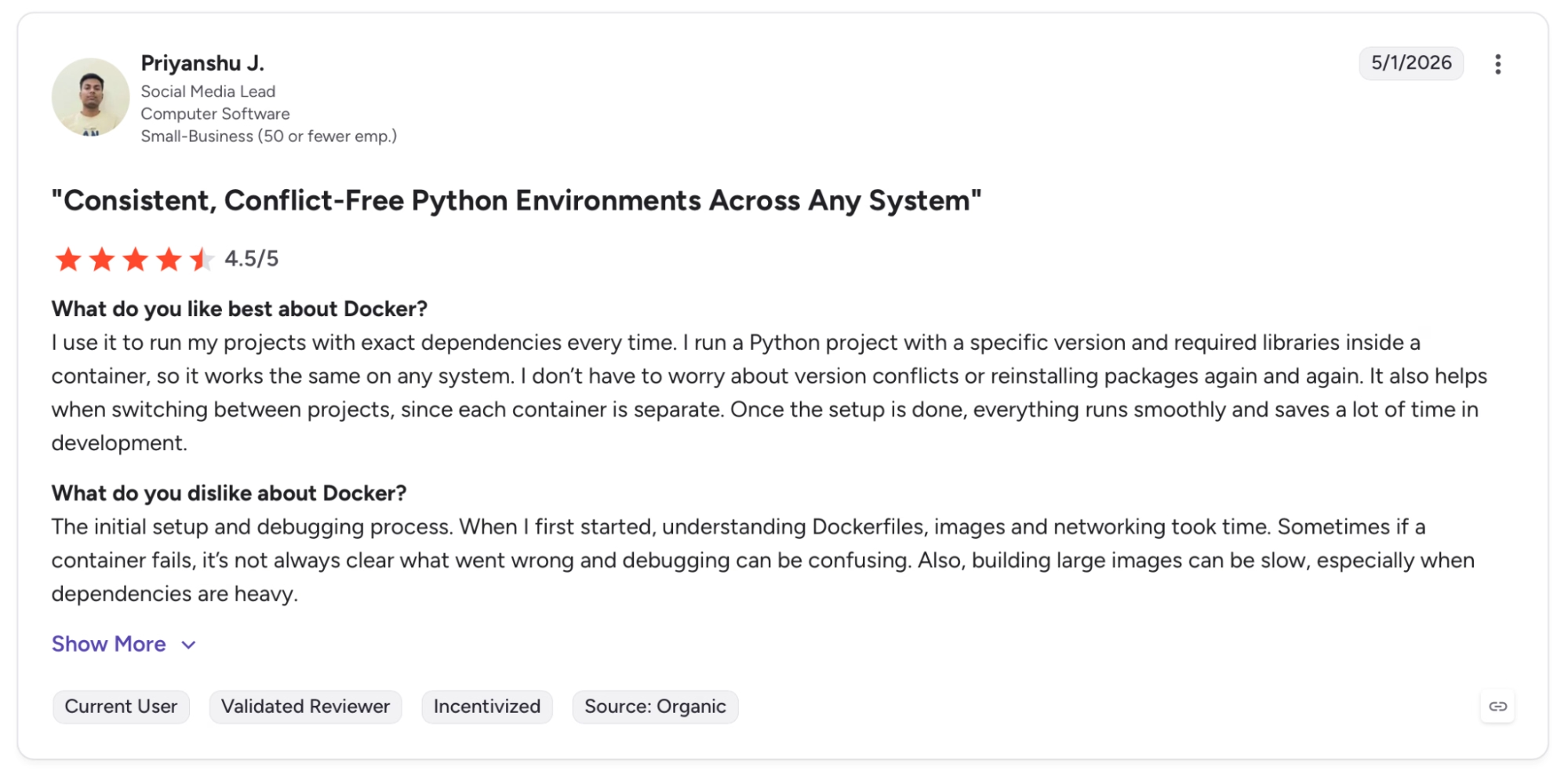
"The initial setup and debugging process. When I first started, understanding Dockerfiles, images and networking took time." — Priyanshu J., G2
Pricing
Pro runs $11/month per user billed monthly ($9/month billed annually) with unlimited pull rate, 200 Build Cloud minutes/month, and unlimited private repositories.
Bottom Line
Docker pays off for teams shipping across more than one environment, where small configuration differences between machines waste debugging time. Teams running fully managed serverless workloads where the vendor handles the runtime have less use for it.
4. Emergent: Best for Shipping a Working App Without a Dev Team
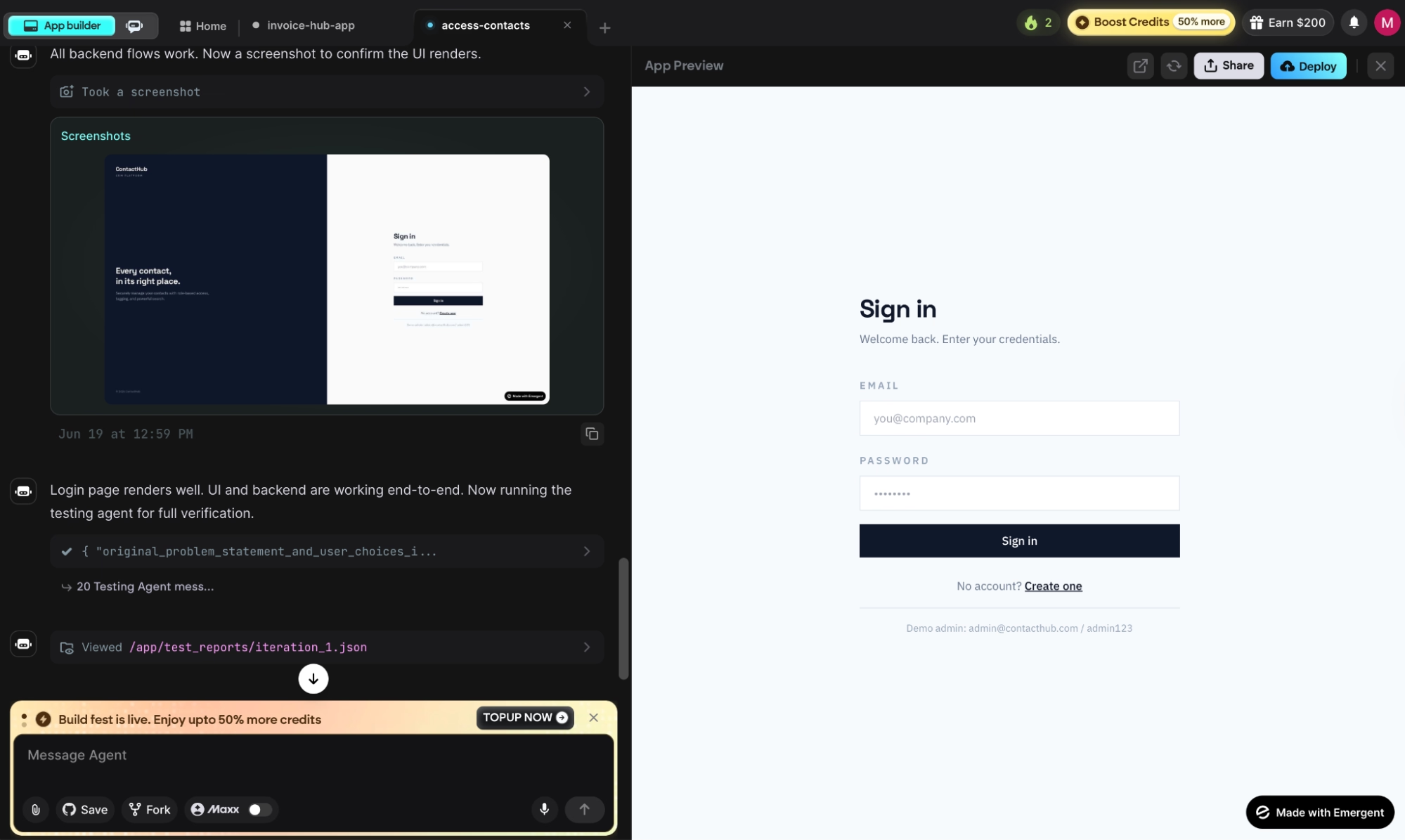
What it does: An agentic coding platform that takes a plain-language prompt and ships a deployed web or mobile app, all with a multi-agent architecture running design, code, testing, and integrations in parallel.
Best for: Founders and product managers who need a working app shipped without setting up environments, frameworks, or infrastructure.
I described a contact management app in two sentences and had a working build with Emergent Auth, a database, and role-based access live in under an hour.
That speed comes from the multi-agent architecture: while one agent wrote the app, another ran tests in parallel and caught two regressions before they reached the preview link.
The credit model gets tight on iterative builds. Prompts, test runs, and deploys all pull from the same monthly pool, so there's no category of work that doesn't cost credits.
On the Standard plan, a project with frequent back-and-forth can burn through 100 monthly credits faster than expected. When that happens, the next step is either a top-up or moving to Pro.
Key Features
- Multi-agent architecture: Specialized agents handle the full build in parallel as a coordinated system, which keeps the output stable as the app grows
- Live app monitoring: Analytics, health checks, error logs, and mobile alerts run automatically on every deployed app
- Automated regression testing: The testing layer catches errors before they ship, so large builds stay coherent as you iterate
- Universal LLM Key: Plug Claude, GPT, or Gemini into your app using Emergent credits without needing your own API keys.
Pros and Cons
Pros:
- Getting from a plain description to a live URL is faster here than with any other tool I tested
- When credits run out, the codebase stays accessible. You can open it in VS Code and keep building from there
- GitHub export on Standard and above means handing the project to a developer or switching hosting later is straightforward
Cons:
- Credits cover everything: prompts, tests, deployments, and debugging. Vague or iterative prompts burn credits faster than the pricing page implies
- The local preview database can diverge from the live version after several deployment cycles
What Users Say
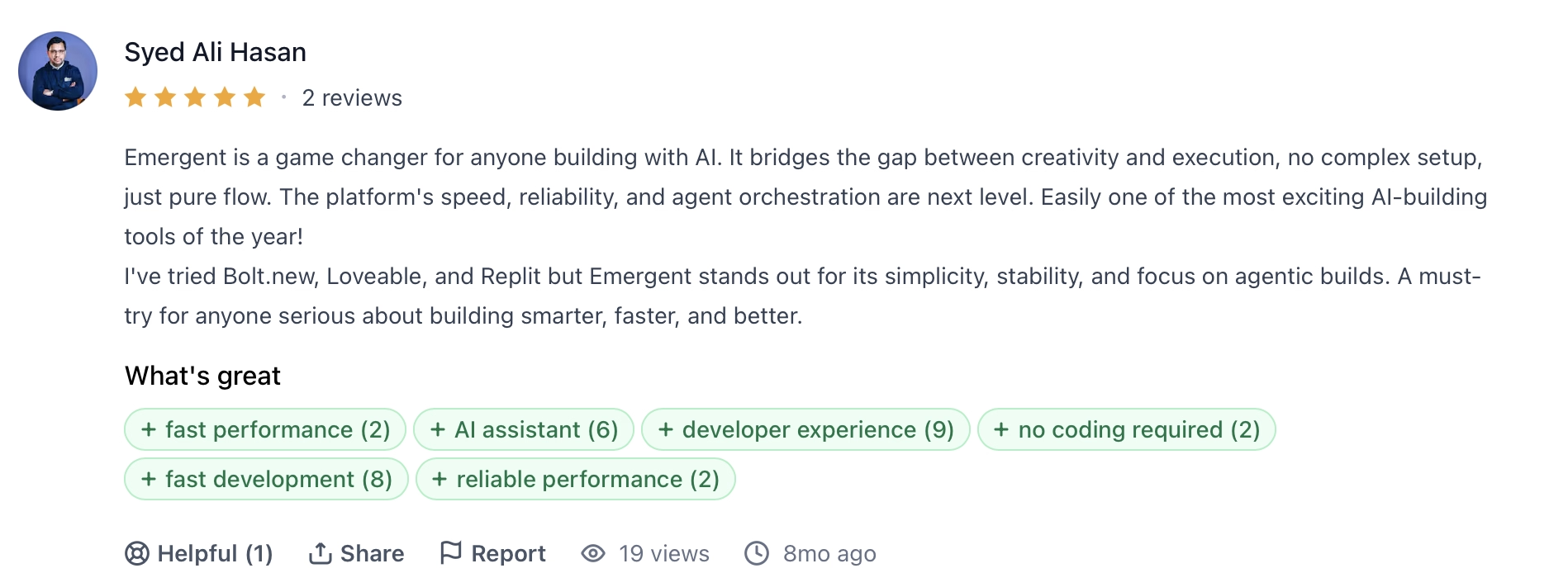
"Emergent is a game changer for anyone building with AI. It bridges the gap between creativity and execution, no complex setup, just pure flow." — Syed Ali Hasan, Product Hunt
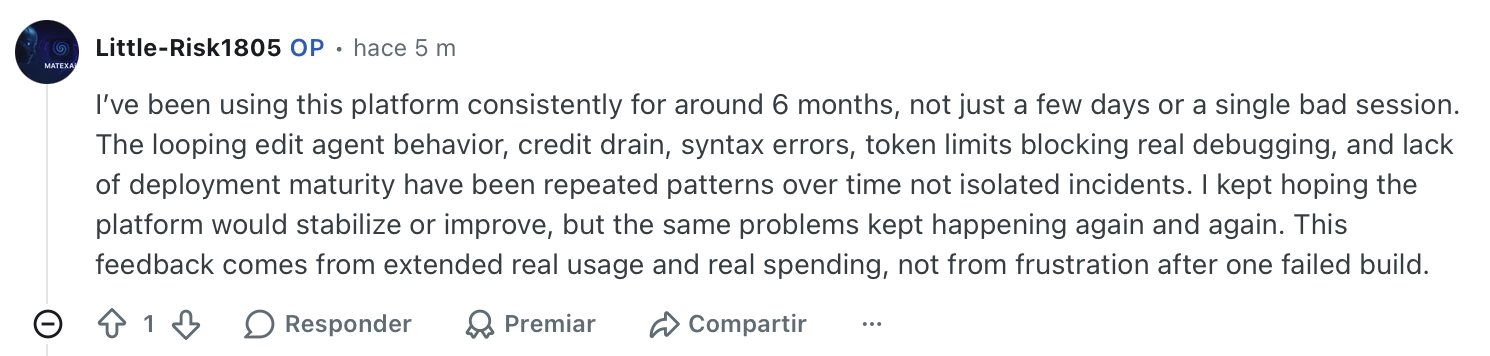
"I kept hoping the platform would stabilize or improve, but the same problems kept happening again and again." — Verified User, Reddit
Pricing
Standard runs $20/month billed monthly, or $17/month billed annually, with 100 credits, GitHub sync, live deployments, and mobile agent access.
Bottom Line
Emergent works well for founders and product teams who need an app running without an engineering team. Developers who want control over routing, data models, and deployment config will find more room in Cursor or VS Code.
New to the concept behind these tools? Our What Is Vibe Coding guide breaks down how it all works before you dive in.
5. Cursor: Best for AI That Understands the Whole Codebase
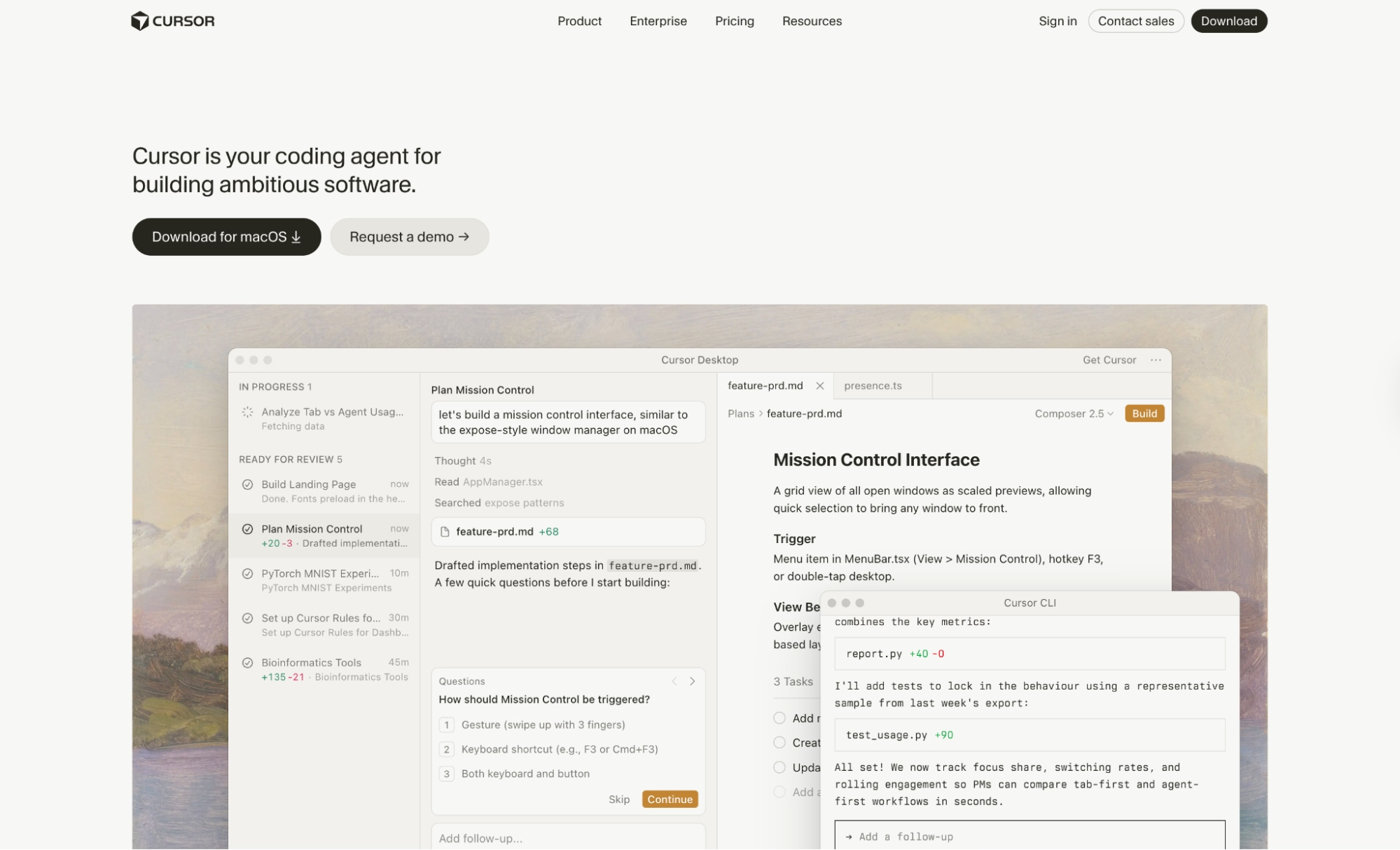
What it does: A VS Code fork rebuilt around an AI agent that indexes the entire codebase, edits across multiple files simultaneously, runs terminal commands, and reviews its own changes before committing them.
Best for: Individual developers and engineering teams who write code daily and need an AI that reads the full project, every file, and merged PR, before making a change.
The first time I asked Cursor to refactor something that touched six files, it searched the codebase, made all the edits, ran the tests, and flagged a failing assertion. All before I reviewed the diff. That experience holds up consistently once you're on a paid plan.
On the Hobby tier, it's a different story. Agent requests run out faster than Tab completions, and once they're gone, the workflow stops until the next billing cycle.
Key Features
- Full codebase indexing: Cursor indexes every file in the project (excluding .gitignore paths) and creates encrypted embeddings stored server-side. The source code itself isn't stored, only the embeddings.
- Agent with terminal execution: The Agent can run shell commands, monitor output, and loop back to fix failures autonomously. Automatic checkpoints snapshot every change, so most Agent runs can be rolled back.
- PR and commit history search: Agent indexes all merged PRs from the repository and makes them searchable by context. Reference any PR, commit, or branch directly in the chat with @[PR number].
- Bugbot PR reviews: Available on Individual (usage-based) and Team plans, Bugbot reviews pull requests automatically, flags regressions, and leaves comments tied to specific lines.
Pros and Cons
Pros:
- Searching merged PR history gives the Agent context about regressions introduced weeks earlier
- Automatic checkpoints snapshot every Agent change. If a run goes sideways, you can roll back to any earlier state
- Privacy mode blocks code from being used for training by Cursor or any of its model providers, which matters for teams under NDA or with confidential codebases
- VS Code settings, extensions, and keybindings carry over on first launch. Switching from VS Code takes a few minutes, not a full re-setup.
Cons:
- PR and merge request context is much deeper on GitHub than GitLab. GitLab connects via the MCP server and supports basic repository operations, but doesn't yet reach parity with the PR search and history indexing available for GitHub repos
- On the Hobby plan, Agent request limits run out within a few days of daily use, at which point the workflow stops until the next billing cycle
What Users Say
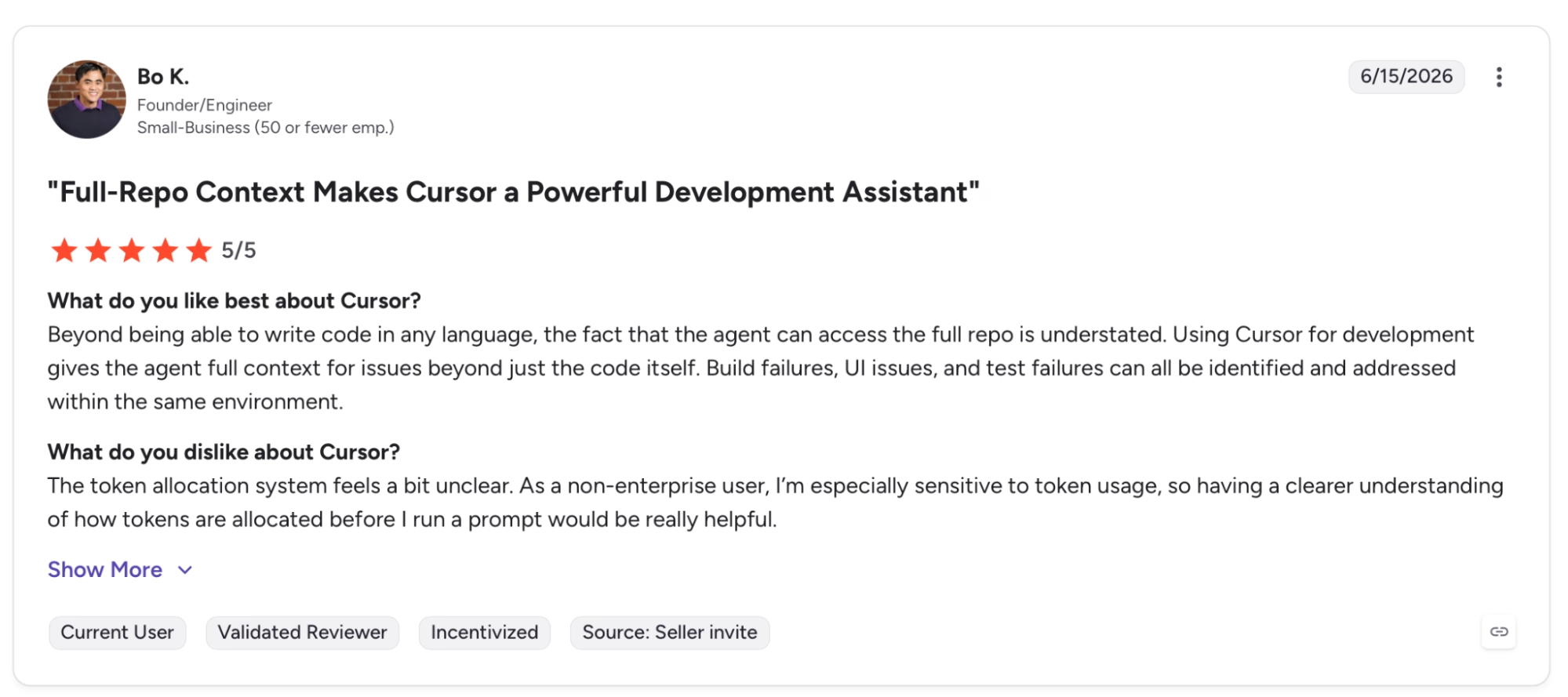
"Beyond being able to write code in any language, the fact that the agent can access the full repo is understated." — Bo K., G2
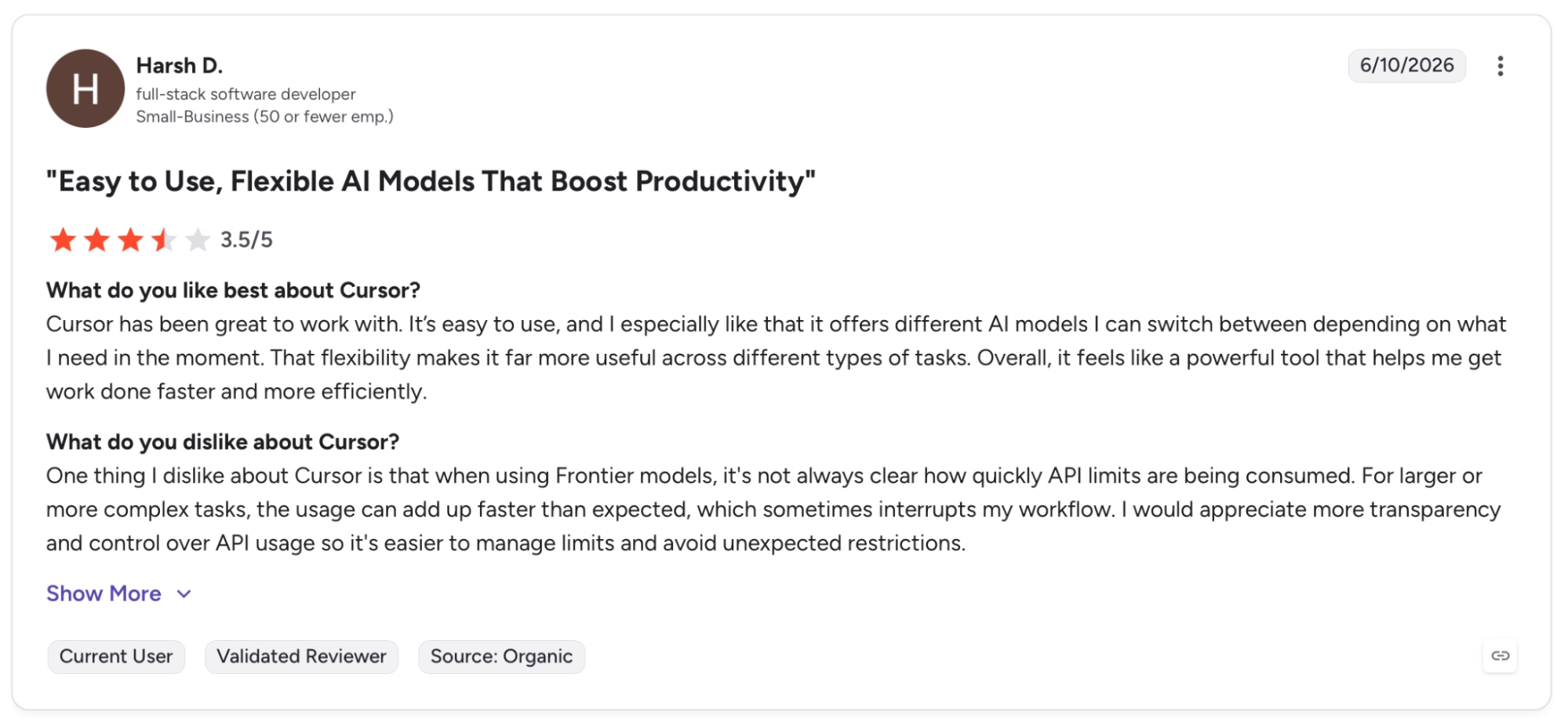
"One thing I dislike about Cursor is that when using Frontier models, it's not always clear how quickly API limits are being consumed." — Harsh D., G2
Pricing
Individual runs $20/month with extended Agent limits, frontier model access, MCPs, and Bugbot on usage-based billing.
Bottom Line
Cursor works well for developers who want an AI that reads the full codebase, runs terminal commands, and edits across files in a single pass. Teams on GitLab should verify current MCP support before committing to the Teams plan.
6. Firebase: Best for a Backend Without Managing Servers
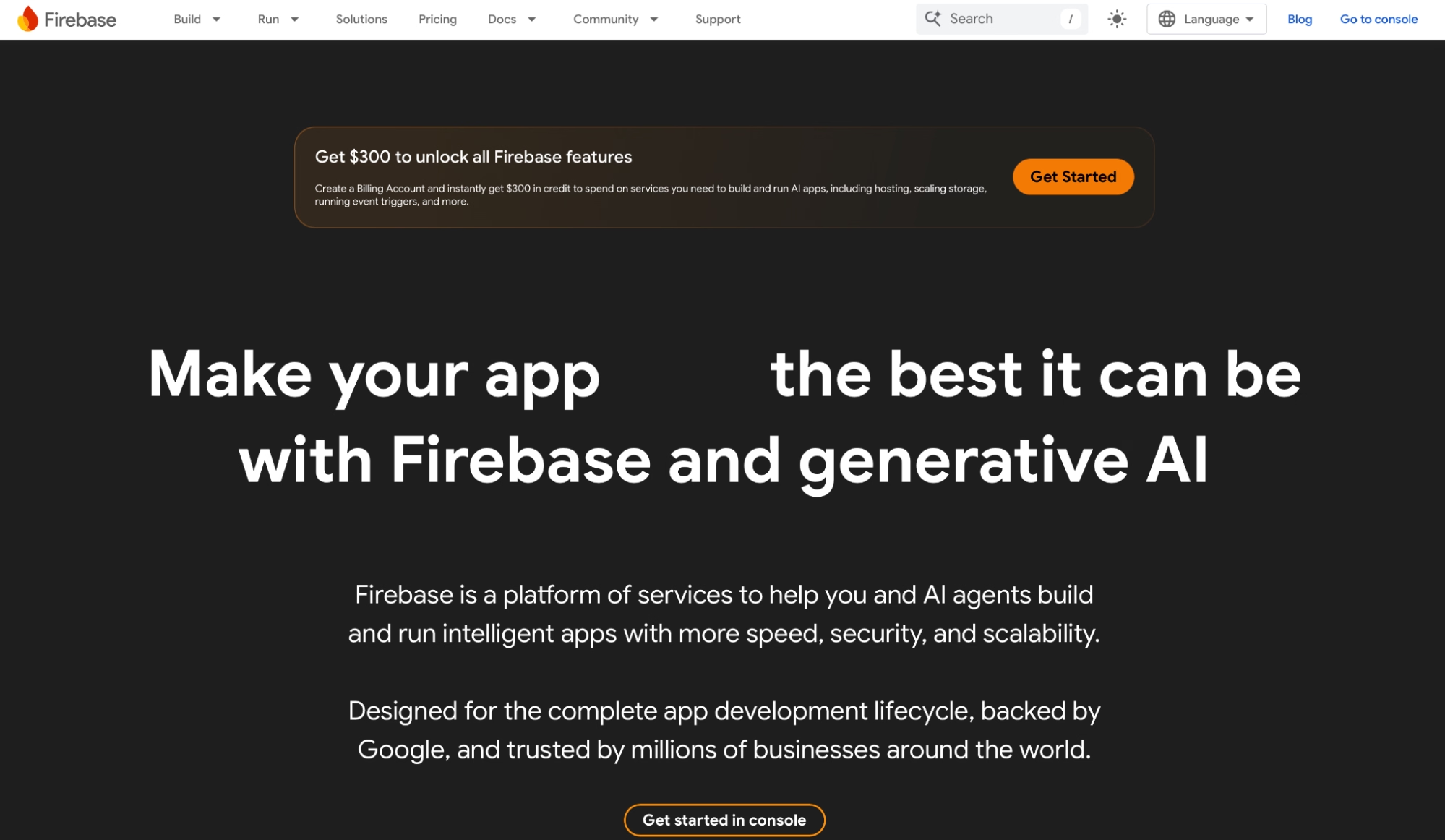
What it does: A Google-managed backend platform that bundles a syncing database, authentication, file storage, serverless functions, and hosting under one console. It requires no configuration or server setup.
Best for: Solo developers and small teams building web or mobile apps who need auth, database, and hosting live fast without standing up and maintaining backend infrastructure.
I had Firebase Authentication, a Firestore database, and a deployed app running inside two hours on the Spark plan without entering a payment method.
The free-tier limits held through the entire prototype: 50,000 Firestore reads and 20,000 writes per day were enough headroom that I never hit a wall before the app had real shape.
Cloud Functions is what forces a plan decision. Outbound network calls from functions are blocked on Spark entirely, so any feature that talks to an external API required upgrading to Blaze before I could even test it.
Key Features
- Cloud Firestore live sync: A NoSQL document database that pushes updates to all connected clients without polling, with offline persistence in the mobile and web SDKs.
- Firebase Authentication: Handles email/password, Google, Apple, GitHub, and phone sign-in out of the box with pre-built UI components, covering up to 50,000 monthly active users at no cost.
- Cloud Functions for Firebase: Deploy server-side logic as event-driven functions triggered by Firestore writes, Auth events, HTTP requests, or scheduled jobs, with no server to configure or scale manually.
- Firebase Hosting with App Hosting: Static and server-side hosting with SSL, custom domains, and CDN delivery included. App Hosting adds Cloud Run-backed server rendering for frameworks like Next.js and Angular.
Pros and Cons
Pros:
- Firebase Authentication, database, storage, hosting, and serverless functions sit in one console. You wire them together under one billing account without managing separate vendor relationships
- Firestore's offline persistence and live listeners handle sync and reconnection automatically across iOS, Android, and web SDKs
Cons:
- Cloud Functions block all outbound networking on the Spark plan. Any feature that calls an external API requires upgrading to Blaze and attaching a payment method before it can be tested
- Firestore's NoSQL structure makes relational data models awkward. Apps with joins or reporting needs will fight the data model more than they expected
What Users Say
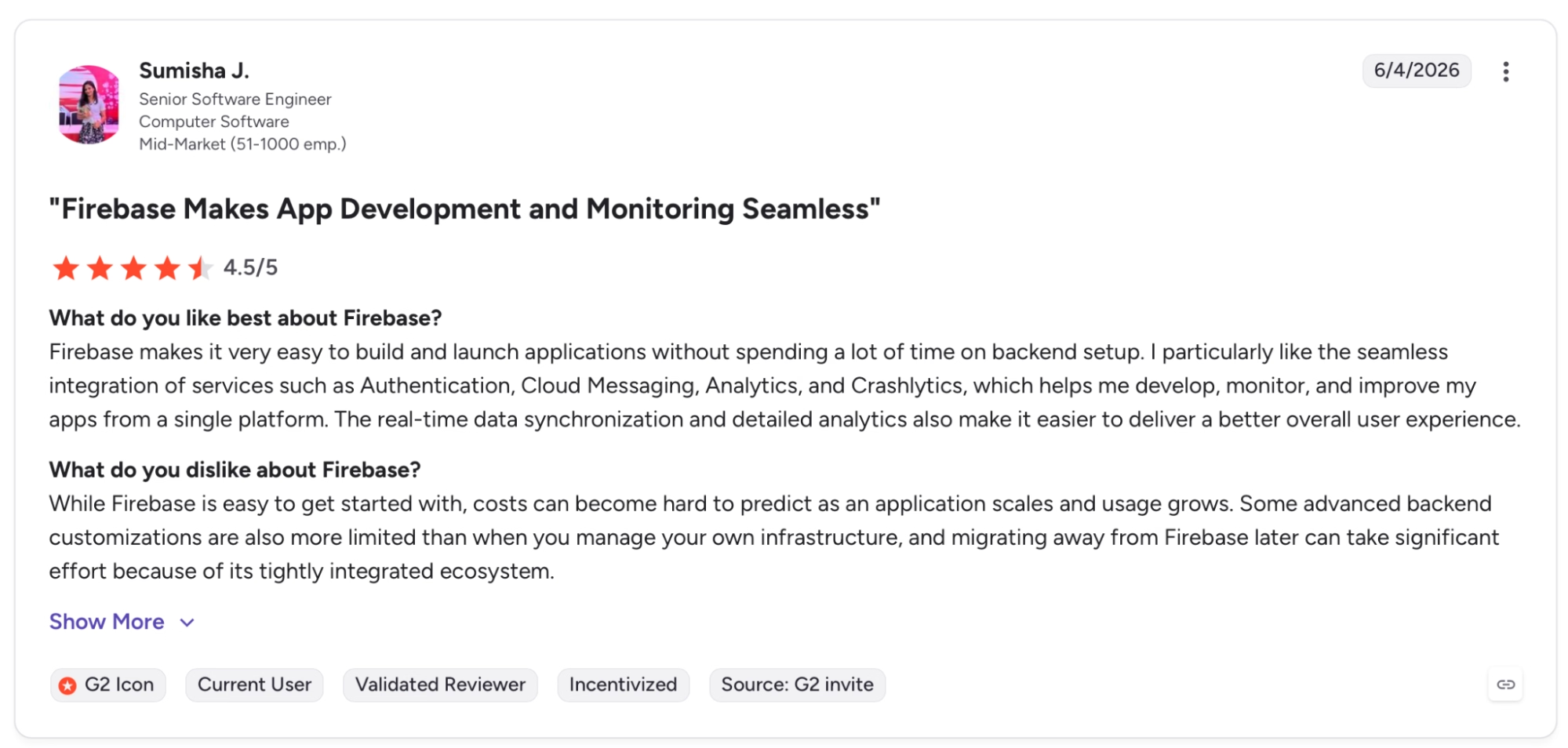
"Firebase makes it very easy to build and launch applications without spending a lot of time on backend setup." — Sumisha J., G2
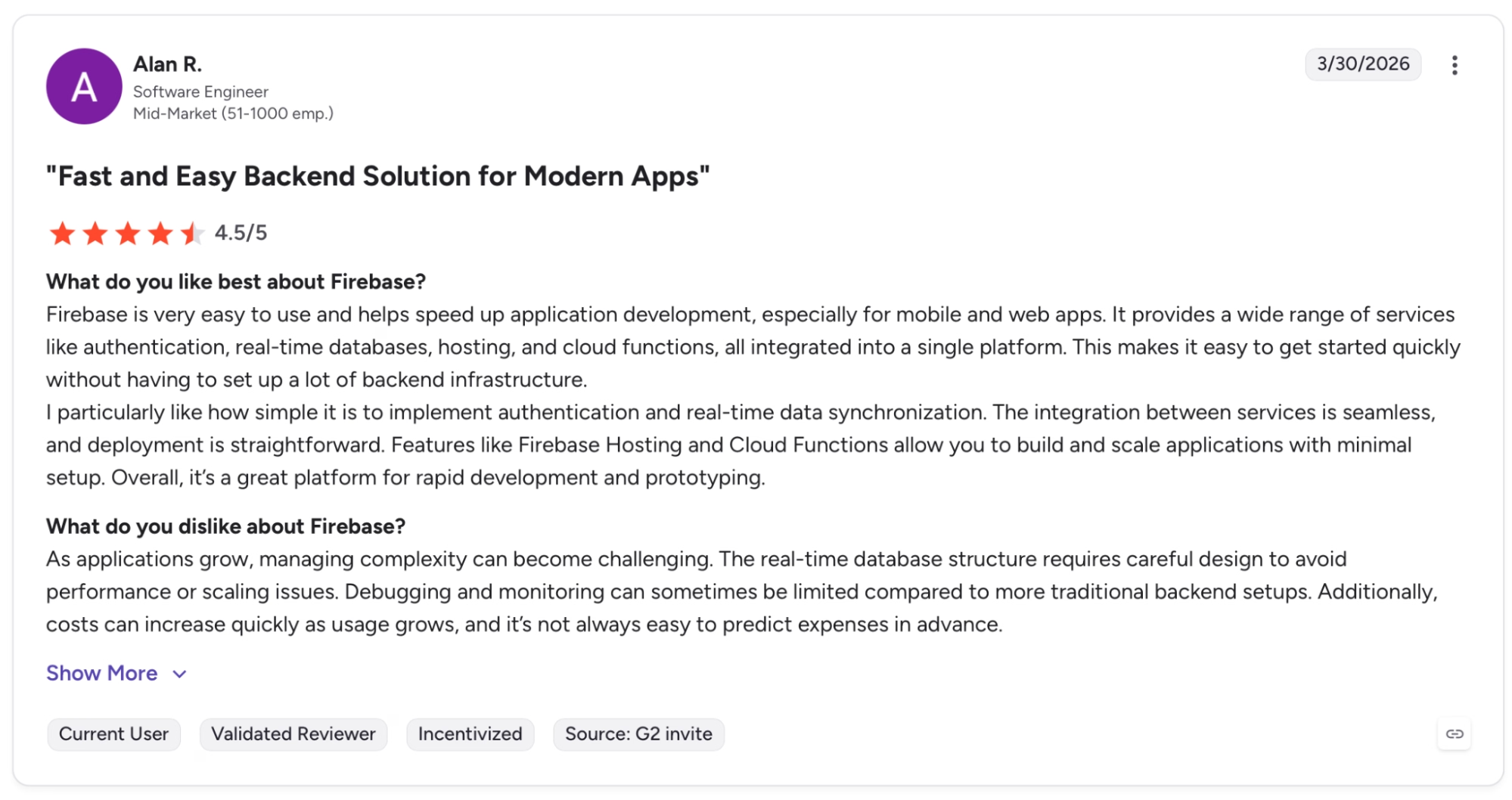
"As applications grow, managing complexity can become challenging." — Alan R., G2
Pricing
Blaze is pay-as-you-go with the same Spark-level free quotas included, Cloud Functions unlocked, and Cloud SQL for PostgreSQL starting at $9.37/month.
Bottom Line
Firebase suits teams that need Firebase Authentication, a database, and hosting running quickly without managing any infrastructure. Apps with relational data requirements or unpredictable read/write volumes will bump into the billing model before they run out of features.
Building on Firebase and want to make sure you're doing it right? Read our best vibe coding practices guide before you scale.
7. Playwright: Best for Reliable Cross-Browser End-to-End Tests
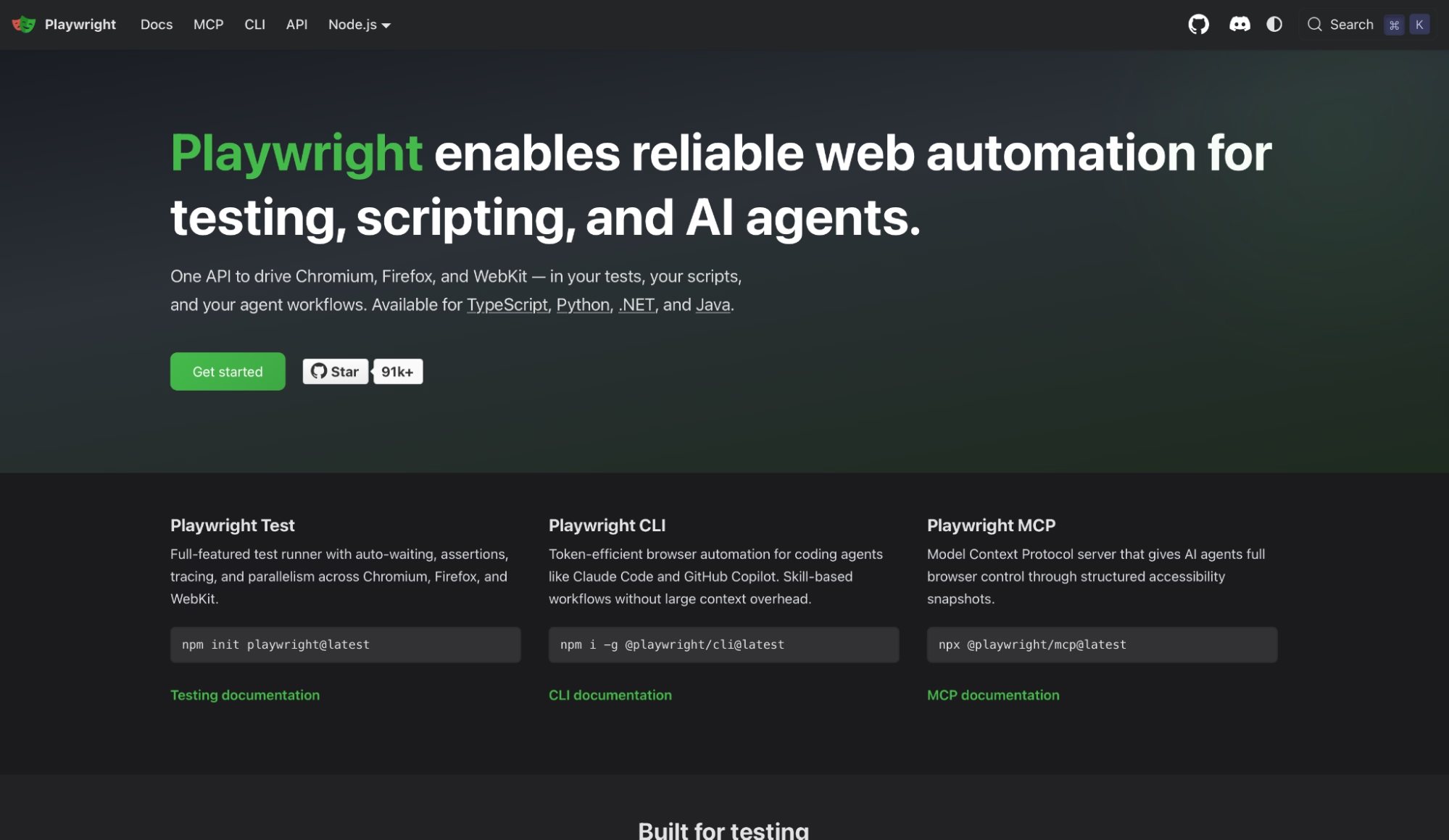
What it does: An open-source end-to-end testing framework that runs tests against Chromium, Firefox, and WebKit in parallel, with auto-wait, trace capture, and a codegen tool that records browser interactions into runnable test scripts.
Best for: QA engineers and developers who need a test suite that passes in CI without flaky timeouts and actually covers what users see in a real browser.
On the Node.js service I tested, Playwright's auto-wait eliminated the manually tuned waitForSelector calls that kept making the previous Selenium suite fail in CI.
Running 47 tests across Chromium, Firefox, and WebKit from a single npx playwright test command gave me a clean pass rate across five consecutive runs without a single retry or timeout tweak.
Where setup time adds up is browser binaries. Each browser downloads separately during npx playwright install, and on a clean CI runner, that step adds two to three minutes before anything runs.
Key Features
- Auto-wait on every action: Playwright waits for elements to be visible, stable, enabled, and not obscured before executing any action. Test code stays free of manual waits and arbitrary timeouts.
- Trace viewer with time travel debugging: Every test run can capture a full trace covering DOM snapshots, network requests, console logs, and screenshots at each step. Open it with npx playwright show-trace and step backward through the execution.
- Codegen for test recording: Running npx playwright codegen <url> opens a browser, records every click and input, and generates a typed test script as you interact. Useful for bootstrapping tests on existing flows without writing from scratch.
Pros and Cons
Pros:
- Auto-wait removes the need for manual sleep() and waitForSelector() calls. Those patterns are a common source of flakiness in browser automation
- The HTML Reporter shows passed, failed, skipped, and flaky results per browser with one-click access to the trace for any failed test, without setting up an external reporting tool
- Mobile emulation for Chrome on Android and Mobile Safari runs without a physical device or emulator, covering the main mobile viewport scenarios in the same CI run
Cons:
- Browser binaries install per-browser and add two to three minutes to a cold CI runner setup. Teams running many short pipelines will feel this cost accumulate
- Playwright covers browser-level E2E testing only. Unit tests, API contract tests, and load tests require separate tools alongside it
What Users Say
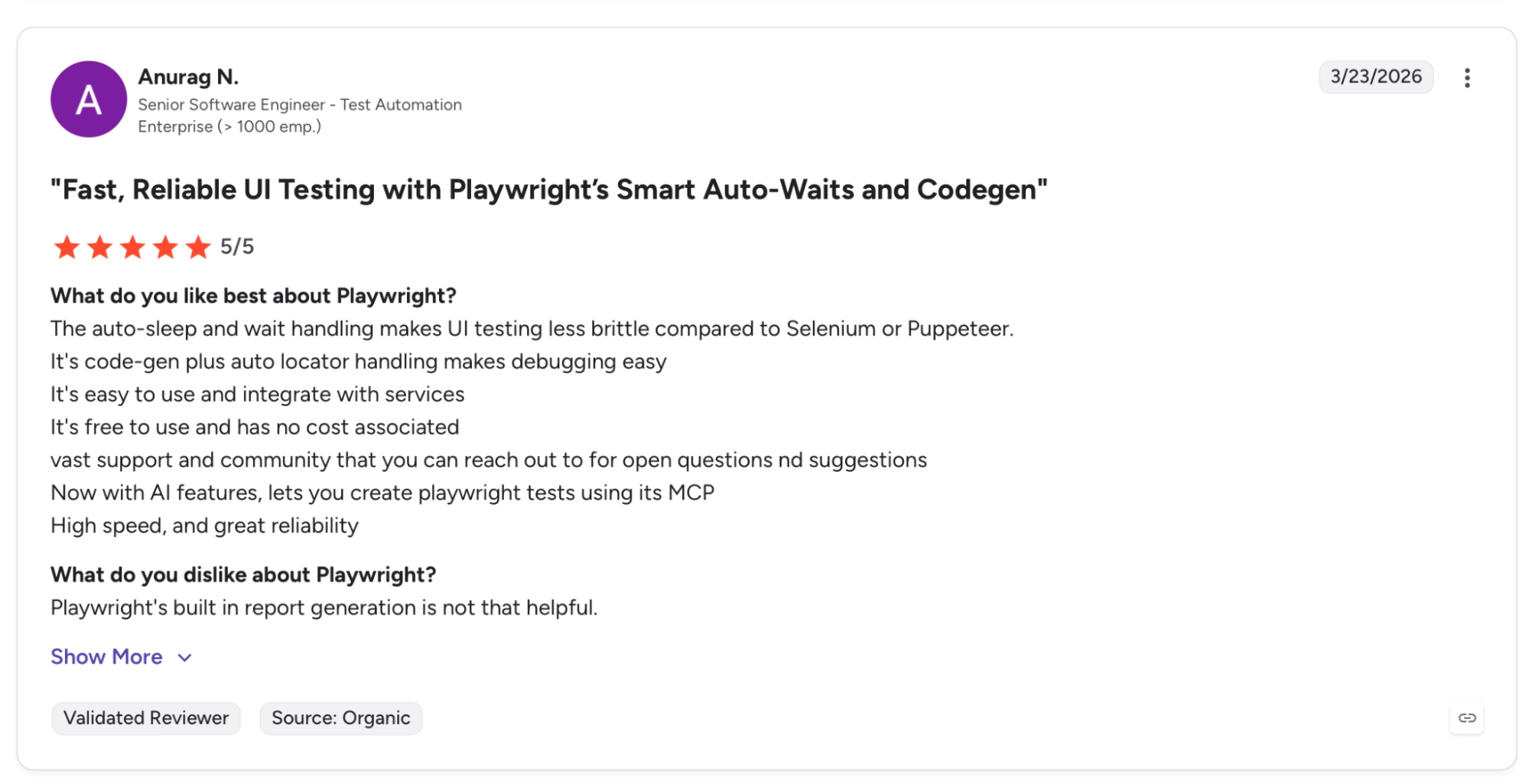
"The auto-sleep and wait handling makes UI testing less brittle compared to Selenium or Puppeteer." — Anurag N., G2
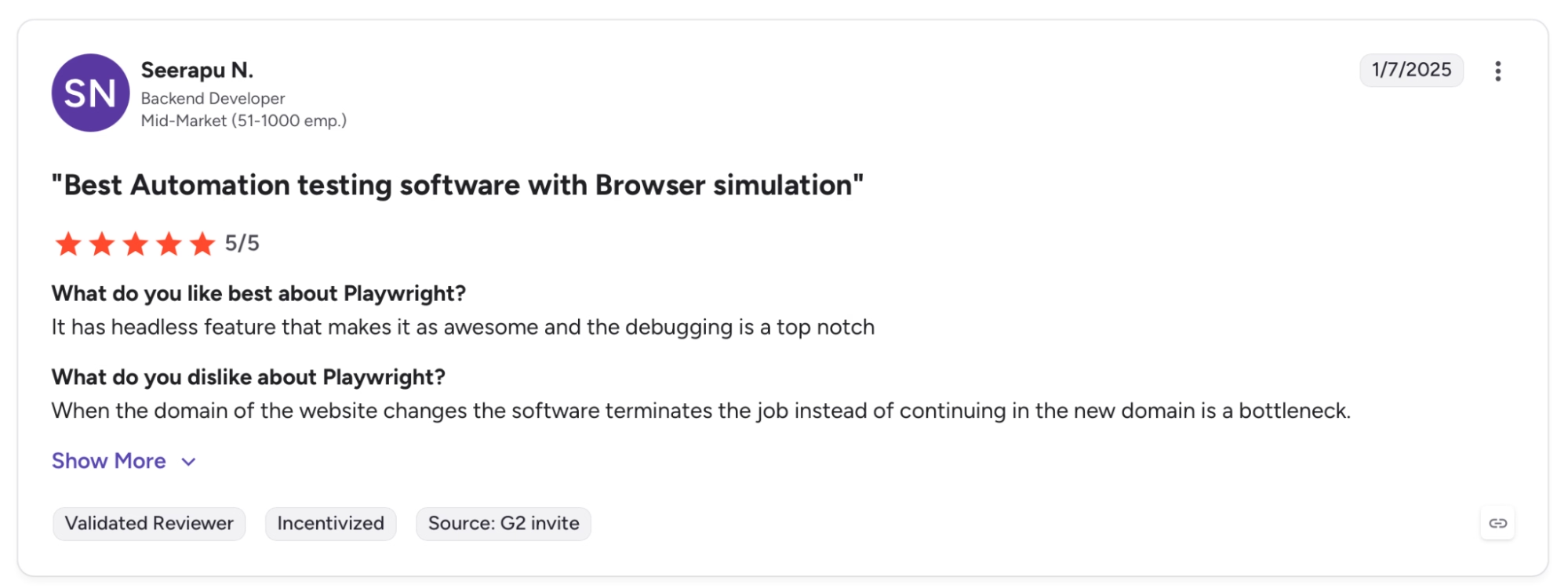
"When the domain of the website changes the software terminates the job instead of continuing in the new domain is a bottleneck." — Seerapu N., G2
Pricing
Playwright is free and open source. Microsoft Playwright Testing, the optional cloud parallelization service, bills at $0.008/minute on Linux.
Bottom Line
Playwright makes sense for teams dealing with flaky browser tests in CI. It handles cross-browser coverage without manual timeout tuning. Unit testing and API contract testing sit outside its scope and need separate tools.
Which of These Application Development Tools Is Right for Your Situation?
The right choice depends on which part of the workflow is actually causing pain.
Choose VS Code if you:
- Work across multiple languages and need one editor that adapts to all of them
- Want a free, configurable daily editor without paying for an IDE license
- Need workspace settings committed to the repo so the whole team stays consistent
Choose GitHub + GitHub Actions if you:
- Want version control and CI/CD on the same platform
- Need test results and pipeline status surfaced directly inside pull requests
- Ship code collaboratively with automated pipelines on every push or PR
Choose Docker if you:
- Ship code across more than one environment and need the runtime to behave the same everywhere
- Have lost time debugging failures that only happen on the CI runner or staging server
- Need a portable, reproducible build unit that travels from laptop to prod without configuration drift
Choose Emergent if you:
- Have no engineering team and need a working app shipped from a plain description
- Want design, code, testing, and deployment handled in parallel without setting up any infrastructure
- Need a live URL fast, with the option to export the codebase to GitHub and hand it off later
Choose Cursor if you:
- Write code daily and want an AI that reads the full codebase before making any change
- Need multi-file edits, terminal execution, and rollback in a single agent pass
- Are already on VS Code and want to carry over your settings, extensions, and keybindings on day one
Choose Firebase if you:
- Need auth, a database, and hosting stood up fast without managing any backend infrastructure
- Are building a web or mobile app as a solo dev or small team
- Can work within a NoSQL data model and don't need relational joins
Choose Playwright if you:
- Have browser tests failing in CI across Chromium, Firefox, or WebKit
- Need auto-wait and trace capture without manually tuning timeouts
- Want cross-browser E2E coverage that runs on the same CI pipeline as the rest of the build
Skip this category entirely if:
- Your app is fully serverless and managed end-to-end by a single vendor. You may already have environment consistency, CI/CD, and hosting covered.
- You're in a pre-idea stage and haven't scoped what the app needs to do yet. No tool in this list replaces that decision.
Start Your First App Build on Emergent
The other six tools each handle a distinct layer of the stack. Emergent covers the case where that layer has no one in it.
Here's what you get on any paid plan:
- Builds without an engineering team: Emergent handles design, code, testing, and deployment from a plain description. A first working build doesn't require writing any code.
- Agents activate per build: Dedicated agents for design, testing, integrations, and troubleshooting run automatically as part of every build.
- Managed deployment: Every app ships to managed infrastructure with Emergent Auth, a database, and SSL. There's no separate hosting step.
- Post-launch monitoring: Analytics, health checks, error logs, and mobile alerts show what's happening once the app is live.
- GitHub sync on Standard and above: Every build syncs to a GitHub repository under your account. You can take the codebase to any hosting service from there.
Most builders stop at a prototype. Emergent ships real web and mobile apps, with accounts, databases, and payments included.
- Production-ready apps
- Web & mobile apps
- Deploy in minutes