


After building a lead tracker for my own consulting work inside Emergent, here's my step-by-step process for building a customer relationship management (CRM) app with AI. No engineering team is required.
Why Build Your Own CRM With AI?
Building your own CRM with AI lets you design it around how you actually sell, instead of changing your process to fit an existing tool. Off-the-shelf CRMs like Salesforce and HubSpot give small teams a long list of features they never touch, and still end up with fields and stages that don't match how they work.
A custom build gives you a contact list, the pipeline, and the follow-up reminders you need, and nothing you don't. The catch used to be costly. A basic custom CRM with contact management, a pipeline, and reminders can run from $15,000 to $40,000 to build with an agency or freelance team.
AI app builders change the cost equation. You describe the CRM in plain English, and a tool like Emergent writes the code, sets up where your data lives, and publishes the app for you. The afternoon I spent on mine replaced what would have been a months-long project.
What You'll Need Before Starting
You don't need to write code, but a few things make the build go faster.
Here's the short list:
- An Emergent account: The Free plan gives you 10 credits to look around, and a build like this uses around 100 credits, so you'll want the Standard plan ($20/month) or higher.
- A clear picture of your sales process: Your pipeline stages, what counts as a lead, and what information you track on each contact.
- A SendGrid account (optional): Only if you want to send follow-up emails from inside the CRM. SendGrid is an email-delivery service, and you can add the key later.
- A custom domain (optional): If you want the CRM to live at your own web address instead of a default one.
Time required: My first version took about 10 to 15 minutes. Turning it into a CRM you'd run your business on takes a few hours of follow-up prompts, with a day or two of tweaking and improving after that.
How to Build Your Own CRM With AI: Step-by-Step
I built a CRM for an independent consulting business that tracks leads from first contact through to a signed deal. It has a searchable contact list, a deal pipeline, a public form that captures new leads, a dashboard, and follow-up reminders. Here's how it came together, prompt by prompt.
STEP 1: Map Your CRM Before You Prompt
Write down how you sell before you type a word into Emergent. A CRM is only as useful as the process behind it, and that process is the part that the AI can't guess for you.
For my consulting CRM, I wrote a quick list: the stages a deal moves through (New, Contacted, Qualified, Proposal Sent, Won, Lost), the fields I track on a contact (name, email, phone, company, where they came from), and who on the team should see what.
STEP 2: Write the First Prompt
Open Emergent and describe the whole CRM in one go. A detailed, complete prompt gives the agents more to work with, so describe the main parts instead of starting with "build me a CRM."
Before you submit, look at the controls under the prompt box. You can choose which AI model writes your app, and which agent runs the build behind the scenes. For this build, I set the model to Claude Opus 4.8, the most capable option available at the time, and picked the E-2 agent, which Emergent labels "thorough and relentless."
Emergent's model list changes often, so check what's current when you build.
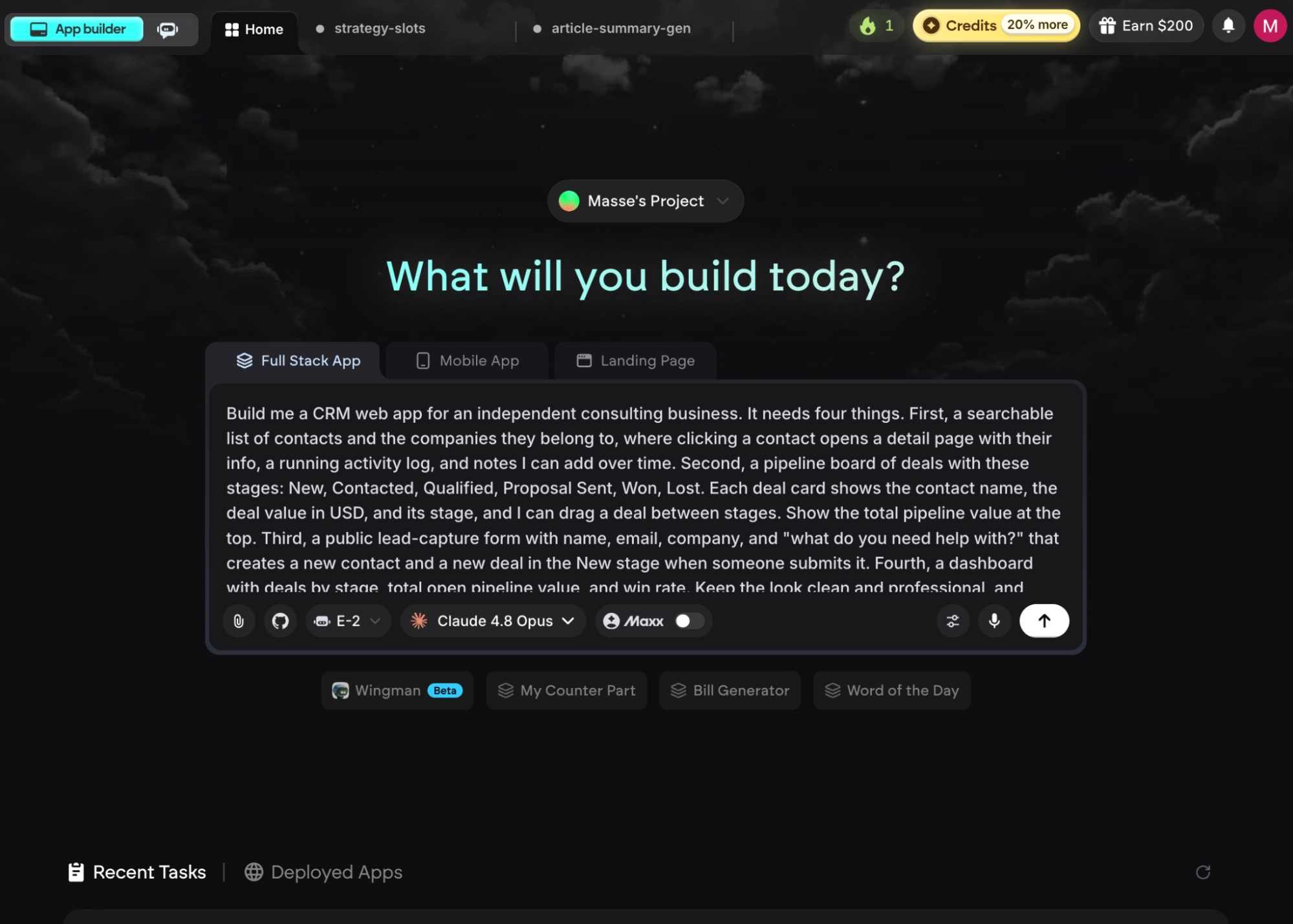
Here's the prompt I used:
“Build me a CRM web app for an independent consulting business. It needs four things. First, a searchable list of contacts and the companies they belong to, where clicking a contact opens a detail page with their info, a running activity log, and notes I can add over time. Second, a pipeline board of deals with these stages: New, Contacted, Qualified, Proposal Sent, Won, Lost. Each deal card shows the contact name, the deal value in USD, and its stage, and I can drag a deal between stages. Show the total pipeline value at the top. Third, a public lead-capture form with name, email, company, and "what do you need help with?" that creates a new contact and a new deal in the New stage when someone submits it. Fourth, a dashboard with deals by stage, total open pipeline value, and win rate. Keep the look clean and professional, and don't add features I didn't ask for yet.”
STEP 3: Answer Emergent's Questions
When you submit, the main agent asks a few clarifying questions before it builds, which is your chance to catch wrong assumptions before they cost credits. Mine asked whether I wanted to add sign-in and how I wanted the design handled.
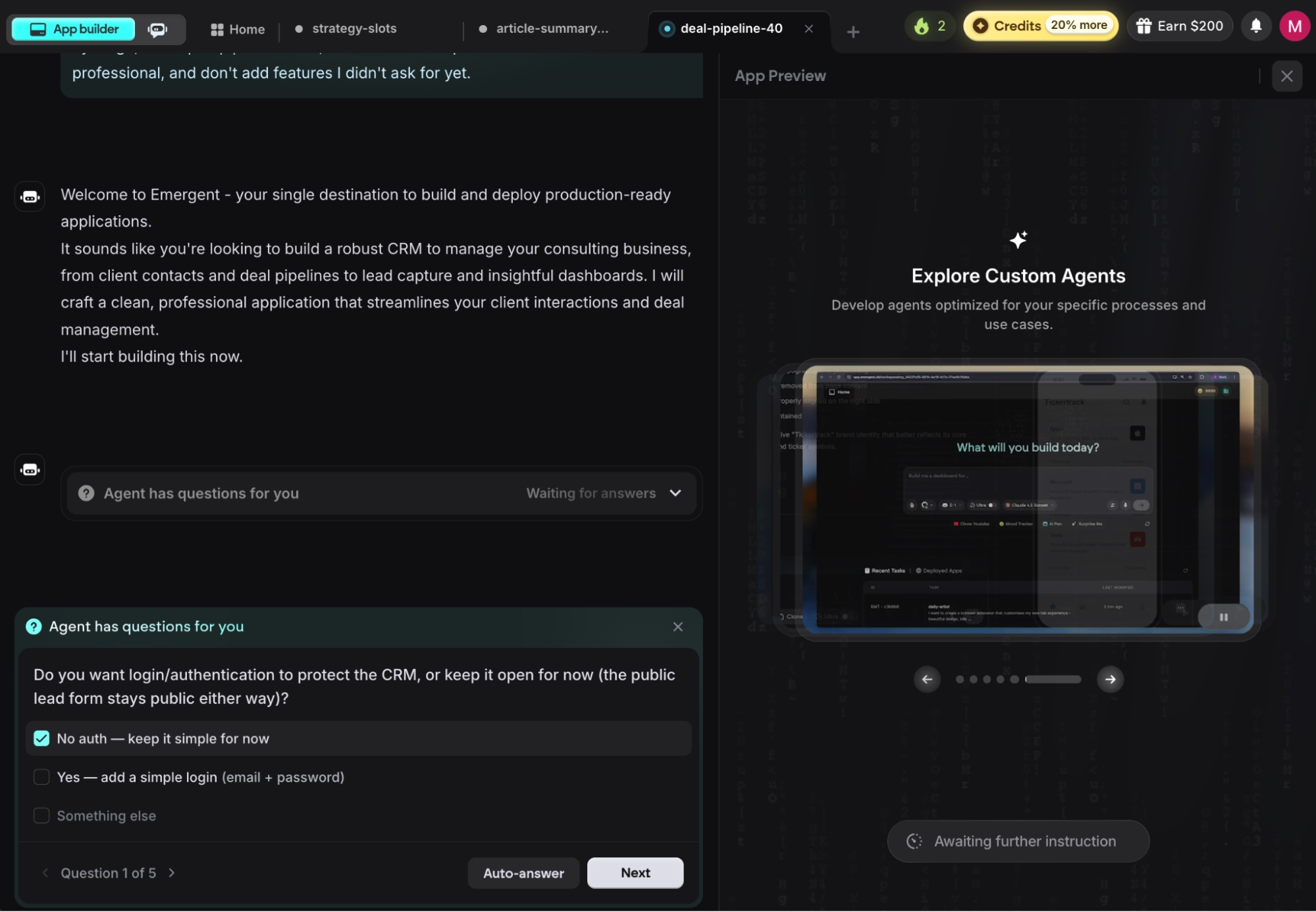
I skipped sign-in for this first build to keep things simple, and I let Emergent make the design calls. Answer every question it asks. The more the agent knows upfront, the closer the first version lands.
From there, specialized agents split the work. Some shape the build plan and the interface, others handle testing and rewrite anything that breaks before handing the app back to you.
When it finishes, a live preview opens on the right side of the screen.
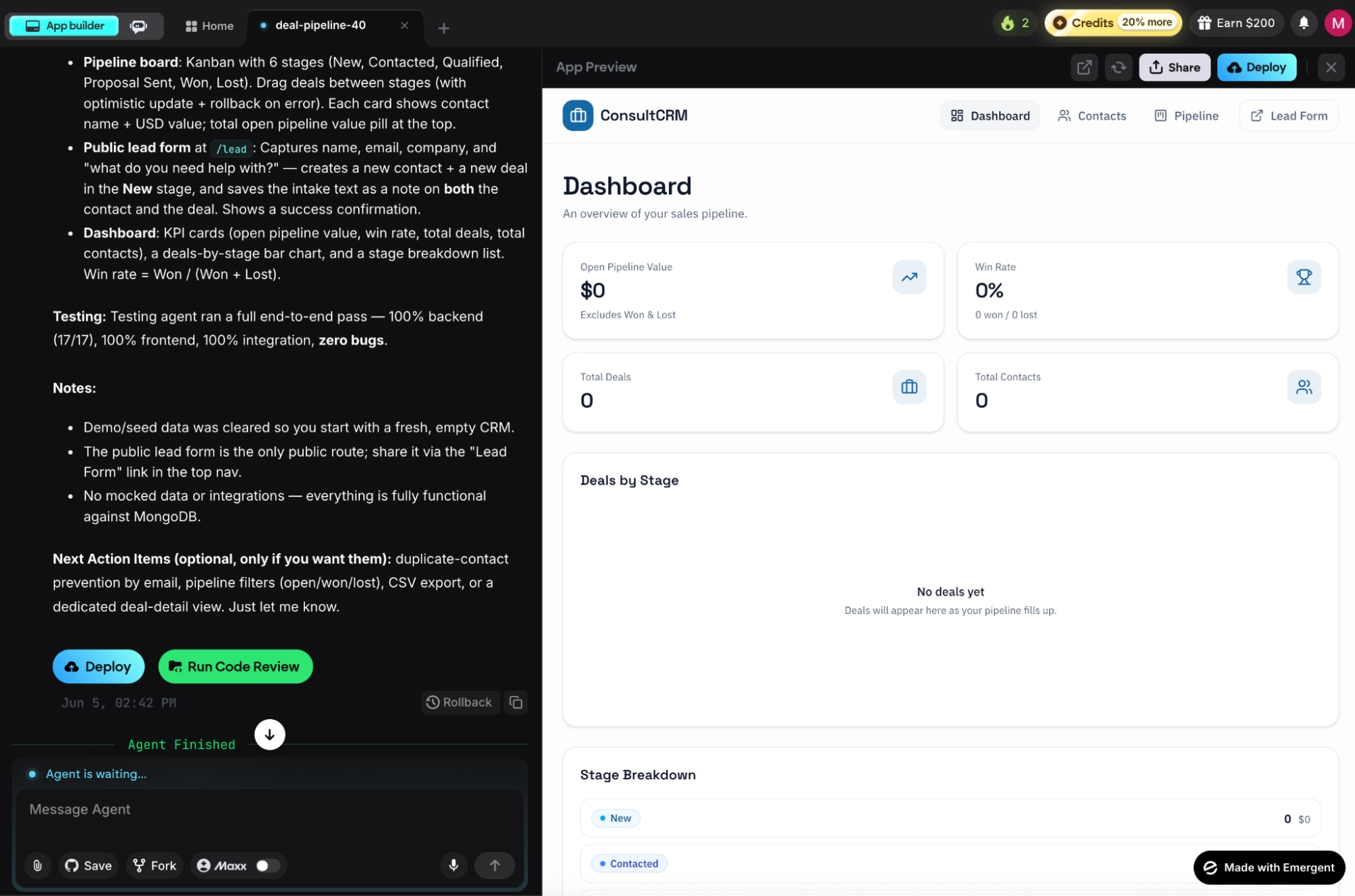
My first version took almost 15 minutes, and the contacts list, pipeline, and lead form all came back looking complete on the first pass.
STEP 4: Build the Contact Records
Once the first version loads, open a contact to check the detail page. This is the heart of a CRM, so it's worth getting right early. I wanted a real history on each person, not just a name and an email, so I sent a follow-up prompt:
“On the contact detail page, add a ‘Log activity’ button that lets me record a call, email, or meeting with a date and a short note. Show these as a timeline, newest first. Add a ‘Last contacted’ field on the main contact list that updates automatically from the most recent logged activity.”
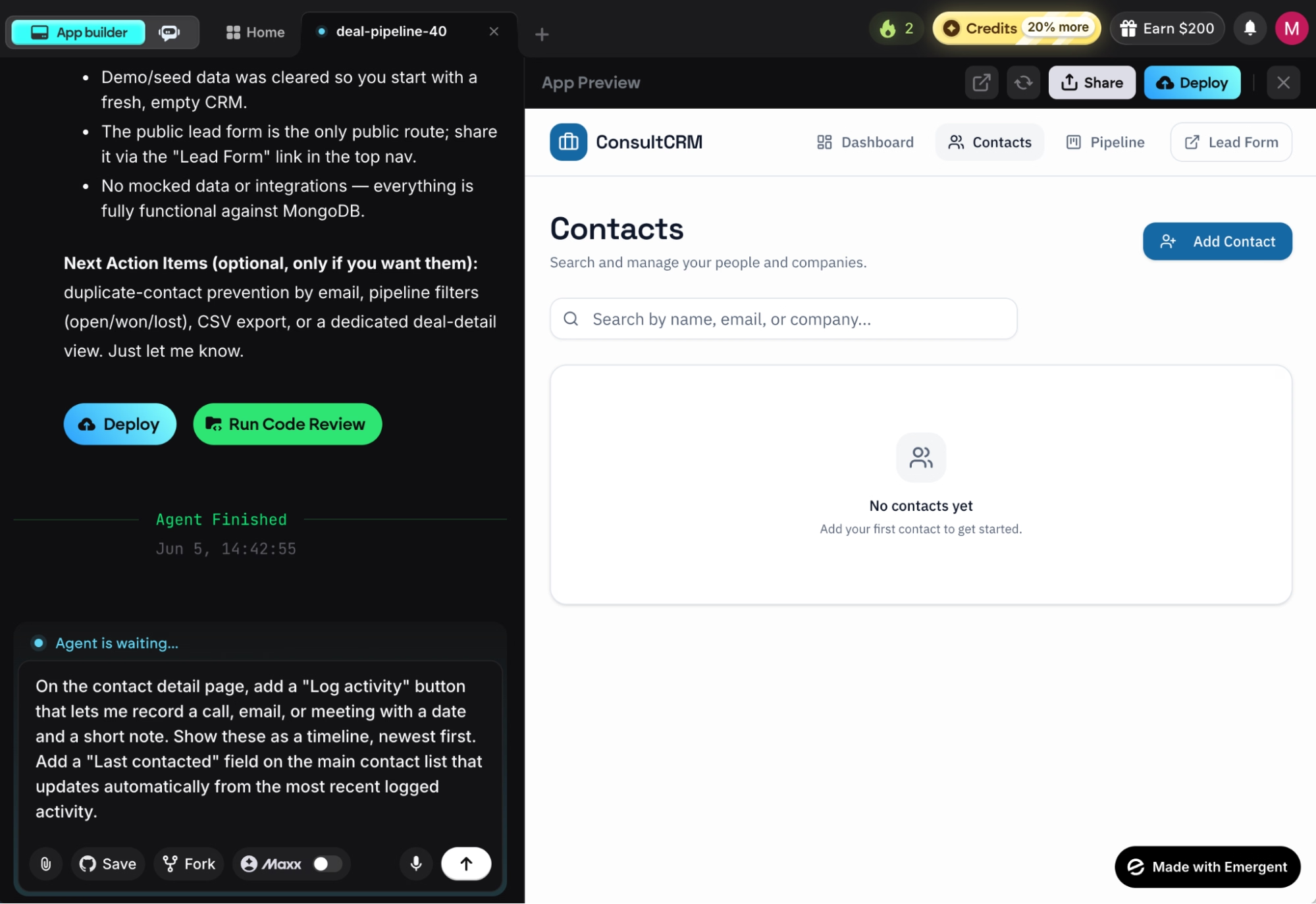
The CRM you build remembers every call, email, and meeting, so you walk into the next conversation already knowing where you left off.
When the agents finished, I refreshed the preview and checked for the new "Log activity" button.
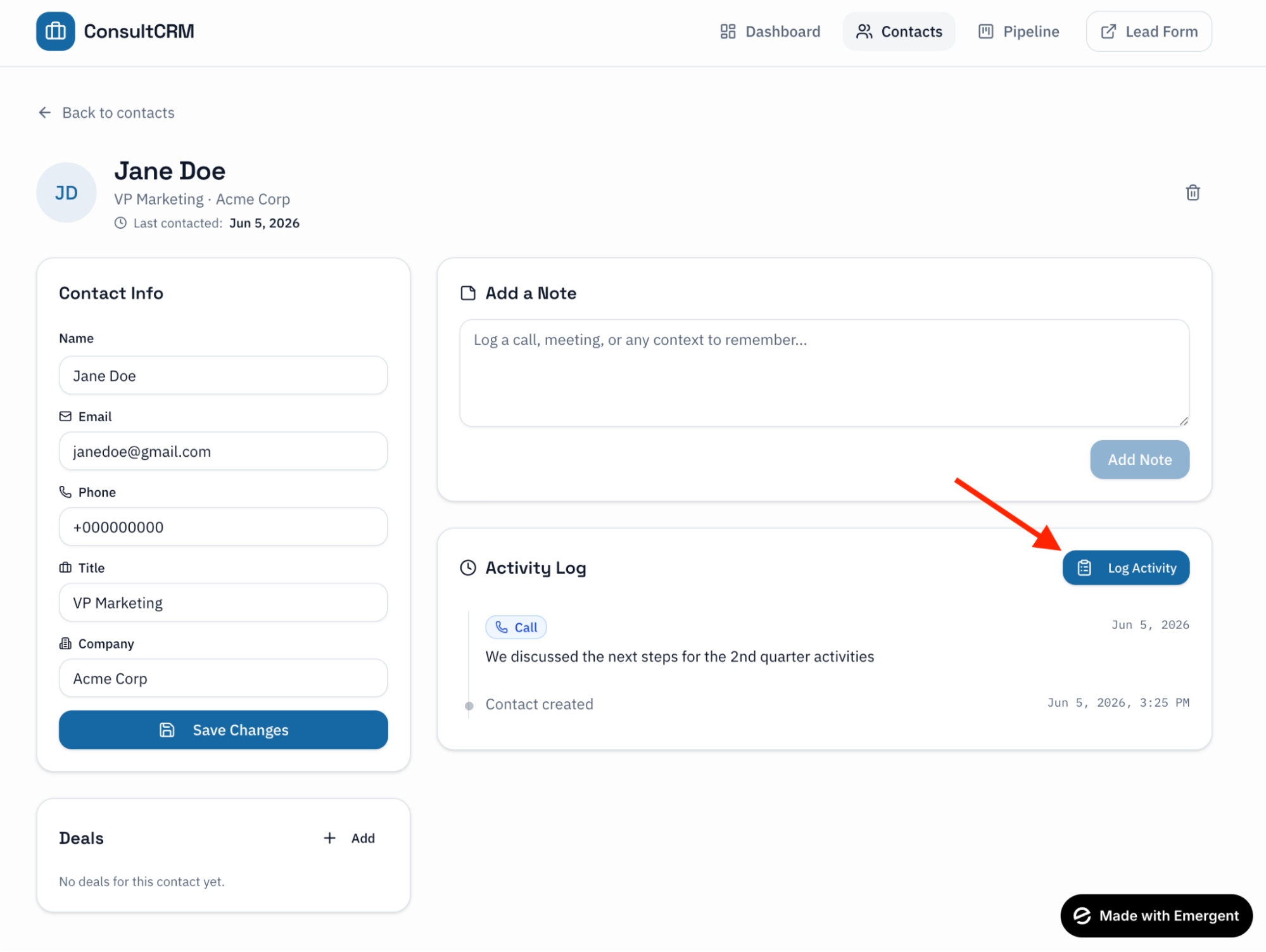
Clicking it opens a Log Activity window where you can record a call, email, or meeting tied to that specific contact.
STEP 5: Add the Pipeline and Lead Form
Check the pipeline board next. Drag a deal from one stage to the next and watch the total pipeline value update. This is where most of your day-to-day work happens, so spend a minute making sure the stages match your list from Step 1.
Then set up the front door. The lead-capture form is what turns your CRM from a place you type things into a system that fills itself. I wrote:
“Make the lead-capture form a clean public page I can share a link to. When someone submits it, create the contact and a new deal in the New stage, and email me that a new lead came in.”
Now I can share the form link, and every submission saves the contact and opens a new deal automatically.
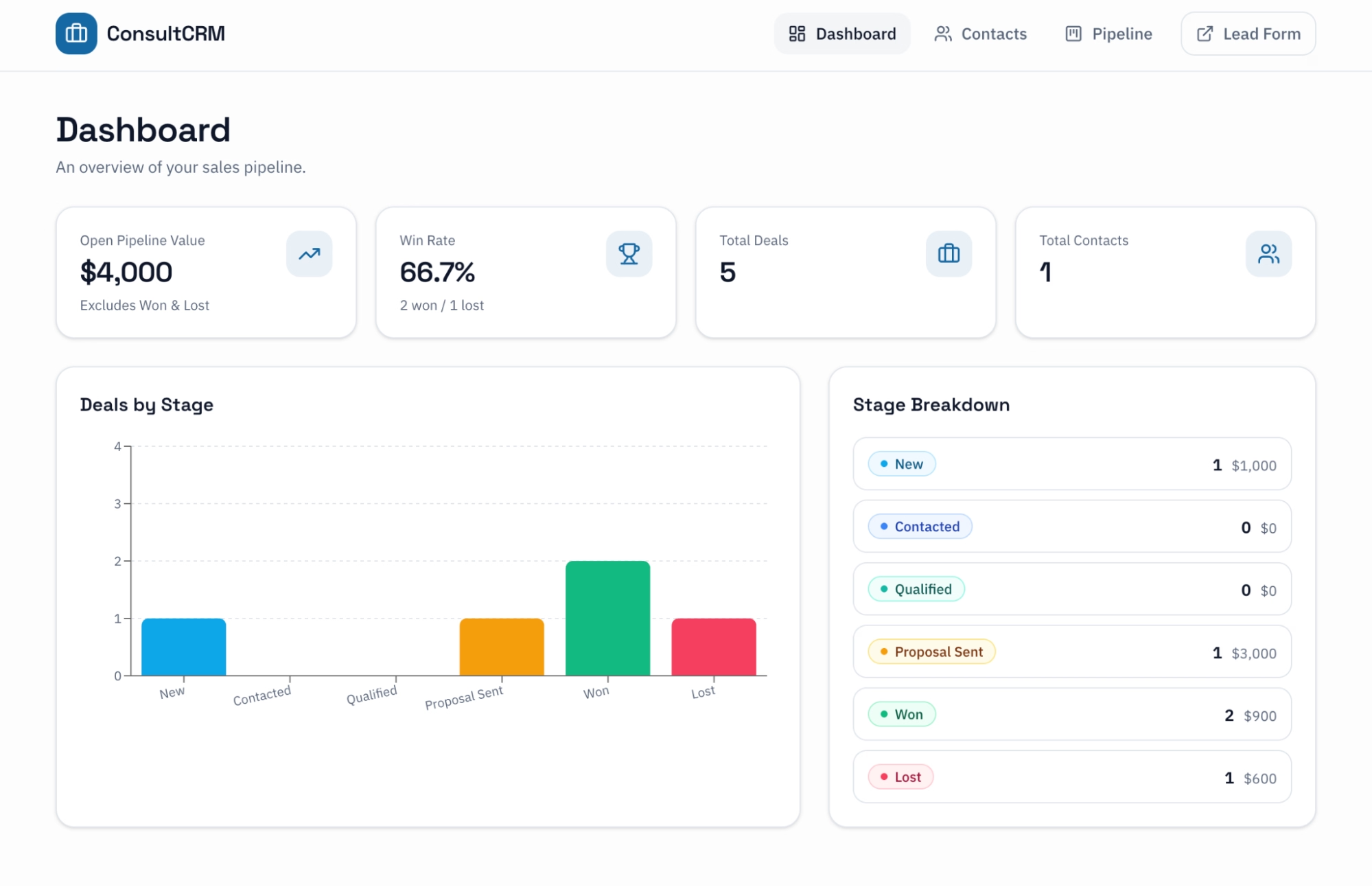
All of that information is synced to the dashboard, where I can see pipeline progress at a glance.
STEP 6: Add Follow-Up Reminders
The fastest way to lose a deal is to forget to follow up. So, instead of leaving reminders to memory, I added a simple task system:
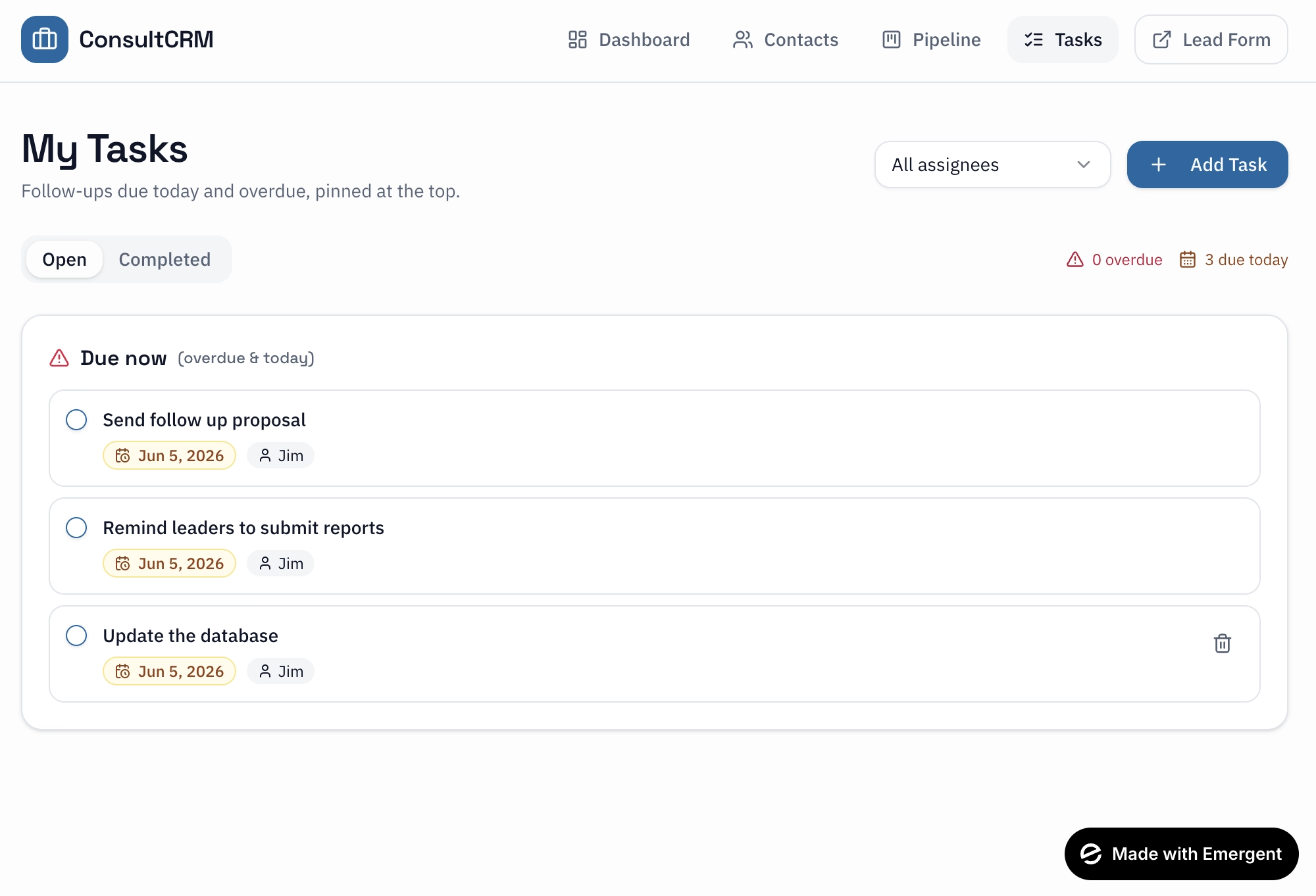
“Add follow-up tasks. On any contact or deal, let me add a task with a title and a due date, and assign it to a team member. Give me a ‘My tasks’ view with everything due today and overdue at the top. Keep it in-app for now, no email or text alerts.”
For this walkthrough, I assigned placeholder team-member names so you can see how it looks with people attached.
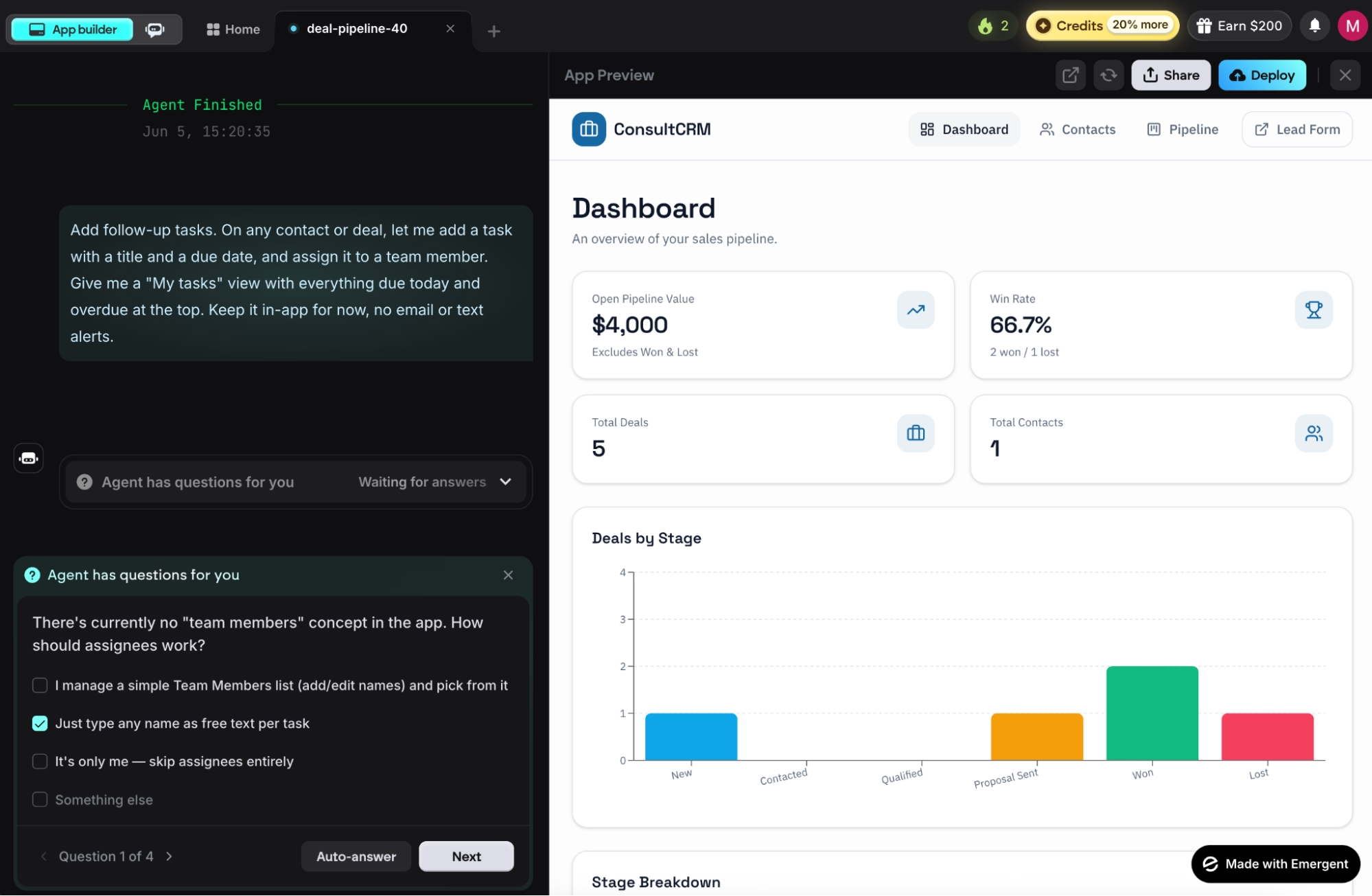
Once the agents finished, I could create tasks with a due date and an owner, see a summary of what's overdue, and check off cleared tasks.
STEP 7: Connect Email Follow-Ups (Optional)
This step is optional, but it's a useful one for any CRM. Sending follow-up emails from inside the app is the part with the most moving parts, so it's worth doing carefully.
Here’s the prompt you can use:
“Let me send a follow-up email to a contact from their detail page using a saved template, with the contact's first name filled in. Send it through SendGrid. I'll add the SendGrid key in a minute, so set it up to accept the key when I'm ready, and log each sent email in that contact's activity timeline.”
You can paste your SendGrid key whenever you're ready. Until then, the rest of the CRM works fine without it.
STEP 8: Test Everything and Publish
Before you hand the link to your team, run the whole thing once. Ask Emergent to test it for you:
“Run a full end-to-end test: create a contact, submit the lead form, move a deal through every stage, log an activity, add a task, and send a test email. Fix anything that breaks, then tell me what you tested.”
When it comes back clean, publish:
“Publish the app and give me a live link I can share with my team.”
Your CRM goes live at a free address ending in .emergent.host, with secure connections set up for you. If you want it at your own web address, Emergent can connect a custom domain through its IONOS integration (IONOS is a domain registrar), free for the first year.
Common Mistakes to Avoid
A few habits separate a smooth build from a frustrating one. These are the biggest mistakes to avoid:
- Vague prompts: "Build me a CRM" gives the agents too little to work with, and you'll spend credits correcting the result. Describe your stages, your fields, and your roles up front. Detailed prompts matter even more on bigger apps, where loose instructions tend to introduce bugs.
- Skipping the planning step: If you can't describe your pipeline in one sentence, the AI can't build it. Five minutes with a notepad saves an hour of back-and-forth.
- Republishing too many times in one sitting: After three or four rounds of publishing, your live data and your test data can drift apart, and Emergent can't merge them. Get the build mostly right in preview before you publish repeatedly.
- Expecting heavy PDF reports: Emergent's PDF generation is still rough, with odd page breaks inside charts. If your CRM needs polished printed reports, plan to handle those elsewhere for now.
Final Thoughts
The bigger takeaway is that building your own web apps is now doable without a dev team, and a CRM is only one of them. Other app ideas that you can build today are a scheduling app, an invoice generator, a PRD generator, a client dashboard, or an internal tool. Emergent handles the parts that used to need an engineer: storing your data, wiring up the logic, building the interface, and getting it live. The afternoon I spent describing my pipeline to Emergent produced a working tool that would have cost me five figures and a few months to commission the traditional way.
But take note of its limitations. The first build guessed at my pipeline stages and got two of them wrong, but a sharper restating fixed it. For a CRM that matches how a small team actually sells, though, this is the closest thing to having a developer on call for an afternoon.
The best part is that you own the data, you own the process, and from the Standard plan up, you own the code, too.
Ready to Build Your Own CRM With Emergent?
If the eight steps above made the process feel doable, here's what makes Emergent's AI CRM builder a good place to run it:
- One prompt, a whole app: Emergent's agents plan, design, code, and test the build together, so a single description of your pipeline and lead form comes back as a running CRM instead of a mockup.
- Working features, not just screens: Emergent builds the logic behind the interface, so your lead-capture form saves the contact, opens a deal, and emails you, rather than only looking the part.
- Change anything by asking: want a dashboard or follow-up reminders? Describe it in a follow-up message and Emergent builds it into the live app, with no starting over.
- Own the code, not just the subscription: On the Standard plan and up, your build syncs to a GitHub repository under your account, and you can run it on any hosting service you choose.
- Add sign-in and email without the setup: Mention Google sign-in or email follow-ups once, and Emergent wires up the whole flow, with MongoDB as your database by default and Supabase available if you prefer it.

Describe what you want and Emergent builds it. A real, production-ready app you can launch the same day.
- One prompt to build
- Zero code required
- Deploy in minutes