After building internal dashboards that my team ignored and a few they checked every morning, here's the process I use to build a KPI dashboard people actually open.
Why Most KPI Dashboards Go Unused
Most KPI dashboards go unused because they answer questions nobody on the team is asking. The tool gets built, it looks impressive in the demo, and three weeks later, the only person opening it is the one who built it.
The numbers back this up. Gartner found that analytics and business intelligence tools reach only 29% of employees on average (IBM), and a separate industry study shows adoption has barely moved in years. A dashboard nobody opens is a report you paid to build twice.
Three things separate the dashboards teams rely on from the ones they forget:
- Metrics tied to decisions: Every number on the screen connects to a choice someone makes.
- A view built for each role: Owners and managers each see the screen that fits their job, instead of one cluttered dashboard for everyone.
- A layout you can read in seconds: The most important number sits large at the top, so nobody has to hunt for it.
The steps below build all three from the start.
What You'll Need Before You Start
Building a dashboard like this used to mean hiring a developer or spending weeks learning a BI tool. An AI app-building platform changes that: you describe the dashboard in plain English, a team of agents builds the working app, and you adjust it through conversation.
I use Emergent for this because it builds a working, deployable app your team can log into, instead of a static chart you keep having to export. If you've never built an app this way, Emergent's step-by-step tutorials walk through simpler examples to get you started.
Here's what to have ready before you start:
- An Emergent account: The free tier is enough to try the process, though this build uses the Pro plan, and inviting your team works best on a paid plan.
- Your list of KPIs: The handful of numbers your team uses to make decisions (we'll narrow this down in Step 1).
- A sense of who'll use it: The roles on your team and what each one needs to see.
Time required: About an afternoon for a first working version, and a day or two of small tweaks once the team starts using it.
How to Build a KPI Dashboard That Teams Use: Step-by-Step
I'll walk through building a dashboard for a small US marketing agency, since it has the two things that make adoption hard: several roles that need different views, and numbers that change every day.
The same process works for a sales team, an operations dashboard, or another internal tool like a scheduling app.
You could track these numbers in a shared spreadsheet or a BI tool, and plenty of teams start there because it's what they already have. That holds up until the team grows: a spreadsheet has no role views and breaks the moment two people edit it, while BI tools carry the setup time and learning curve that keep adoption stuck below a third of employees.
A small app built for your team used to be the expensive option; with AI agents doing the building, it's now the fast one.
Step 1: Pick the Few KPIs That Drive Decisions
Before you open Emergent, write down the numbers your team acts on, the ones that change what someone does this week. Leave off the metrics that only look good in a board deck.
A simple way to test a metric is to ask: “Would we change anything if this number went up or down?” If the answer is no, it probably doesn’t belong on the dashboard. That’s usually how dashboards get bloated with numbers people glance at but never use.
For the agency, I ended up breaking the metrics into a few clear groups.
Keep it on the dashboard, because each one drives a decision:
- Recurring revenue per client: Shows which accounts carry the agency and which to protect first.
- Hours logged against each retainer: Flags the moment an account starts slipping below its margin.
- Client health status (on track, at risk, or behind): Points to where the team should spend attention this week.
Leave off, because they look impressive but change nothing:
- Total impressions
- Follower counts
- Total emails sent
Cap your main screen at five to seven numbers. A dashboard people can read in 10 seconds gets opened daily. One they have to study gets opened once.
Step 2: Map the View Each Role Needs
The single biggest reason a dashboard dies is the "one screen for everyone" trap. The owner wants the agency-wide picture. An account manager wants their clients and nothing else. Forced to share one cluttered view, both stop looking.
So map the roles before you build. Here's the map I wrote for the agency:
| Owners see | Account managers see |
|---|---|
| Every client and agency-wide totals | Only the clients assigned to them |
| Agency revenue and month-over-month change | Each client's retainer, logged hours, and results |
| Every account marked at risk across all clients | Only their own accounts marked at risk |
Spend five minutes here. Role confusion is the hardest thing to fix later because it's baked into how the whole app handles permissions.
Step 3: Write Your First Prompt
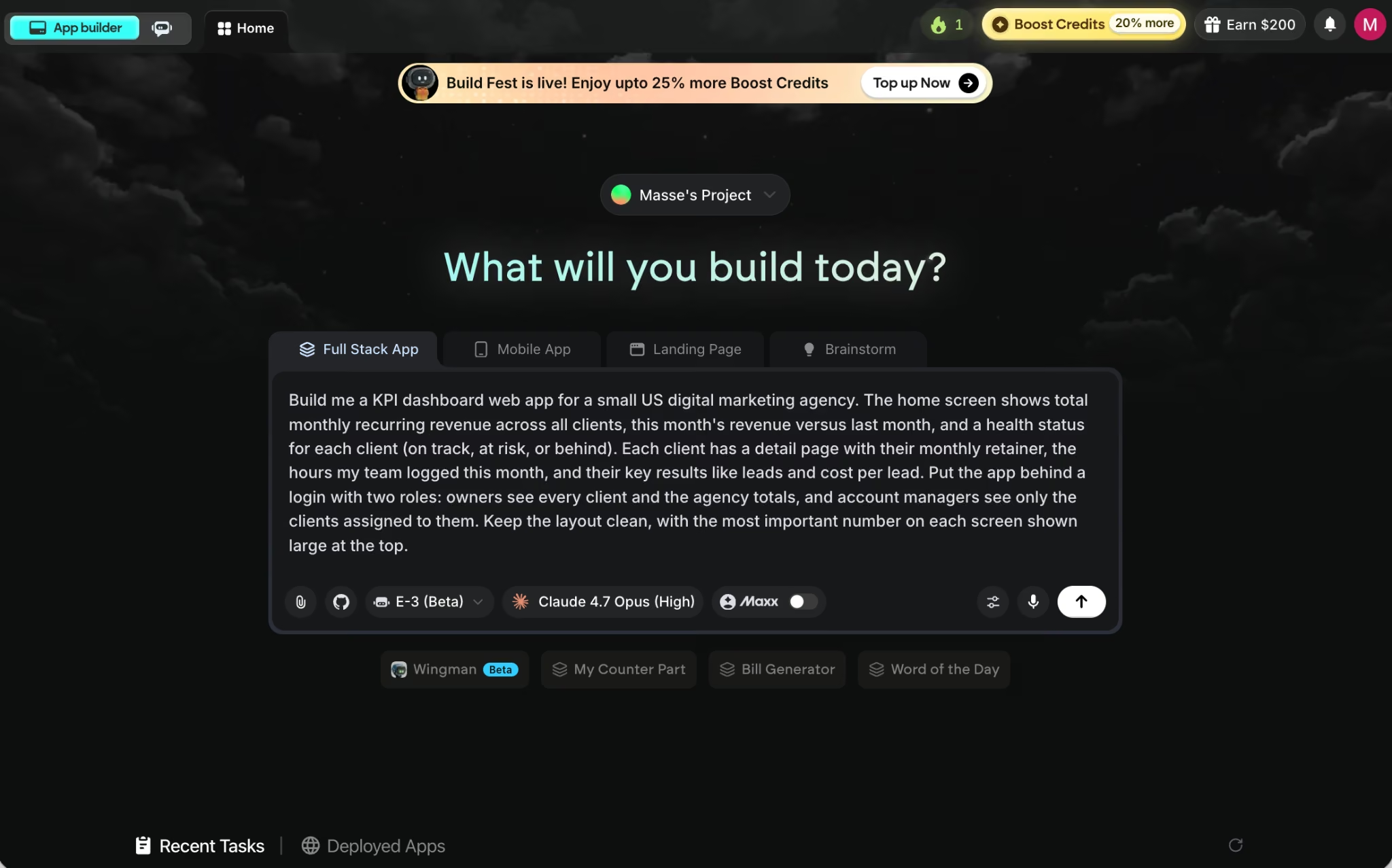
On the Pro plan, after you sign in, you'll see a large prompt box with a few build types to choose from, plus a Brainstorm tab. (Lower plans show fewer tabs, so if a teammate's screen looks different, that's why.)
For this build I picked E3, Emergent's orchestrator (a Pro-plan agent). It plans the whole app and coordinates the build from start to finish in one pass. Emergent offers lighter options too, like E1, its core builder agent, so you choose the one that matches your project.
Now describe the whole dashboard in one go. A fuller prompt gives the agents more to work with, so spell out the screens, the KPIs, and the roles. Here's the prompt I used:
Build me a KPI dashboard web app for a small US digital marketing agency. The home screen shows total monthly recurring revenue across all clients, this month's revenue versus last month, and a health status for each client (on track, at risk, or behind). Each client has a detail page with their monthly retainer, the hours my team logged this month, and their key results like leads and cost per lead. Put the app behind a login with two roles: owners see every client and the agency totals, and account managers see only the clients assigned to them. Keep the layout clean, with the most important number on each screen shown large at the top.
Step 4: Answer Emergent's Clarifying Questions
Emergent doesn't drop a finished plan on you and start coding. The agent plays back what it understood, then asks a few questions before it locks the plan. This is your chance to catch wrong assumptions before they cost credits.
Mine confirmed the agency dashboard, the two roles, and the per-client detail pages, then asked five questions. Here's what it asked and how I answered:
- Sign-in: Google sign-in built into Emergent, so nobody on the team manages another password.
- Data source: Mocked sample data for now, with real integrations like HubSpot or Salesforce left for later. That keeps the first build cheap to iterate on.
- Health status: Auto-suggested from rules (hours logged against the retainer, cost per lead against target), with the owner or account manager able to override it on a client's page.
- Comparison window: Calendar month against the month before, in USD only.
- Platform: Web only for now, no mobile version.
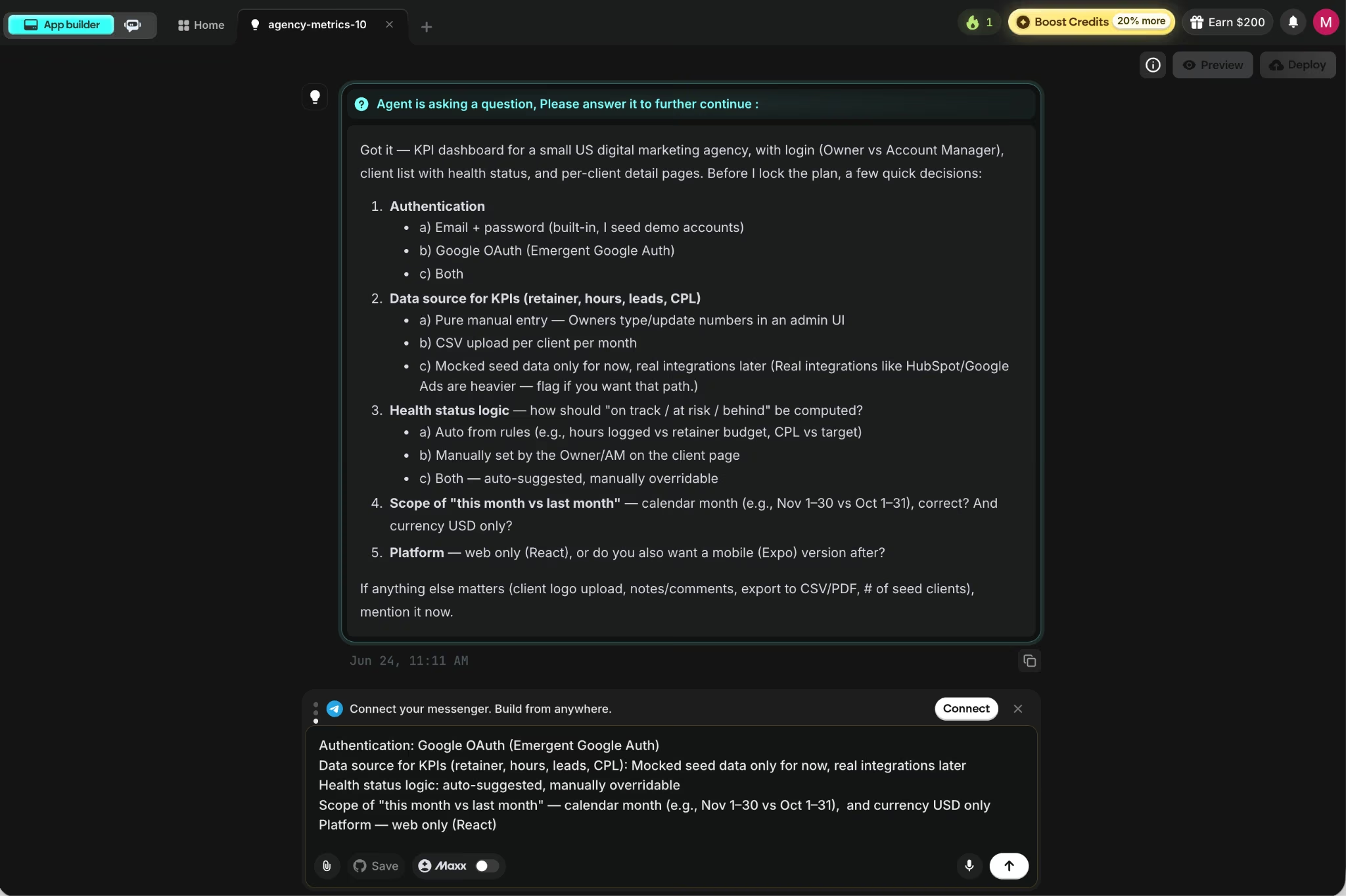
With those answered, the agent lays out a detailed build plan and asks two last things: which email should own the dashboard, and whether the plan looks right. Set the owner to the Google account you'll sign in with, so you log straight in with full access the first time.
Skim the plan, confirm it, and the agents get to work: some shape the screens while testing agents run the app end to end and rewrite anything that breaks before handing it back.
Step 5: Approve Each Phase as Emergent Builds
The agent doesn't build the whole app in one shot. It breaks the plan into phases and builds them one at a time, pausing after each for your sign-off. Design agents build the screens and testing agents check the work, so every phase is verified before it reaches you.
The first phase was sign-in and sign-out. When it finished, the testing agents confirmed the app passed its checks: sign-in, role-based access, and logout all worked.
Then it asked me for a quick manual check that it couldn't automate. Open the preview link, sign in with Google, confirm the dashboard shows your name with an Owner badge, and check that logging out returns you to the login screen.

The check took about 30 seconds. I replied that it looked good. E3 also offered a small "new pending users" badge for the owner dashboard, handy for promoting account managers from pending to active when they first sign in. I said yes, and it moved to the next phase.
From there, it's a rhythm: Emergent builds a phase, verifies it, and asks you to confirm or answer one quick question before it continues. Follow the prompts and answer as they come until every phase is done and the full app is built.
If a check ever looks off, tell it what you saw, and it sends fixes back to the builder before re-verifying.
This is what the owner’s dashboard looks like:

This is what the sample client dashboard looks like:

The owner also has their own Admin dashboard. This is what the Teams and roles page looks like:
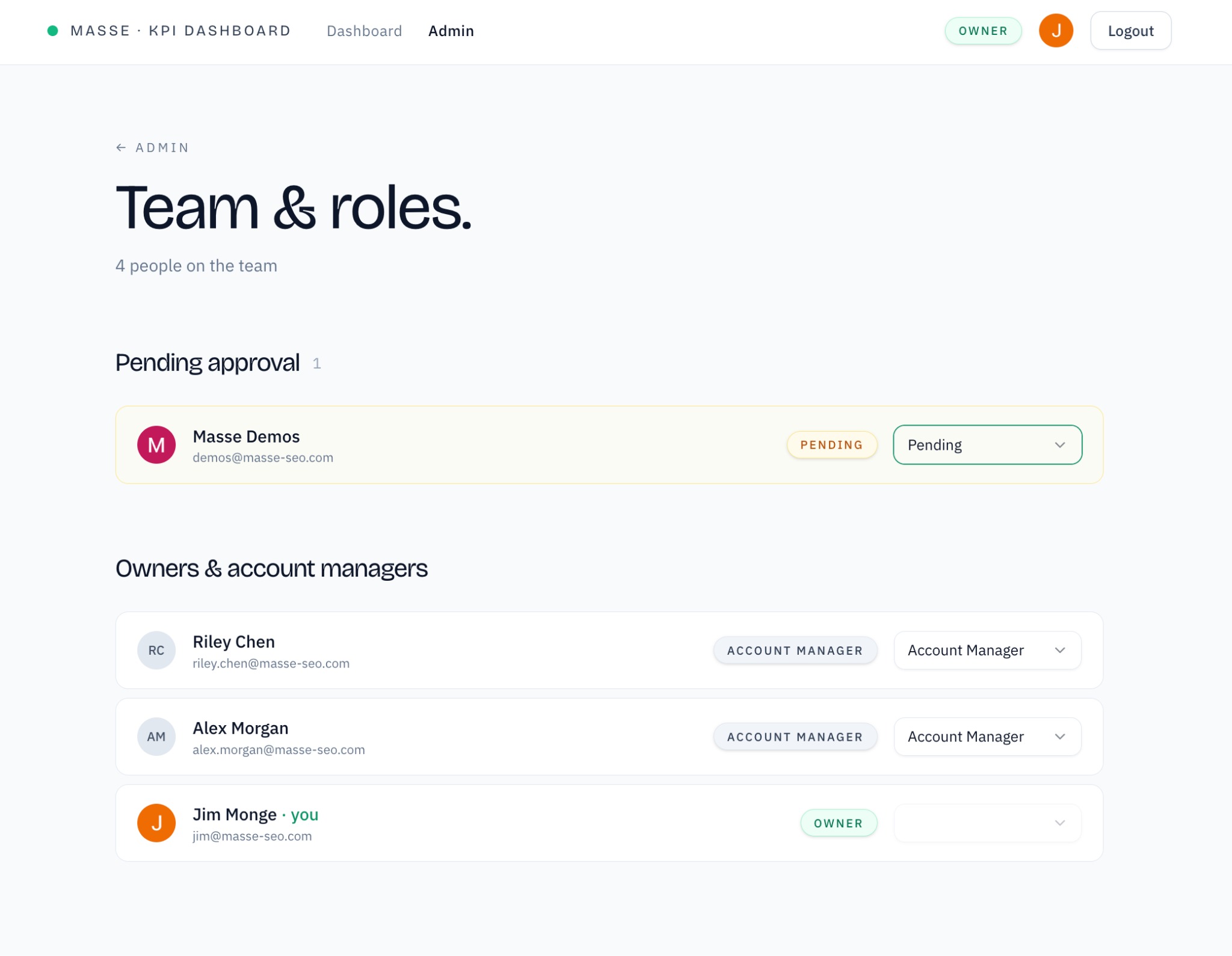
There is also a Client page where I can add new accounts that the agency can manage.

Step 6: Deploy and Get It in Front of the Team
Once the dashboard looks right, click the Deploy button. After roughly 10 to 15 minutes, your app is live on its own *.emergent.host web address you can send to the team. Deploying uses some of your monthly credits, so do it once the build is solid.
For a more permanent home, connect a custom domain through Emergent's built-in IONOS integration, so the dashboard lives at your own address (here's the step-by-step guide).
One more thing worth knowing: every build on the Standard plan and up syncs to a GitHub code repository under your account. You own the code and can export it or move it elsewhere later.
An Optional Add-On: Email the Key Numbers to Your Team
Even a good dashboard loses to a busy week. If opening it depends on someone remembering, most of the team won't. A simple add-on fixes that: have the dashboard email the key numbers out on a schedule, so people see them without logging in.
Once the core build works, add two alerts with one more prompt:
Email each owner a short Monday-morning summary with agency revenue, the change from last month, and any clients now marked at risk. Also, email the assigned account manager whenever one of their clients drops to at-risk.
This turns the dashboard into something that reaches your team where they already work. The Monday email becomes the routine, and the dashboard becomes the place people click in when a number looks off. It's optional, but it's the single best thing you can add for adoption.
Common Mistakes to Avoid
Most dashboards that fail make the same handful of mistakes. Watch for these:
- Too many metrics: A screen with 20 numbers reads like a wall of noise. Cut to the handful that drive decisions and move the rest to detail pages.
- One dashboard for everyone: A view built to satisfy every role satisfies none. Build role-specific views from the start, since permissions are painful to retrofit.
- Stale data: The moment someone catches a wrong number in a meeting, the whole dashboard loses credibility. Decide how each number gets updated before you ship.
- No clear owner: A dashboard nobody owns slowly drifts out of date. Name one person responsible for the numbers and the definitions behind them.
Final Thoughts
The hard part of a KPI dashboard is getting a team to open it, not building it. For years, that meant a BI specialist, weeks of setup, and a tool most people found intimidating, which is exactly why adoption sat at under a third of employees.
That equation has changed. You can now describe the dashboard your team needs in plain English and have a working, deployable version the same afternoon, populated with data and ready to share.
So build for the question your team is already asking, and they'll keep coming back for the answer.
Ready to Build a KPI Dashboard Your Team Will Open?
If the six steps above made the process feel doable, here's what makes Emergent a good place to run it.
- Live by end of day: One prompt turns into a working app, and a single Deploy click puts it on a real web address in about 10 to 15 minutes, so you start today instead of waiting weeks for a BI rollout.
- Build it just by describing it: You write what each screen should show and who sees what in plain English, then refine by chatting, with no formulas, query language, or data modeling to set up.
- Review instead of assemble: Emergent's set of specialized agents plans the app, builds each phase, tests it, and fixes what breaks before handing it back to you.
- No BI tool to license or learn: You skip the per-seat subscription and the specialist skills a traditional BI setup usually demands.
- Own everything you build: Every build on the Standard plan and up syncs to a GitHub repository under your account, so you can export the code and run it anywhere.
Try building your first app on Emergent and see how far an afternoon gets you.
Most builders stop at a prototype. Emergent ships real web and mobile apps, with accounts, databases, and payments included.
- Production-ready apps
- Web & mobile apps
- Deploy in minutes