


Emergent Apps Can Now Run on Your Own MongoDB Atlas

Your published Emergent app can now run on a MongoDB Atlas cluster that you own. Connect your Atlas account, pick a cluster, and we move your app's database to it. You don't touch code, connection strings, or network settings along the way.
By default, published apps run on Emergent's managed MongoDB. That works well for most builders. But once an app starts handling real customers, many teams want the data sitting in their own account, under their own rules and their own bill.
That option is live today for Emergent Pro users with a published app.
Your app's data now lives in your Atlas organization
Connecting your own cluster means you own the data. It sits inside your Atlas organization, protected by the access controls you already manage and billed to your Atlas account.
We think this matters most at the moment an app stops being a side project. A client asks where their records are stored. A security review wants a named owner for the database. An agency hands a finished portal over to the business that paid for it.
In each case, you can point to a database that sits in your own Atlas account, under your name.
It also fits how we think about Emergent in general. You own the code you build here, and now you can own the database behind it too.
What you need before you connect
Five things need to be true before migration will start. Check all five before you click Connect.
Prerequisites for migrating an Emergent app's database to MongoDB Atlas
A note on picking a tier: M10 is the minimum we accept, not necessarily the right size for your app. MongoDB's own cluster documentation positions M10 and M20 for development and low-traffic production, and recommends M30 and above for production workloads. If your app already has steady traffic, size the cluster before you migrate rather than after.
How to move your database in 6 steps
The whole flow runs from your app's Publish panel. You open the Database tab, authorize Emergent in Atlas, pick an organization, project, and cluster, then click Migrate. We handle the data transfer and the switchover, and the Database tab confirms which cluster your app is running on.
The 6-step flow for connecting your own MongoDB Atlas cluster
1. Open the Database tab
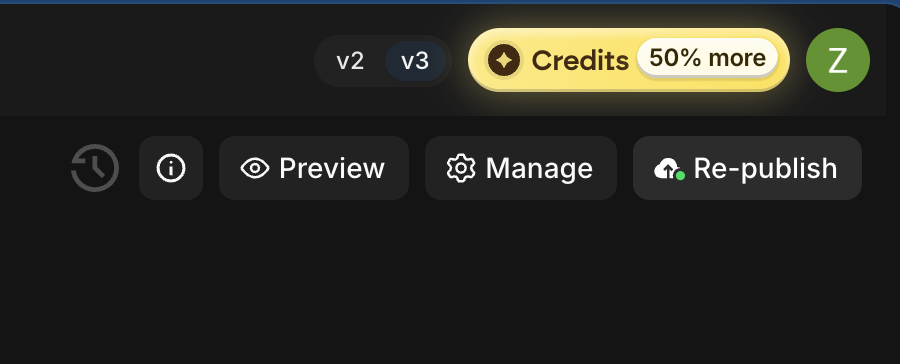
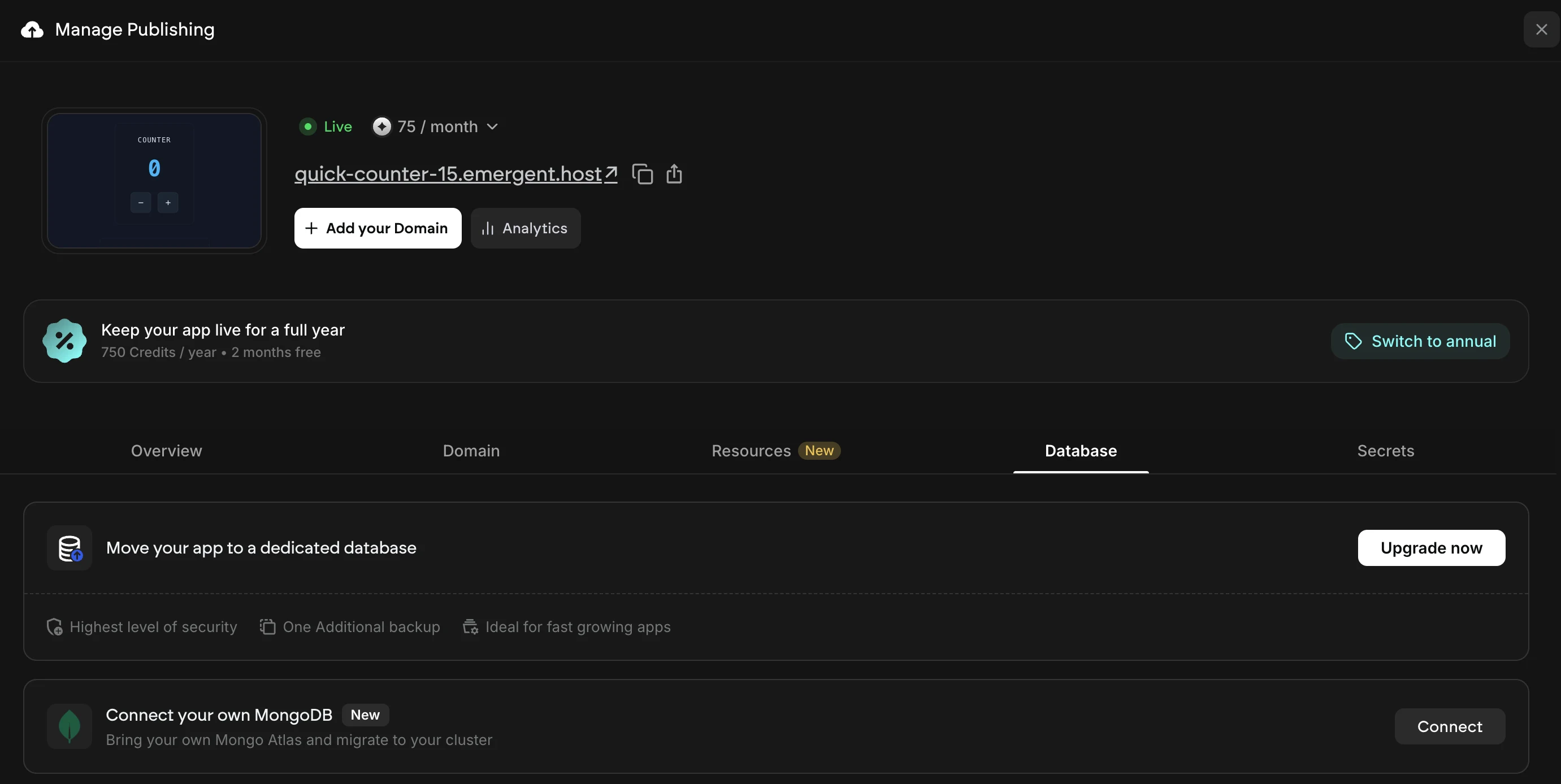
Open your published app and click Republish in the top bar. The Publish panel opens. Select Database and find the card labeled Connect your own MongoDB.
The Database tab also shows the option to move to an Emergent Dedicated Database. That's a separate path. If you want your data in your own Atlas account, use the MongoDB card below it.
2. Click Connect
Clicking Connect opens MongoDB's permission screen in a new browser tab. Sign in to Atlas, review what Emergent is asking for, and click Authorize.
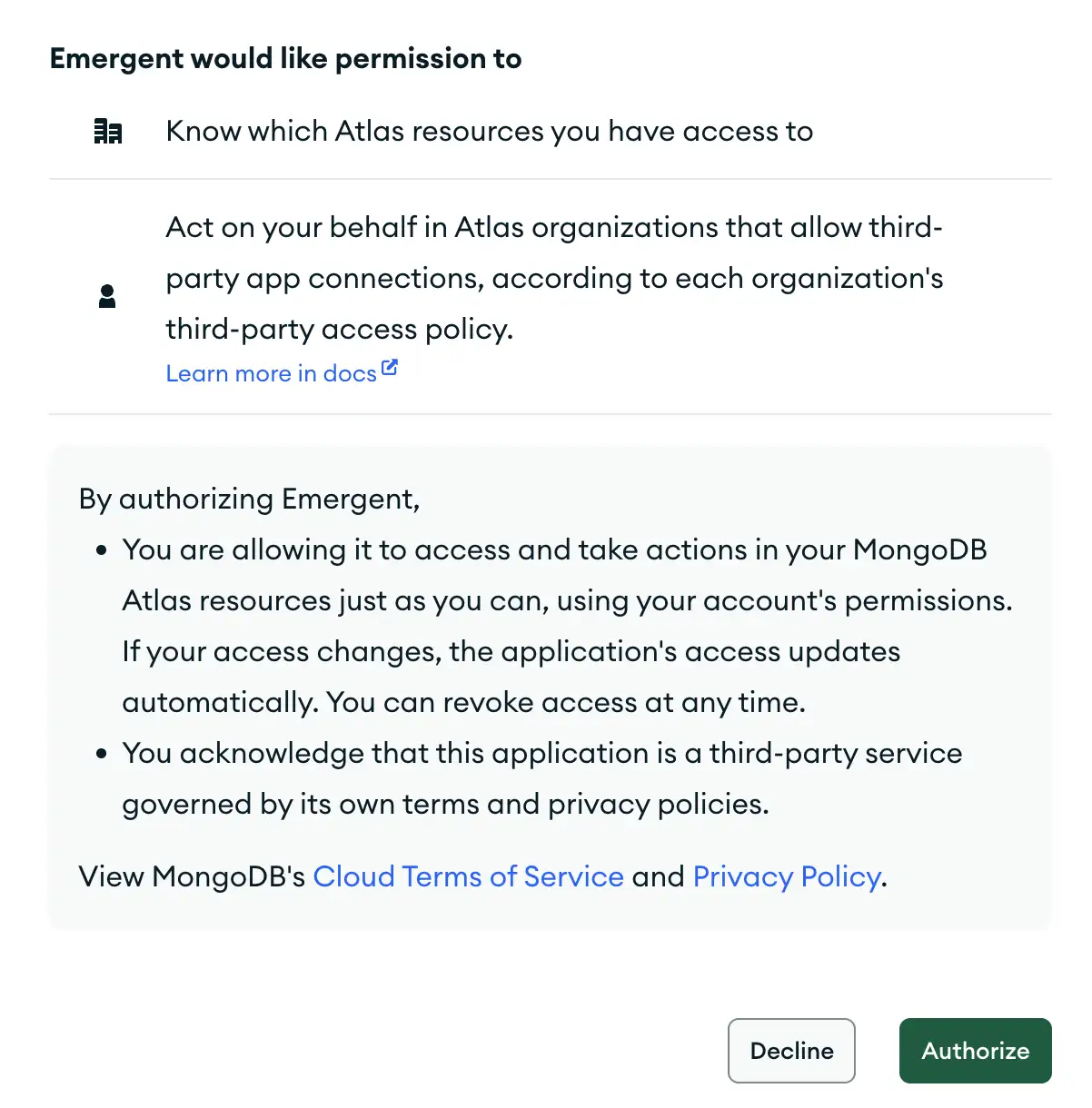
The screen lists two permissions: seeing which Atlas resources you can access, and acting on your behalf in organizations that allow third-party app connections. Emergent works with your account's own permissions, and MongoDB lets you revoke that access at any time.
3. Return to Emergent
Once you authorize, you're sent back to your app and a bottom sheet opens for selecting your cluster. If you cancel or the attempt expires, click Connect again.

4. Pick your cluster
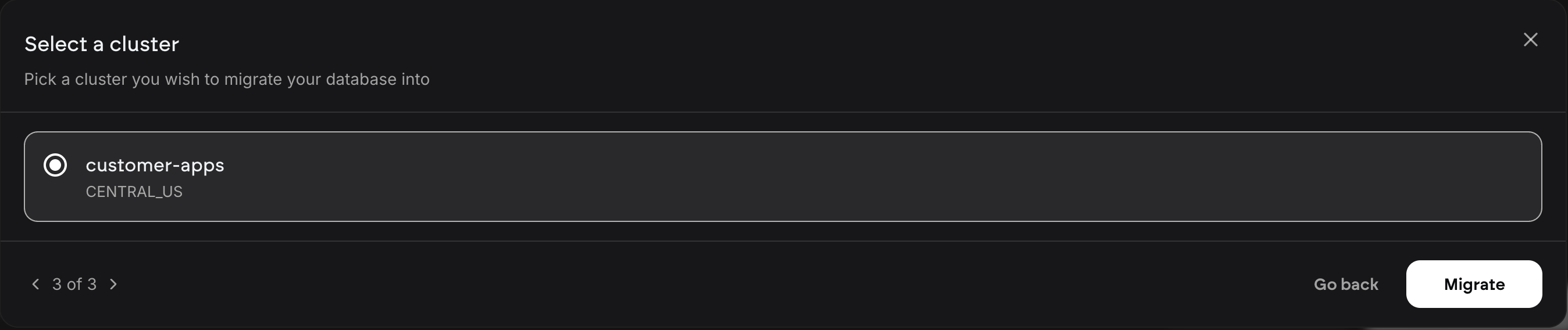
Choose your Organization, then your Project, then your Cluster. Click Continue to move forward or Go back to change an earlier choice. Each cluster is listed with its region, and clusters that are paused or busy appear grayed out.
We save your selection at each step, so you can leave partway through and pick up where you stopped.
5. Click Migrate
Select your cluster and click Migrate on the same screen. Emergent starts moving your data to the selected cluster. Your app keeps running on its current database throughout, and traffic switches over near the end.
Migration takes anywhere from a few minutes to a few hours, depending on how large your database is. A small internal tool will finish quickly. An app with years of customer records will take longer, so plan the move for a window when a longer wait won't worry you.
6. Confirm it's live
When the migration finishes, the card under the Database tab shows Connected to {your cluster}, and your app runs on your Atlas cluster.
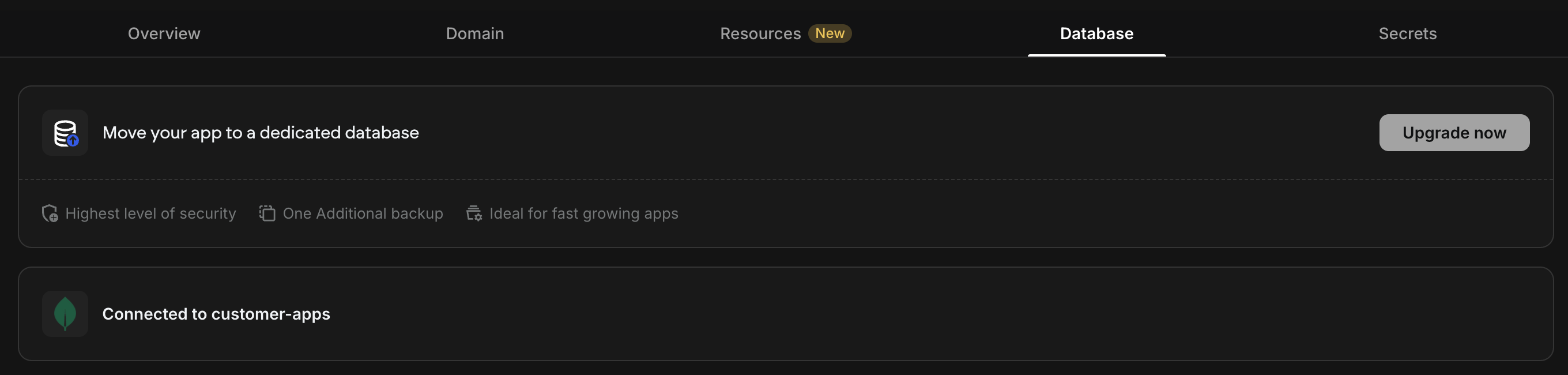
If something goes wrong, the card shows Your database wasn't moved. Your app continues to run on its original database, and you can re-attempt the migration by following the same steps.
What we set up so you don't have to
Moving the data is only part of the job, so we handle the configuration around it as well. Emergent creates the database user your app needs and adds your app's egress IPs to your Atlas project's access list. You don't need to configure either one.
Your app also goes through a republish during the process. That republish doesn't ship new code. Your production code stays exactly as it was, and only the database changes.
Limits worth knowing before you migrate
This is a one-way move from the UI, and a few app setups can't use it.
Read these before you click Migrate:
Moving back isn't self-serve: - Returning to Emergent's managed database requires a request to support.
The connected cluster is fixed in the UI: - To point your app at a different cluster later, contact support.
Some apps aren't eligible: - Apps already on an Emergent Dedicated Database, or already using an external database, can't use this flow.
If something doesn't go to plan
Most issues trace back to an Atlas setting or a cluster that isn't ready. Here's what each one looks like and how to clear it.
Troubleshooting common MongoDB Atlas migration issues on Emergent
For anything not covered here, contact support from inside the app or visit the Emergent help center.
When connecting your own Atlas cluster makes sense
Emergent's managed database remains a good home for most apps, and there's no need to move one that's running well. Connecting your own cluster tends to make sense once your app has grown into something other people rely on, and questions about where its data lives start coming up.
Whenever you reach that point, the option will be waiting in your Publish panel. Until then, keep building, knowing the path to owning your database is already in place.
on Emergent today




