


Introducing Visual Edits: Click it, Change it

Changing how your app looks used to mean taking a screenshot, describing the fix in a chat message, and hoping the agent understood which part you meant. Visual Edits removes that guesswork. You click the exact spot, say exactly what you want changed there, stack up as many changes as you need, and hand the whole set to the agent to execute.
From guesswork to pointing
The old loop was indirect. You screenshotted the part that was off, described the fix in chat, and waited to find out whether the agent changed the right thing. Now you click the element itself and type the change right there, so the agent has the exact location and the exact instruction. There is nothing left to interpret.
That covers the full range of changes people actually make, not just the colors and spacing a settings panel exposes:
- Rewrite the words on the page
- Restyle an element or a whole section
- Swap an image for a different one
- Delete an element you no longer want
- Add a visual effect to make something stand out
- Describe a layout change in plain words
Whatever the change is, it routes to the agent to execute.
These edits become production code in the app you own. A prototype editor keeps its tweaks in a mockup layer that never ships. Here, every change lands in the real app you deploy, and it goes live once you re-deploy.
Stack your changes, then apply them together
Every edit and comment adds to a running count, so you are not fixing things one at a time. Pile up a dozen changes across a page, undo the ones you do not like, and then hand the whole set to the agent as one batch. It applies them together.
Batching also saves you money. Fewer round trips to the agent means fewer back-and-forths to get where you are going, and each applied batch costs less than the same edits sent one at a time. You shape the batch until it looks right, then send it once.
How to use it
Visual Edits fits three kinds of change: one element on its own, the same change across a few elements at once, and a whole section reshaped with a single instruction. It all lives in your app's preview inside Emergent.
- Open your app's preview and switch into edit mode from the bottom nav. From there you select an element and add your change or comment on it.
- Click any element. A panel opens where you can edit its text directly or adjust color, typography, borders, and layout, or type the change you want in plain words.
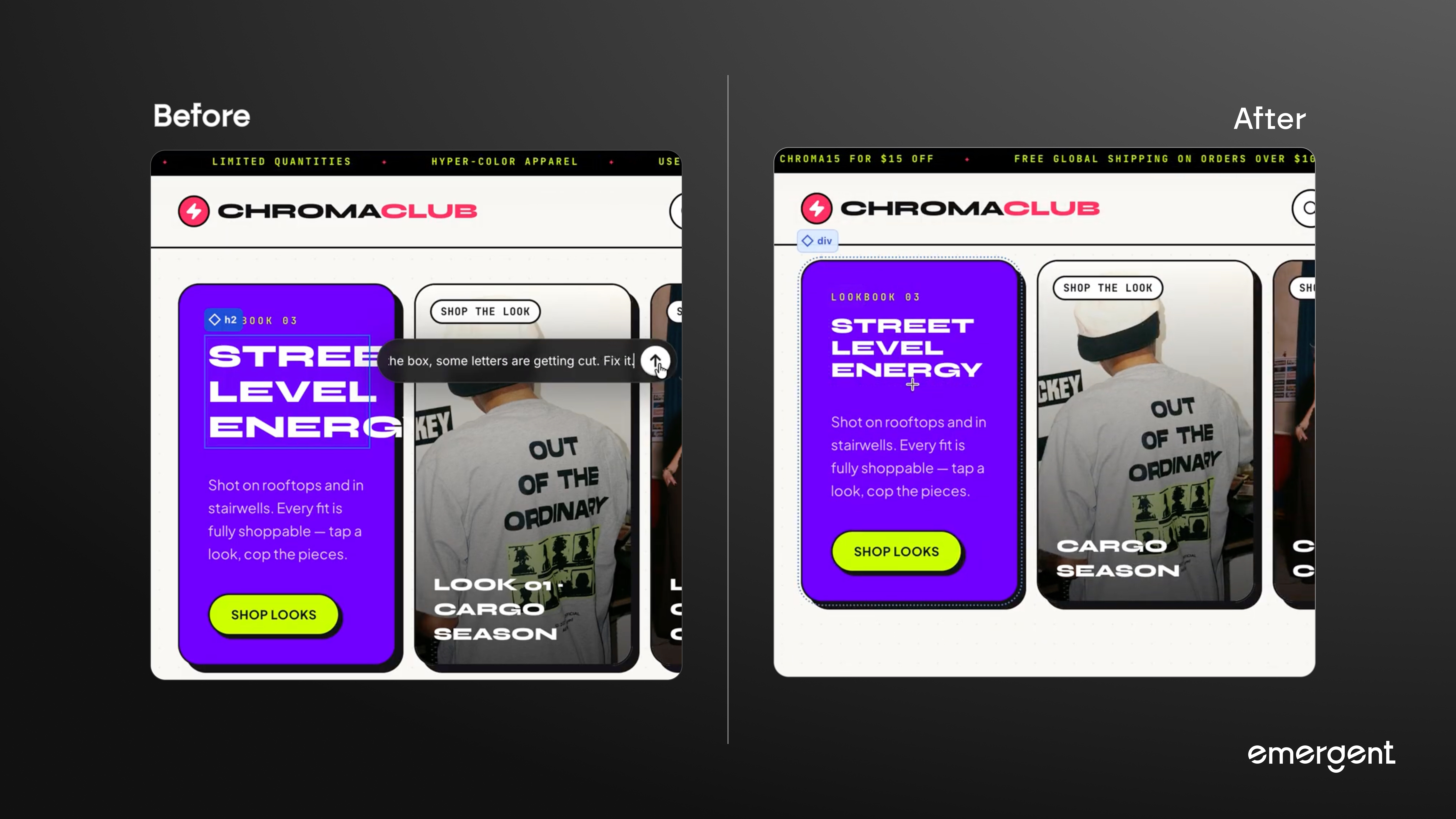
This is the single change, like fixing the "Street Level Energy" heading when "Energy" spills past the edge of its card.
- To change several elements at once, select them together and describe the change in a single box.
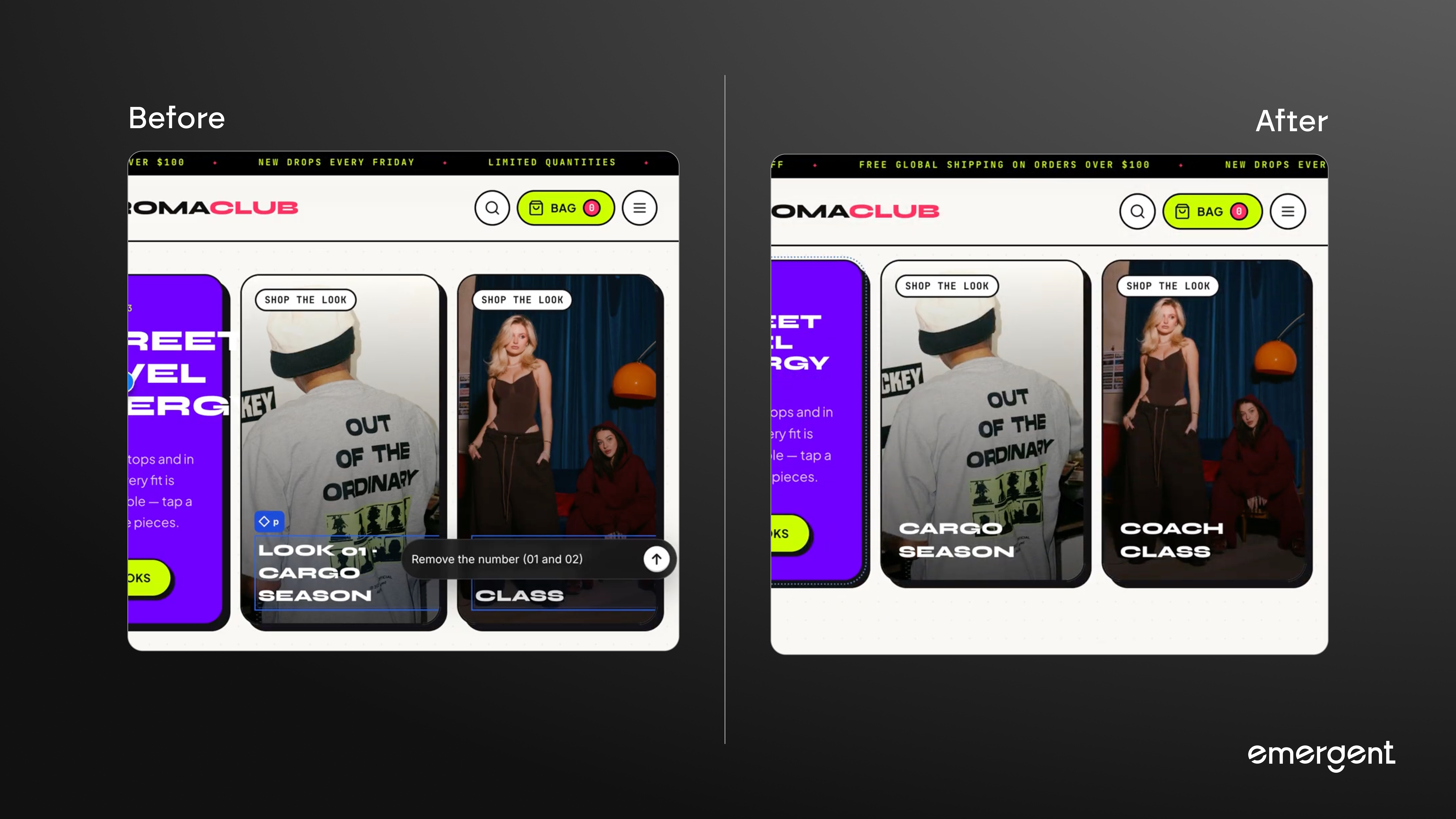
This handles the same tweak across a few elements, like removing the "01" and "02" number tags from a pair of product cards in one go.
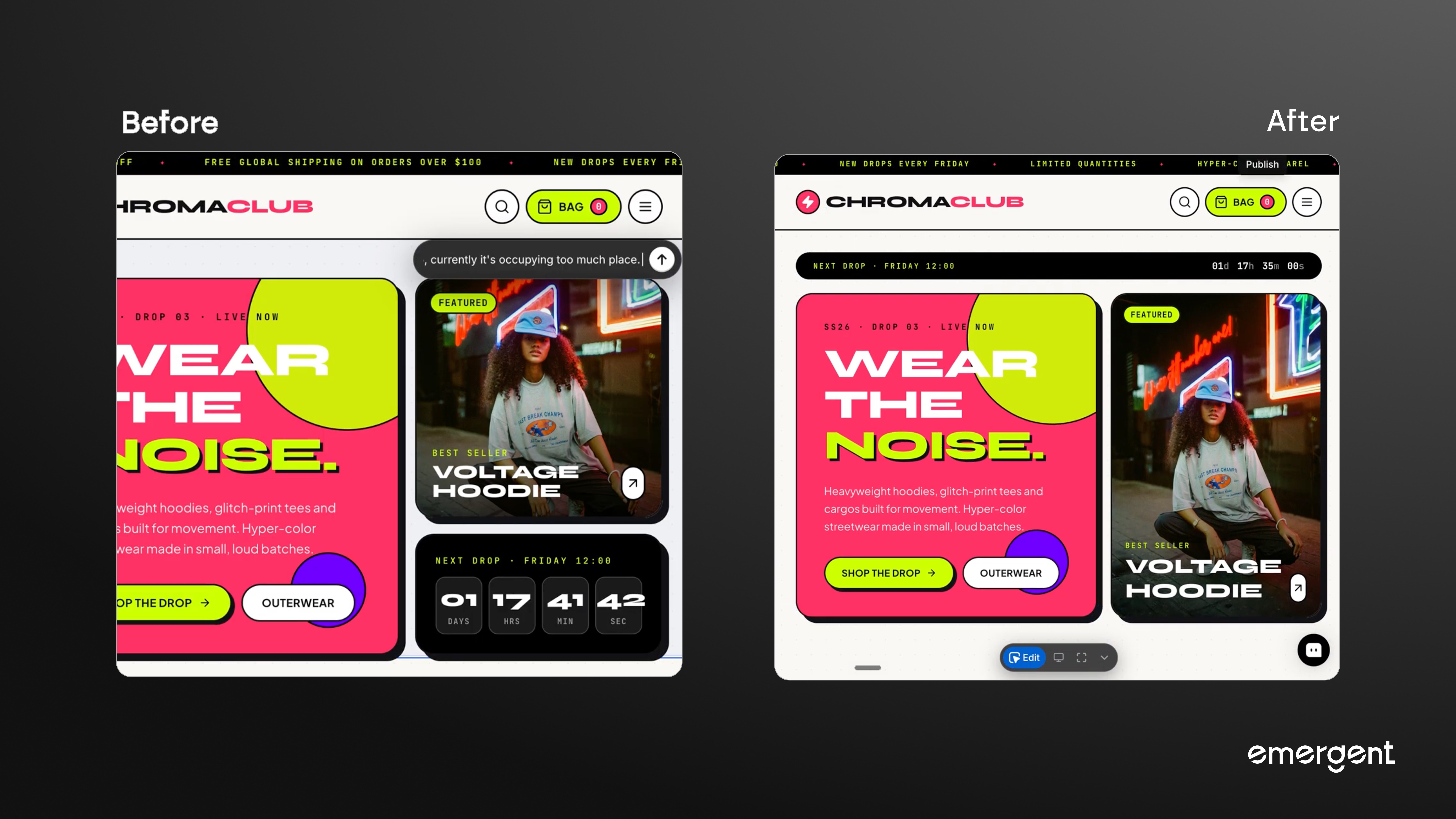
- You can also select a whole section and reshape it with one instruction, like shrinking an oversized countdown ticker to a thin strip at the top so the hero banner gets more room.
- Each edit and comment adds to the count in the bottom nav, where you can open the list to review every change you have queued, then undo, redo, or discard as you go
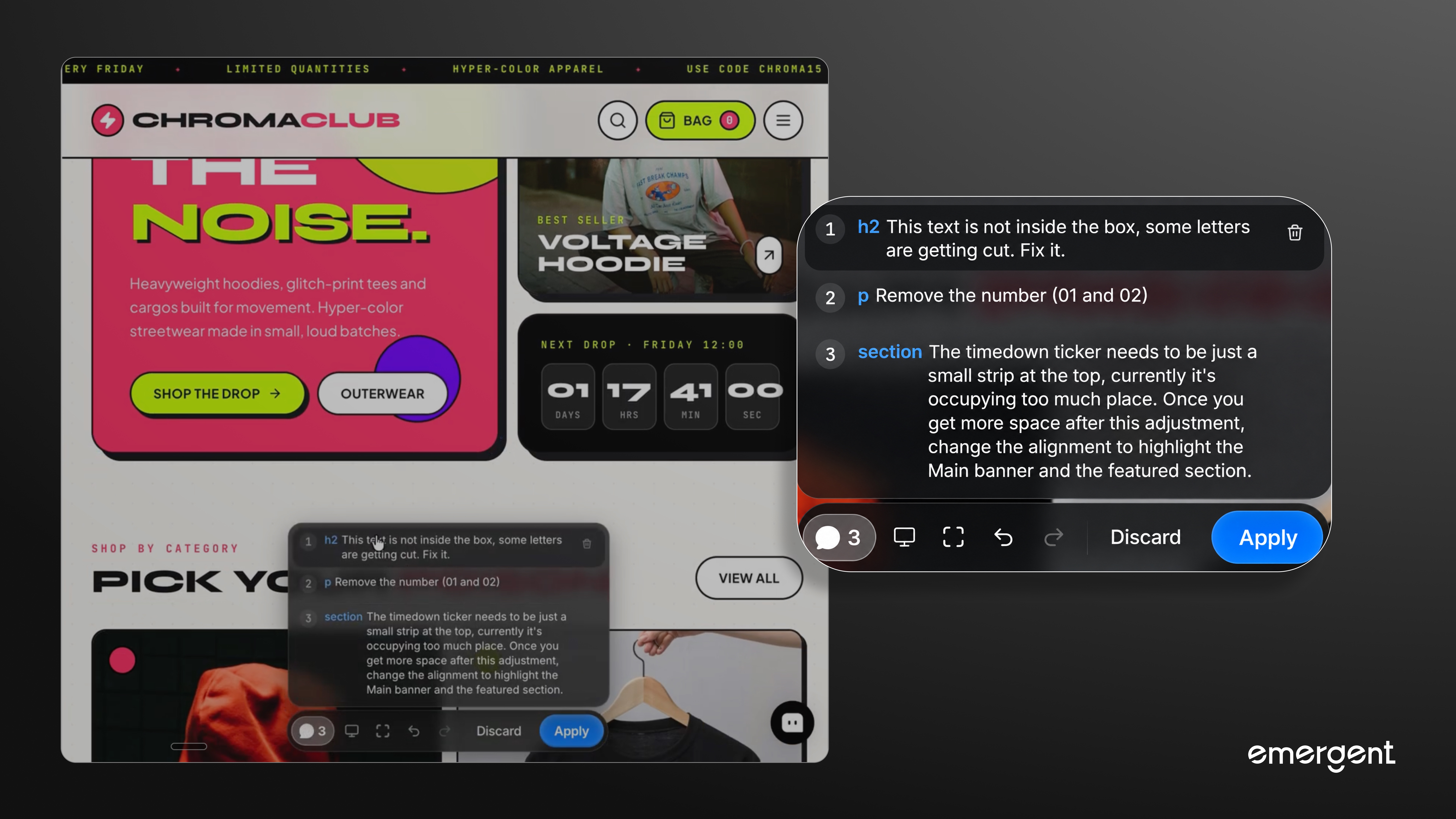
6. When the list looks right, hit Apply. Everything you queued goes to the agent as one instruction, and it applies all the changes in your app's code together.
Availability
Visual Edits is live now inside the Emergent preview, on every app you build. Switch into edit mode from the bottom nav and start clicking. It is there for you, the builder, working inside Emergent, and does not add editing to your deployed app.
Make it look the way you pictured it
The gap between an app that is almost right and one that looks the way you pictured it used to be a pile of chat messages. Now it is a few clicks in the preview.
Open your latest build, switch into edit mode, and change something. Undo it if it is not right, stack a few more, and apply them together when the page is where you want it.


on Emergent today


