When I built ClearLedger Bookkeeping in Emergent, I had a usable four-page first version in about 10 minutes. The full build took about 25 minutes after I refined the pages, tested the contact form, checked mobile, and reviewed basic SEO.
The first screen looking finished wasn’t enough. I still had business details to check, a form to test, and a strange blank Preview to diagnose. Those are the types of AI website builder mistakes this guide will help you catch.
Why AI Websites Fail After a Fast First Draft
AI website builders make choices from the information you give them. Leave gaps in your prompt, and the builder has to decide what copy, layout, images, and page structure fit.
That can produce a useful starting point fast. You still need to check the parts tied to your real business and your customers.
When you use an AI website builder, plan for three stages. Build the first version, review it, then test it like a customer.
How to Diagnose AI Website Builder Problems Before You Publish
Start with the public website or published URL. Use the site the same way a customer will.
Run these checks:
- Read your services, prices, locations, hours, phone numbers, and email addresses.
- Click every menu item and main button.
- Submit every form and check the result.
- Open the website on a real phone.
- Check page titles, meta descriptions, and main headings.
- Open the published site in a fresh tab if the builder Preview looks broken.
This gives you a much clearer diagnosis. You can tell whether you’re fixing the content, the design, or a part of the site that isn’t working.
How to Fix AI Website Builder Mistakes Before You Publish
1. Publishing the First Version Too Quickly

A fast first version is useful. Give it a separate review before you publish.
ClearLedger reached a usable first version in about 10 minutes. I spent another 15 minutes refining and checking it. The full test used 20 credits.
I then published the live ClearLedger site. Use the same approach on your build. Step away from the prompt box and inspect what a visitor will see.
2. Starting With a Vague Prompt
Tell the builder what the site needs to accomplish. Include your audience, required pages, main customer action, visual direction, and real business facts.
I’d also tell it what can wait. That keeps your first version focused and gives you fewer areas to debug.
If you’re using Emergent, Emmy can ask follow-up questions and turn a rough description into a build-ready prompt. Emmy is free, chatting with it costs no credits, and it’s currently available on the web.
Read More: 5 Best AI Website Builders I Tested in 2026
3. Leaving Placeholder or Invented Business Details
Read AI-written business facts line by line. Smooth copy can still contain a guess.
ClearLedger used fake information because I built it for testing. The site still had a sample email, phone number, and Portland location during the final checks.
For a real site, replace sample prices, locations, testimonials, team details, policies, and contact information. This is especially useful when choosing small-business AI builders, since those sites often rely heavily on accurate local and service information.
4. Adding Too Much Before the Core Site Works
Keep the first scope tied to the main customer action.
For ClearLedger, I kept four public pages, a contact form, and a private inquiry view. I skipped email alerts and an external scheduler during the test.
Get your core pages working first. Add booking, payments, member accounts, and extra automations when you’re ready to test those flows properly.
5. Sending Several Big Changes in One Prompt
A prompt that changes your hero, navigation, colors, copy, and forms creates a lot to review at once.
Make focused edits when you can. Ask for one change, inspect it, then continue.
A useful prompt pattern: “Change [one part] to [specific result]. Keep [nearby parts] unchanged.”
That gives you a clearer trail if a later version looks wrong.
6. Rebuilding as Soon as the Preview Looks Broken

This was the most useful snag in my ClearLedger test.
The embedded Preview went white after the site recompiled. Emergent traced it to a temporary 502 Preview response. The four public pages, contact form, and admin view worked when checked directly, and no code repair was needed.
Check outside the Preview first. Refresh it, open the site in another browser tab, and test the published URL. Move into repair work when the problem also appears on the real site.
7. Stopping Your Test After the First Click
A button opening the correct page proves one part of the flow. Follow the action through to its final result.
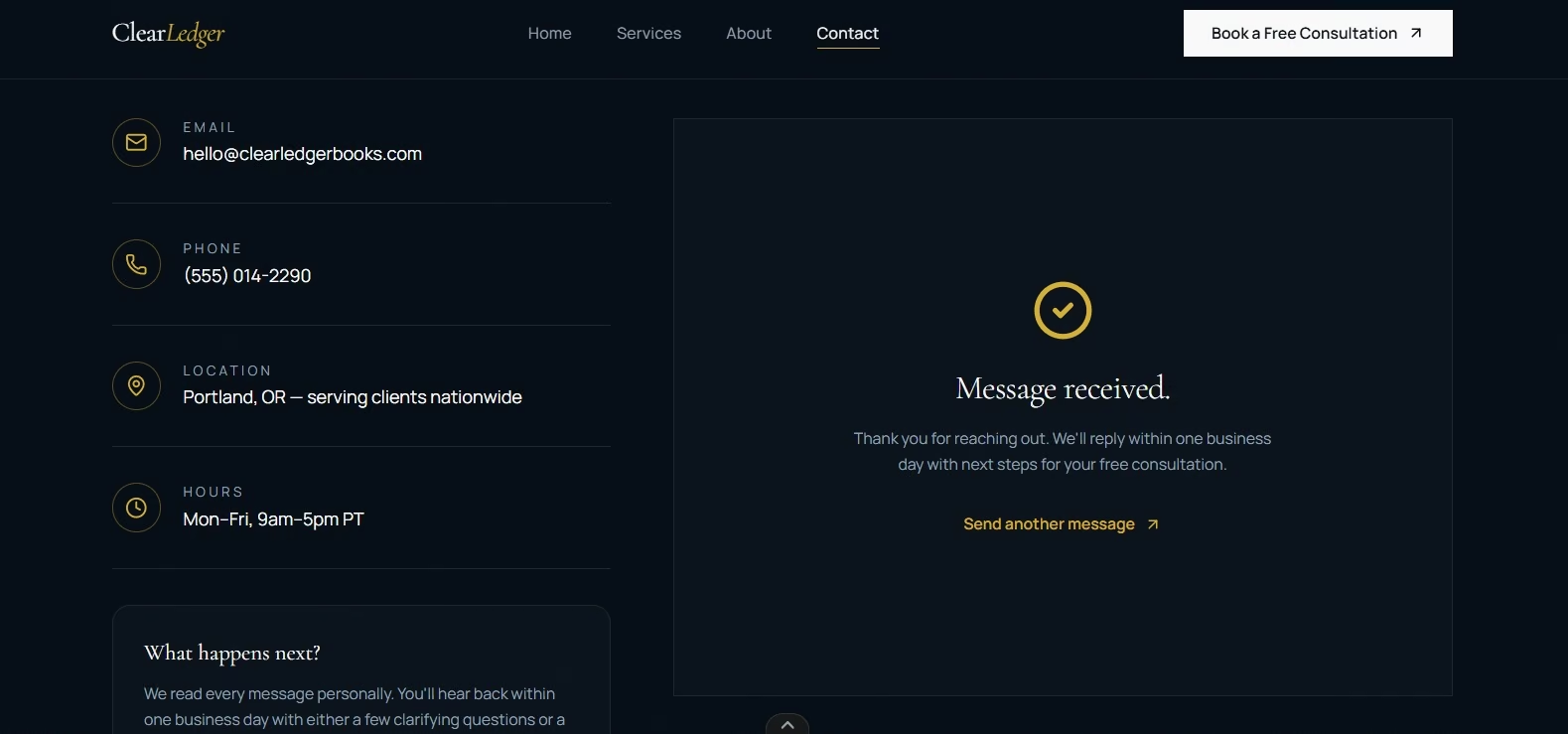
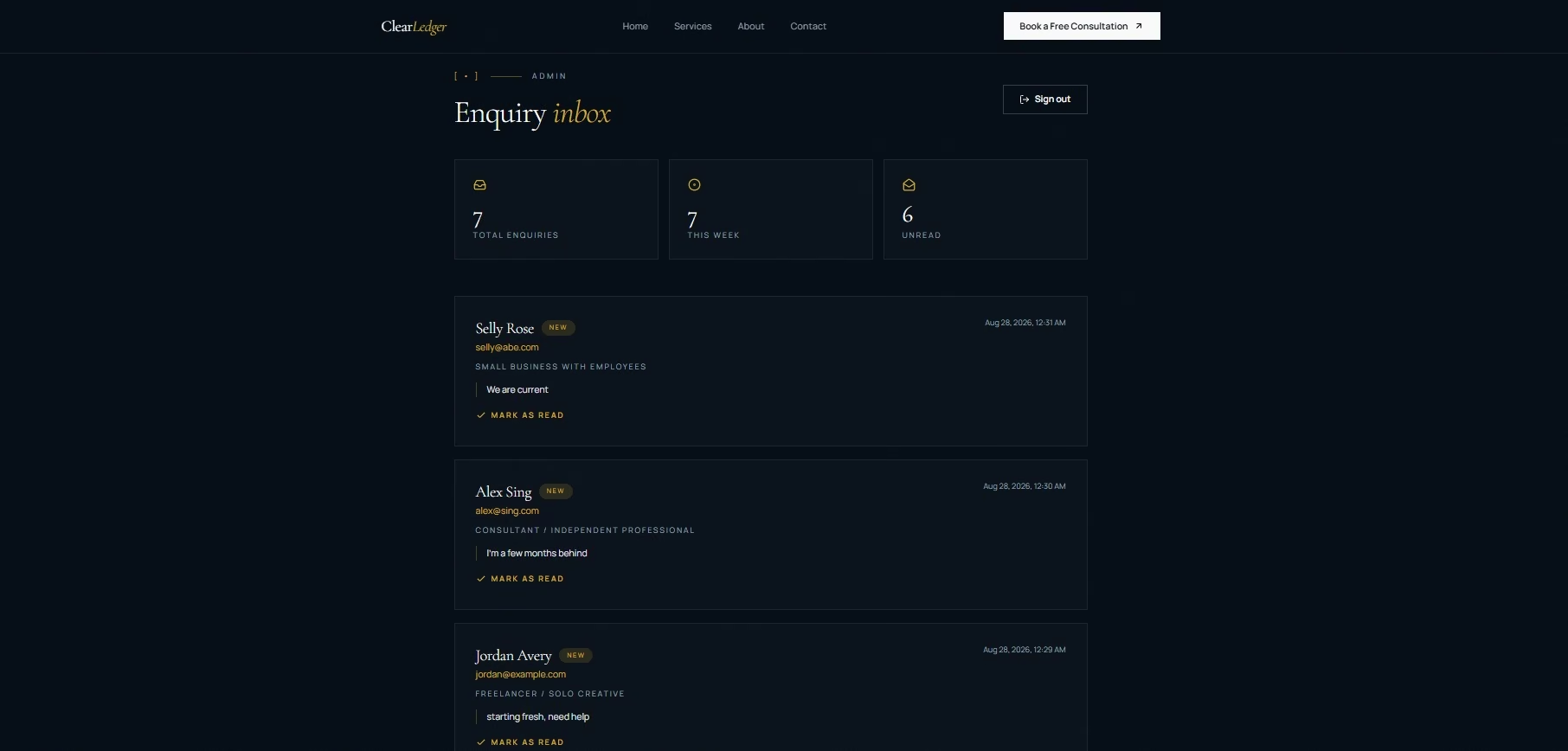
I submitted the ClearLedger contact form and received the success confirmation. The inquiry also appeared in the private admin area. Three test inquiries were stored during verification.
Do the same with forms, bookings, payments, downloads, and signups. Start where your customer starts and finish where they should finish.
8. Skipping the Mobile Review
Open the finished site on a real phone. Test the menu, buttons, headings, forms, and long sections.
Google’s page experience guidance recommends checking that your content displays well on mobile devices. Its technical requirements also say Googlebot must be able to access a working page for it to be eligible for indexing.
Repeat this check after large design changes. A new image or long heading can change a mobile layout you already approved.
9. Skipping a Final SEO Review
AI can help with on-page SEO. Read the final search details yourself.
My ClearLedger review ended with unique title tags, meta descriptions, and one main heading on each of its four public pages. I left Google Business Profile setup, schema markup, sitemap.xml, and robots.txt outside this test.
Google’s generative AI guidance tells site owners to focus on accuracy, quality, and relevance. It also calls out title elements, meta descriptions, structured data, and image alt text.
Open each important page and read those details before launch.
How to Prevent AI Website Builder Problems From Coming Back
A short review after major edits can catch the same problems before customers do.
Use this routine:
- Business details: Recheck prices, services, locations, and contact information.
- Customer actions: Test your main button, forms, booking, payment, or signup path.
- Mobile: Open the key pages on a real phone.
- Search details: Read the title, description, main heading, and image alt text.
- Live site: Open the published URL in a fresh tab and click through it.
Read More: 5 Best AI Website Builders for Beginners in 2026
Emergent Makes Website Fixes Easier
Emergent lets you describe website changes in plain English and review each result in the same project. Its current website-builder flow covers building, refining through prompts, and publishing to a live URL.
That worked well for ClearLedger. Once I knew what I wanted changed, I could refine the pages, test the form, review basic search details, and publish from the same project.
If you get stuck, Emmy can answer questions about your current project and accepts screenshots of confusing screens. The official launch page says Emmy is free, costs no credits to chat with, and is web-only as of August 2026.
Start building with Emergent.
Final Takeaway on AI Website Builder Mistakes
AI website builder mistakes usually come from skipped checks. Give the builder clear information, review the business details, test the full customer path, check mobile, and open the live site before publishing.
My ClearLedger build showed how quickly the first version can arrive. The remaining review time caught the parts a polished homepage couldn’t prove on its own.
Most AI app builders stop at prototypes. Emergent creates production-ready apps you can actually launch.
- Production-ready apps
- Web & mobile apps
- Deploy in minutes