TL;DR
- Pick Wix if you want a good-looking site live fast on one predictable plan, with almost no learning curve; it's the better fit for a solo builder or small business that needs to launch.
- Pick Webflow if you want precise design control and content built to scale, and you're willing to climb a learning curve to get it; it's the better fit for designers, agencies, and content-heavy sites.
On my two-week build, both landed at nearly the same monthly cost, so the real decision is speed and simplicity versus control and scale. Price barely moved the needle.
Most Webflow vs Wix comparisons give you one line about design control and one about getting online fast. I wanted to know what running each site actually feels like week to week.
So I built the same site twice. Greyframe Studio is a five-page photography portfolio with a gallery, an about page, a booking form, a small print shop, and one blog post.
I ran the same brief through Webflow's and Wix's AI generators, then spent the rest of each build fixing what the AI left rough.
That first draft always looks impressive, but what breaks shows up later, once you're adding a blog post, fixing a cropped photo, or checking what the monthly bill is.
This comparison covers where Webflow pulled ahead, where Wix did, and which one fits the real, day-to-day project you’re building, long after the demo.
How Your Priorities Decide the Winner
Webflow and Wix were built to solve different problems.
Wix prioritizes getting a decent site live fast, while Webflow prioritizes control as the site grows or needs a precise design. Your project decides which priority carries more weight.
I didn't fully register this until partway through building Greyframe Studio in both tools.
During the same two-week test, Wix pulled ahead on speed, while Webflow led on design control and content structure.
How I Tested Webflow and Wix
I built the same site in both platforms so the difference would come down to hours and dollars.
The build is Greyframe Studio, a photography portfolio site. It has a homepage gallery split into portrait, wedding, and event categories, plus an about page and a booking-inquiry form.
There's also a small shop selling four framed prints and one blog post. Each platform's AI site generator got that exact brief first. I finished by hand whatever it left undone.
Here's the brief I gave both tools, word for word:
"I run an independent photography studio called Greyframe Studio, shooting portraits, weddings, and events. Build me a clean, modern portfolio site with a photo gallery, an about page, a booking inquiry form, and a small shop where visitors can buy framed prints."
Each build sat in a working, testing state for the full two weeks. I wanted to see what a normal working week looked like on each platform, well past the initial build sprint.
I measured three things, and I measured them the same way on both platforms. Design control meant how close the finished gallery got to the exact look I had in mind. It also meant whether I needed a workaround to get there.
Ease of use meant whether the AI draft needed outside help, a tutorial, a forum post, anything, to reach a publishable state.
Cost meant the full combined monthly plan price required to publish every piece of the build, the blog and the shop included. That number often runs higher than the price advertised on the homepage.
This is a two-tool comparison, narrower by design than a shootout across every website builder. I limited it to Webflow and Wix because I wanted a clear answer for a small business site like Greyframe Studio.
Meet Webflow: Features & Highlights
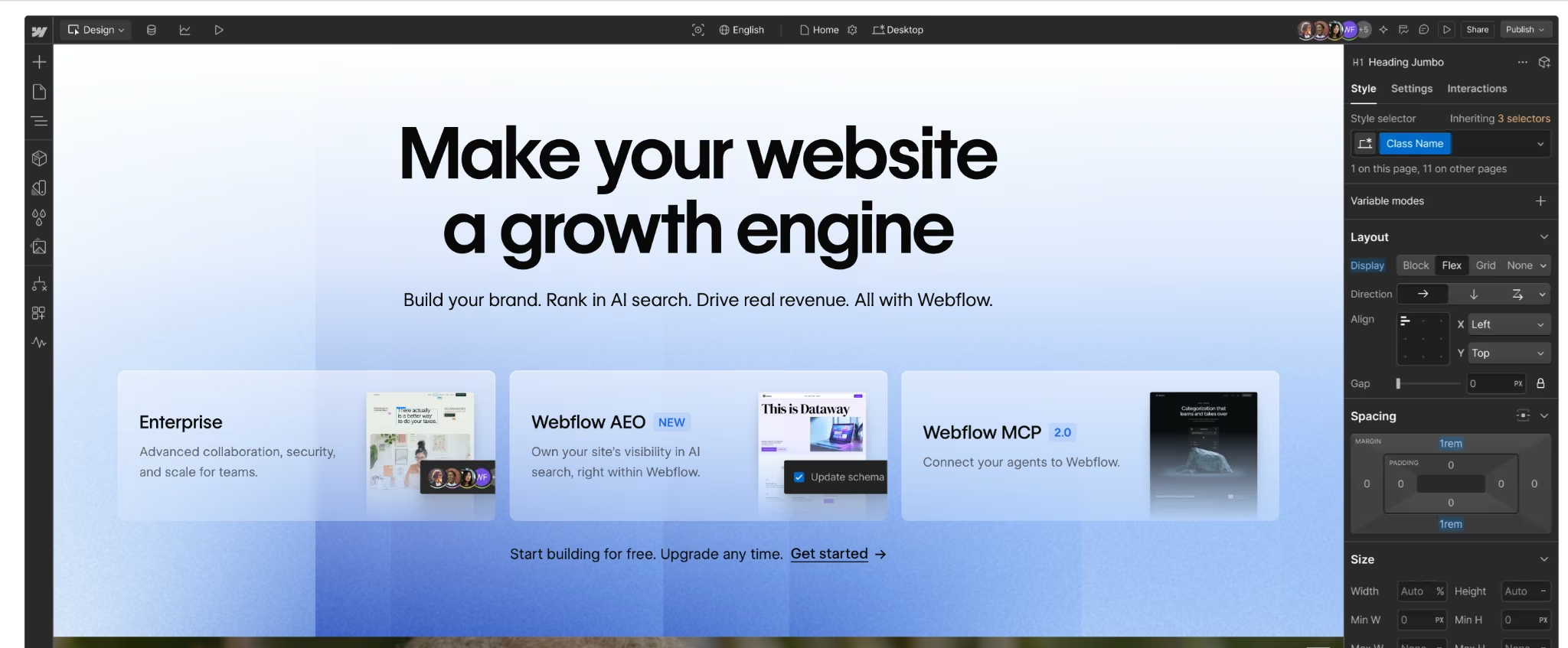
Webflow uses a design-software workflow. You get a blank canvas, visual controls that map to HTML and CSS, and pixel-level control over every element on the page.
It ships with a native content management system (CMS). The full CMS is available starting on the Premium plan for standard sites, with the Ecommerce plans carrying their own separate CMS allowance.
That system lets you build structured content types beyond plain static pages, useful the moment you add a blog or a portfolio that needs to grow.
Paid workspace plans include code export, so what you build isn't fully locked to Webflow's own hosting.
The free Starter plan works as a limited sandbox. It's capped at two static pages, hosted on a Webflow-branded subdomain, with only a limited CMS.
Webflow's own AI site generator was my first stop with the platform (the full first-draft comparison against Wix's generator is below).
Meet Wix: Features & Highlights
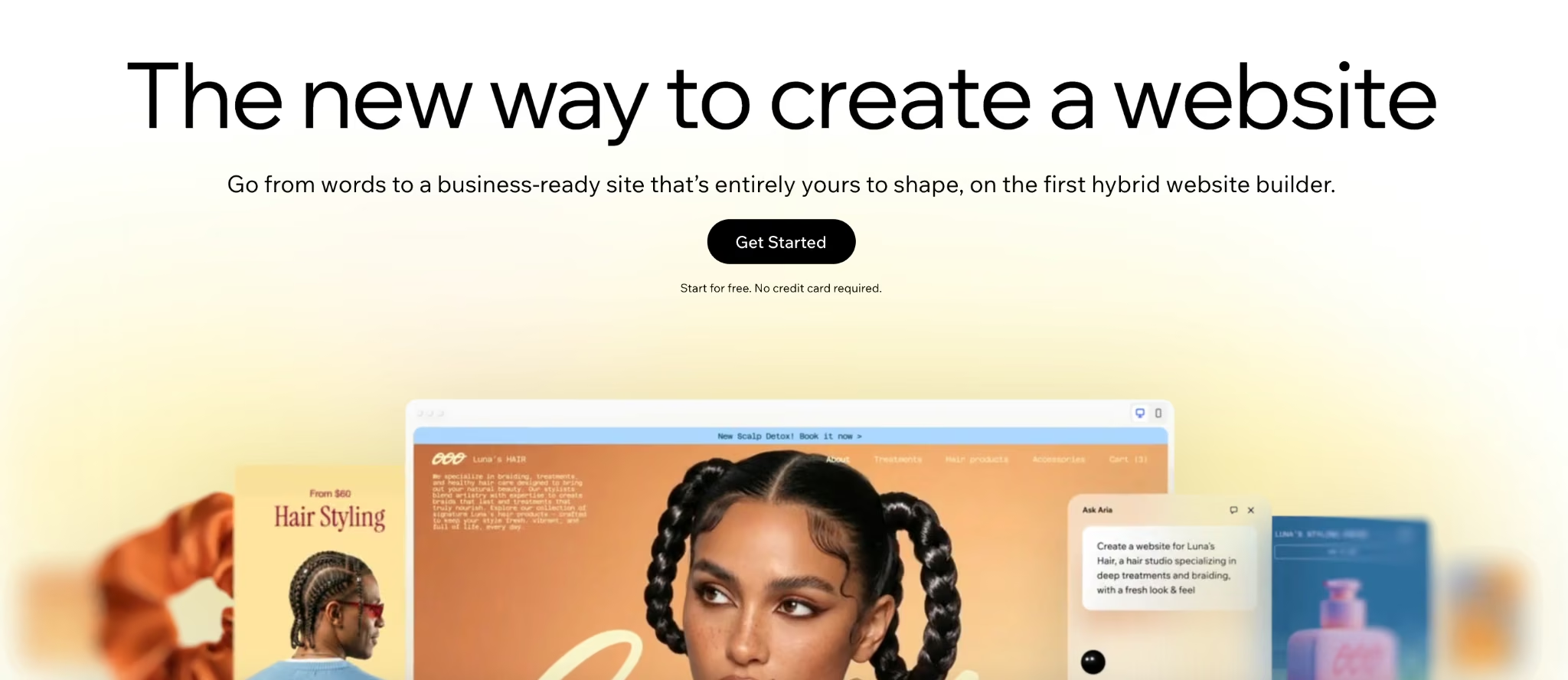
Wix leans toward a guided, drag-and-drop editor, built for people who've never built a website before. It comes with hundreds of templates, a design system built in, and no code to touch unless you go looking for it.
Its native app market includes 800+ apps, plus a built-in customer relationship management (CRM) tool for tracking client inquiries. Most of what a small business needs (booking, live chat, event management) is a native app install away, no separate paid tool required.
Wix also bundles hosting, SSL, and support into every plan, so the basics never cost extra.
Wix's own AI website builder was where I started with that platform, generating a first draft before I touched a single setting.
Webflow vs Wix: At a Glance
| Feature | Webflow | Wix |
|---|---|---|
| Best For | Designers and agencies wanting full control | Solo builders and small businesses wanting speed |
| Pricing | $25/month ($15/month, billed annually) | $17/month billed annually |
| Key Strength | Design precision and a native CMS | Ease of use and all-in-one bundling |
| Main Weakness | Steep learning curve, separate plan required to sell products | Design ceiling once a template is set |
| Ideal Team Size | Small teams to agencies | Solo builders to small teams |
Webflow vs Wix: Feature-by-Feature Comparison
Here's where those two different priorities played out, feature by feature, across the same two-week test.
AI Site Generation: First-Draft Quality
I ran the same one-line brief through both AI generators back-to-back.
Webflow: About 8 minutes after I submitted the brief, Webflow's AI generator handed back a working draft with the structure in place, a homepage, an about page, and a gallery.
Every image in that gallery needed manual re-cropping, and the spacing between images didn't match the tighter, editorial feel I'd described. The draft read as a strong outline of a site.
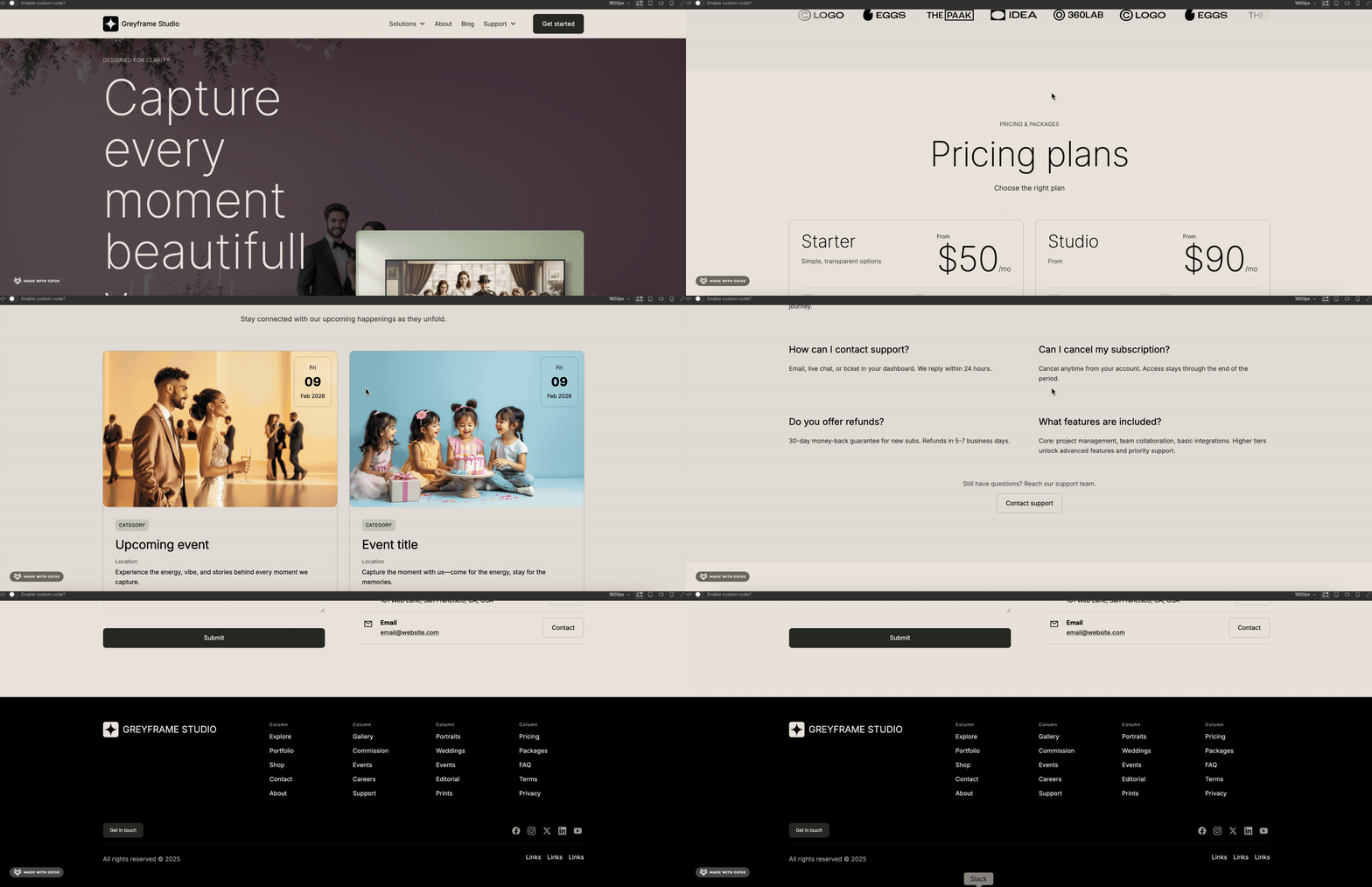
Wix: The same brief took Wix's AI generator under 3 minutes, handing back something closer to a finished homepage. The gallery arrived pre-sorted into portrait, wedding, and event categories, matching the brief without me touching a setting.
It wasn't a perfect final design, but it needed a fraction of the cleanup Webflow's draft did.

Winner: Wix. For a first draft you can publish with only minor tweaks, Wix's generator got further and faster. Less rework stood between the draft and a usable site.
That first-draft race is only the opening move, though. Both platforms keep an AI layer running long after that first draft, each with its own take on what it still offers once the draft is done.
Wix bundles three separate AI tools inside the same editor I used to build the shop and blog. An AI Text Creator handles page and product copy, an AI Image Creator generates on-brand visuals from a text prompt, and an AI Meta Tag Creator (Premium plan required) drafts three sets of SEO titles and descriptions per page to pick from.
Webflow's AI Assistant works differently. You prompt it inside the Designer to generate page sections that match Greyframe Studio's existing fonts and spacing or rewrite copy in place.
On the Core Workspace plan and above, it can also generate custom AI code components built with React, though publishing a site that uses one requires a CMS Site plan or higher too. This puts the tools inside one conversational assistant instead of a menu of separate generators.
I didn't lean on either platform's AI tools past the first draft for this specific build. The next comparison covers features each platform documents publicly, which I did not stress-test.
Still, the difference in approach is real. Wix hands you a toolbox of discrete AI generators, and Webflow gives you one conversational assistant embedded in the editor itself.
Design & Customization Control
Once the AI drafts were done, the test was getting each one to look the way I pictured it.
Webflow: Working inside Webflow's editor feels closer to design software than a typical website builder, with combo classes and direct control over spacing, grids, and typography. Getting the gallery's grid gutter and image spacing to match the tighter, editorial look I wanted took about 45 minutes.
That meant a Webflow University tutorial rabbit hole, learning how combo classes and the box model connect. Once I understood it, the control was there. I could nudge one gallery image's crop without touching the rest of the layout.
Wix: Wix's editor is the friendlier of the two. Once the AI draft's template structure was set, though, I reached the gallery's layout limits quickly, and the available options were narrower than what I wanted. I could swap colors and fonts freely, but I couldn't rebuild the underlying grid the way I could in Webflow.
That ceiling isn't limited to one gallery layout, either. Wix's own help center confirms you can't switch an existing site to a different template directly. You can copy pages, elements, media, and reusable design assets to a new site, but changing templates for a build like Greyframe Studio still means rebuilding parts of the layout rather than flipping a switch.
Winner: Webflow. Its grid and crop controls produced a gallery closer to the design I had in mind than Wix's template options.
I would warn a non-designer that Webflow's class system takes time to learn, but it supports more layout control.
Ease of Use & Getting Started
Design control and ease of use are almost always in tension, and this build made that plain.
Webflow: The tutorial detour carried into later layout decisions. Each new change risked another search because the visual editor assumes you're comfortable with classes and the box model.
Wix: It never sent me looking for outside help. The AI draft, the drag-and-drop editor, and the built-in app market got me to a finished, publishable site. I needed zero tutorials and zero forum searches. Anyone who's dragged a file into a folder can drag a section into a Wix page.
Winner: Wix. I reached a finished, presentable site without leaving the editor once. If getting online fast counts for more than design control, this is the gap that decides it.
CMS & Blogging Depth
The one blog post in the Greyframe Studio brief existed specifically to test each platform's content tools. The gap here was the widest of the whole build.
Webflow: Its CMS, included on the Ecommerce Standard plan this build ran on, treats a blog post as a structured content type. It has its own fields for a title, a cover image, a category, and body content. To build the one required post, I had to define that structure once, then fill it in. That same structure is what would let Greyframe Studio add many more posts later without redesigning anything.
Wix: Its blogging tool sits on the same Core plan as the store. It's simpler. I picked a layout and wrote the post, and getting from a blank post to something ready for Wix's publish flow took a fraction of the setup Webflow's CMS needed.
I used Wix's native blog tool rather than its separate CMS collections system, which handles other content types on its own. For a single blog post, the native tool was faster to set up than building a custom collection.
Winner: Webflow. For one blog post, either tool gets the job done. The difference lies in what happens next. Webflow's CMS is built for structured, scalable content, with room for up to 20,000 CMS items across 40 CMS Collections on the Premium plan.
Wix's native blog tool is built to stay simple. Scaling into a broader content library on Wix means building out its separate CMS collections instead, a different setup than the blog tool tested here.
SEO & Performance
Each platform hands you the basics of search engine optimization (SEO) without digging for a plugin. You get titles, meta descriptions, and alt text on every page by default. The difference lives beneath the page, in code that's invisible at the surface.
Webflow: It generates clean, semantic HTML by default, the kind search engines parse without extra work on your end. It also gives you direct control over redirects, custom schema, and CMS indexing. That control becomes more valuable as a site grows past a handful of pages.
Wix: The basic SEO controls I used for Greyframe Studio were all covered by Wix's built-in tools. Titles were clean, and I found no missing basic SEO settings during the build. I did not run a separate performance test, so I could not compare the platforms' code overhead directly.
Winner: Webflow, with a caveat. Webflow's code output is the stronger technical foundation, especially at scale. For a five-page photography portfolio, Wix's own SEO tools weren't the weak link in this build.
Ecommerce & the Full Monthly Cost of This Build
Webflow: The finished Greyframe Studio build ran on the Webflow Ecommerce Standard plan at $42/month ($29/month, billed annually). That plan's own CMS allowance, 2,000 items across 20 Collections, covered the one blog post without a separate Premium plan, and its store tools covered the four framed prints.
Building the shop page started with duplicating the homepage. That shortcut broke the CMS bindings on the copied gallery, so I had to reconnect each copied image to its CMS field before it displayed. The structured setup required extra repair after the duplication.
Wix: It ran on one plan for this whole build. Wix Core plan at $29/month (billed annually) covered the blog and the store together. Setting up the four-product shop through Wix's store tool, including photos, sizes, and pricing, took me about 30 minutes.
The friction I hit was the shop's own product template. It cropped every framed-print photo to a fixed square ratio that clipped the frame edges, and there was no simple toggle to fix it. Getting the crop right meant resizing every product photo outside Wix first.
Winner: A near-tie. Wix's $29/month plan and Webflow's $42/month Ecommerce Standard plan ($29/month, billed annually) land at the same price once both are billed annually. That gap can flip either direction on a bigger store: Webflow's higher ecommerce tiers drop the transaction fee that its entry tier still charges at this size.
Team Collaboration & Workflow
Greyframe Studio was a one-person build, so this is the one feature area where I'm reporting what each platform documents and ships. I never had three people editing the same page at once to see what would break.
Webflow: It rebuilt its collaboration model around Client Seats in 2026, replacing the older Design/Edit/Build/Comment split as the legacy editor approaches retirement.
Three roles control what each collaborator can change. A Marketer can build and edit pages using existing components. A Content Editor can update text, images, and CMS entries without changing the layout. A Reviewer can comment but cannot edit.
This runs on a separate axis from the site pricing above. Webflow sells collaboration through its own Workspace plans, and the entry tier ships with one free client seat per site, climbing to three on its Agency tier before you start paying per seat.
Page branching, staging a redesign of one page without touching the live version, sits behind Webflow's higher, workspace-level paid tiers, above the site plan this build ran on.
Wix: The same year, Wix answered with the 2026 Harmony Editor, which combines AI-assisted creation with drag-and-drop editing and supports real-time co-editing. Multiple collaborators can now work on the same site at the same time, with a colored outline marking which element someone else has selected, and edits appear for every collaborator within seconds.
Permissions run through five built-in roles. Admin (Co-Owner), Website Manager, Website Designer, Back Office Manager, and Content Writer cover most teams, and there's also the option to build a fully custom role from scratch.
Unlike Webflow's seat system, this collaboration layer comes standard with the same site plan Greyframe Studio already ran on, no separate workspace-level plan required.
Winner: A genuine split, decided by what each platform does well. If real-time, everybody-in-the-same-page editing is what you need, Wix's Harmony Editor does that natively, on the plan you're already paying for.
If what you need is keeping a junior marketer from touching a client-ready layout without oversight, Webflow's role-gated seats are built for exactly that job.
Wix can restrict a collaborator to specific pages or content through its custom roles, though setting that up takes more manual work than Webflow's seat system.
What Real Users Are Saying
Webflow
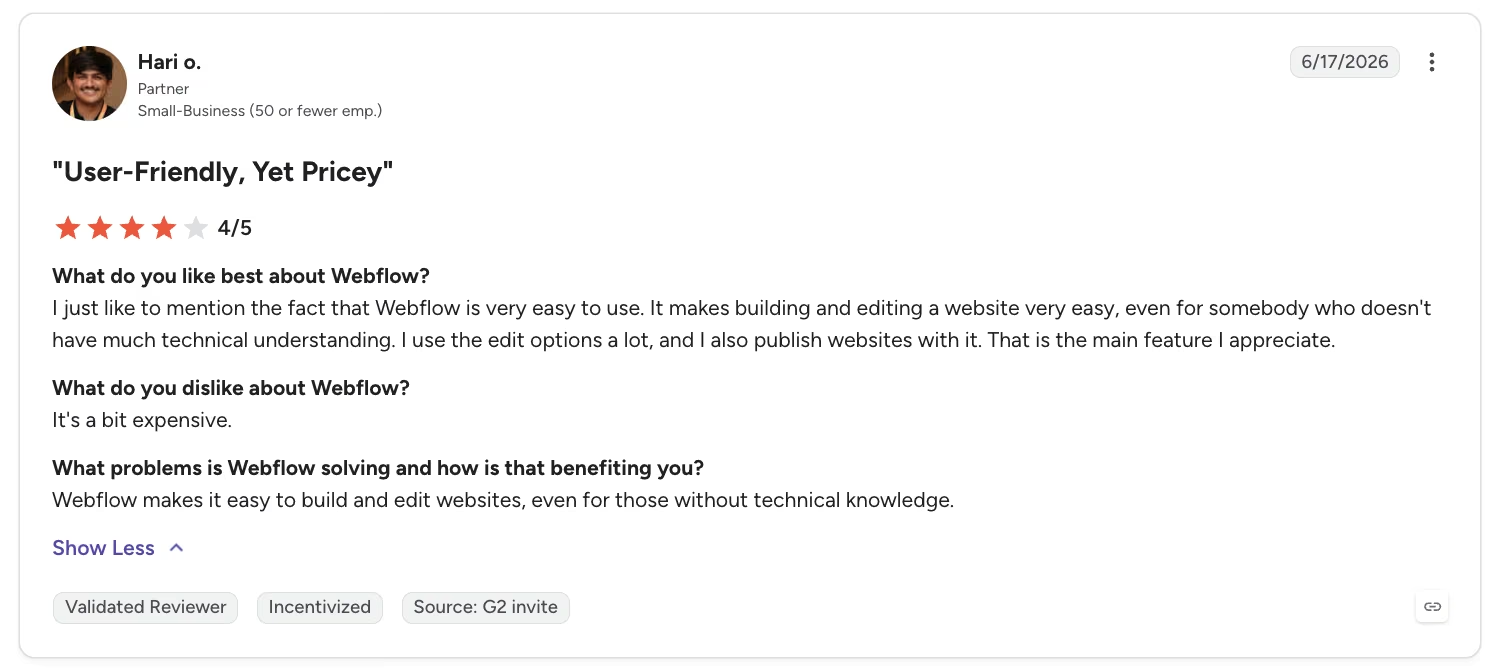
“I just like to mention the fact that Webflow is very easy to use. It makes building and editing a website very easy, even for somebody who doesn't have much technical understanding.” - Hari O., G2
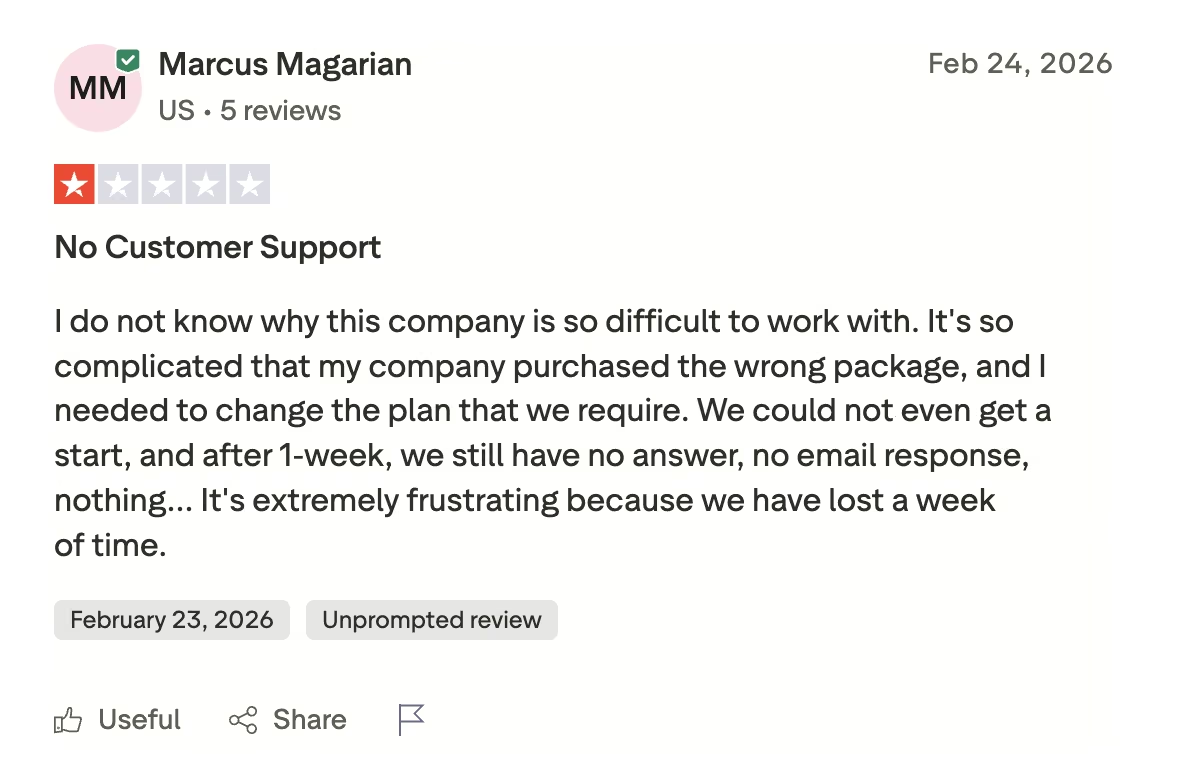
“It's so complicated that my company purchased the wrong package, and I needed to change the plan that we require. We could not even get a start, and after 1-week, we still have no answer, no email response, nothing.” - Marcus Magarian, Trustpilot
Wix
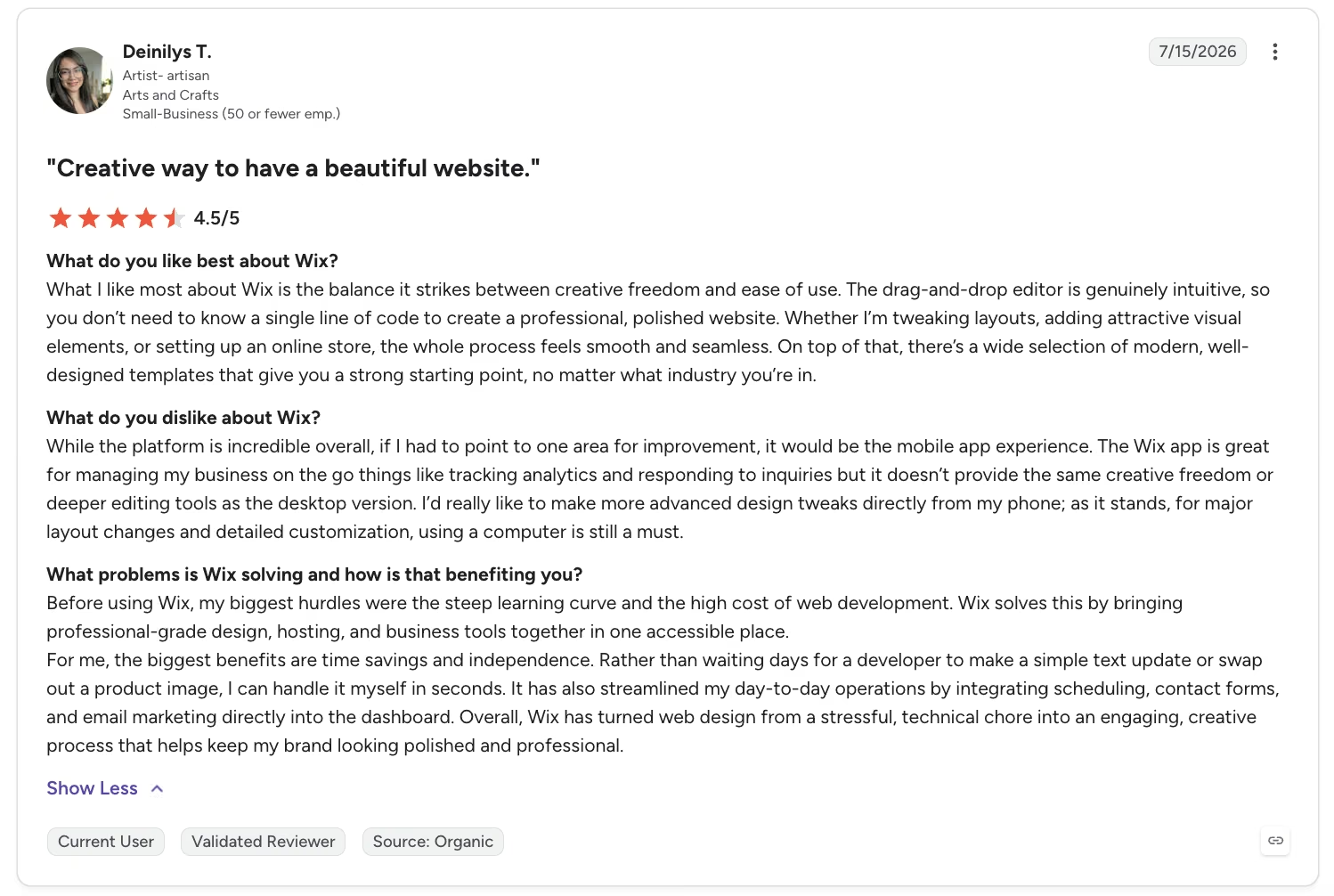
“The drag-and-drop editor is genuinely intuitive, so you don’t need to know a single line of code to create a professional, polished website. Whether I’m tweaking layouts, adding attractive visual elements, or setting up an online store, the whole process feels smooth and seamless.” - Deinilys T., G2
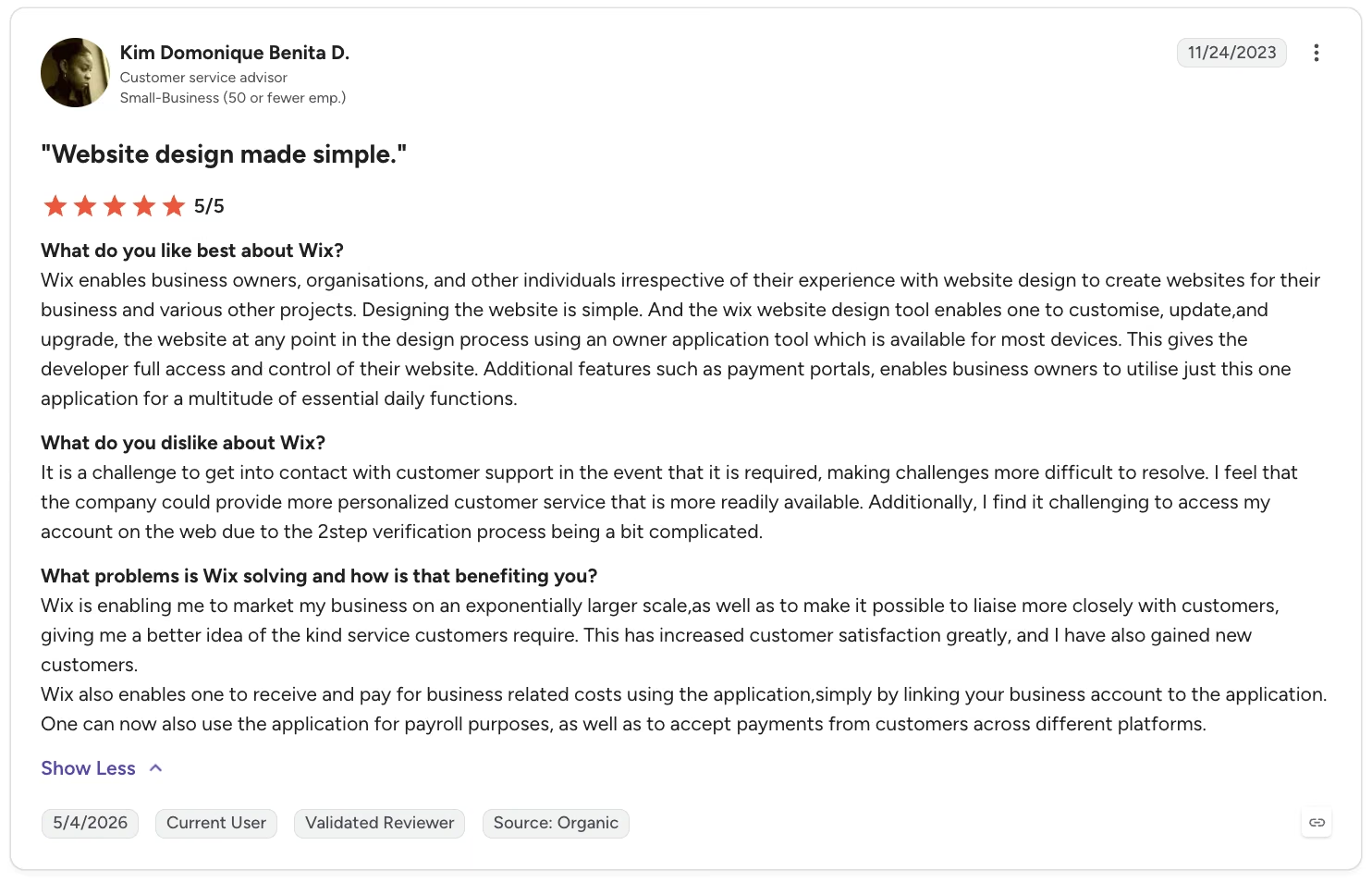
“It is a challenge to get into contact with customer support in the event that it is required, making challenges more difficult to resolve.” - Kim Domonique Benita D., G2
How to Make Your Choice
After two weeks, the results split by priority. Wix got the small, budget-conscious build over the finish line faster, at about the same monthly cost. Webflow gave the same build more room to design precisely and structure content, and it took longer to get there in this test.
Webflow is Better For:
- Agencies and design-led brands
- Teams that need built-in collaboration features
- Sites that will scale in content or traffic
- Builders who want to export static site code
Wix is Better For:
- Solo builders and small businesses
- A first website
- Anyone who wants one predictable monthly price
- Sites that need a faster, more guided launch
My Verdict
For Greyframe Studio specifically, a small photography portfolio with a modest print shop, I'd reach for Wix. One plan covered the blog and the shop, and the AI draft needed only minor cleanup. I never once had to leave the editor to look something up.
I would lean toward Webflow for a larger, design-led, content-heavy site that needs more layout control and structured content. That choice comes with a steeper learning curve, and likely a higher cost once the site outgrows this build's plan tier. The Webflow vs Wix decision depends on the job you're asking the platform to do.
How Emergent Helps Once Your Site Needs to Be an App

Greyframe Studio's booking-inquiry form sends an email, which works for a photography studio collecting inquiries. A client login, live availability calendar, or saved history of past shoots requires a different kind of build.
This comes down to scope. Webflow and Wix are built for marketing sites, galleries, stores, and blogs, the front door for a business. An account system with a database behind it needs a different kind of build, and that's exactly what Emergent is built for.
I gave Emergent the exact gap Greyframe Studio's booking form couldn't close: "Build a client portal where past clients log in, see the gallery from their own shoot, and download the final images. Add a simple admin view where I can upload a new gallery and assign it to a client."
A working version, with login, a client-specific gallery view, and the admin upload screen, was running in about 20 minutes, using under 14 credits for that first pass.
From that prompt, Emergent scoped the build, wired it together, and tested the result before release. I described what I wanted the app to do, and got back a working, already-assembled build.
Repeated release cycles can let the local preview database drift from the live cloud database. When that happens, the two versions can't be merged, only one replacing the other or the original being kept.
Webflow or Wix already handle a beautiful marketing site well on their own. Emergent is worth a look once your site needs user accounts or stored data, or once a workflow moves past a static page or a simple form.
That's especially true if you'd rather say what you need built than hand-code the account system yourself.
For a client portal like Greyframe Studio's, that might mean connecting a payment tool for the print shop or an email tool to notify clients when a new gallery's ready. Emergent's MCP connector connects your existing tools in minutes, a quick way to see how it fits into what you're already running.

Most AI app builders stop at prototypes. Emergent creates production-ready apps you can actually launch.
- Production-ready apps
- Web & mobile apps
- Deploy in minutes