


The Emergent MCP Connector lets you build working software directly from Claude. No new platform to learn, no code to write. You describe what your business needs in plain language, and Emergent builds it in the background while you stay in the conversation.
In this tutorial, we'll connect the Emergent MCP Connector to Claude and build a daily planning and productivity app from a single chat prompt. If you want the video walkthrough, check it out below!
Essentials to get started
Here are the key things to know before you begin:
- You need a Claude account. The connector works on both free and paid plans.
- You need an Emergent account. If you don't have one, you can create it during the connection process.
Good to know
- The connector handles building and previewing. For deployment and publishing, you move to the Emergent platform directly.
- The build in this tutorial took a few minutes from prompt to working preview. Complexity affects build time.
Step 1: Open Claude Settings
Navigate to claude.ai and sign in. Click your profile icon in the bottom-left corner and select Settings.
In the Settings sidebar, click Connectors.
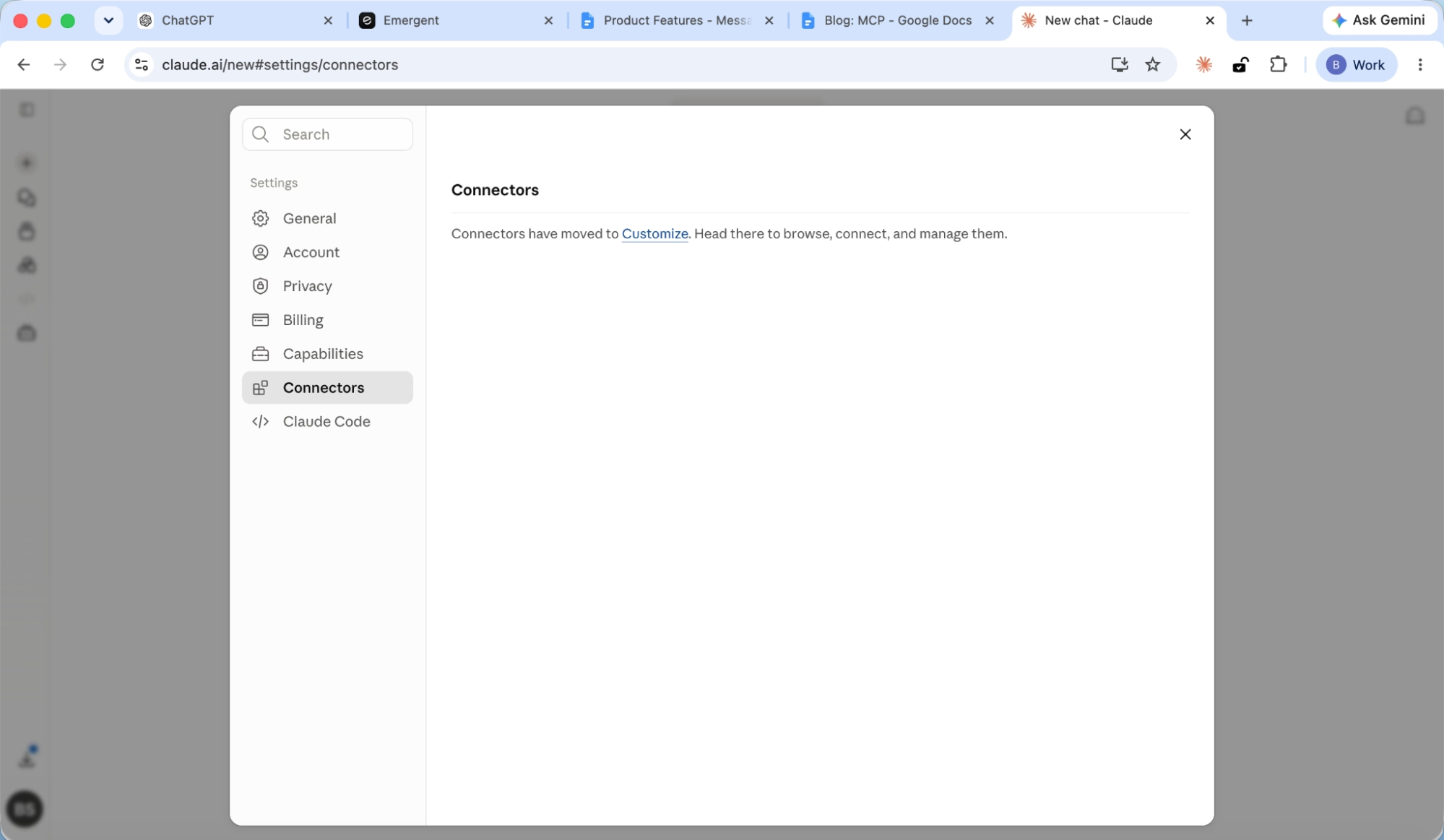
Claude will tell you that connectors have moved to the Customize page. Click the Customize link and it will take you to the Connectors page.
Step 2: Add a custom connector
On the Customize page, click the + button in the top-right corner and select Add custom connector.
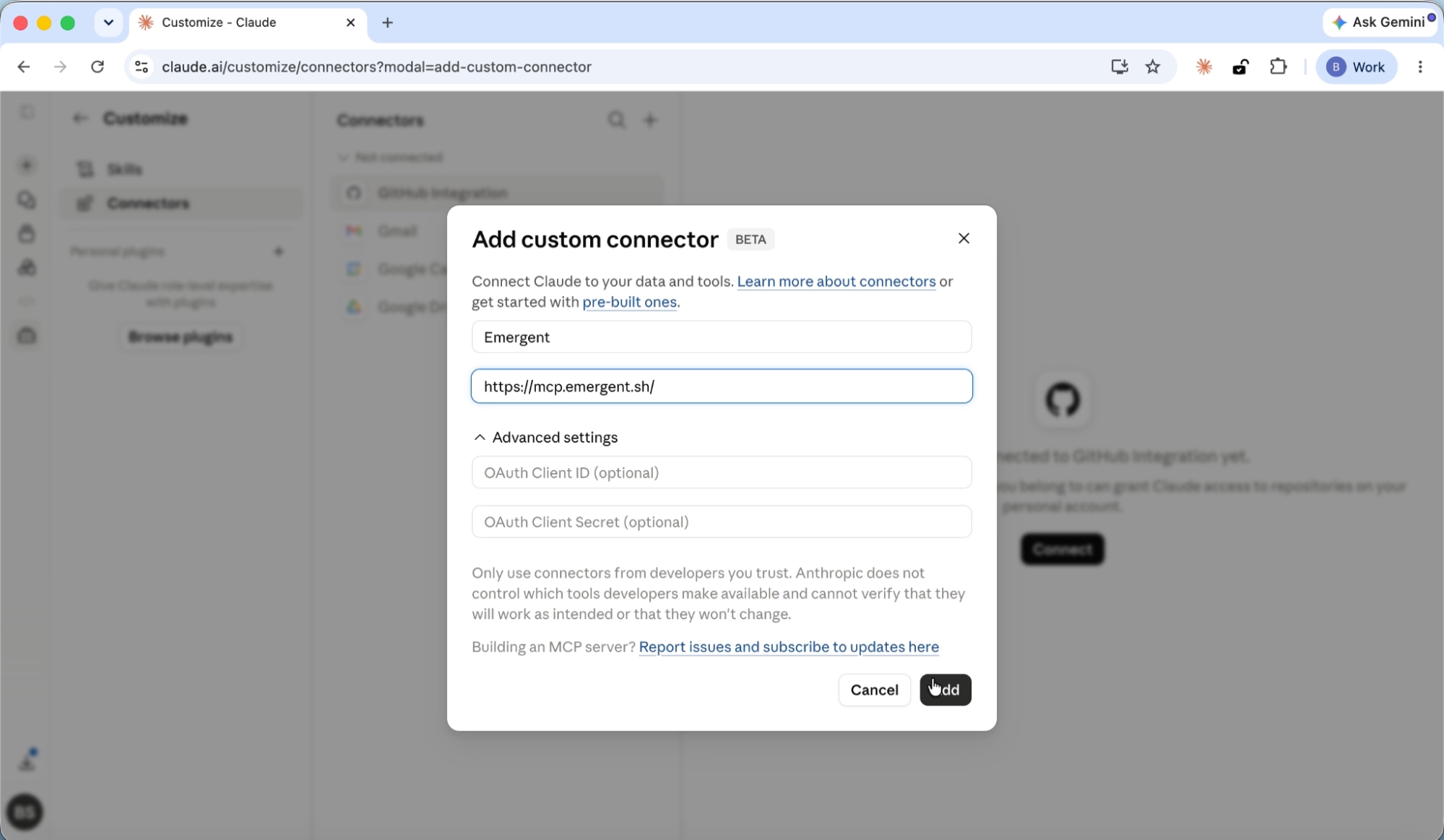
A dialog box appears. Enter the following:
- Name: Emergent
- URL: https://mcp.emergent.sh/
The trailing slash matters. Include it exactly as shown. Leave the Advanced settings fields (OAuth Client ID, OAuth Client Secret) empty.
Click Add.
Step 3: Connect to Emergent
Emergent now appears in your connectors list with a CUSTOM badge. Click on it, then click the Connect button.
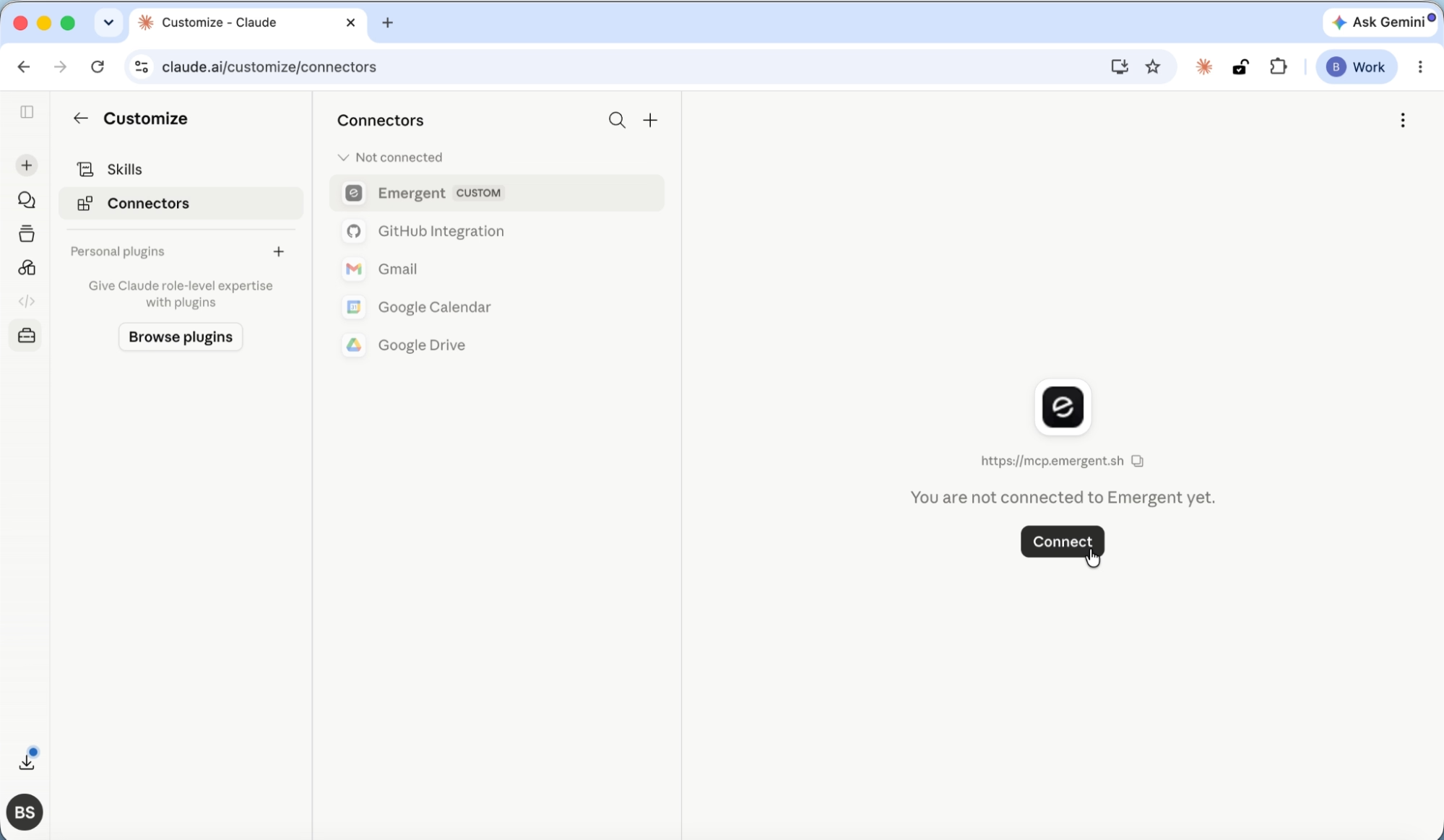
Step 4: Approve permissions
Your browser opens the Emergent consent page. Log into your Emergent account if you are not already signed in.
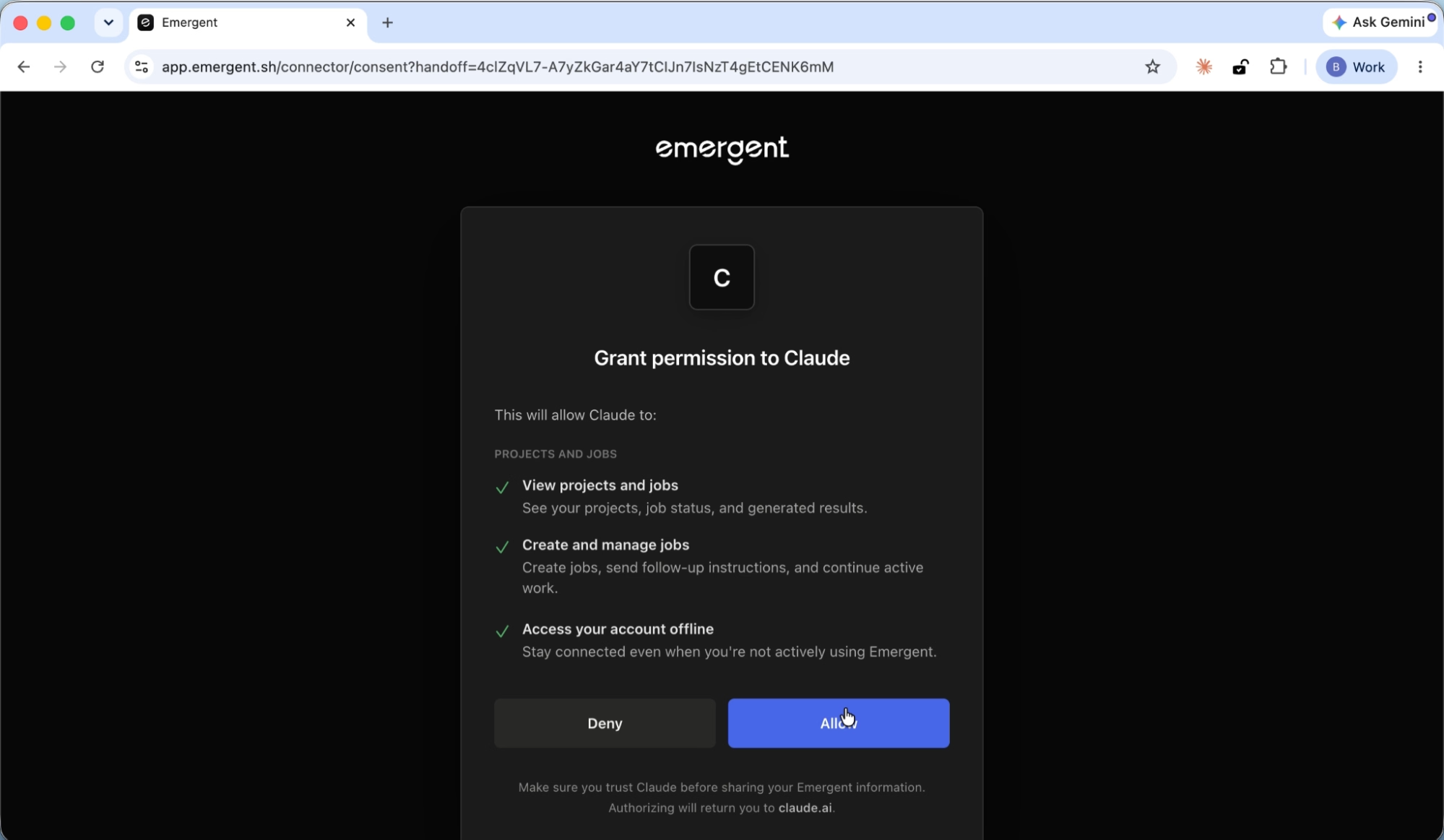
The consent screen shows three permissions:
- View projects and jobs: See your projects, job status, and generated results.
- Create and manage jobs: Create jobs, send follow-up instructions, and continue active work.
- Access your account offline: Stay connected even when you are not actively using Emergent.
Click Allow.
Step 5: Confirm the connection
You are returned to Claude with a "Connected to Emergent" confirmation banner. The connector is ready to use immediately.
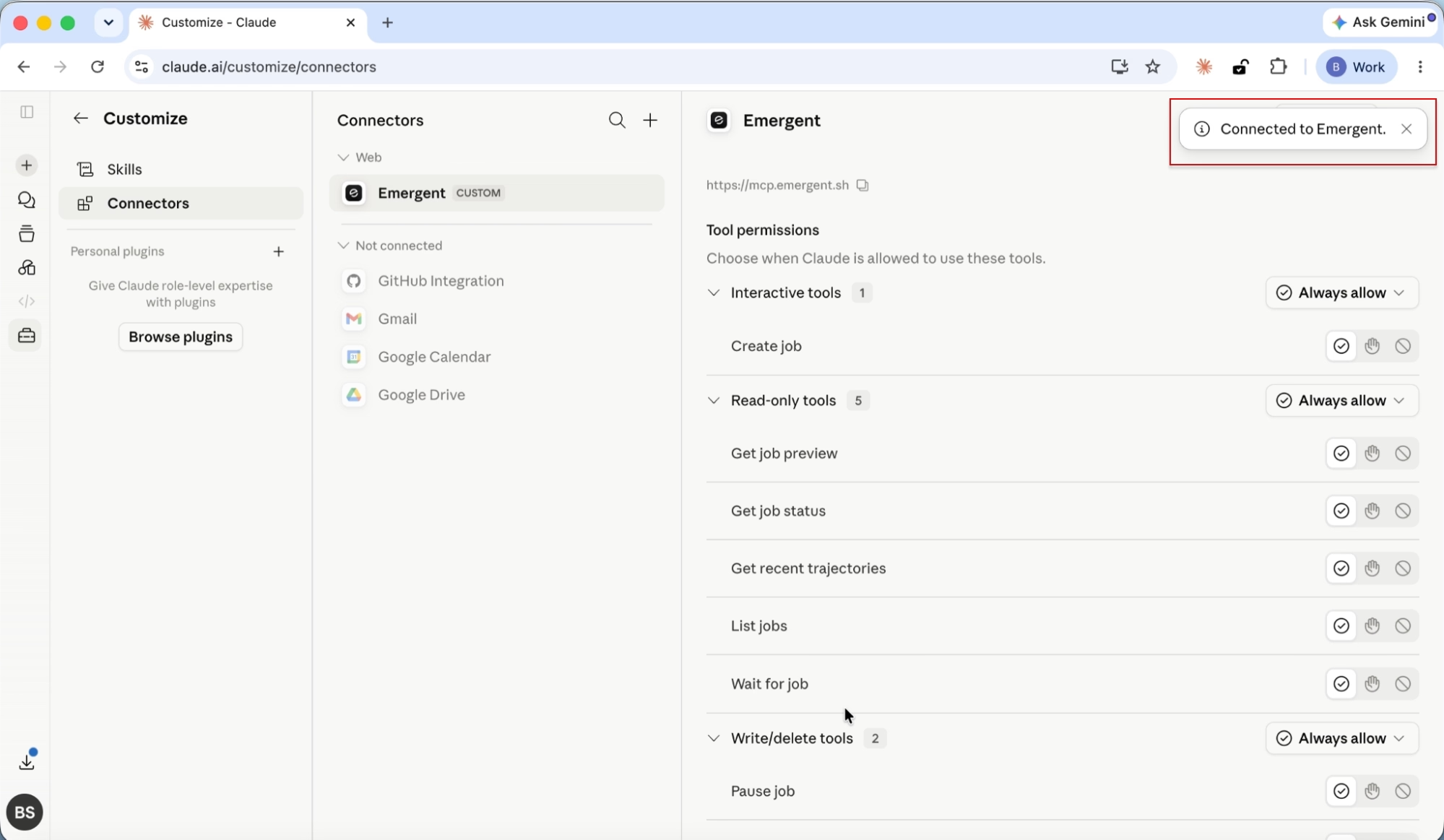
Once connected, click on Emergent in your connectors list to review its tool permissions. You will see three categories: Interactive tools, Read-only tools, and Write/delete tools. These may not be set to Always allow by default.
Set each category to Always allow so Claude can freely create jobs, get job previews, check job status, list jobs, pause jobs, and more without asking for permission on every action."
Step 6: Enter your build prompt
Open a new chat in Claude. Type your prompt in the message box.
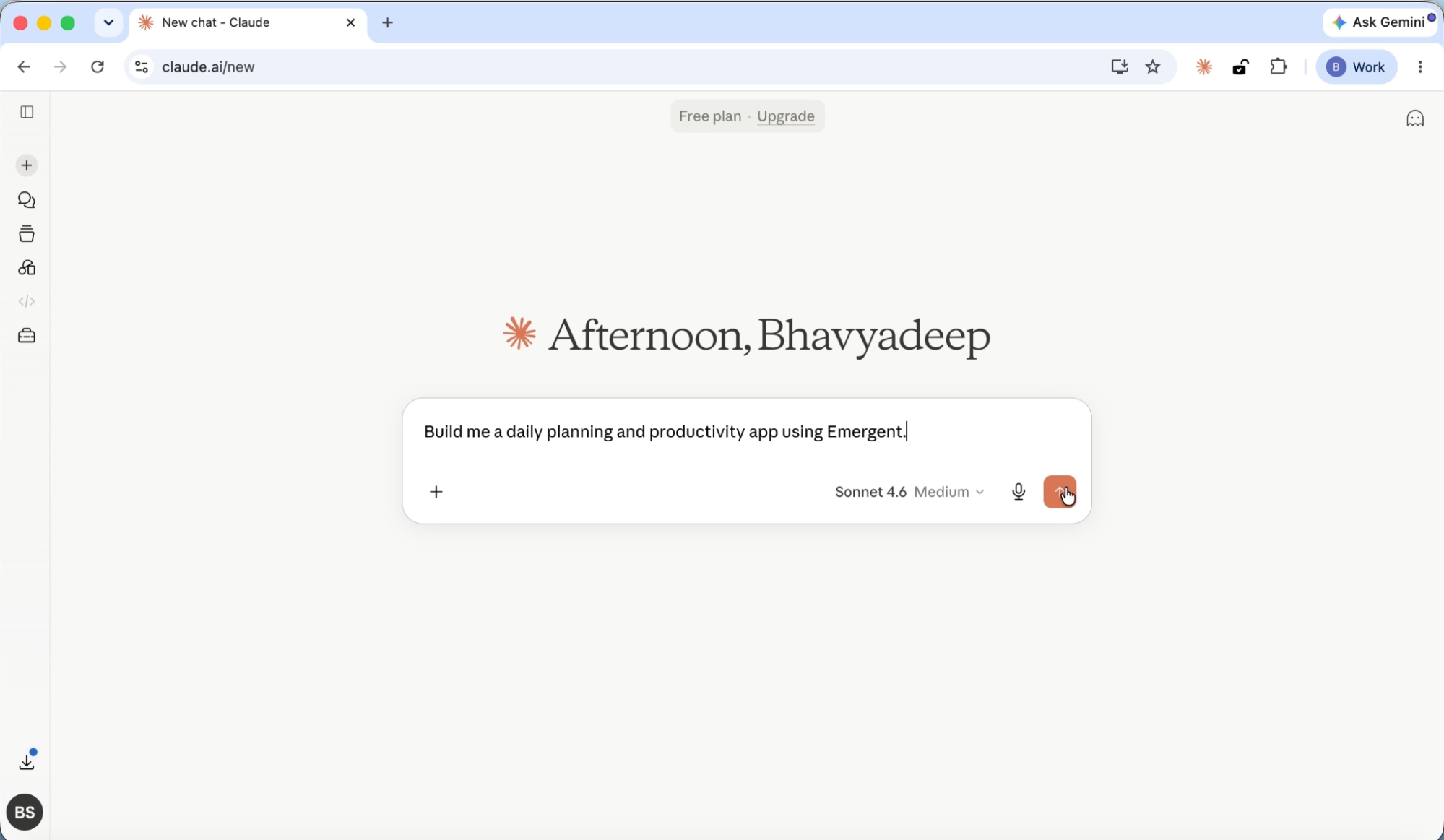
For this tutorial, we entered:
"Build me a daily planning and productivity app using Emergent."
Press Enter.
Step 7: Answer clarifying questions
Claude does not start building immediately. It first asks a series of clarifying questions to scope the project and get the build right on the first pass.
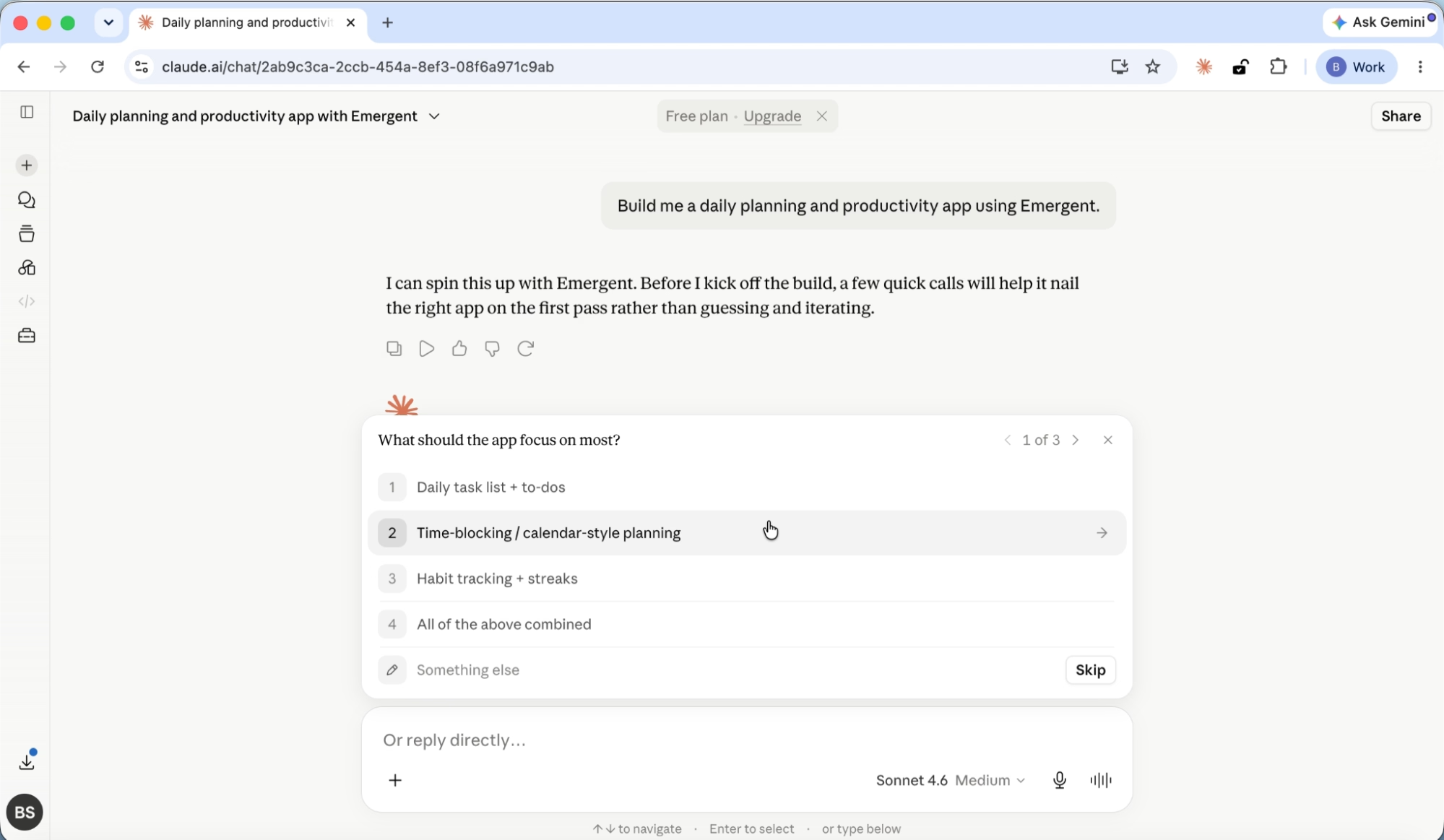
The first question asks what the app should focus on:
- Daily task list + to-dos
- Time-blocking / calendar-style planning
- Habit tracking + streaks
- All of the above combined
For this tutorial, we selected Time-blocking / calendar-style planning.
Claude then asks follow-up questions about task organization (flat list vs. categories), priority system (priority badges, drag-and-drop, or both), and how overdue tasks should be handled.
Answer each question by selecting from the options or typing your preference directly.
Step 8: Wait for the build
Once you have answered the clarifying questions, the build kicks off. A live card appears in the chat showing "Generating code..." with an "Open in Emergent" button to view the full project on the Emergent platform.
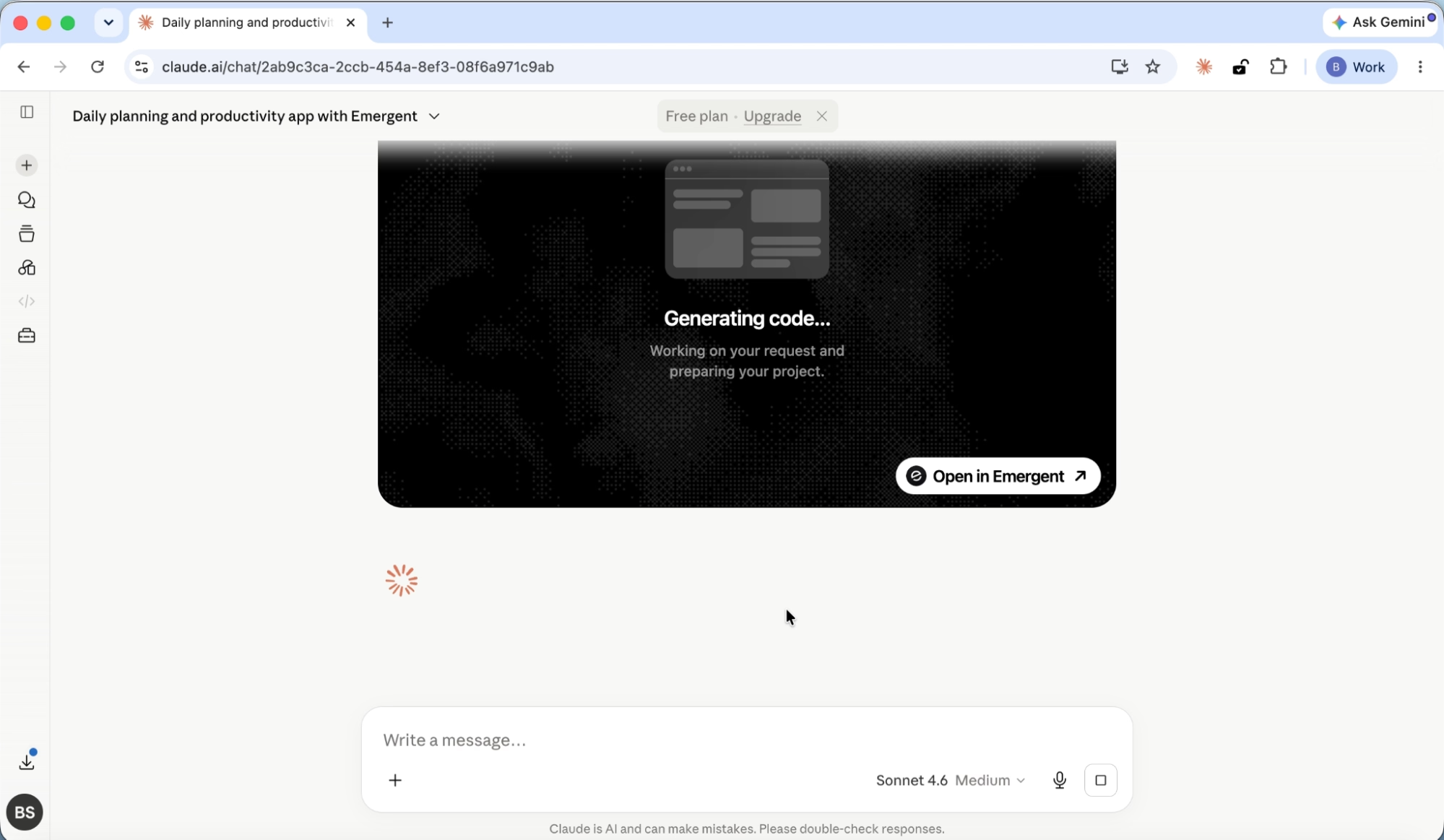
While the app is being built, Claude keeps the conversation going. The Emergent agent relays additional questions back through Claude, asking about details like task editing behavior and whether incomplete tasks should roll over to the next day.
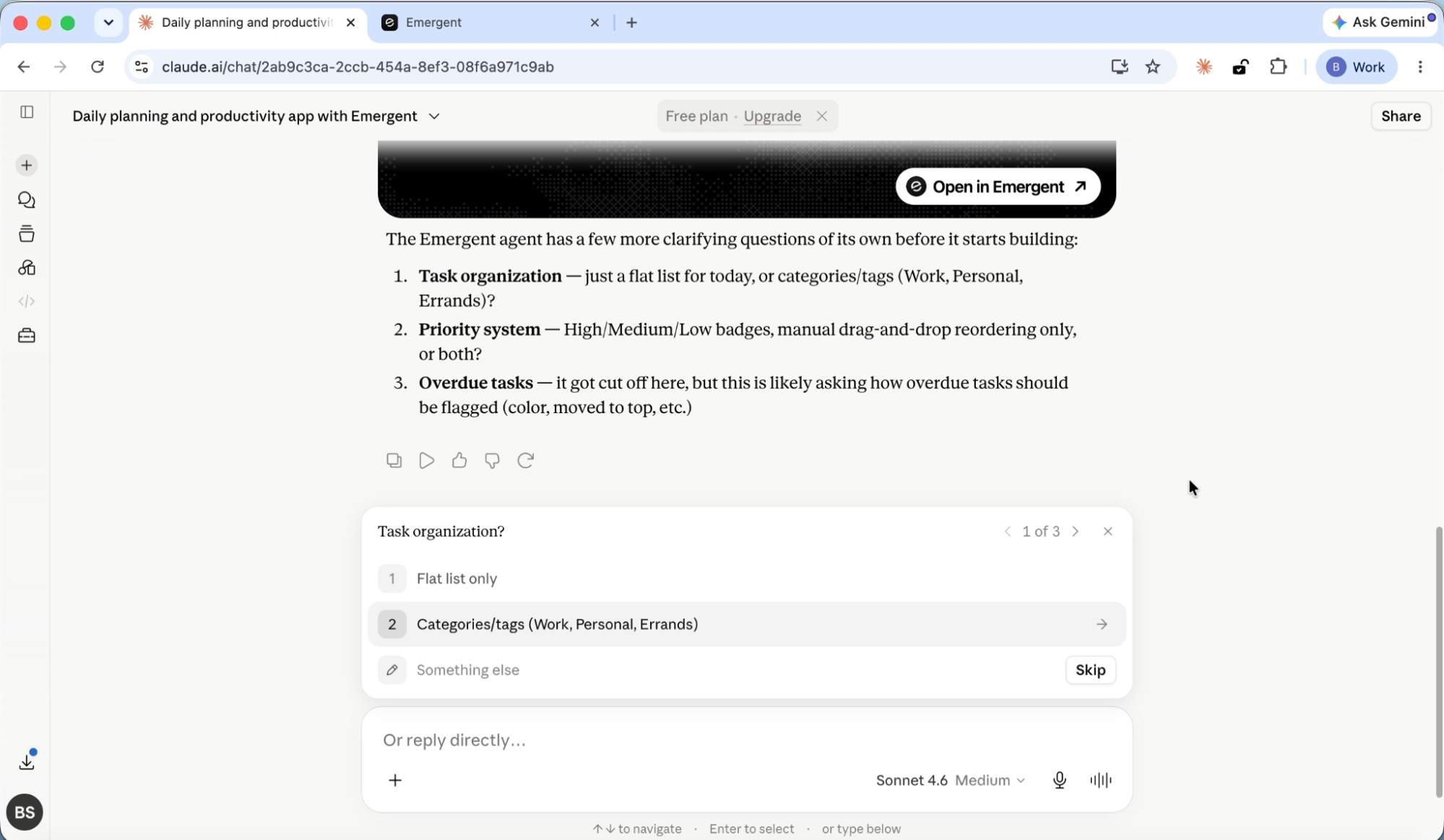
You answer these directly in the chat, shaping the app as it is being made.
Step 9: Check build status
The build takes a few minutes. When you are ready to check in, ask Claude something like "What's the status of the build?"
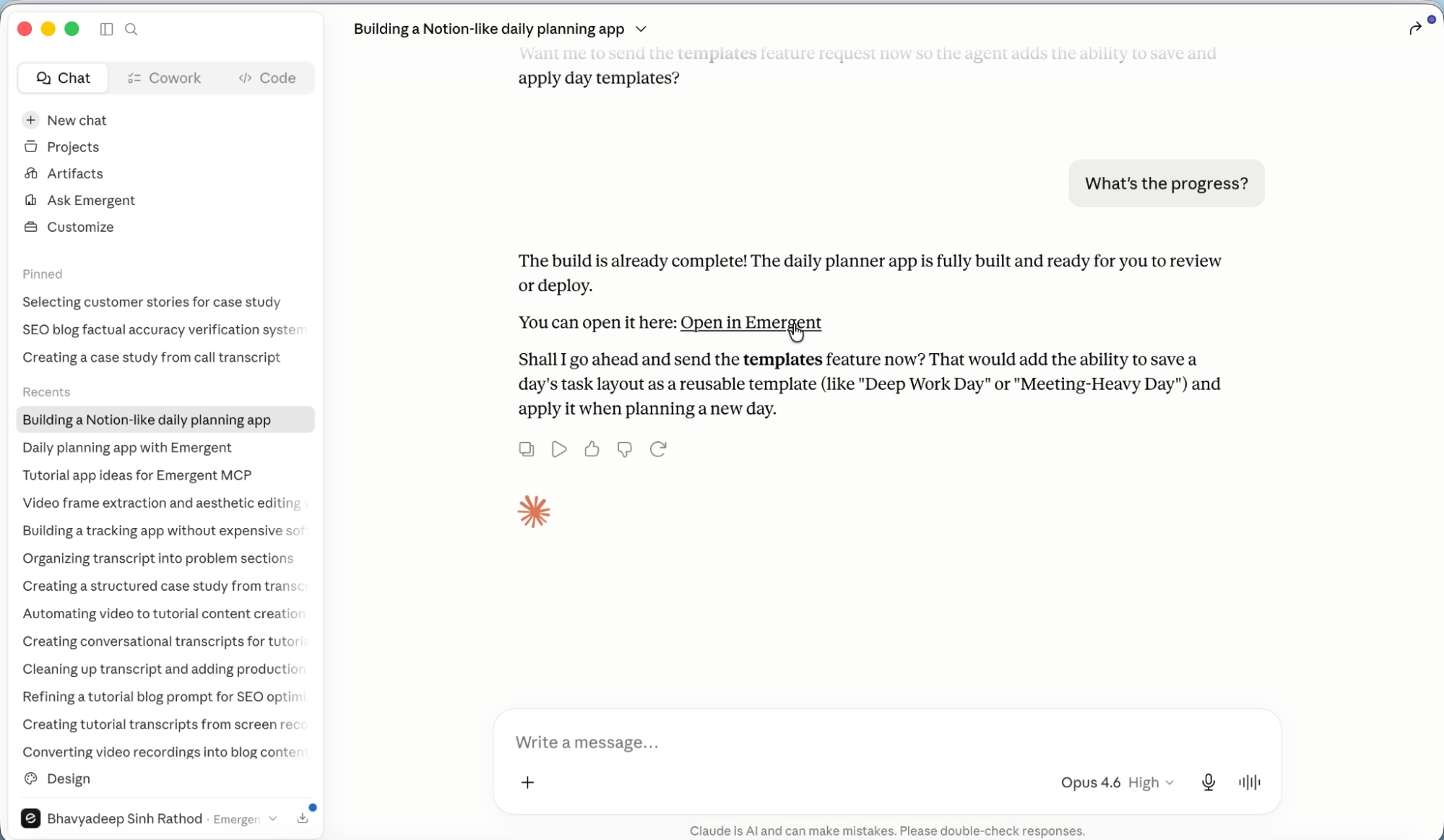
Claude checks with Emergent and confirms the build is complete and successfully tested. It provides a summary of what was built and a live preview link right in the chat.
Step 10: Preview the application
Click the preview link. This opens a live, interactive preview of your application in a new tab.
The app loads on current date with a clean layout. On the left, you see your task list organized into categories: Morning Routine, Work, Personal, and Evening. On the right, there is a Time Blocks panel showing your schedule from 6 AM onward. A completion ring in the top-right corner tracks your daily progress.
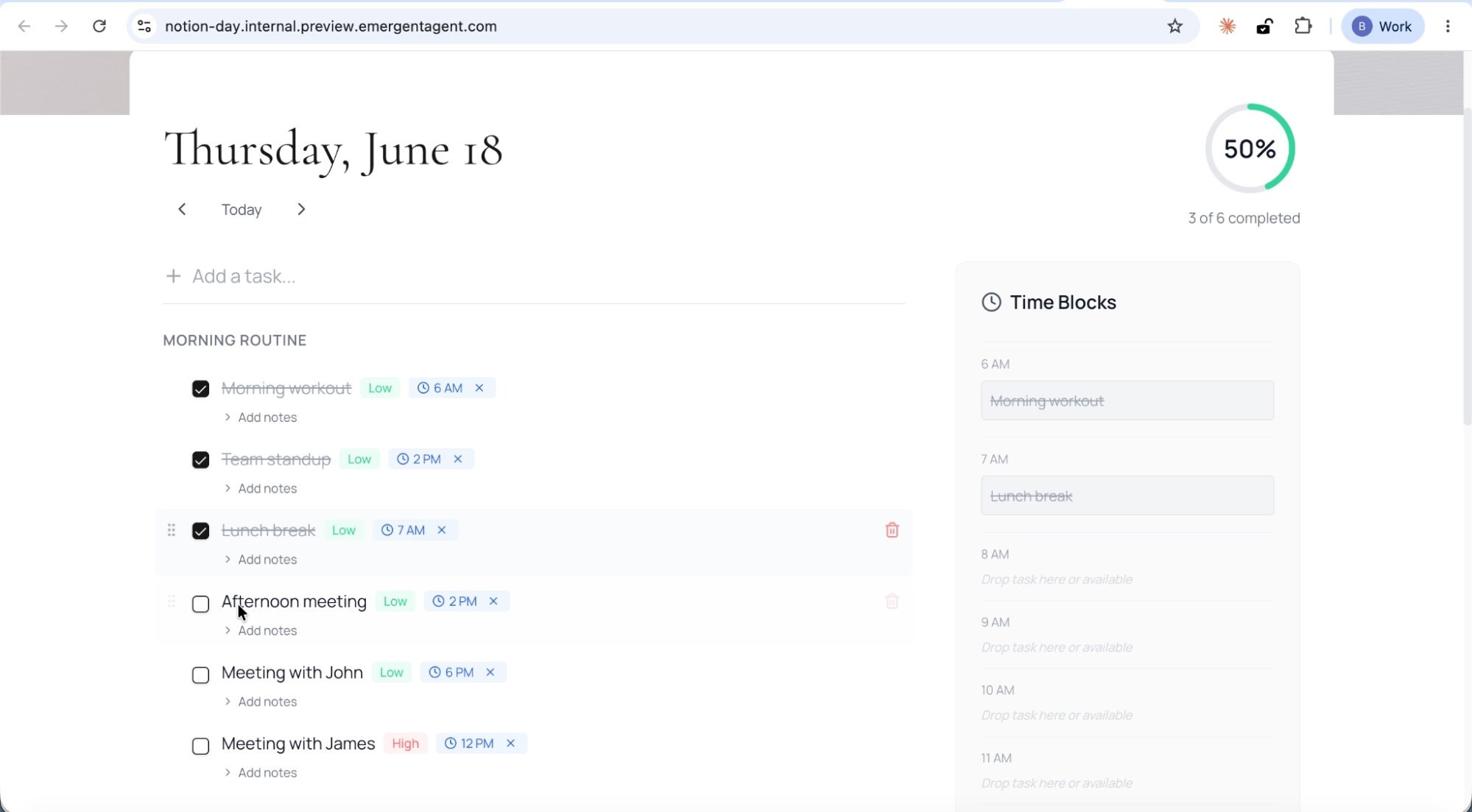
The app starts with a clean slate. For this walkthrough, we added sample tasks like Morning workout, Team standup, Lunch break, Afternoon meeting, and Meeting with John, each with priority badges and some already assigned to time slots.
Step 11: Explore the tool
Here is what the app can do:
Assign tasks to time slots
Click Add time on any task and a dropdown picker appears with 24-hour time slots.
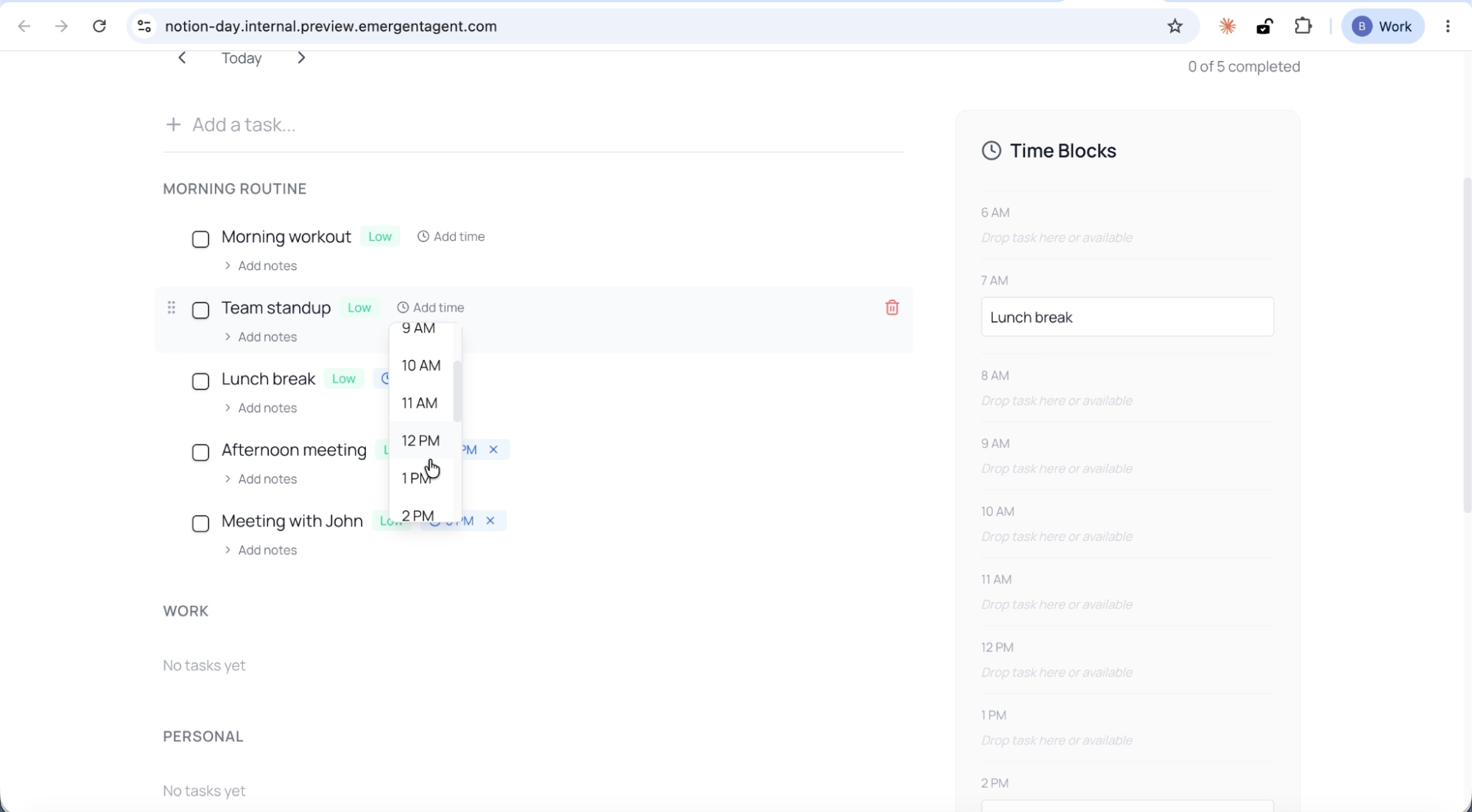
Select a time and the task instantly appears in the corresponding slot in the Time Blocks panel on the right. The task list and the time blocks stay in sync.
Add new tasks
Click the Add a task field at the top, type a task name, and it appears in the list. You can set the priority and assign a time slot immediately.
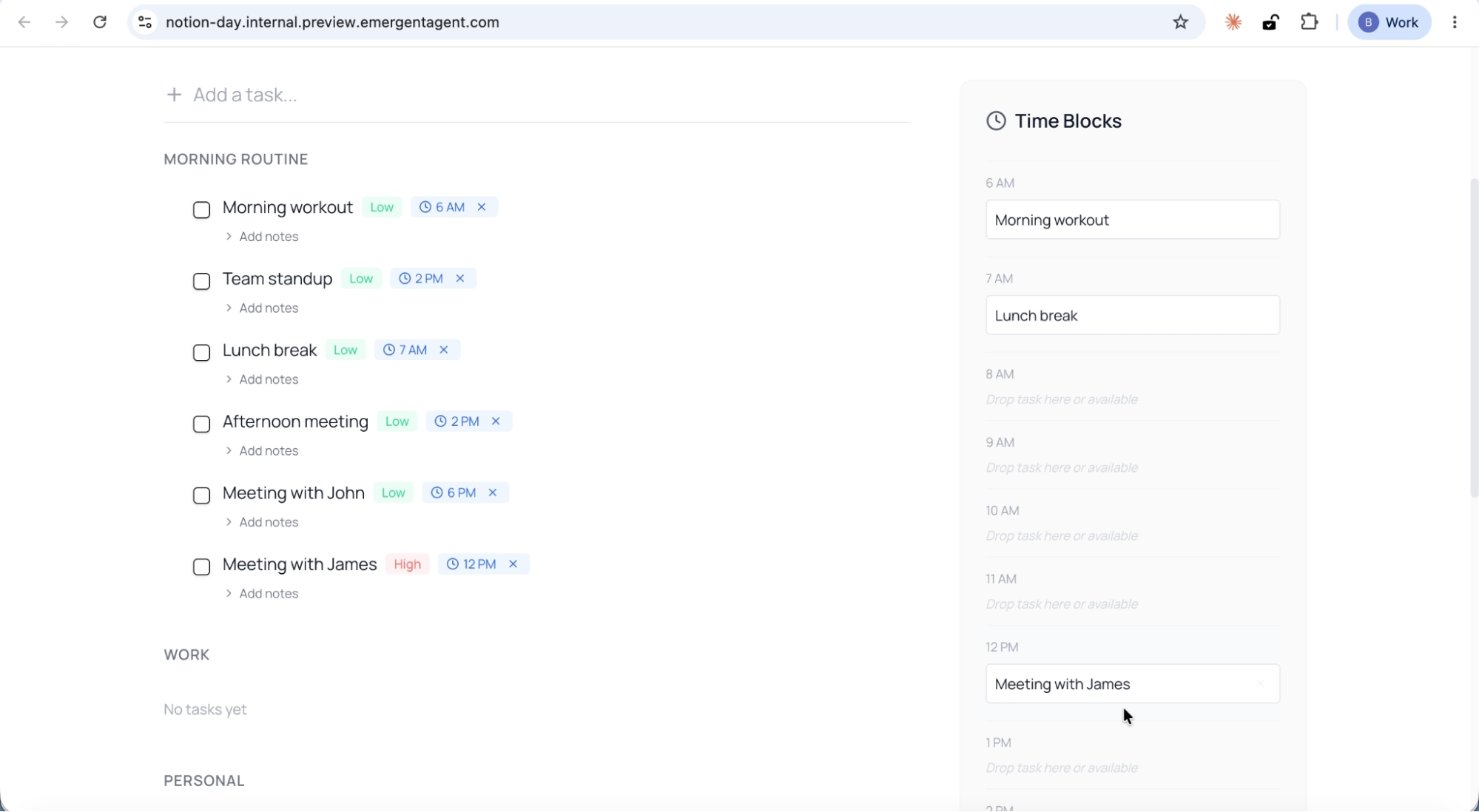
For example, we added "Meeting with James," changed the priority to High (the badge turns red), and assigned it to 12 PM. It dropped right into the 12 PM slot in the Time Blocks sidebar.
Track progress with the completion ring
As you check tasks off, the completion ring in the top-right corner updates in real time. Each completed task gets a strikethrough, and the percentage adjusts automatically.
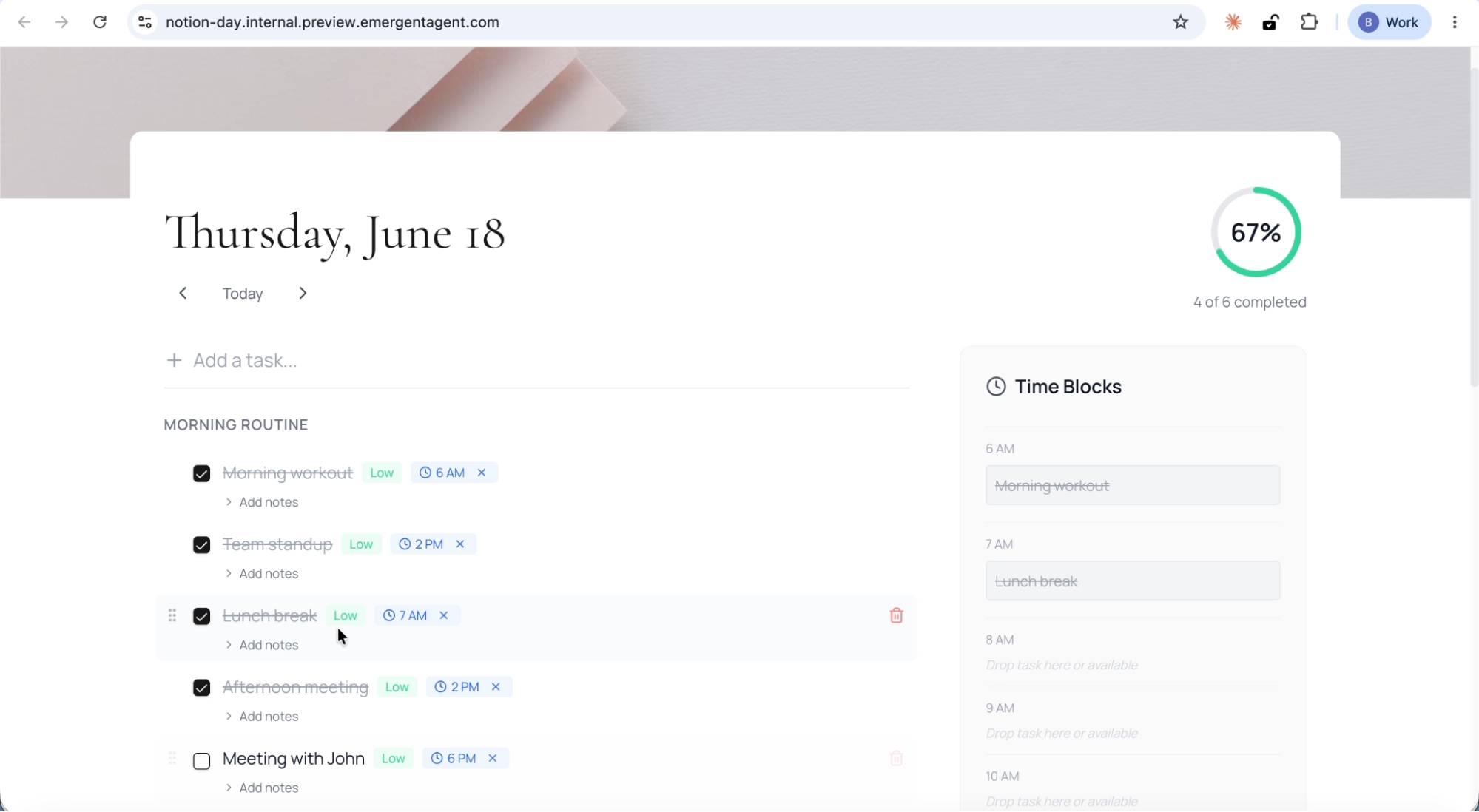
In our walkthrough, we checked off Morning workout, Team standup, Lunch break, and Afternoon meeting. The ring updated to show 67% complete, four out of six tasks done.
Step 12: Deploy for persistence
To make your app accessible outside of the Emergent preview, head to the Emergent platform and click the Deploy button.
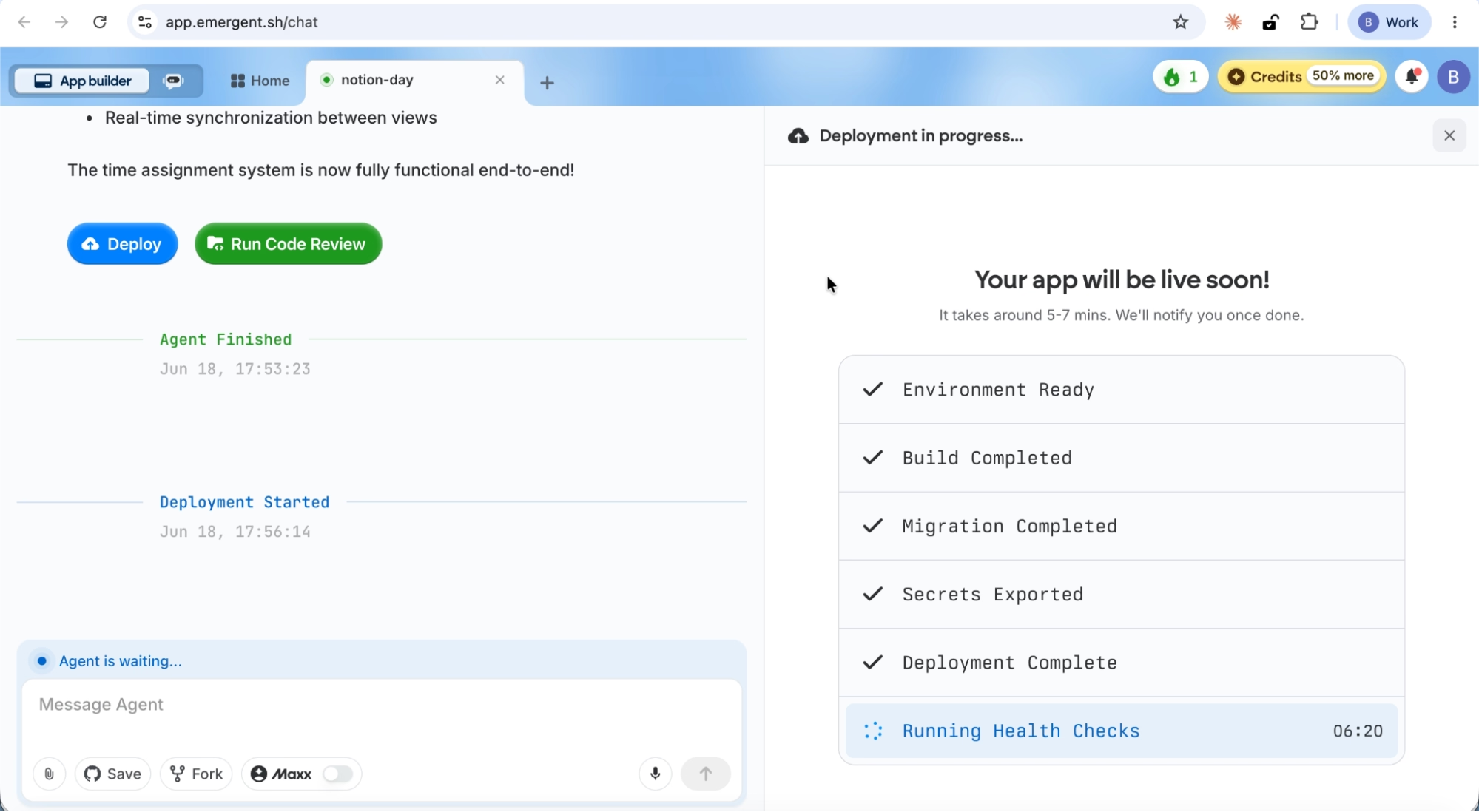
You will see the full deployment pipeline run through:
- Environment Ready — infrastructure provisioned
- Building Package — compiling the application
- Migrate Database — setting up the production database
- Export Secrets — configuring environment variables
- Deploy — pushing to production
- Run Health Check — verifying the deployment
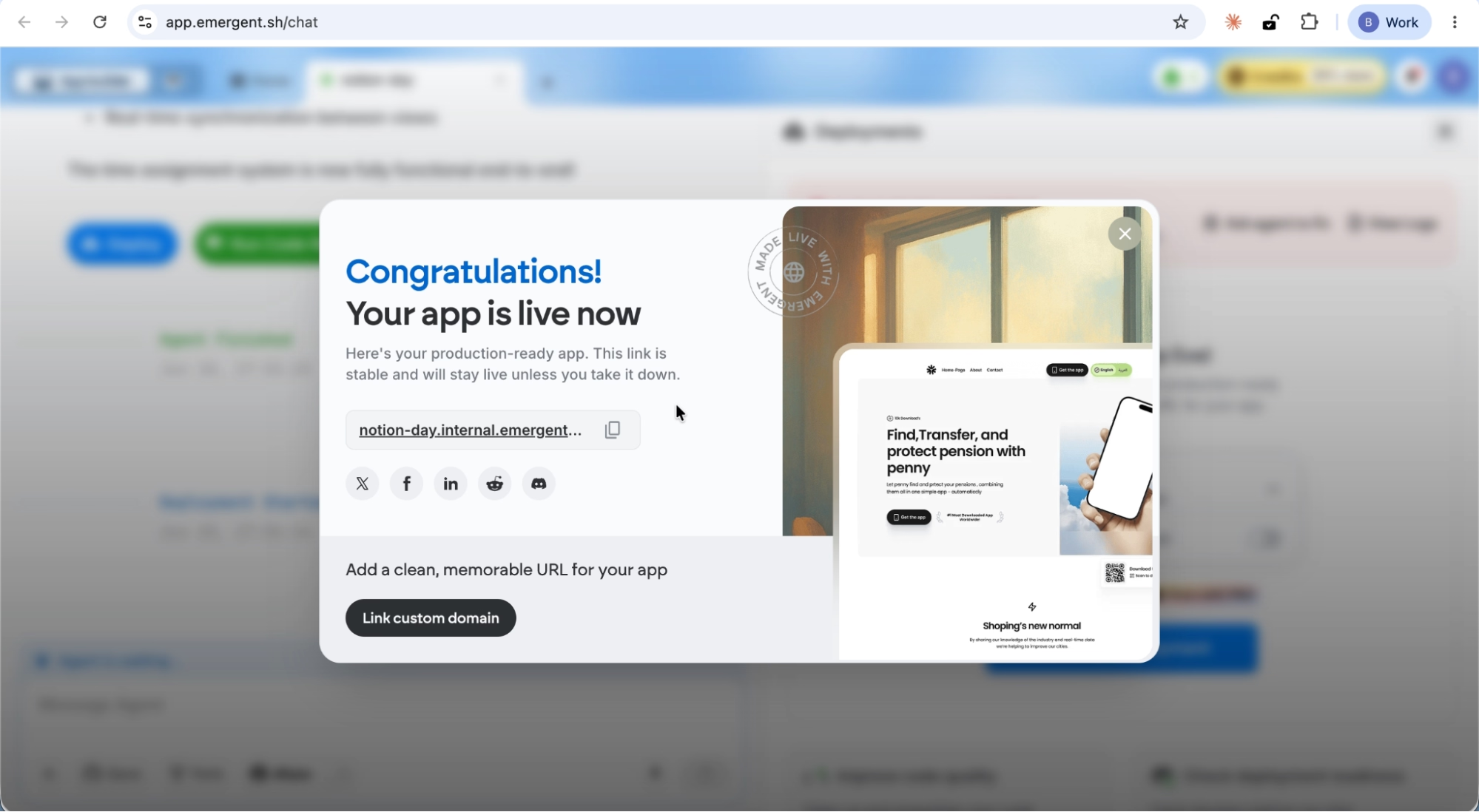
Once everything turns green, your app is live on a real URL.
What we built
The daily planner that Emergent built from Claude is not a mockup or a static prototype. It is a working application with a real database and interactive features. Here is what you can do with it:
Plan your day with organized task categories
Tasks are grouped under categories like Morning Routine, Work, Personal, and Evening. Each category keeps your tasks visually separated so you can focus on what matters in each part of your day.
Prioritize with color-coded badges
Every task has a priority badge (Low, Medium, or High) that is color-coded for quick scanning. High priority tasks stand out in red so they never get lost in a long list.
Schedule tasks on a visual timeline
The Time Blocks panel on the right side of the screen shows your day from 6 AM to 10 PM. Assign a time to any task and it appears in the corresponding slot. You always know what is coming next.
Track your daily progress at a glance
The completion ring in the top-right corner updates in real time as you check tasks off. It shows both the percentage and the count (e.g., 4 of 6 completed), giving you a clear picture of how your day is going.
Never lose your data
Full MongoDB persistence means your tasks, time assignments, priorities, and completion status are saved across sessions. Close the tab, come back later, and everything is exactly where you left it.
Step 13: Iterate and customize
The app is fully functional, but you can keep talking to Claude to add features or make changes. Example prompts for next steps:
- "Add a dark mode toggle to the daily planner."
- "Add recurring tasks that auto-populate every morning."
- "Add a weekly view so I can see all seven days at once."
- "Add Google Calendar sync so my meetings show up automatically."
- "Add a notes section under each task for quick context."
Each request builds on the existing application. The agent preserves everything already working.
Recap
In this tutorial, you:
- Connected the Emergent MCP Connector to Claude in under two minutes
- Typed a single build prompt for a daily planning and productivity app
- Answered clarifying questions to scope the project
- Watched the agent build the full application while continuing the conversation
- Previewed a working daily planner with task categories, priority badges, time-block scheduling, a completion tracker, and persistent data storage
- Deployed the app to a live URL through the Emergent platform
The entire process required zero code. You built a fully functional app directly from Claude, without leaving the conversation, and it was ready to use within minutes.
Ready to build from your next conversation? Start Building on Emergent.
Emergent turns your idea into a full-stack web or mobile app, no coding required.
 No coding required
- Web & mobile apps
- Deploys instantly