TL;DR
- Decide your rules first: Write down how stock, product options, and admin access behave before you start building.
- Describe the whole store in one prompt: Write out everything the store does before you enter your prompt, so the full build happens at once.
- Answer the setup questions with testing in mind: Ask for sample products with uneven stock so your edge cases exist from the start.
- Test the rules before the design: Click every option combination and check that the blocked ones remain blocked.
- Buy something with a test card: Confirm the order reaches your admin area and the stock changes on the right item.
- Publish, then close the gap to real orders: A published store still needs your own payment account, tax, and shipping before it can trade.
You can launch an ecommerce website in an afternoon, and about half that time goes on checking how the store behaves once a customer starts clicking, because product pages can look finished while the stock rules behind them are broken.
I gave Emergent a brief for a fictional coffee roastery and answered five setup questions. Thirty-one minutes and 36.97 credits later, there was a store on screen, and the rest of the session went on finding out whether it could take an order.
Here's the plan I'd recommend, covering the rules to decide before you start, the prompt that produces a store, the tests that find the problems, and the work between publishing and taking real orders.
How I Built and Tested This Store
The test store sells coffee: eight roasts, each in three grinds and two bag sizes. Every one of those 48 combinations carries its own stock count, which is what separates a shop that can trade from a catalog that can't.
Everything a customer touches is there: sign-in, a cart, a Stripe checkout in test mode, and their own order history. Behind that, an admin area for prices and stock. I didn't write any code, and I didn't use a template.
What You'll Need Before Starting
Five things, and only one of them costs money:
- An Emergent account: A store of this size costs around 35-40 credits to build, which requires a Standard plan.
- A written spec: A brief describing what the store sells and how stock should behave.
- A test card: Use Stripe's 4242 4242 4242 4242. Any future expiry and any CVC will pass.
- A second sign-in: Keep a non-admin login to hand. Step 6 needs it.
- Time: Roughly 30 minutes of building and another 30 minutes of testing.
Before You Start: Where to Build and What to Call It
Two decisions come before any of this, and both take less time than people expect:
- Start with where to build. Template platforms hand you a store quickly, but you work inside their rules. An AI builder writes the store around your rules instead, which is what makes per-variant stock possible without a workaround.
- You don't need a domain on day one. Published stores have an address on the platform's own domain, and a custom name can point at it later. Buy the name once you know the store works.
How to Launch an Ecommerce Website in Six Steps
Step 1: Decide Your Stock and Access Rules First
Spend five minutes on what your store does when something goes wrong before you open the builder. An ecommerce website builder won't work that out on its own, whether you're building a storefront or a full ecommerce app.
For Ridgeline, I decided on three things. Stock belongs to each combination of grind and bag size rather than to the product. A sold-out combination can't reach the cart while the rest of the product stays buyable. Anything with three or fewer left says so on the page.
They tell you something about the builder as well. A store that comes back generic is one that was never given anything specific to work from. Write your rules before you write your prompt, then paste them straight into the builder.
Step 2: Describe the Whole Store in One Prompt

The full store brief in Emergent's build box before the build starts.
If the empty box is the thing stopping you, Emmy can do this part with you. She's Emergent's assistant on the web, and she'll ask what you're selling and what should happen when a variant runs out, then hand back a brief that's ready to go. She costs nothing to use.
Here's the prompt I used:
Build a web store for a small coffee roastery called Ridgeline Coffee.
Shoppers browse a grid of 8 products, open a product page, choose a grind type (whole bean, filter, espresso) and bag size (250g, 1kg), add to cart, and check out with Stripe in test mode.
Stock is tracked per variant, not per product:
- If a variant is sold out, that option is disabled on the product page and can't be added to the cart, but the product stays buyable in its other variants.
- If a variant has 3 or fewer left, show "Only X left" beside that option.
- Checkout blocks if cart quantity exceeds what's in stock, and stock decrements when an order is placed.
Shoppers sign in to see their past orders and order status.
I also need an admin area where I can add products, edit prices and stock per variant, and see incoming orders with their status.
Prices in USD. Send an order confirmation email after checkout.
Every follow-up request spends credits and leaves you with a store assembled in layers, so building piece by piece ends up slower and more expensive. Give it the full brief in one prompt and let the agents plan the build around it.
Step 3: Answer the Setup Questions
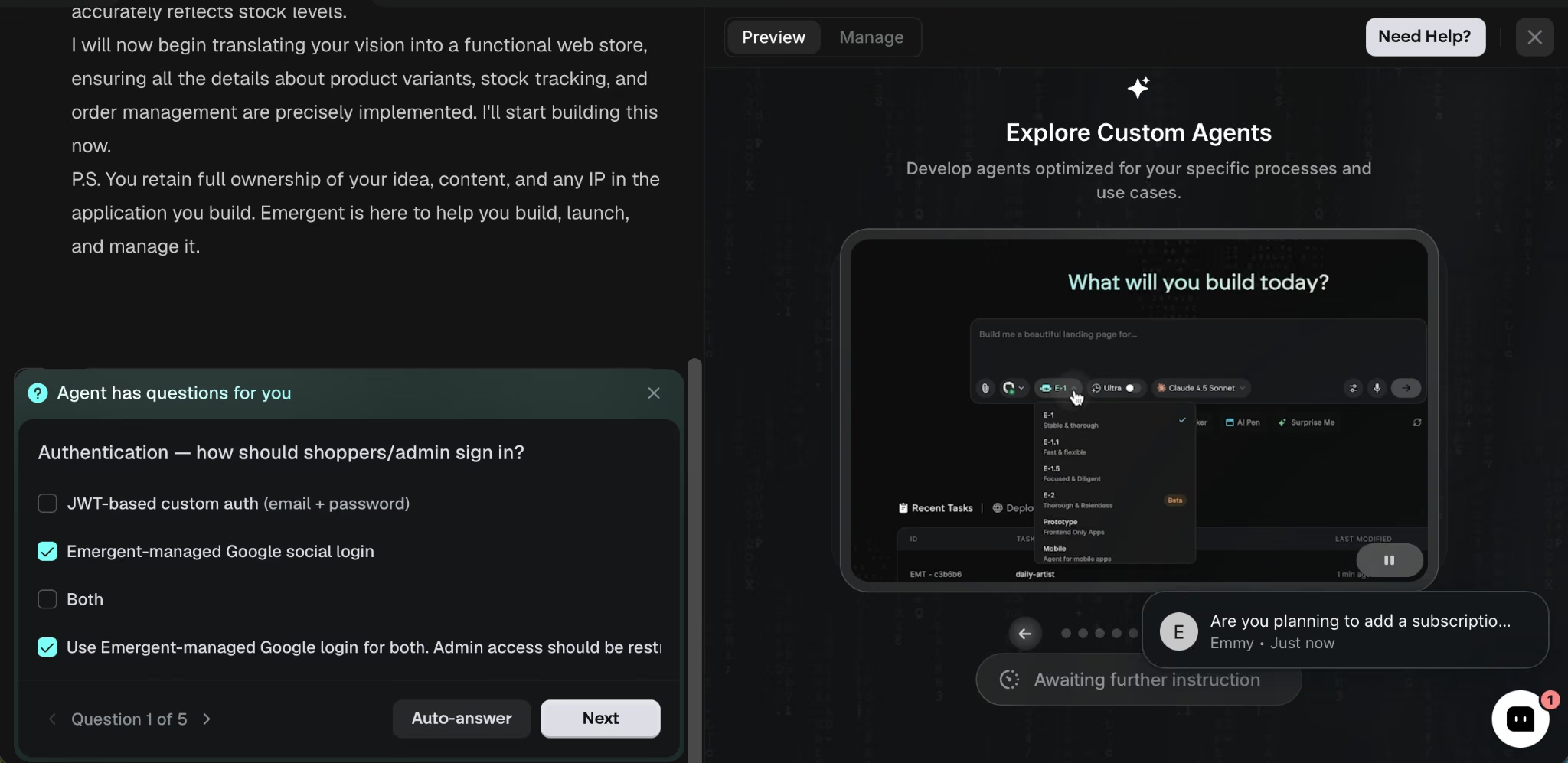
The first of five setup questions, covering how shoppers and admins sign in.
Emergent asked five questions before building: how sign-in should work, how to handle payments, whether to send confirmation emails, who should have admin access, and whether to seed sample products.
I chose Google sign-in through Emergent Auth, so I never had to set up a separate Google Cloud project. Emergent has a Stripe playbook, so the agent handled the implementation once I gave it my test-mode publishable and secret keys.
The seeding answer saved the most time. I asked for sample products with uneven stock levels. The seeded products came back with one combination sold out.
Step 4: Test the Rules Before You Look at the Design

Filter grind selected, with the 1kg option showing ONLY 2 LEFT.
Thirty-one minutes after I sent the prompt, the build finished. I opened a product page and started clicking combinations.
On the Signature Blend, whole bean 250g showed SOLD OUT, and the page moved me to the 1kg at $59.85. Switching to filter gave me $21.00 for the 250g and ONLY 2 LEFT against the 1kg. When I tried to order three of a variant with two left, the store wouldn't allow it. Those rules are what separate a store from a catalog, and they count as much on a simple store website.
Test the storefront before you judge how it looks. A product page can be beautifully laid out and still sell you a bag of coffee that isn't in stock.
Step 5: Make a Test Payment and Check Your Orders

The admin dashboard after the test order, showing revenue, order count, and product count.
I filled a cart with a total of $323.25 and checked out. The Stripe page itemized the order correctly in test mode and accepted the test card. The store then showed a confirmation page telling me that an email was on its way.
That email didn't arrive. Confirmation emails need a sending provider and a verified domain set up before they go out, so it's a step to finish before real customers start ordering.
The admin numbers matched.
Revenue showed $323.25 against one pending order, across a catalog of eight products, and the stock moved on the right items.
Place a real test order before you trust a success screen. Ordering something yourself is the only way to find out whether the parts you can't see are doing their jobs.
Step 6: Lock the Admin Area, Then Publish

The admin route viewed from an ordinary customer account.
The admin URL gave that second account nothing but ACCESS DENIED and the line "This area is restricted to Ridgeline administrators."
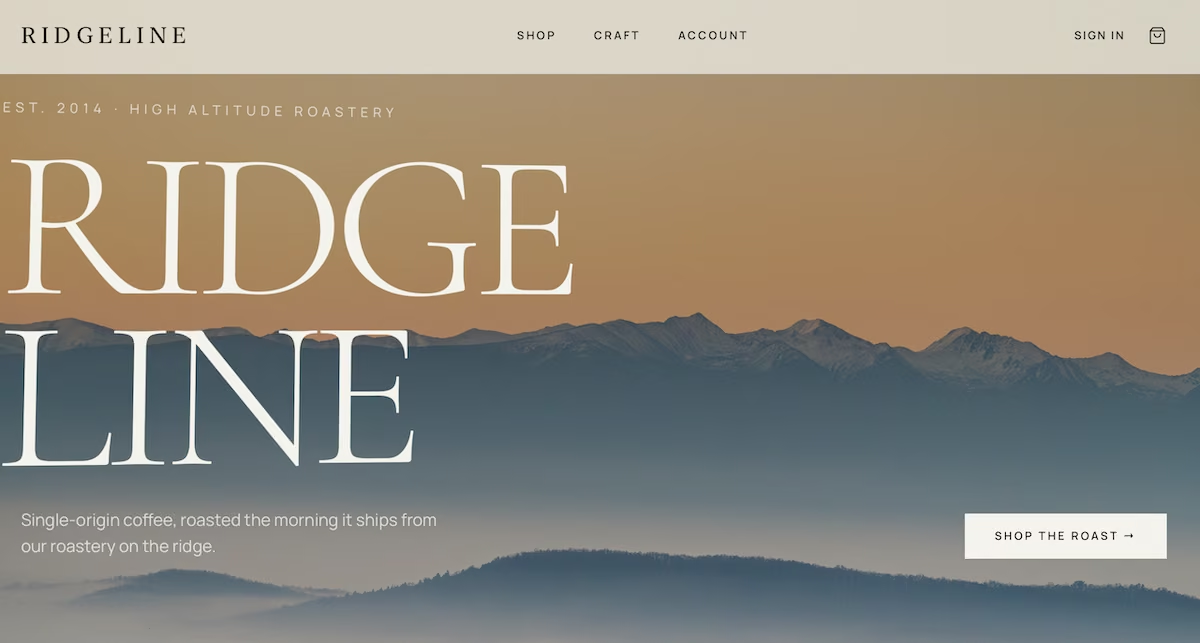
The Ridgeline homepage, with the hero image and roast copy the build produced.
Clicking Publish in the Manage panel is all it takes to have a site up and running. Hosting then costs 50 credits a month per deployed app, so budget for it alongside the build.
Publishing is only half of going live. Google's own launch guide covers what comes next: verify the site, request indexing, and submit a sitemap so the store can be found.
Publish once the rules check out. Tax, shipping, and refunds are separate decisions, and none of them block a store from going live.
Emergent Makes Launching an Ecommerce Website Faster
Emergent handles the parts of launching a store that take the longest. As an AI website builder, it turned a brief in plain English into product pages, a cart, a checkout, and an admin area, and the integrations that usually involve accounts and keys were handled inside the build.
Here's how it helps:
- Rule-level reasoning: Stock behaved correctly on every combination I clicked, and the test purchase decremented the right variant.
- Payments without paperwork: The Stripe integration worked in test mode on the first attempt.
- Access control by default: Admin access restricted to one address.
- A clear path to going live: Publishing takes one click, and the store tells you what's still needed before it can trade.
Not all of it worked first time. The confirmation email never arrived, and that's the thing I'd fix before a real customer orders.
The free plan gives you 10 credits to build and preview a simple catalog, but publishing a live store needs a paid plan. You can also send a brief like this from a chat window you already have open, through the MCP connector.
You can try Emergent and launch an ecommerce website from a single prompt.
Most AI app builders stop at prototypes. Emergent creates production-ready apps you can actually launch.
- Production-ready apps
- Web & mobile apps
- Deploy in minutes