Webflow vs WordPress: TL;DR
- Webflow: best for agencies and design-led teams that want pixel-level control over layout and a structured CMS without touching code.
- WordPress: best for anyone who wants to own their content outright and tap the largest plugin library in web publishing.
You've narrowed your website options to Webflow and WordPress, but choosing one still feels risky. Maybe you're starting from scratch. Maybe your current site has become awkward to update. Either way, a poor choice could leave you rebuilding sooner than planned.
I tested both platforms with the same website brief, followed each setup as far as the available plan allowed, and recorded where the process stalled or fell apart. I then compared their content management, plugins and apps, SEO, hosting, security, and pricing against official product information.
You'll leave knowing which platform is the safer long-term fit for how you want to build, run, and grow your site.
Webflow vs WordPress: What's the Difference?
The practical difference between Webflow and WordPress is what you walk away owning. Webflow gives you a design canvas, hosting, and a CMS inside one company's system, and leaving means rebuilding. WordPress gives you software and files you can pick up and move to any host you want.
The adoption gap is also a substantial difference. W3Techs tracks WordPress on 59.1% of websites with a known CMS, compared with 1.2% for Webflow.
Webflow is a visual site builder that generates clean HTML and CSS from a canvas-based editor called the Designer. You lay out pages by hand or start from a template, and Webflow's own servers publish and host the finished site.
There's no separate hosting account to set up and no core software to update.
WordPress is where people get tripped up, because the name covers two separate things. WordPress.org is free, open-source software you install on hosting you choose yourself, with full access to plugins, themes, and the site's files.
WordPress.com is a hosted service built on that same software, run by Automattic, where hosting is bundled in, and some of the flexibility is locked behind paid plans.
The hands-on test in this article used WordPress.com's free plan, since that's the closest match to Webflow's all-in-one, no-server-required setup. Self-hosted WordPress.org behaves differently in several places covered later in this piece, and those differences are called out where they matter.
Note
Note: Throughout the rest of this article, “WordPress” refers to WordPress.com. The self-hosted version is called “WordPress.org” wherever its setup or features differ.
How I Tested Webflow and WordPress
A homepage alone wouldn't test much, so the brief adds a login flow, account data, and an admin view: the parts that separate a page builder from an application.
Here’s the prompt I used:
Build a web app for Marlow & Birch, an independent coffee roastery based in Asheville, North Carolina.
Core idea: A Coffee Club membership portal where customers create an account, see their subscription status, and manage their orders.
Must include:
- A homepage with the same brand story: small-batch coffee, direct-trade beans, founded 2019
- User sign-up and login (email and password)
- A logged-in dashboard showing the customer's current subscription plan (House Blend, Ethiopia Single Origin, or Decaf Blend) and next delivery date
- A page where logged-in customers can change their subscription plan or pause deliveries
- An admin view (or simple way to simulate one) showing a list of all current subscribers
- A contact page with name, email, and message fields
Tone: Warm and approachable, not corporate. Name of the business to display in the header and footer: Marlow & Birch.
The prompt above went straight into Webflow's AI site builder, since Webflow can turn a written prompt into an app on its own. WordPress's free plan has no equivalent AI builder, so WordPress couldn't act on the same prompt directly.
So on WordPress, the plan changed. I spent about 10 minutes trying the AI builder before it became clear that it couldn’t complete the Marlow and Birch site. I then switched to the Attar theme and built a simple page by hand. The sign-up flow, member dashboard, subscription controls, admin view, and other parts of the full brief weren’t completed.
I also gave the same brief to Emergent to compare how all three platforms handled the account-based parts of the project.
The comparisons below lean on official documentation and platform specs for anything beyond what this test could reasonably cover in a single session.
Webflow vs WordPress at a Glance
How the two stack up at a glance:
| Category | Webflow | WordPress |
|---|---|---|
| Best for | Agencies and design-led teams | Content ownership and extensibility |
| Build approach | Visual canvas, CSS-level control | Block editor, theme and plugin stack |
| Content management | Built-in CMS Collections | Native posts/pages, extendable via plugins |
| Extensions | 300+ appsin the Marketplace | 69,000+ pluginsin the WordPress.org directory |
| Hosting | Included,AWS and Cloudflare-backed | Bundled on WordPress.com; self-managed on WordPress.org |
| Starting price | Free, paid plans from $25/month | Free, paid plans from $9/month |
Webflow vs WordPress Feature-by-Feature
Build Experience and Design
Webflow's Designer is the platform's biggest differentiator. The Style panel exposes controls for layout, spacing, sizing, typography, borders, and responsive breakpoints, all inside the visual canvas, which is why design-heavy agencies reach for it.
The same depth in the Style panel is what tripped up the Marlow & Birch build. Webflow's AI site builder took the prompt above and generated placeholder testimonials, empty image boxes, and four invented pricing plans (Starter, Growth, Pro, Scale) instead of the three named subscriptions from the prompt.
It also generated a navigation bar with links that led nowhere.
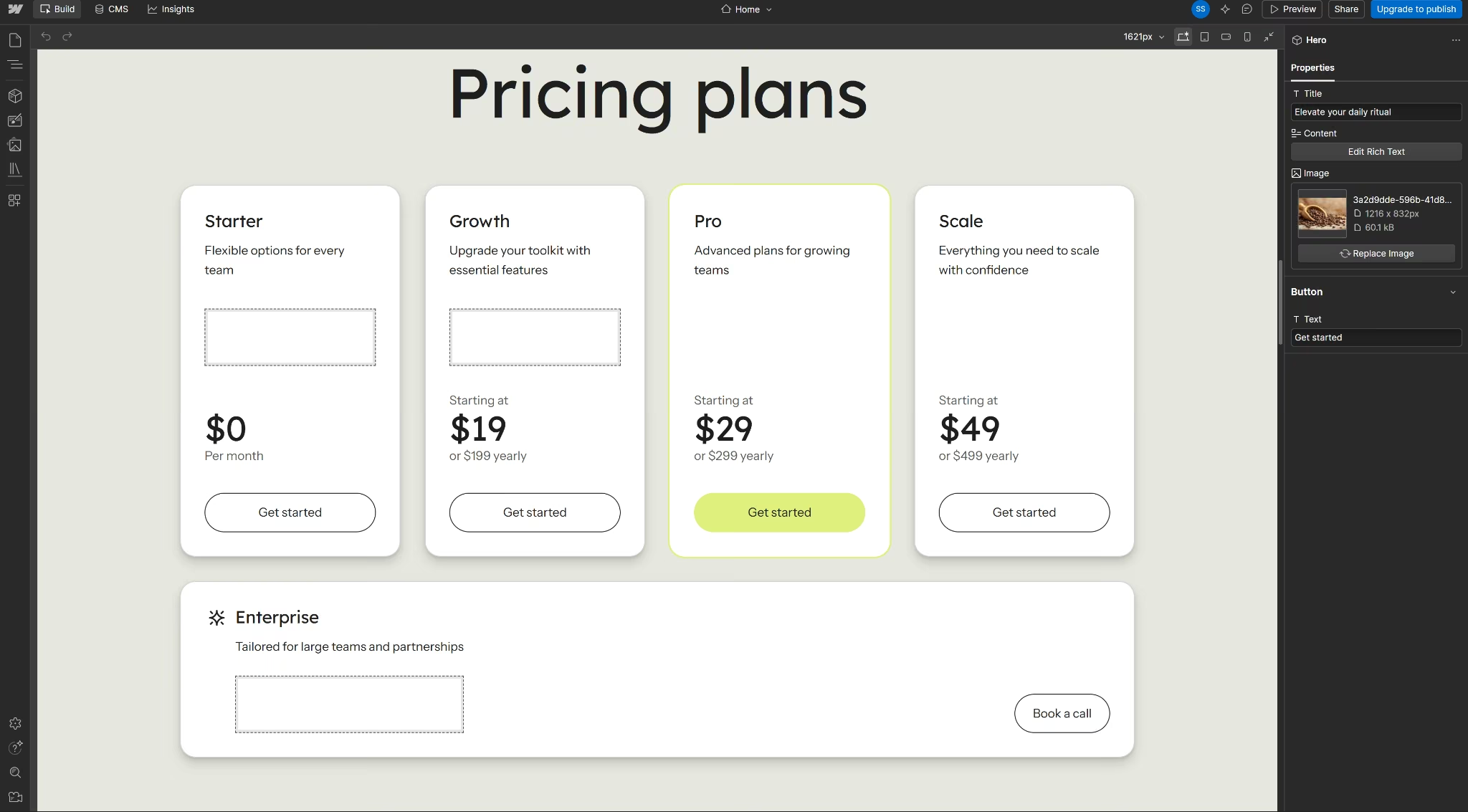
Fixing it would mean working through the Style panel's full range of controls rather than a simple content swap.
WordPress's block editor gets you moving faster in the first ten minutes. Past that, the free-tier design limits and the settings scattered across three menus cost more time than cleaning up Webflow's AI draft did.
The scattered layout was the friction point in testing. Finding where to change one setting meant checking three different menus, and the free tier locked out sitewide colors and fonts entirely.
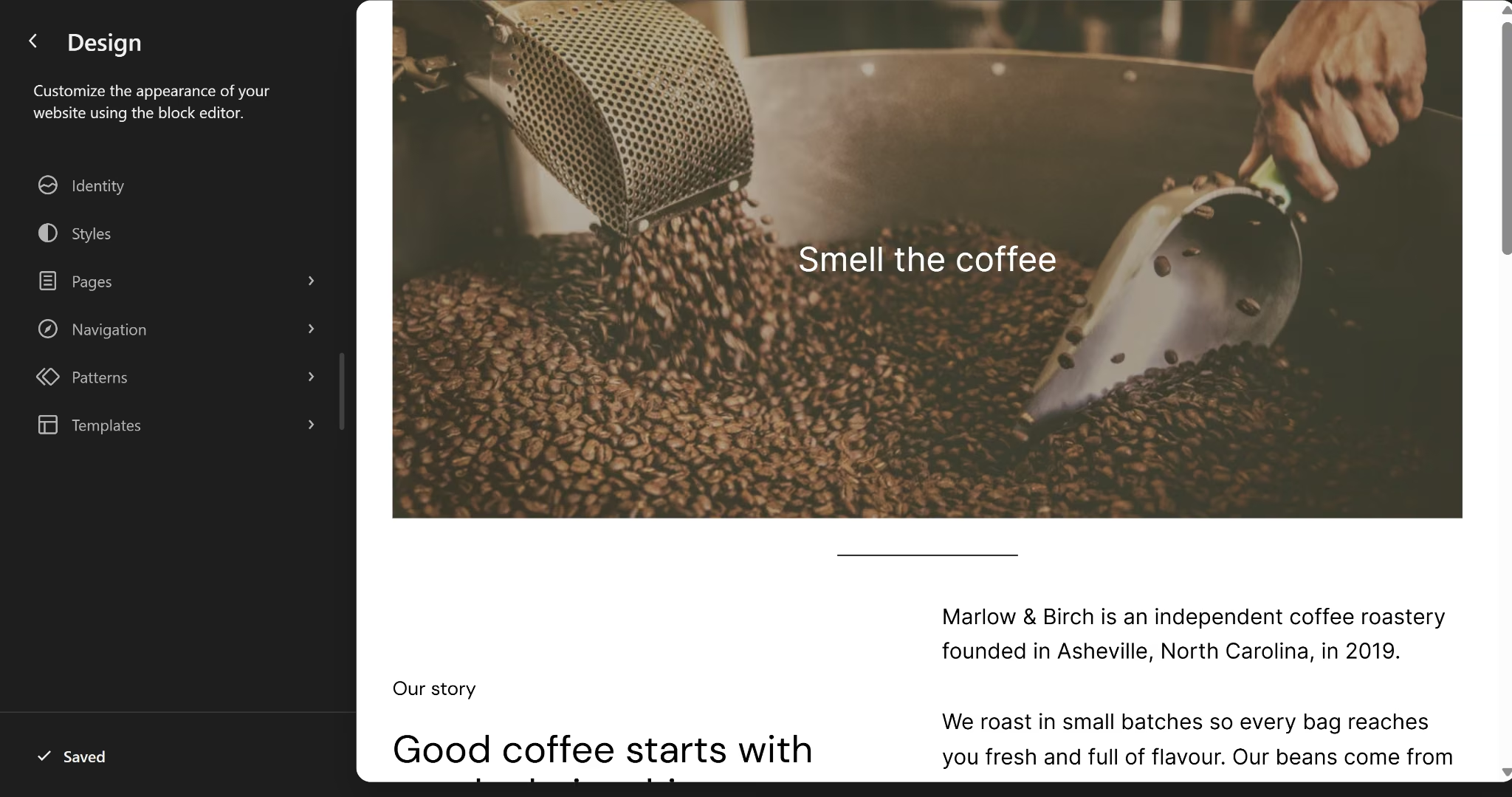
Here’s the build experience, summarized:
| Category | Webflow | WordPress |
|---|---|---|
| Editor | Visual canvas (Style panel) | Block editor |
| Design control level | CSS-level (spacing, breakpoints, typography) | Theme and block settings |
| Prompt-to-build AI | Yes, on every plan | Not on the free plan |
| Sitewide colors and fonts | Available in the Designer | Personal plan and up |
Winner: Webflow, for anyone with a designer on the project or the patience to learn the Style panel.
Content Management and Publishing
Content is where the free plans split hardest. Webflow organizes everything into CMS Collections, reusable containers built for blog posts, team bios, or case studies, and none of it is available until the Premium plan.
On the Starter plan, I couldn't create a single Collection for the Marlow & Birch blog.
Collections support reference fields, which link items across Collections automatically. A blog post can pull in its author, category, and related posts without re-entering that data on every single page.
WordPress handles content the way it always has, with native posts, pages, categories, and tags, and no separate content model to learn.
Every plan, including the free one, allows unlimited posts and pages (paid plans add unlimited users and visitors), so publishing volume was never a wall during testing, unlike CMS access.
How much content each plan allows:
| Category | Webflow | WordPress |
|---|---|---|
| CMS access | None on Basic; Premium required | Included on every plan, including free |
| CMS item limit | Up to 20,000 items/ 40 Collections (Premium) | Unlimited |
Winner: WordPress, for anyone whose site is fundamentally about publishing content. Native tagging, categories, and unlimited posts on the free tier outweigh Webflow's more polished but paywalled CMS.
Apps and Plugins
Webflow's app Marketplace and WordPress's plugin directory aren't close in size. A specialty need, like a room-booking calendar or an appointment scheduler, is far more likely to have a ready-made WordPress plugin than a matching Webflow app.
How the extension libraries compare:
| Category | Webflow | WordPress |
|---|---|---|
| Membership setup | A third-party app is required after Webflow retirednative User Accounts | Membership pluginsrequire a paid WordPress.com plan because the free plan can’t install plugins |
| Typical paid extension cost | Varies by app; most Marketplace apps bill monthly | $29 to $299 a yearfor WooCommerce extensions |
Selling products runs through an app on Webflow and a plugin on WordPress. The cost gap shows up quickly once transaction fees enter the comparison.
Ecommerce fees compare like this:
- Webflow Ecommerce Standard: 2% platform transaction fee
- Webflow Ecommerce Plus: 0% platform fee, at a higher monthly price
- WordPress with WooCommerce: Free core plugin, no platform fee, only third-party payment processor fees apply
Accounts and membership are other areas where both platforms lean on apps and plugins instead of built-in features. Webflow disabled its native User Accounts on January 29, 2026, so logins now need a third-party app.
On WordPress, the free plan can't install plugins at all, so any membership setup means upgrading to a paid tier first.
The Marlow & Birch prompt above asked for sign-up, a customer dashboard, and an admin view, and none of that was buildable on either platform's default setup.
Winner: WordPress, purely on library size. A gap this wide (69,000+ plugins versus 300+ apps) means WordPress almost always has a purpose-built plugin for a specific need, where Webflow may not have an equivalent app at all.
Search Engine Optimization
Both platforms cover the SEO basics without a plugin, but they draw the paid line in different places. Webflow ships meta tags, sitemaps, canonical URLs, redirects, and schema on every plan.
WordPress covers sitemaps and canonicals free, then holds custom meta titles, redirects, and deeper schema back for paid tiers.
Where each platform's SEO tools live:
| SEO feature | Webflow | WordPress |
|---|---|---|
| Meta titles and descriptions | Built in, per page, every plan | Built in via Jetpack, Premium plan and up |
| XML sitemap | Auto-generated | Auto-generated via Jetpack, every plan including free |
| Canonical URLs | Built in | Built into WordPress core on every plan; archive-page canonicals need Premium |
| 301 redirects | Built in | Any paid plan, via a plugin |
| Schema markup | Built in, AI-assisted | Any paid plan, via a plugin |
| Most-used SEO plugin | Not applicable, native | Yoast SEO |
Webflow's SEO tools live in the page settings panel with no custom code needed for most of it.
WordPress's free plan auto-generates sitemaps and canonical tags, but custom meta titles and descriptions start on the Premium plan. Redirects, deeper schema markup, and installing something like Yoast for finer control need a paid plan too.
Winner: Tie. Webflow's SEO tools are native and consistent across every plan; WordPress covers the same basics for free, but reserves redirects and deeper schema control for its higher tiers.
Hosting and Performance
Webflow and WordPress both include managed hosting, so neither requires you to choose a server or configure a separate hosting account. Webflow sites run on AWS infrastructure with Cloudflare’s global CDN, while WordPress distributes sites through more than 28 data centers across six continents.
Performance still depends on what you publish. Large images, heavy scripts, themes, plugins, and page design can slow either platform down. Hosting affects how the site delivers those files, but it can’t guarantee fast results on its own.
Hosting and traffic limits side by side:
| Category | Webflow | WordPress |
|---|---|---|
| Hosting setup | Managed hosting is included with paid Site plans | Managed hosting is included on every WordPress plan |
| CDN and caching | AWS infrastructure and Cloudflare’s global CDN | Global edge caching and a CDN across 28+ data centers |
| Traffic limits | Bandwidth is capped by the Site plan.Starter includes 1 GB, and Basic includes 10 GB | Unmetered bandwidthand visitor traffic on WordPress |
| Traffic spikes | Hostingscales for traffic surges, but transferred data still counts toward the site’s bandwidth allowance | Automatedburst scalinghandles sudden increases in visitors |
| Image delivery | Responsive images are included, with WebP and AVIF conversion available | Site Accelerator resizes images and delivers images and static files through its CDN |
| Custom domain | Requires apaid Site plansuch as Basic | Requires any paidWordPress plan; annual plans include one year of domain registration |
| Self-hosting | Not available | WordPress.org can be installed with a hosting provider you choose |
WordPress has the more generous traffic policy. Every plan includes unmetered bandwidth, global caching, and automatic scaling, while Webflow applies bandwidth allowances to individual Site plans.
Self-hosted WordPress is less predictable. Speed and reliability depend on the hosting provider, theme, plugins, caching setup, and the amount of ongoing work put into the site.
Winner: WordPress. Its managed plans include unmetered traffic and automatic scaling without Webflow’s plan-level bandwidth caps. Self-hosted WordPress doesn’t receive the same automatic win because performance varies by hosting setup.
Security
Webflow's security is centralized and backed by external audits rather than just its own word.
Webflow holds SOC 2 Type 2 and SOC 1 Type 2 reports, plus ISO 27001, ISO 27017, ISO 27018, ISO 42001, and PCI DSS. These are independent reviews confirming the company handles data to a recognized standard, with ISO 42001 covering how it manages AI systems specifically.
Webflow also has far less third-party code to patch. Marketplace apps exist, but there's no self-hosted plugin stack to keep updated, which is where most WordPress breaches start.
WordPress handles security the same way on every plan. Jetpack Scan checks every WordPress.com site daily for dangerous plugins, themes, and malware, and a web application firewall screens incoming traffic before it reaches the site. Daily backups you can restore yourself are reserved for higher tiers.
Self-hosted WordPress.org doesn't get any of that by default. Protection depends entirely on the hosting provider and any security plugins installed. Wordfence's threat database currently tracks more than 15,000 plugins with known vulnerabilities, which is why an unpatched plugin is the usual way in.
Privacy is a separate question from security. It starts to matter the moment a business collects personal data from EU visitors, because GDPR, Europe's privacy law, may apply depending on who the site targets and what happens to that data.
How privacy and account security break down on each platform:
| Category | Webflow | WordPress |
|---|---|---|
| SSL and encryption | Automatic on every plan | Free on every plan |
| GDPR data processing agreement | Data Processing Addendum available | Own GDPR guide and compliance commitment |
| Cookie consent banner | Not built in; add a Marketplace app | Built in as a Cookie Consent block |
| Visitor data export or deletion tools | Manual, through form and CMS Collections data | Built into WordPress core since 4.9.6, but disabled on most WordPress.com sites. Available on plugin-enabled plans |
| Account two-factor authentication | Available on every plan | Built in on every plan |
Both platforms hand over a version of the paperwork GDPR requires, just packaged differently.
Webflow provides a signed agreement (its Data Processing Addendum) spelling out how it will handle any personal data collected through the site. The site owner is still responsible for drafting an actual privacy policy and obtaining visitors' consent.
WordPress publishes its own GDPR guide and commitment. WordPress core has shipped privacy tools since version 4.9.6, including a Privacy Policy generator and export/erase requests.
On WordPress.com, those tools are switched off for most sites, and only reachable on plugin-enabled plans, so managed users handle access and deletion requests through the dashboard instead.
Winner: Tie. Webflow takes security, with audited certifications and no plugin layer to patch. WordPress takes privacy tooling, with a native cookie consent block and built-in data export and deletion where Webflow needs a Marketplace app and manual work.
Pricing
Pricing is where the two platforms diverge most, since Webflow prices in layers (a Site plan plus a Workspace for collaboration), while WordPress charges a single monthly tier.
Webflow's Site plans include:
- Starter: Free
- Basic: $25/month ($15/month billed annually)
- Premium: $39/month ($25/month billed annually), CMS access included
- Ecommerce Standard: $42/month ($29/month billed annually), 2% transaction fee
- Ecommerce Plus: $84/month ($74/month billed annually), no transaction fee
- Workspace, for team collaboration: $28 to $60 per seat per month on top of a Site plan, depending on tier
If Webflow's add-on costs are what pushed you toward WordPress, our Webflow alternatives guide covers four other platforms worth pricing first.
WordPress’s plans are simpler by comparison:
- Free: $0
- Personal: $9/month ($4/month billed annually)
- Premium: $18/month ($8/month billed annually)
- Business: $40/month ($25/month billed annually)
- Commerce: $70/month ($45/month billed annually), WooCommerce-powered stores
Winner: WordPress, on sticker price. A single-site Webflow setup using a Basic or Premium Site plan with a paid Workspace plan costs $53 to $99 per month before add-ons. WordPress.com Personal and Premium both cost less than $20 per month.
What Webflow and WordPress Users Say
Webflow
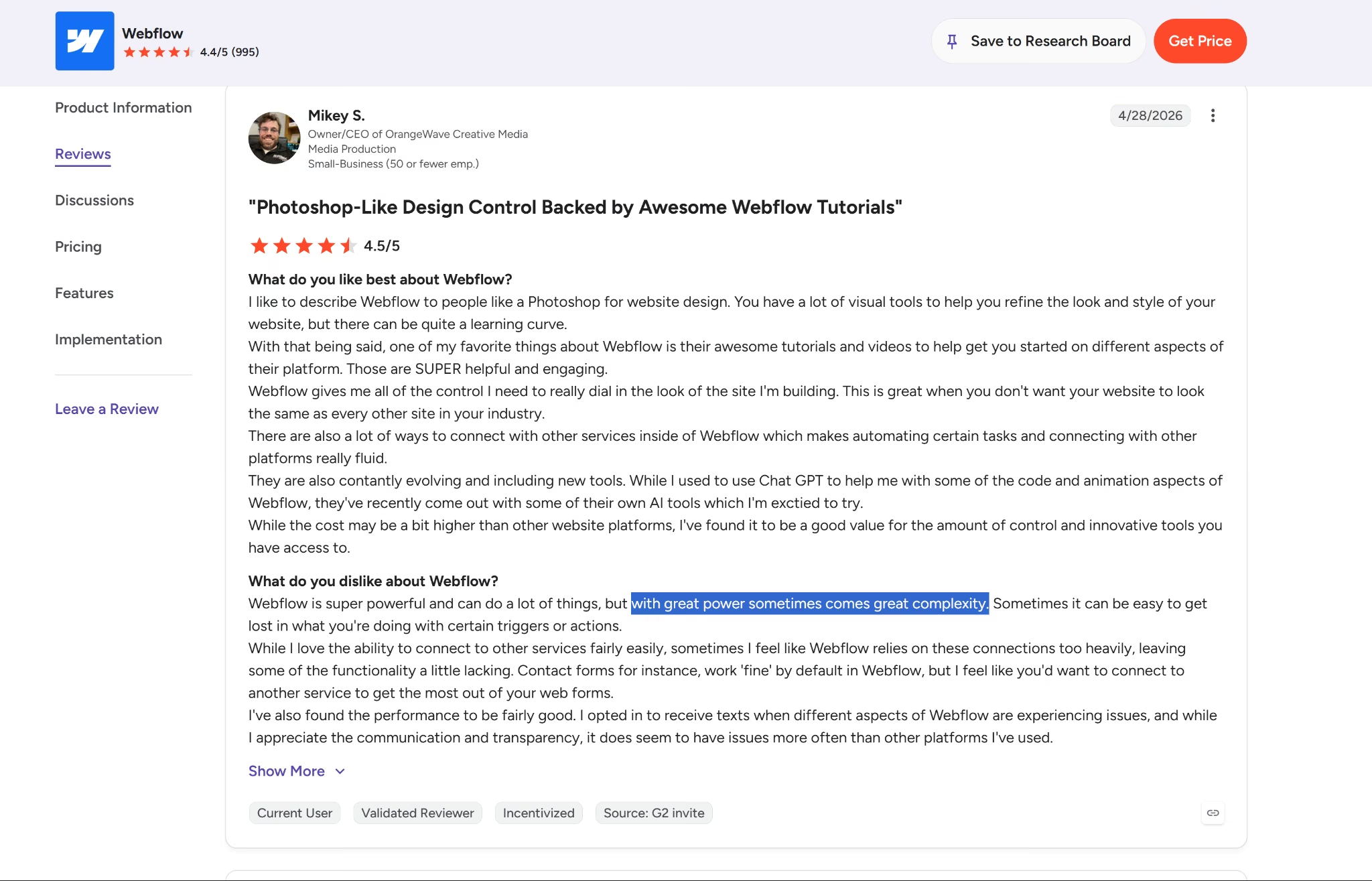
On G2, Webflow holds a 4.4/5 rating from 995 reviews. One reviewer praised its visual design controls and learning resources, writing that Webflow gives them “all of the control I need to really dial in the look of the site I’m building.” They also highlighted its tutorials as helpful and engaging for learning different parts of the platform.
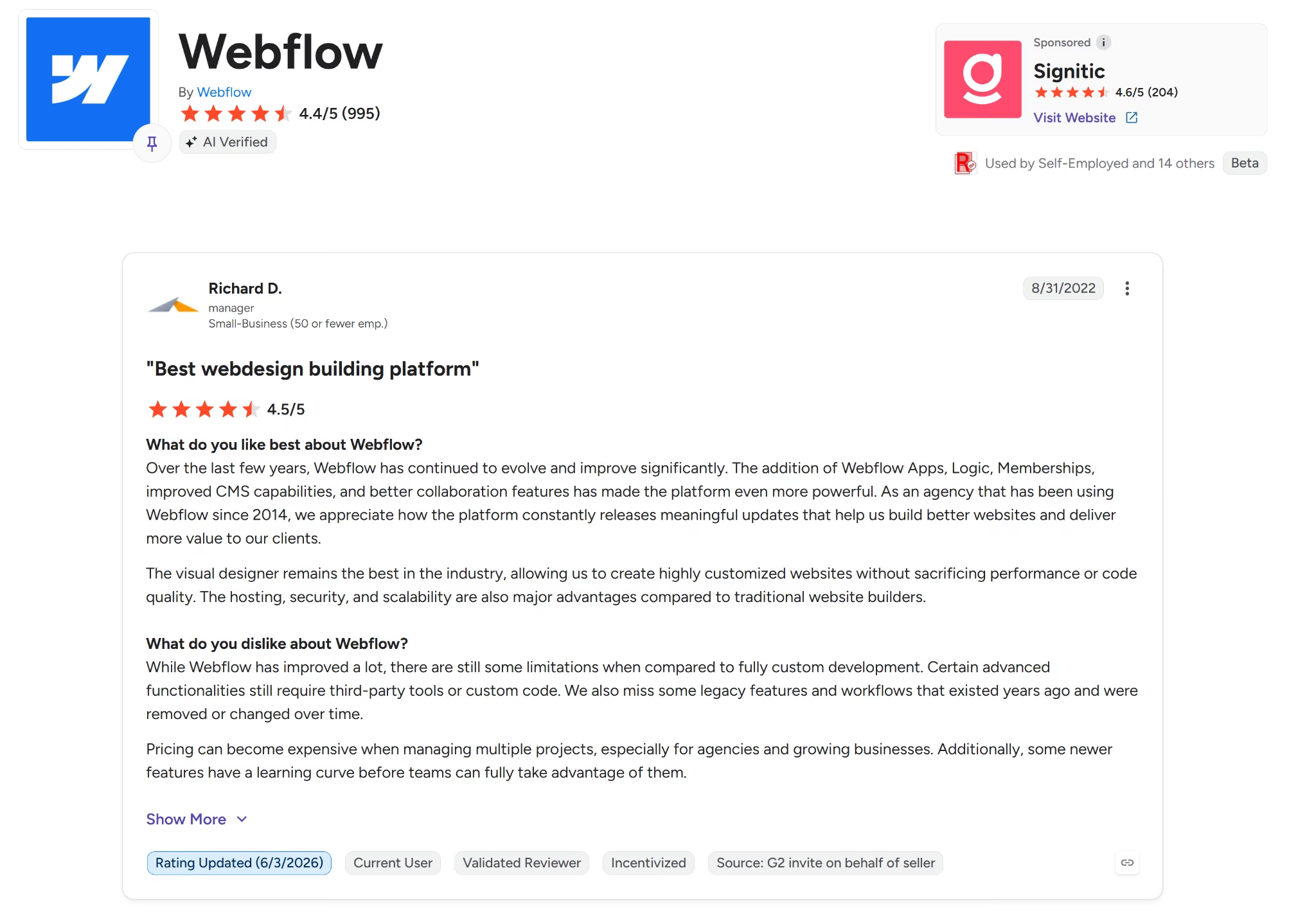
Richard D., a manager at a small business whose agency has used Webflow since 2014, named the tradeoff directly. He wrote that “pricing can become expensive when managing multiple projects,” especially for agencies and growing businesses.
WordPress
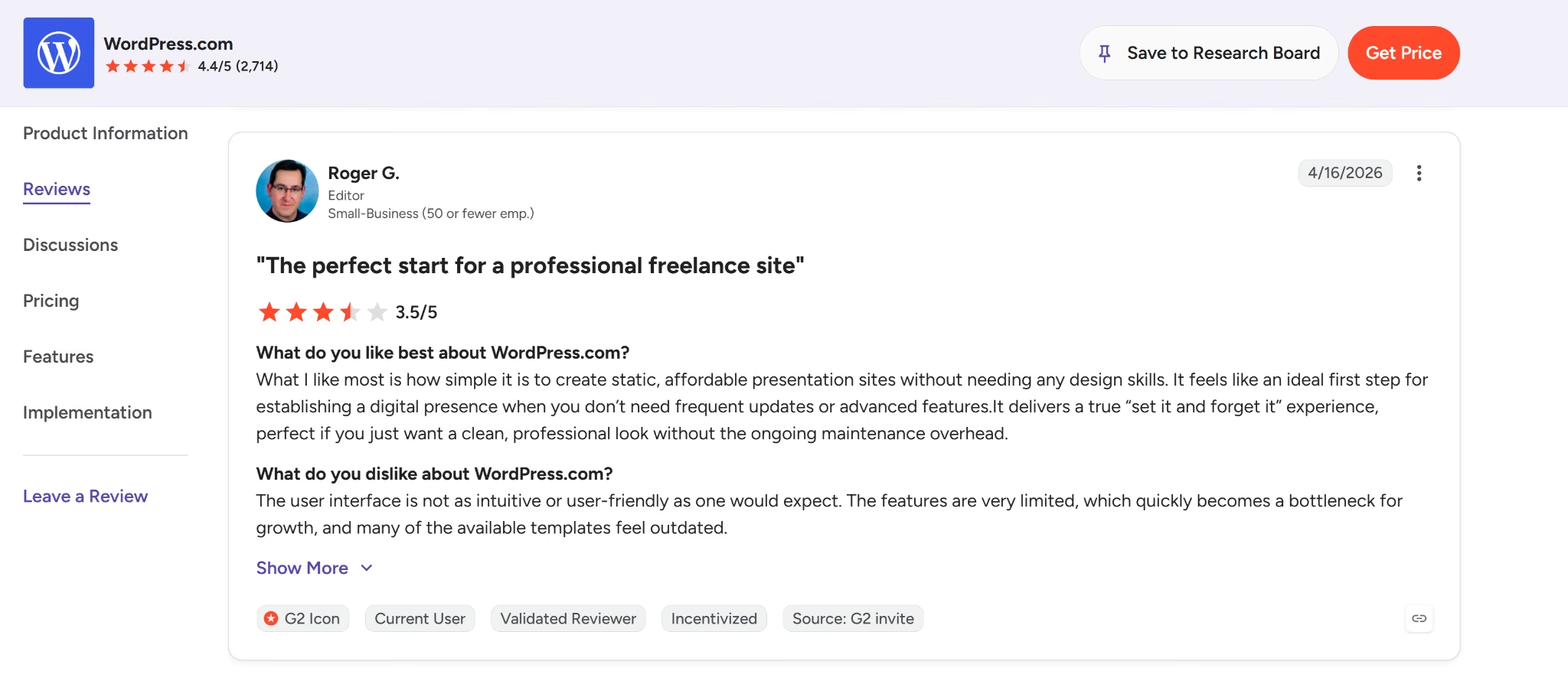
On G2, WordPress has a 4.4/5 rating from more than 2,700 reviews. One reviewer liked that the templates and plugins made it possible to get started without coding, but found site migration and local setup harder to figure out without technical experience.
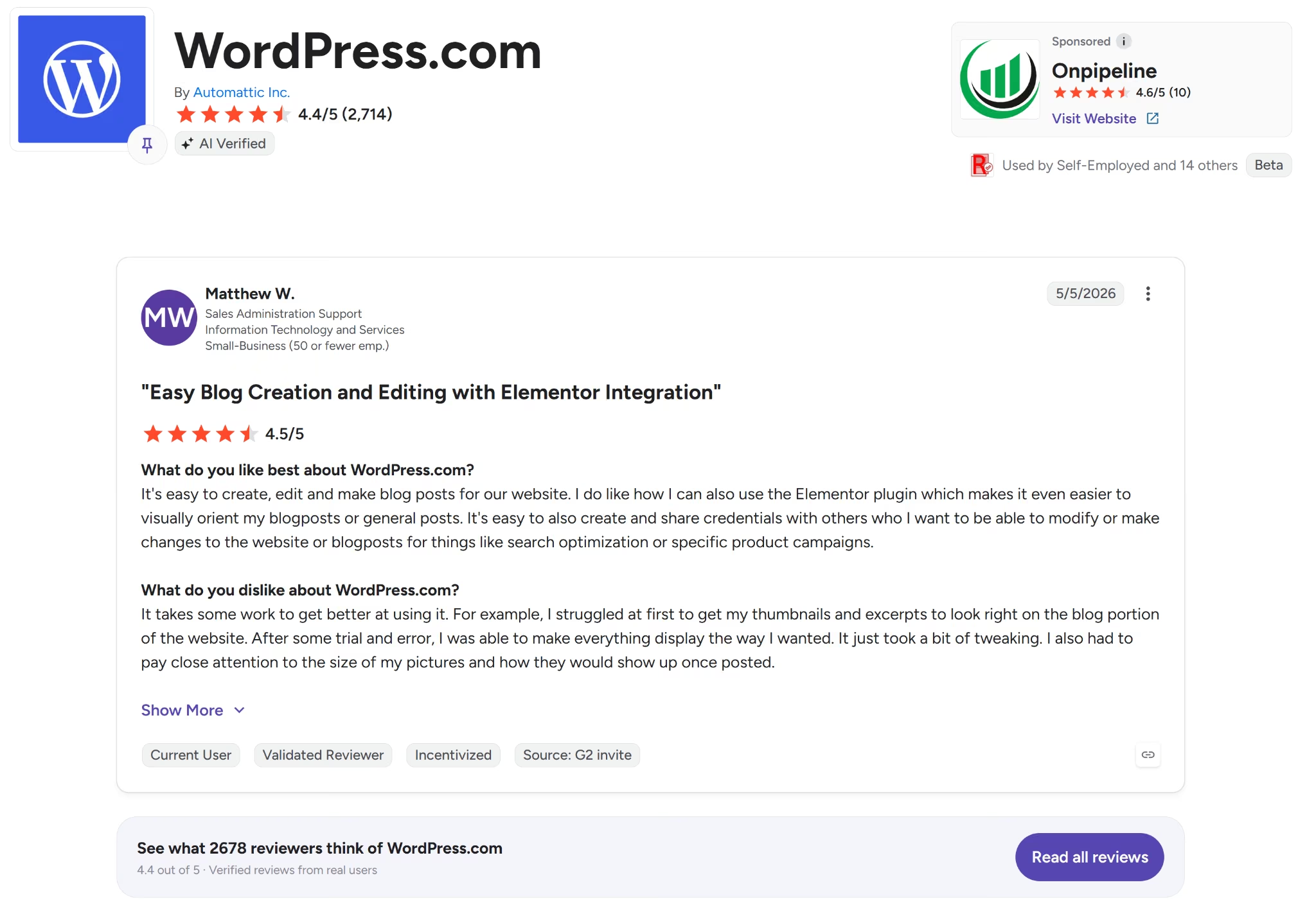
Another reviewer, Matthew W., noted that he "struggled at first to get my thumbnails and excerpts to look right" and needed some trial and error before the platform clicked for him.
Should You Choose Webflow or WordPress?
The choice mostly comes down to whether design control or content ownership matters more for the project. Webflow fits teams with a designer on staff or a budget for one; WordPress fits anyone who wants full control over their content and a plugin ready for almost anything they'll eventually need.
Choose Webflow If
- Layout, animation, and responsive breakpoints need to stay under close control, ideally with a designer on the project.
- Your site will lean on structured, repeating content like case studies or team bios, and you're comfortable paying for the Premium plan to get CMS access.
- You want hosting, SSL, and backups handled entirely by the platform, with no server decisions to make.
Choose WordPress If
- Publishing content (a blog, a resource hub, a newsroom) is core to what the site does.
- You want the option to extend the site with a plugin for nearly any feature, from booking to membership to advanced SEO.
- Keeping monthly costs low matters more than having every design control available from day one.
You could also compare Squarespace or Wix for a standard business website, or Shopify when the main goal is running an online store.
If you’re comparing website builders for design flexibility and ease of use, Webflow vs Squarespace breaks down how the two platforms differ.
Webflow vs WordPress Pros and Cons
The tradeoff is fairly clear. Webflow puts detailed visual controls and structured content tools inside one platform. WordPress starts with familiar pages, posts, and templates and can expand through a large plugin library.
Webflow Pros
- Precise visual control: The Style panel includes controls for layout, spacing, typography, reusable classes, and responsive breakpoints.
- Structured content: CMS Collections support custom fields, references, and multi-reference fields, which suits repeating content such as blog posts, team profiles, and case studies.
- Managed hosting: Webflow combines AWS infrastructure with Cloudflare’s global CDN, so hosting and content delivery sit inside the same platform as the site builder.
Webflow Cons
- More to learn: The CSS-style controls that give Webflow its precision also created more settings to work through during my test.
- Paid CMS access: The Basic plan is built for static sites, while full Webflow CMS access starts on the Premium Site plan.
- A harder exit: A Webflow code export leaves out CMS data, ecommerce, user accounts, site search, and form processing.
WordPress Pros
- Publishing tools built in: WordPress separates content into pages, posts, and templates, with categories and tags for organizing posts.
- A broad plugin library: The WordPress.org directory contains tens of thousands of free plugins covering areas such as ecommerce, memberships, bookings, and SEO.
- More room on the free plan: WordPress.com includes unlimited pages and posts on its free plan, while Webflow Starter limits a site to two static pages.
WordPress Cons
- Scattered design controls: During my test, settings were divided between individual blocks, templates, themes, and the Styles menu, which made some changes slower to find.
- No free-plan plugins: WordPress.com’s free plan doesn’t include plugin installation, so extending the site with memberships, advanced SEO tools, or other plugins requires an upgrade.
- More work when self-hosting: WordPress.org gives you control over the hosting setup, but you become responsible for hosting, security, updates, and ongoing maintenance.
Switching Between Webflow and WordPress
Switching is possible in either direction, but neither route moves the complete site intact. A standard WordPress export carries content but not the theme, customizations, or plugins. Webflow’s code export excludes CMS data and several platform-hosted features.
WordPress to Webflow
Moving from WordPress to Webflow starts with the content. WordPress exports posts, pages, comments, categories, and tags in an XML file.
Webflow’s WordPress migration process requires converting that XML file into CSV format, creating matching CMS Collections, and importing the CSV into Webflow.
WordPress’s export file doesn’t contain the theme, design customizations, or plugins, so page templates, navigation, forms, and plugin-powered features must be recreated in Webflow.
Images need a separate check too. WordPress’s XML export contains links to media rather than the image files themselves, so the old site should remain public until the new platform has copied or replaced every asset.
Webflow to WordPress
Moving from Webflow to WordPress is more manual. A paid Workspace plan can export the site’s HTML, CSS, JavaScript, and uploaded assets, but the exported files don’t include CMS content, ecommerce data, user accounts, site search, or working form processing.
Webflow CMS items can be exported separately as CSV files. WordPress.com doesn’t provide a dedicated Webflow importer, though. Its process for moving from an unsupported site builder involves creating a new WordPress site, choosing a theme, rebuilding the pages and menus, and moving the saved content into the new structure.
The exported Webflow HTML can act as a visual reference, but it doesn’t become an editable WordPress theme or recreate the CMS automatically.
Practical takeaway: Treat either move as a rebuild with a content transfer, not a full-site copy. Keep the old site live until you’ve checked the page URLs, images, forms, redirects, analytics, and domain settings on the replacement.
Also read our Webflow review for a closer look at how the learning curve, layered pricing, and retired app features hold up in practice.
When Webflow and WordPress Aren't the Right Fit
Webflow and WordPress are website builders first. Neither one is built to hand you an application, with its own logic, accounts, and users, without extra help.
Webflow only publishes browser-based websites. Turning one into an App Store or Google Play listing needs a third-party wrapper tool. Apple's review guidelines can also reject apps that are just repackaged websites.
WordPress doesn't build a native mobile app on its own either. Getting a WordPress site onto a phone's home screen means installing a separate plugin or paying an outside service to wrap the site in a native shell.
A mobile app anywhere on the roadmap means neither platform gets there without bringing in another vendor.
Neither platform's default building flow creates the connected records, roles, and workflows that an application needs. A logged-in dashboard, a customer's subscription status, an admin view of everyone who signed up. None of that is a page or a post.
Building connected logic like that, on Webflow or WordPress, means bolting on a membership plugin or a third-party app and hoping it plays nice with the rest of the site.
Customizing either platform beyond the basics takes technical know-how, even with Webflow's prompt-to-app AI generating a starting point. Troubleshooting a broken interaction or building a custom animation means working inside the Style panel's CSS-level controls.
Going beyond a static page also means turning to Webflow Cloud, which requires familiarity with Next.js and Astro, two developer frameworks, plus a repository where the code is stored.
WordPress has its own learning curve. Picking the right stack of plugins and knowing how they'll behave together is a skill of its own. On a self-hosted install, that stack then has to be configured and kept up to date indefinitely.
Webflow and WordPress both remain solid choices for a website. Once “website” becomes “something my customers log into,” the project changes, and Emergent was built for that kind of product.
Also read our Wix vs WordPress comparison, where we built the same site on both to see how a hosted builder holds up against WordPress.
When to Choose Emergent Instead
Emergent is an AI web and mobile app builder that turns a conversation into a working web or mobile app, complete with the sign-in, data, and payments behind it.
With Marlow & Birch, Emergent opened with questions before it built anything: who the customers and admins were, how subscriptions should work, what each user needed to see, and how payments and delivery dates should connect.
Those questions turned a broad Coffee Club idea into a clearer plan. From there, specialized agents split the work: some shaped the interface, others handled the data and payment connections, and testing agents checked the flows before anything shipped.
What came back was the homepage, login, member dashboard, subscription controls, admin view, and the data tying them together.
Each member could log in and see their own plan, next delivery date, and payment status. Staff got a separate view listing every current subscriber.
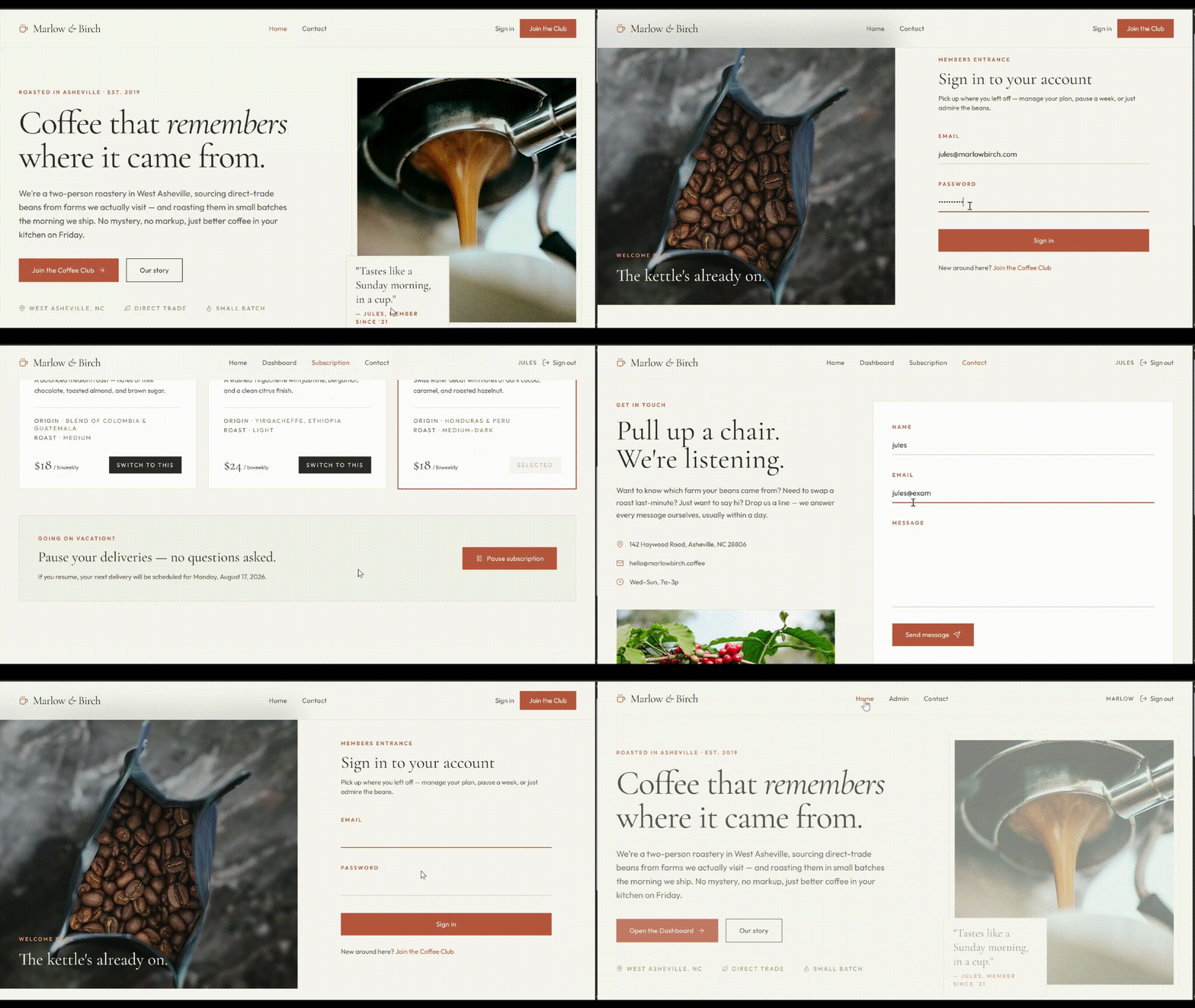
Emergent also includes several capabilities that become useful as the product grows. Here’s what you get:
- Customer accounts: Give each customer a private dashboard instead of handling plan changes, delivery questions, and account updates through email.
- Connected customer data: Keep subscription choices, delivery dates, payment status, and account changes attached to the correct customer record. Updates made by a member can appear in the admin view without copying information between tools.
- Payments inside the app: Add one-time payments or recurring Stripe subscriptions so customers can choose and pay for a plan in the same product. Your Stripe account still needs to be connected and tested before launch.
- Web and mobile versions: Give customers access via a browser, iPhone, or Android device without having to plan three separate products. Emergent’s mobile app workflow keeps the web and mobile experience connected as the product develops.
- Access to your code: Connect the project to your own GitHub repository so a developer can review the code, continue the work elsewhere, or return to an earlier version after a problem.
- Preview and deployment: Share a temporary live preview while the product is still being tested, then deploy it to a permanent public URL without choosing and configuring a separate hosting provider first.
- MCP access: Emergent’s MCP connector lets you continue building from ChatGPT or Claude. The app preview appears in the same conversation, so you can review changes without switching tools.
Emergent’s paid plans start at $17 per month with annual billing. Check the current plans and credit limits before choosing one.
The Verdict on Webflow vs WordPress
My test exposed a different limit on each platform. Webflow produced more of the Marlow & Birch brief at the start, but correcting the invented plans, empty image boxes, and dead links meant working through its detailed editor. WordPress was simpler to edit by hand, but its free plan stopped at a basic page and couldn’t build the account-based parts of the brief.
Both platforms still assume the project is a website. Add a sign-up flow, customer dashboard, subscription controls, or admin view, and neither default setup covers the full brief.
Emergent starts with those connected features, building sign-in, customer data, and payments into the product from the same brief.
Skip the platform debate. Describe your site to Emergent.

Most AI app builders stop at prototypes. Emergent creates production-ready apps you can actually launch.
- Production-ready apps
- Web & mobile apps
- Deploy in minutes