Emmy is the chat assistant built into Emergent. She sits in the bottom-right corner of every page, and she covers the part of building that happens before and around the agent: turning a rough idea into a scope, drafting a prompt you can actually send, explaining what a control does, and answering questions mid-build so you are not stuck waiting.
In this tutorial, we'll build a client project tracker from a single sentence, using Emmy at every step where a first-time builder would normally stall. If you want the video walkthrough, check it out below!
Essentials to get started with Emmy
Here are the key things to know before you begin:
- Emmy is available on every page of Emergent, in the bottom-right corner. She is included with your plan.
- Emmy is not the agent that builds your app. She helps you plan, choose, and understand what you are looking at. The build agent writes the code.
- If something on screen is confusing and you cannot put it into words, send her a screenshot of it.
Step 1: Open the Emergent home page
Navigate to https://emergent.sh and sign in. You will land on the home screen with the prompt bar at the center.

Look at the bottom-right corner. That icon is Emmy, and it follows you across every page of the platform.
Step 2: Describe your idea in one line
Click the Emmy icon to open the chat, then type your idea as roughly as it comes to you. There is no need to polish it first.
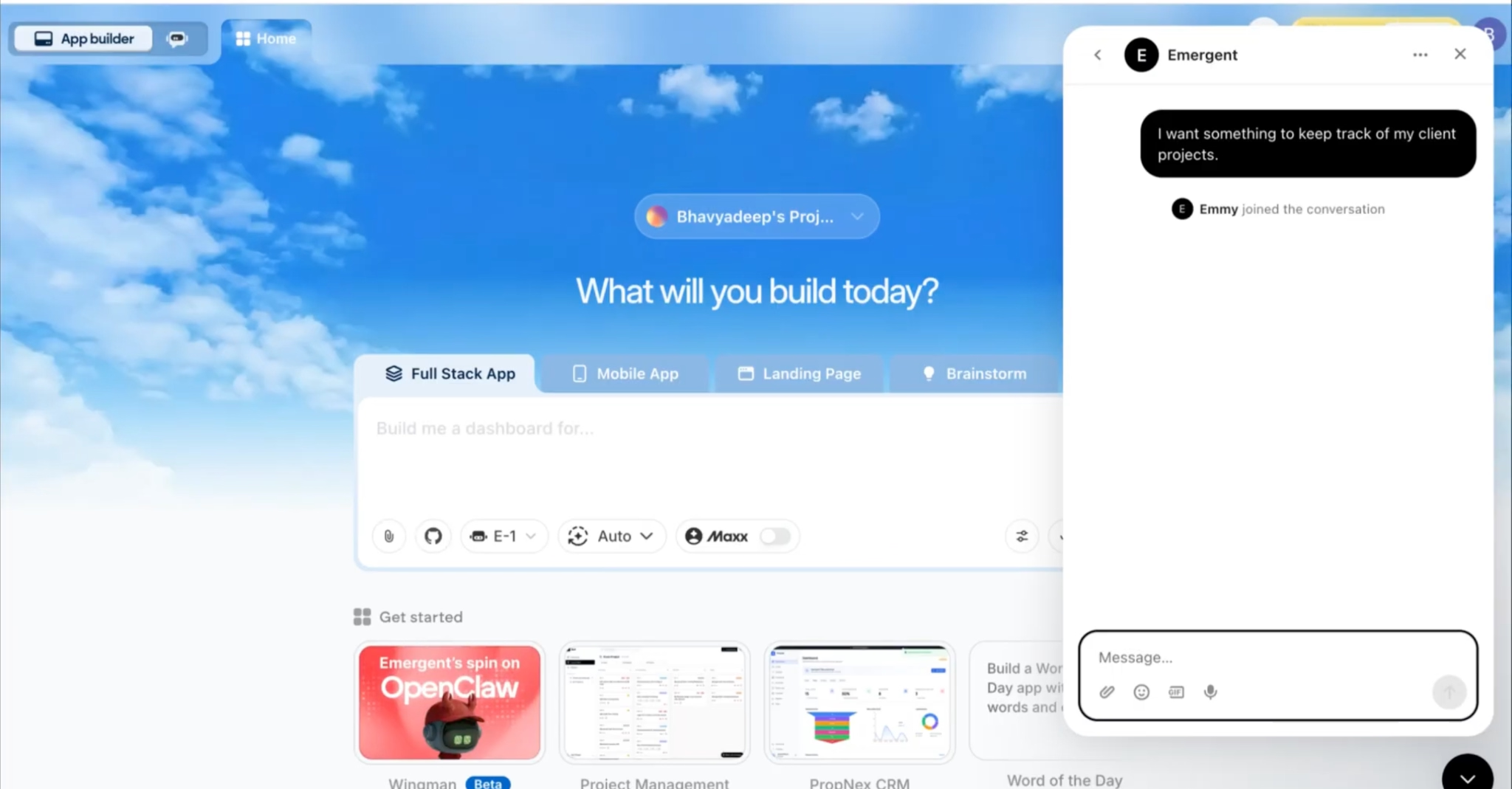
For this tutorial, we typed: I want something to keep track of my client projects.
Step 3: Review the scope Emmy suggests
Emmy responds with a question before anything else: is this a simple dashboard for your own use, or do you need something where clients can log in and see their own progress?
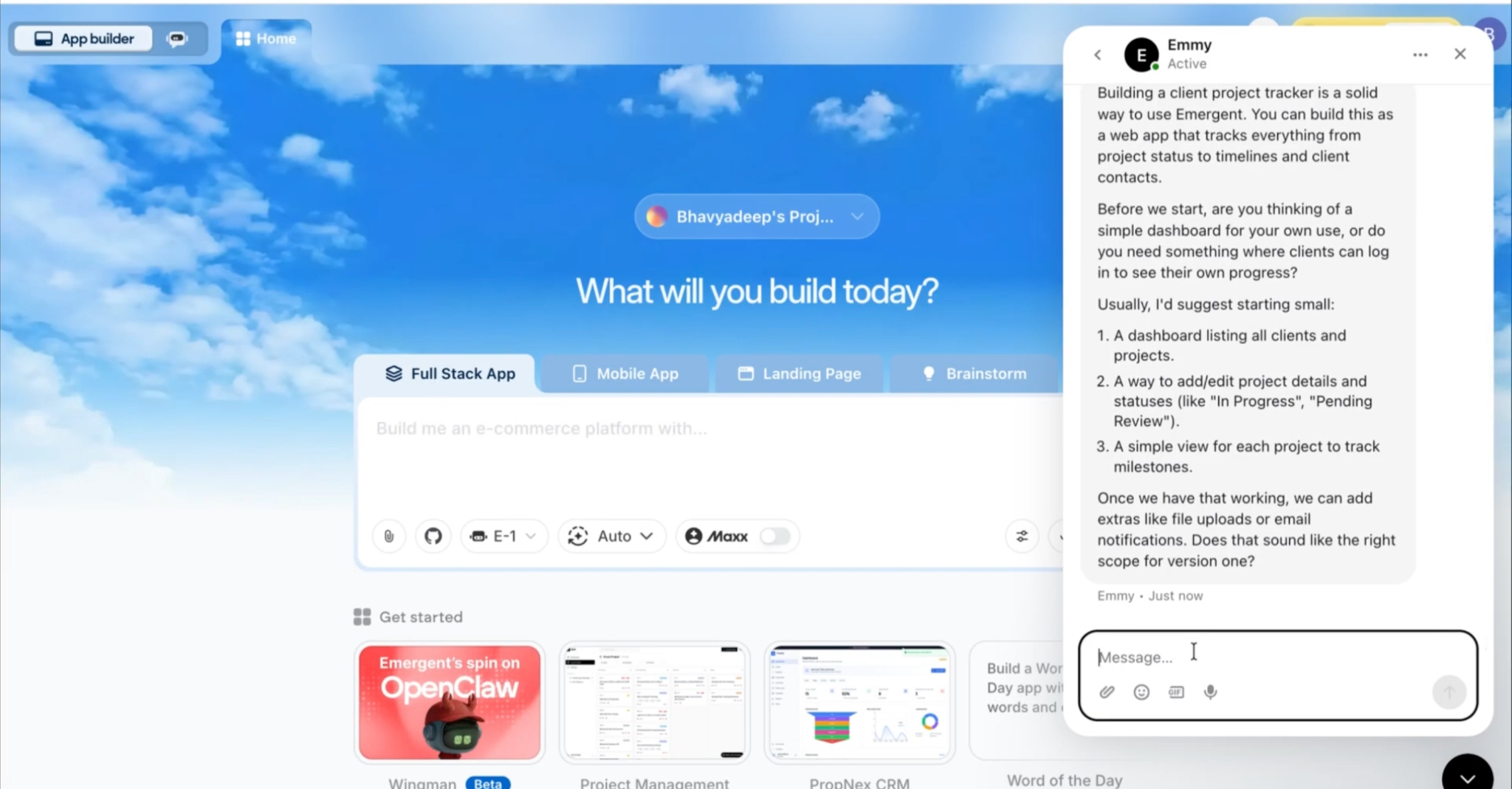
Then she proposes a starting scope:
- A dashboard listing all clients and projects
- A way to add and edit project details and statuses
- A simple view for each project to track milestones
She also flags what to leave out for now, including file uploads and email notifications, and asks whether that is the right scope for version one.
This is the part that saves you the most time later. Agreeing on scope before you spend anything means you are not discovering halfway through that you built the wrong thing.
Step 4: Ask Emmy to draft the prompt
Once the scope looks right, ask her to turn it into a prompt.
We asked: Yes, that sounds good. Can you help me draft a prompt for the same that I can add on Emergent?
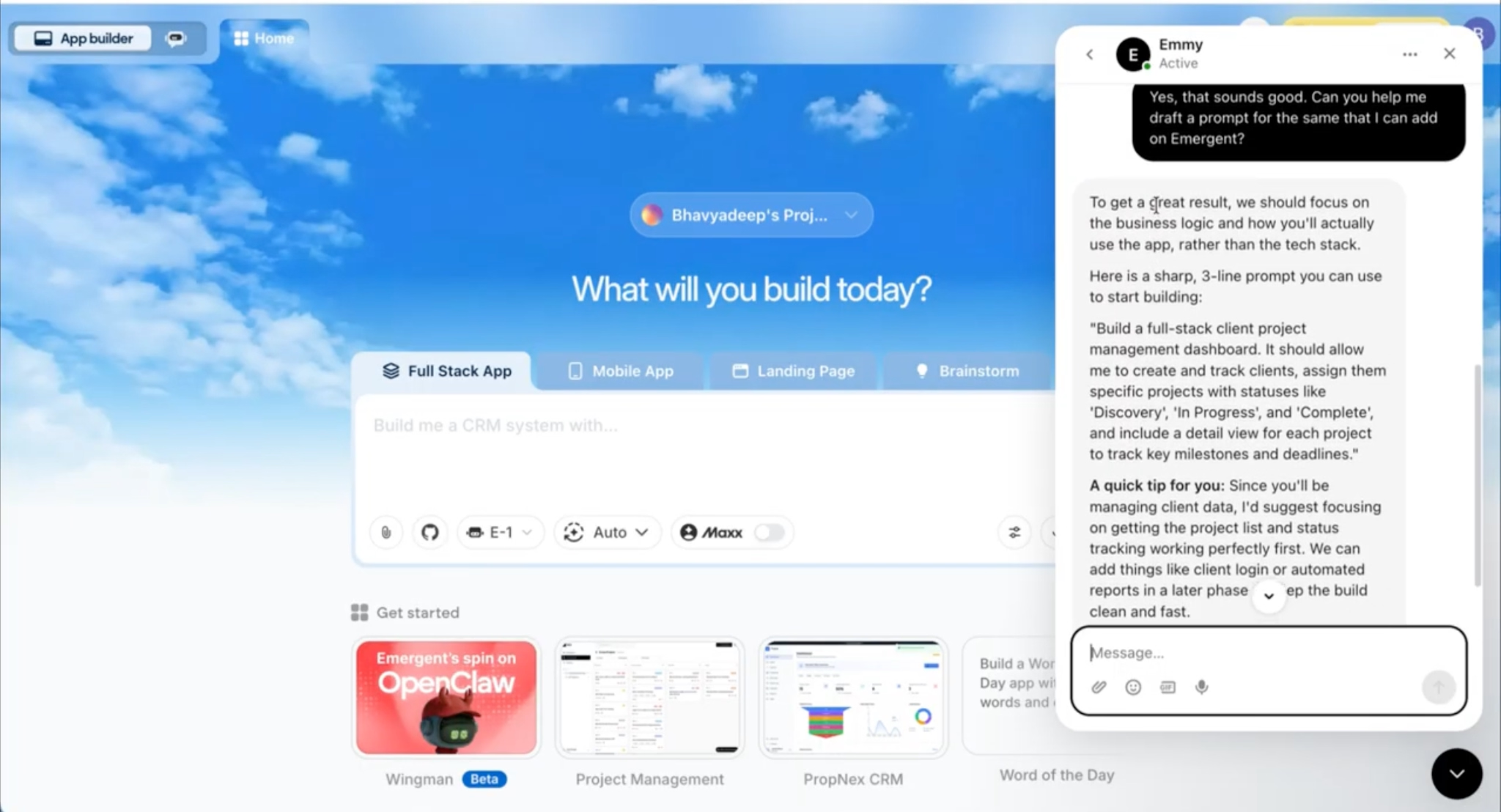
Emmy explains that a good prompt focuses on the business logic and how you will use the app rather than the tech stack, then hands back a prompt you can copy directly:
Build a full-stack client project management dashboard. It should allow me to create and track clients, assign them specific projects with statuses like 'Discovery', 'In Progress', and 'Complete', and include a detail view for each project to track key milestones and deadlines.
She adds a tip alongside it: get the project list and status tracking working properly first, and leave client logins and automated reports to a later phase.
Step 5: Ask which agent to use
Paste the prompt into the Full Stack App box, then open the agent selector. You will see E-1, E-2, E-3, and Cross Platform.
If you have not built here before, that is not an obvious choice. Ask Emmy instead of guessing.

Her breakdown:
- E-3 (Autonomous and Powerful): starts with a brainstorming session to map out the app, creates a build plan, then builds it mostly on its own. Handles frontend, backend, and database with very little guidance.
- E-2 (Thorough and Relentless): built for speed and reliability, and suited to complex integrations.
- E-1 (Stable and Thorough): the original agent. Predictable, but it expects you to guide it step by step.
For a tracker like this, she recommends E-3. Select it and send the prompt.
Step 6: Answer the agent's scoping questions
The agent now runs its own scoping round. These questions are separate from Emmy's, and they shape what actually gets built.
For this build it asked about:
- Platform: web or mobile
- Authentication: a single user with a simple login, or multiple team members
- What a milestone should hold: name, due date, done or not done
- Which fields to keep against each client
- Whether to preload sample data so the dashboard is not empty on first login
We answered web, single user, name and due date and a done state, the default client fields, and yes to sample data. The agent then works through the build in phases, verifying each one before moving on.
Step 7: Ask Emmy about anything confusing mid-build
While the build runs, the progress panel shows "E-1 Agent" even though E-3 was selected.
Rather than describing it, we took a screenshot of the panel and shared it with Emmy in the chat.
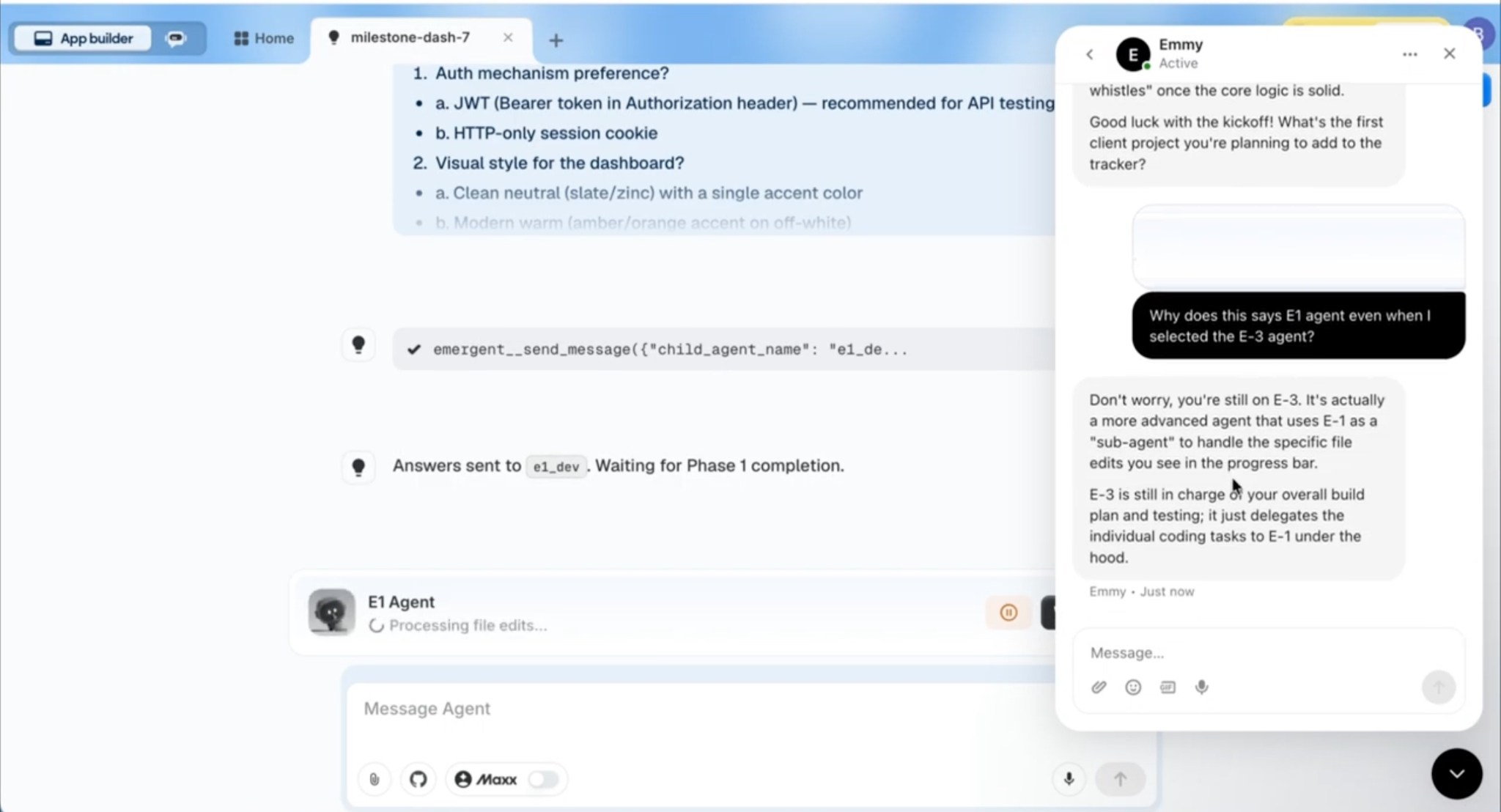
Her answer: you are still on E-3. It uses E-1 as a sub-agent to handle the individual file edits you see in the progress bar, while E-3 stays in charge of the overall build plan and testing.
Nothing was wrong. It took one message to confirm that, without leaving the build or opening a ticket.
Step 8: Check your credits while it builds
You can also ask what the build is costing without interrupting it.
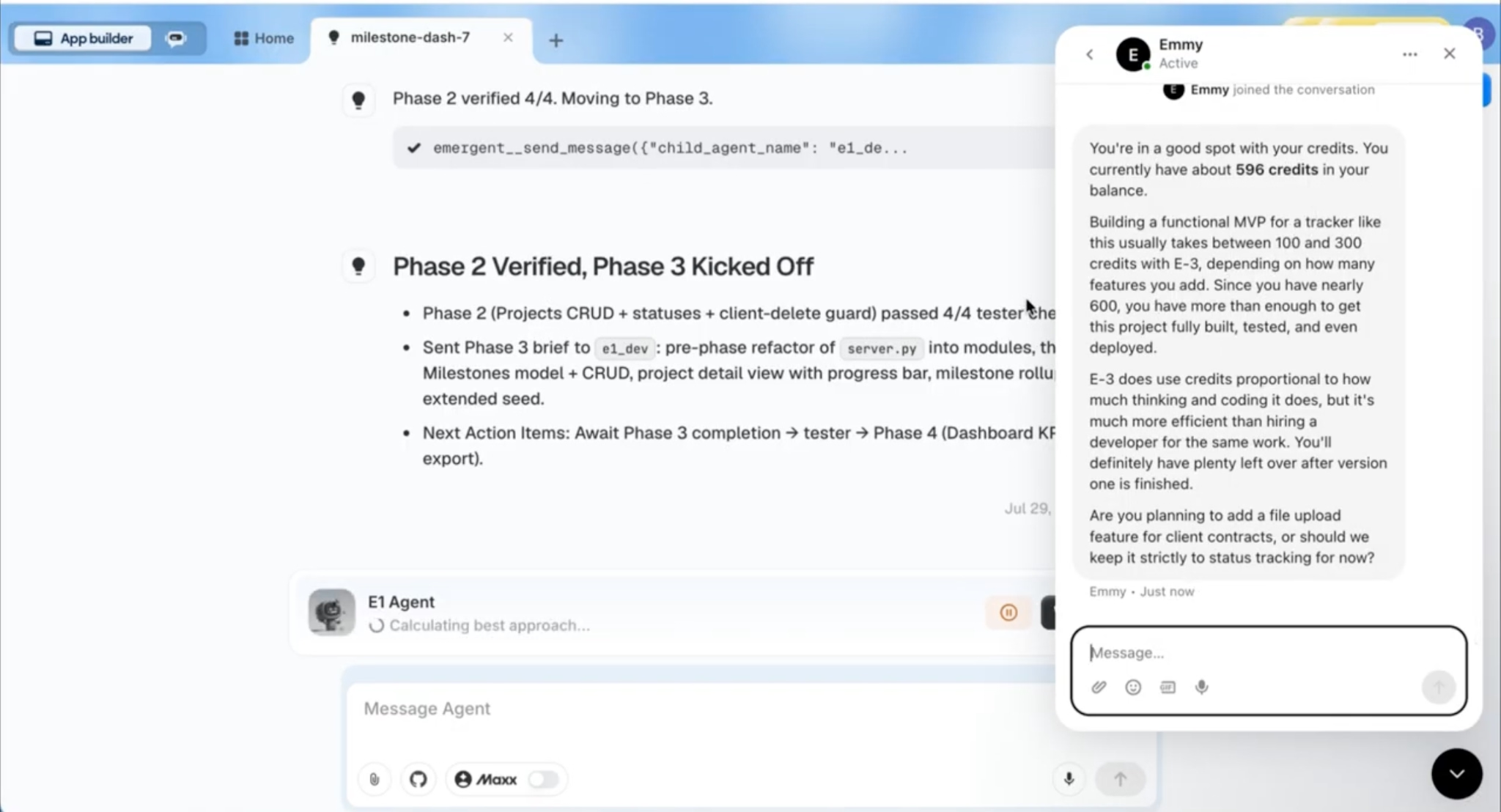
We asked whether the build was using a lot of credits and whether there would be enough left afterwards. Emmy confirmed the balance, noted that a build of this size usually takes between 100 and 300 credits with E-3, and that there was comfortable room to build, test, and deploy.
Step 9: Preview the app
When the build finishes, the agent posts a summary of everything it made and the login details for the preview.
Click Preview to open the working app.
The dashboard loads first, with counts for clients, active projects, milestone progress, and anything overdue. Below that, a Today's Focus panel splits what is already late from what is due in the next seven days.
Step 10: Explore the tool
The Clients page lists names, companies, contact details, and notes. Adding a client needs only a name, and you can fill in the rest later.
Open a project and you get its milestone checklist with a progress bar above it, the client it belongs to, and a status you can change from the same screen.
The Projects page sorts everything by how much attention it needs, with filters for status and client, and a CSV export. Change a project's status and the counts along the top update immediately.
Step 11: Ask Emmy how to deploy
Back in the chat, ask her how to publish the app.
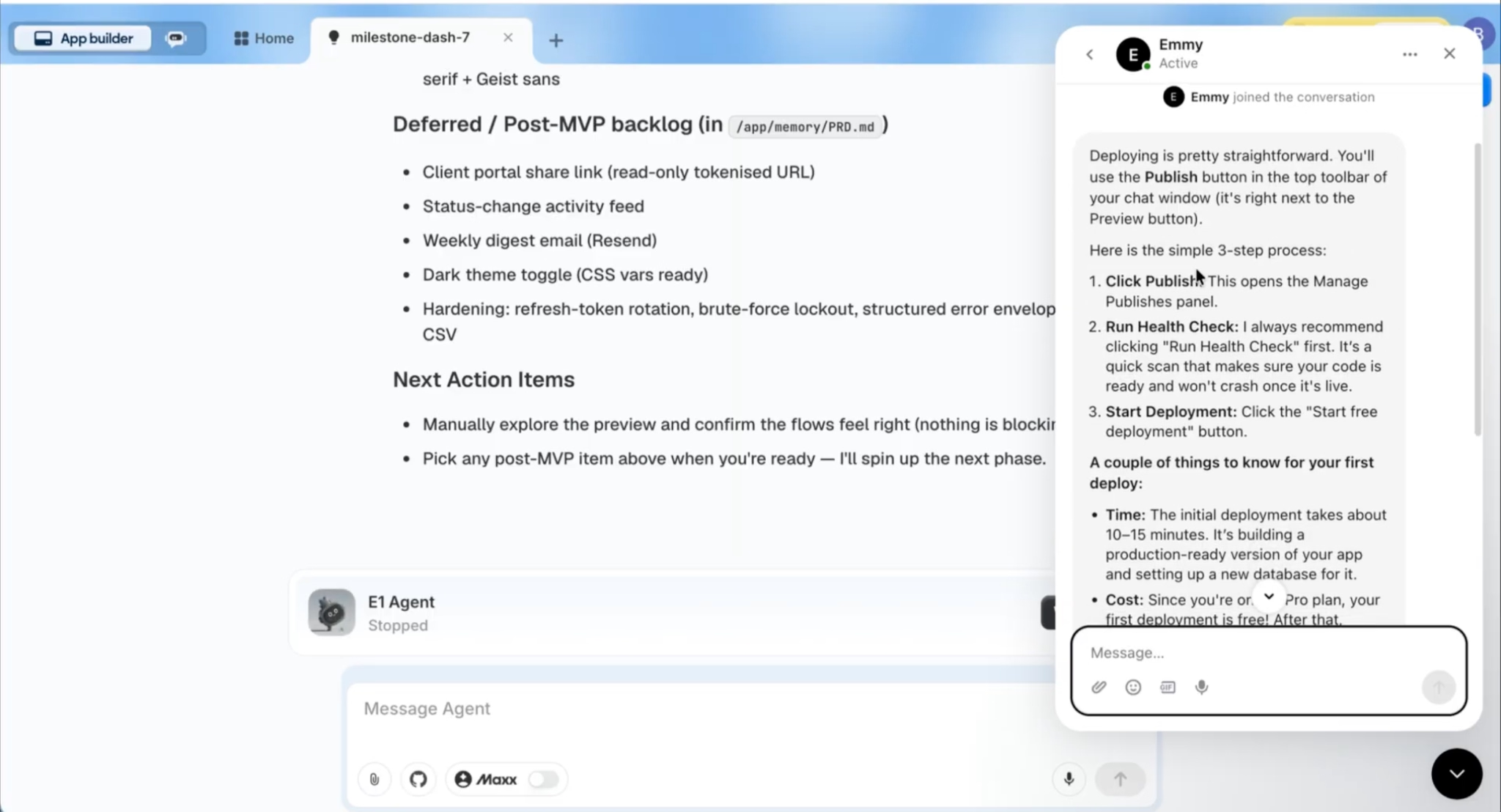
She answers with three steps:
- Click Publish in the top toolbar of the chat window, next to Preview
- Run a Health Check first, which scans for anything that would break once the app is live
- Click Start free deployment
She also sets expectations before you commit: the first deployment takes roughly ten to fifteen minutes, it builds a production version with a fresh database, and you get a shareable production URL at the end. On Pro, the first deployment is free, and keeping the app live costs 50 credits a month after that.
Step 12: Publish the app
Click Publish and the pipeline runs through its stages: environment, build, database migration, secrets, publish, and a final health check.
While it runs, Emmy comes back on her own with two notes: you can link a custom domain from the Domain tab for a branded URL, and preview secrets do not carry across to production automatically.
When it finishes, the app is live on a stable production URL that stays up until you take it down.
How Emmy helped at every stage
Emmy did not build the tracker. The agent did that. What she did was clear the points where a first build usually stalls, and there was one at almost every stage.
Turning a vague idea into something buildable
The starting sentence was a want, not a spec. Emmy asked the one question that changed the shape of the app, whether clients needed their own logins, then proposed a version one with three parts and named what to leave for later. Agreeing that upfront is what stops you building the wrong thing and finding out halfway through.
Writing a prompt worth sending
Instead of asking us to be clearer, she wrote the prompt herself. She also explained why it was written the way it was, focused on how the app would be used rather than on the tech stack, and added a recommendation on what to get working first.
Choosing between the agents
E-1, E-2 and E-3 mean very little on a first build, and nothing on screen tells you which one suits your project. She compared all three in plain terms and recommended one for this specific job.
Reading the screen when it did not make sense
The progress panel said E-1 while the build was running on E-3. Rather than trying to describe it, we sent her a screenshot, and she explained the sub-agent behaviour in a single message. No ticket, no waiting, no leaving the build.
Answering on cost without stopping the build
A question about credits mid-run got a direct answer: the current balance, what a build of this size usually costs, and confirmation there was room to finish, test, and deploy it.
Getting the app live
She laid out the publish process before we committed to it, including how long the first deployment takes and what it costs to keep the app running. While the pipeline was going, she came back on her own with two things worth knowing: custom domains are set from the Domain tab, and preview secrets do not carry across to production automatically.
Recap
In this tutorial, you:
- Opened Emmy from the corner of the Emergent home page
- Described an app idea in one rough sentence
- Agreed a version one scope with Emmy before spending anything
- Had Emmy draft a build-ready prompt
- Asked Emmy which agent suited the build, and selected E-3 on her recommendation
- Answered the build agent's scoping questions
- Shared a screenshot with Emmy mid-build to clear up a confusing screen
- Checked credit usage without interrupting the build
- Previewed and explored a working client project tracker
- Published the app to a live production URL with Emmy walking through the steps
The agent built the app. Emmy is what made it clear what to ask for, and what kept the build moving whenever something was unclear.
Emergent turns your idea into a full-stack web or mobile app, no coding required.
 No coding required
- Web & mobile apps
- Deploys instantly