
TL;DR
- Framer starts at $0/month, with paid plans from $15/month ($10/month billed annually).
- Basic is best for simple personal or small business sites that need a custom domain but don't need staging, branching, or a larger CMS.
- Pro is the best Framer plan for most business websites because it adds redirects, staging, branching, more CMS room, and more bandwidth.
- Framer gets more expensive once you add editors, locales, Convert, Advanced Hosting, or extra usage.
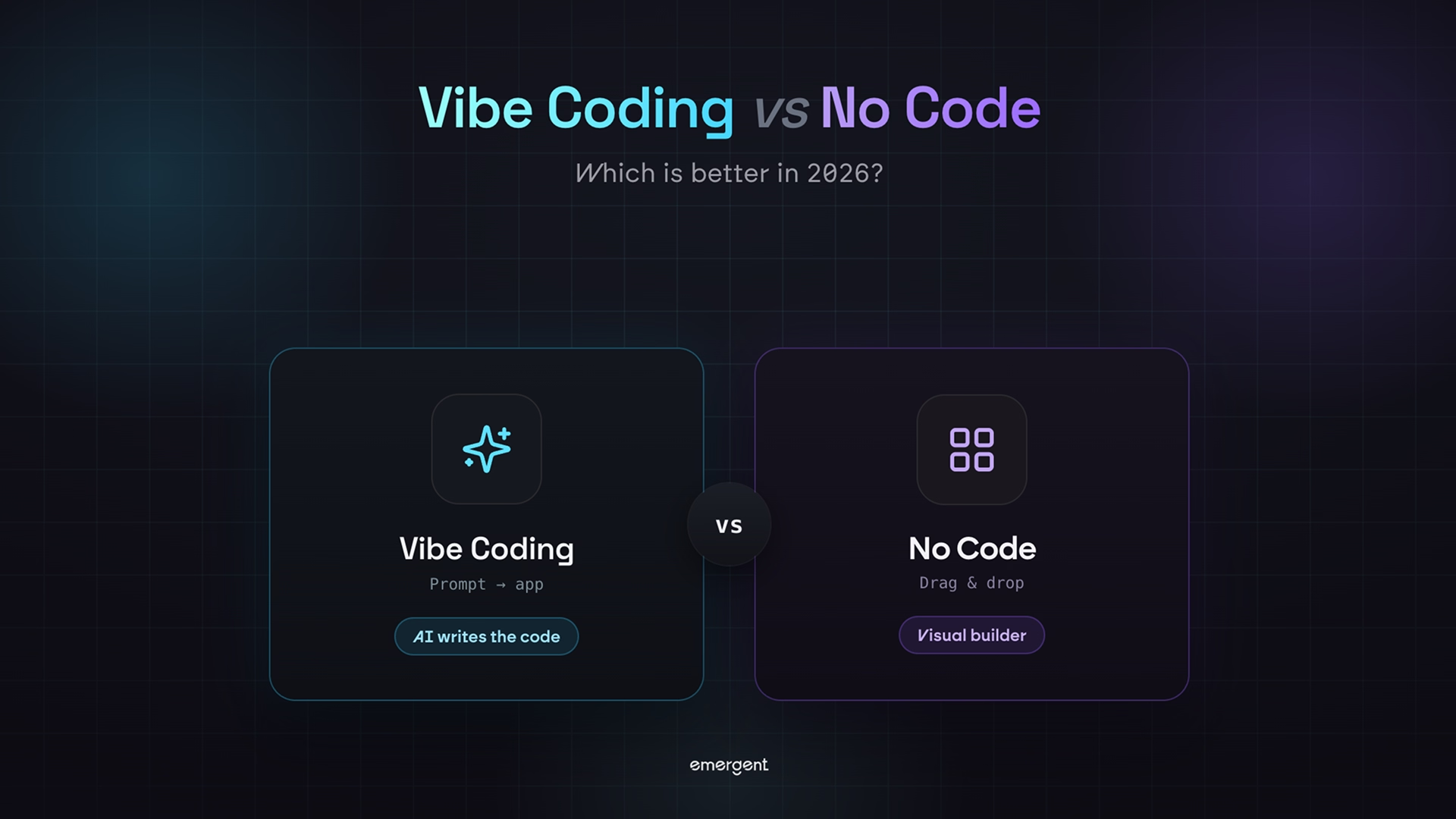
- Choose Framer for polished websites. Choose Emergent when the project needs app behavior, such as dashboards, portals, booking flows, mobile apps, or connected data.
Framer looks simple until you price the site the way your team will actually use it. I dug into the current plans, add-ons, and usage limits to show where the base price holds, where costs creep up, and where Framer stops being the right tool.
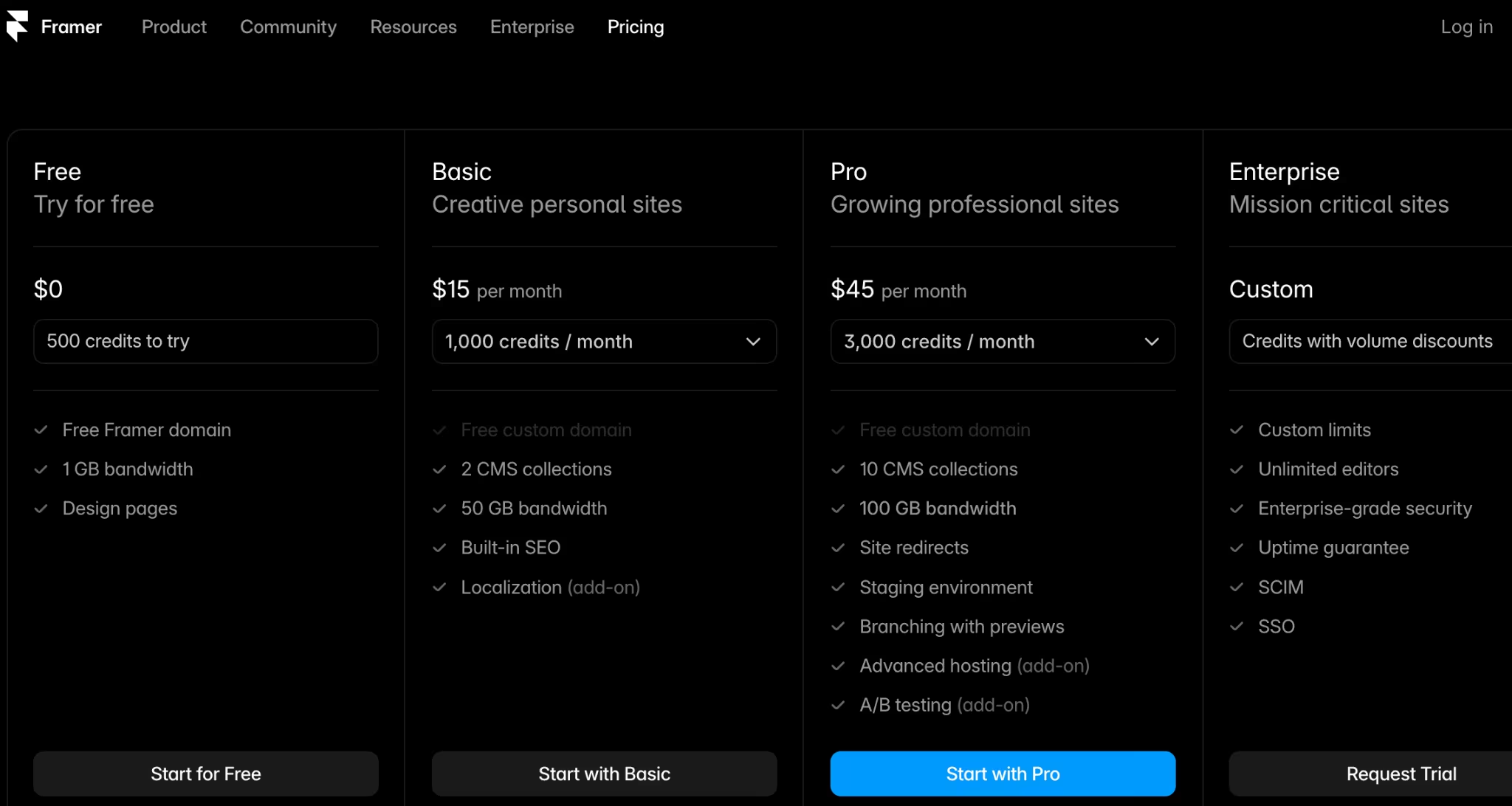
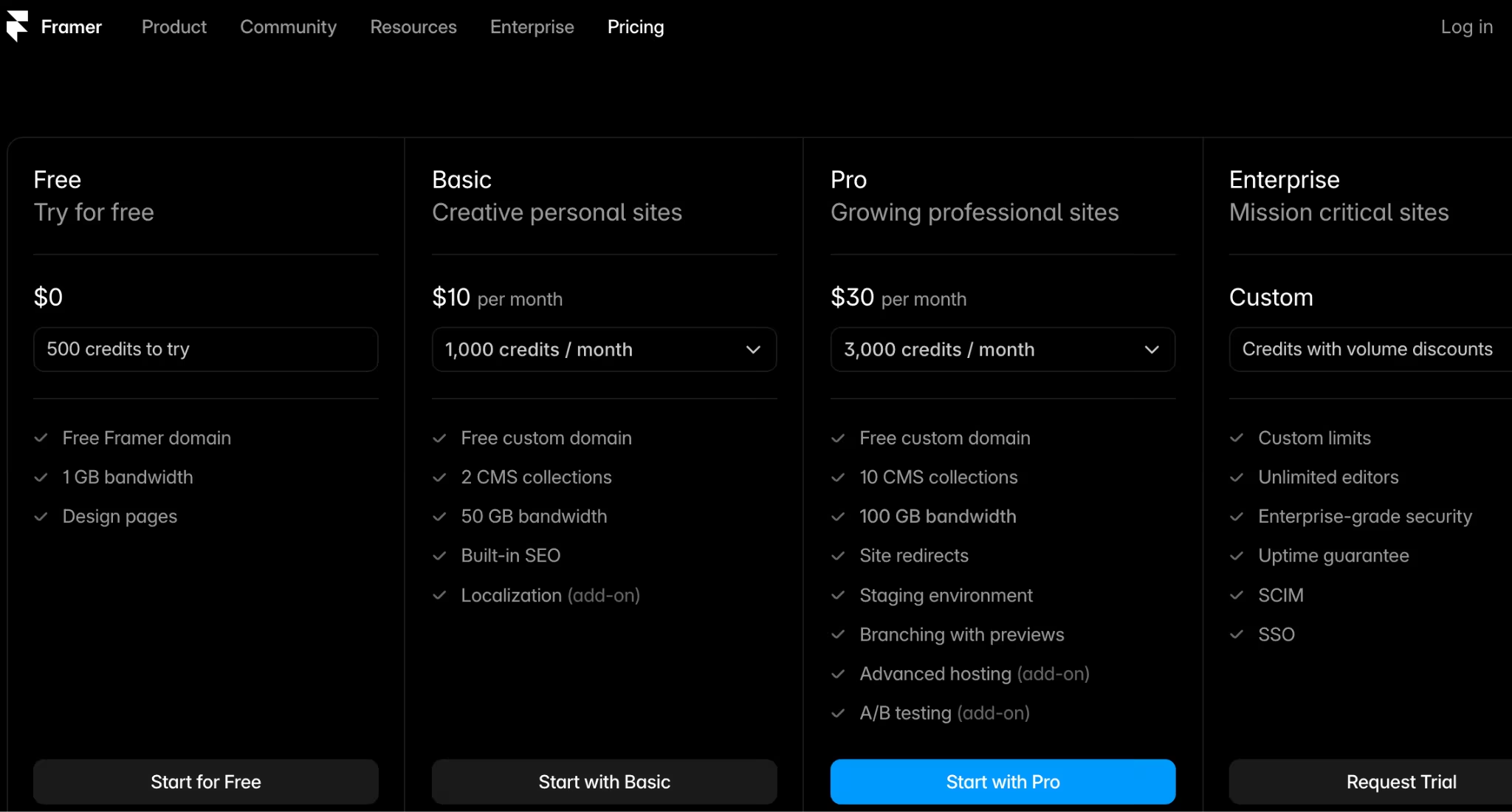
Framer Pricing Plans at a Glance
| Plan | Price | Best For |
|---|---|---|
| Free | $0/month | Testing Framer |
| Basic | $15/month ($10/month billed annually) | Personal sites |
| Pro | $45/month ($30/month billed annually) | Growing business sites |
| Enterprise | Custom | Large organizations |
Quick plan TL;DR
- Choose Basic if you need a simple custom-domain website.
- Choose Pro if the site supports marketing, sales, hiring, SEO, or content publishing.
- Choose Enterprise only when security, custom limits, dedicated support, or procurement requirements drive the decision.
Framer Pricing Plans Breakdown
Free: $0/month
Framer has a free plan that includes a free Framer domain, 1 GB bandwidth, design pages, and 500 credits to try Framer’s AI features.
What’s included: You can build and publish on a Framer domain, test the editor, try design pages, and explore CMS and AI features before paying.
Best for: Free is best for hobby projects, design exploration, prototypes, and learning Framer.
Pros:
- No cost: You can try Framer without committing to a paid site plan.
- AI credits included: 500 credits are enough to evaluate Framer’s AI features.
- Fast design sandbox: You can test layout ideas before paying for a domain-connected site.
Cons:
- No custom domain: You need a paid plan to connect your own domain.
- Not ideal for business: A public Framer domain and free-plan branding don’t fit most serious company sites.
My take: Start on Free only while you’re learning or sketching. Upgrade once your site has a real business goal, a public audience, or a custom domain attached.
Basic: $15/month ($10/month billed annually)
Framer Basic costs $15/month ($10/month billed annually). It includes a custom domain, 2 CMS collections, 50 GB bandwidth, built-in SEO, 30 site pages, 1,000 CMS items, 30 days of analytics history, and up to 10 seats with paid editor roles. Its AI credit allowance is adjustable: you can scale Basic from 1,000 to 15,000 credits per month, and the price rises with each step, so the starting rate covers the smallest credit bundle.
What’s included: Basic gives you the pieces a simple public website needs: custom domain support, CMS collections, hosting, SEO settings, and enough bandwidth for a small site.
Best for: Basic is best for portfolios, freelancer sites, personal brands, small studios, and simple service-business websites.
Pros:
- Lowest serious paid plan: Basic is the cheapest Framer plan for publishing on your own domain.
- Enough CMS for simple sites: Two collections work for a blog plus one content type, such as case studies.
- Good bandwidth for smaller sites: 50 GB monthly bandwidth is enough for many personal and small business sites.
Cons:
- CMS gets tight quickly: Two collections won’t work well for larger content systems.
- No staging or branching: You don’t get the safer publishing workflow that Pro unlocks.
- Add-ons still cost extra: Localization and editor seats can push the total higher.
My take: Use Basic as your Framer plan for a simple website that needs to look polished but doesn’t need a serious publishing workflow. If the site has multiple team members, regular campaigns, or more than two CMS collections, go straight to Pro.
Pro: $45/month ($30/month billed annually)
Framer Pro costs $45/month ($30/month billed annually). It includes a custom domain, 10 CMS collections, 100 GB bandwidth, site redirects, staging, branching with previews, 150 pages, 2,500 CMS items, 90 days of analytics history, and a larger monthly AI credit allowance than Basic.
What’s included: Pro adds the controls business websites need: redirects, staging, branching, more pages, more CMS room, more analytics history, and more bandwidth.
Best for: Pro is best for startups, agencies, scaleups, SaaS marketing sites, resource hubs, and teams running their marketing stack on Framer.
Pros:
- Better publishing safety: Staging and branching help you review changes before pushing them live.
- More CMS room: Ten collections support richer content structures.
- SEO migration support: Redirects help preserve traffic when pages move or URLs change.
Cons:
- Not the cheapest website path: WordPress.com and simpler hosted builders can cost less.
- Add-ons matter: Localization, Convert, extra bandwidth, extra CMS items, and extra pages can raise the real cost.
- Still website-first: Pro handles marketing sites well, but app-style workflows are a different job.
My take: Pro is the best Framer plan for most business websites. If the site helps you win leads, sell services, attract talent, support sales, or publish content, Pro is the safer plan.
Enterprise: Custom
Framer Enterprise uses custom pricing. It adds custom limits, credits with volume discounts, unlimited editors, enterprise-grade security, uptime guarantees, System for Cross-domain Identity Management (SCIM), single sign-on (SSO), custom billing, and dedicated support.
What’s included: Enterprise gives larger organizations more control over limits, security, support, billing, and governance.
Best for: Enterprise is best for larger companies, regulated teams, multi-site organizations, and teams that need IT-approved access controls.
Pros:
- Custom limits: You can negotiate around standard plan ceilings.
- Enterprise access control: SSO and SCIM help IT manage users.
- Dedicated support: Larger teams get a more direct support path.
Cons:
- No public price: You need to contact sales.
- Too much for small teams: Most freelancers, founders, and agencies should stay on Basic or Pro.
My take: Enterprise makes sense when Framer is part of a company-wide website system. It’s overkill for a single marketing site unless procurement, security, or user management requires it.
What Framer Really Costs After Add-Ons
Framer’s real cost covers the plan price plus editors, content editors, localization, Convert, Advanced Hosting, and usage expansion. The base plan is simple, but a live business site often needs at least one or two paid extras.
Cost drivers to budget for:
| Cost Driver | Price | When It Matters |
|---|---|---|
| Additional editors | $20/editor/month | Designers and publishers |
| Content editors | $10/editor/month | Content teams |
| Translation locales | $20/locale | Multilingual sites |
| Convert | $50 per 500,000 events | Testing and funnels |
| Extra Pro pages | $20 per 100 pages | Large sites |
| Extra Pro CMS collections | $40 per 10 collections | Content systems |
| Extra Pro CMS items | $20 per 10,000 items | Large blogs |
| Extra Pro bandwidth | $40 per 100 GB | Traffic growth |
| Advanced Hosting | $200 | Custom headers and multiple sites |
A Pro site with one extra editor and two locales is no longer a $45/month ($30/month billed annually) site. It becomes a $105/month setup on monthly billing before Convert, extra usage, or Advanced Hosting.
Added editors and usage on annual plans can still be billed monthly, so a yearly site plan doesn’t freeze every future charge.
Which Framer Plan Should You Choose?
Choose Free if you:
- Want to learn Framer.
- Need a prototype or design sandbox.
- Don’t need a custom domain.
- Aren’t publishing a serious business site yet.
Choose Basic if you:
- Need a custom-domain site at the lowest Framer price.
- Have a simple portfolio, personal site, or small business website.
- Can stay within 30 pages, 2 CMS collections, and 50 GB bandwidth.
- Don’t need staging, branching, or redirects.
Choose Pro if you:
- Run a business website that supports revenue.
- Need redirects, staging, and branching.
- Publish across several CMS collections.
- Need more pages, bandwidth, credits, and analytics history.
- Have multiple people editing or publishing the site.
Choose Enterprise if you:
- Need SSO, SCIM, custom limits, or dedicated support.
- Have procurement, security, or governance requirements.
- Run a large site with multiple teams involved.
- Need custom billing or uptime guarantees.
Best plan for most business sites: Pro. Basic saves money upfront, but Pro gives you the publishing controls and CMS headroom that a real company site usually needs.
Is Framer Worth the Cost?
Framer is worth the cost if your main goal is a polished, design-led website. It’s a weaker fit if what you’re calling a website is really an internal tool, a customer portal, or a marketplace.
Framer is worth it if you:
- Need a polished marketing site: Framer’s design workflow fits launch pages, portfolios, startup sites, and brand-heavy pages.
- Want hosting included: Framer includes hosting and bandwidth inside its site plans.
- Care about visual control: Designers can move fast without rebuilding the site in a separate development tool.
- Publish content regularly: Pro gives you the CMS room and publishing controls a growing marketing site needs.
Skip Framer if you:
- Need app logic: Logins, payments, and private data usually need an app-building platform or engineering help.
- Need the lowest-cost website: WordPress.com starts lower for basic hosted sites.
- Have a large editing team: Editor and content editor charges add up.
- Need heavy backend workflows: Framer is built for websites, so anything that behaves like software will hit a wall here.
I’d choose Framer when the public website is the main product surface.
Framer Alternatives and Pricing Comparison
Framer’s closest alternatives depend on what you’re building. Webflow competes on serious website building, WordPress.com competes on hosted content sites, and Emergent competes when your site idea turns into a working app.
How Framer compares on price:
| Tool | Free Plan | Starter Paid Plan | Best For |
|---|---|---|---|
| Framer | Yes | $15/month ($10/month billed annually) | Design-led websites |
| Emergent | Yes | $20/month ($17/month billed annually) | Web and mobile apps |
| Webflow | Yes | $25/month ($15/month billed annually) | CMS and design control |
| WordPress.com | Yes | $9/month ($4/month billed annually) | Blogs and content sites |
Webflow is the closest Framer alternative if you want a visual website builder with deeper CMS and design-system controls. It fits teams that need more structure than Framer while staying in a designer-led workflow.
WordPress.com is the cheaper content-first option. It fits blogs, resource libraries, and small business sites where publishing, plugins, and lower monthly cost matter more than Framer-style visual control.
Emergent belongs in the comparison once the thing you’re building is something people log into and use, not just read.
Here’s my recommendation:
- Choose Framer for the best mix of visual design speed and polished website publishing.
- Choose Emergent if the project has moved past a website and now needs real app behavior.
- Choose Webflow if you need a deeper website platform with more CMS and team controls.
- Choose WordPress.com if content publishing and low cost matter more than visual design control.
Ready to build your website faster? Try our AI website builder to get started without writing a line of code.
Framer vs Emergent: Which Should You Choose?
Framer is better for design-heavy websites. Emergent is better when you need to build a working web or mobile app through prompts, especially if the project needs screens, app logic, integrations, hosting, and launch support.
Emergent has a Free plan with 10 monthly credits. Standard costs $20/month ($17/month billed annually) and includes 100 credits per month, web and mobile app building, private project hosting, GitHub integration, and fork tasks.
Pro costs $200/month ($167/month billed annually) and includes 750 monthly credits, a 1M context window, system prompt editing, custom AI agents, high-performance computing, and priority support.
Choose Framer for:
- Marketing websites
- Landing pages
- Portfolios
- Startup homepages
- Content sites
- Design-heavy brand pages
Choose Emergent for:
- Client portals
- Internal tools
- Dashboards
- Booking systems
- Mobile apps
- SaaS products
- Workflow tools
- Apps with connected data
Use both if: You want Framer for the polished public website and Emergent for the app side of the business. A Bay Area consultant, for example, could run the public site on Framer and build a client reporting portal in Emergent.
Ready to turn your idea into a working product? Try our small business app builder without needing a developer.
Framer Pricing Red Flags to Watch Before You Upgrade
Framer raised its prices recently, which is why so many people now ask why Framer is so expensive. Most of that frustration starts after the plan price, once extra seats, locales, and usage get added to the bill.
Before you upgrade, check the costs that match how your team will actually use the site.
What to check before paying:
- Editors: Count everyone who needs to design, edit content, or publish.
- Content editors: Non-design editors still cost $10/editor/month.
- CMS collections: Basic gives you 2. Pro gives you 10.
- CMS items: Basic gives you 1,000. Pro gives you 2,500.
- Pages: Basic gives you 30. Pro gives you 150.
- Bandwidth: Basic gives you 50 GB. Pro gives you 100 GB.
- Localization: Each locale costs $20.
- Convert: Testing and funnels cost $50 per 500,000 events.
- Advanced Hosting: Custom header and multi-site setups can add $200.
If you only need a homepage, pricing stays simple. If you need a blog, landing pages, resources, editors, translated pages, redirects, and testing, Framer becomes a real marketing-platform cost.
My Bottom Line on Framer Pricing
Framer pricing is fair for polished websites, especially when one designer or a small team owns the site. Free is for testing, Basic is for simple custom-domain sites, Pro is the best fit for real business websites, and Enterprise is for large teams with security, billing, and support needs.
Framer is the better call when you need a polished public website. But once you need customer logins, dashboards, booking flows, or connected data, you’ve crossed from a website into working software.
Build the App Behind Your Website in Emergent
Don’t force Framer into jobs it wasn’t built to do. Use Framer for the public website, then try building the app behind it in Emergent before you spend thousands on custom development.
That setup works best when there’s a real product sitting behind the polished front page.
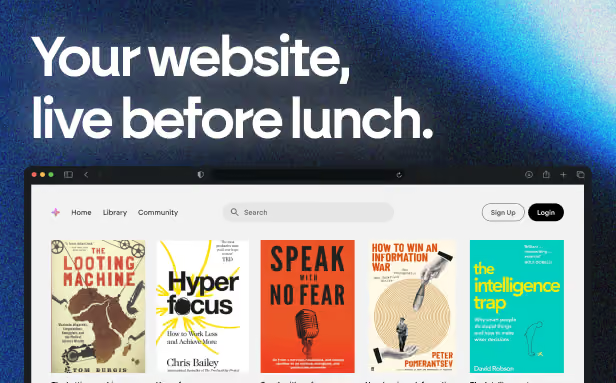
Emergent designs, writes, and publishes your whole site from one prompt. No templates, no drag-and-drop.
- Full site from one prompt
- Custom design, real pages
- Publish in minutes