TL;DR
- Joist: Best for generating estimates and invoices quickly.
- Virtual Staging AI: Best for generating furnished room images from empty-room photos.
- ChatGPT: Best for drafting proposals, contracts, and client emails.
- Jobber: Best for an AI receptionist that answers calls and books jobs.
- Gemini Notebook (formerly NotebookLM): Best for asking direct questions about a contract or spec document.
- monday.com: Best for tracking multiple jobs and schedules in one dashboard.
- OnTraq: Best for tracking real job costs and profit against your budget.
- Emergent: Best for building a custom internal tool that none of the above cover.
My dad spent more than 30 years as a civil engineer working on construction projects, and one thing he told me often was that he didn't always lose work because his pricing or proposal was worse. Sometimes, a competitor simply got their proposal into the client's inbox first.
He retired seven years ago, but I often think about how much easier and faster his work would have been if tools like these had existed.
As a writer who reviews AI tools that make work easier, I spent the last few weeks testing AI tools for contractor jobs, from writing estimates and visualizing renovations to managing projects and tracking job costs.
Every tool on this list has either a free plan or a genuine self-serve trial, and I limited my testing to what you can realistically accomplish without paying.
By the end, you'll know which AI tool is worth using for your next estimate, site visit, project, or custom workflow.
How I Researched & Tested These AI Tools for Contractors
I evaluated each tool on five criteria based on how they make contractors’ day-to-day work easier in the real world, not just in a polished demo.
- Features: Does the AI solve a real problem that spreadsheets, templates, or phone calls can't?
- Usability: Can a first-time user get meaningful results in a single session without a steep learning curve?
- Free Tier: Does the free plan or trial let you complete real work, or is it just a locked preview?
- Integrations: Does it connect with tools contractors already use, such as QuickBooks?
- Real User Feedback: I compared my experience against verified reviews on G2, Capterra, and Trustpilot, paying close attention to recurring complaints as well as praise.
I also excluded tools that required a sales call or enterprise demo before I could try them, including AI takeoff tools like Togal. If I couldn't test it myself, it didn't make this list.
Quick Comparison
How the eight tools compare at a glance:
| Tool | Free Plan? | Best For | Starting Price |
|---|---|---|---|
| Joist | 14-day trial | Fast estimates & invoicing | $10/month ($8.34/month annually) |
| Virtual Staging AI | Free render | Client-facing renovation visuals | From $25/month ($16 per month annually) |
| ChatGPT | Yes | Proposals & client writing | Free |
| Jobber | 14-day trial | AI call answering for missed leads | $32/month ($24/month annual) |
| Gemini Notebook | Yes | Contract & spec Q&A | Free |
| monday.com | Yes (2 seats) | Multi-job scheduling | $12/seat/month ($9/seat/month annual) |
| OnTraq | 14-day trial | Real-time job cost tracking | $29/month |
| Emergent | Yes (10 credits) | Custom internal tools | $20/month ($17 per month annually) |
What AI Still Can't Do for Contractors Yet
None of these tools price a job for you. Joist's AI rewrites the description you type into a line item, but you still enter the rate and the item name yourself.
Staging tools assume simple rooms. Odd angles, low ceilings, and cluttered spaces trip up Virtual Staging AI, the one staging tool on this list.
A contract clause that protects your business still needs a human, ideally a lawyer, reading it before it goes out. ChatGPT and Gemini Notebook draft and summarize well, but that's not the same thing.
And none of these fully control their own scope. Ask Emergent for a simple table, and you may get a full dashboard. Ask monday's AI assistant about a dependency you set up by hand, and it may tell you nothing's linked, even when something already is.
So check each tool's work the first few times, the same way you'd check a new hire before handing them a job unsupervised. Once you know where a tool tends to guess wrong, you'll know exactly what to double-check and what to trust.
Winning the Job
These tools help you turn an inquiry into a signed contract, from creating estimates and visualizing the finished project to sending a professional proposal
1. Joist
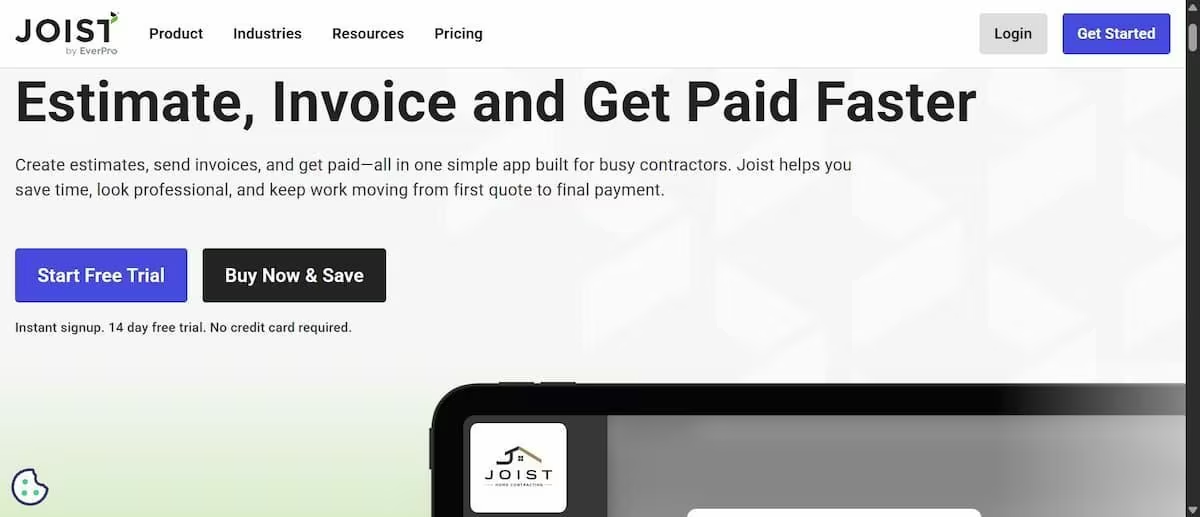
What it does: Joist turns a site visit into a sent estimate or invoice from your phone, with an AI Rewriter that cleans up rough field notes into client-ready line items.
Best for: Solo contractors and small crews who want one app for estimates, invoices, and getting paid.
Joist dropped its free-forever plan this year, but the 14-day trial still opens every Elite feature with no card required, which is enough runway to actually test this.
If you struggle to write invoices that sound as professional as the quality of your work, Joist's AI Rewriter is worth using.
I tested it while creating an invoice. Normally, the item description is one section I'd be tempted to leave brief or skip altogether. But a detailed description makes your invoice look more professional and gives the client a clearer understanding of exactly what they're paying for, which can help build trust.
To test it, I entered a rough description:
"Kitchen sink base cabinet swap, haul old one, new faucet, half day, materials on us."
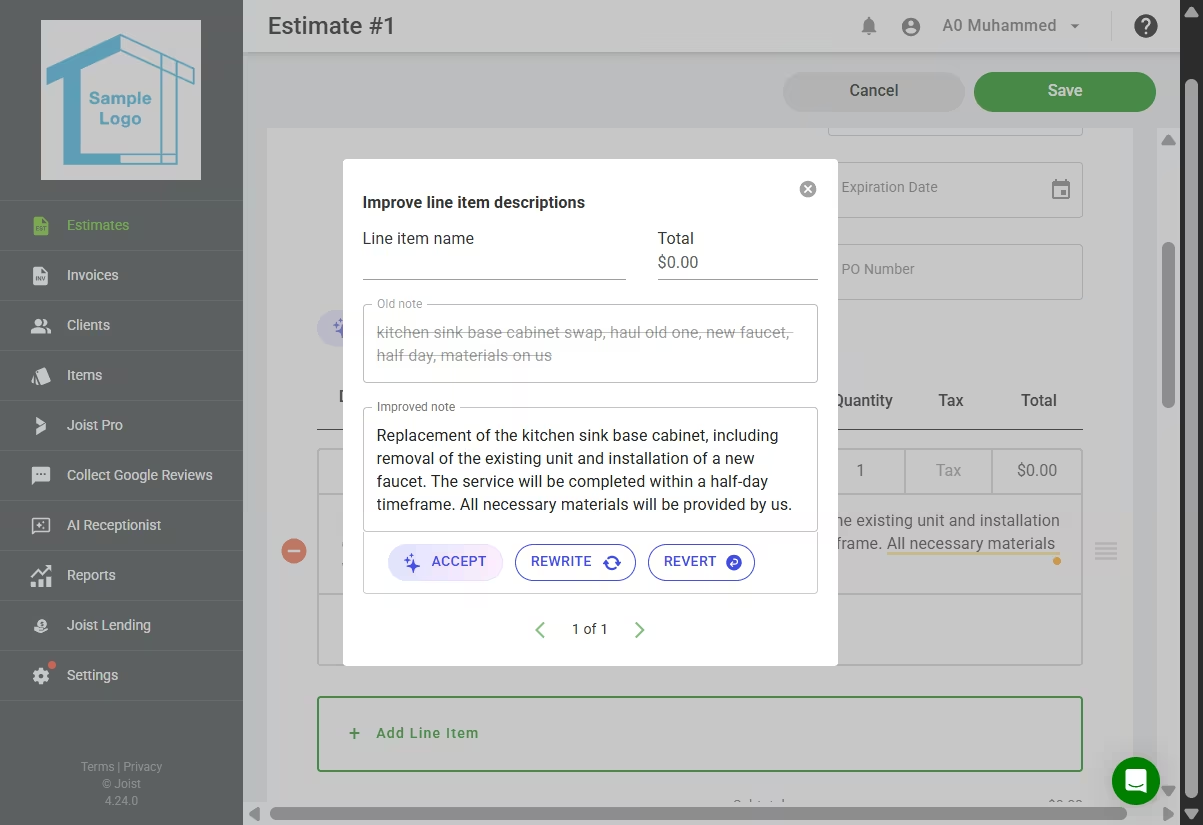
With a single click, the AI expanded those notes into a polished, client-friendly description. The result was fairly generic, but that's expected. The more detail you provide upfront, the better the AI can rewrite it into something clear, readable, and professional instead of simply filling in the gaps.
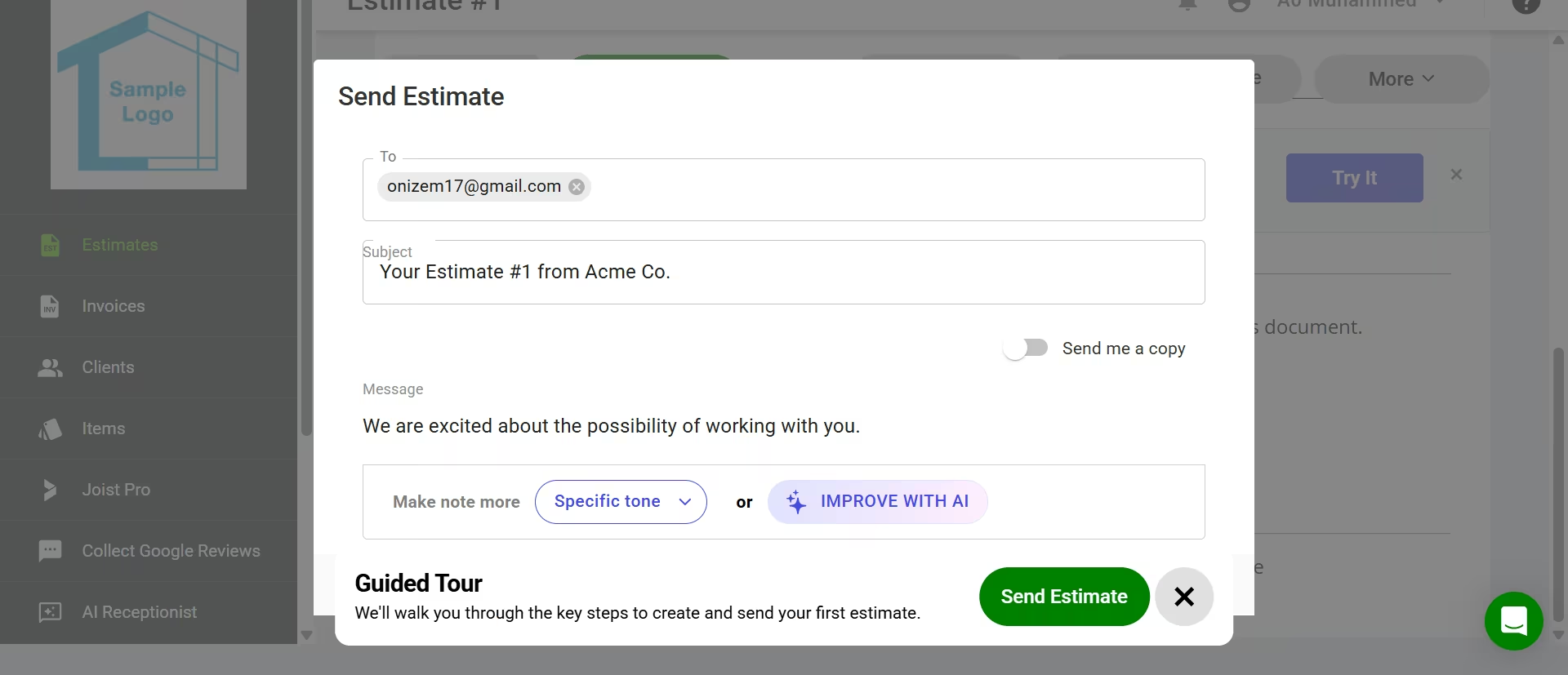
The AI also helped when it was time to send the estimate. I wrote a quick, rough message to the client, then used the rewriter to improve it. It cleaned up the wording and adjusted the tone based on who I was sending it to, whether that was a friendly, conversational message for a homeowner or a more formal one for a property manager.
Key Features
- AI Rewriter: Turns rough line-item notes and client messages into clear, professional descriptions and emails.
- Estimate-to-invoice workflow: Convert an approved estimate into an invoice with a single click, keeping the job and payment history together.
- Change orders: Create and send change orders without rebuilding the original estimate, helping you document scope changes.
- QuickBooks Sync: Automatically sync estimates and invoices with QuickBooks Online to reduce duplicate bookkeeping.
Pros
- AI Rewriter helps produce more professional item descriptions and client messages with minimal effort.
- Built specifically for contractors, with estimates, invoices, deposits, contracts, and online payments in one workflow.
- Easy to learn and highly rated for usability.
Cons
- Advanced features like QuickBooks Sync, expense tracking, and change orders require paid plans.
- Some users report occasional glitches with online payments or invoice delivery.
What Users Say
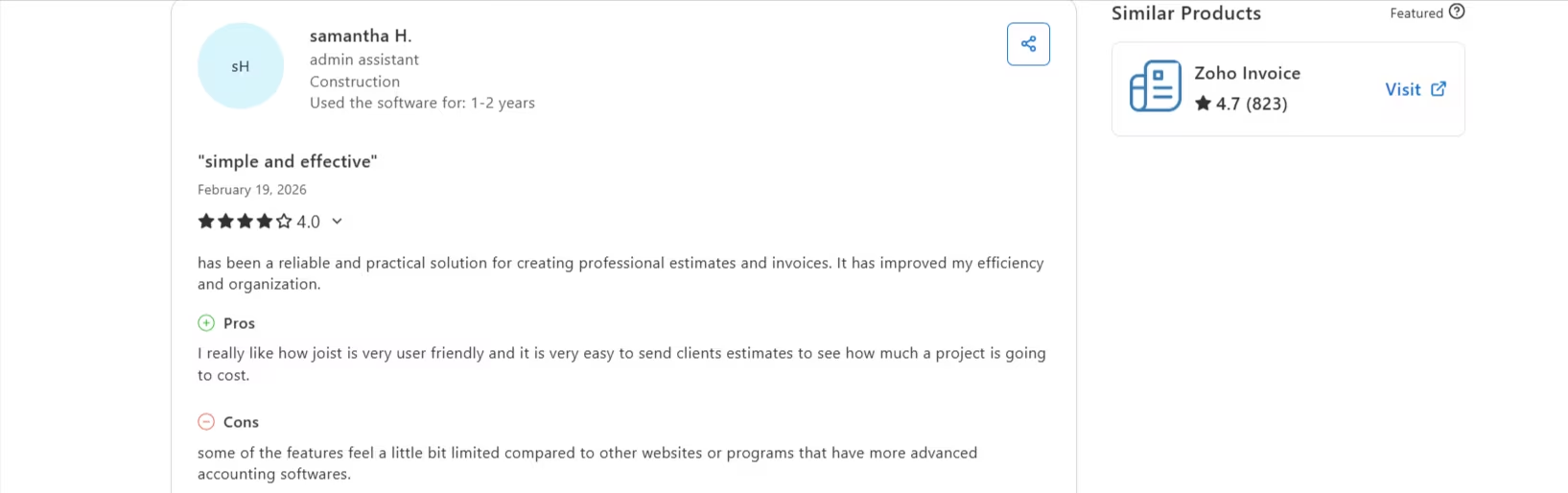
“I really like how joist is very user friendly and it is very easy to send clients estimates to see how much a project is going to cost.” - Samantha H., (Capterra)
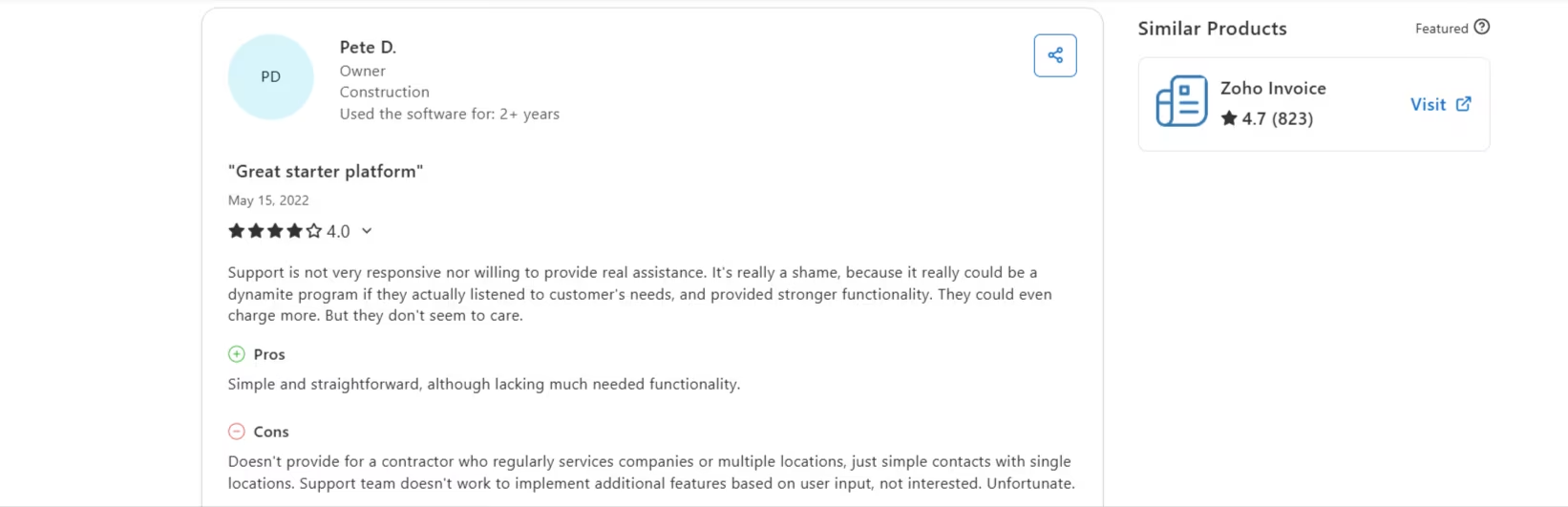
“Doesn't provide for a contractor who regularly services companies or multiple locations, just simple contacts with single locations. The support team doesn't work to implement additional features based on user input, not interested. Unfortunate!” - Pete D., (Capterra)
Pricing
- Basics: $10/month ($8.34/month billed annually)
- Pro: $17/month ($14.17/month billed annually)
- Elite: $32/month ($26.67/month billed annually)
All with a 14-day free trial and no credit card required.
Bottom line: The AI Rewriter is the one feature here I'd actually miss if I went back to typing estimates by hand. The 14-day window is a real runway, not a locked demo, so there's no excuse not to run this exact test yourself before the trial ends.
2. Virtual Staging AI
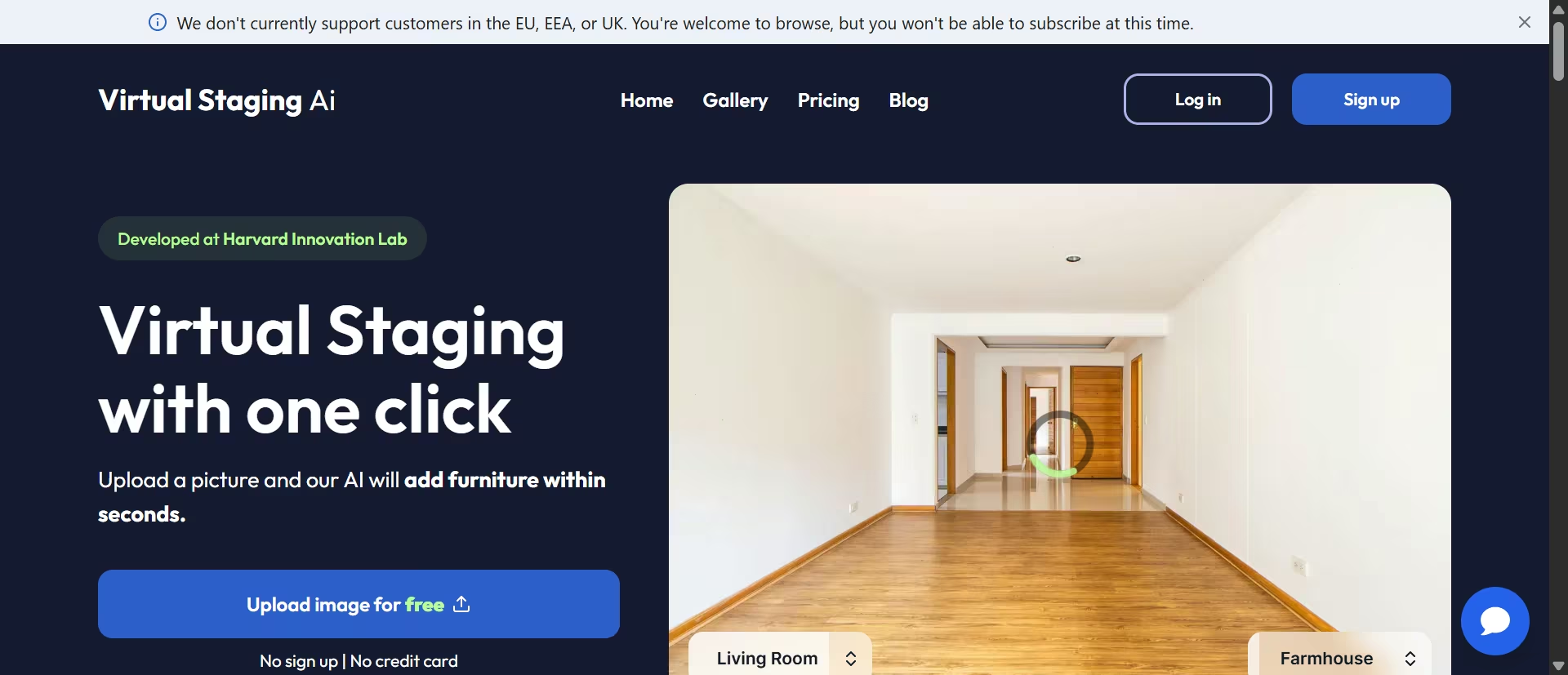
What it does: Upload a photo of an empty or cluttered room, and Virtual Staging AI fills it with realistic furniture in about 10 seconds.
Best for: Contractors who need to show a client what a finished space could look like before work starts.
The free version doesn't require an account or credit card, so I uploaded a photo of an unfinished living room and selected the room type and furniture style.
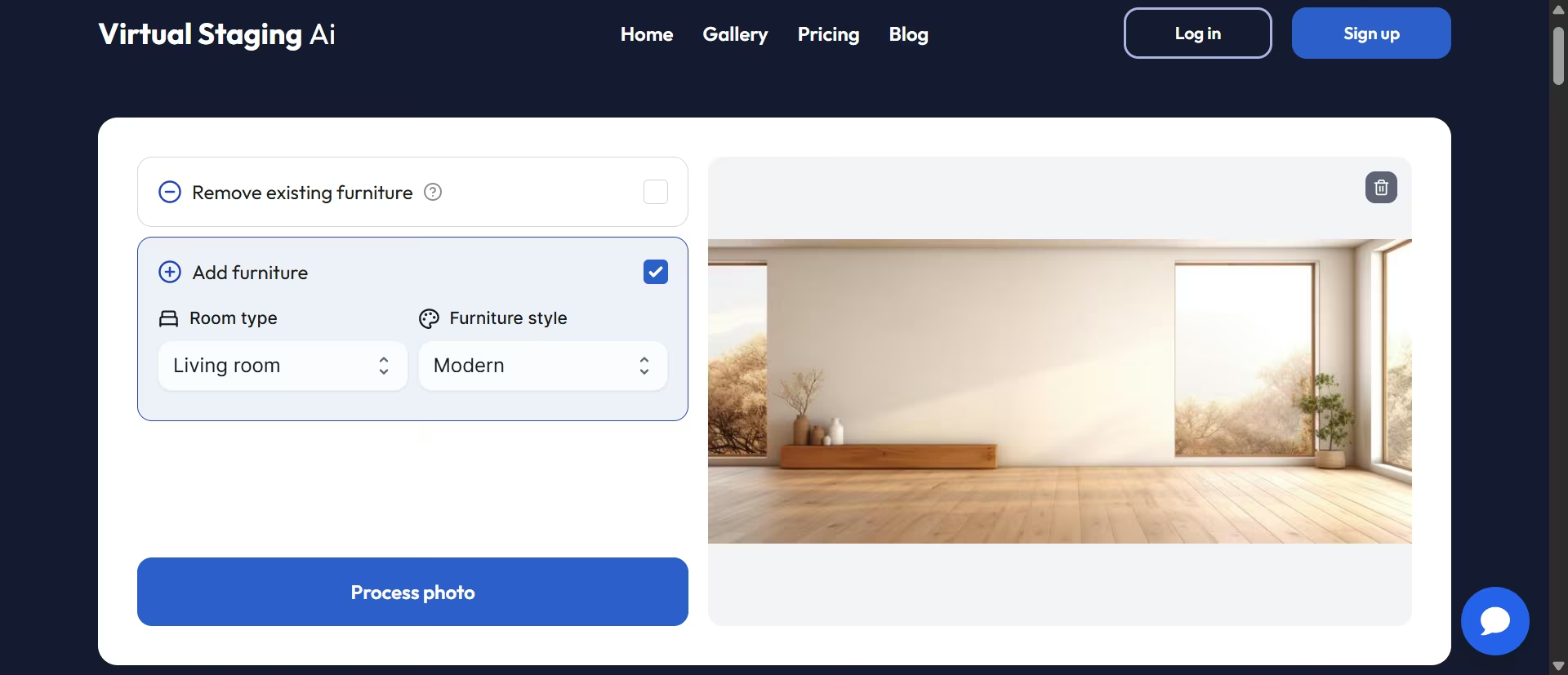
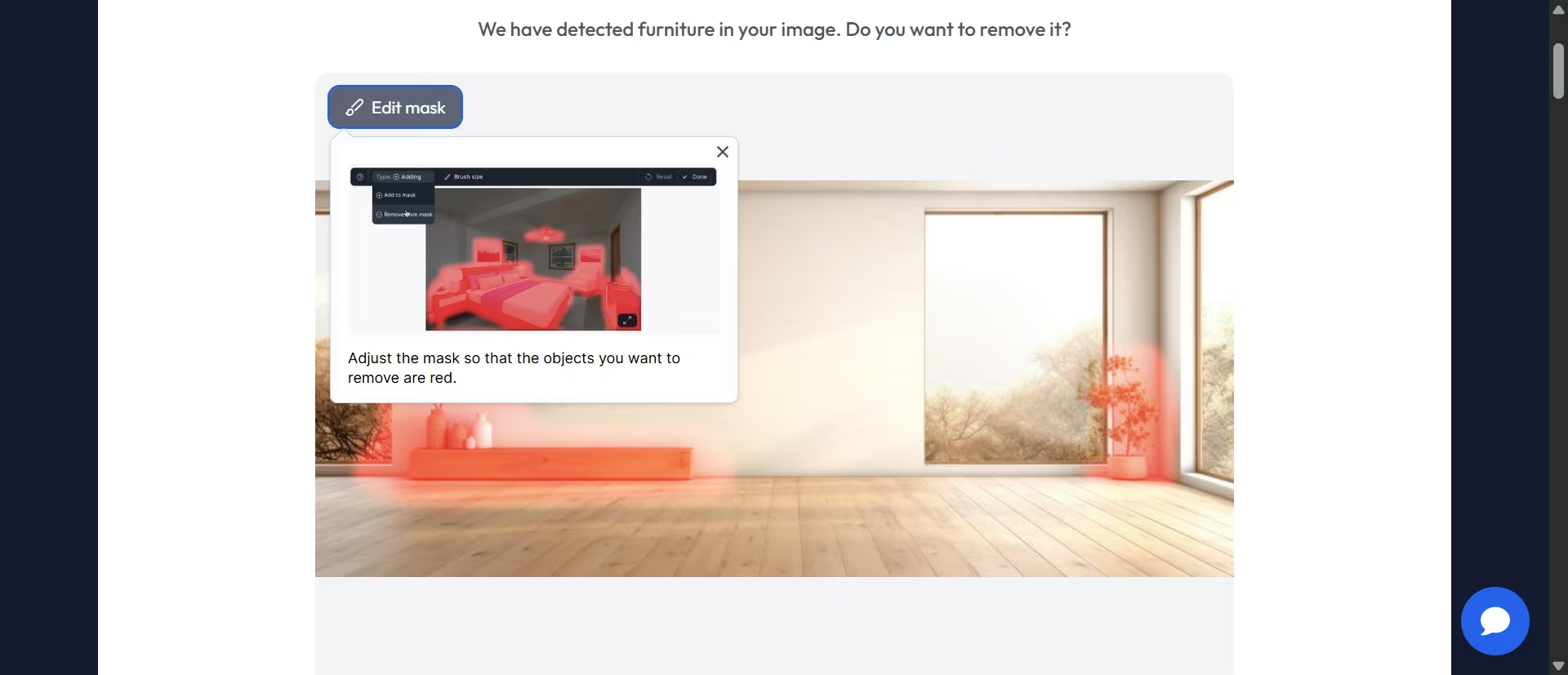
Before generating the image, the tool detected the objects to remove and highlighted them in red. It also let me adjust the selection manually, so I could keep anything I wanted and remove only the furniture that shouldn't be there.
That level of control was a nice touch because AI object removal often gets it wrong.
In under 10 seconds, it generated three staged versions of the room. What impressed me wasn't just the speed, but how naturally the furniture fit the space.
The AI correctly identified the room as a living room and placed furniture that matched the room's proportions, ceiling height, and available floor space instead of dropping in a generic layout.
Virtual Staging AI also lets you regenerate as many variations as you want, so I generated three more layouts to compare.

Next, I tried a more difficult test: a cluttered utility room photographed from an awkward angle, exactly the type of image the company says can produce less accurate results.

The AI removed the clutter remarkably well, leaving almost no obvious artifacts. It did alter the size of one window in two of the three generations, although the third version corrected it. Aside from that inconsistency, all three designs looked realistic and usable.

Overall, the results held up. It was fast, easy to use, and consistently produced convincing images. If you're a contractor who wants clients to picture the finished result before the first tool comes out, this is an easy recommendation.
Key Features
- Automated room detection: Recognizes the room type and generates furniture layouts that fit the room's dimensions instead of using a generic template.
- Clutter removal: Removes existing furniture or debris before staging, with manual controls to fine-tune what gets erased.
- Text-based edits: Lets you change individual elements, such as flooring, cabinets, or fixtures, without regenerating the entire scene.
Pros
- No signup or credit card required to generate real staged images.
- Fast rendering, making it practical for showing clients a renovation concept before work begins.
- Rated 4/5 on Trustpilot from more than 163 reviews.
Cons
- Accuracy can drop with heavily cluttered rooms or photos taken from awkward angles.
- Pay-per-photo pricing can become expensive if you're staging dozens of properties.
What Users Say

“I did not have any problem getting the pictures done but it would have been nice to be able to move the furniture around or tell it somehow to do that or to add items. I also wish there were other room selections like "bonus room" or "playroom" or "media room" - Sandra Leanard, Trustpilot.

“Easy! Very simple and easy interface to virtually stage my listing. Took only 10-15 minutes to get familiar enough to stage the room the way I wanted.” - Suzcoop, Trustpilot.
Pricing
Runs on a subscription with image quotas, starting around $25/month for six images, with higher tiers adding room types, removing the watermark, and raising your rendering limit.
Bottom Line: Virtual Staging AI does exactly what it promises. If you want to show clients a realistic preview of a renovation before work begins, it's well worth trying.
The free version is enough to judge the quality, while the paid plans mainly add more room types, remove the watermark, and increase your rendering limits.
3. ChatGPT (Free Tier)
What it does: ChatGPT drafts proposals, contracts, client emails, and job descriptions from a plain-language prompt.
Best for: Any contractor who needs client-facing writing done fast without hiring a copywriter.
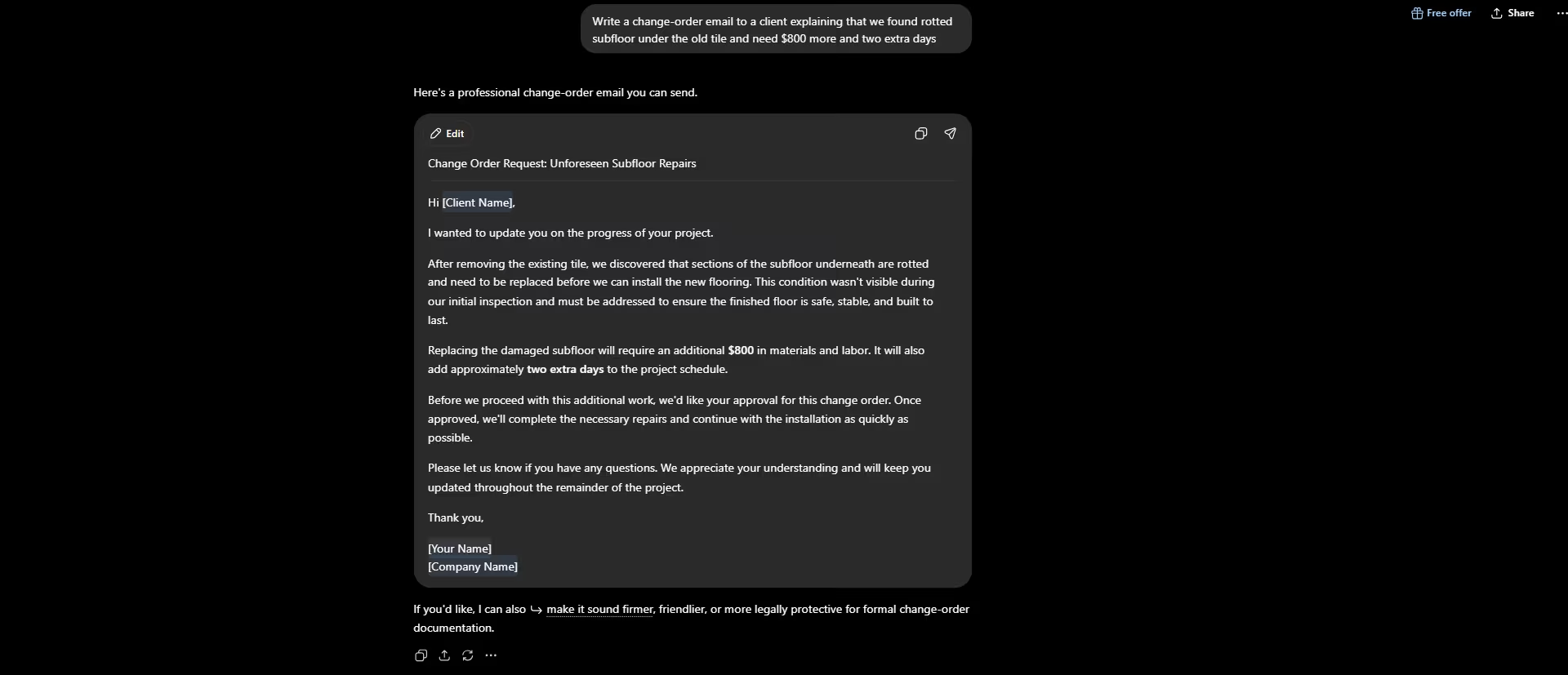
Change orders are where a lot of contractors lose their nerve; nobody likes being the bearer of bad cost news. I wanted to see if ChatGPT could actually carry that tone, so I gave the free tier a real scenario:
"Write a change-order email to a client explaining that we found a rotted subfloor under the old tile and need $800 more and two extra days."
It came back clean and professional, using placeholder brackets like [Client Name] and [Your Name] rather than inventing fake details.
I expected the second test to trip it up. I asked for a scope-of-work paragraph for a deck rebuild, figuring it would confidently invent specifics, a lumber grade, and a code citation that a contractor would have to catch and correct. It didn't.
It stuck to safe, general language like "pressure-treated framing lumber" and deferred to "applicable local building codes" instead of naming one.
It even added a line I hadn't asked for: any hidden conditions found after demolition are outside the original scope and need a written change order.
That's the kind of protective clause a contractor would actually want in there, and it added it on its own.
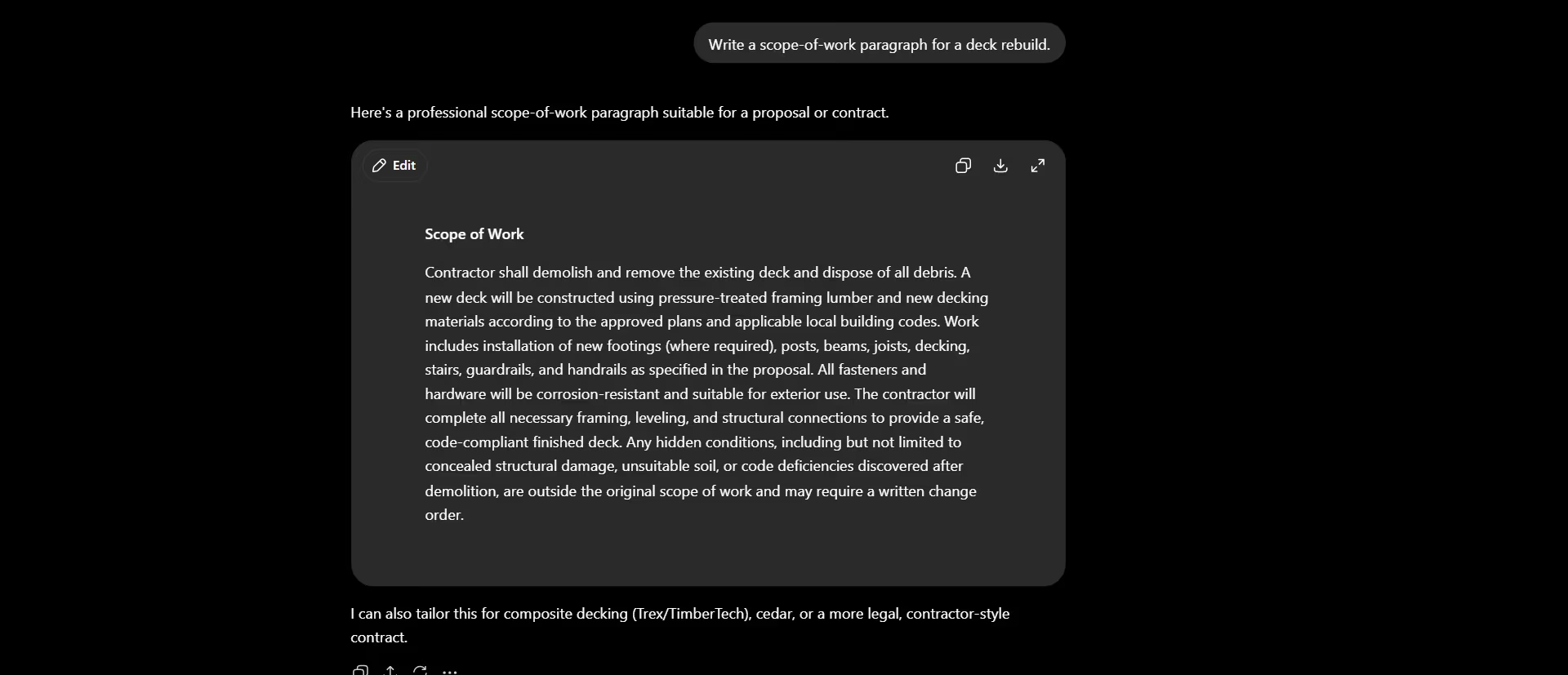
That matters if you're deciding how much to trust the output unsupervised. It won't hand you dangerously specific wrong information; it hedges toward generic language when it doesn't know your codes or your supplier pricing.
But that same caution means you still have to go back and add your own specifics.
Also read our best ChatGPT alternatives guide for what else is worth trying when a general-purpose assistant isn't enough for your workflow.
Key Features
- Instant drafts: Turn a rough scope into a client-ready proposal paragraph in seconds.
- Tone matching: Rewrite the same message as formal, friendly, or firm depending on the client.
- General purpose: Not construction-trained, so it needs your specifics added afterward.
Pros
- Completely free tier with no card required
- Works for nearly any writing task a contracting business generates
- No learning curve for anyone who has typed a message before
Cons
- Not trained on construction codes, local pricing, or your contract language
- General enough that outputs read generic until you add real project details
What Users Say
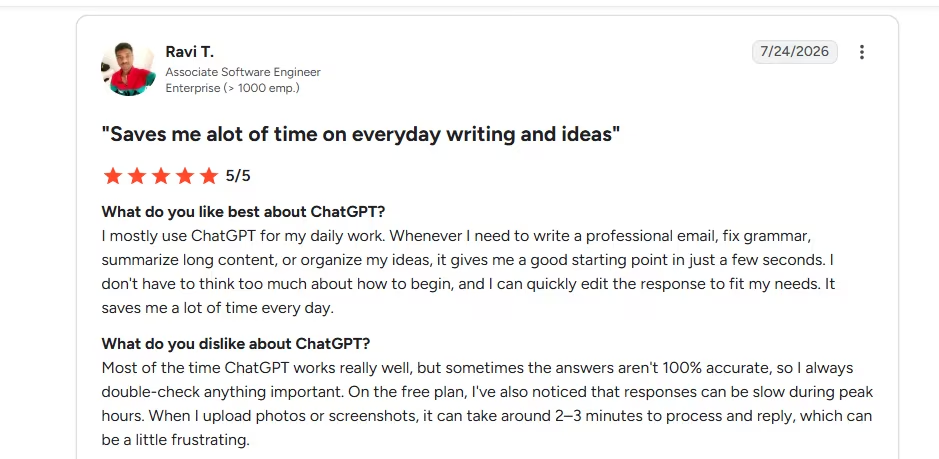
“I mostly use ChatGPT for my daily work. Whenever I need to write a professional email, fix grammar, summarize long content, or organize my ideas, it gives me a good starting point in just a few seconds.” - Ravi T., G2
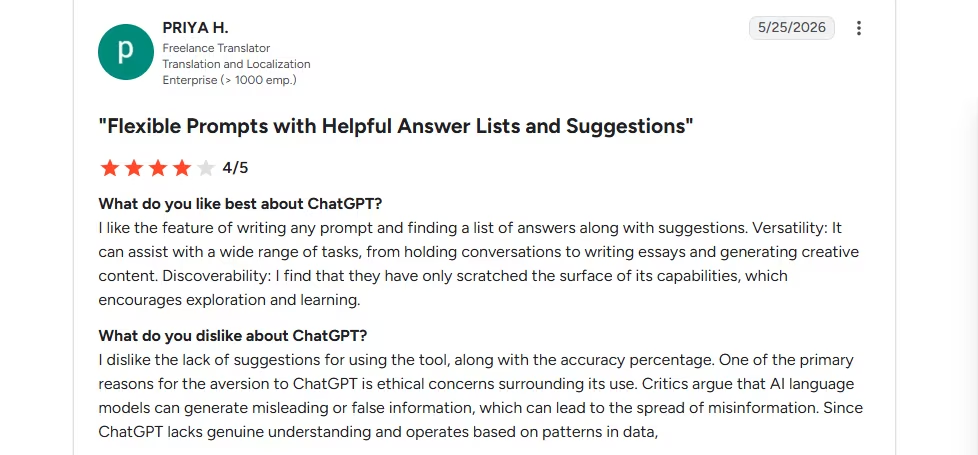
“I dislike the lack of suggestions for using the tool, along with the accuracy percentage. One of the primary reasons for the aversion to ChatGPT is ethical concerns surrounding its use.” - Priya H., G2
Pricing
The free tier is genuinely free with no card. The Plus tier adds faster access and higher usage limits for $20/month.
Want the full breakdown of what each plan actually covers? Read our ChatGPT pricing guide before you commit.
Bottom line: This is the fastest way to get past anything you’d otherwise stare at a blank email for ten minutes trying to word. It's also the one I'd trust least the moment a number or a code reference matters, so treat every output as a draft that needs a read before it goes out.
Still deciding which one fits your workflow? Our Perplexity vs ChatGPT vs Claude breakdown covers the real differences before you commit.
Running the Job
These three keep a job moving once it starts: what was said on-site, what a document actually means, and what's due next.
4. Jobber
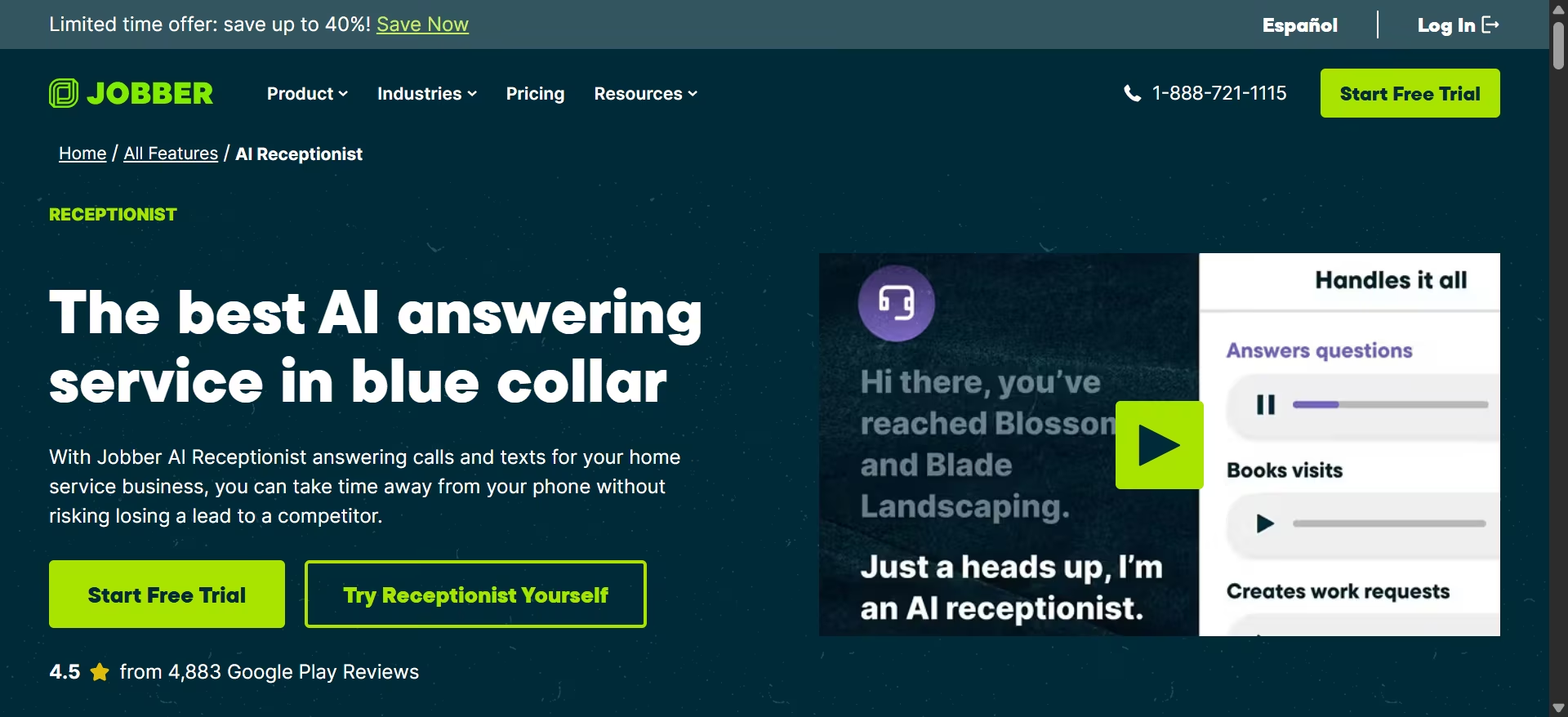
What it does: Jobber's AI Receptionist answers calls, captures customer details, books jobs, and hands urgent requests to a live person when needed.
Best for: Small contractors who can't answer every call while they're on a job.
I didn't need a Jobber account to test this because the company provides a public demo number anyone can call. I phoned it and pretended to be a homeowner booking a bathroom remodel estimate.
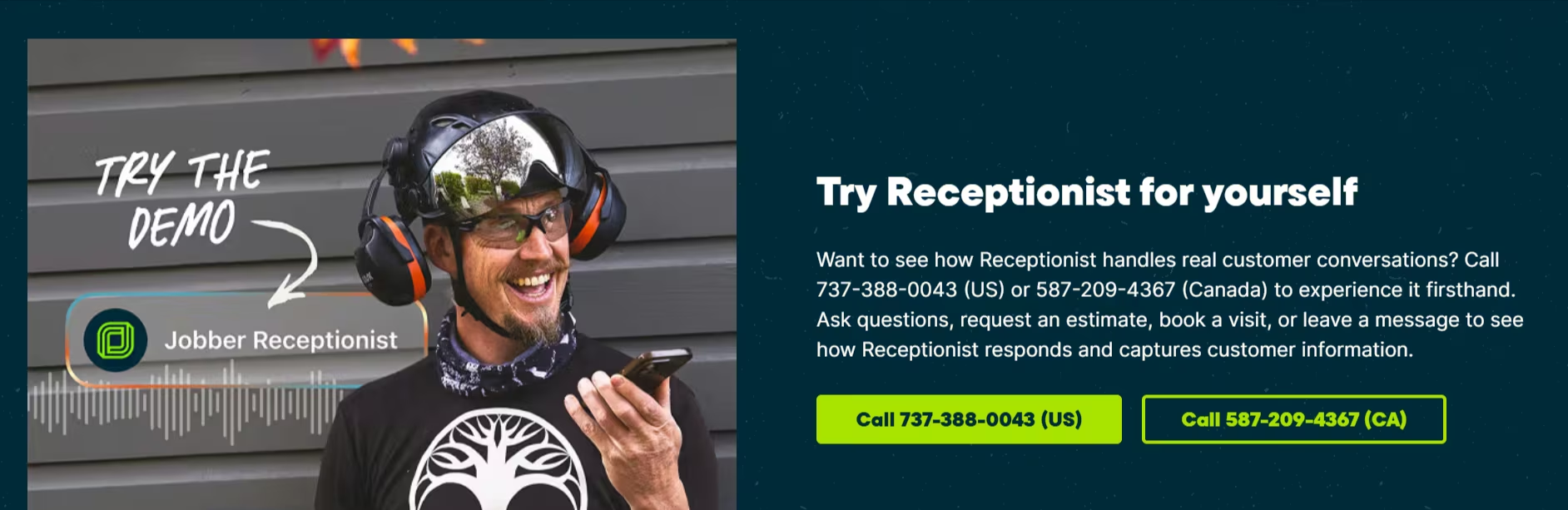
The AI receptionist answered within a few rings and handled the conversation naturally.
Instead of following a rigid script, it understood my request, asked the right follow-up questions, and collected the details a contractor would need, including my name, contact information, and the scope of the job.
According to Jobber, the AI then sends those details to the business owner by text message and hands the call to a live person whenever the request is urgent or falls outside what it can handle.
I couldn't verify that without a Jobber account, but the customer-facing experience felt smooth and convincing.
That said, user reviews consistently point out that Jobber is best suited to service businesses and smaller contractors. If you're running a solo operation or a small remodeling crew, it's a strong fit.
If you're managing large commercial projects with multiple subcontractors, payment draws, and complex compliance requirements, you'll probably outgrow it.
Key Features
- AI call and text answering: Responds to customer inquiries 24/7, answers common questions, and handles conversations when you're unavailable.
- Lead capture and job requests: Collects customer details, understands the reason for the call, and can create requests or capture messages for follow-up.
- Appointment booking: Can schedule visits directly into your calendar instead of just taking a message.
- Call escalation: Lets you set rules for when the AI should transfer a conversation or alert you, such as urgent requests or questions outside its scope.
Pros
- Lets small contractors capture missed leads without hiring a full-time receptionist.
- Handles natural conversations instead of forcing customers through rigid phone menus.
- Built directly into Jobber's scheduling and client management workflow.
Cons
- Best suited for small home service businesses rather than complex construction projects with multiple teams and subcontractors.
- AI still needs human handoff for unusual requests or situations requiring judgment.
- Some Jobber users feel the broader AI features are still limited compared with tools that can execute more actions directly.
What Users Say
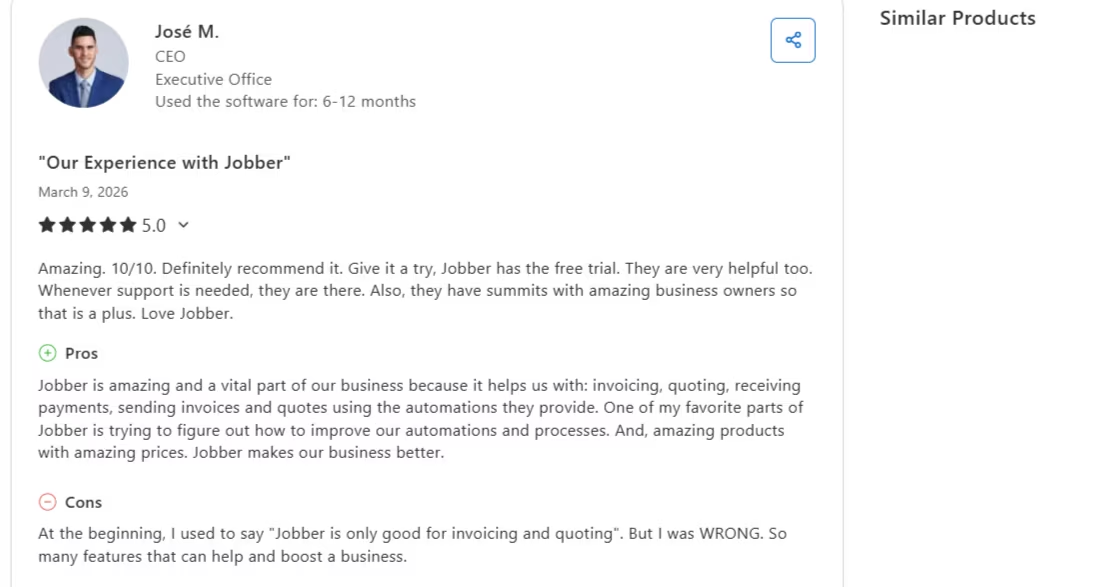
“Jobber is amazing and a vital part of our business because it helps us with: invoicing, quoting, receiving payments, sending invoices and quotes using the automations they provide” - Jose M., Capterra.
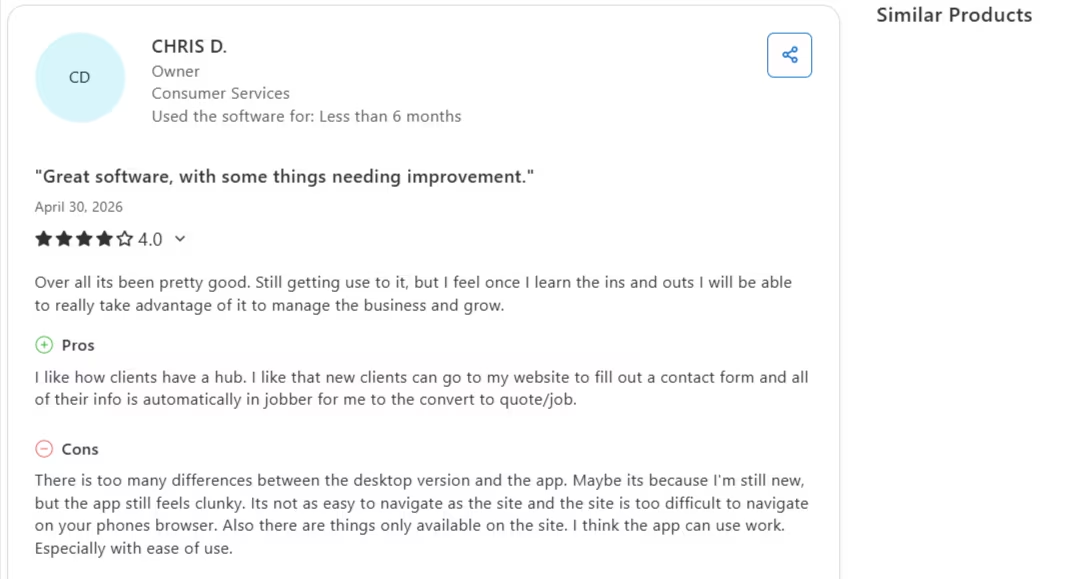
“There are too many differences between the desktop version and the app. Maybe it's because I'm still new, but the app still feels clunky. It's not as easy to navigate as the site and the site is too difficult to navigate on your phone's browser.” - Chris D., Capterra.
Pricing
Core starts at $32/month on a one-year commitment ($24/month billed annually), or $40/month month-to-month. It covers the scheduling, quoting, and invoicing basics.
The AI Receptionist is a separate add-on: $29/month with 30 conversations included, or bundled with Plus plans for teams.
Bottom line: Jobber’s AI Receptionist genuinely catches the calls a solo contractor can’t. It's a real add-on cost on top of a Jobber subscription, so test it with the public demo number before you commit to a plan just for this.
5. Gemini Notebook (formerly NotebookLM)
What it does: Gemini Notebook (formerly NotebookLM) is Google’s free AI notebook that lets you upload a contract or spec document and ask direct questions about it, with every answer linked back to the exact source page.
Best for: Contractors who need to find specific information buried in long contracts or project documents.
If you've ever spent 20 minutes scrolling through a construction contract looking for the one clause that actually matters, Gemini Notebook is worth a look.
To test it, I uploaded a six-page scope-of-work agreement for a bathroom remodel, the kind of document that gets signed once and then only comes back out when something goes wrong. I asked the two questions I'd want answered under pressure:
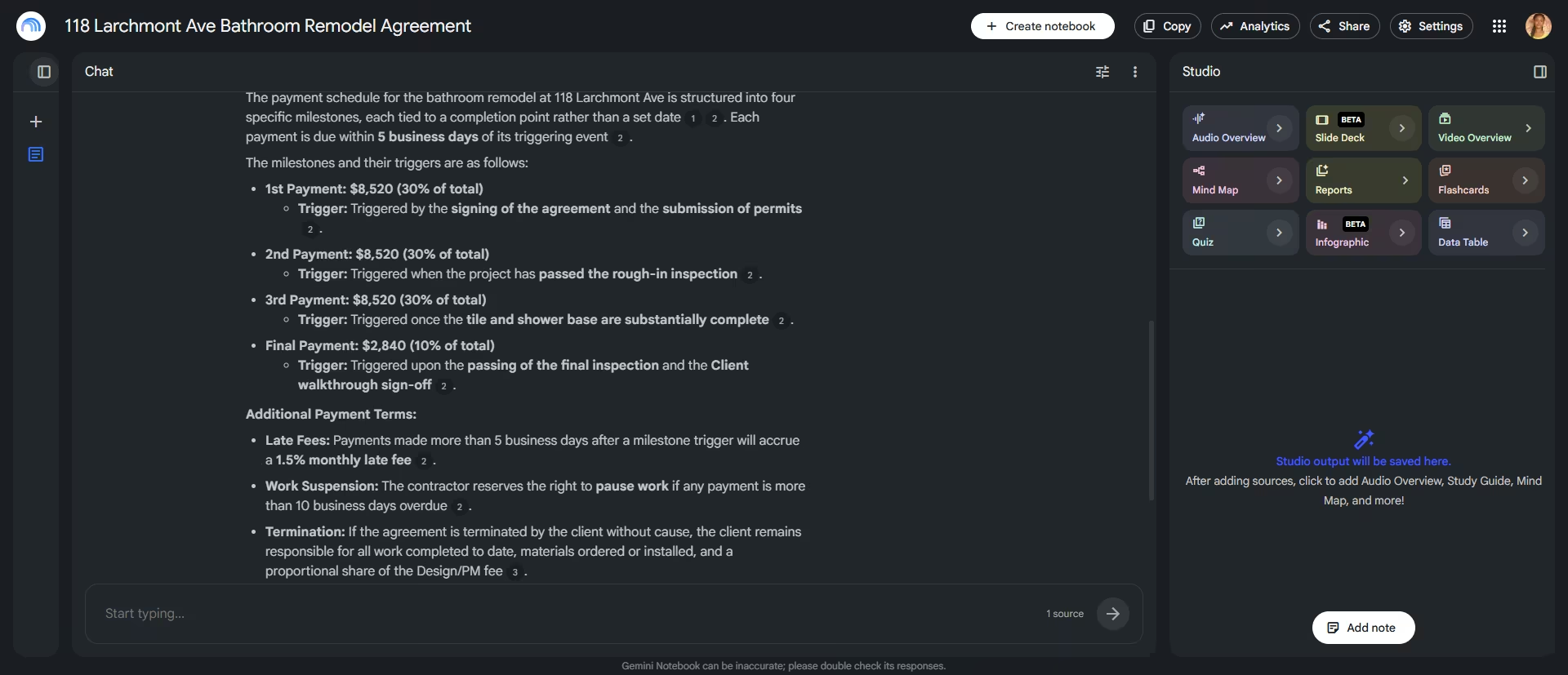
- What triggers each payment?
- Who pays if a permit inspection fails?
The first answer was impressively thorough. Gemini Notebook identified all four payment milestones, their amounts, and what triggered each one. But it didn't stop there.
It also pulled the five-business-day payment window, the 1.5% late payment fee, and the 10-day work suspension clause, all from the same section.
Then it reached into an entirely different part of the contract to explain what happens if the client terminates the agreement early, even though I never asked about termination. It connected related clauses instead of answering my question in isolation.
The second question was the real test.
"Who's responsible for permit costs in this document?"
I expected a simple answer like, "The client pays." Instead, Gemini Notebook picked up the actual nuance.
It correctly explained that the client is responsible for re-inspection fees unless the inspection failed because of the contractor's work, in which case the contractor covers the cost.
That distinction was buried halfway through a paragraph, yet the AI found it and explained both scenarios accurately.
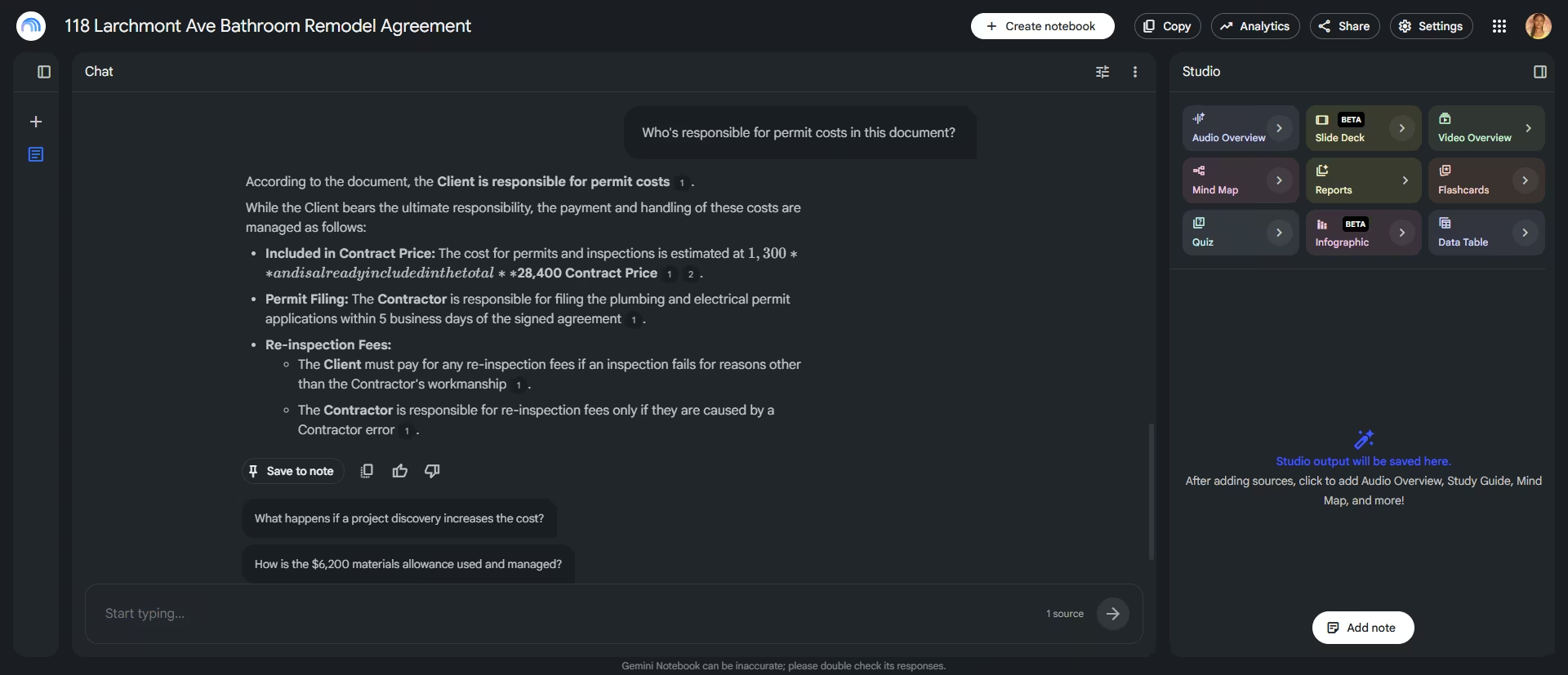
The only issue I ran into was formatting. One sentence rendered as "$1,300 andisalreadyincludedinthetotal," with the words and formatting mashed together. The information itself was correct, but the presentation glitched.
It's a minor issue, though one to keep in mind if you're copying AI-generated summaries directly into client communications instead of using them as a starting point.
Key Features
- Source-grounded answers: Every response links back to the exact section or page of the uploaded document, making it easy to verify the answer.
- Multi-document search: Ask questions across multiple specs, contracts, and project files at once instead of opening documents individually.
- No training required: Works with any documents you upload, making it adaptable for different trades and project types.
Pros
- Completely free with no trial limits or credit card required.
- Answers include source references, so you can verify details instead of relying on AI guesses.
- Handles different document types, including PDFs, plans, and contracts.
Cons
- No mobile-first jobsite experience like dedicated construction apps.
- Requires a Google account and some initial setup to organize documents by project.
What Users Say
Gemini Notebook doesn't have a G2, Capterra, or Trustpilot listing since it's a free Google product rather than a purchased tool, so there isn't an independent review base to pull from the way there is for the rest of this list.
Pricing
Free with a personal Google account. Google also bundles a higher-usage Pro tier into Google One and Workspace plans.
Bottom line: Gemini Notebook is genuinely useful if you’ve ever signed a contract without fully rereading it first. It won't help you on-site because it has no mobile app built for that, but for the ten minutes before you sign, it's better than your own patience.
6. monday.com
What it does: monday.com is a visual project management platform with an AI-powered risk scanner that flags tasks nearing deadline before they cascade into delays across a job.
Best for: Contractors juggling more than one active job who need a single dashboard for all of them.
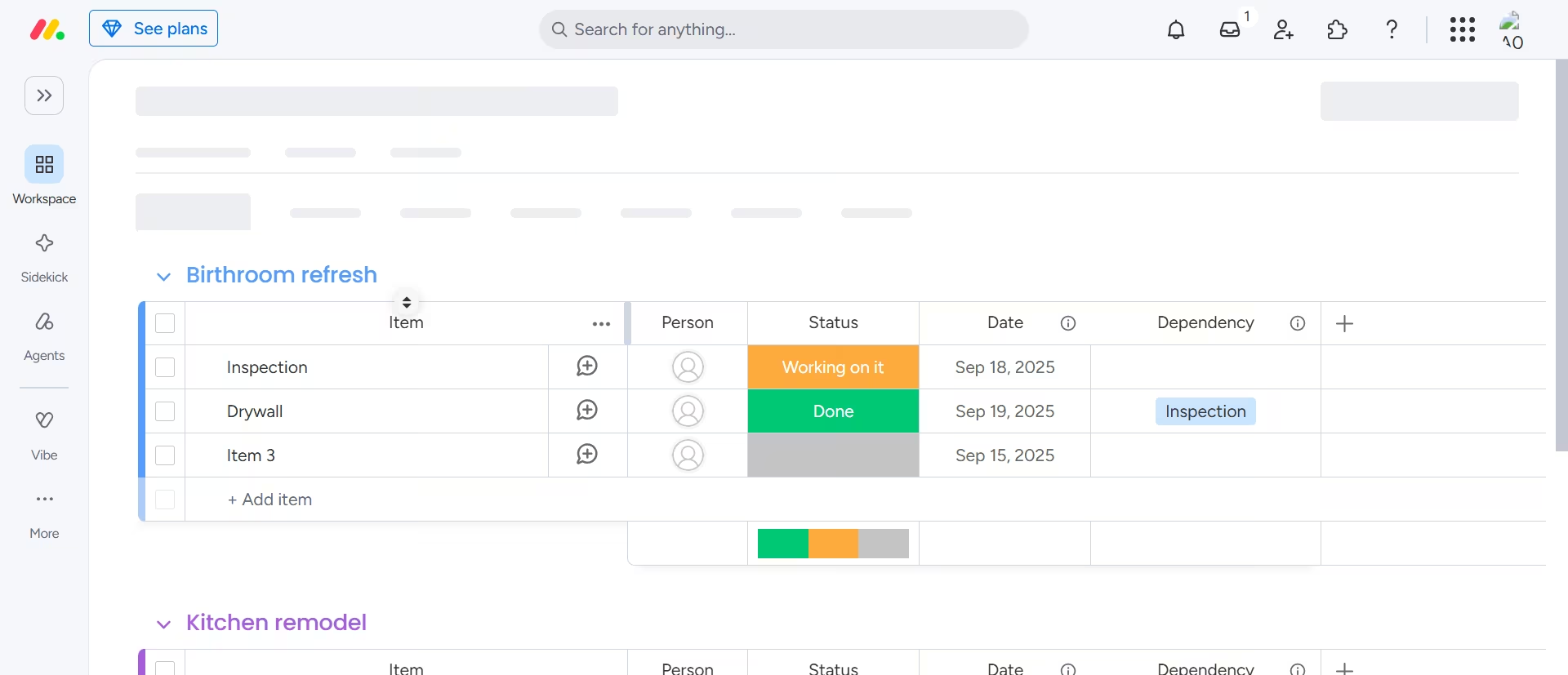
To test monday.com, I built a simple project board called Bathroom Refresh with three tasks: Inspection, Drywall, and Tiling.
I also set Drywall to depend on Inspection using the Dependency column in Strict mode, so any delay would automatically shift downstream dates.
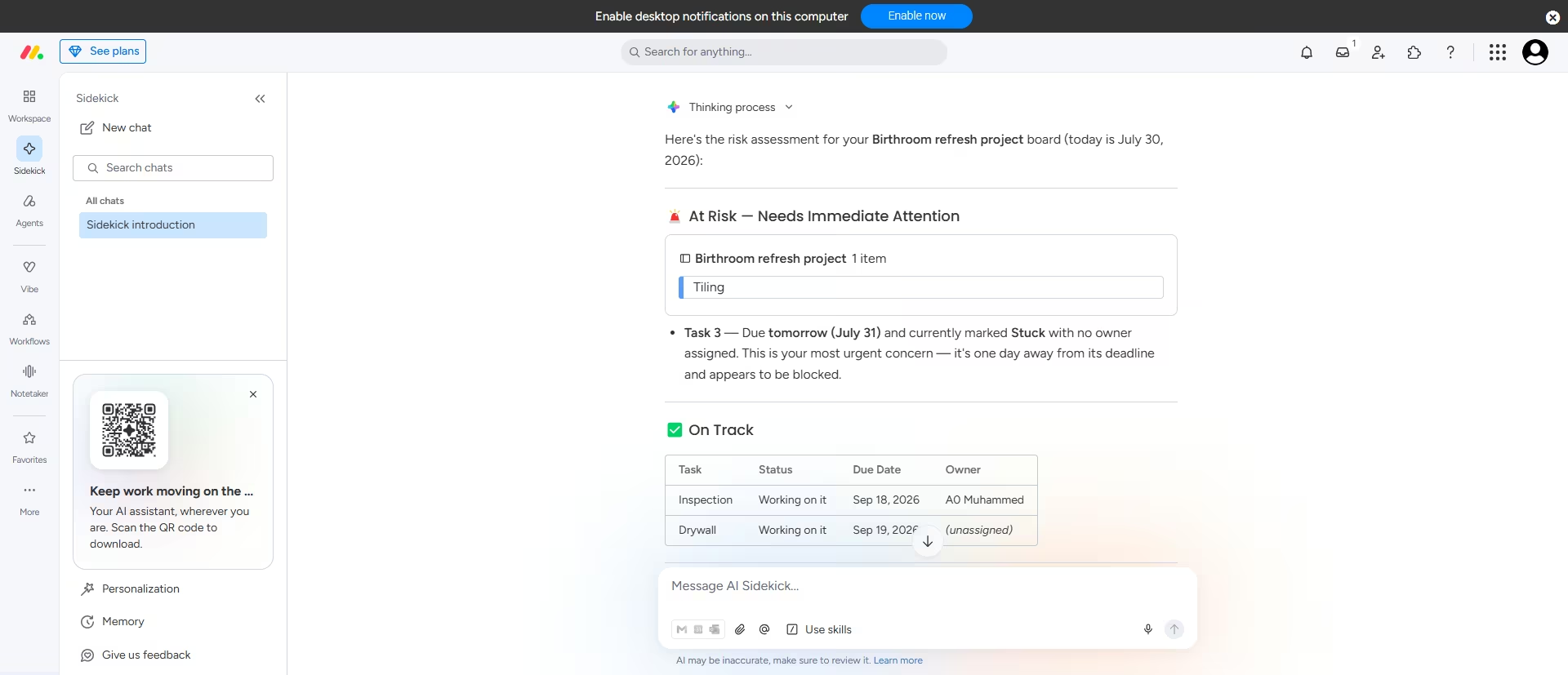
Instead of digging through dashboards looking for a risk report, I opened Sidekick, monday.com's AI assistant, and asked:
"Flag any tasks at risk of missing their deadline on my Bathroom Refresh board."
The response was genuinely useful. Sidekick recognized the current date on its own and identified task three as the only task at immediate risk because it was due the next day, marked Stuck, and had no owner assigned.
It correctly identified Inspection and Drywall as being on track, then summarized everything in a simple table showing each task's status, due date, and owner.
Besides that, it suggested practical next steps, including assigning an owner and resolving the blocked task before it delays the project.
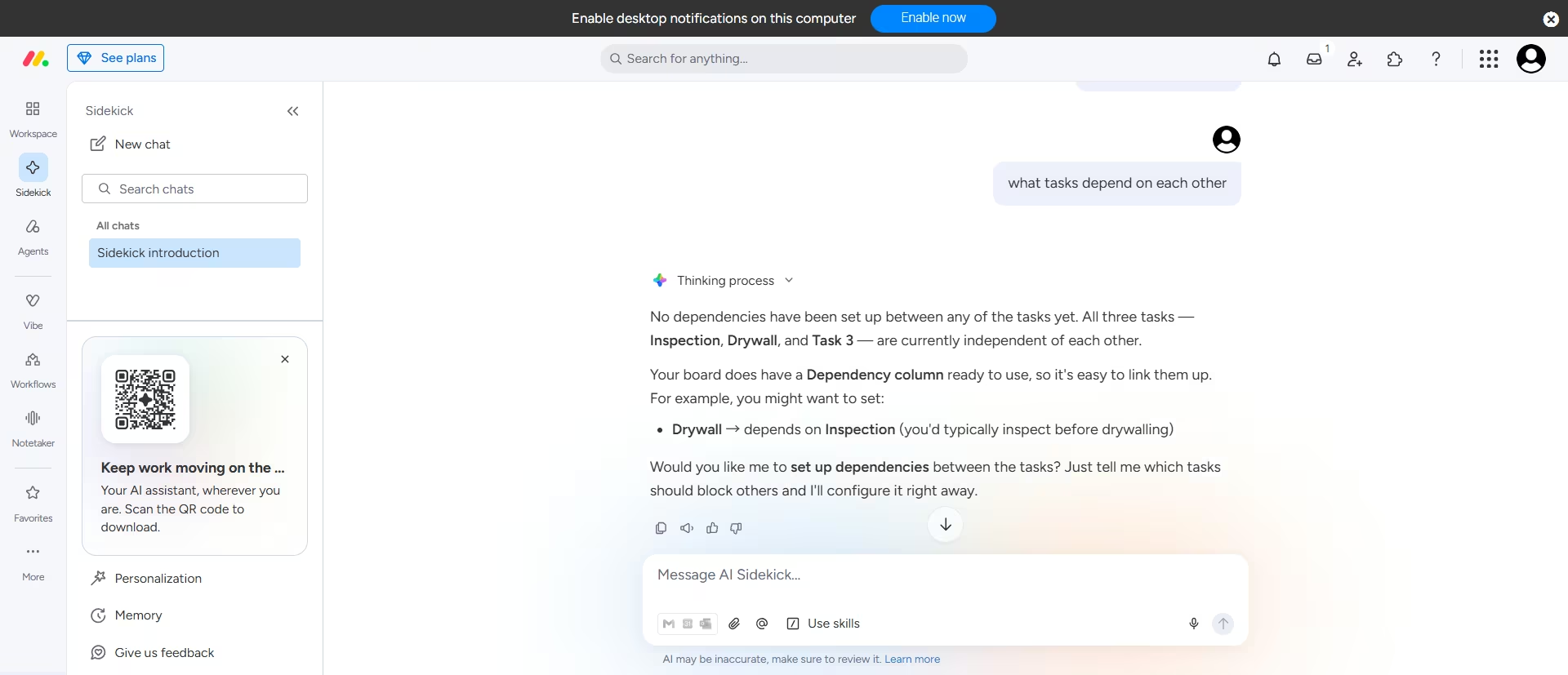
Next, I wanted to see how much of the project it actually understood. I asked Sidekick which tasks depended on one another.
Surprisingly, it told me there were no dependencies, even though I'd already linked Drywall to Inspection. That was a good reminder that, while the AI is useful, you shouldn't rely on it to interpret every part of your project perfectly.
I then tested whether it could perform tasks for me instead of just answering questions. I asked it to make Tiling depend on Inspection, and it created the dependency through plain conversation without me touching the board settings.
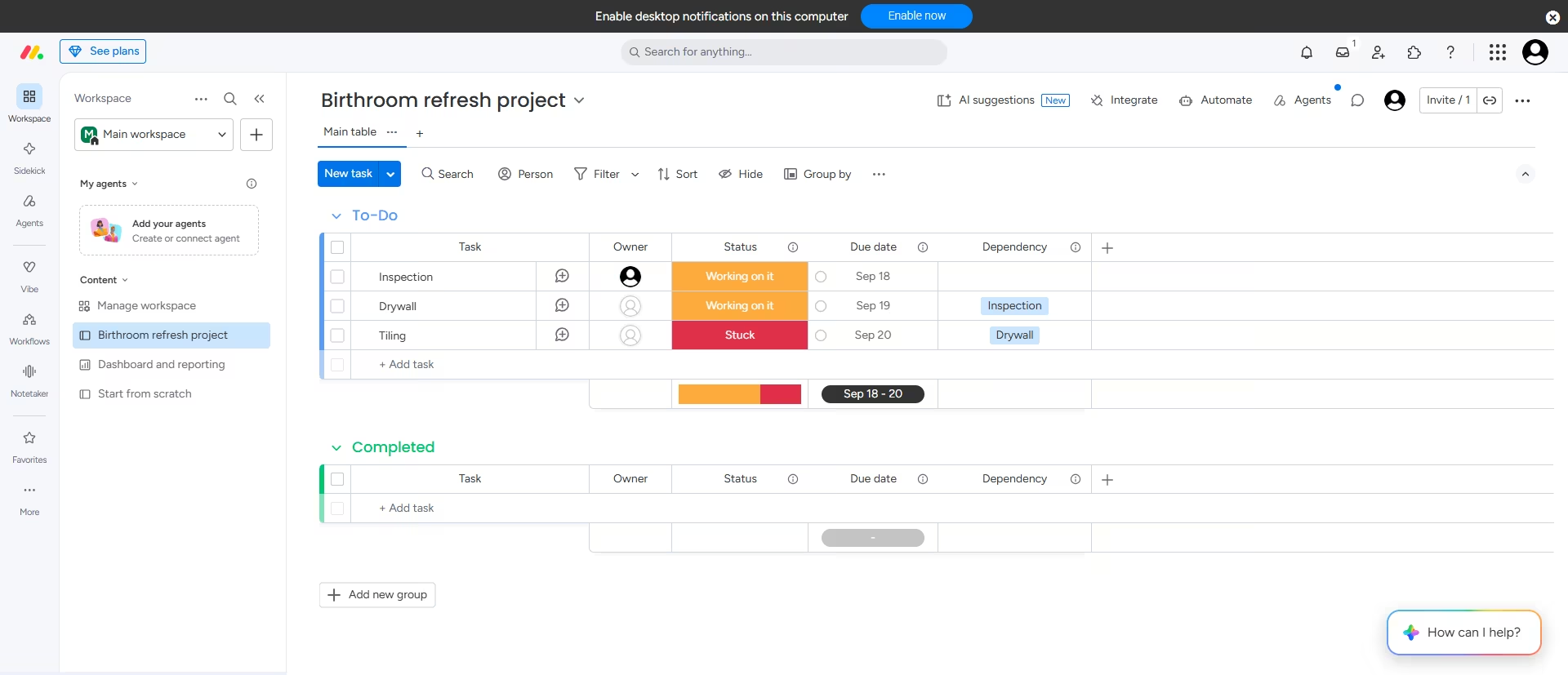
If you're new to monday.com, that's a real help because the AI can handle common setup tasks while you're still learning where everything lives in the interface.
Key Features
- AI risk analyzer: Flags tasks nearing their deadline before delays cascade into the schedule.
- Portfolio view: Track every active job from one dashboard instead of switching between them.
- Automation builder: Trigger status updates and notifications without touching a spreadsheet.
Pros
- Genuine forever-free plan for up to two seats, no trial clock
- Highly customizable dashboards that adapt to how a small crew already works
- Wide integration list, including QuickBooks and Slack
Cons
- Pricing climbs quickly per seat once a crew grows past a few people
- Performance can slow down on very large boards with a lot of history
What Users Say
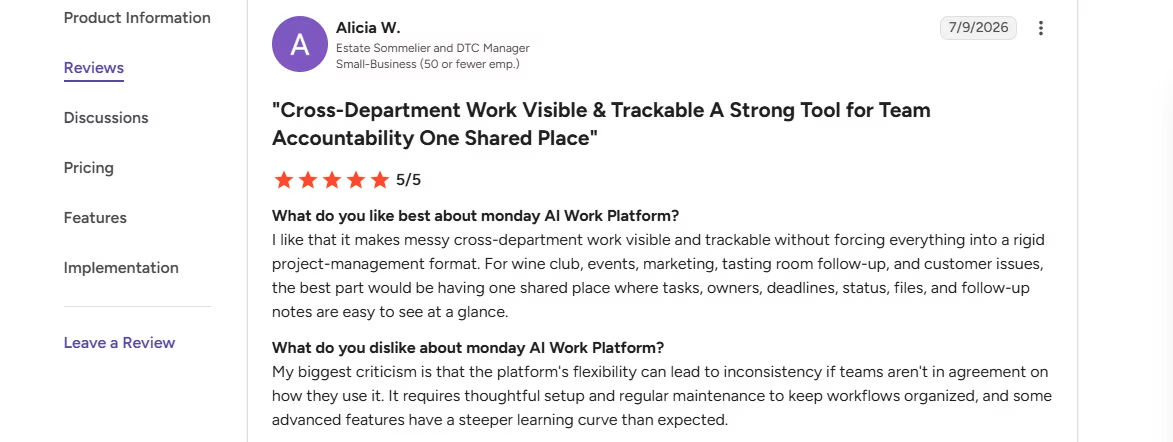
“My biggest criticism is that the platform's flexibility can lead to inconsistency if teams aren't in agreement on how they use it. It requires thoughtful setup and regular maintenance to keep workflows organized, and some advanced features have a steeper learning curve than expected.” - Alicia W., G2
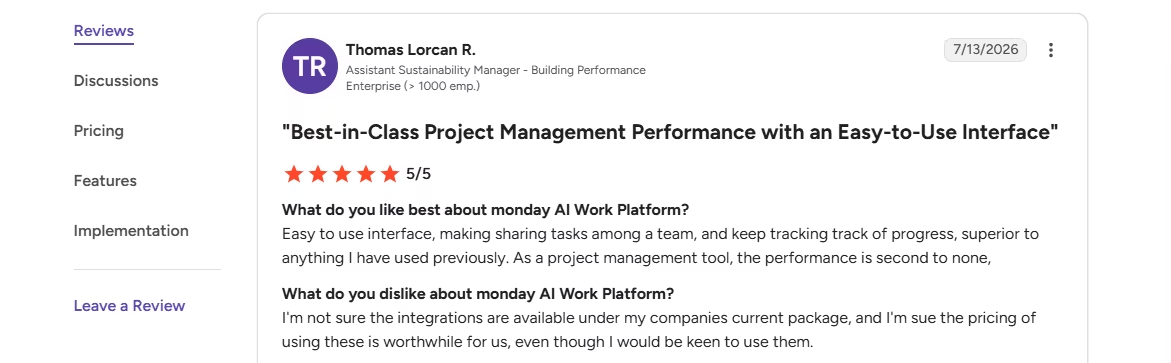
“Easy to use interface, making sharing tasks among a team, and keep tracking track of progress, superior to anything I have used previously. As a project management tool, the performance is second to none.” - Thomas Lorcan R., (G2).
Pricing
Free for up to two seats. Paid plans start around $12 per seat per month ($9 per seat per month billed annually).
Bottom line: monday.com's Sidekick is a conversational assistant that reads the board, reasons over real dates and statuses correctly, and resurfaces problems even when you didn’t ask. For a contractor juggling several jobs at once, that’s more useful than a report you’d forget to check.
Protecting & Growing the Business
These three protect your bid accuracy and give you a path forward once the tools above stop being enough.
7. OnTraq

What it does: OnTraq uses AI to capture receipts, track project costs, and compare actual spending against your budget in real time, helping contractors spot overruns before they eat into profits.
Best for: Contractors who want to know whether a job is still profitable while it's in progress.
To test it, I uploaded a real hardware store receipt with six line items totaling $466.02. Within seconds, OnTraq extracted the vendor, purchase date, and total without any manual entry.
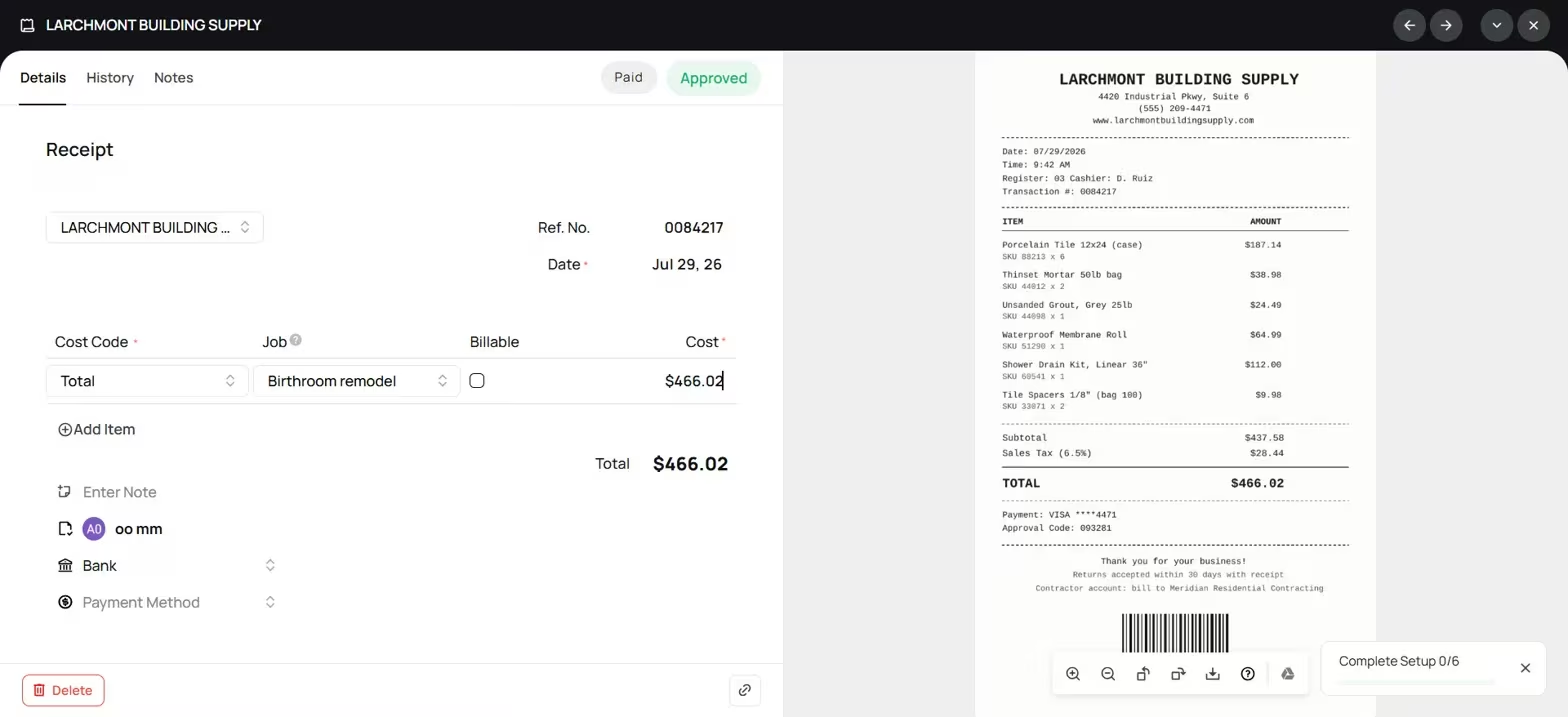
The OCR itself worked well, but it had one limitation. Instead of recognizing each purchase separately, OnTraq treated the entire receipt as a single expense.
If you're buying supplies from multiple departments on one receipt, you'll lose the item-level detail that makes job costing more accurate.
What impressed me more was how the job board auto-updates. As soon as I confirmed the receipt, the project's budget updated instantly.
Material costs jumped from $0 to $466.02; the remaining budget was recalculated immediately, and the profitability dashboard reflected the change.
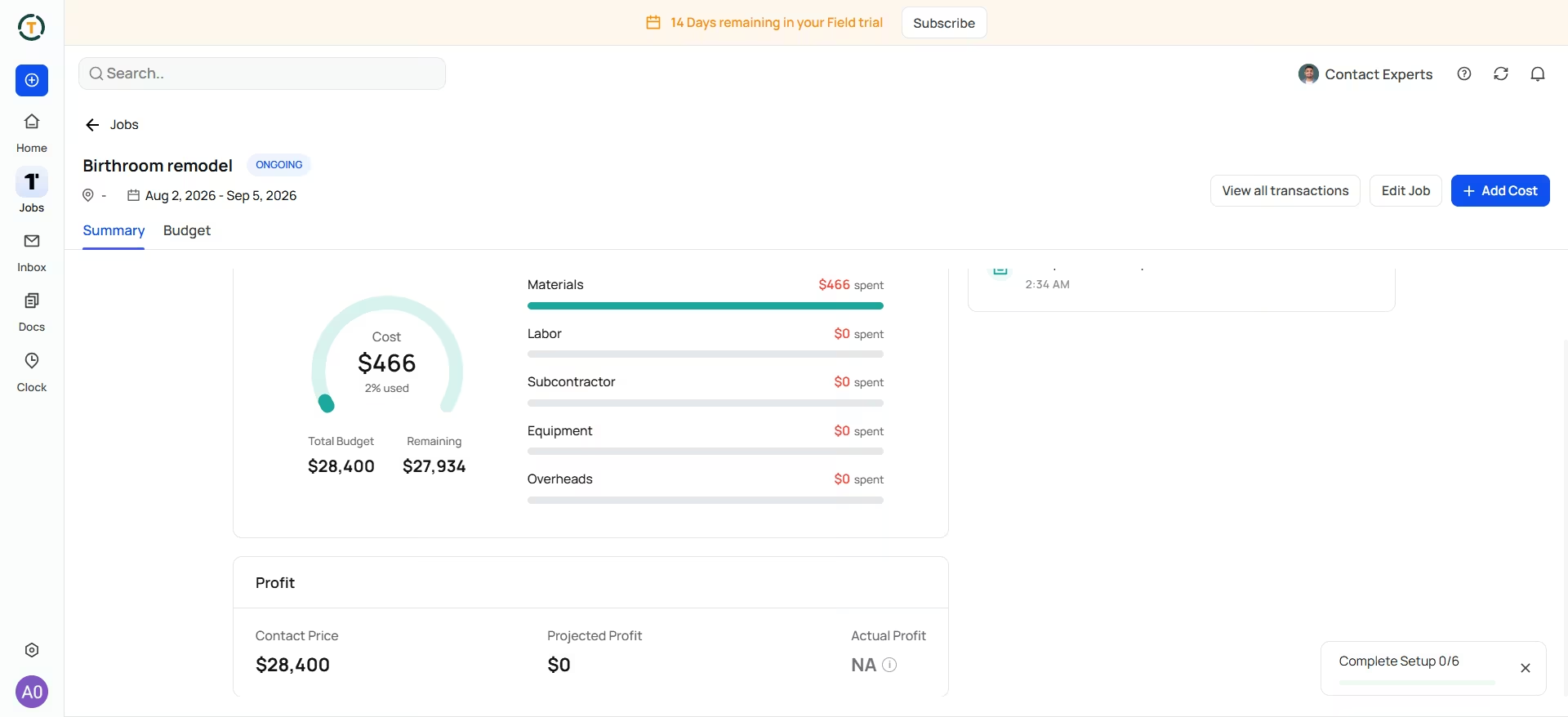
One thing to watch out for is the initial project setup. I forgot to enter a Contract Price when creating the job, and the Profit section immediately showed a misleading -$28,400 loss before I'd even spent anything.
As soon as I entered the contract value, the dashboard corrected itself. It's an easy mistake to make, but one worth noting because the first impression can be alarming.
Key Features
- AI receipt capture: Scans receipts, extracts key details, and logs expenses against the correct project with minimal manual entry.
- Live budget tracking: Updates actual costs against the project budget the moment a receipt, bill, or timesheet is added.
- Real-time profitability dashboard: Shows whether each job is making or losing money while it's still in progress, not after the project closes.
- QuickBooks integration: Syncs job costs and expenses directly with QuickBooks to reduce duplicate data entry.
Pros
- Built specifically for construction job costing rather than generic expense tracking.
- Live budget and profitability updates make it easy to spot overruns before they become expensive.
- AI accurately extracted key receipt details in my test with no manual typing.
Cons
- AI doesn't currently break receipts into individual line items, which limits detailed material tracking.
- Some project setup, such as entering the contract price or choosing expense categories, still has to be done manually.
What Users Say
OnTraq lacks third-party reviews. However, I still recommend it because it’s better for contractors than generic estimate tools.
Pricing
- Starter: $29/month (1 user included; +$9/month per extra user)
- Field: $49/month
- Job Profit: $79/month
14-day free trial on all plans.
Bottom line: The scanning is imperfect and flattens detail. But it's the only tool on this list that told me, correctly, when I wasn't actually making money, so it's worth more than a pretty scanner.
8. Emergent
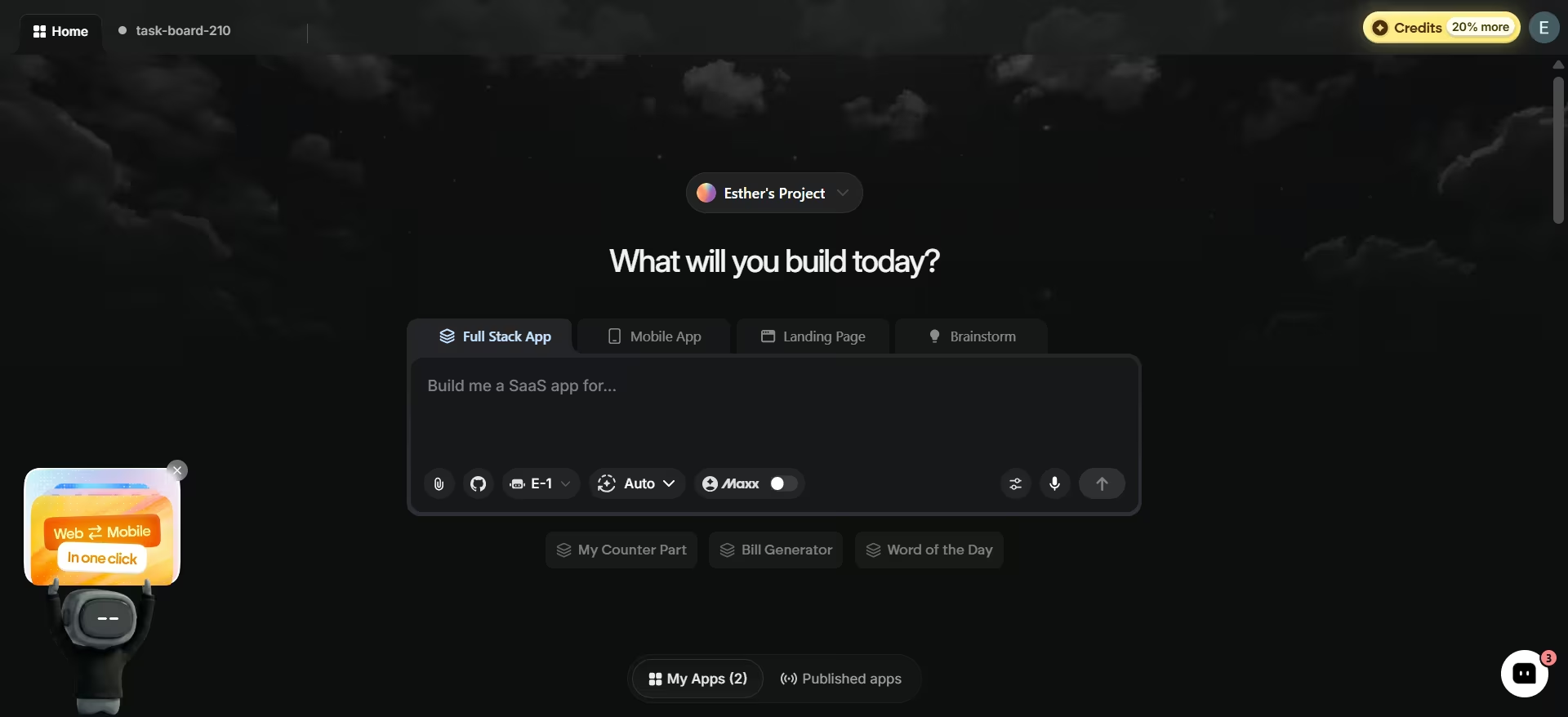
What it does: Emergent is a multi-agent AI app builder that turns a plain-language description into a working web or mobile app, with specialized agents that split the work across the build, shaping the interface, wiring up the logic and integrations, and testing everything before it ships.
Best for: Contractors who've outgrown off-the-shelf software and need a custom internal tool, such as a client portal, dispatch board, or field reporting app.
Unlike Joist or OnTraq, Emergent isn't built specifically for contractors. Instead, it lets you create the software you wish existed.
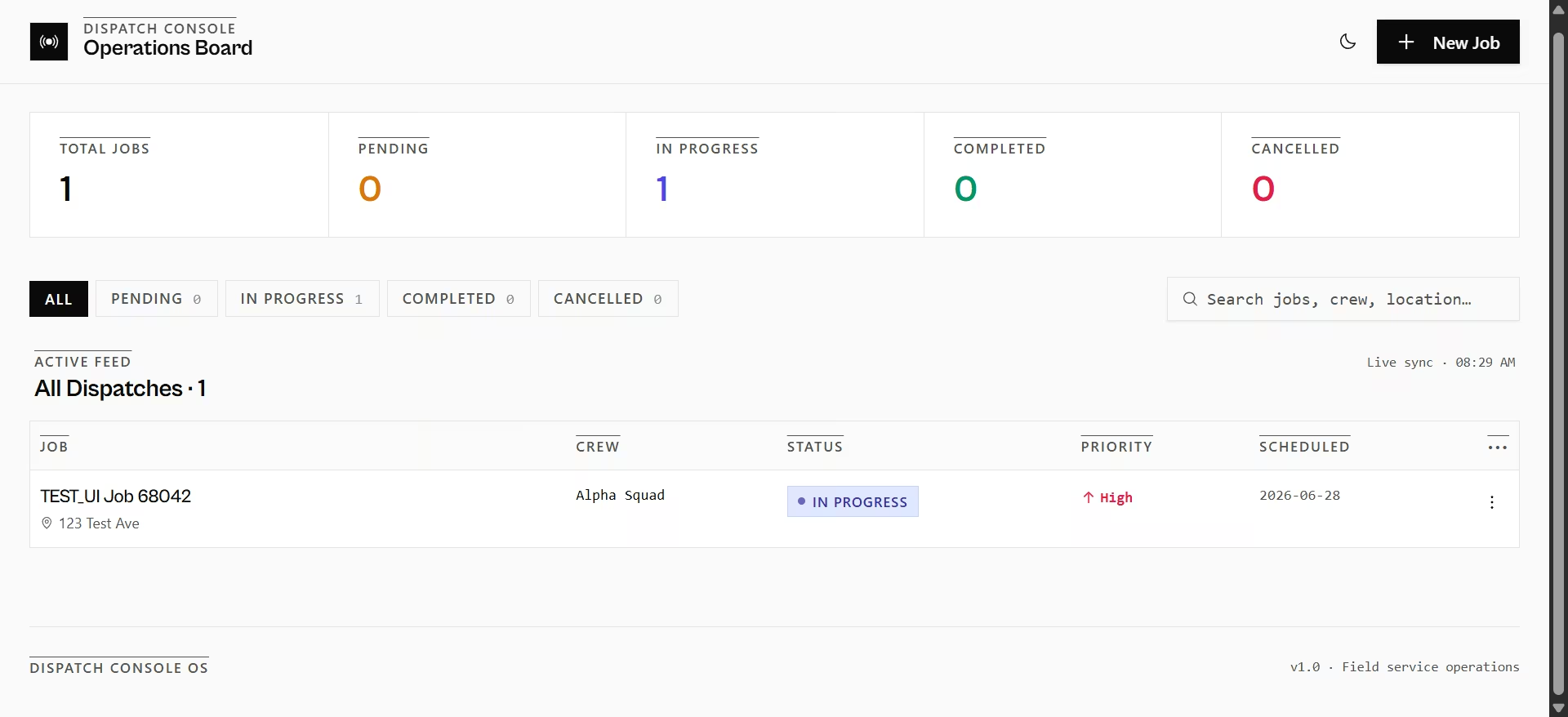
To see what it could build, I asked it to create a dispatch board with a table showing the job name, assigned crew, and status, plus a form for adding new jobs.
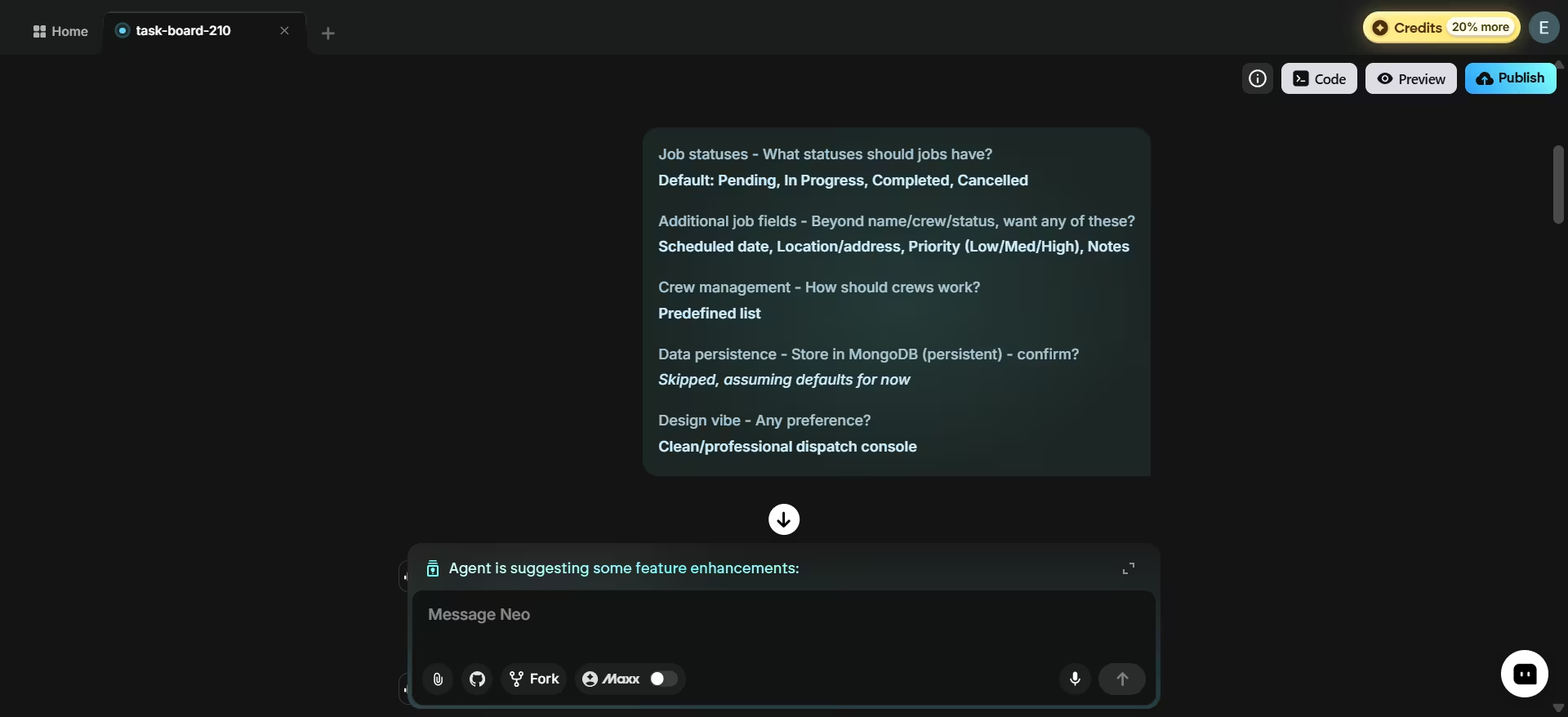
Rather than jumping straight into the build, Emergent asked a series of clarifying questions. It wanted to know:
- Which job statuses I needed
- Whether crews should come from a predefined list
- If data should persist between sessions
- What design style I preferred
Getting those questions up front made the process feel more like working with a developer than prompting a chatbot.
Once I answered, I could watch the work being divided between specialized AI agents. A Design Agent built the interface, followed by a Testing Agent that verified everything before deployment. Seeing each step in the build log made the process far more transparent than simply watching a loading spinner.

The finished app went well beyond my original prompt. Instead of a basic table and form, Emergent produced a complete dispatch dashboard with job statistics, status filters, search, priority levels, scheduled dates, a slide-out job form with a calendar picker, dark mode, and a working backend with CRUD functionality.
After the build finished, the Testing Agent reported a 100% pass rate and suggested additional features I hadn't requested, including a crew workload view, overdue alerts, CSV export, and bulk actions.
That's a lot to get from one prompt. It's also the reason it burned 9.96 of my 10 free credits before I'd even tried to publish anything.
Key Features
- Multi-agent development: Separate AI agents plan, design, code, test, and debug your app instead of relying on a single AI model.
- Web and mobile from one prompt: Builds responsive web apps and React Native mobile apps from the same project.
- One-click GitHub sync: Exports your project to GitHub so you own the code and can continue development elsewhere.
- Version history and Forks: Duplicate an app to experiment with new ideas or roll back to an earlier version if a change doesn't work out.
- Named integrations, not just a promise: a dispatch board that needs to charge a deposit can wire up Stripe directly during the build, rather than bolting on a payment processor after the fact.
Pros
- Produces a complete working app, including the database, sign-in, and deployment, not just a UI prototype
- Free tier requires no credit card, so you can test the concept immediately
- Reviewers consistently describe it as one of the more beginner-friendly app builders
Cons
- The free tier's 10 monthly credits are enough to test a concept, but not to build anything real; a full deploy alone runs roughly 50 credits
- Credit-based pricing means a real project often costs more than the sticker price suggests
What Users Say
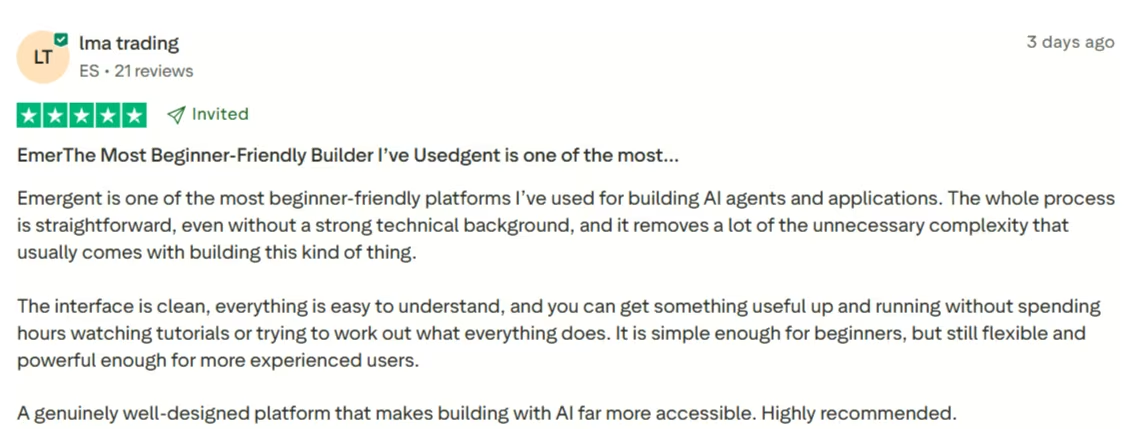
“Emergent is one of the most beginner-friendly platforms I’ve used for building AI agents and applications. The whole process is straightforward, even without a strong technical background, and it removes a lot of the unnecessary complexity that usually comes with building this kind of thing.” - Ima Trading, Trustpilot
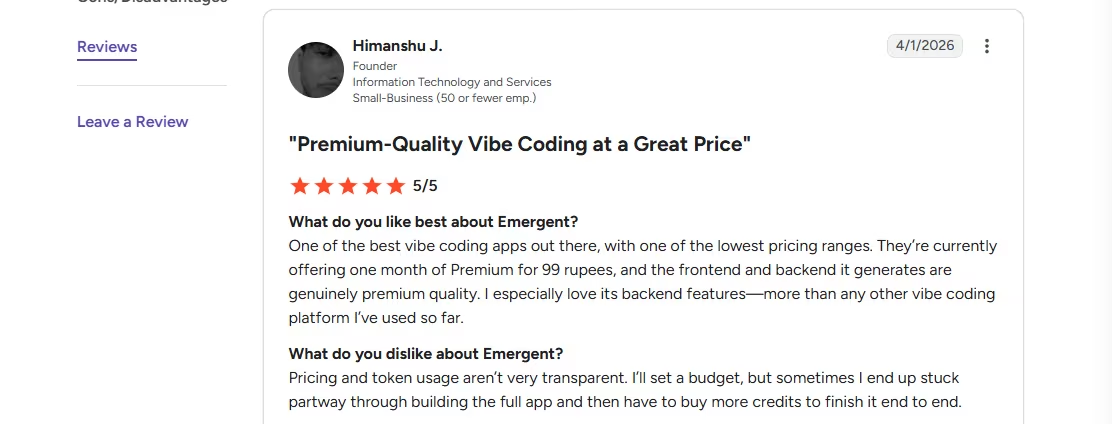
“Pricing and token usage aren’t very transparent. I’ll set a budget, but sometimes I end up stuck partway through building the full app and then have to buy more credits to finish it end to end.” - HImanshu J., G2.
Pricing
- Free: With 10 credits
- Standard: $20/month for 100 credits
- Pro: $200/month for 750 credits
Bottom line: Emergent is what you reach for when none of the tools above quite fit your workflow. If you can describe the tool you need, Emergent can often build it.
How to Test Any of These Before You Pay
For Joist, type one real description you'd actually write on a job, not a generic example, and check whether the rewrite still needs your own editing.
For Virtual Staging AI, upload a real room photo, not a stock image. Start with your hardest room, cluttered, odd angle, low ceiling, since that's where staging tools actually fail.
For ChatGPT, ask it something it could get wrong: a real number, a real code question. See whether it hedges or guesses.
For Jobber, call the AI receptionist yourself and try one thing off-script, not just the obvious booking request.
For Gemini Notebook, upload one real contract and ask about a detail buried in a clause, not the headline terms.
For monday.com, build one real conflict, not a clean board, and ask the AI assistant directly what it sees. Don't assume it knows something you set up by hand.
For OnTraq, scan one real, multi-item receipt and check whether it splits the items or lumps them into one line.
For Emergent, give it the smallest possible prompt and watch your credit count before and after. That's the number that tells you what this actually costs.
Across all of them: test one specific thing, not everything the tool can do. That's what tells you whether it fits how you actually work, not just what the demo looks like.
Which AI Tool Should You Choose?
Most of these solve different problems, so the real decision is which stage of your work actually needs help first.
Choose Joist if you:
- Need to send a professional estimate before you leave the job
- Want your write-ups to sound polished without typing them yourself
Choose Jobber if you:
- Miss calls constantly because you're mid-job and can't pick up
- Want a phone that never sends a lead straight to voicemail
Choose monday.com or OnTraq if you:
- Are juggling more than one active job and losing track of deadlines
- Want to know if a job is actually profitable while it's still running, not after
Choose Emergent if you:
- Have a specific workflow none of the tools above solve, and no budget to hire a developer
Final Verdict
For most solo contractors and small crews, start with Joist for estimates and Jobber for the calls you're missing right now, both testable free today. If you're juggling multiple jobs, monday.com and OnTraq cover the scheduling and money side without a sales call.
None of these tools is built to do everything. If you've read this whole list and still don't see the thing you actually need (a client portal, a custom dispatch system, a tracker built around exactly how you run jobs), that's what Emergent is built for.
In my test, a request for a simple table came back as a full working dashboard. Go in with a clear, specific prompt to get results like that.
Sign up to try it for free today.

Most AI app builders stop at prototypes. Emergent creates production-ready apps you can actually launch.
- Production-ready apps
- Web & mobile apps
- Deploy in minutes