AI tools for project management look great in a demo. Real deadlines, cross-task dependencies, and a status update due Monday? Most of them fold.
So I ran one live content sprint through more than two dozen of them, a batch of overlapping blog pieces with hard deadlines and a status report due every week. I gave every tool the same task list, messy 40-minute call transcript, and weekly status prompt. Then I judged each on the single job I was hiring for. Nine earned a place.
Below, I've grouped the nine by what they do best, from all-in-one hubs to schedulers to the helpers you bolt on top. Match the one that fixes your biggest drag and skip the rest.
How I Researched and Tested These AI Project Management Tools
I started with a long list of more than two dozen AI project management tools and ran the same content sprint through each one before cutting it down to the nine here.
The sprint was my own, a batch of overlapping blog and content pieces with hard deadlines, cross-task dependencies, and a status update to send every week. This was my real content pipeline running under live deadlines.
For platforms that supported tasks, transcripts, and status reporting, I loaded the whole sprint. That meant its deadlines, dependencies, transcript, and weekly status prompt. I judged specialist tools on the part of the workflow they were built to handle.
Most of these tools make similar promises about workflow automation, status reports, and workload balancing. I judged each one on five parts of day-to-day use.
- Features: How well the AI handled real project work beyond demo-friendly tasks.
- Usability: Whether it felt fast and intuitive or added friction before it saved any.
- Integrations: How cleanly it connected to Slack, Google, Teams, and the other tools already in the stack.
- Pricing: The value of the free tier versus paid, including which AI features cost extra.
- Use cases: How each tool held up on the specific job I was hiring it for.
Running one project through all of them showed me which tools worked in daily use and which stalled at the feature-list stage.
What to Look For in an AI Project Management Tool
A handful of AI features changed my week during the test. The capabilities below separated the strongest tools. Judge any tool you're considering against this short list before paying for a seat.
- Notes-to-tasks (NLP): The tool should read a meeting transcript, email, or chat and turn it into assigned tasks with owners and dependencies. Typing "kickoff next Friday" and having it schedule and notify the team counts as the baseline now. ClickUp and Notion handled notes-to-tasks best.
- Predictive risk flags: Good AI reads your dates and dependencies and warns you a deadline is slipping ahead of time. Prediction quality depends on the data you keep. A half-filled project gets half-useful warnings; Wrike and Monday.com paid off once the data was complete.
- Auto-scheduling: For anyone with a packed task list, the AI should place work on your calendar and reshuffle it when the day slips. Decide up front how much control you're willing to give up, because Motion runs the whole calendar and adjusts it when plans change.
- Meeting transcription and summaries: Meeting transcription was the most reliable AI task I ran. The tool should transcribe a call, label speakers, and pull action items you can drop straight into tasks. Accuracy still drops on cross-talk, so factor in a proofread on anything high-stakes.
- Integrations: The AI has to reach into Slack, Jira, Google, and Teams, or it becomes one more silo.
- Data governance: Feeding project data into an AI raises real privacy and model-training questions. Confirm that the vendor explains how it handles prompts and content and lets you opt out of training. Get approval from your IT team before adding project data.
9 Best AI Tools for Project Management: Quick Comparison
1. ClickUp: Best All-in-One AI Work Hub

What it does: ClickUp is an all-in-one work hub that combines tasks, docs, chat, and dashboards, with an AI assistant called Brain layered across all of it.
Best for: Teams that want one place for everything and want the AI to act on the work already living there.
The sprint began with ClickUp, the natural first pick if any tool was going to be the whole hub. I dropped my messy 40-minute strategy-call transcript straight into ClickUp Brain, the AI layer that sits across tasks, docs, and chat. The prompt I used was plain:
"Turn this meeting transcript into assigned tasks with owners, due dates, and dependencies."
Brain returned a clean, structured list that was easier to scan than I expected. It grouped the content pieces, guessed reasonable dependencies (draft before edit, edit before publish), and slotted them against the people already in the workspace. Its task grouping and plausible dependencies made the all-in-one claim credible.
Because tasks, docs, and dashboards live in one place, the AI had more context than a thin task title could provide. I then asked it to draft the weekly status update from the same workspace. It produced a usable first draft from the live work, cutting my reporting from an afternoon job to a quick review.
Brain is a paid add-on at $9 per user per month on top of your plan, and you can't cleanly hand it to only the three people who need it. For a small team, that's fine.
For my evaluation, the licensing model was the main barrier to a department-wide rollout.
Key Features
- Transcript to tasks: Brain reads notes and chats and turns a meeting into an assigned plan with dependencies.
- Status reports on demand: It drafts a weekly status update from the work in your workspace, which cut my reporting time to a quick review.
- Workload risk flags: Brain flags when someone is overloaded or a deadline is slipping, before it becomes a fire.
- One workspace: Tasks, docs, and dashboards live together, giving the AI more context than a thin task title could provide.
Pros and Cons
Pros:
- Covers tasks, docs, chat, and dashboards in one place, so the AI works from full context.
- Brain turns raw notes into assigned, dependency-linked tasks.
- Auto-generated status reports pull straight from live work, so reporting stops eating your afternoon.
Cons:
- There's a steep learning curve, and the sheer number of features overwhelms new users at first.
- Brain is a paid add-on, and you can't cleanly grant it to only the people who need it, which blocks org-wide rollout.
What Users Say
“What do I like best about ClickUp? Everything. No, seriously. I've been using ClickUp for several years now, and the way I can continuously work it into my workflow is amazing.” - Elizabeth L., G2
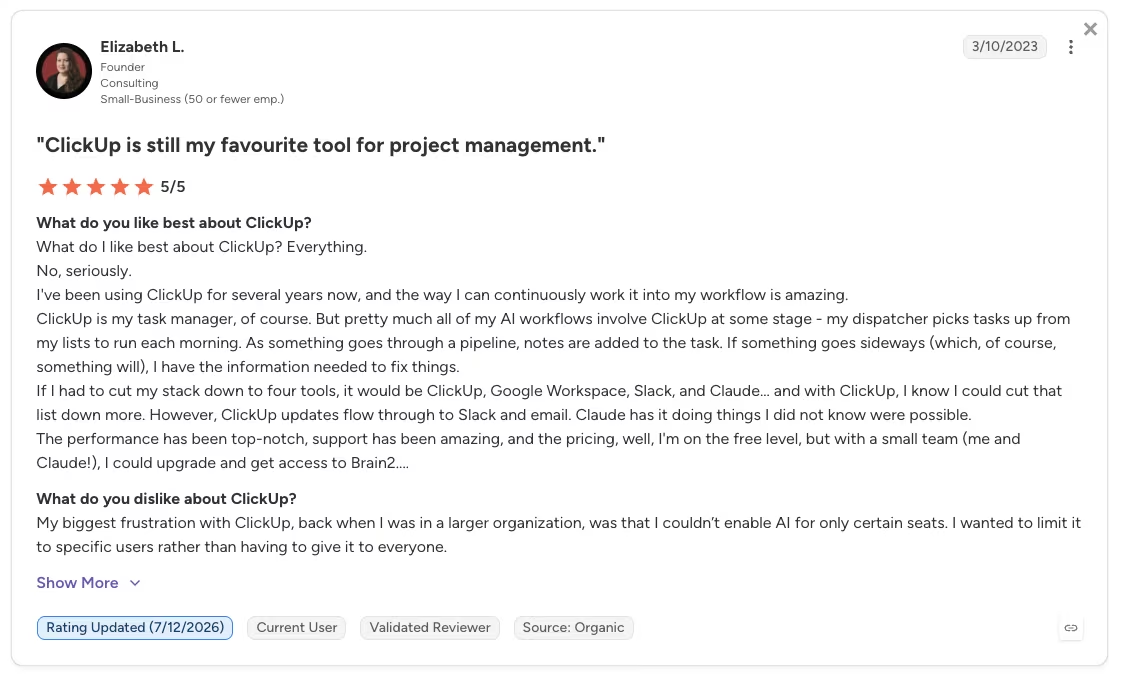
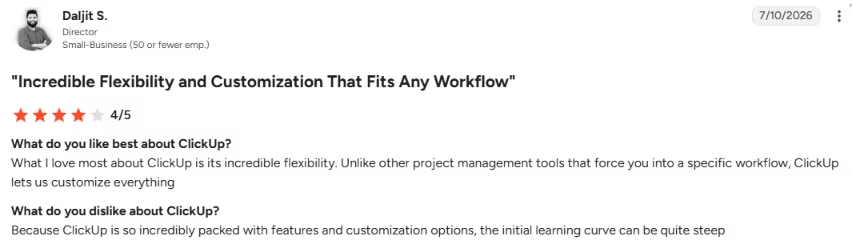
“Because ClickUp is so incredibly packed with features and customization options, the initial learning curve can be quite steep.” - Daljit S., G2
Pricing

ClickUp offers a free plan, with paid plans starting at $10 per month per user. Brain, the AI layer, is a separate paid add-on at $9 per user per month on top of your plan. Budget for the add-on on top of the base seat, because the base plan alone won't give you the AI features that make ClickUp worth it here.
Bottom Line
Price out the licensing model when evaluating the tool, because paying for AI seats across the team can stall a ClickUp rollout. Once the cost works, ClickUp fits teams that want AI acting across tasks, docs, and dashboards. Brain turned a messy transcript into an assigned, dependency-aware plan in one pass.
2. Asana: Best for Cross-Functional Collaboration
What it does: Asana is a work-management platform built around projects and comment threads, with AI that summarizes discussions and drafts updates.
Best for: Teams where several groups touch the same project and the status has to stay clear across all of them.
For Asana, I picked the messiest part of the sprint: a blog deliverable buried under a comment thread full of half-decisions, tangents, and one reversal nobody flagged. I asked Asana's AI to make sense of it with a single instruction:
"Summarize this comment thread into the decisions made and the open questions, then draft this week's status update."
It handled both halves. The summary condensed a 40-comment thread down to the decisions and the two questions still hanging, which saved me the scroll and the second-guessing about whether I'd missed something. The status draft was a solid first pass; I only needed to refine.
Asana earns its "cross-functional" label by summarizing discussions and drafting updates across teams that share one project. It flagged an at-risk task and showed who was overloaded when three groups leaned on the same two people. That visibility often disappears when marketing, design, and ops share the work.
The interface felt busy, with more surface than the task needed. The automation I wanted sat behind the roughly $30.49 Advanced tier, above the $13.49 entry paid plan.
Asana is a capable generalist that rarely feels like the single best tool at any one job, so a specialist need will make it feel like a compromise. Asana kept several teams aligned inside one project better than most tools I tried.
Key Features
- Thread summaries: The AI condenses a long comment thread into the decisions and open questions, so you skip the scroll.
- Status drafts: It writes a first-pass status update from project data for you to edit.
- Blocker detection: Asana flags at-risk tasks and blockers, so cross-team dependencies surface before they slip.
- Workload balancing: It shows who is overloaded across projects, which pays off when three teams share the same people.
Pros and Cons
Pros:
- Strong at keeping several teams aligned inside one project without a separate reporting layer.
- The AI pulls action items and decisions out of long threads cleanly.
- Easy for a new team to adopt compared to heavier platforms.
Cons:
- It's a capable generalist, so it rarely feels like the best tool at any single job.
- The most useful automation and AI features live in higher-priced tiers.
What Users Say
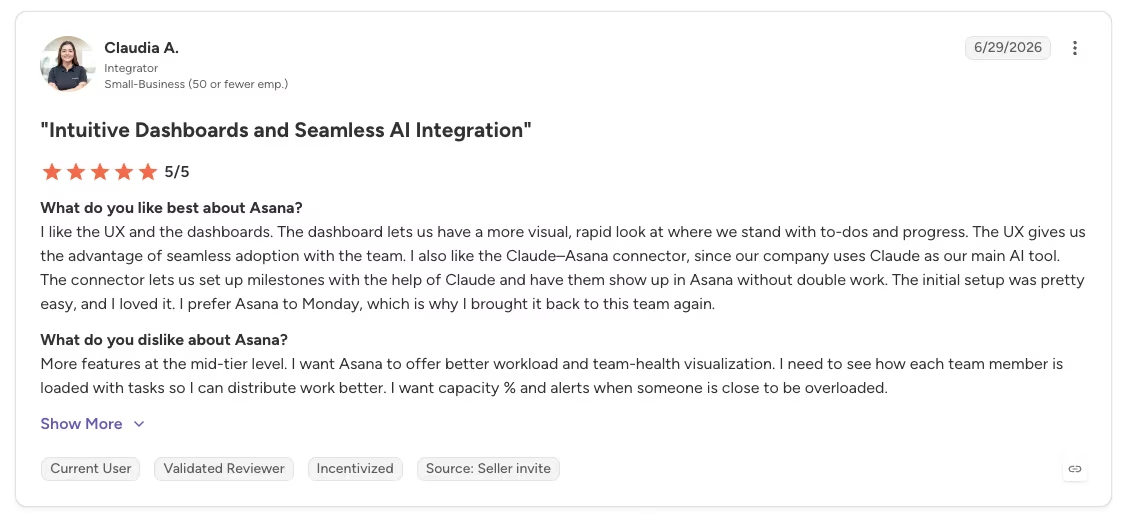
“I like the UX and the dashboards. The dashboard lets us have a more visual, rapid look at where we stand with to-dos and progress. The UX gives us the advantage of seamless adoption with the team. I also like the Claude–Asana connector, since our company uses Claude as our main AI tool.” - Claudia A., G2
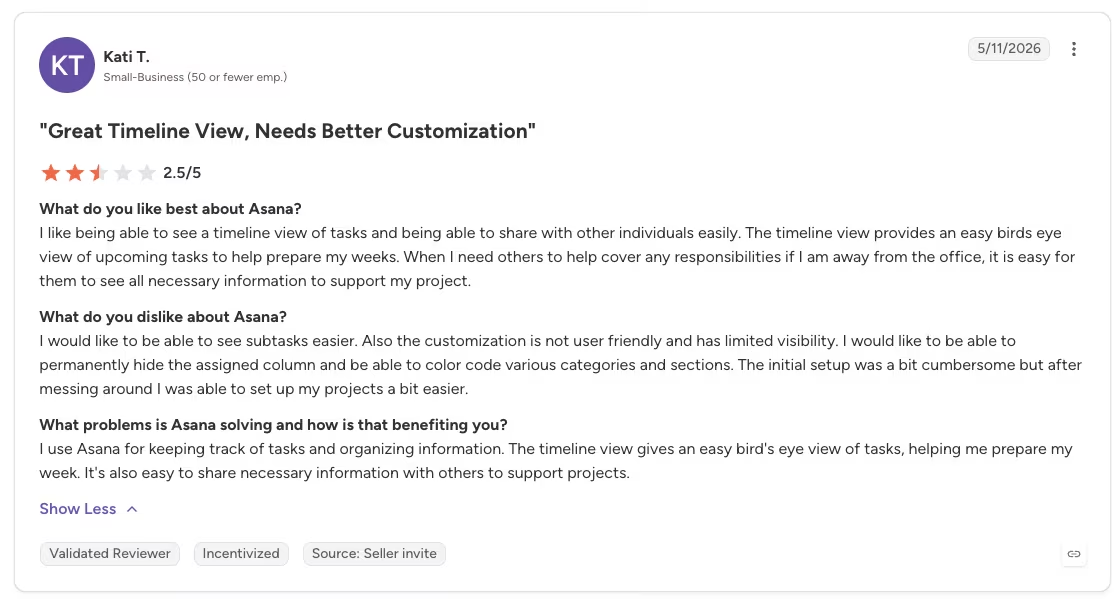
“Also, the customization is not user-friendly and has limited visibility. I would like to be able to permanently hide the assigned column and be able to color code various categories and sections.” - Kati T., G2
Pricing
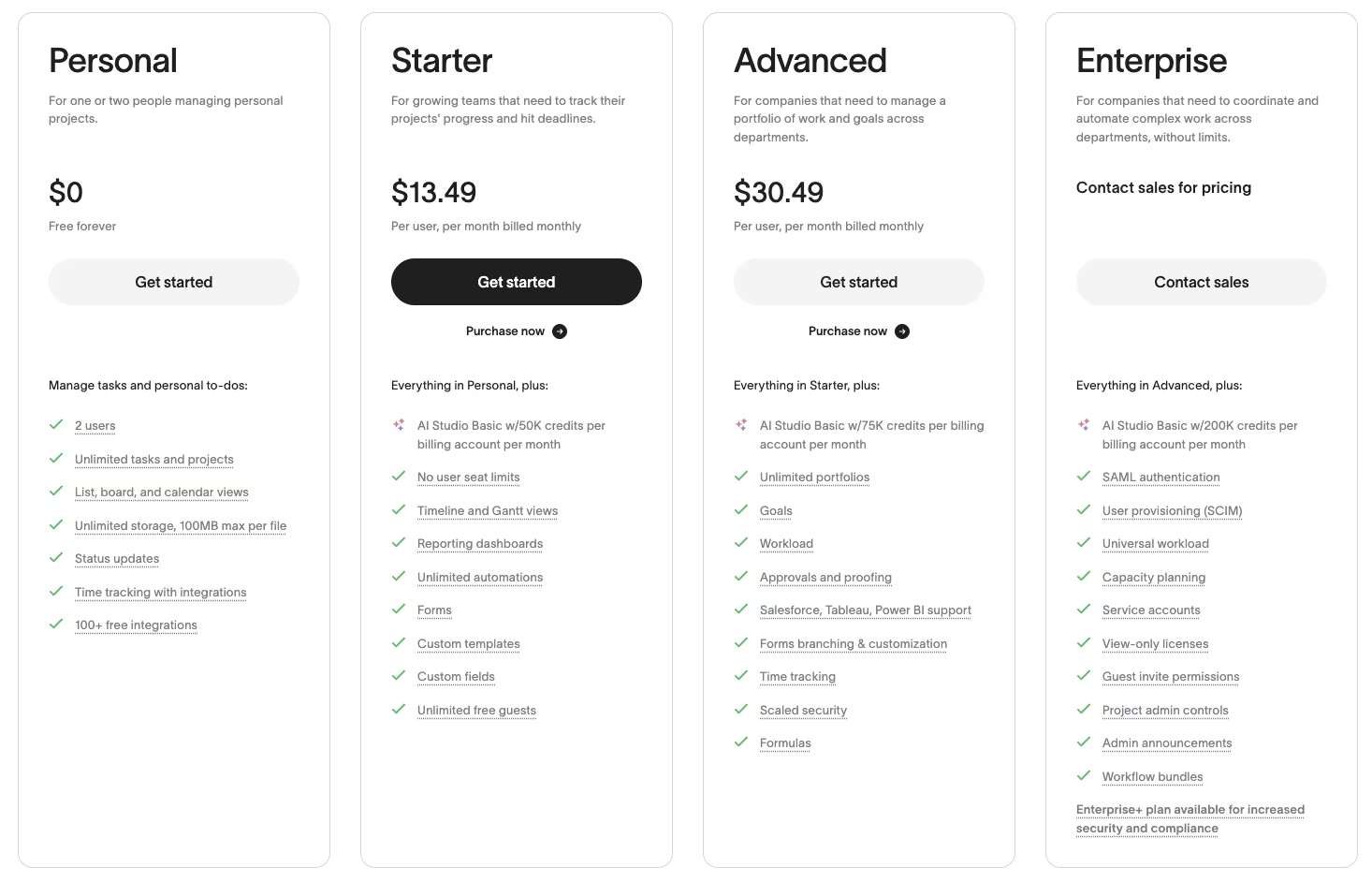
Asana has a free tier for small teams, with paid plans starting at $13.49 per month per user for Starter and $30.49 per month for Advanced. The advanced AI and automation you'll want for cross-team work sit in the upper tiers. Check which tier holds the AI summaries before committing, because the entry paid plan may not include them.
Bottom Line
Asana is strongest at turning a chaotic comment thread into a clean summary of decisions and blockers. It fits teams where marketing, design, and ops share one project, and status keeps getting lost. Choose a specialist for a narrow use case.
3. Monday.com: Best for Visual Dashboards and Workload
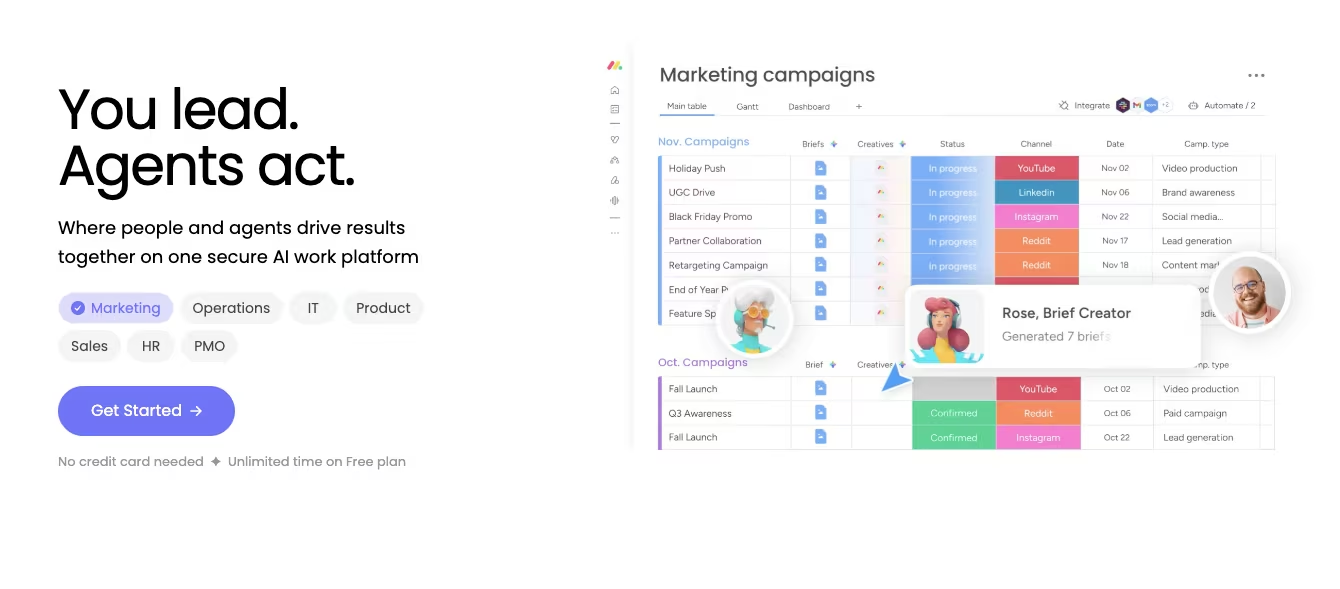
What it does: Monday.com is a visual work platform built on colorful boards, with dashboards that pull live data and an AI that flags risk.
Best for: Teams that manage by dashboard and need to see workload and deadlines across many boards at a glance.
Monday.com suits teams that manage work visually. I rebuilt the same content sprint as a live dashboard in Monday.com, spreading tasks across a handful of color-coded boards and rolling them into one portfolio view. The rebuild was the price of entry.
Setting up the boards, automations, and dashboards took a solid chunk of an afternoon. The free plan tops out at two seats, which puts larger teams on a paid plan starting around $12 per seat. Pro costs roughly $24 and raises the automation and AI limits.
The AI risk analyzer made the setup worthwhile. It read the dates and dependencies, then caught a publish date slipping two days before I noticed it in the list view.
Monday.com gave me the clearest view of workload across a dozen workstreams. Managers tracking several boards will get more value from that setup than teams running small, simple projects.
Key Features
- Live dashboards: Dashboards pull real-time data across boards, so a project view reflects where the work stands right now.
- AI risk analyzer: The AI reads your dates and dependencies and flags deadlines heading for trouble.
- Portfolio view: You can roll many projects into one view, which helps when you're tracking a dozen at once.
- Visual boards: Color-coded boards make status easy to scan for people who prefer a visual view.
Pros and Cons
Pros:
- Shows workload and deadlines across many projects more clearly than the other tools I tested.
- The AI risk flag surfaces a slipping deadline before it becomes a problem.
- Dashboards are customizable down to how your team thinks about work.
Cons:
- Complex workflows take serious setup time before the dashboards pay off.
- Automation runs are capped by pricing tier, so heavy use pushes you to a higher-priced plan.
What Users Say
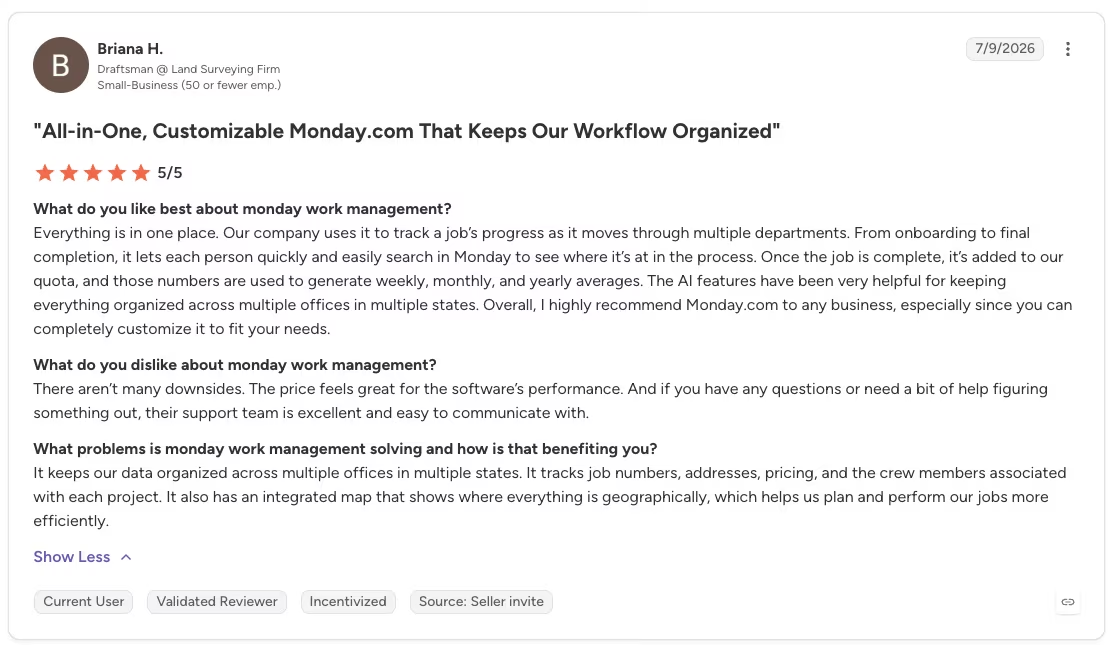
“Everything is in one place. Our company uses it to track a job’s progress as it moves through multiple departments. From onboarding to final completion, it lets each person quickly and easily search in Monday to see where it’s at in the process.” - Briana H., G2
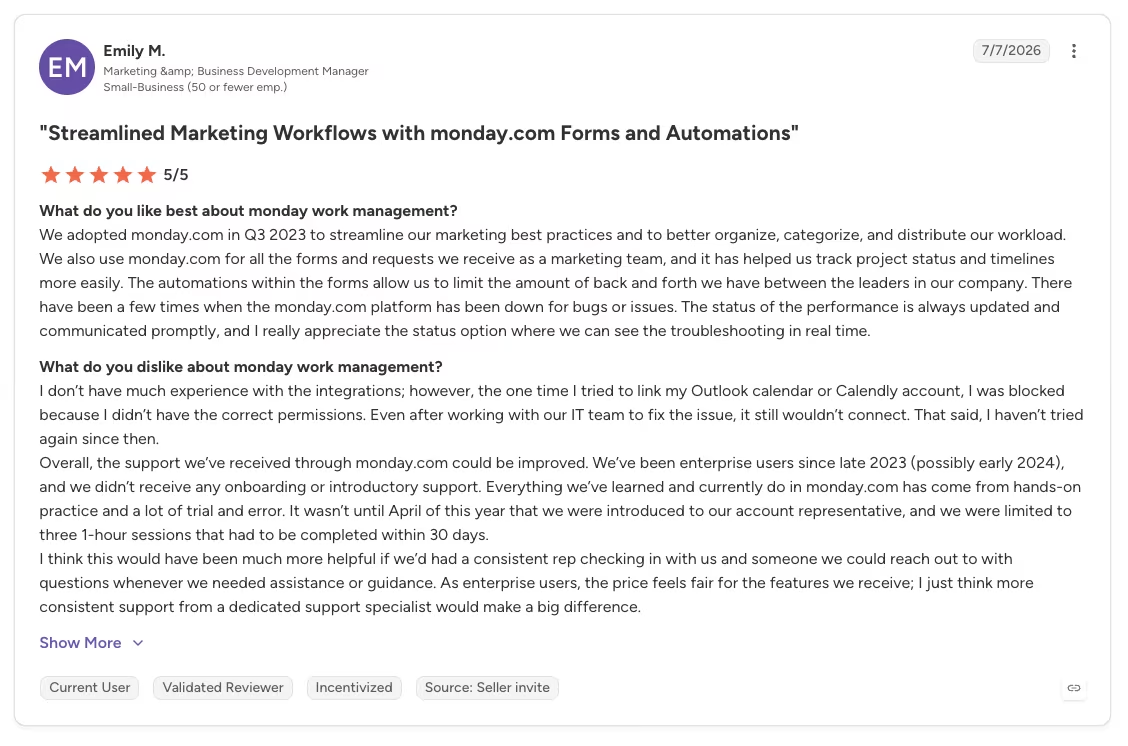
“Overall, the support we’ve received through monday.com could be improved. We’ve been enterprise users since late 2023 (possibly early 2024), and we didn’t receive any onboarding or introductory support.” - Emily M., G2
Pricing

Monday.com has a free plan for up to two seats, with paid plans starting at $12 per seat per month for Basic. Higher tiers raise automation and AI limits, with Standard at $14 per seat per month and Pro at $24 per seat per month. If dashboards are the reason you're here, confirm the tier that gives you the views and automation you need before buying any plan.
Bottom Line
Monday.com is for the manager who runs on dashboards and needs workload and deadlines visible across many projects at once. On a small team with simple projects, the setup effort outweighs what you get back. But at scale, the AI risk flag catching a slipping deadline while there's still time to act is exactly what you're paying for.
Also read our guide on how to build a KPI dashboard your team will use to see how the right tool choice affects what you can track and act on.
4. Notion: Best for Connecting Docs, Knowledge, and AI Meeting Notes
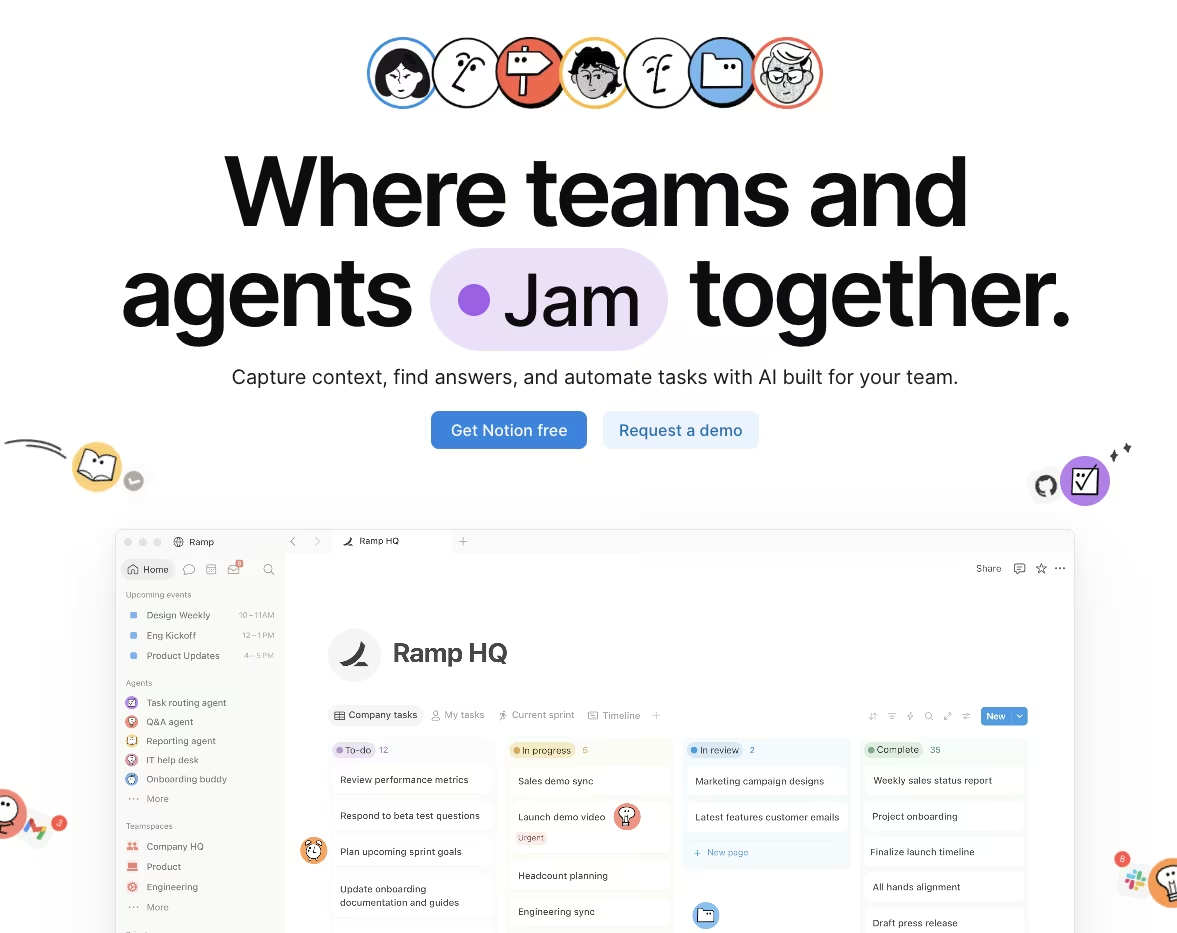
What it does: Notion is a flexible workspace for docs and databases, with AI that records meetings, transcribes them, and answers questions from your content.
Best for: Teams that want project execution and their knowledge base in the same place, especially for meeting-heavy work.
Notion finally put the meeting and the plan in the same place. I recorded the 40-minute strategy call and let Notion AI transcribe it and pull the action items. The transcript was cleaner than I expected, with labeled speakers and a usable action list. I then queried my editorial database right after the call, a step unavailable in a standalone notetaker:
"What action items came out of this call, and which ones touch pieces already in my editorial calendar?"
Notion AI drew its answer from my content and pointed to the two drafts that the meeting had reshuffled. The query showed how shared context lets the AI connect meeting notes with existing tasks and knowledge.
The weak timeline and Gantt views make Notion a poor fit for dependency-heavy execution. The bigger concern was the $10-per-1,000-credit model because heavy daily use of the meeting features burns credits fastest. A few agent-heavy days can chew through a month's allowance without you realizing it.
Notion's meeting transcription was among the cleanest I tested and could replace a dedicated notetaker when my docs already lived there. Estimate the credit cost for the whole team first, because the bill scales with the usage, which makes it worth having.
Key Features
- Meeting transcription: Notion records and transcribes a meeting accurately, then extracts action items you can drop straight into tasks.
- Query your workspace: You can ask the AI questions against your own docs and databases and get answers grounded in your content.
- AI autofill: Database fields fill themselves from your notes, so structured tracking stops being manual data entry.
- Connected knowledge: Execution and reference docs share one workspace, keeping the meeting notes and plan together.
Pros and Cons
Pros:
- The AI meeting transcription and summaries are some of the cleanest I tested.
- Querying your own databases right after a meeting turns notes into updates fast.
- Docs, knowledge, and tasks in one workspace means less app-switching.
Cons:
- The timeline and Gantt views are weak, so it's a poor fit for dependency-heavy execution.
- Notion's flexibility can turn setup into extra work.
What Users Say
“What I like most about Notion is that it functions as a connected workspace, not just a note-taking or project management tool. We can link documents, databases, meeting notes, SOPs, tasks, and project pages together, which makes information easier to organize and retrieve when we need it. The flexibility to customize pages, views, and templates also lets each team work in a way that fits their needs and workflows.” - Adnan T., G2

Pricing

Notion has a free plan, with paid plans starting at $12 per month per member for Plus and $24 per month for Business. Notion AI runs on a credit model, at $10 per 1,000 monthly credits, that can add up quickly with heavy use.
If your team leans on the AI daily, model out the credit cost prior to a team-wide rollout.
Bottom Line
Skip Notion for dependency-heavy execution, where the weak Gantt views will push you toward a dedicated platform. Notion pays off when project work and the knowledge base belong together, especially for meeting-heavy workflows. You can query its clean AI transcription immediately against your own databases.
5. Wrike: Best for AI Built Into Project Workflows

What it does: Wrike is a project management platform where the AI is built into the workflow, answering questions and predicting risk from your actual task data.
Best for: Teams with structured, data-rich projects that want AI to analyze live project data.
Wrike showed me the value of AI working from project data. I asked Wrike Copilot a plain-English question about my project:
"Where is the biggest risk in this sprint right now, and what's driving it?"
Copilot answered from the actual task data. It named the two deliverables whose due dates were bunched against the same reviewer and explained why that was the pinch point. The answer was specific to the sprint because Copilot used live task data.
The same agent auto-populated task fields as I built the project out, so the structure held without me doing the busywork by hand.
Copilot's answers improved as I added more project data. With a half-built project, its responses were thin and hedged. They became specific once I added real dates, owners, and dependencies, so Wrike works best for teams that keep project data complete.
The advanced AI also needs a paid plan, starting around $10 per user for Team and climbing to about $25 for Business, so it isn't in the free tier.
For a structured, data-disciplined team, Wrike is the most genuinely useful project AI on the list because it reasons over live state. Half-filled projects produce weak predictions and reduce the value of the paid feature.
Key Features
- Plain-English risk Q&A: Copilot answers questions about your project's status and risk straight from live task data.
- Auto-populated fields: An AI agent fills in task fields for you, so structured projects stay structured without the busywork.
- Proactive risk prediction: It flags risks before they land, which is the payoff for keeping your data complete.
- Deep workflow integration: The AI uses live project data throughout the workflow.
Pros and Cons
Pros:
- The AI answers from real project data, so its risk calls are grounded in what's happening.
- Auto-populated fields cut the manual upkeep on structured projects.
- Risk prediction is proactive, so risks reach you before you'd think to open a report.
Cons:
- The advanced AI needs a paid plan, so the best features aren't in the free tier.
- The predictions are only as good as your data, so a half-filled project gets you weak answers.
What Users Say
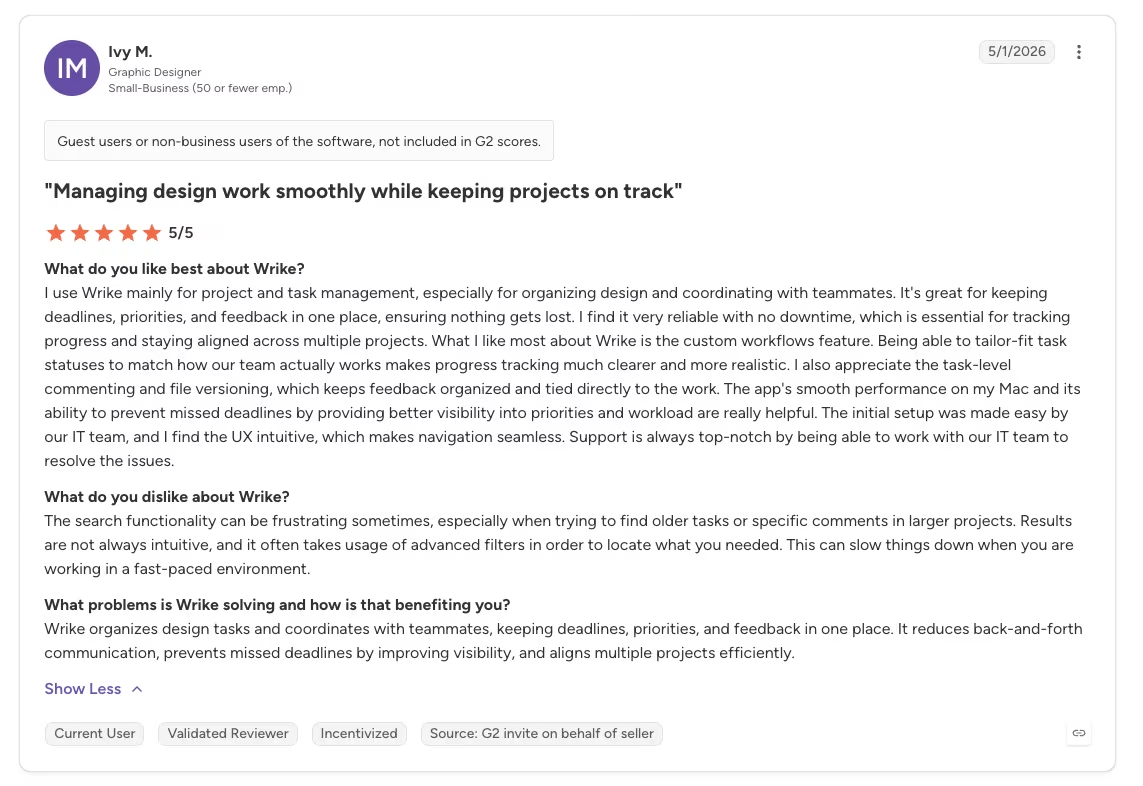
“I use Wrike mainly for project and task management, especially for organizing design and coordinating with teammates. It's great for keeping deadlines, priorities, and feedback in one place, ensuring nothing gets lost. I find it very reliable with no downtime, which is essential for tracking progress and staying aligned across multiple projects.” - Ivy M., G2
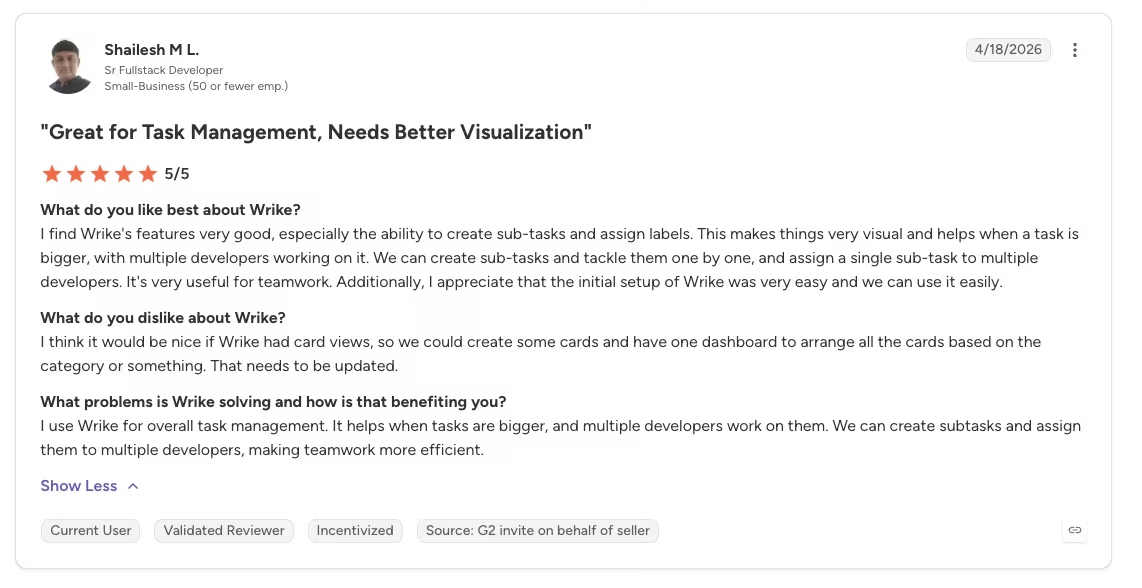
“I think it would be nice if Wrike had card views, so we could create some cards and have one dashboard to arrange all the cards based on the category or something. That needs to be updated.” - Shailesh M L., G2
Pricing
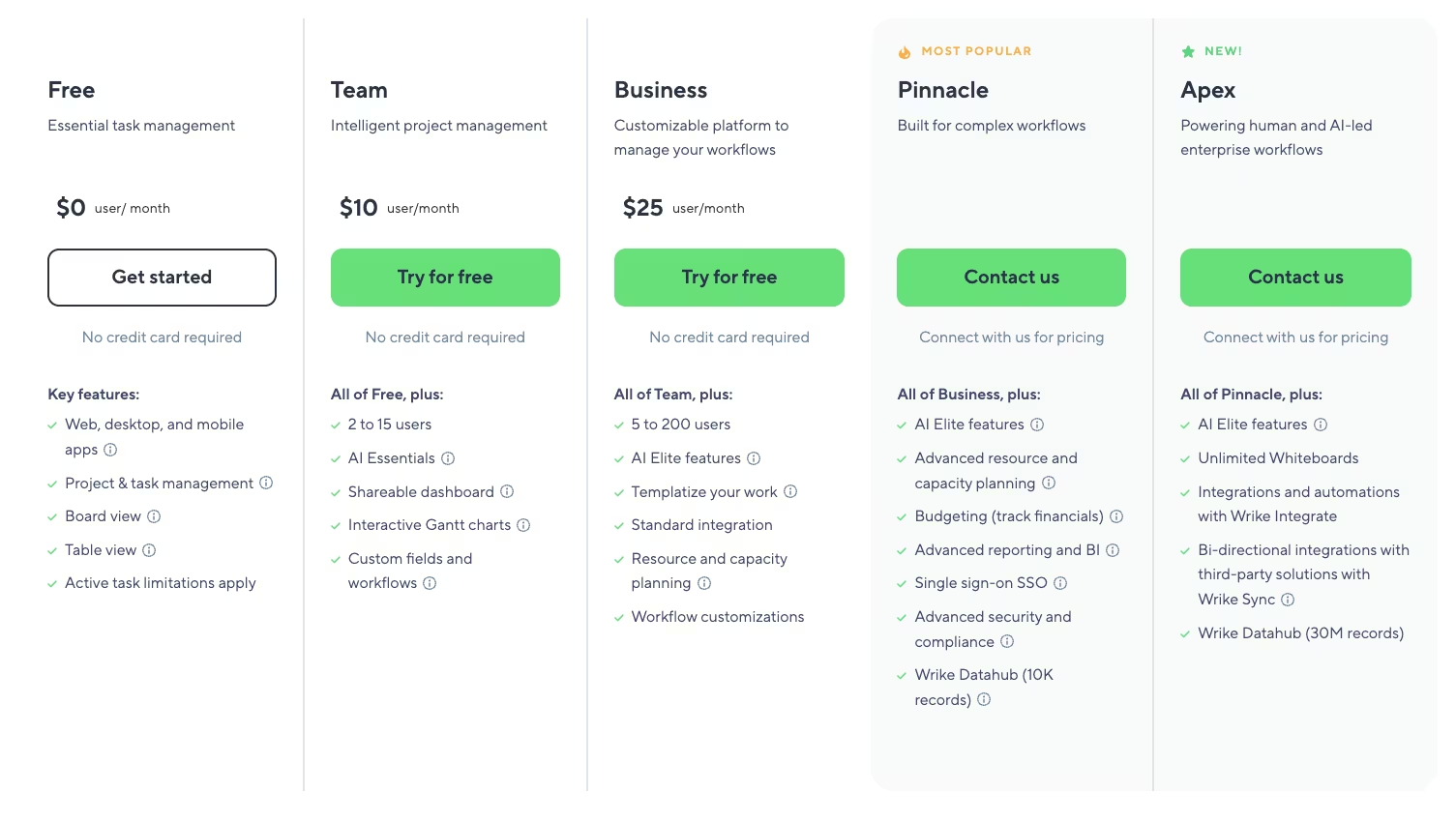
Wrike has a free plan, with paid plans starting at $10 per user per month for Team and $25 per user per month for Business. The Copilot and predictive AI features sit in the paid tiers. If Wrike's built-in AI is why you're considering it, confirm which paid tier includes the features you need.
Bottom Line
Copilot answering a plain-English risk question straight from your task data pulls Wrike ahead of tools that generate generic text. That makes it the pick for structured, data-heavy projects kept current with real dates and owners. If the project stays half-filled, the predictions weaken, and the paid feature delivers less value.
6. Jira: Best for Technical and Dev Teams
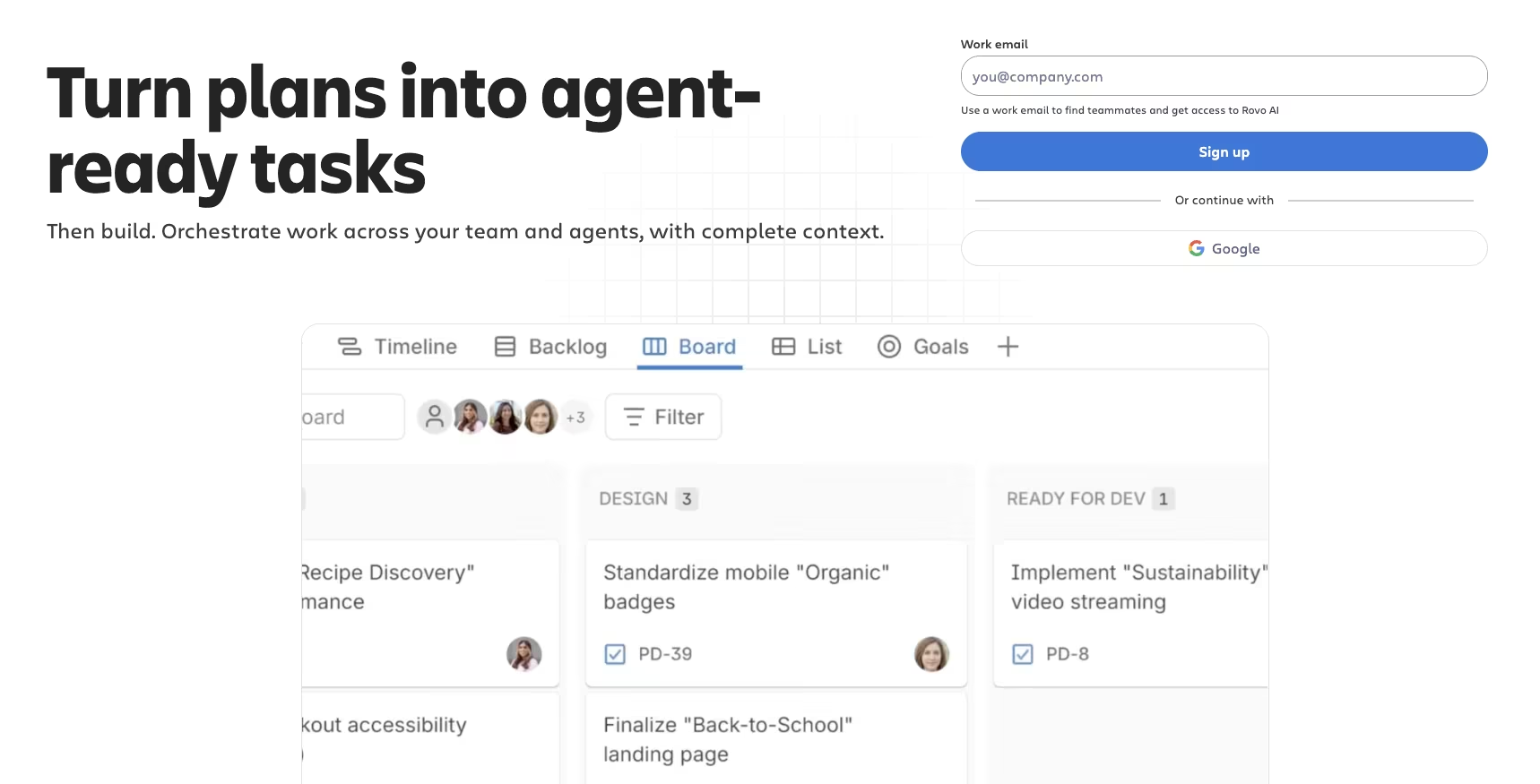
What it does: Jira is an issue and sprint tracker built for software teams, with AI that handles tickets and sprint work in natural language.
Best for: Engineering and technical teams that live in sprints, issues, and a connected docs tool.
I tested Jira on issues, tickets, and standup prep, the work it was built to handle. Plain-language tickets impressed me because they removed field-by-field form entry. I typed the kind of instruction a PM thinks in:
"Create a ticket for each task in this sprint plan and flag anything that's blocked."
Jira spun up the batch and surfaced the blocked items from the prompt, cutting out the individual forms. I then asked for sprint health and blockers ahead of standup and got a read in seconds.
For a real dev workstream, natural-language ticket creation saves hours across a sprint by cutting most of the form clicks. Sprint work also flowed into Confluence cleanly, so the plan and the write-up stayed connected.
Jira is built for engineering, so non-technical teams will feel the configuration overhead before they see the payoff. The free tier covers up to 10 users. Standard starts around $7.91 per user, and paid tiers include the Rovo AI features.
For software teams that work in sprints, Jira fits the workflow better than the other tools I tested. Natural-language ticket creation was the main reason.
Key Features
- Natural-language tickets: You can create and update issues in plain language, which removes field-by-field form entry.
- Sprint insights: The AI surfaces sprint health and blockers, so standup prep stops being manual digging.
- Bulk ticket creation: You can spin up a batch of tickets from a plain-English prompt, which cuts sprint-planning grind.
- Docs handoff: Sprint work flows into Confluence cleanly, so the plan and the write-up stay connected.
Pros and Cons
Pros:
- Purpose-built for sprints and issue tracking, so its workflow matches how dev teams work.
- Natural-language ticket work removes a lot of form-clicking.
- Connects cleanly to Confluence and the wider Atlassian stack.
Cons:
- It's overkill for non-technical teams and will frustrate them.
- Setup and configuration take serious effort before it runs smoothly.
What Users Say
“What I like best about Jira is its ability to bring structure and visibility to complex workflows. It makes it easy to track tasks, bugs, and progress across a team in a very organized way. Features like customizable boards (Scrum/Kanban), detailed ticketing, and clear status tracking help everyone stay aligned on priorities and deadlines.” - Atharva S., G2

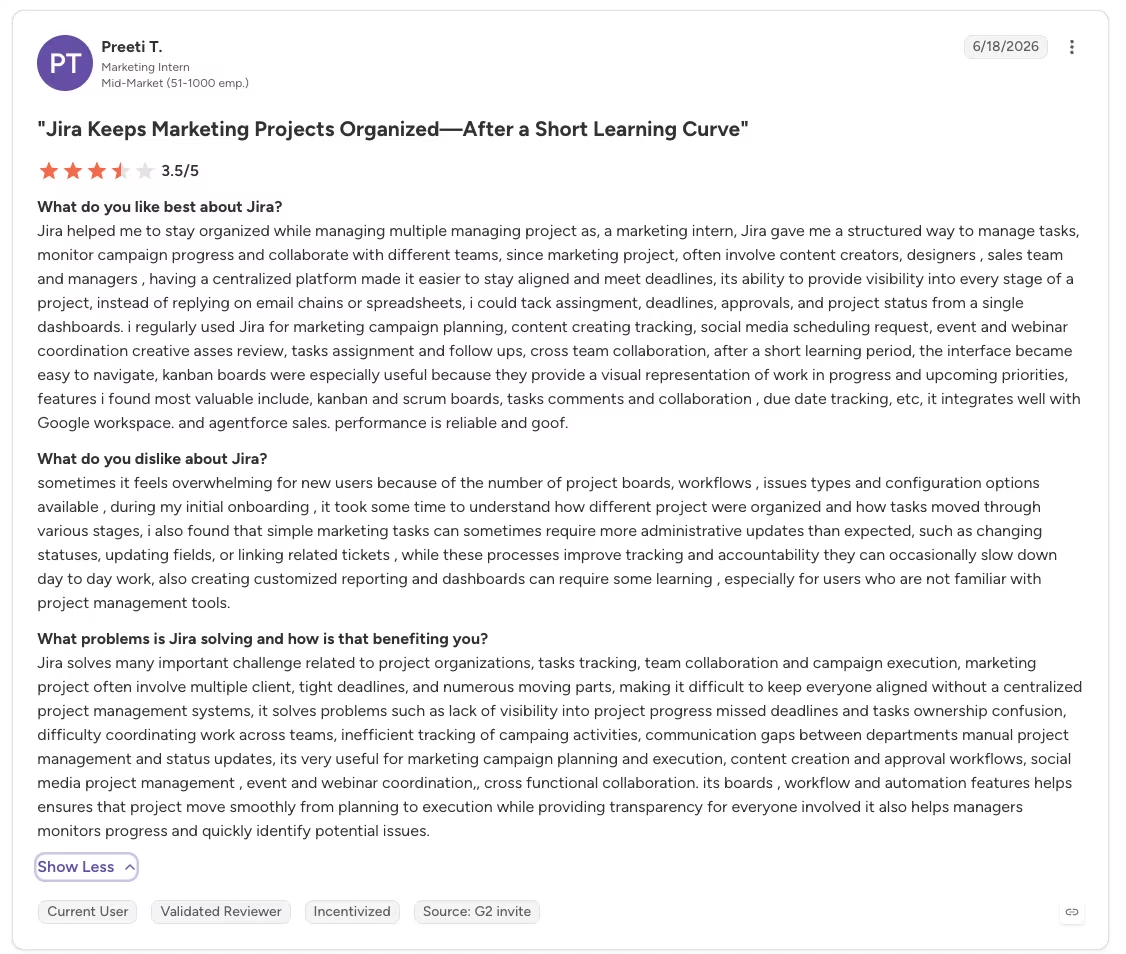
“Sometimes it feels overwhelming for new users because of the number of project boards, workflows, issue types, and configuration options available. During my initial onboarding, it took some time to understand how different projects were organized and how tasks moved through various stages. I also found that simple marketing tasks can sometimes require more administrative updates than expected, such as changing statuses, updating fields, or linking related tickets.” - Preeti T., G2
Pricing
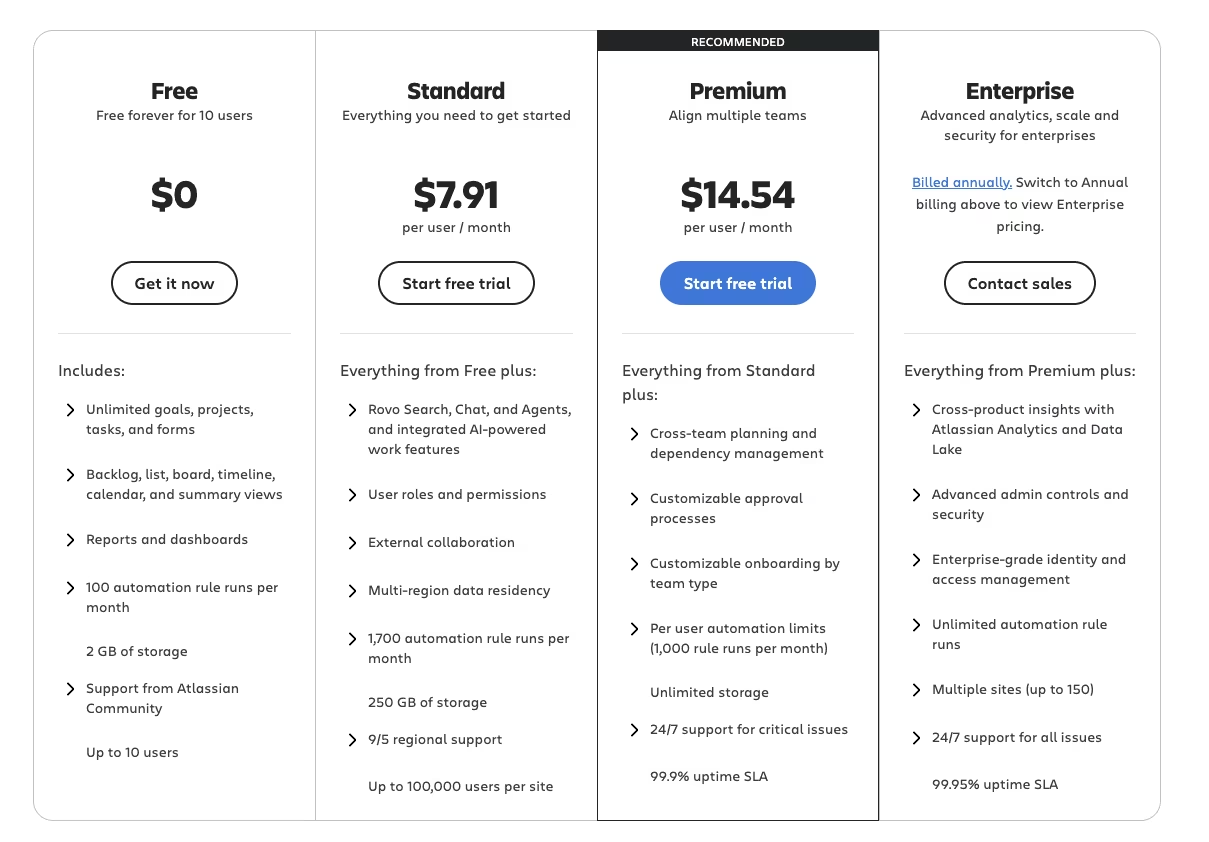
Jira has a free tier for up to 10 users, with Standard at $7.91 per user per month and Premium at $14.54 per user per month. The Rovo AI features come with paid tiers, so choose the plan that includes the features your team needs. For a dev team already in Atlassian, the free tier is a fair place to start.
Bottom Line
For an engineering team that lives in sprints, Jira handles ticket creation and sprint insights through plain-language commands. A non-technical team will find Jira excessive and will be happier on a simpler board.
7. Motion: Best for Hands-Free AI Scheduling
What it does: Motion is an AI scheduler that takes your tasks and meetings and auto-builds your daily calendar, reshuffling it as things change.
Best for: Busy individuals and small teams that want AI to schedule a full task list and decide what comes next.
Handing the decisions to the software is Motion's premise, and I wanted to know whether I could live with it. I dumped a full week of content to-dos into Motion, set deadlines and priorities, and let its AI build my daily calendar from scratch.
Motion uses your tasks and constraints as its input, then time-blocks everything automatically and tells you what to work on next. The first schedule gave me a realistic day without manual time-blocking, which showed its value for chaotic solo weeks.
Dynamic rescheduling was Motion's strongest feature. When one task ran long, Motion pushed everything downstream and rebuilt the rest of the day, keeping the plan realistic through noon. For a small team, it also shows capacity, so you can see at the point of assignment that someone's already at their limit.
Motion lost me when I tried to override a block and keep my own ordering. Manual overrides felt clunky, and the scheduling control was too rigid for how I plan my day.
The $49-per-month Pro AI plan makes Motion one of the pricier tools here, and it offers a trial but no free plan.
Motion was the strongest hands-off scheduler I tested for anyone willing to give AI control of the calendar. Its rigid controls frustrated me when I tried to arrange the day myself.
Key Features
- Auto time-blocking: Motion places every task on your calendar automatically, so you stop deciding what to do next.
- Automatic replanning: When plans slip, it reshuffles the rest of your day without you touching a thing.
- Team workload view: It shows capacity across a small team, which helps prevent quietly overloading one person.
- Daily focus: It tells each person exactly what to work on, which is calming on a chaotic day.
Pros and Cons
Pros:
- The automatic scheduling is fully hands-off and great for chaotic solo days.
- It automatically rebuilds your schedule when tasks run over, keeping the rest of the day realistic.
- Team workload visibility helps stop overallocation early.
Cons:
- It's rigid once it takes over, and manual overrides feel clunky.
- It's expensive, and some features still feel unfinished.
What Users Say
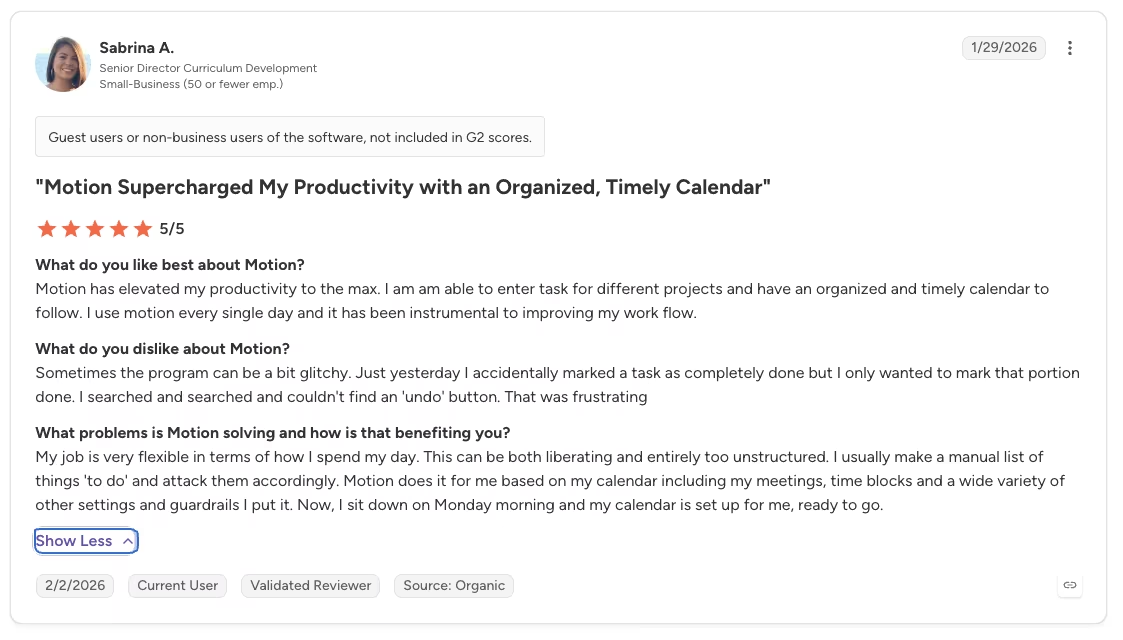
“Motion has elevated my productivity to the max. I am able to enter tasks for different projects and have an organized and timely calendar to follow. I use Motion every single day, and it has been instrumental to improving my workflow.” - Sabrina A., G2
Pricing
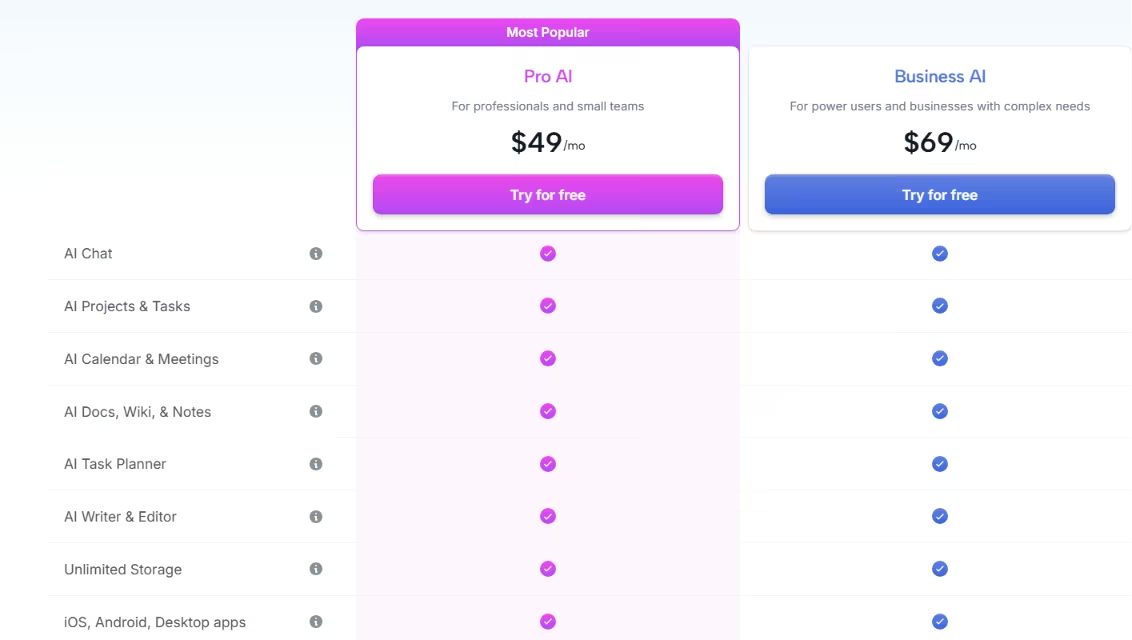
Motion comes in two plan families. Individual plans run $49 per month for Pro AI ($29 per month billed annually) and $69 per month for Business AI ($39 billed annually).
Team plans are cheaper per seat: $29 per user per month for Pro AI and $49 per user per month for Business AI. You start on a free trial, with no free plan to stay on. At the $49 Individual plan most solo users pick, Motion sits among the priciest tools on this list.
Bottom Line
People who arrange their own time will find Motion's rigid overrides frustrating. For anyone who wants AI to own the calendar and choose the next task, Motion schedules the day automatically and replans it when the schedule slips.
8. Trello: Best for Simple, Budget-Friendly Boards
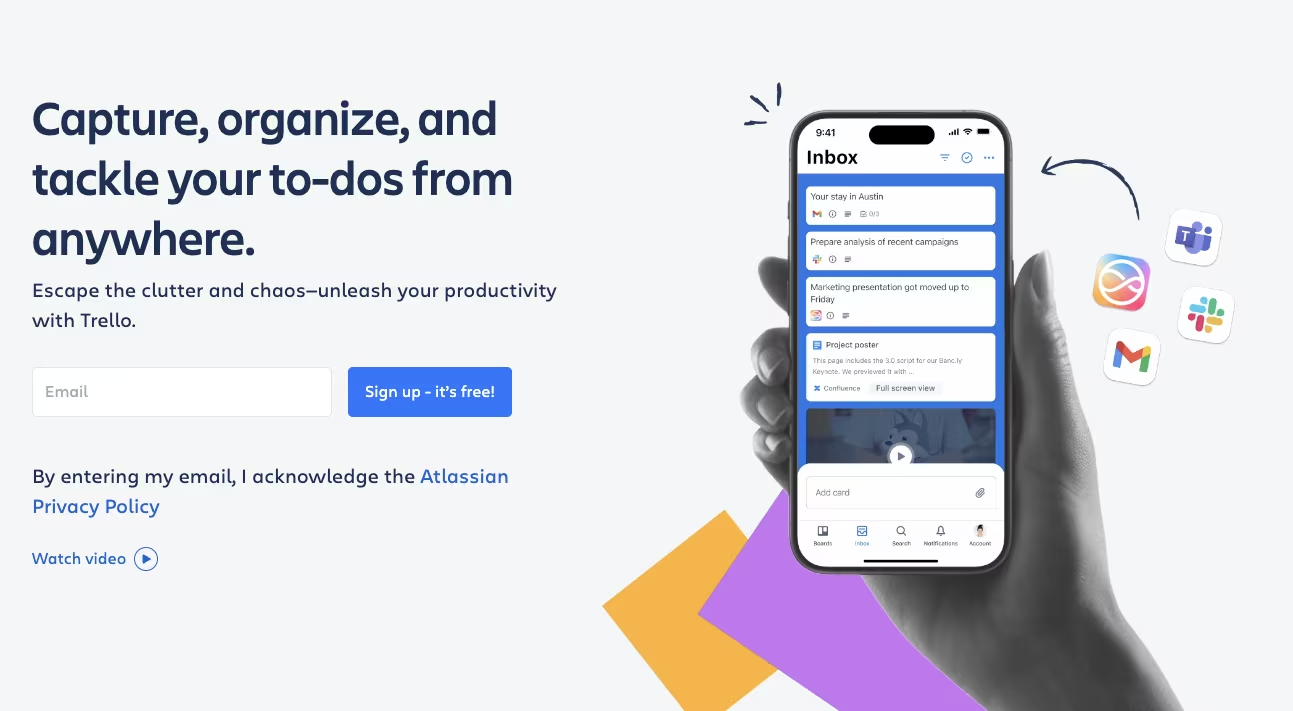
What it does: Trello is a simple Kanban board tool, with AI-powered summaries and suggestions available in its paid tiers.
Best for: Small teams and individuals who want a clean board for straightforward work without a heavy platform.
Trello served as the budget control. I ran a lighter version of the content calendar on Trello using boards, cards, and lists. I was up and running in minutes, compared with the afternoon Monday.com required.
For simple, list-style work, speed beats any AI feature. A non-technical teammate can look at a board and know the status without any training. I turned on the Premium AI summaries on a deliberately busy board to see what the AI added.
The AI summarized a crowded board and suggested next steps, which kept the board readable. Its help stayed well below the predictive planning Wrike or Monday.com offered. Trello reached its limit when I needed dependencies and a real timeline. Complex projects quickly outgrow Trello because it lacks proper Gantt and resource management.
The free boards are usable for straightforward work. Trello reserves its AI features for paid tiers, with Standard around $5 per user and Premium around $10, both billed annually. If simple boards already do your job, stay on the free plan. The light summaries and suggestions alone rarely justify the upgrade.
Trello fits a small team that needs a clean, low-cost board for straightforward work.
Key Features
- Simple Kanban boards: Cards and lists make status obvious with zero training, so anyone can pick it up.
- AI summaries: Paid tiers summarize busy boards and suggest next steps, so a crowded board stays readable.
- Fast setup: You're up and running within minutes, which suits light projects.
- Broad integrations: It connects to the usual tools and slots into an existing stack.
Pros and Cons
Pros:
- A non-technical team can adopt it with little training.
- It is a low-cost option for straightforward Kanban work.
- Setup takes a few minutes.
Cons:
- It's limited for complex projects, with no proper Gantt or resource management.
- The AI features are locked to paid tiers and stay fairly light, well short of deep predictive planning.
What Users Say
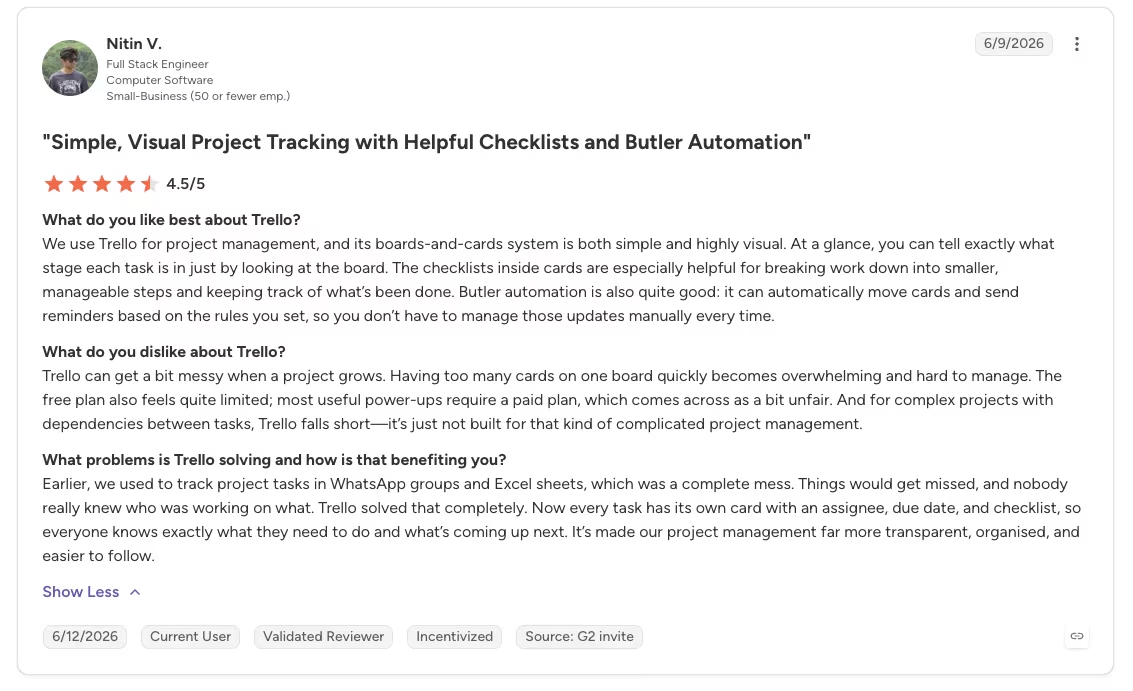
“We use Trello for project management, and its boards-and-cards system is both simple and highly visual. At a glance, you can tell exactly what stage each task is in just by looking at the board. The checklists inside cards are especially helpful for breaking work down into smaller, manageable steps and keeping track of what’s been done.” - Nitin V., G2
Pricing
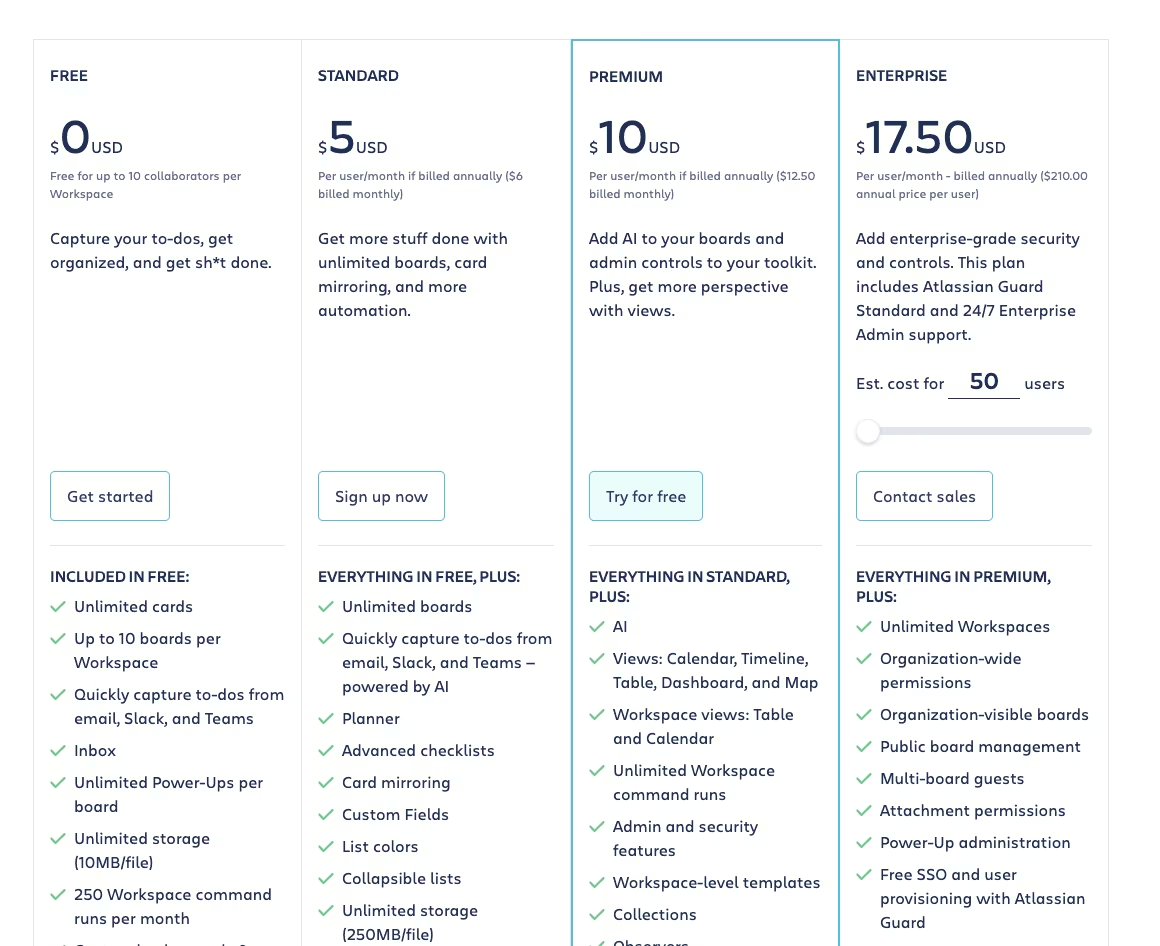
Trello has a free plan, with Standard at $5 per month per user and Premium at $10 per month. The AI summaries live in the Premium and Enterprise tiers.
Bottom Line
Trello is a clean, cheap board that a small team or solo user can adopt in minutes with no learning curve. Projects with serious dependencies or timelines will need a fuller platform.
9. Lindy: Best for Staying on Top of Tasks via Text

What it does: Lindy is an AI assistant that connects to your existing tools and texts you reminders and status updates. You stay on top of tasks without opening another dashboard.
Best for: People who already run a PM tool but keep losing follow-ups in the gap between Slack, email, and the board.
Lindy targets follow-ups that get lost between Slack, email, and the project board. I wired it to text me task reminders and status nudges tied to the PM board I was using that week, so the reminders reached me without another dashboard check.
The text-based workflow helped more than I expected. Across the sprint, Lindy turned follow-ups I used to chase across Slack and email into texts I could answer in one line, including "Did that draft ever get reviewed?"
Lindy connects to your current PM tool and sends reminders by text, so the project hub stays in place.
Lindy is only a reminder layer, so the underlying PM tool still runs the project.
Lindy's add-on plans start at $49.99 a month for Plus and reach $199.99 for Max. Pricing depends on usage and inbox count, and there is a trial but no ongoing free plan.
Treat Lindy as an add-on to a PM tool you already pay for. It is worth the extra cost for people who keep dropping follow-ups between apps. Start with a project hub if you do not have one, because Lindy assumes it already exists.
Key Features
- Text-based nudges: It sends reminders and status prompts by text, so follow-ups reach you where you already look.
- Works with your current tools: It connects to the PM tool you already use and keeps the existing workflow in place.
- Status updates: It can nudge you for or surface a quick status without you opening the board.
Pros and Cons
Pros:
- Text reminders catch follow-ups between apps.
- It works with your existing PM tool.
- Your project hub remains the dashboard you manage.
Cons:
- It requires an existing PM tool and adds another subscription.
- Its role is limited to reminders and status nudges.
What Users Say
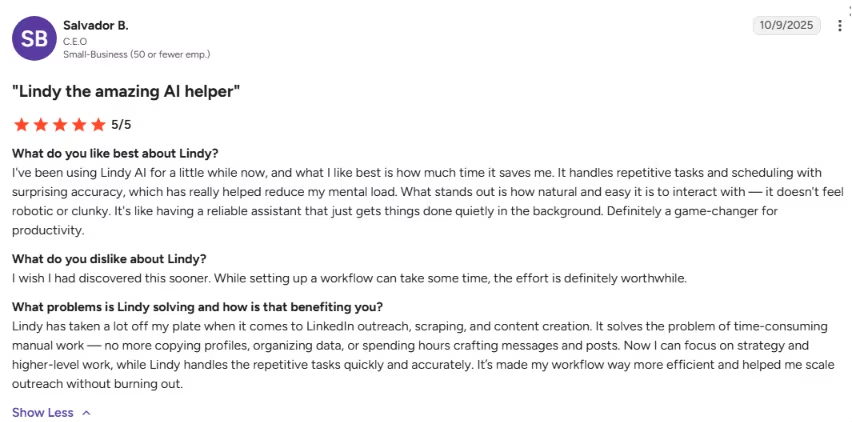
“It handles repetitive tasks and scheduling with surprising accuracy, which has really helped reduce my mental load.” - Salvador B., G2
“The custom plan is expensive as [a] new business, but it can be cheaper than hiring an employee.” - Craig A., G2
Pricing

Lindy's plans start at $49.99 per month for Plus, with Pro at $99.99 per month and Max at $199.99 per month, each tiered by usage and the number of inboxes it runs. It comes with a trial to test, and no free plan. Since it layers on top of a tool you're already paying for, treat it as an add-on to your existing stack.
Bottom Line
Lindy suits people who already run a PM tool and keep dropping follow-ups between Slack, email, and the board. It sends those nudges by text while the existing hub continues to run the project.
The Current Limits of AI in Project Management
Every AI helper I tested sped up notes, reports, reminders, or scheduling, and some cut that work sharply. Stakeholder conversations, priority calls, and responsibility for missed deadlines still required my judgment.
On messy calls, the meeting tools missed nuance, so I proofread every set of notes before anyone saw them. Treat AI output as a first draft that needs human review, especially for high-stakes work.
Feeding project data into an AI tool raises privacy and model-training questions, and your company may require IT approval. Check where your data goes and whether the vendor uses it to train models before you add a client project.
AI reduces the admin work around project management. Judgment, relationships, and accountability remain with the project manager.
Also read our guide on how to create a business app when the right move is a custom tool built around your workflow.
Which AI Project Management Tool Should You Choose?
The right pick depends on the job you're hiring the tool for, so I've grouped the decision by use case.
Choose ClickUp if you:
- Want one hub for tasks, docs, and dashboards with AI acting across all of it.
- Have the budget to license the AI add-on for the people who need it.
Choose Asana if you:
- Need several teams aligned inside one project without status getting lost.
- Want the AI to pull decisions and blockers out of long comment threads.
Choose Monday.com if you:
- Manage by a visual dashboard and need workload and deadlines visible across many projects.
- Want an AI risk flag that catches a slipping deadline while there's still time to act.
Choose Notion if you:
- Want project execution and your knowledge base in the same workspace.
- Do meeting-heavy work and want a clean transcription you can query.
Choose Wrike if you:
- Run structured, data-rich projects and keep the data current.
- Want AI to analyze live project data.
Choose Jira if you:
- Are an engineering team that lives in sprints and issues.
- Want plain-language ticket creation and updates.
Choose Motion if you:
- Have a full task list and want AI to own your calendar.
- Are fine letting software decide what you work on next.
Choose Trello if you:
- Want a clean, cheap board for straightforward, list-style work.
- Want light AI summaries on a board that stays simple.
Choose Lindy if you:
- Already run a PM tool but keep losing follow-ups between apps.
- Prefer task reminders by text.
Skip this category entirely if:
- Your projects are simple enough that a shared doc and a calendar already do the job.
- Your IT team hasn't approved feeding project data into AI tools yet.
Final Verdict
My test favored a two-layer setup with a work hub and an AI helper for the admin work.
Pick your hub first. ClickUp fits all-in-one AI, Asana suits cross-functional teams, and Monday.com wins on visual dashboards. Notion connects docs and meeting notes, Wrike analyzes live project data, and Jira serves dev teams.
Add a helper for the task that still takes the most time. Motion schedules your day, and Lindy sends follow-ups by text. On a tight budget, Trello covers simple board-based work, but its AI remains limited.
How Emergent Helps Teams Build a Tracker for a Specific Workflow

Off-the-shelf tools can force teams into rigid workflows or expensive plans packed with unused features when the project only needs three fields and a login.
With vibe coding, teams can build a tracker themselves from a plain description, removing the need to hire engineers. Emergent uses this approach to turn that description into a working internal tool.
You can describe custom project management software with the exact fields, team logins, and workflow views you need. Emergent's AI agents build the interface, data, and underlying logic from that description, then test the result before it reaches you.
A custom tracker can fit teams with highly specific workflows. Dedicated PM platforms will still suit most teams.
If your workflow is that specific, it's worth building a quick version on Emergent to test whether a custom tool fits.


Most AI app builders stop at prototypes. Emergent creates production-ready apps you can actually launch.
- Production-ready apps
- Web & mobile apps
- Deploy in minutes