
It's Thursday night, and you're redoing next week's schedule for the third time. Someone can't work Saturday, someone else is close to overtime, and the group chat won't stop buzzing about swaps. One missed update later, Monday opens a person short.
The best employee scheduling software fixes that, but the options vary a lot. The good news is you can skip a week of free trials, because the comparison below lines them up side by side.
I put seven tools through a normal week of shifts and a scheduling conflict, tested last-minute changes wherever the setup allowed, and covered the eighth from its documentation. I also read each pricing page for the limits feature lists leave out.
You'll finish knowing which one fits your team size, pay rules, and the way your staff hear about changes.
How I Tested the Eight Scheduling Tools
Disclosure: This article is published by Emergent, one of the eight tools compared below. Emergent is listed first, and the rest aren't ranked.
I set up the same fictional business, Harbor & Pine Pet Lodge, a dog daycare and boarding business, in every tool where I could create an account. Its full 16-person roster went in wherever a tool accepted an upload, and I added a smaller test team by hand elsewhere. Then I ran the same three checks wherever the tool allowed.
The three checks:
- A normal week: I built seven days of shifts, uploading a spreadsheet where the tool allowed it.
- A scheduling conflict: I created a clash, such as a double booking or a shift during approved time off, then watched for a warning and checked whether I could still publish.
- A last-minute change: I moved a published shift and checked whether the affected employee was notified.
Two tools needed a different route. Findmyshift ran in its prefilled demo after Google sign-up returned an error, so its last-minute change went untested, and WhenToWork is covered from its documentation because I couldn't create an account. I spent five hours running those checks and working through each tool's documentation and help pages.
Emergent works differently from the other seven. It builds the scheduling app from a description, so I started it with this prompt.
The prompt:
"Build an employee scheduling app for Harbor & Pine Pet Lodge, a dog daycare and boarding business in Portland, Maine, with 16 staff across three roles: daycare attendants, groomers, and overnight kennel techs. Managers build a weekly schedule by drag and drop. Only staff marked pet CPR certified can take overnight shifts. Staffing needs one attendant per 12 dogs, based on each day's booking count, which managers enter. Groomers work weekdays only. Staff set their availability, request time off, and offer shifts for swap, with manager approval. Flag conflicts (double bookings, unavailable staff, uncertified overnight assignments) before a schedule publishes, and email each employee their shifts when it does. Use a clean sage and navy palette."
I came across two more tools while researching that didn't make the final eight:
- ZoomShift: Its FAQ says it doesn't auto-schedule, while its pricing page lists auto-scheduling on the Premium plan, so I couldn't pin down what you'd get. Its free plan still suits a single location that plans two weeks ahead.
- Connecteam: Scheduling sits in its Operations hub, while time-off requests and team chat sit in two other hubs, each priced separately. Past its free plan, covering all three starts at $105 per month for the first 30 users ($87 per month billed annually). The free Small Business plan still suits teams of up to 10 who want every hub.
The Eight Tools at a Glance
The eight tools price in five different ways, so the cheapest option changes with your team's shape. The starting price below is the first paid tier, with a free plan noted where one exists.
How the eight scheduling tools compare:
Pricing correct as of September 2026.
8 Best Employee Scheduling Apps Compared in Detail
Each review below follows the same order, starting with what the tool does and how it handled the three checks, then its key features, pros and cons, and pricing from its official pricing page. Findmyshift ran in its demo and WhenToWork rests on its documentation, and both sections say so up front.
1. Emergent

Emergent is a vibe coding platform with an AI app builder: you describe the scheduling app your business needs, and Emergent builds it, including hosting, sign-in, and role-based access.
Its AI schedule builder page lists availability windows, time off, and blackout dates among the rules a finished app can handle. Emergent is also ISO 27001 and SOC 2 certified.
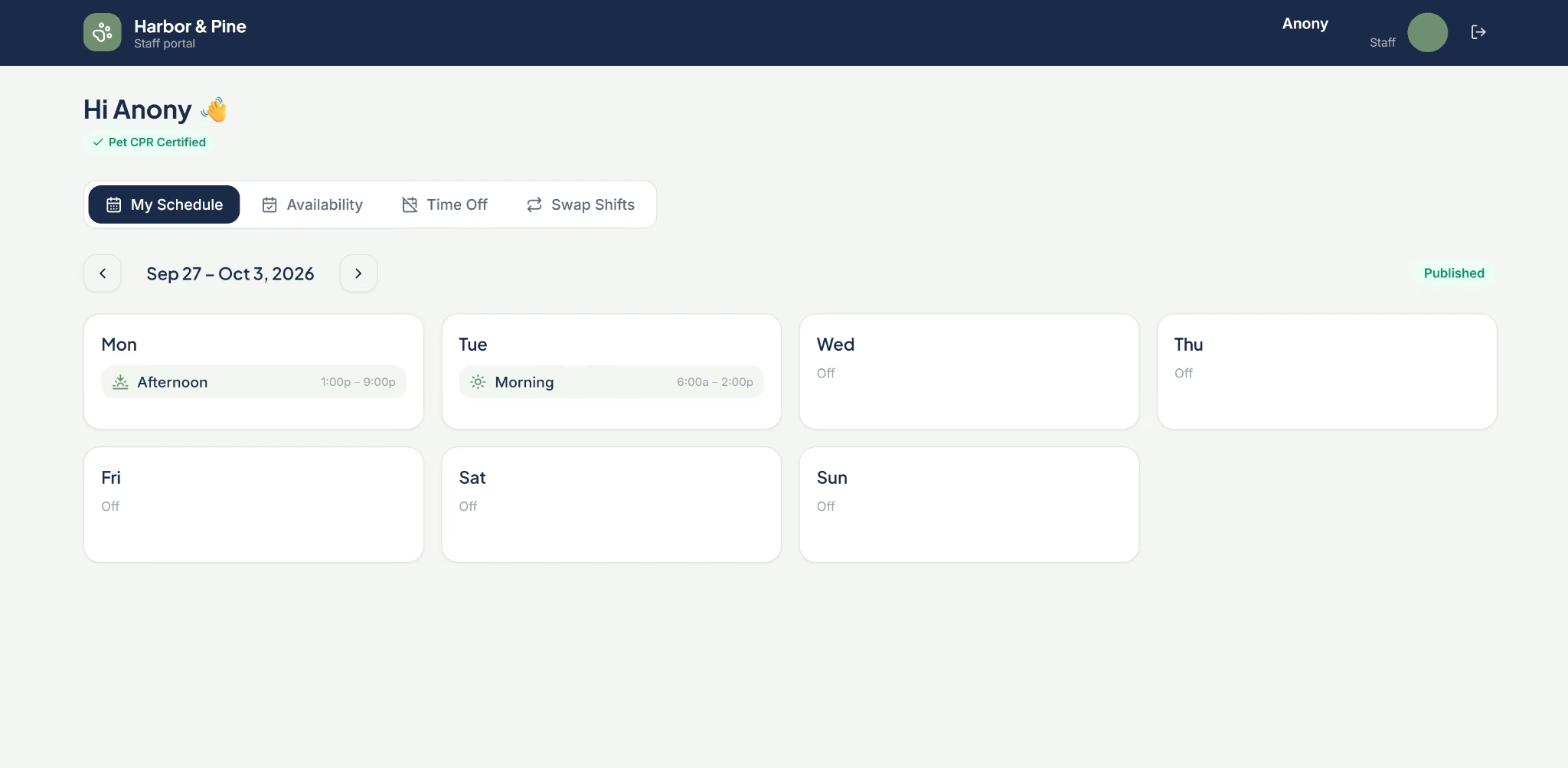
For the normal week, Emergent asked five clarifying questions before building, then delivered an app with all 16 staff seeded across their three roles, CPR badges on the roster, and a drag-and-drop week split into morning, afternoon, and overnight blocks. Each day takes a booking count and shows the one-attendant-per-12-dogs ratio live.
In the conflict check, dragging an uncertified attendant onto an overnight shift triggered an instant warning. Emergent's pre-publish checks listed every blocking conflict, including missing CPR certification, a double booking, and unavailable staff, and the publish button stayed disabled until they were cleared.
For the last-minute change, I republished the whole week after clearing the conflicts. Each affected employee with an email address got a table of their updated shifts, and the manager received a summary.
Best for: Teams whose shift rules don't fit a fixed scheduler and want an app they control.
Key Features
- Email, SMS, and chat alerts: The app can send shift reminders by email or text, with integrations for SendGrid and Twilio. Shift updates can also post to Slack, where your team already talks.
- Calendar sync: Two-way sync with Google Calendar and Outlook puts shifts next to staff's personal plans and reads busy time back into the schedule.
- Payroll and time tracking: Approved hours export to payroll, and scheduled time is matched against clocked time, so payroll starts from hours you've already checked.
- Staff portal: Staff get a login to see their shifts, offer swaps, and request time off, with every request landing in one approval queue for you.
Pros
- Rules like CPR-only overnights came from plain lines in the prompt, with no settings to hunt for.
- After publishing, a notice showed how many staff were emailed and flagged six that couldn't go out, all for seeded staff with no email address.
Cons
- Each change uses credits, and keeping the app live costs 50 credits a month, so frequent tweaks add up fast on Standard's 100 monthly credits.
- Rules you leave out of the prompt won't be enforced, so the first build needs a careful description of how your team works.
Pricing
Emergent's Free plan costs $0 and includes 10 monthly credits, but it can't deploy an app. Keeping a deployed app live costs 50 credits a month on Standard or Pro. Standard costs $20 per month ($17 per month billed annually) with 100 credits and private project hosting. Pro costs $200 per month ($167 per month billed annually) with 750 credits and priority support.
2. Homebase
Homebase pairs scheduling with time clocks, team messaging, and payroll, and it prices each plan by location, so headcount doesn't raise the bill. Its forecasting compares labor cost against sales, which helps you staff busy days.
During setup, it asked for my zip code and set overtime and break rules from it, a head start on state labor law. Location-based clock-in from the mobile app ties hours to the work site.
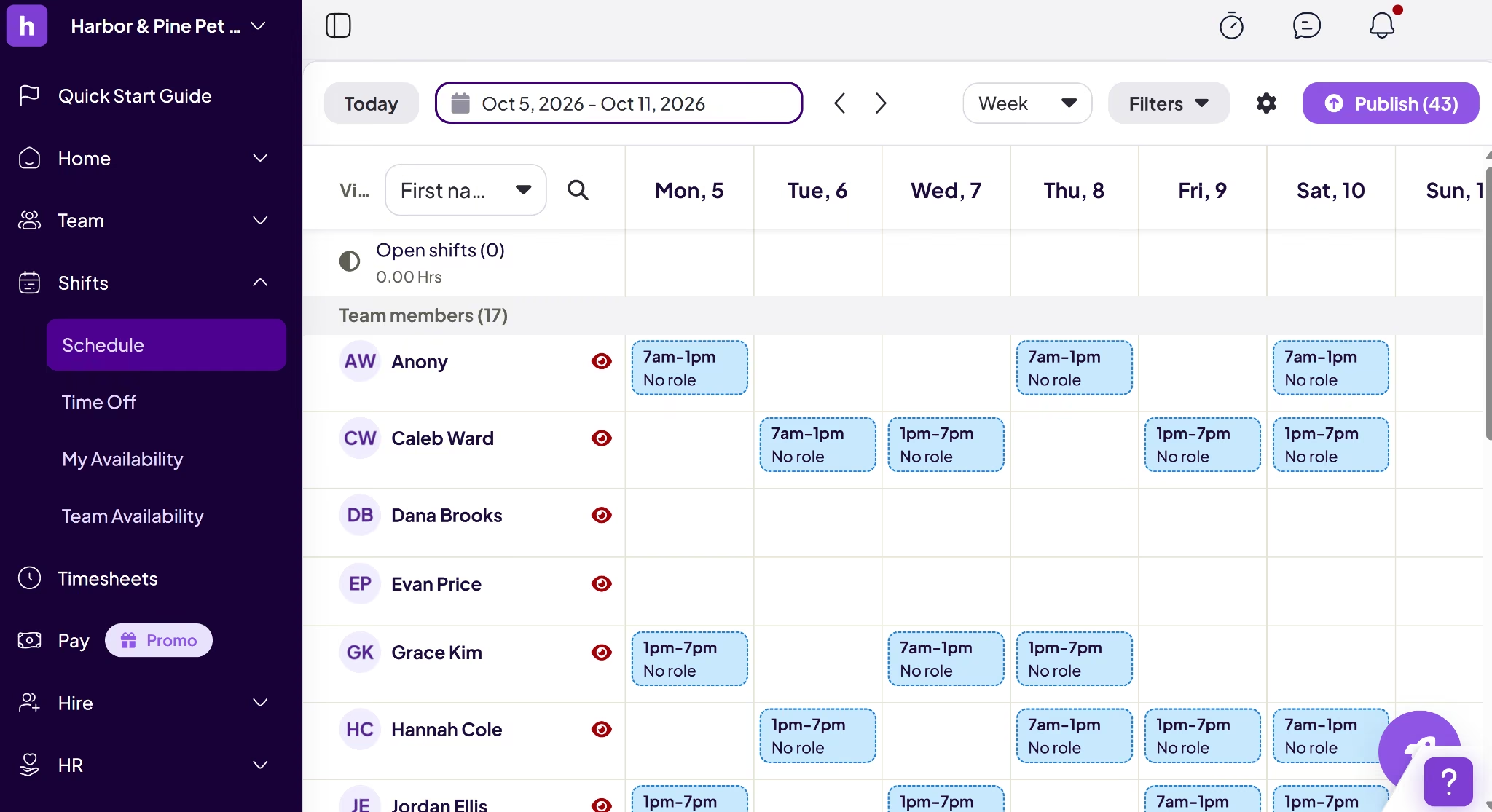
For the normal week, I uploaded a spreadsheet to the Scheduling Assistant, which Homebase lists on the Plus plan. Most daytime shifts landed where they belonged, but all seven overnight shifts were missing, Sunday's shifts were dropped or pushed to Saturday, and every shift arrived without a role, so I still checked every shift before publishing.
In the conflict check, Homebase flagged a time-off clash and a double booking the moment I created them, a conflict counter at the top of the schedule kept a running tally, and the publish screen warned me again.
For the last-minute change, the employee who lost a published shift got an email about it.
Best for: Single-location teams that want scheduling, time tracking, and POS data in one app.
Key Features
- AI auto-scheduling: On the Plus plan, Homebase drafts the schedule for you, which saves you the Sunday-night build.
- Shift swaps and open shifts: Staff trade or pick up shifts in the app, so covering a sick call doesn't mean phoning around.
- Notifications: Text, email, and in-app alerts plus automatic reminders cut down on no-shows from staff who missed an update.
- POS and accounting integrations: Connections to Square, Shopify, Clover, and Toast put sales and labor side by side, so you can staff to how busy the business gets, and a QuickBooks Online sync carries hours into payroll.
Pros
- Paid plans include unlimited employees at a flat per-location price.
- The free Basic plan still includes POS integration.
Cons
- Payroll is an add-on at $49 per month plus $6 per employee paid.
- Homebase tracks certifications on Plus and up, but I found no way to make a shift require one, so nothing stopped an uncertified tech from taking an overnight shift.
Pricing
Homebase prices every plan per location. Basic costs $0 for one location with up to 10 employees. Essentials costs $30 per month ($24 per month billed annually) and adds advanced scheduling, advanced time tracking, and team communication.
Plus costs $70 per month ($56 per month billed annually) and adds time-off controls, AI-powered scheduling, and custom manager permissions. All-in-One costs $120 per month ($96 per month billed annually) and adds employee onboarding, labor cost management, and HR and compliance tools.
3. Deputy
Deputy is built for shift-based teams that need labor law compliance inside the schedule itself. Its scheduling software lets managers type or say what they need to Deputy AI and review the draft before it goes live, and compare wages against sales before publishing. Qualifications and fatigue limits keep the wrong person off a shift, and break planning flags missed breaks.
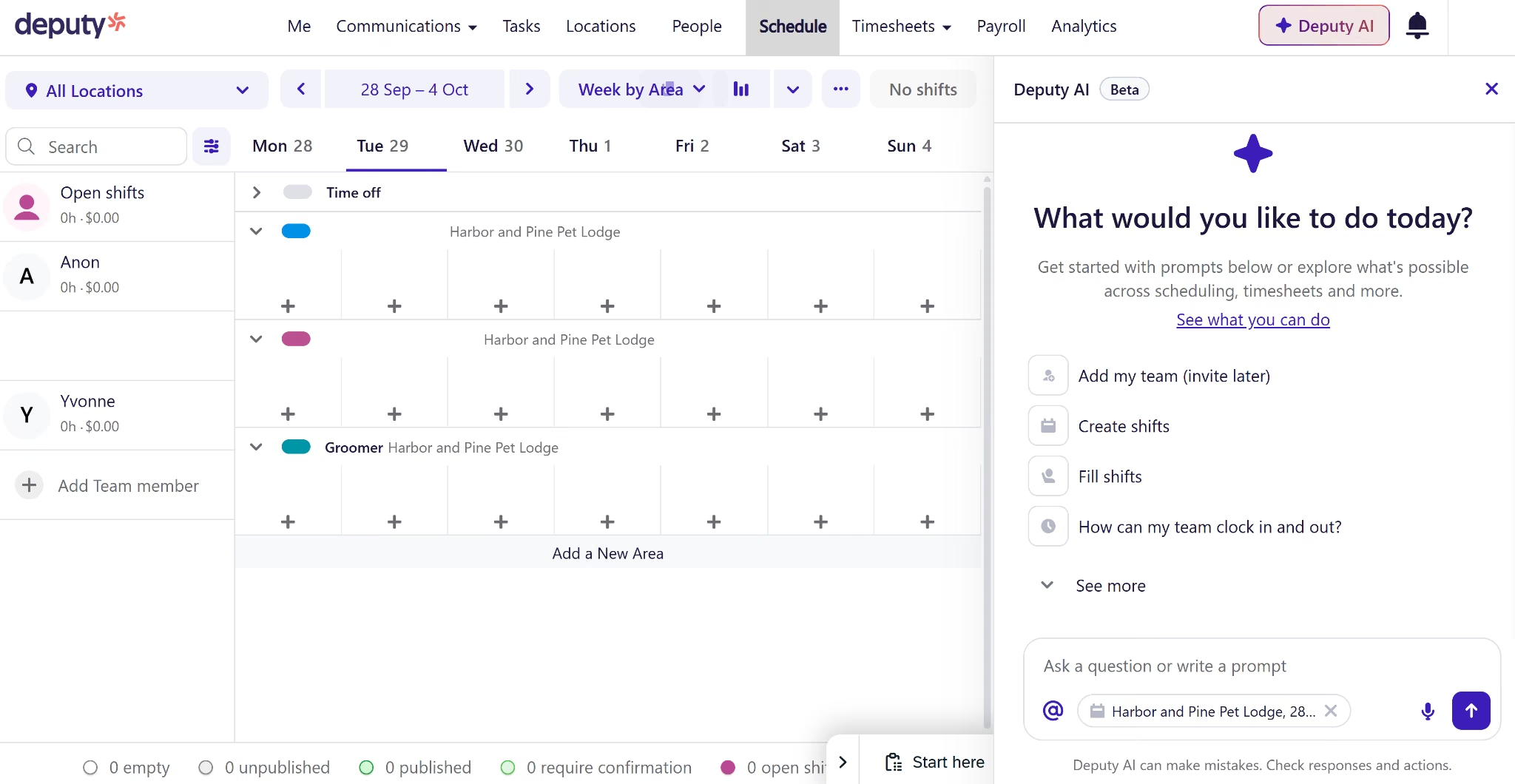
For the normal week, I set up one area per role on a Core plan trial, and setup asked for the default meal break and which day the week starts, which Deputy uses for weekly overtime. The same spreadsheet then went in through Deputy's CSV template, which imported 10 of the 51 shifts and marked the other 41 as not valid, and it highlighted each rejected field in red.
In the conflict check, moving a shift to someone past 40 hours opened a pop-up naming the eight hours over the weekly limit, and the change waited for my confirmation. Deputy blocked a double-booking swap outright, with the clashing shift spelled out.
For the last-minute change, pulling a published shift sent that employee a notification.
Best for: Multi-site teams that schedule around labor law, fatigue limits, and forecast demand.
Key Features
- Shift swaps and replacements: Staff swap shifts or find cover themselves on every plan, which takes you out of the middle of every trade.
- Leave and availability: Time off and availability feed straight into the schedule. You won't book someone who already said no.
- Auto-scheduling priorities: Deputy's auto-scheduler can favor the lowest labor cost or an even spread of hours, depending on whether budget or fairness comes first that week.
- Location hierarchies: The Pro plan adds custom access levels, location hierarchies, and SSO, which keeps each site manager focused on their site as you grow.
Pros
- Deputy AI is included on every plan.
- The swap screen shows what a swap adds to labor cost before you confirm it.
Cons
- Lite leaves out auto-scheduling, demand forecasting, and micro-scheduling, which start on the Core plan.
- The payroll add-on is limited to annual Core and Pro plans in the US.
Pricing
Deputy has no free plan. Lite costs $5.50 per user per month ($5/month billed annually), Core costs $7.25 ($6.50/month billed annually), and Pro costs $10 ($9/month billed annually). Deputy Payroll, run through Paycor, is an add-on at $8 per user per month plus a $49 monthly base fee.
4. When I Work
When I Work is a mobile-first scheduler for hourly workers, so staff check shifts, clock in, and message the team from one app. When I Work's auto-scheduler fills shifts based on each person's eligibility, availability, and preferences.
GPS clock-ins and geofencing tie time tracking to the work site when staff punch in from their phones. Labor forecasting helps managers plan staffing ahead of busy periods.
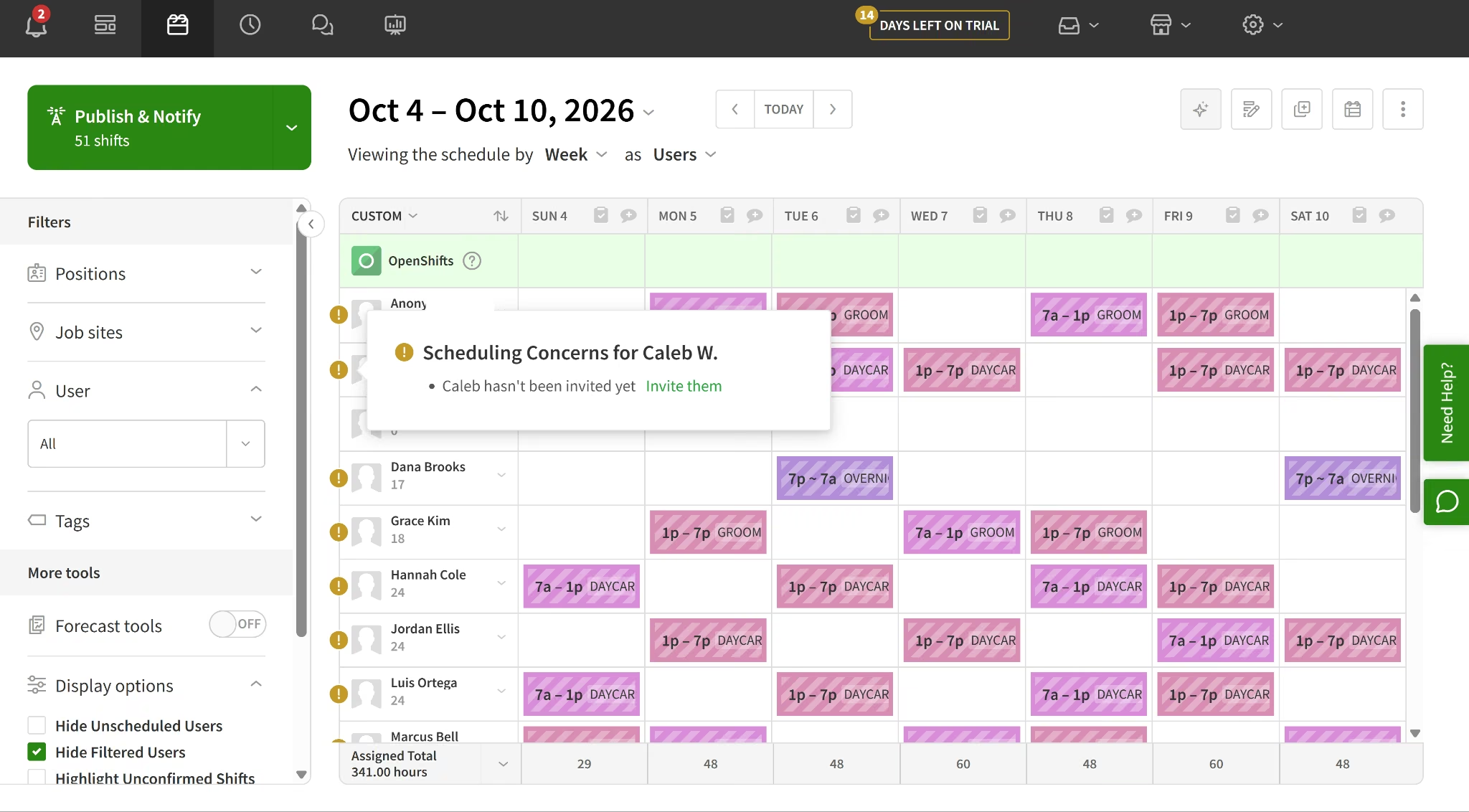
For the normal week, When I Work took the same spreadsheet upload, and all 51 shifts came through, overnight shifts included, each showing cleanly as 7p to 7a. Every shift kept its role label, such as daycare or grooming, in a week view that runs Sunday to Saturday.
In the conflict check, a double booking got only a small red mark on the corner of each shift card. There was no pop-up, the details appeared only after I clicked a card, and publishing went through without a warning, so if you're moving fast, you could publish a clash without noticing.
For the last-minute change, moving an employee's published shift to OpenShifts sent her an email about the change right away, and the shift sat open for eligible staff to claim.
Best for: Hourly teams that run their workday from their phones and need location-based clock-ins.
Key Features
- OpenShifts: Unfilled shifts go to an open board where eligible staff can claim them, with no round of texts to fill the gap.
- Multi-location permissions: Supervisors manage only the schedules they're assigned to, and the $5 plan adds role permissions for finer control over what each manager can do.
- Payroll and POS integrations: Included from the entry plan, so approved hours can move into payroll without retyping them.
- GPS clock-ins and geofencing: Staff punch in from their phones, and geofencing ties those hours to the work site.
Pros
- The entry plan already covers time-off and availability requests.
- Publishing and notifying staff happen in one step, with the shift count shown on the button.
Cons
- When I Work has no free plan, and its free trial lasts 14 days.
- Scheduling across more than one location needs the $5 plan.
Pricing
When I Work has two plans. Single location or schedule costs $2.50 per user per month. Multiple locations or schedules costs $5 per user per month and adds labor sharing, custom reporting, and multiple time zones.
5. Sling
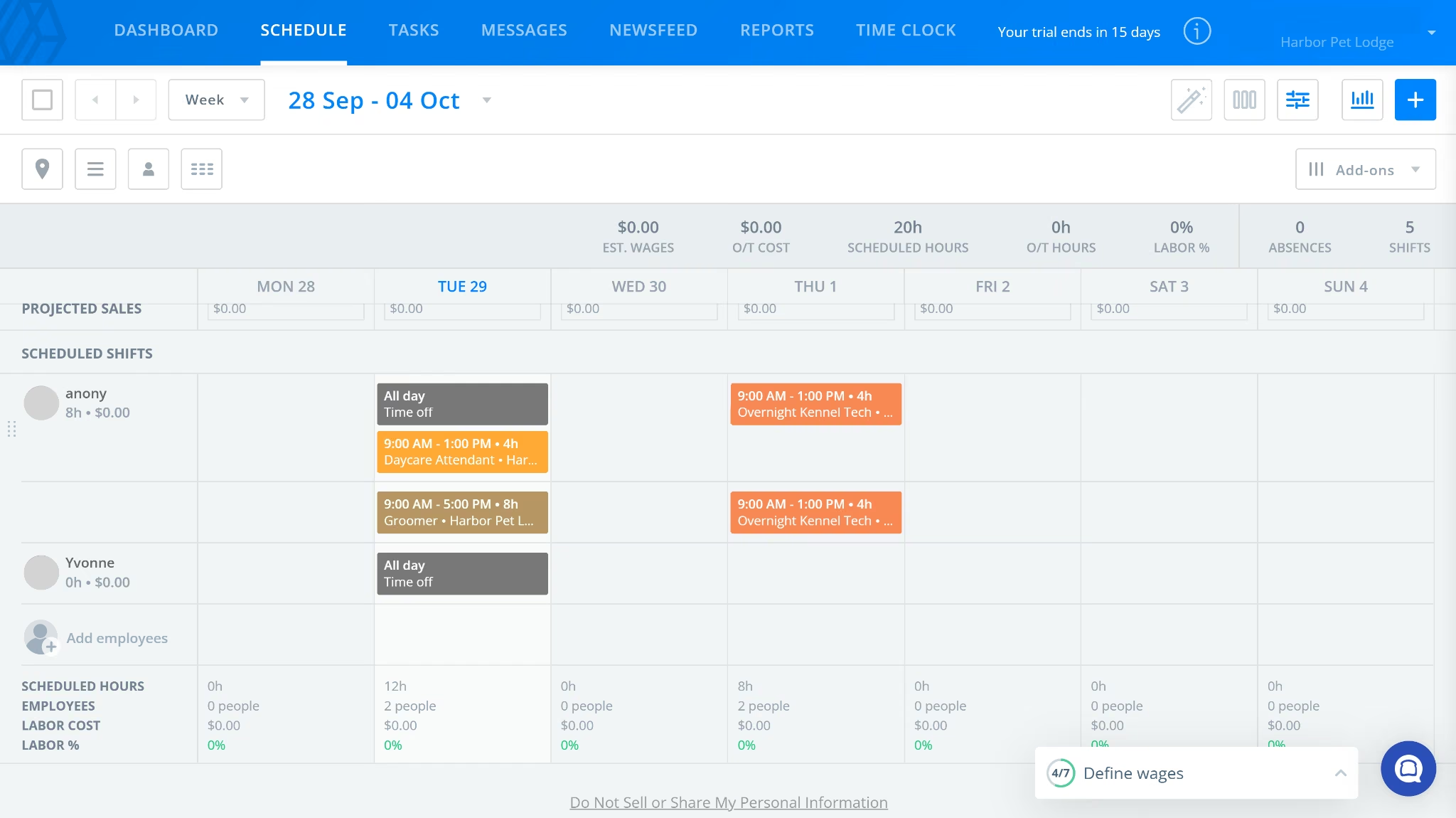
Sling, now part of Toast, is a scheduler with a free plan for up to 30 users, and it keeps shifts, messages, and tasks in one app. Sling handles time off, availability, and shift trades.
The free plan includes shift scheduling, time-off requests, available shifts, news sharing, long-term scheduling, and private messaging. Paid plans add time tracking and labor cost tools on top of the same schedule.
For the normal week, I built every shift by hand, one at a time, because I couldn't find a spreadsheet upload. Accounts connected to Toast can pull existing shifts in from Toast, which helps restaurants already on that system. The shift form does offer saved templates, which speeds up repeat shifts.
In the conflict check, giving one person two shifts at the same time made Sling show a conflict pop-up naming the shift she already had, with the date and time. I could go back and fix it or create the shift anyway, so the pop-up is a warning you can click past.
For the last-minute change, giving an employee time off triggered a notification to her.
Best for: Small teams that want free scheduling and messaging before paying for time tracking.
Key Features
- Overtime alerts: On Premium and above, a warning appears when a shift pushes someone into overtime, which helps you avoid surprise wage costs.
- Group and private messaging: Private messaging is free, and Premium adds group conversations, so announcements and shift questions don't get buried in personal group chats.
- Task management: On the Business plan, attach tasks and checklists to shifts, so opening and closing duties don't live on a separate list.
- Reporting and PTO management: The Business plan adds reports and PTO tracking, which helps once you're managing leave for more than a few people.
Pros
- Teams can run scheduling for free and add time tracking later without switching apps.
- Paid plans charge per user with no base fee or contract, and deactivated users don't count.
Cons
- Mobile time tracking, labor cost management, and overtime tracking need the Premium plan.
- The free plan caps the account at 30 users, and admins and managers count toward that total.
Pricing
Sling's Free plan costs $0 and covers scheduling, time-off requests, and private messaging. Premium costs $2 per user per month ($1.70/month billed annually). Business costs $4 per user per month ($3.40/month billed annually) and adds kiosk time tracking. A 15-day free trial covers the paid features.
6. Agendrix
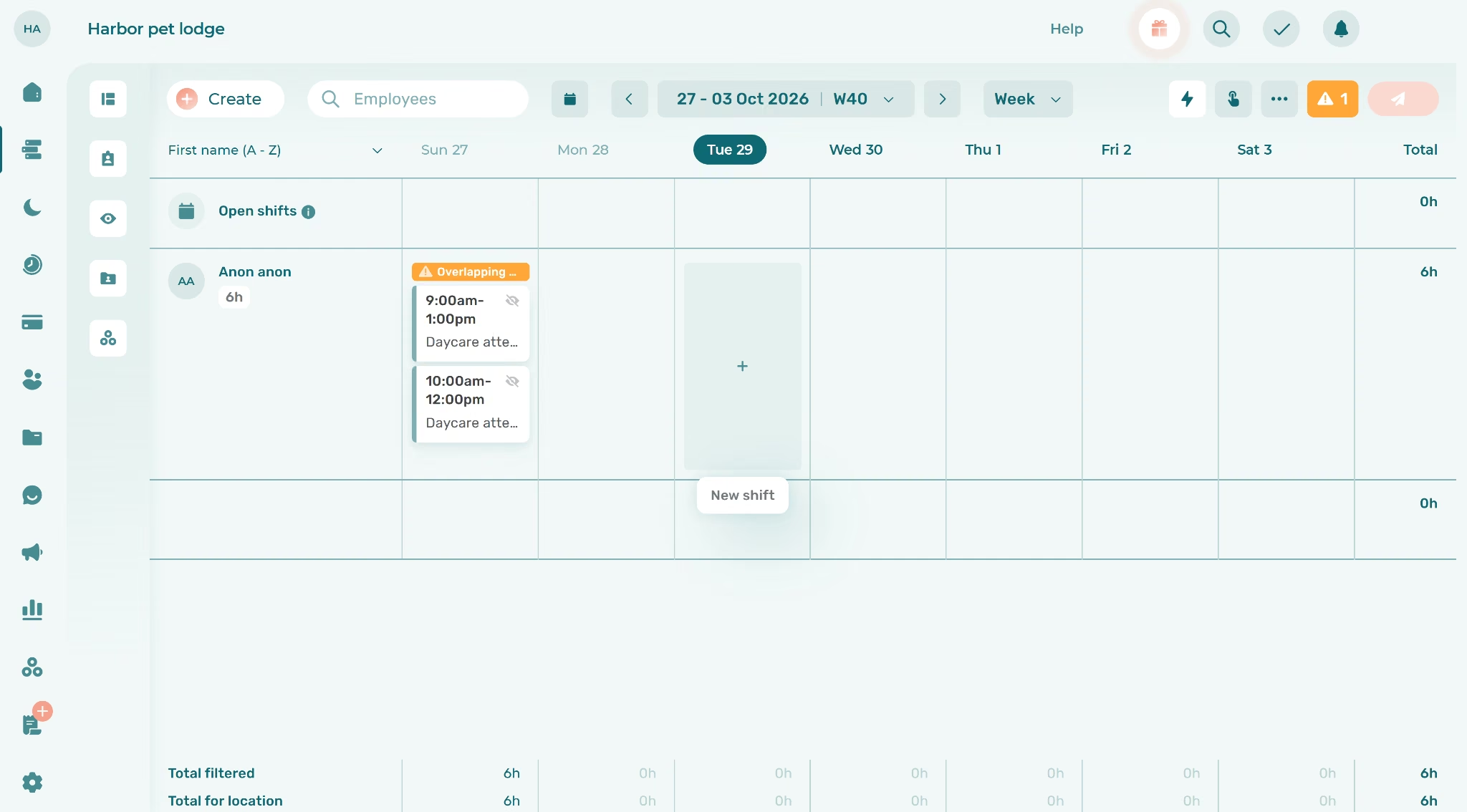
Agendrix is a Canadian scheduling and HR platform that brings shift planning, leave management, and an optional time clock together. Agendrix supports automatic scheduling alongside its time and leave tools. Every paid plan starts with scheduling, team communication, request management, and reporting.
A free plan stays available after the 21-day trial ends, and it builds, prints, and emails unlimited schedules. Advanced sharing sits on the paid plans.
For the normal week, I entered each shift manually. Agendrix advertises an AI import that builds a schedule from a photo of a paper or Excel schedule, but I didn't find a direct spreadsheet-file upload. Later weeks can move faster, because a past week can be saved as a template, up to 10 per location, or copied forward, with Agendrix warning about conflicts like approved time off along the way.
In the conflict check, two overlapping shifts for one person got an overlap warning banner on the shift and a conflict counter in the toolbar, and Agendrix wouldn't let me publish until I fixed it. Moving a shift to someone in a different position also drew a warning.
For the last-minute change, no notification reached the employee's inbox after I moved her shift and published.
Best for: Canadian businesses that need their schedule to feed a Canadian payroll system.
Key Features
- Punch clock options: With the Time and Attendance add-on, staff clock in by kiosk, biometrics, or geolocation, and a landline phone clock costs another $1 per user per month, which fits sites where not everyone carries a smartphone.
- Leave banks: Each person's vacation and leave balance is tracked alongside the schedule, so you're not checking a spreadsheet before approving time off.
- Tip pooling: With the Time and Attendance add-on, tips split across staff on the same platform, which saves you a manual tip calculation every pay period.
- HR tools: The Plus plan adds HR management, surveys, and custom permissions, useful once you're handling onboarding and feedback without an HR hire.
Pros
- Integrates with payroll systems common in Canada, including Nethris, Acomba, Ceridian Powerpay, and Payworks.
- Copied weeks arrive as drafts, so nothing reaches staff before a manager checks it.
Cons
- Time clock features cost extra through the Time and Attendance add-on, at $2.25 per user per month ($2.03/month billed annually).
- Supervisors can use weekly templates but can't create or edit them, so every new template waits on a manager.
Pricing
Agendrix's Free plan costs $0 after the trial and still covers unlimited schedules you can print or email. Essential costs $3.25 per user per month ($2.93/month billed annually), and Plus costs $5.25 per user per month ($4.73/month billed annually). Enterprise pricing is custom for teams of 250 or more employees.
7. Findmyshift
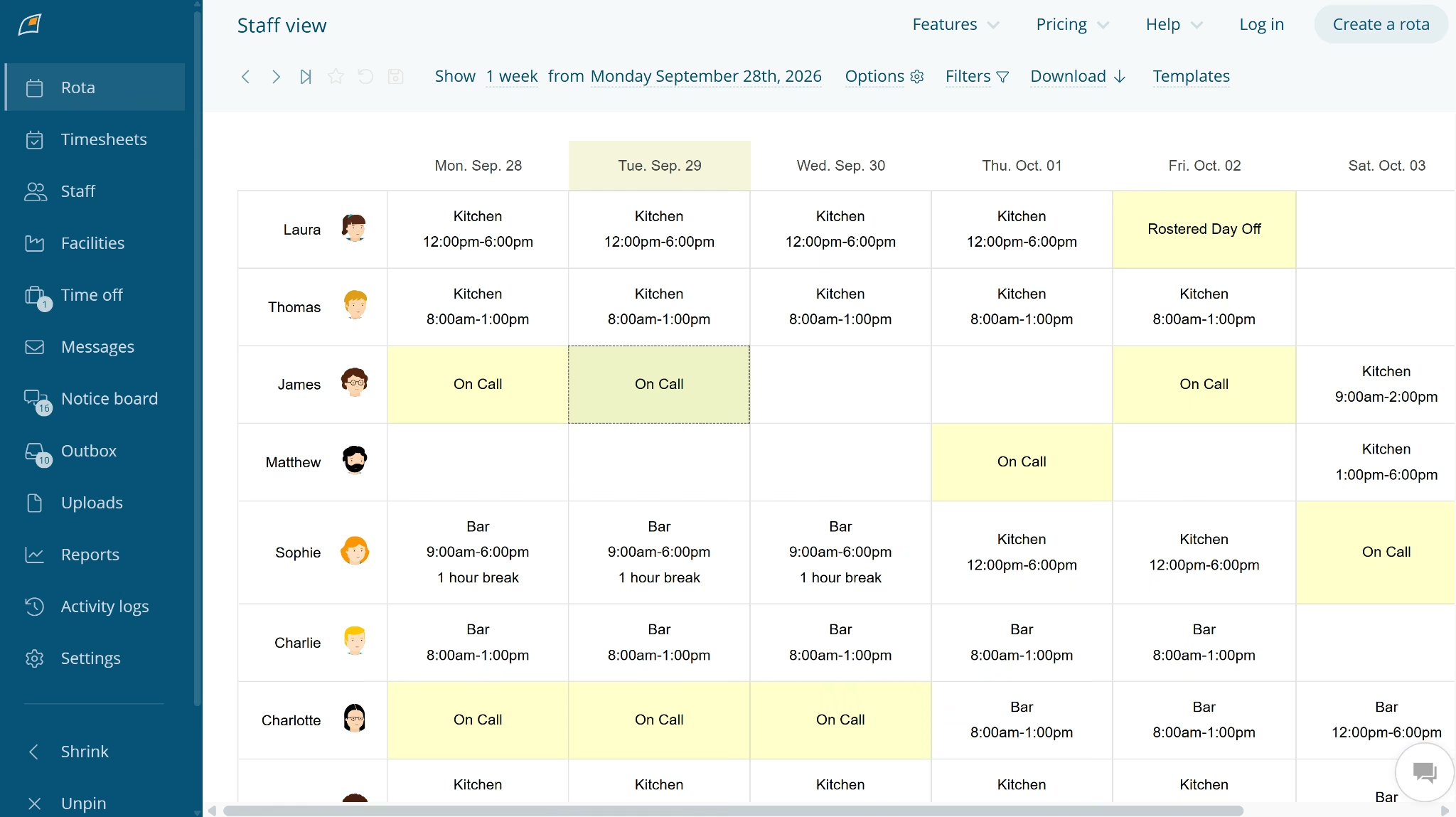
Findmyshift has run since 2004 and works like a spreadsheet, with point-and-click editing, drag and drop, multi-cell selection, keyboard shortcuts, and copy and paste. Findmyshift pairs the grid with real-time cost tracking on the schedule and a reports dashboard with more than 40 metrics.
Beyond the schedule grid, the app covers timesheets, time off, staff messages, a notice board, file uploads, and reports, and managers can download the rota straight from the schedule screen. Pricing is a flat rate per team, so a team near its plan's cap pays the same as a smaller one.
For the normal week, I worked in Findmyshift's prefilled demo rota, because signing up with Google returned an authorization error. The demo showed shifts grouped by area, such as kitchen and bar, with on-call days and rostered days off marked in color, and saved templates a click away.
In the conflict check, a second same-time shift for one person stacked both times in a single cell, marked by only a small yellow tag in the corner and no pop-up. In the demo, clicking the tag didn't show any details either.
For the last-minute change, the demo's staff have no inboxes, so I couldn't test whether a change reaches them.
Best for: Managers of very small teams who want a spreadsheet-style grid they can fill fast.
Key Features
- Voice and chat integrations: Slack, Alexa, and Google Assistant connections let staff check the schedule from tools they already use.
- Open API: On the Enterprise plan, the schedule can link to other systems, so you can connect it to separate payroll or HR software.
- Request approvals: Staff request and cancel shifts from their schedule, and you get a notification to approve or decline each one.
- Time clocking and timesheets: Both come on every plan, including Free.
Pros
- The free plan covers up to 10 separate teams.
- On Enterprise, an activity log shows who changed which shift, which helps when a schedule dispute comes up.
Cons
- The free plan caps each team at five members and one week of forward planning, with no templates or payroll calculation.
- Starter allows one manager, so a second person building schedules means moving up to Business.
Pricing
Findmyshift prices per team, and its Free plan costs $0 while still including scheduling, time clocking, and timesheets. Starter costs $27 per month ($24/month billed annually) for 20 team members and three months of forward planning.
Business costs $43 per month ($38/month billed annually) for 100 team members and a year of forward planning. Enterprise costs $85 per month ($75/month billed annually) for 300 team members and three years of forward planning.
8. WhenToWork

WhenToWork is a scheduler priced by the number of employees, and it's part of TCP. The company lists 24/7 customer support for trial and paid users alike. I couldn't create a WhenToWork account during testing, so this section draws on its documentation.
For the normal week, the documentation describes drag-and-drop tools and templates, plus AutoFill, which fills a schedule in one click using skills along with the availability, preferred shifts, and positions each employee sets in the app.
Managers can pick from 12 views, including calendar, grid, and spreadsheet-style, and filter by department, position, category, or employee. Built-in preference matching helps fill open shifts faster.
In the conflict check, the documentation says scheduling rules and real-time tracking help managers avoid coverage gaps, overtime, and conflicts, and AutoFill is built to produce conflict-free schedules from the start. It doesn't show whether a clash triggers a pop-up or blocks publishing.
For the last-minute change, WhenToWork lists automated email, text, and app notifications for new shifts or changes, and managers can see which employees have viewed their shifts and who made each change.
Best for: Seasonal businesses that want every feature at one price set by headcount.
Key Features
- Shift requests and trades: Employees sort out requests and trades in the app, and you just approve the result.
- Free mobile app: Managers and staff check and update schedules on iOS or Android at no extra cost, which keeps new seasonal hires connected from day one.
- Subscription pausing: The subscription can be paused when business slows, so a seasonal team isn't paying for idle weeks.
- AutoFill: One click fills the schedule from each employee's availability, preferred shifts, positions, and skills.
Pros
- Every feature comes with the one plan, so you choose by team size alone.
- Paying for a year upfront saves $183 against paying month to month at the 10-employee tier.
Cons
- Paid access starts after a 30-day trial, with no free plan to fall back on.
- Pricing for teams over 10 only appears after you enter your headcount on the pricing page.
Pricing
WhenToWork sells one plan with every feature, priced by your maximum number of employees and how far ahead you pay. For up to 10 employees, 1 month costs $28, 3 months cost $75, 6 months cost $123, and 1 year costs $205.
How to Evaluate Employee Scheduling Software
To judge a scheduler, hold it against your team's rules, headcount, and habits, then break it on purpose during the trial.
Employee scheduling software decides who works when. Letting customers book time with your staff is a separate job, and the best website builders to book appointments handle that side.
Eight steps to check whether a scheduler fits your team:
- List your rules before you look at tools. Write down everything a manager enforces from memory, such as overtime limits, rest gaps, certifications, weekday-only roles, and minimum staff per shift. For each rule, find out whether the tool blocks a breach, warns about it, or can't track it.
- Price it at today's headcount and next year's. A tool that's cheap for eight staff can cost several times more at 30, depending on how it counts seats, so run the numbers at both sizes. Check whether admins and managers count as paid users too.
- Read the limits on the free plan and trial. Look for caps on users, locations, managers, and how far ahead you can schedule. Note which features you'd lose when the trial ends, especially time tracking and reports.
- Load one of your recent weeks into the trial. Sample data hides problems, so import or rebuild a week you've already worked, including overnight and weekend shifts. Then compare it shift by shift with the original.
- Break the schedule on purpose. Double-book someone, schedule a shift during approved time off, and push a person past their hours limit. Watch whether the tool stops you, warns you, or lets the schedule publish anyway.
- Send one change to a phone. Add yourself or a willing employee as staff, publish, move the shift, and time how long the alert takes to arrive. Check that the employee can respond, such as offering a swap or asking for cover.
- Trace the hours to payroll. Find out whether approved hours flow into the payroll you already use, need an export, or require a paid add-on. Retyping hours every pay period is where errors creep back in.
- Match access to how your team works. Count how many people need to build schedules, what each should see, and how staff will clock in. Staff without smartphones need a kiosk or phone option, and you'll need permissions by location if you run several sites.
Want customer bookings and staff shifts in one place? Create a booking web app with AI around your services instead.
Can You Schedule Employees Without Dedicated Software?
Tools you already pay for can cover a simple schedule, as long as your rules stay light.
Built-in options to try first:
- Microsoft Shifts: Shifts comes included with Microsoft Teams and handles schedules, open shifts, time off, swaps, and a time clock across desktop, web, and mobile.
- Google Calendar and Sheets: A shared sheet for the schedule and calendar events for each shift work for a handful of staff, with no conflict warnings or approvals.
- ChatGPT or another AI chatbot: It can draft a week from your rules, but it can't publish the schedule, notify staff, or track swaps afterward.
Once you outgrow these, you'll usually end up checking every shift for clashes by hand.
Read More: ChatGPT vs Claude vs Gemini: Which AI Is Best in 2026?
When to Build a Custom Employee Scheduling App
Build a custom scheduler when your rules sit outside what packaged tools handle, and the workaround becomes a spreadsheet next to the software you pay for.
The Harbor & Pine test showed where that line falls. The custom Emergent build enforced CPR-only overnights and showed a live ratio of one attendant per 12 booked dogs straight from the prompt, while Homebase, for one, tracks certification expiry but gave me no way to make an overnight shift require one.
Signs a packaged scheduler is working against you:
- Your rules live in a manager's head: Seniority-based shift picks, certifications per station, or rotating weekends that no setting captures.
- Your workflow spans several apps: Scheduling, requests, and reminders each run somewhere different.
- You want control of the tool: You decide what the app does, who sees what, and where the data sits.
With an AI app builder, you write your rules down in plain words, and the steps to build a scheduling app with AI start there.
The trade-off is upkeep. Nobody else ships updates to an app you built, so a custom scheduler suits you best when your rules change less often than your headcount.
If your booking rules need an admin view or a client tracker around them, see our comparison of internal tool builders for what else you can build beyond the booking page.
Choosing the Best Employee Scheduling Software for Your Team
How the tools I tested handled a schedule going wrong set them apart more than price did. Some blocked a clash outright, and others let it publish with barely a mark.
On a tight budget with a small team, you can cover the basics for free with Sling or Homebase. Running several sites under labor law? Start with Deputy. Phone-first hourly teams should look at When I Work, and Canadian businesses at Agendrix. Findmyshift and WhenToWork keep things simple for very small or seasonal crews.
When your rules don't fit any packaged tool, build a scheduler around them with Emergent and give your managers a week that's right from the first draft.

Most AI app builders stop at prototypes. Emergent creates production-ready apps you can actually launch.
- Production-ready apps
- Web & mobile apps
- Deploy in minutes