
TL;DR
- Emergent: Our own tool. Best for small teams whose work combines projects, clients, and documents.
- Trello: Best for teams of up to 10 that want a simple shared board for free.
- ClickUp: Best for teams that want tasks, docs, and chat in one place.
- Asana: Best for teams that want structured task tracking and have a budget for it.
- monday.com: Best for teams that want color-coded boards that are easy to read.
- Notion: Best for document-heavy teams that want projects and files in one workspace.
- Teamwork.com: Best for agencies that track billable time against client projects.
If you're looking for the best project management software for small teams, the right choice depends on how your team works and how many people need access. Three of the seven below are free for a team of five.
We built Emergent, so I'll start with it and explain who it suits and who it doesn't. I used Emergent to build a client-project tracker from a single prompt, then ran the same five-person consultancy scenario through six other tools: Trello, ClickUp, Asana, monday.com, Notion, and Teamwork.com.
Each section covers what I found during setup, what the tool costs, and the kind of team it’s best for. By the end, you'll know which option fits your team and what it costs for five or 10 people.
Why Small Teams Find It Hard to Choose Project Management Software
Small teams often handle several kinds of work at once. A Reddit thread from r/projectmanagement shows this well. The poster was a new project manager at a five-person government affairs firm that tracked client work through Google Calendar and personal to-do lists.
Their wish list included task owners, requirements, milestones, problem flags, document storage, and color-coding by client. One commenter said that the list sounded like a customer relationship management (CRM) tool, because half of it was about managing clients. If client relationships are your bigger problem, our guide to small business CRMs covers it in detail.
Two other replies focused on the team itself. One commenter recommended starting with software the team already uses, since people often resist new tools, and said the poster would need to explain the benefits to colleagues. Picking a tool your team will keep updating is as important as picking one with the right features.
Another important factor is pricing. Trello, ClickUp, and Teamwork.com have free plans that cover a small team, while Asana's and monday.com's free plans only cover two people.
How I Picked the Best Project Management Software for Small Teams
We built Emergent, so I know it in more depth than I do the other tools. I used it to build a complete tracker from one prompt. For the other six tools, I ran the same scenario by hand. That scenario was a five-person consultancy with three clients: Harbor Logistics, Pine Street Dental, and Northwind Foods.
In each tool, I created six deliverables, assigned owners and due dates, gave each client its own color, flagged one deliverable as blocked, and attached the same one-page PDF brief.
Asana and monday.com triggered paid trials automatically when I signed up, and Trello offered one too. So I checked their pricing pages to separate free features from trial features.
I also looked at Jira, Wrike, Smartsheet, Basecamp, and Microsoft Planner, but left them out. Jira is designed for software teams, Wrike and Smartsheet suit larger organizations, Basecamp focuses more on communication than task tracking, and Microsoft Planner is a simple task tool that comes with Microsoft 365.
While testing, I judged every tool on the same criteria, including Emergent:
- Fit: How closely the tool matches the way a small team works, including client-based work.
- Setup time: How long it took to get from sign-up to a board with all six deliverables.
- Cost as the team grows: What the free plan covers, and what it costs teams of five or 10 people.
- Built-in features: The views, file options, and extras available.
- Adoption: How easily the rest of the team could learn it and keep using it.
Emergent scores highest on fit and on cost as the team grows, while the ready-made tools include more features from the start, such as extra views, automations, and integrations.
Best Project Management Software for Small Teams: Quick Comparison
| Tool | Best For | Free Plan | Paid From (Monthly) | Limitation |
|---|---|---|---|---|
| Emergent | Mixed client and project work | 10 credits | $20/month | You have to manage the app |
| Trello | Simple shared boards | Up to 10 collaborators | $6/user | Extra views need Premium |
| ClickUp | All-in-one workspace | Unlimited members | $10/user | Steep learning curve |
| Asana | Structured task tracking | 2 users | $13.49/user | Custom fields need a paid plan |
| monday.com | Visual, color-coded boards | 2 seats | $12/seat | Seats sold in groups |
| Notion | Docs-heavy teams | Limited content for teams | $12/member | Database setup takes time |
| Teamwork.com | Client delivery and billing | Up to 5 users | $13.99/user | 3-user minimum on Basics |
What Each Tool Costs for Five and 10 People
This table uses monthly billing and the cheapest plan that covers the whole team.
| Tool | Free Plan Covers | 5 People | 10 People |
|---|---|---|---|
| Emergent | 10 credits, not for team use | $20 | $20 |
| Trello | Up to 10 collaborators | $0 | $0 |
| ClickUp | Unlimited members | $0 | $0 |
| Asana | 2 users | $67.45 | $134.90 |
| monday.com | 2 seats | $60 | $120 |
| Notion | Limited content for teams | $60 | $120 |
| Teamwork.com | Up to 5 users | $0 | $139.90 |
Emergent's cost is one Standard plan for the person who builds and updates the app, because Emergent doesn't charge for the people who use it. ClickUp's free plan includes 60MB of storage in total. monday.com sells paid seats in groups that start at three and then rise in fives, so a four-person team has to buy five seats.
Emergent: Best for Teams Whose Work Combines Projects, Clients, and Documents
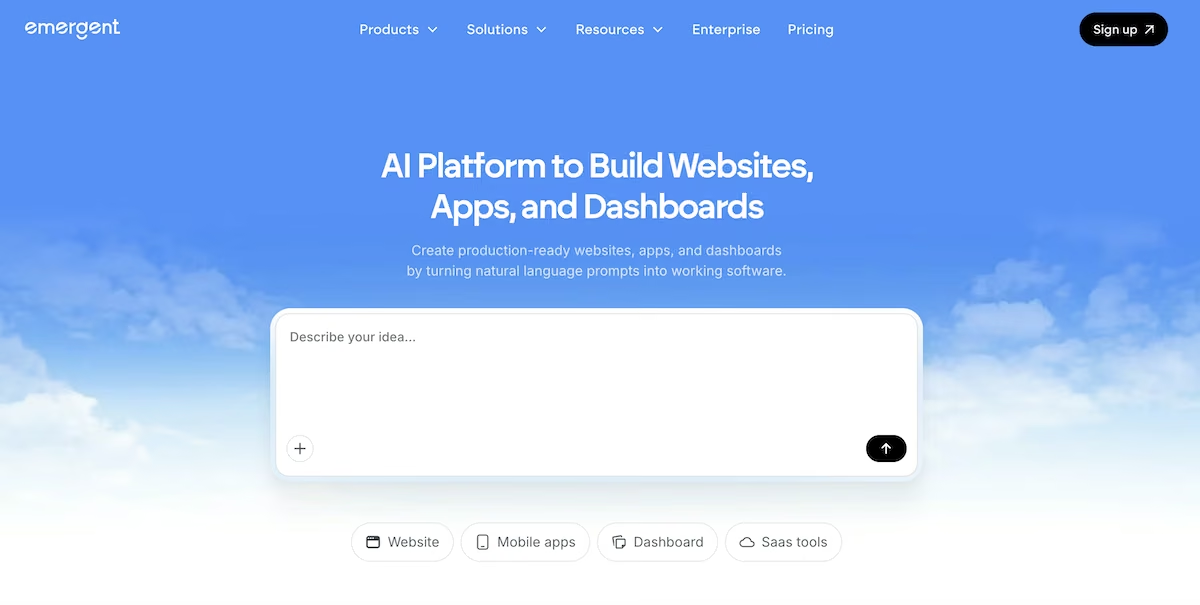
What it does: Emergent is an AI app builder that turns a plain-language description into a custom app, so a team can build a tracker around the way it already works.
Best for: Service businesses and small teams whose work combines project tracking, client management, and documents, with one team member who can update the app when needed.
Emergent works differently from the other tools on this list. With the others, I signed up and set up a board. With Emergent, I described the tracker a small consultancy would need, and Emergent's AI agents built it.
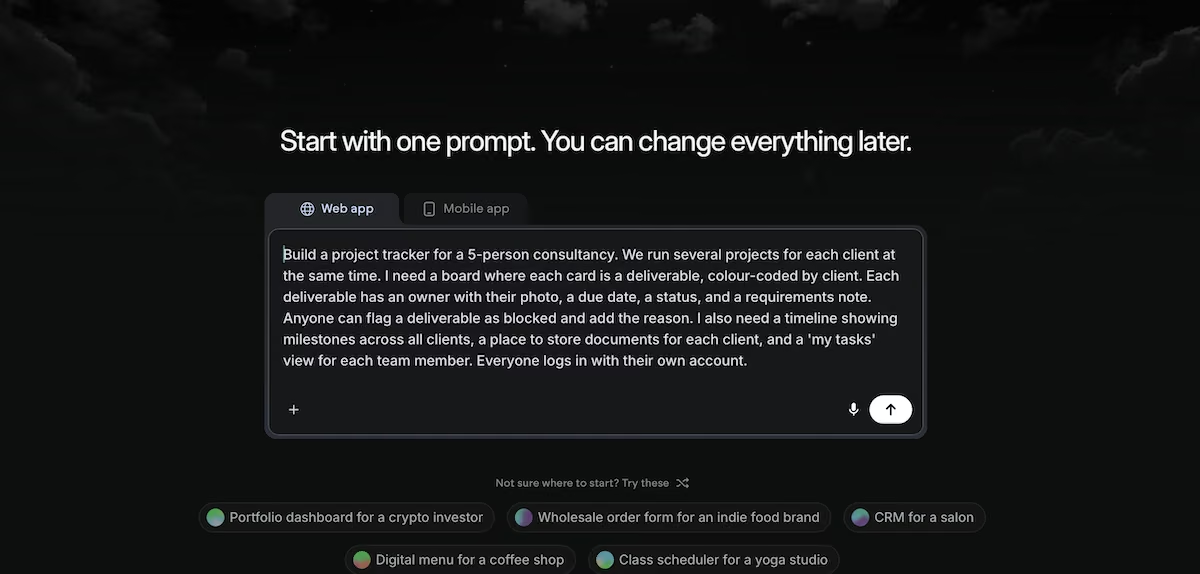
The prompt used to build the client-project tracker in Emergent:
Build a project tracker for a 5-person consultancy. We run several projects for each client at the same time. I need a board where each card is a deliverable, colour-coded by client. Each deliverable has an owner with their photo, a due date, a status, and a requirements note. Anyone can flag a deliverable as blocked and add the reason. I also need a timeline showing milestones across all clients, a place to store documents for each client, and a 'my tasks' view for each team member. Everyone logs in with their own account.
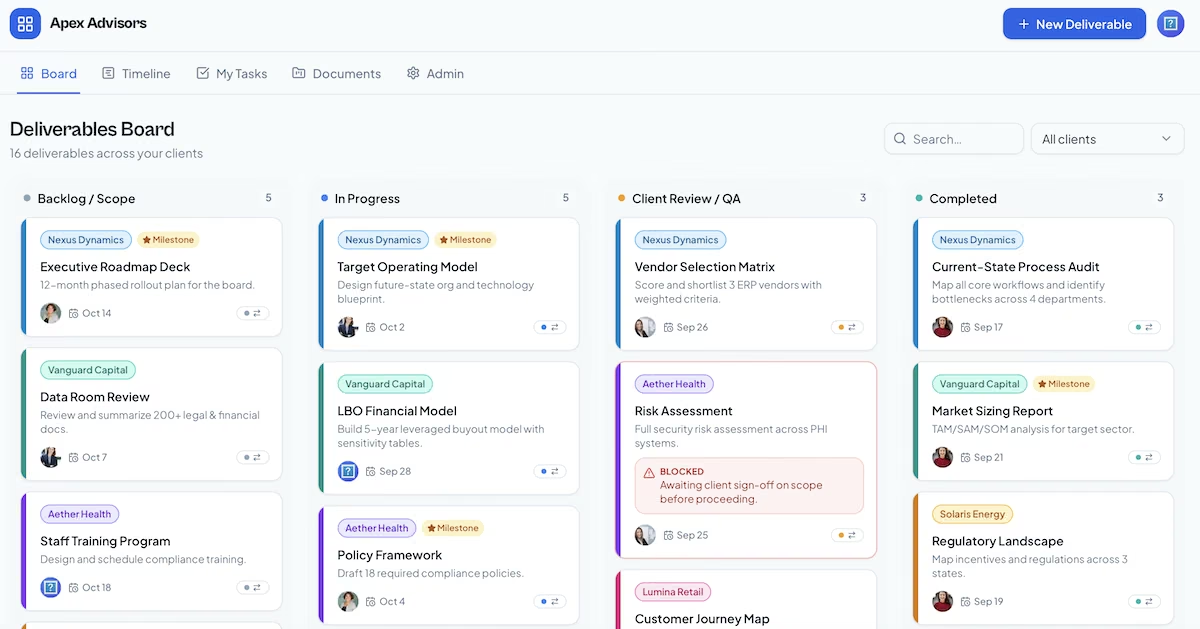
The build took 27 minutes and used 14.02 credits. The finished app opened on a sign-in page, and each team member had their own login. After signing in, I saw a Deliverables Board with four columns, running from backlog to completed work, plus a client filter and a search bar at the top.
Each card showed the client's name in its own color, a line from the requirements note, the owner's photo, the due date, and a status marker. When a deliverable was blocked, the card showed the reason in a red box, so the problem was clear from the board.
Emergent seeded the app with its own sample data, so I replaced it with the same three clients and six deliverables I used everywhere else before judging it.
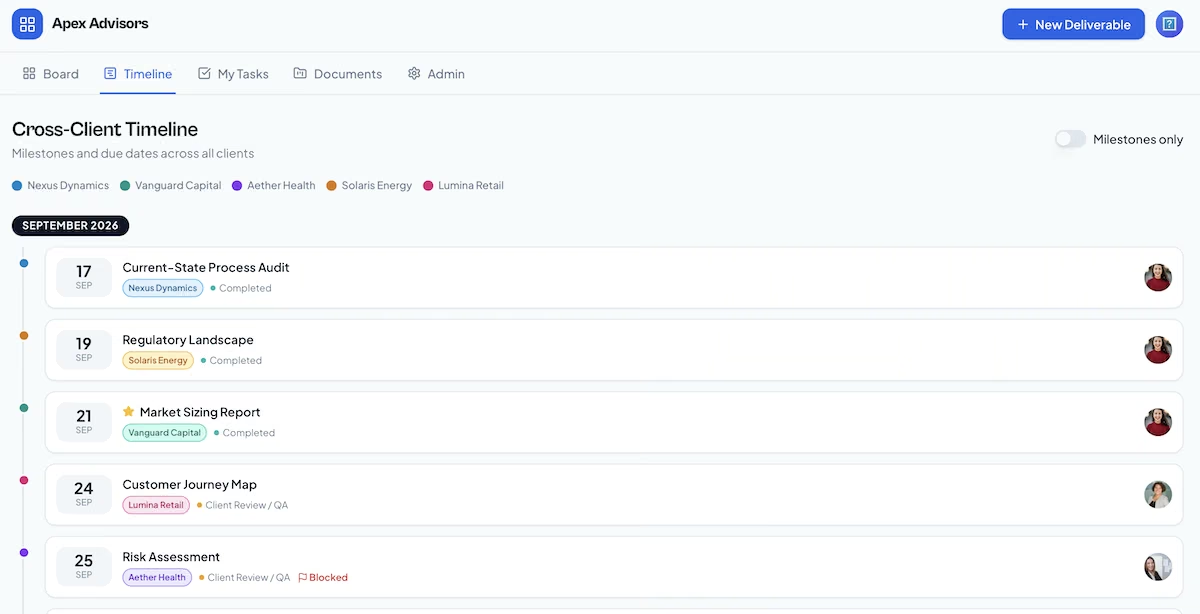
The app included the other views I asked for too. The Cross-Client Timeline listed deliverables by month, with a switch to show milestones only. My Tasks showed one person's open, overdue, blocked, and completed work, with a switcher for viewing other team members.
In the client documents area, I uploaded the Harbor Logistics brief, and it appeared in that client's folder instantly.
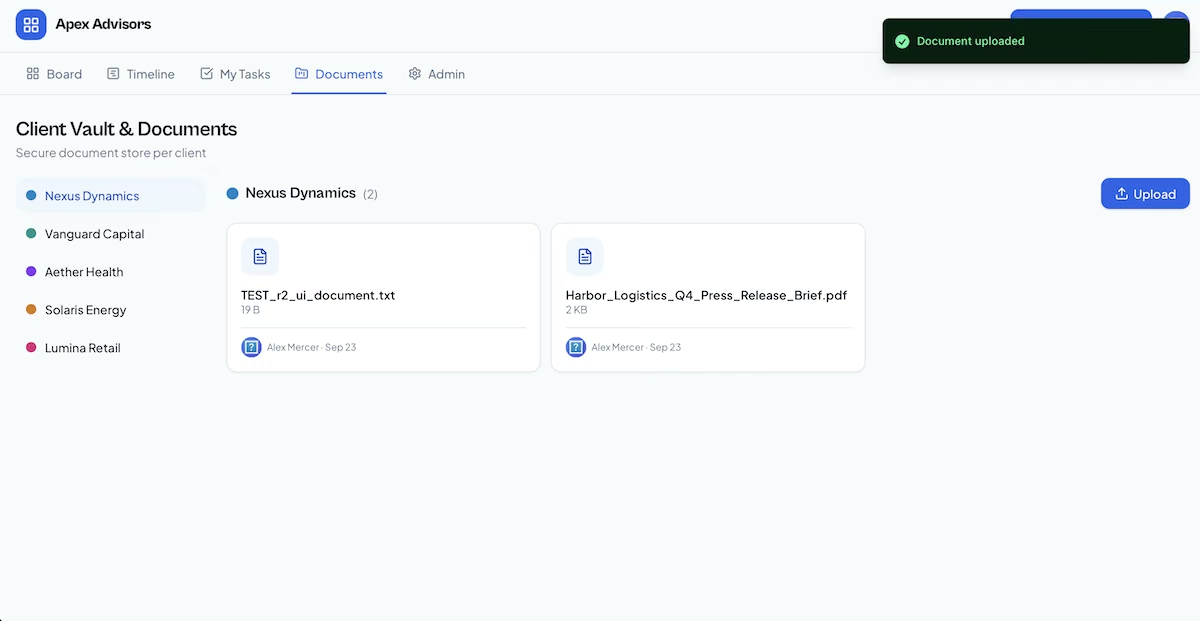
The first version needed some cleanup. A test file from the build was still in one client's folder, and the team switcher listed a few duplicate test accounts. Status changes used a menu on each card, since I hadn't asked for drag-and-drop in the prompt. A short follow-up prompt can clear each of these while you're still building.
Key Features
- Custom apps from a description: You describe the fields and views your team needs, and Emergent builds them.
- Individual sign-ins: The app Emergent builds gives each team member their own login and their own task view.
- GitHub integration: The Standard plan lets you keep a copy of the app's code in your own GitHub account.
Pros and Cons
Pros:
- One prompt produced the board, the cross-client timeline, the my-tasks view and the client document storage.
- The cost stays the same as more people start using the app.
- You choose the features, so you don't need to upgrade a plan to unlock them.
Cons:
- Someone on the team has to manage the app, and each change uses credits.
- Keeping an app online uses 50 credits a month, which is half the Standard plan's allowance.
- The first build left a test file in a client folder and duplicate test accounts in the team switcher, and the board only changed status from a card menu.
What Users Say
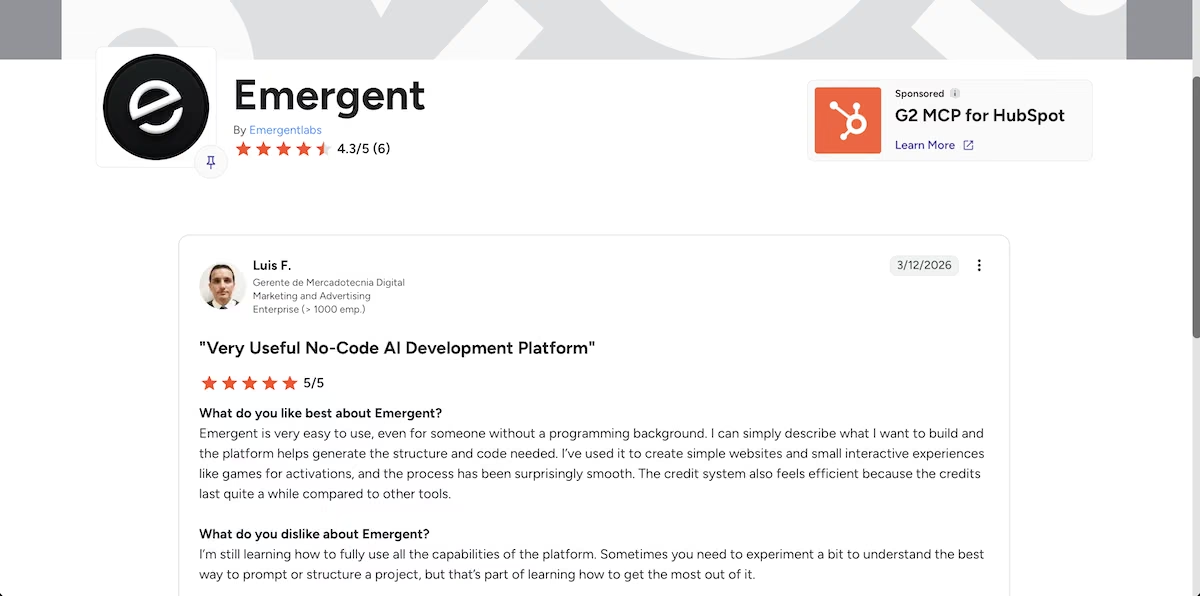
“Emergent is very easy to use, even for someone without a programming background.” - Luis F. (G2)
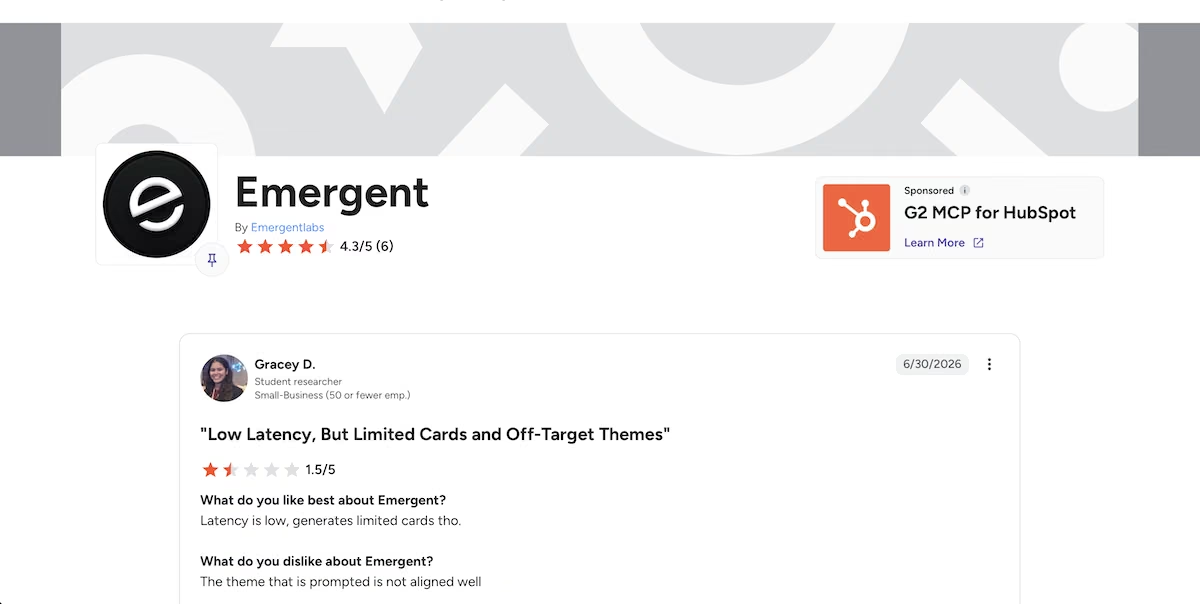
“The theme that is prompted is not aligned well” - Gracey D. (G2)
Pricing

Emergent's Free plan includes 10 credits a month, enough to try the builder but not to put an app online. The tracker above used 14.02 credits, so a build that size needs Standard.
The Standard plan costs $20/month and includes 100 credits, private project hosting, and GitHub integration. Pro costs $200/month for 750 credits, and larger organizations can ask about custom pricing.
Bottom Line
Emergent suits a team whose work mixes project tracking with client management and documents, and that has one person who can manage the app. If a standard board already covers your work, one of the tools below will give you more features from the start.
Trello: Best for Small Teams That Want a Simple Free Board

What it does: Trello organizes work into boards of lists and cards, so a team can see the stage of every task on one screen.
Best for: Teams of up to 10 that want a free, visual board and don't need timelines or reports.
Trello's sign-up started with a short tour that asked me to add a few to-dos to an Inbox. It then offered a 14-day Premium trial with no card required. I accepted, which let me see for myself which features Trello keeps for its paid plans.

The starter board had three lists called Today, This Week, and Later, plus a Trello Starter Guide list. I added lists for To do, In progress, Client review, and Done, archived the defaults, and added the six deliverables as cards. Setup took about 35 minutes after onboarding, with most of that time spent on filling in the cards.
Each card had buttons for Labels, Dates, Checklist, and Attachment, which made every step easy to find. I wrote the requirements note in the card's description, added a due date, assigned myself to the task, and attached the PDF brief.

Trello handles client colors through labels and offers 30 colors to choose from. I created one label per client and a red label for the blocked task. On the board, labels appear as colored bars without their names, so new team members would need to learn which color belongs to which client. Opening a card shows the label names in full.

The biggest limit appeared when I opened the view menu. Table, Calendar, Dashboard, Timeline, and Map are all Premium features, so the free plan only includes the board. That suits a team that wants to see who's handling each task. A team that plans deadlines for several clients will need to pay for Premium.

Key Features
- Boards, lists, and cards: Teams can see each task's stage at a glance and move cards between stages by dragging them.
- Labels and members: Each card can show its owner and a colored label, such as a client or priority.
- Free plan for up to 10 collaborators: A small team can use Trello without paying.
Pros and Cons
Pros:
- It's one of the easiest project tools to learn.
- The 14-day Premium trial doesn't ask for a card, so you can test the paid views before deciding.
- Dates, files, and members are easy to add to each card.
Cons:
- Calendar, Timeline, Table, and Dashboard views require a Premium plan.
- It doesn't have a built-in status for blocked tasks.
- The free plan caps you at 10 collaborators, 10 boards per Workspace and 10MB per attachment, so a growing team hits a ceiling on three fronts.
What Users Say
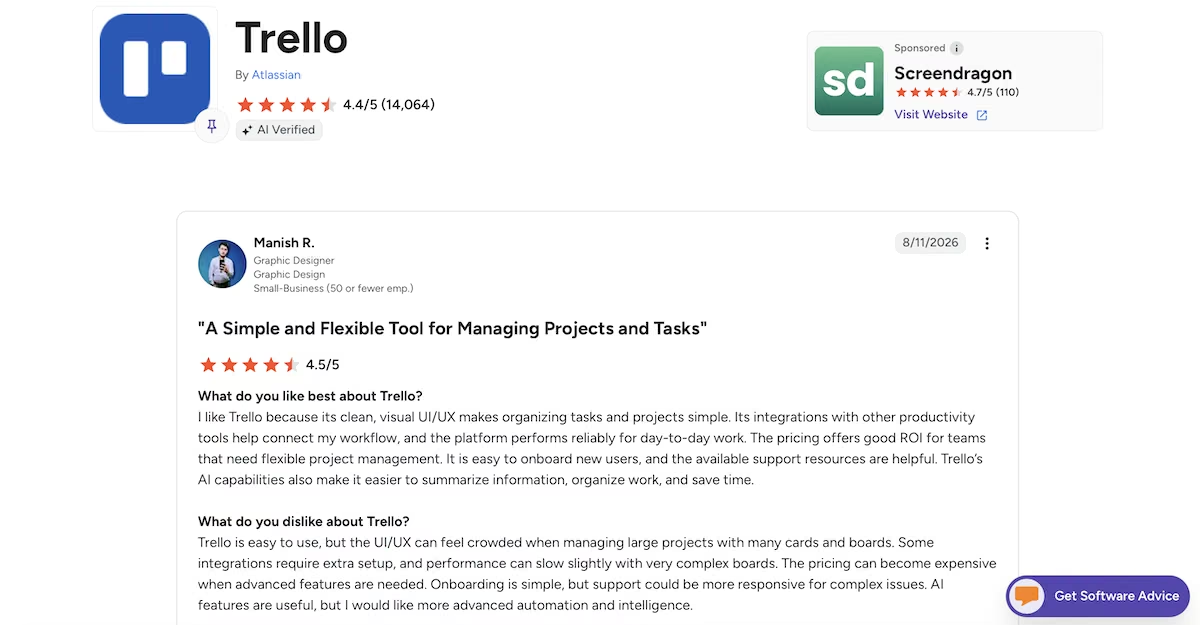
“I like Trello because its clean, visual UI/UX makes organizing tasks and projects simple.” - Manish R. (G2)
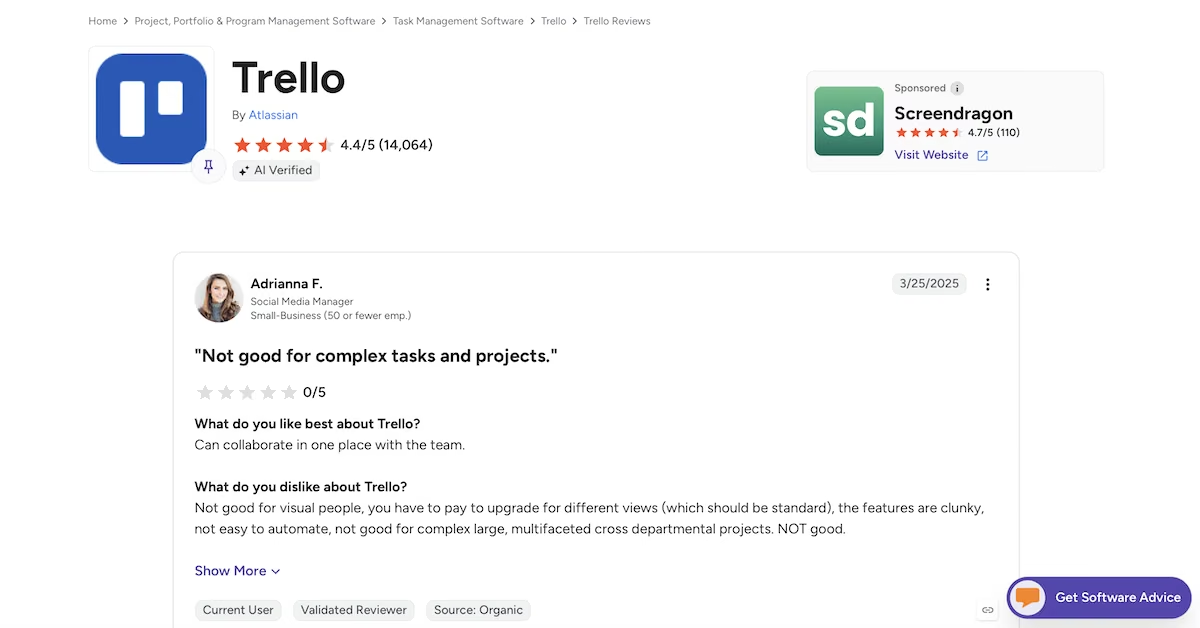
“Not good for visual people, you have to pay to upgrade for different views (which should be standard)” - Adrianna F. (G2)
Pricing
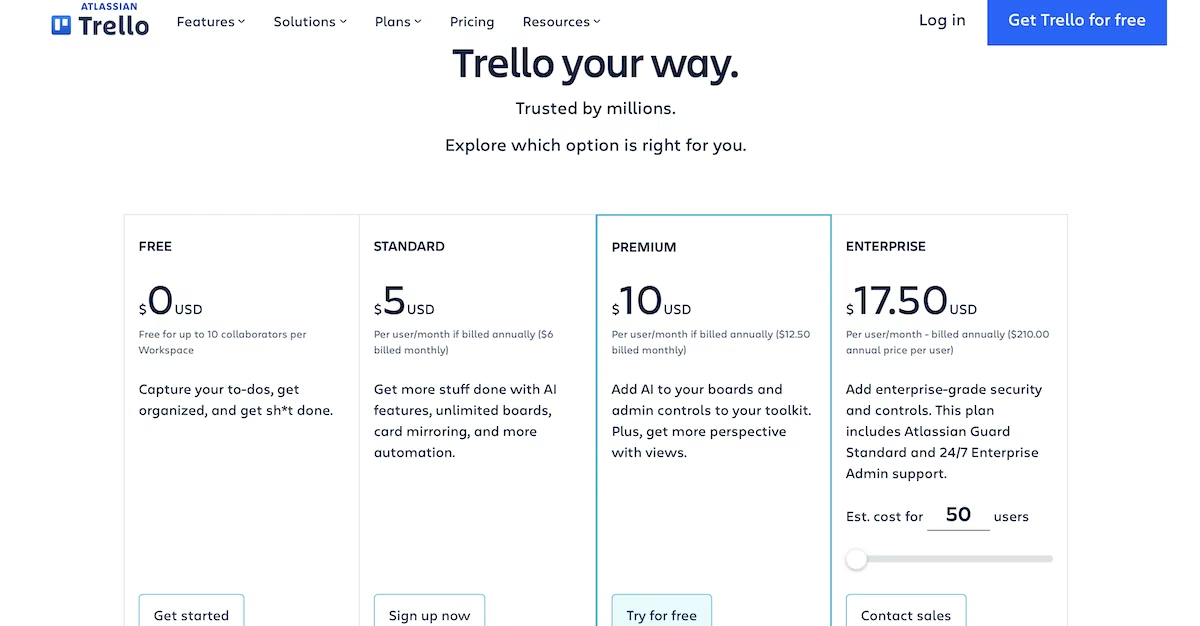
Trello's Free plan costs nothing for up to 10 collaborators per Workspace. Standard costs $6 per user per month and adds unlimited boards and more automation. Premium costs $12.50 per user per month and adds the extra views. AI is already included from Standard. Enterprise costs $17.50 per user per month, billed annually.
Bottom Line
Trello is the simplest free option for a small team that needs a single shared board. If you need to plan dates for several clients, compare Trello Premium with Asana and monday.com before you commit.
ClickUp: Best for Teams That Want Everything in One Workspace
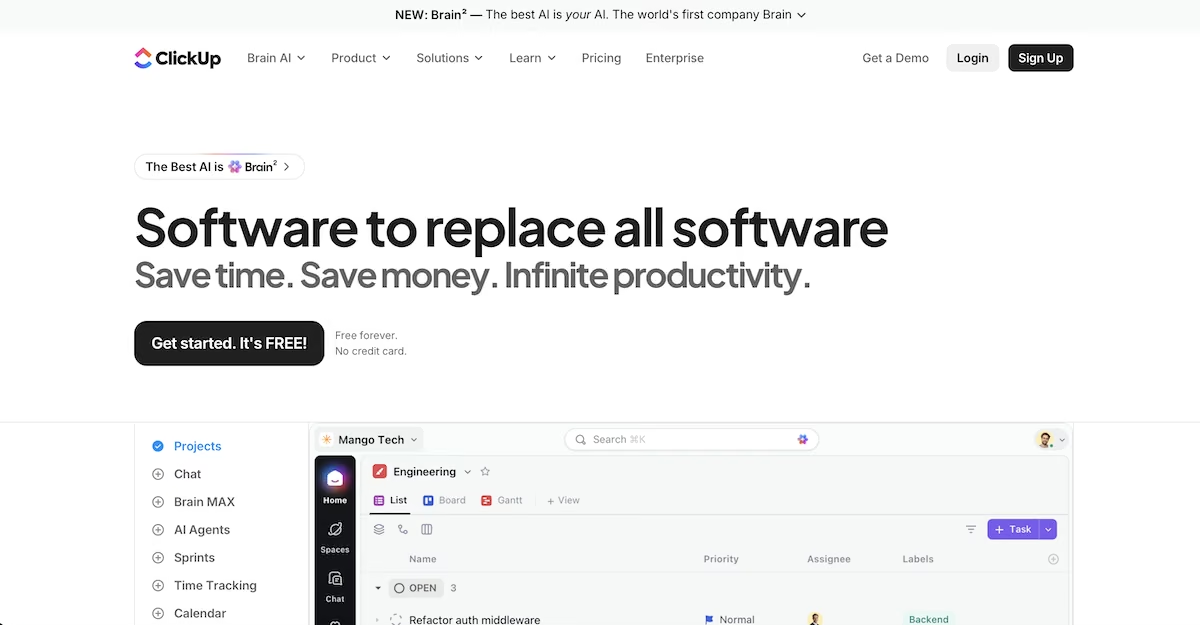
What it does: ClickUp combines tasks, docs, chat, and AI features in one workspace, with several view options.
Best for: Teams that want tasks, docs, and chat in one workspace, with a free plan that covers every member.
ClickUp's onboarding asked about my role, my team size, and the features I planned to use. It then created a workspace with a Team Space, two sample projects, a getting-started list, and an AI assistant, so there was a lot to look at before I added my first task.
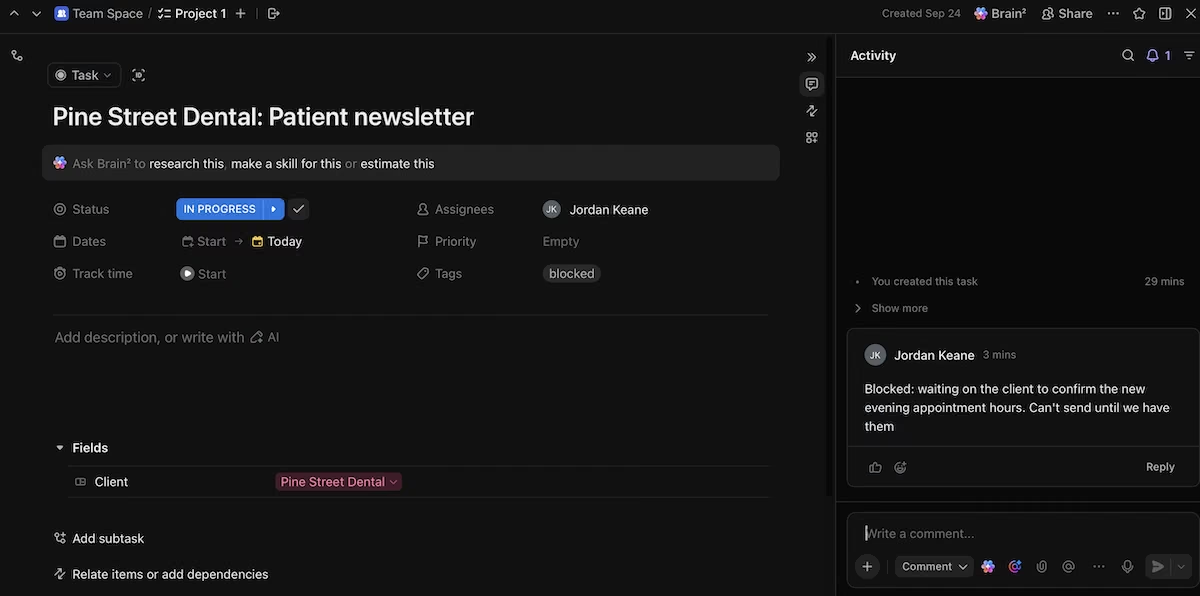
I added the six deliverables to the first project and switched to Board view, which grouped them into To Do, In Progress, and Complete columns. I dragged the Pine Street Dental newsletter into In Progress and both Northwind Foods tasks into Complete. The whole thing took about 35 minutes.
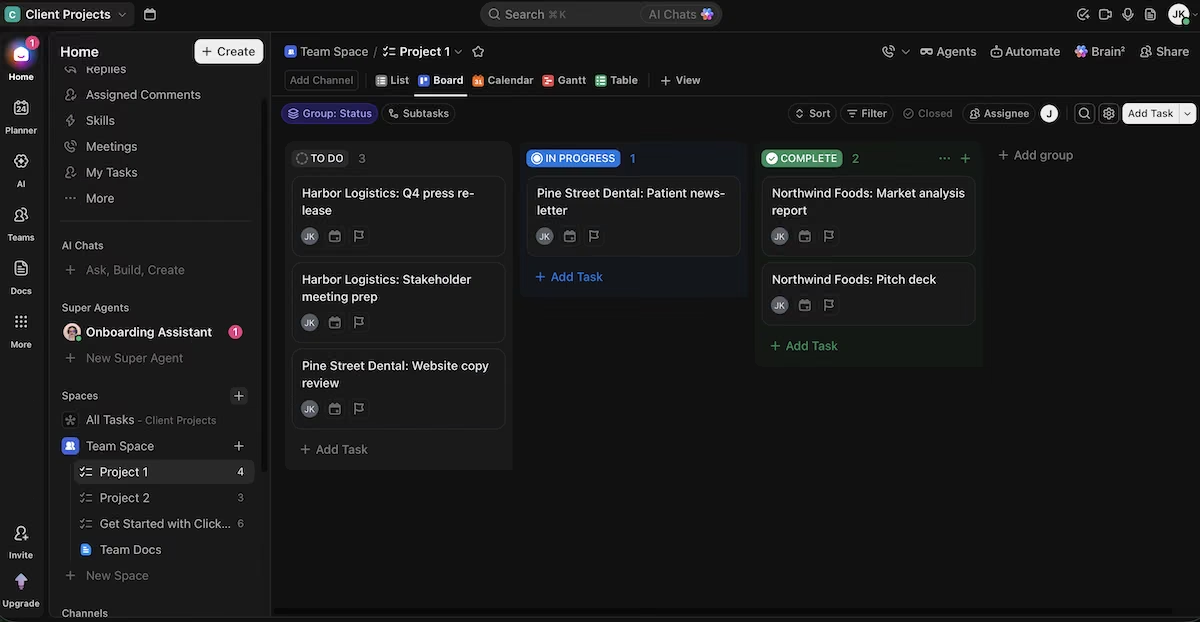
For client colors, I created a Dropdown custom field called Client and gave each option its own color. ClickUp includes custom fields on its free plan, which Asana only offers on paid plans. While setting the field, though, I noticed that List view hides completed tasks by default. So I had to switch to Board view to set the client on the two finished tasks.
I flagged the newsletter with a "blocked" tag and added the reason as a comment: "Blocked: waiting on the client to confirm the new evening appointment hours. Can't send until we have them."
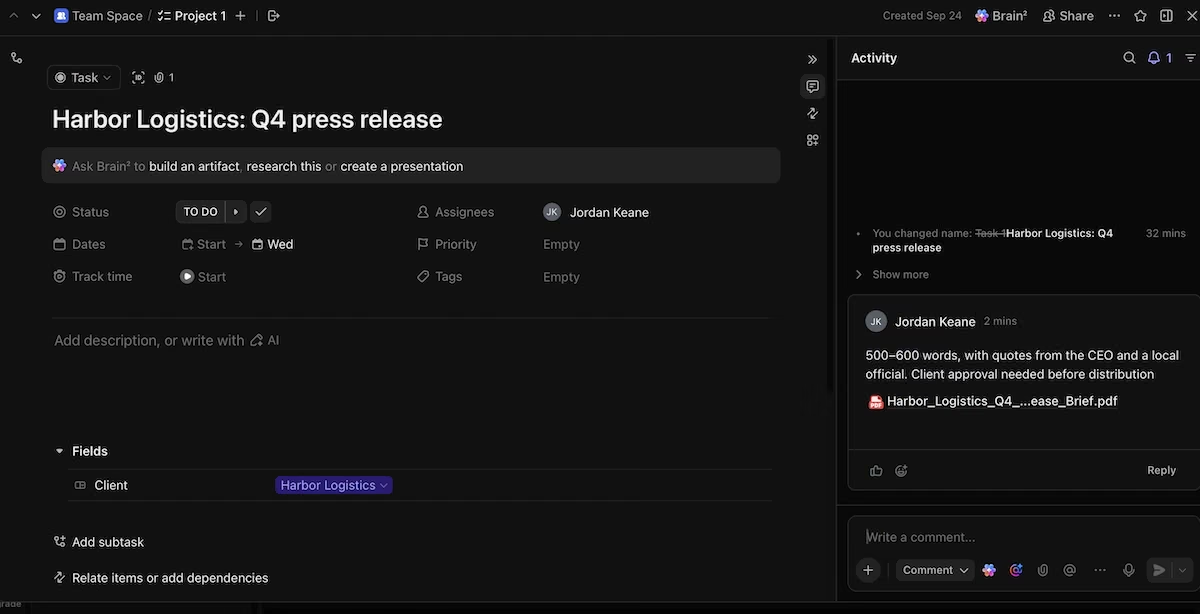
On the press release task, I posted the requirements note and attached the brief. The task page also suggested using ClickUp's AI to research the task or create a presentation from it.
Most of the setup steps offered more settings than a five-person team needs. A team with one person who enjoys configuring tools will get a lot out of ClickUp. A team that wants a simple board ready in a few minutes will find Trello quicker to start with.
Key Features
- Free plan with unlimited members: The whole team can join and try ClickUp properly before paying for a plan.
- Custom fields and several views: You can group work by client, status, or owner, and switch between list, board, and calendar views.
- Built-in AI assistant: ClickUp's AI can research tasks and draft content from the task page, though Brain AI is a separate add-on at $9 per user per month on top of your plan.
Pros and Cons
Pros:
- Board view arrives grouped into To Do, In Progress and Complete, and cards drag between columns.
- The free plan includes basic custom fields, enough to color-code work by client, though it caps you at 60 uses that never reset.
- Fields, tags, comments, and files all appear on one task page.
Cons:
- The number of settings makes setup slow for first-time users.
- The free plan includes only 60MB of storage in total.
- Unlimited timeline views require the Business plan.
What Users Say
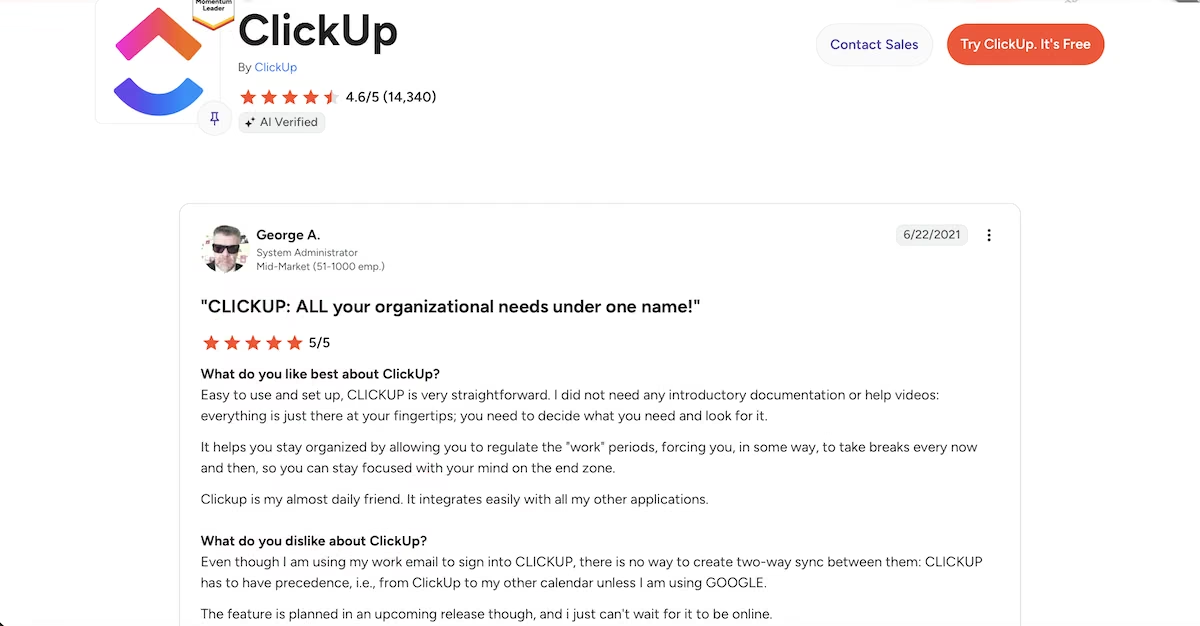
“Clickup is my almost daily friend. It integrates easily with all my other applications.” - George A. (G2)
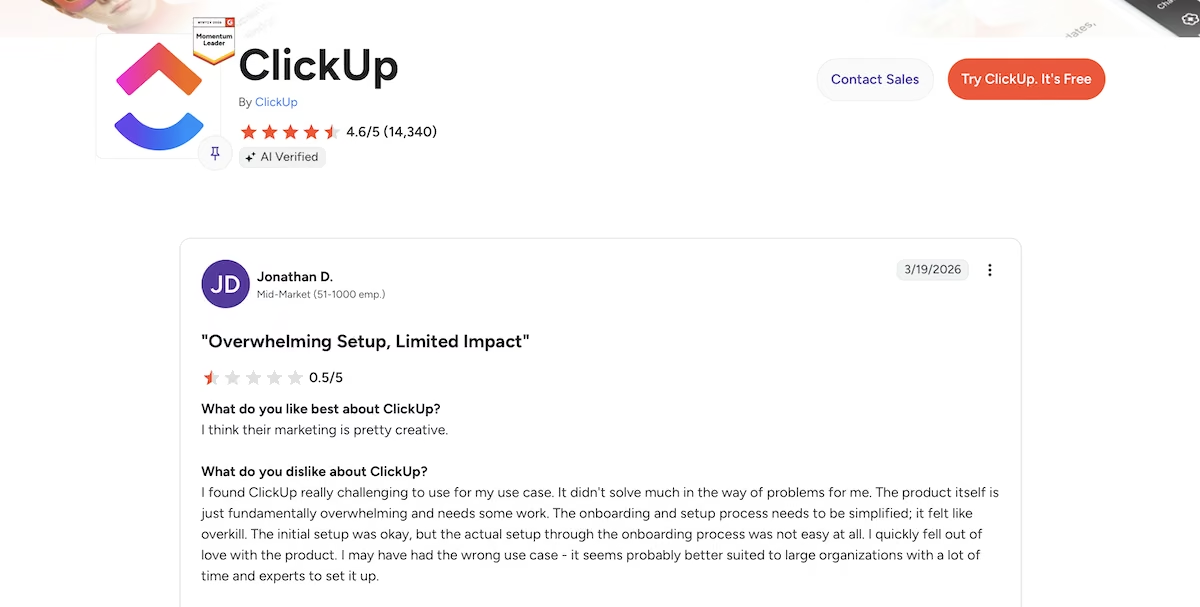
“The product itself is just fundamentally overwhelming and needs some work.” - Jonathan D. (G2)
Pricing
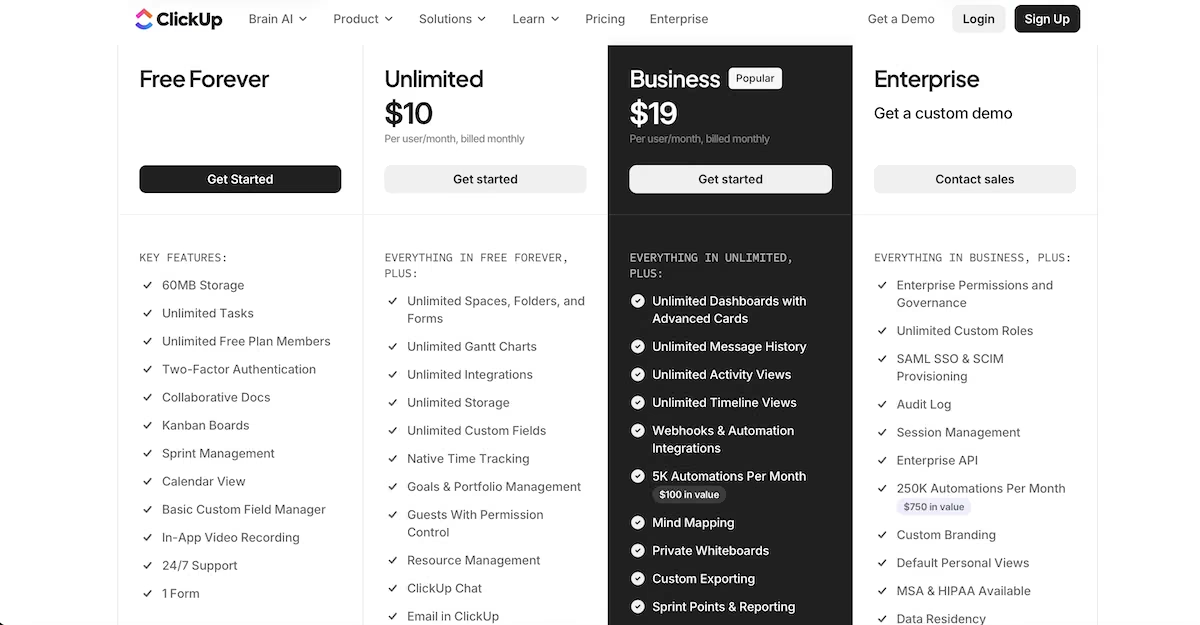
ClickUp's Free Forever plan includes unlimited tasks and members, Kanban boards, a calendar view, and 60MB of storage. Unlimited costs $10 per user per month and adds unlimited storage, Gantt charts, and integrations. Business costs $19 per user per month and adds unlimited timeline views and more automations. Enterprise pricing is available through a demo.
Bottom Line
I'd choose ClickUp for a team that wants to replace several apps and has a person who'll own the setup. If your team has struggled to adopt new tools in the past, Trello is an easier place to start.
Asana: Best for Teams That Want Structured Task Tracking
What it does: Asana organizes work into projects with owners, due dates, and fields, and shows each project as a list, board, timeline, or calendar.
Best for: Teams of three or more that want clear ownership and deadlines, and have the budget for a paid plan.
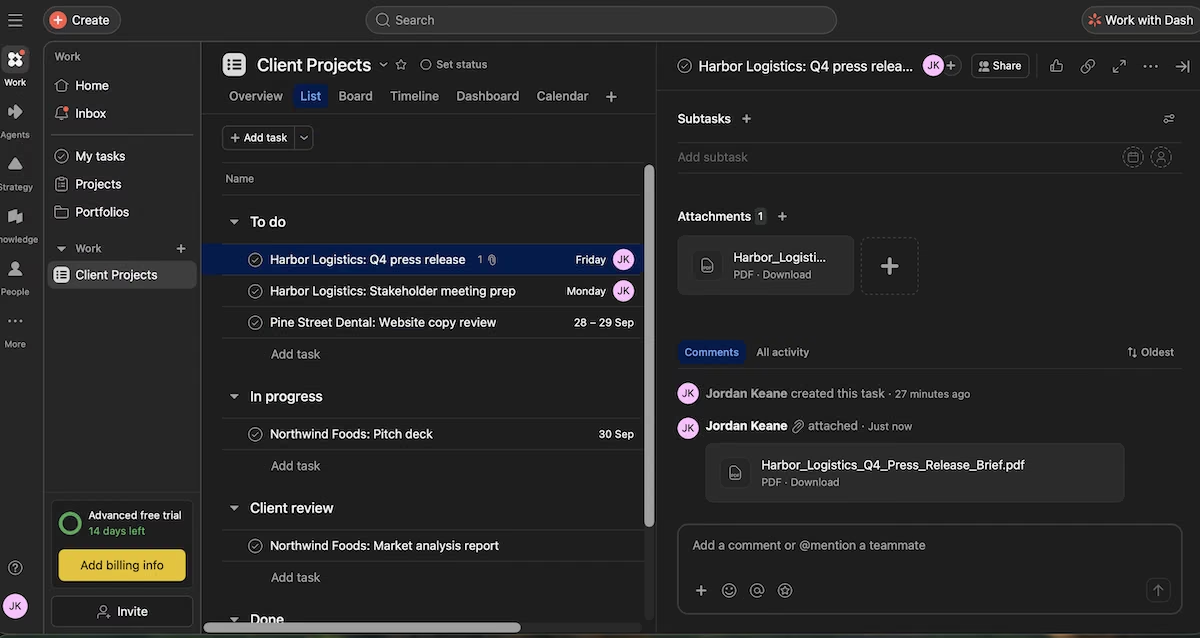
Asana started my account on a 14-day Advanced trial as soon as I finished onboarding. My first project already had three sample tasks, a Priority field, and a Status field with On track, At risk, and Off track options. Both fields require Asana's paid plans, so a team on the free plan loses them once the trial ends.
I replaced the sample tasks with the six deliverables and created sections for To do, In progress, Client review, and Done. Setting up the project took about 25 minutes. The date picker let me set a start and end date for each task, and the list showed the dates as a range.
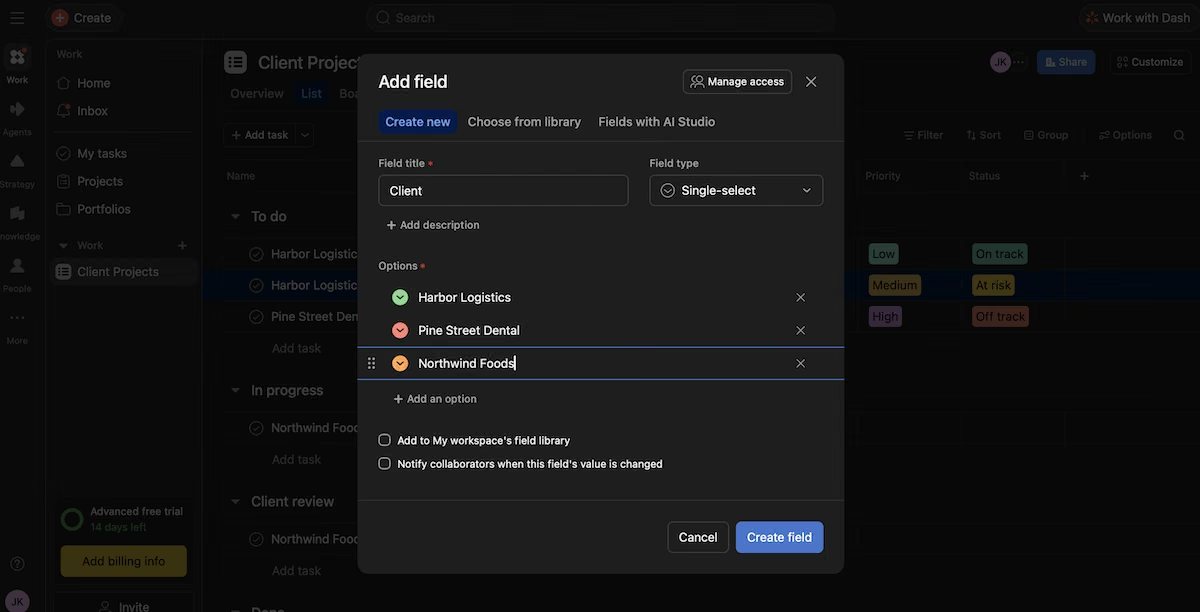
For client colors, I added a single-select field called Client with a colored option for each client I created. The colors showed in both List and Board views, which made a client easy to pick out. Asana includes custom fields from the Starter plan upward, though, so a team on the free plan would need to use tags or project names.
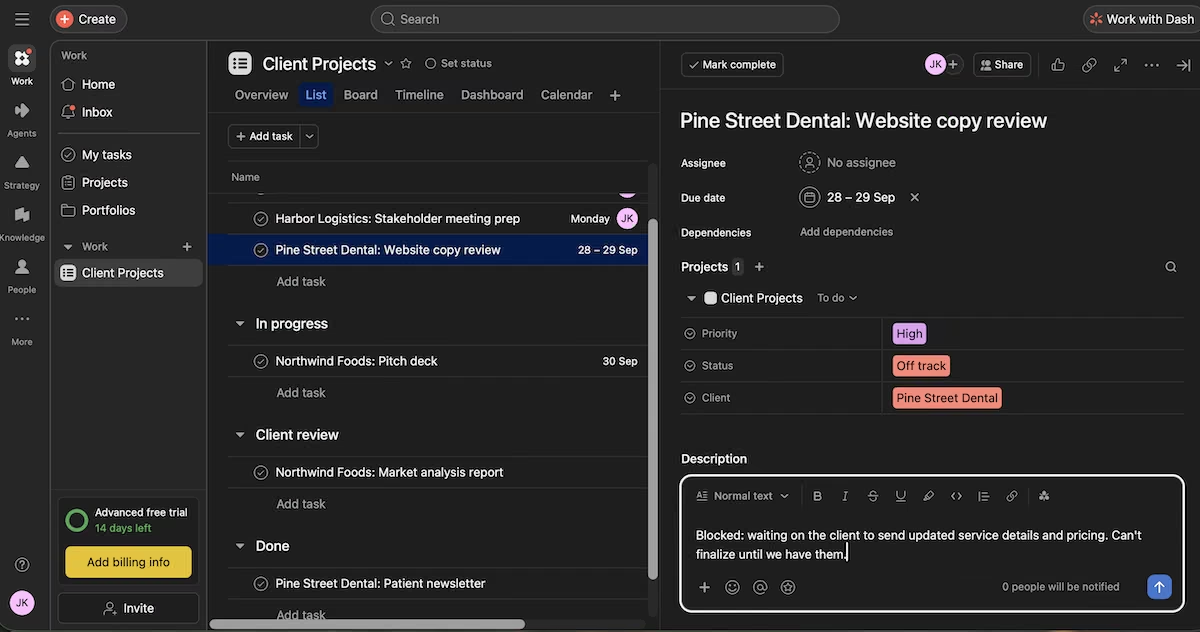
I set the blocked task's Status to Off track and wrote the reason in the task's description. The task page showed the owner, dates, status, client, and note together, so a teammate opening it could see the problem straight away.
Attaching the brief took longer than in Trello, because the option is in the task's three-dot menu. Asana offered uploads from my computer, Google Drive, OneDrive, Box, and Dropbox. Once I’d uploaded the file, the PDF appeared in the task's attachments with a download link.
Key Features
- Several views of one project: Teams can switch between list, board, and calendar views on the free plan, and add timelines on paid plans.
- Custom fields: Fields such as Client and Status let you sort and filter work by the details your team uses most.
- Attachments from cloud storage: You can add files from Google Drive, OneDrive, Box, or Dropbox, as well as from your computer.
Pros and Cons
Pros:
- Each task page shows the owner, dates, status, and notes together.
- The date picker sets a start and an end date, and the list shows each task as a range.
- The interface stays clean when you add extra fields.
Cons:
- The free Personal plan covers only two users.
- Custom fields and timelines require the Starter plan.
- Its Starter plan costs more per user than the cheapest plans from Trello, ClickUp, and monday.com.
What Users Say
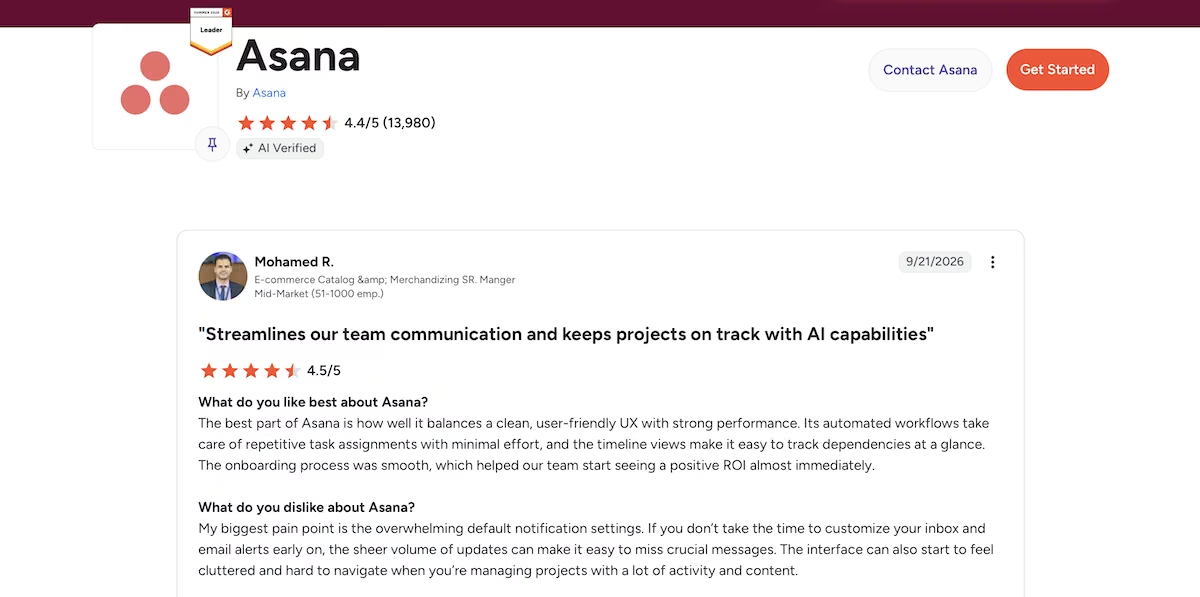
“The onboarding process was smooth, which helped our team start seeing a positive ROI almost immediately.” - Mohamed R. (G2)
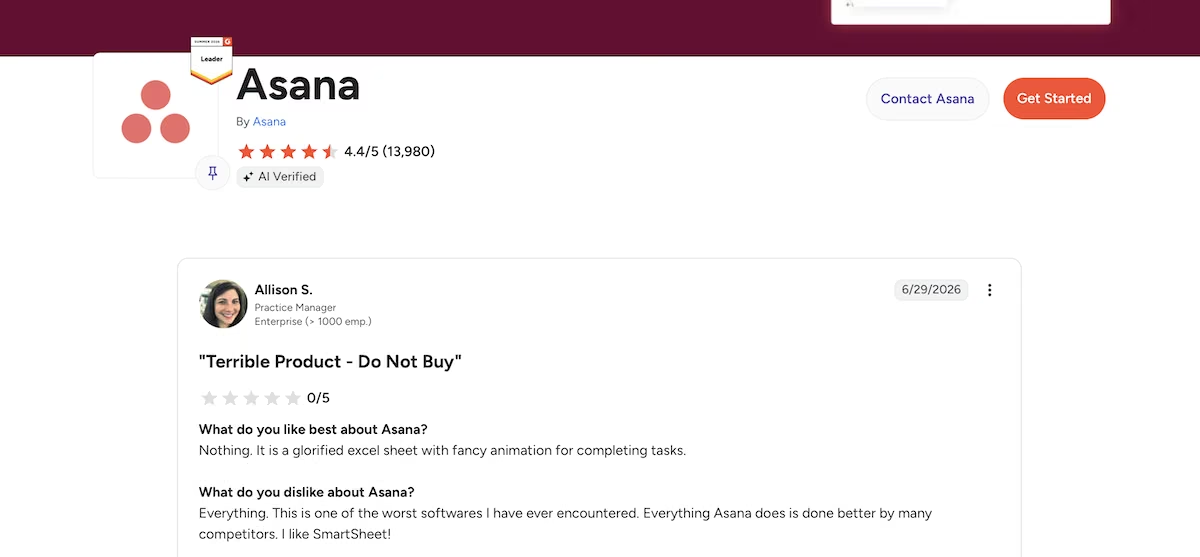
“It is a glorified excel sheet with fancy animation for completing tasks.” - Allison S. (G2)
Pricing
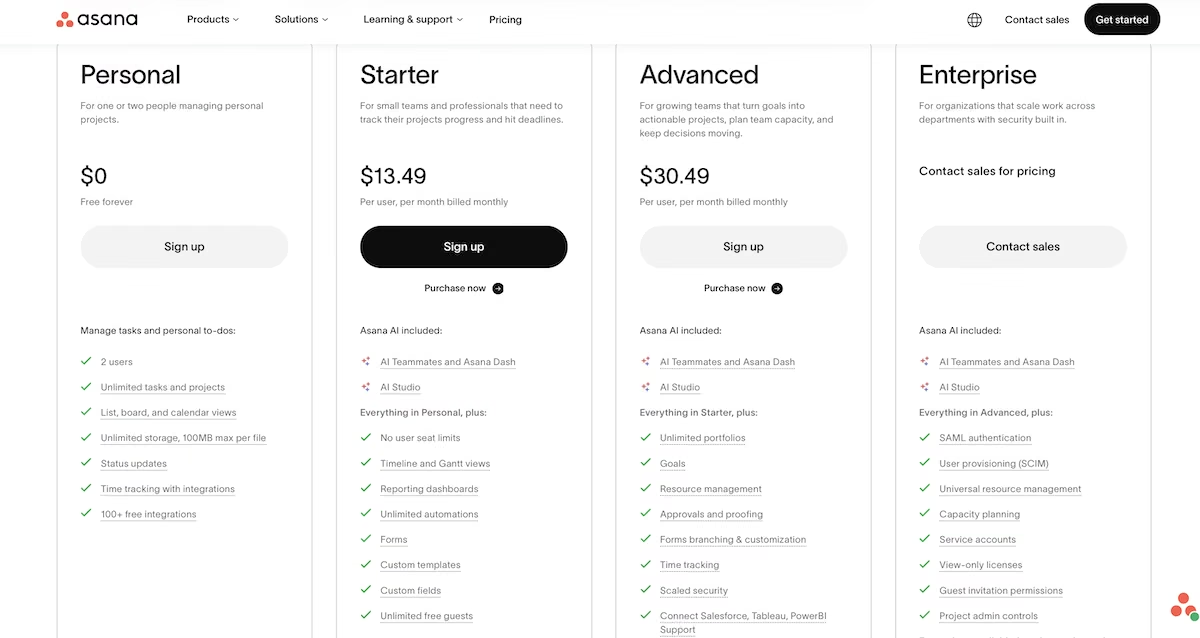
Asana's Personal plan is free for up to two users and includes unlimited tasks and projects, list, board, and calendar views, and files of up to 100MB each. Starter costs $13.49 per user per month and adds timeline and Gantt views, custom fields, forms, and reporting dashboards.
Advanced costs $30.49 per user per month and adds goals, portfolios, and time tracking. Enterprise pricing is available through Asana's sales team.
Bottom Line
Asana is a good fit for a team of three to 10 people that wants a clear structure and can budget for the Starter plan. Two-person teams can get a lot from the free plan, but a team that expects to grow should plan for an upgrade.
monday.com: Best for Teams That Want Color-Coded Visual Boards
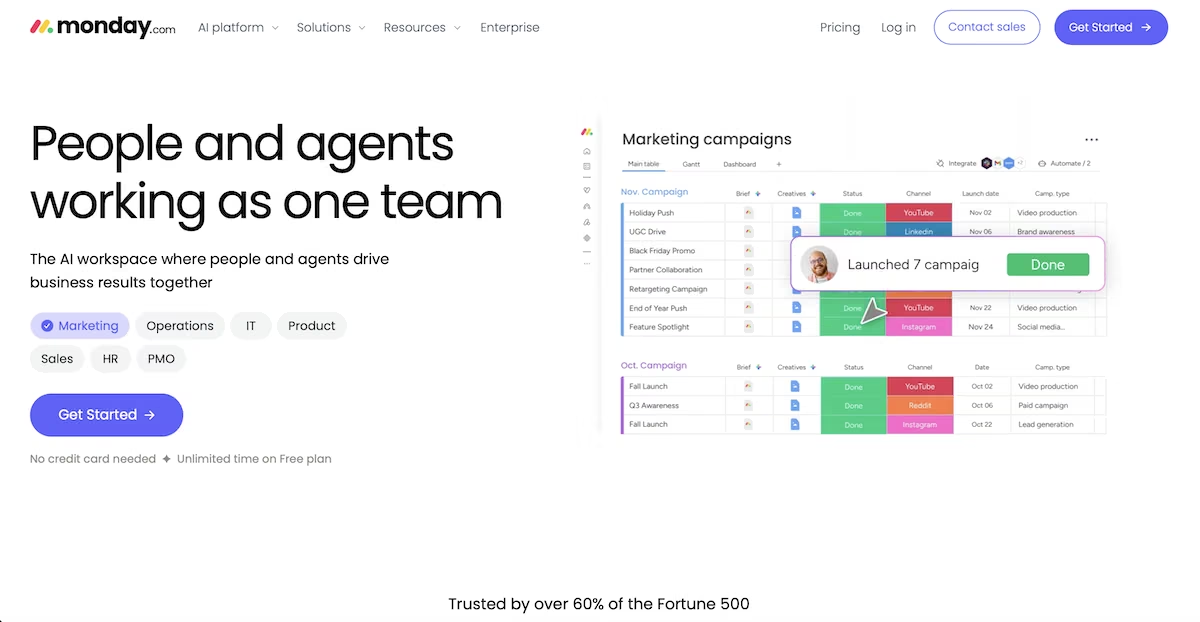
What it does: monday.com shows work as color-coded tables and boards, with columns for status, owner, dates, and labels.
Best for: Teams of three or more that like visual boards and want status and client colors on every row.
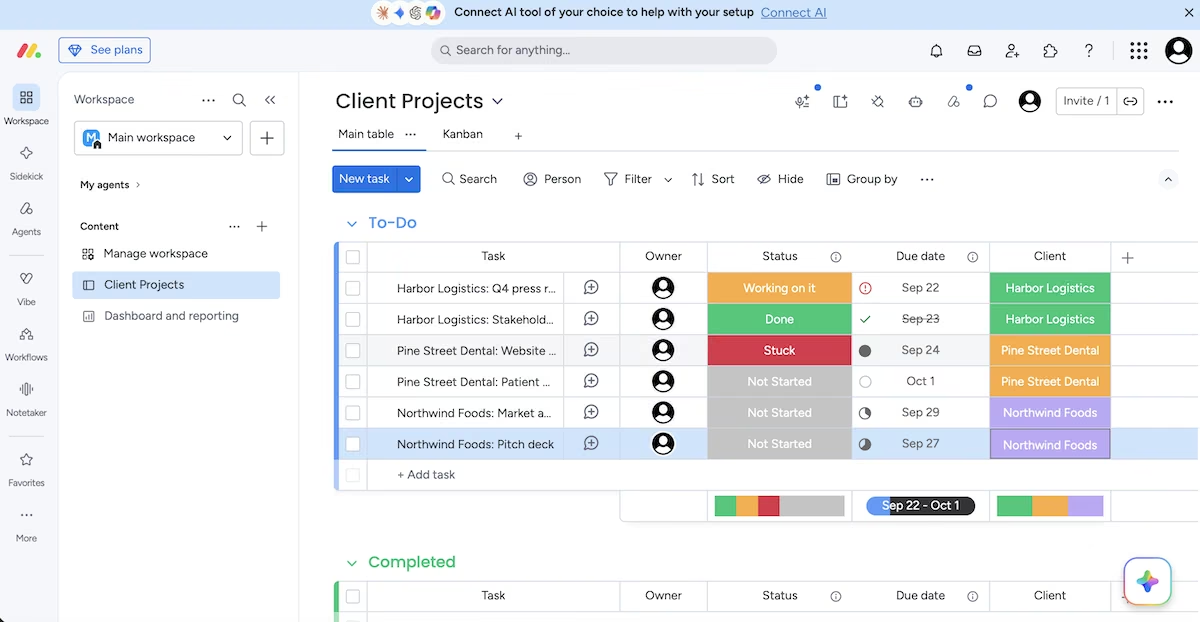
monday.com's onboarding asked which dashboard widgets I wanted, which views to add, and what my first projects were, then built a board called Client Projects from my answers. It also started me on a 14-day Pro trial.
The board was a table with To-Do and Completed groups and columns for Owner, Status, and Due date. Status came with four options (Working on it, Done, Stuck, and Not Started), each with its own color.
Overdue dates showed a red warning icon, and the Stuck option gave me a ready-made way to flag the blocked task. Trello, ClickUp, and Notion don't include a status like that by default.
I added a Label column called Client and gave each client a color. The label menu also offered an AI option to assign labels automatically, which would help on a larger board. The whole process took about 20 minutes, which made monday.com the quickest of the six ready-made tools.
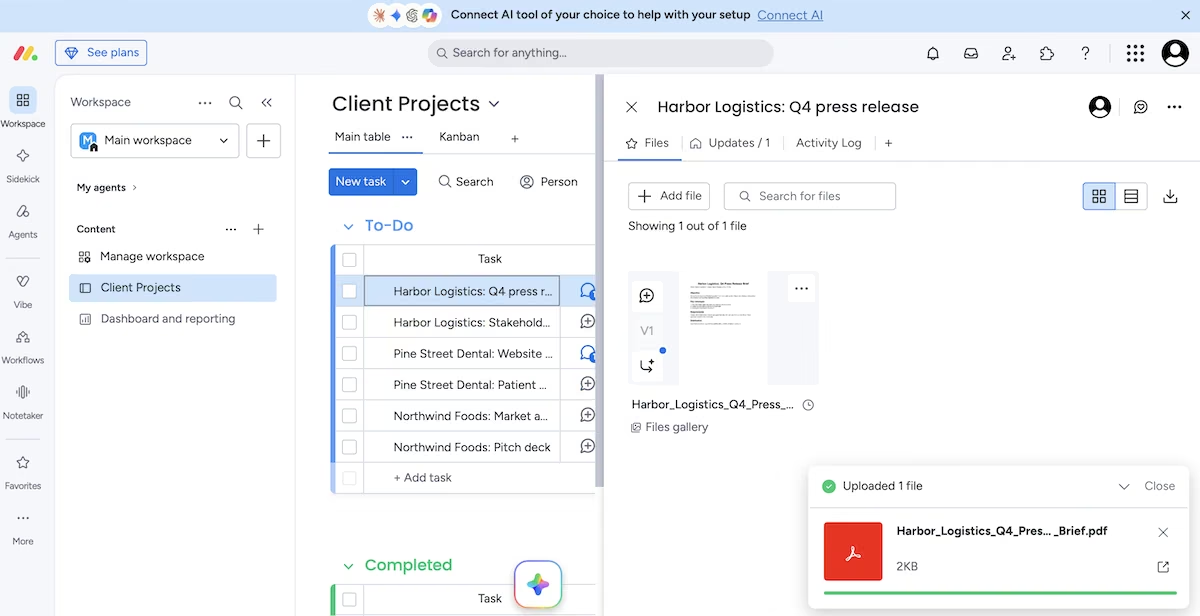
monday.com stores comments and files in each item's side panel. I set the Pine Street Dental newsletter to Stuck and posted the reason as an update.
On the press release, I posted the requirements note and uploaded the brief to the Files tab, which showed a preview of the PDF.
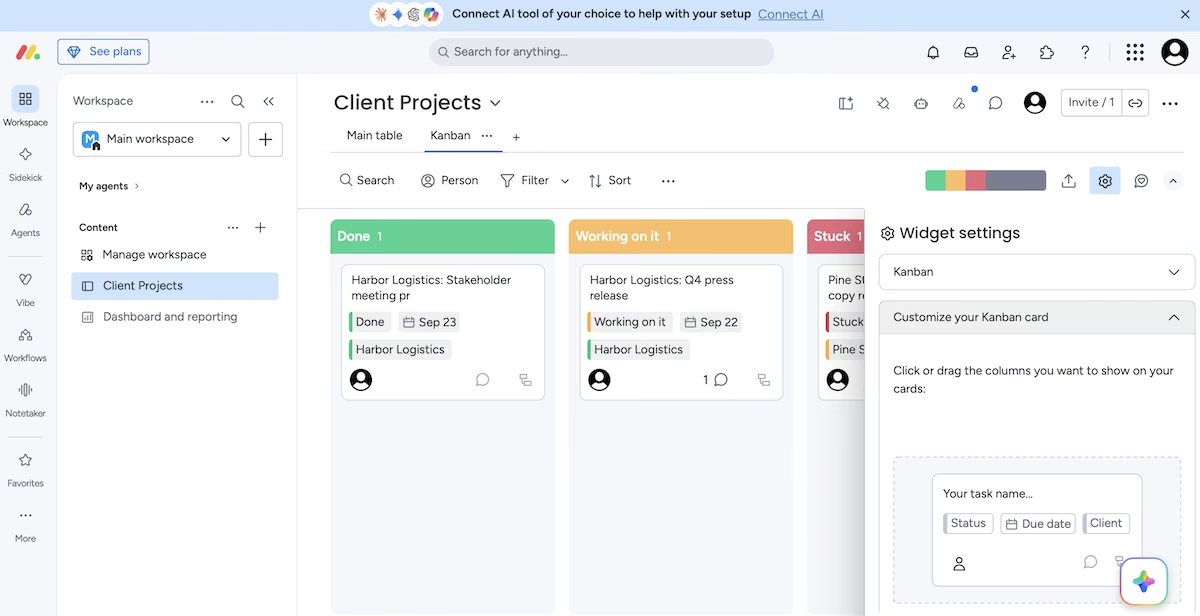
The Kanban view grouped items into columns by status, and its settings let me choose which details I wanted to appear on each card. Switching between the table and the board took one click, which helps when some teammates prefer lists and others prefer cards.
Key Features
- Color-coded status columns: Each task's color shows its status, and the built-in Stuck option makes blocked work easy to spot.
- AI label assignment: You can color-code work by client or category, and monday.com's AI can assign the labels automatically.
- Table and Kanban layouts: The same data can appear as a table or a board, so each person can use the layout they prefer.
Pros and Cons
Pros:
- Setup is quick, with onboarding that builds your first board for you.
- Comments and files live in each item's side panel, so updates stay next to the work.
- The boards are easy for less technical teammates to read.
Cons:
- The free plan covers only two seats.
- Paid seats come in groups, so small teams often pay for seats they don't use.
- Timeline, Gantt, and calendar views are only available from the Standard plan upward.
What Users Say
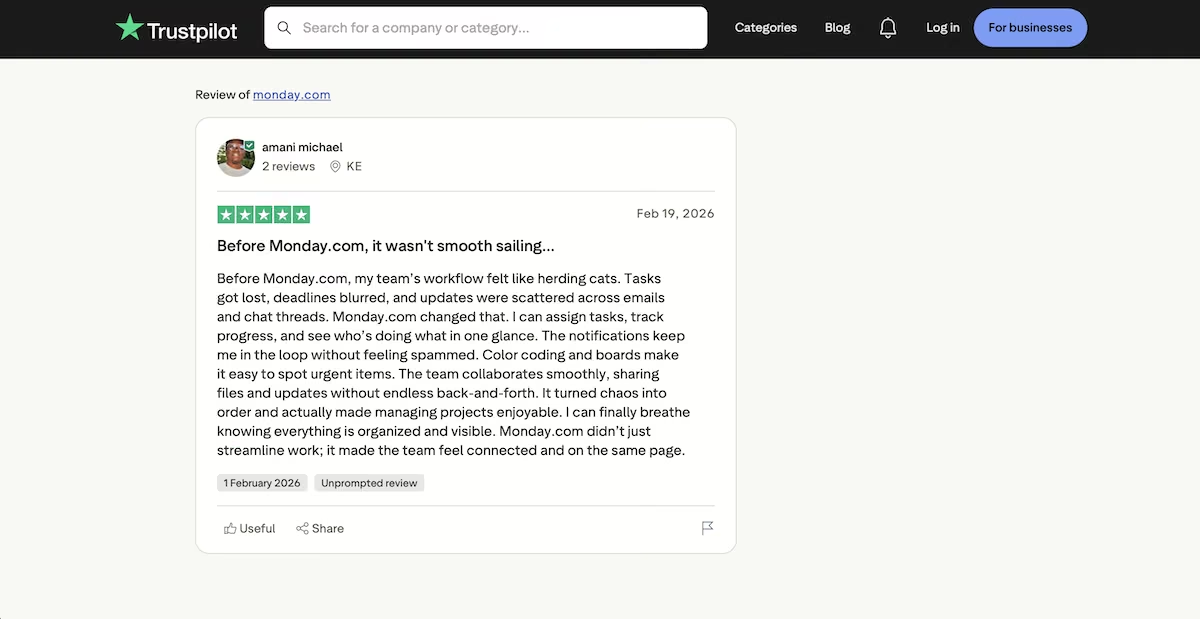
“Before Monday.com, my team’s workflow felt like herding cats.” - Amani Michael (Trustpilot)
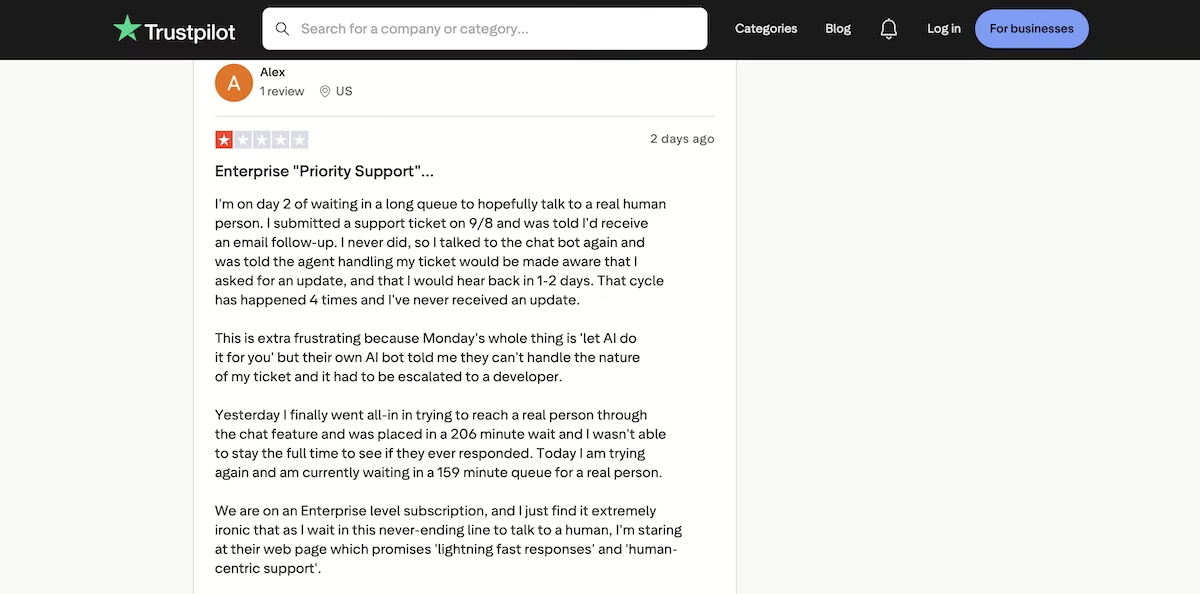
“We are on an Enterprise level subscription, and I just find it extremely ironic that as I wait in this never-ending line to talk to a human” - Alex (Trustpilot)
Pricing
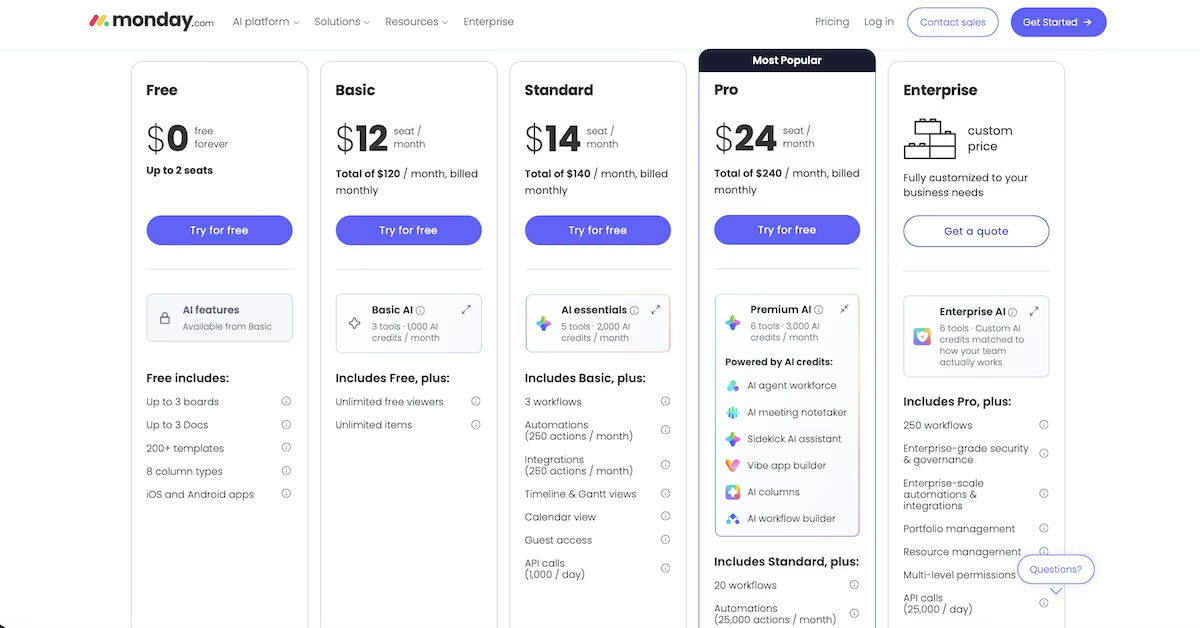
monday.com's Free plan covers up to two seats, three boards, and three docs. Basic costs $12 per seat/month, and because the minimum is three seats the cheapest paid plan is $36/month even for a two-person team. Standard costs $14 and adds timeline, Gantt and calendar views, and Pro costs $24. Enterprise pricing is custom.
monday.com's paid plans start at three seats and then rise in multiples of five. The pricing page shows Basic at $120/month because it prices a group of 10 seats.
Bottom Line
monday.com is a good choice for a team that wants status updates that are easy to read at a glance. Work out which seat group your team lands in before you commit, because that number sets your bill.
Notion: Best for Document-Heavy Teams That Want Projects and Files in One Workspace

What it does: Notion combines pages and databases, so a team can keep its task board and documents in one workspace.
Best for: Teams whose projects rely on notes, briefs, and reference documents.
Notion took the longest of the ready-made tools, at just over an hour, with most of that time spent on figuring out its database settings. I created a page called Client Projects and added a board database, which came with three statuses: Not started, In progress, and Done. Adding the six cards only took a couple of minutes.
Adding properties took several attempts. The settings menu had separate options for editing properties and for choosing which ones appear on the board. When I added a Date property for due dates, the board switched to grouping cards by date, and I had to change the grouping back to Status in the settings.

Once I’d set up the properties, the board worked well. It already included an Assign property for owners, and I added a Select property called Client with a color for each one. Each card then showed its owner, client, and status.
Notion's biggest advantage appeared when I opened a card. Each card opens as a full page, so I typed the requirements note into the page and added the PDF brief below it as a file. Teams whose deliverables depend on long briefs or research notes can keep all of that inside the task.

For the blocked task, I added another Select property called Flag with a red Block option, then posted the reason as a comment. The flag, the overdue date, and the comment all showed at the top of the card's page. I had to create the flag myself, as Notion doesn't include a blocked status by default.

Key Features
- Cards that open as pages: Each task can hold briefs, notes, and files, so related documents stay with the work.
- Flexible database properties: You can add fields for clients, owners, dates, and flags, and choose which ones appear on the board.
- Docs and tasks in one workspace: Project plans and reference documents can link to each other, which makes information easier to find.
Pros and Cons
Pros:
- The board database ships with an owner property and three statuses already set up.
- The free plan includes databases with subtasks, dependencies, and custom properties.
- The same workspace can serve as a team wiki and a project tracker.
Cons:
- Database settings take time to learn.
- The free plan limits how much a team of two or more can add, so most teams will need Plus.
- The free plan limits file uploads.
What Users Say
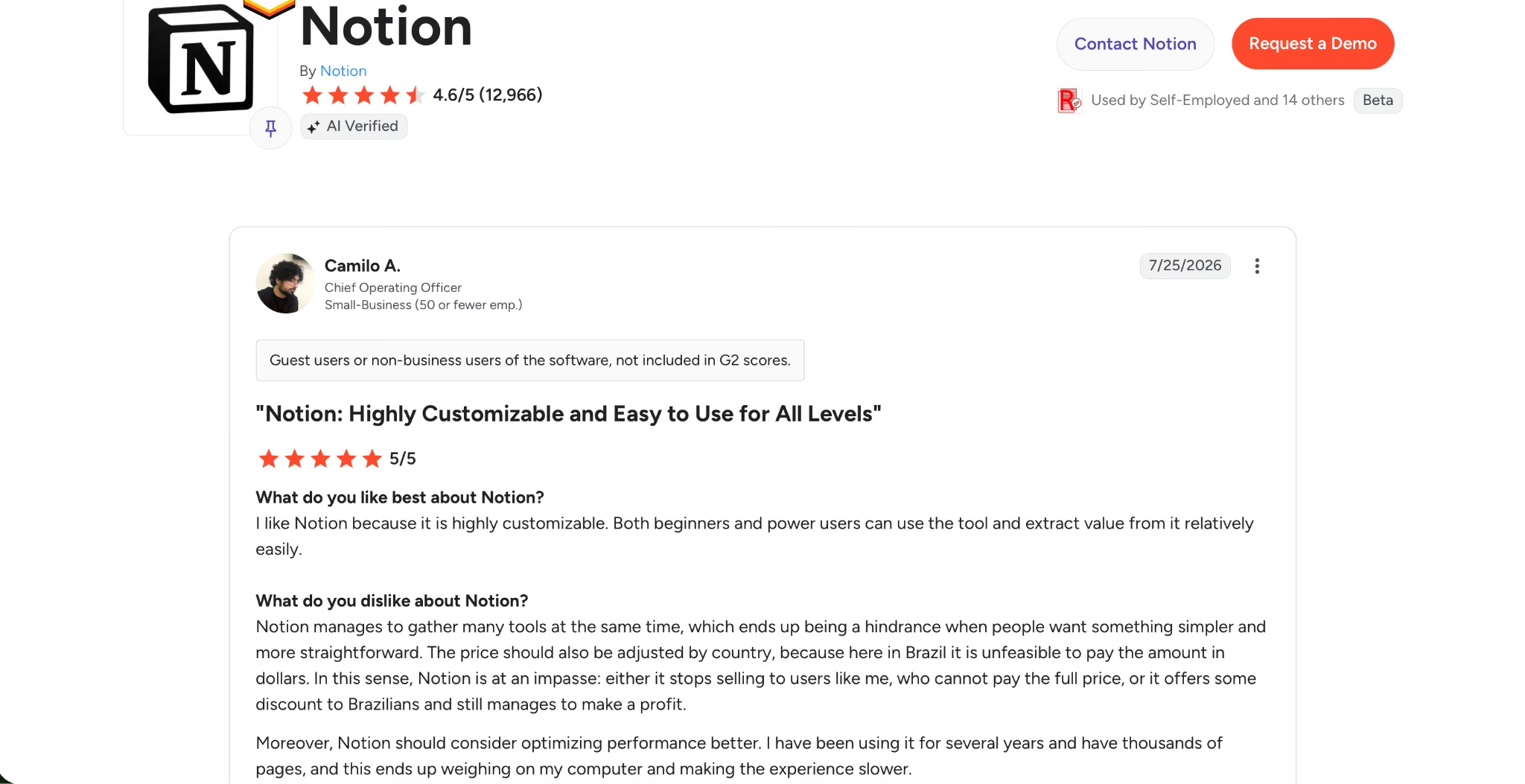
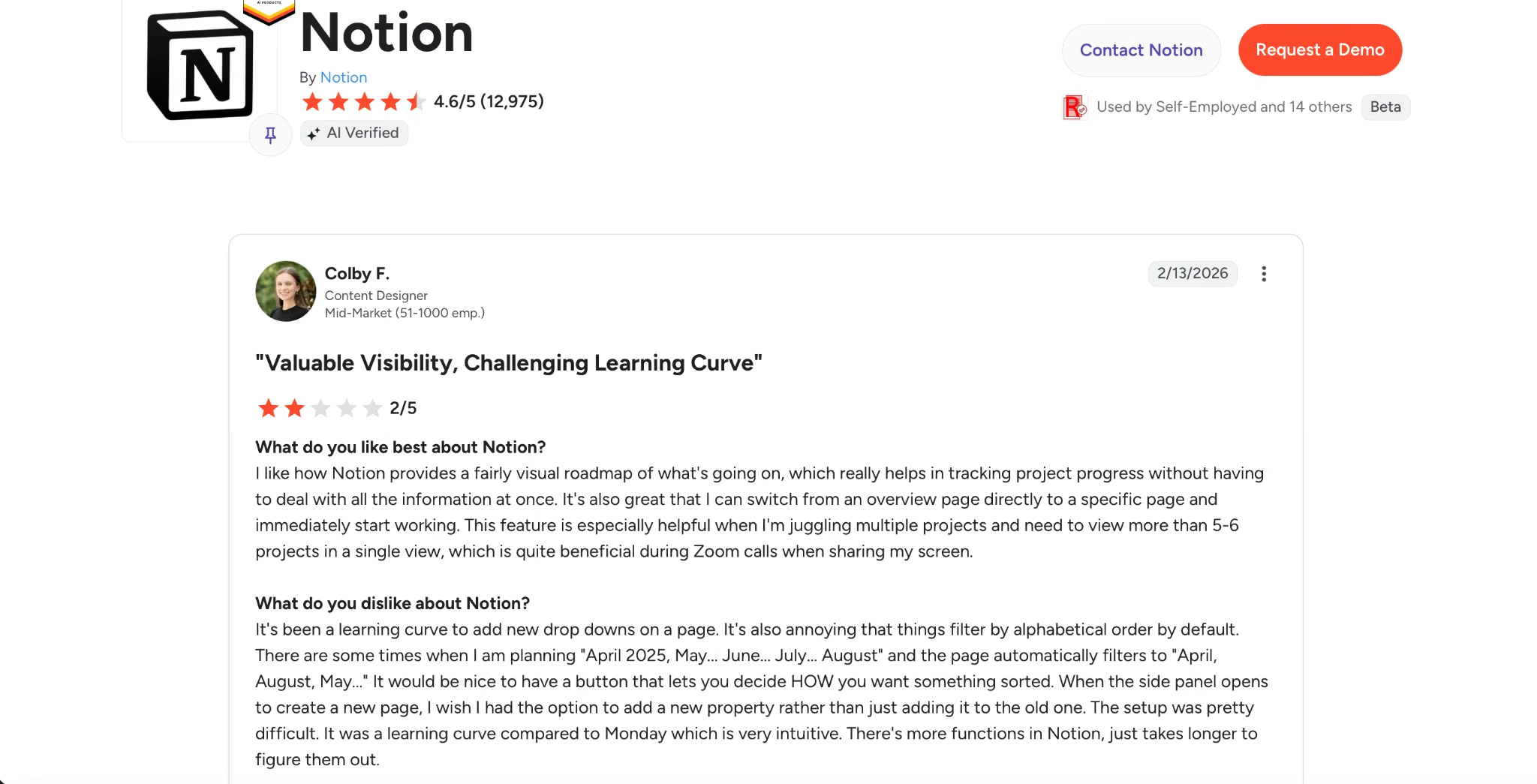
"Both beginners and power users can use the tool and extract value from it relatively easily." - Camilo A. (G2)
"It would be nice to have a button that lets you decide HOW you want something sorted" - Colby F. (G2)
Pricing
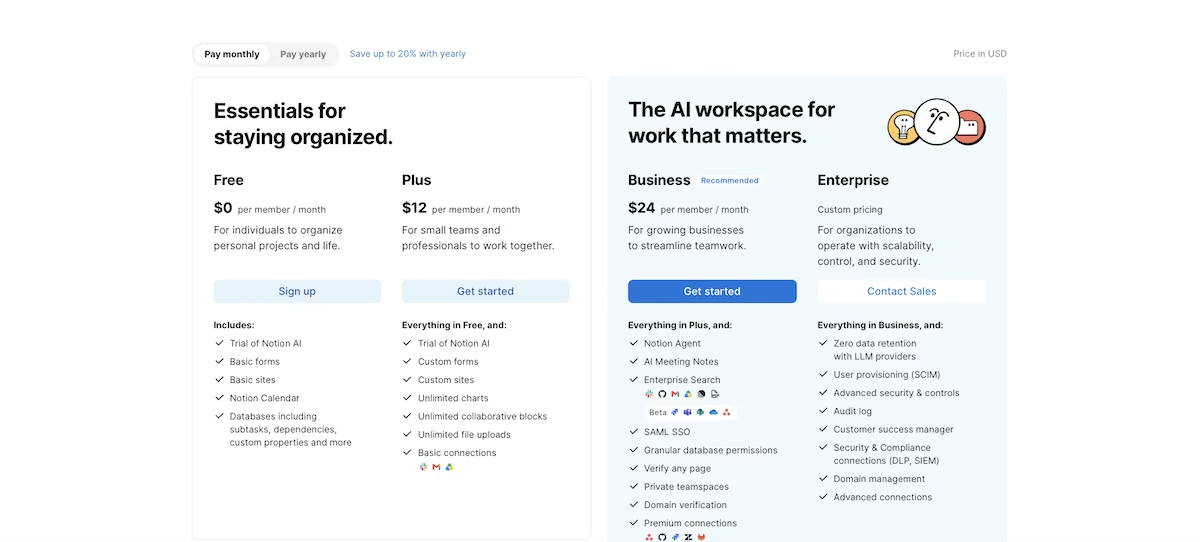
Notion's Free plan includes databases with subtasks, dependencies, and custom properties, but it limits pages and blocks for workspaces with two or more members. Plus costs $12 per member per month and adds custom forms, custom sites, and unlimited file uploads. Business costs $24 per member per month and adds Notion Agent and AI meeting notes. Enterprise pricing is custom.
Bottom Line
Notion works best for teams whose project work involves a lot of documents, such as proposals, research, and client briefs. If your main need is a clear view of who's doing what this week, a board-based tool will be quicker to set up.
Teamwork.com: Best for Agencies That Bill Clients by the Hour

What it does: Teamwork.com manages client projects alongside time tracking, budgets, and resourcing, so a services team can see both delivery and profitability.
Best for: Agencies and consultancies that bill clients by the hour and want tasks and billable time in the same tool.
Teamwork.com calls itself professional services software, which was reflected in the sign-up process. It asked for personal details, company details, and a first project, then asked me to enter the first three tasks before it showed the workspace. No other tool asked for that much before letting me in, though the full setup still took about 25 minutes.

The sidebar showed where Teamwork.com's focus lies. Alongside Projects and Tasks, it had sections for Time, Clients, Resourcing, Reporting, and Finance, which are aimed at agencies that track hours and profit margins.
The board opened with four columns (Backlog, To do, In progress, and Completed), and each card showed its client and project. Onboarding had added sample tags and priority flags to my first three tasks, so I replaced the sample tags with a colored tag for each client.

Due dates appeared as ranges, and the end date turned red once it had passed, which made the late Pine Street Dental newsletter easy to spot. I added a red Blocked tag to it and posted the reason as a comment, so the team could see what was holding it up without opening a separate message thread.
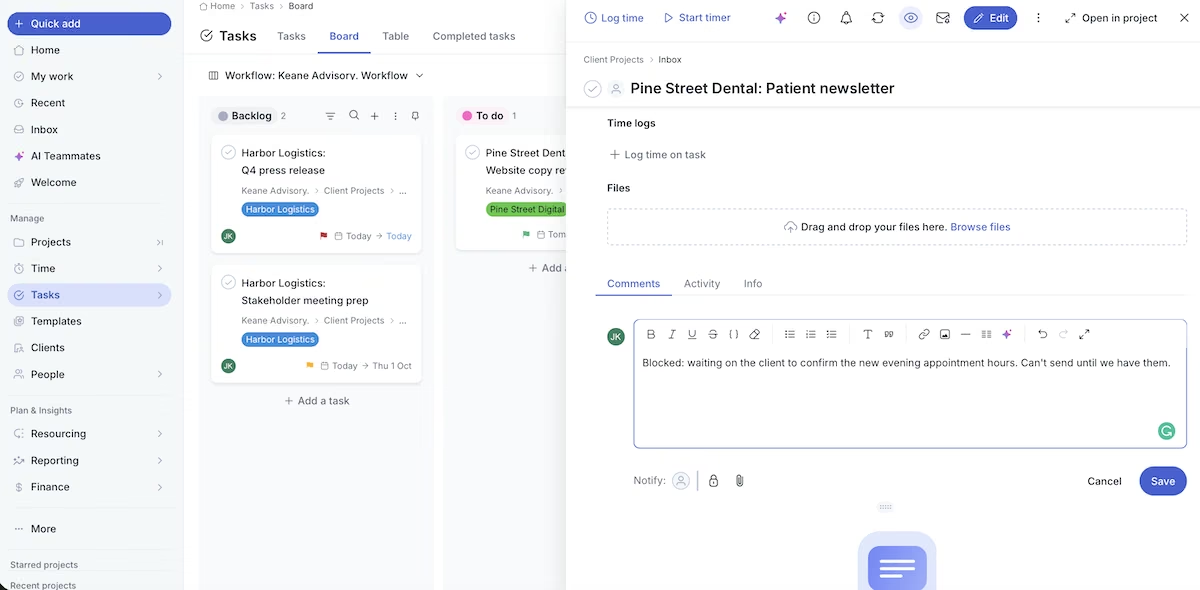
On the press release task, I posted the requirements note as a comment and attached the brief to it. Each task panel also displayed Log time and Start timer buttons at the top, so a team member could record billable hours directly from the task they were working on. For an agency, that removes the need for a separate time-tracking app.

Key Features
- Time tracking on each task: Team members can log billable hours from the task itself.
- Client and project structure: Work is organized by client, which suits agencies with several accounts.
- Resourcing and finance tools: Paid plans add workload planning and profitability reports for services businesses.
Pros and Cons
Pros:
- The board opens with a Backlog, To do, In progress and Completed pipeline already built.
- Overdue dates and priority flags are easy to spot on the board.
- Time tracking is included on the entry plan.
Cons:
- The free plan is limited to five users, five projects and 100MB of storage.
- The time, finance, and resourcing tools add complexity for teams that only need task tracking.
- Its cheapest paid plan has the highest per-user price on this list.
What Users Say
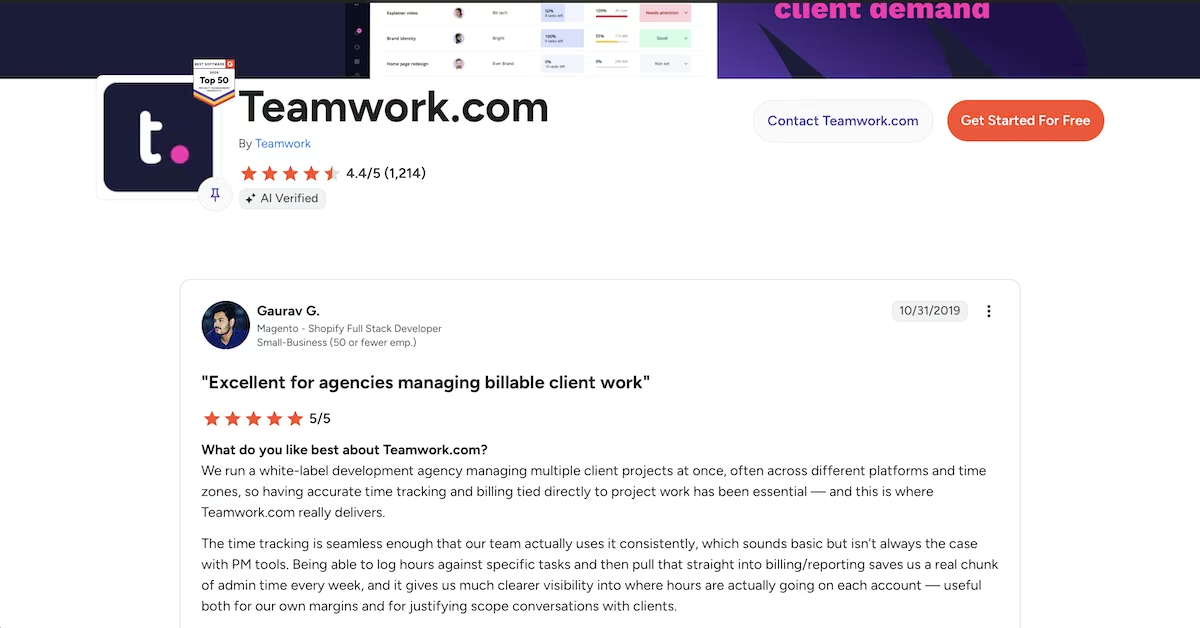
“Being able to log hours against specific tasks and then pull that straight into billing/reporting saves us a real chunk of admin time every week” - Gaurav G. (G2)
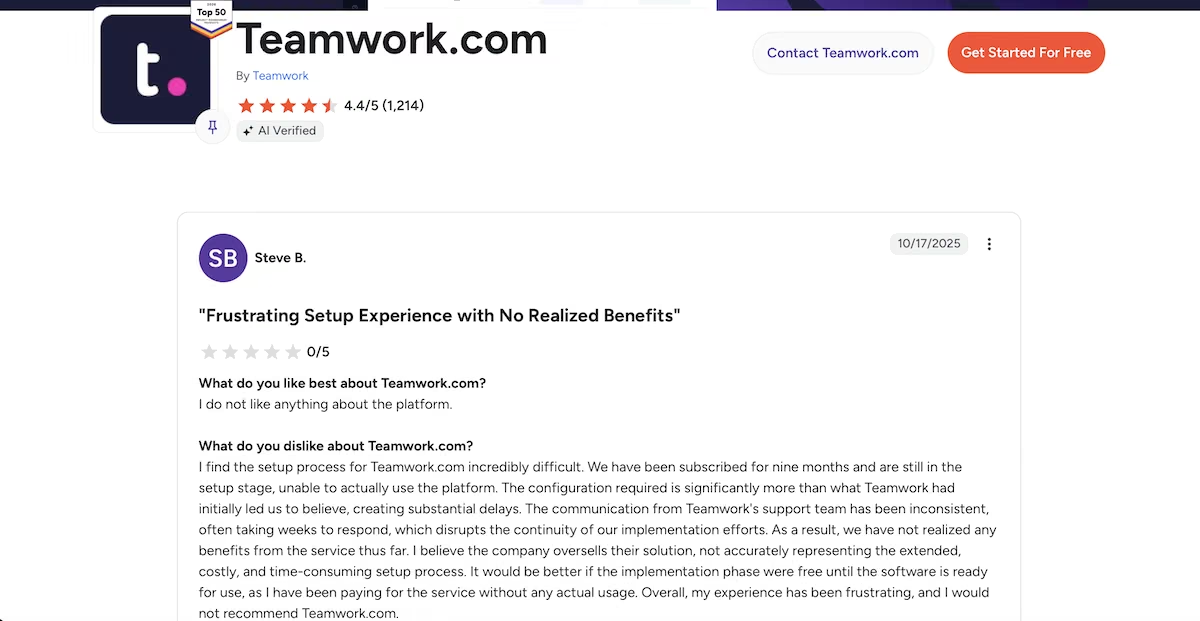
“The configuration required is significantly more than what Teamwork had initially led us to believe” - Steve B. (G2)
Pricing
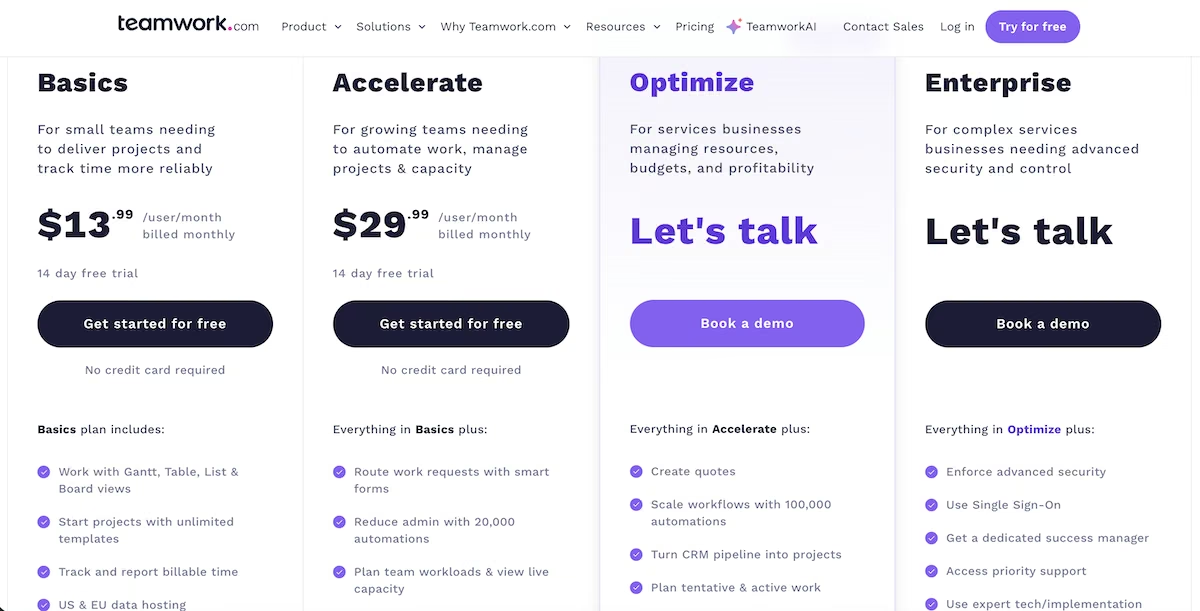
Teamwork.com's Free plan covers up to five users and five projects. Basics costs $13.99 per user per month, with a three-user minimum, and includes Gantt, table, list, and board views, unlimited templates, and billable time tracking.
Accelerate costs $29.99 per user per month, with a five-user minimum, and adds smart forms, 20,000 automations, and workload planning. Optimize and Enterprise pricing is available via a demo.
Bottom Line
Teamwork.com is the right choice for an agency that wants to see how profitable each client is. If your team doesn't bill by the hour, you'll pay for features you're unlikely to use.
Which Project Management Software Should Your Small Team Choose?
Most small teams will do well with one of the ready-made tools, although the right one depends on your team's size and budget. Building your own tracker makes sense when your work combines several kinds of software.
Choose Emergent if you:
- Run client work that combines project tracking, client management, and documents
- Have one person who can manage the app and make changes over time
Choose Trello if you:
- Have up to 10 people and want a free shared board
- Can manage without timelines, calendars, or reports
Choose ClickUp if you:
- Want tasks, docs, and chat in one place
- Need a free plan that covers every member of the team
Choose Asana if you:
- Want clear owners and deadlines across several projects
- Want a clean interface that remains easy to read as projects grow
Choose monday.com if you:
- Want a visual board that less technical teammates will find easy to use
- Want a built-in status for flagging blocked work
Choose Notion if you:
- Work mainly from briefs, proposals, and research documents
- Want your wiki and project tracker in the same workspace
Choose Teamwork.com if you:
- Bill clients by the hour and need time tracking attached to tasks
- Want profitability reports as your agency grows
Start with the tools you already pay for if:
- Your team already uses Microsoft 365 or Google Workspace, which include simple task tools such as Microsoft Planner and Google Tasks
- Your team is likely to resist learning a new tool
Skip this category entirely if:
- You're a team of two and a shared list already works for you
- You haven't mapped how work moves through your team yet
If you're comparing AI features as well, our roundup of AI project tools looks at how these platforms use AI. Our guide to small business AI covers tools beyond project management.
Final Verdict
If you want one answer: start free on Trello, then move to Asana once you're tracking deadlines across several client projects at once.
ClickUp is the strongest free option for teams that want a single tool for most of their work, Notion suits teams that work from documents, and Teamwork.com is built for agencies that bill by the hour.
Emergent is the right choice for small teams whose work combines project tracking, client management, and documents, because you can build a tracker that matches how you work, and the cost remains fixed as the team grows.
It's less suited to teams that want a tool they can start using straight after signing up, or teams without a person who can make changes to the app. If your team's work matches the first description, you can try Emergent and describe the tracker you need.
Describe it. Build it. Launch it.
- End-to-End Creation
- No Code Needed
- Live in Minutes

Most AI app builders stop at prototypes. Emergent creates production-ready apps you can actually launch.
- Production-ready apps
- Web & mobile apps
- Deploy in minutes