
Every AI tool promises to save you hours. Most just add another subscription and another login, and the proposal on your desk is still half-written by Friday.
I write about AI tools for a living. So instead of clicking through demos, I tested all 15 AI tools for small businesses on real tasks over a few months, each on the kind of work it's meant for, such as drafting a proposal, researching a competitor, designing a promo, or transcribing a client call. Two I took all the way to full builds: a customer reporting portal with logins and the internal tracker I kept rebuilding in spreadsheets. Then I checked which ones I still opened a month later.
I've ranked all 15 by the one job each does best, so you can match the bottleneck eating your week to the tool that clears it and read only the deep dives you need. You'll get the shortlist, what held up on real work, and what I'd pay for.
TL;DR
Here's the ranked shortlist. Each line names the one task the tool is worth paying for, so you can zero in on the one that fits your bottleneck.
- ChatGPT: Best for small teams that want one versatile assistant to start with before they specialize.
- Claude: Best for owners who live in long documents, careful client-facing writing, or code that has to run.
- Emergent: Best for small teams that need a real customer-facing app built from a plain-language prompt, with no engineer on staff.
- Zite: Best for non-technical teams that need an internal tracker, dashboard, or CRM without hiring a developer.
- Lindy: Best for owners drowning in inbox and scheduling admin who want an assistant that takes the admin actions itself.
- Perplexity: Best for market, competitor, and pricing research that has to trace back to a source.
- Canva: Best for small teams that need quick, decent branded visuals without a designer on call.
- Fireflies.ai: Best for owners who run regular client calls and keep losing follow-ups.
- Zapier: Best for owners stuck repeating the same copy-paste task between apps every week.
- Notion AI: Best for teams that want their notes, tasks, and docs to work as one searchable brain.
- HubSpot Breeze: Best for small teams that want a free CRM with AI help on follow-ups and lead work.
- Tidio: Best for small teams buried in repeat customer questions they can't answer 24/7.
- Grammarly: Best for owners whose client-facing writing has to be clean every time.
- Jasper: Best for teams producing marketing content at real volume who need on-brand drafts fast.
- Gemini: Best for teams already on Google Workspace who want AI on data they already trust.
How to Choose AI Tools for Small Business (Without Over-Adopting)
Early on, I made the classic mistake. I bought five overlapping subscriptions, used two of them, and automated outreach so hard it read like spam.
The fix was boring, and it worked. I picked the two or three tools that cleared my bottleneck and wired a few into tight daily workflows.
Start with three questions. Which tasks eat the most hours in your week? What software do you already pay for, like Google Workspace, your CRM, or your accounting app? And what can your monthly budget carry?
A few integrated tools beat a giant, fragmented stack. Every extra subscription adds a bill to pay, a login to manage, and one more thing to train someone on. Match the tool to the job that hurts, then stop.
The other trap is automating customer-facing work too early. When trust isn't there yet, scale amplifies noise, and a flood of generic emails does more damage than no emails. Treat AI output as a first draft that needs your judgment before it goes out.
Before you paste anything sensitive, use the business or team tier for client data, and read the tool's data-handling policy so you know whether your inputs train its models.
Before you add a fourth AI subscription, cancel one you haven't opened in two weeks. The winning stack is small and used daily. A big one mostly sits idle.
How I Researched and Tested These AI Tools for Small Business
One question ran through every test. How much of the job could the tool take off my plate before I had to step back in? A demo makes anything look finished. A normal Tuesday, with a half-written proposal and three tabs open, is where a tool shows what it's worth.
I gave each one real work for a few months and judged it on the task it was built for, on its own terms. Two tests were builds I could reproduce end-to-end.
One was a reporting portal with logins and per-account dashboards, to see how the app builders handled a real production job: interface, logins, data, and deployment in one build. The other was an internal content calendar and reporting tracker I'd kept rebuilding in spreadsheets, to see what the no-code tools could finish.
The rest I ran on everyday work, a proposal draft, a batch of leads, a call, and a week of social posts.
- Features: I checked how well each tool handled the core task I needed, like turning a messy scope doc into a clean draft or answering a repeat support question.
- Usability: I watched whether it felt fast on a busy day or added friction I'd end up skipping.
- Integrations: I tested how cleanly it plugged into the Google, CRM, and payment tools I already ran.
- Pricing: I weighed what the free tier got me against what I'd pay once I hit the ceiling.
- Use cases: I scored each tool against its own job, so a design tool and a meeting notetaker weren't graded on the same curve.
I tested and cut some tools. I also tried a multi-model wrapper (the kind that resells ChatGPT, Claude, and Gemini under one cheaper login) and left it off on purpose. A discount bundle of everything is the exact sprawl this ranking is trying to help you avoid.
15 Best AI Tools for Small Business: Quick Comparison
Here's the whole map before I break down each tool. Each row pairs a tool with the task it's best at, its standout, and its starting price.
| Tool | Best For | Standout | Starting Price |
|---|---|---|---|
| ChatGPT | General drafting | Fast, versatile first drafts | Free; Go $8 per month |
| Claude | Long-form and analysis | Careful writing, code that runs | Free; Pro $20 per month |
| Emergent | Custom customer-facing app | Builds the whole app from a prompt | Free; Standard $20 per month |
| Zite | Internal tools no-code | Working internal tool, no engineer | Free; Pro $19 per month |
| Lindy | AI assistant you text | Executes inbox and scheduling | From $49.99 per month |
| Perplexity | Research and search | Cited, current answers | Free; Pro $20 per month |
| Canva | Fast design | Branded graphics in minutes | Free; Pro $18 per month |
| Fireflies.ai | Meeting notes | Auto-joins, summary in inbox | Free; Pro $18 per month |
| Zapier | Workflow automation | Plain-English automations | Free; Professional from $29.99 per month |
| Notion AI | Knowledge and docs | Turns notes into a brain | Free; full AI on Business $24 per month |
| HubSpot Breeze | CRM and sales | AI inside a free CRM | Free CRM; Starter from $10 per seat per month |
| Tidio | Customer service AI | Lyro answers 24/7 | Free; Starter $29 per month |
| Grammarly | Writing polish | Catches errors everywhere | Free; Pro $12 per month |
| Jasper | Marketing content | Learns your brand voice | Pro $69 per month |
| Gemini | AI in your Google stack | Already on your data | From $8.40 per user per month with Google Workspace |
1. ChatGPT: Best for General Drafting and Brainstorming

What it does: ChatGPT drafts, brainstorms, edits, and answers questions across almost any writing or thinking task you throw at it.
Best for: Small teams that need one versatile assistant to start with before they specialize.
I gave ChatGPT the messiest job I had, a rough scope, a handful of bullet points, and an instruction to turn it into a proposal draft. About a minute later, I had a full first draft. It was fast, and it was also generic.
The structure was right, and the tone was safe, but none of the specifics that win work were there, because ChatGPT didn't know them. I spent roughly five more minutes feeding it the details only I had, and that second pass is where the draft went from filler to something close to sendable.
Almost everything I ran through it followed that pattern. ChatGPT gets you off a blank page in seconds, then hands the judgment straight back to you. It drafts, summarizes, rewrites, and answers one-off questions across nearly any task, which is exactly why it's the first tool I'd put in a small team's hands.
The catch is that it's confident even when it's wrong, so anything factual like a stat, a policy, or a price needs a second look before it leaves your desk.
The biggest upgrade I made was a mundane one. I loaded my business details into the custom instructions once, so every later answer started with context instead of a blank slate. Do that, and the generic-first-draft problem shrinks fast.
ChatGPT produces drafts fast, but you still check its work before it ships. For a solo owner or a two-person team, that broad support can be more useful than buying a specialized tool first.
Key Features
- Blank-page killer: It turns an hour of staring into a usable draft you can shape in five minutes.
- In-thread memory: It holds context inside a conversation, so a long back-and-forth stays coherent.
- Custom instructions: Feeding your business details up front makes every later answer far less generic.
Pros and Cons
Pros:
- It's the most versatile first hire for a tiny team with one broad need.
- The free tier is capable enough to test real work before you pay.
- It handles drafting, summarizing, and quick research in one place.
Cons:
- Without your business context, the output reads generic and safe.
- It can be confidently wrong, so you have to check facts that it states plainly.
What Users Say
“One of the first things that surprised me was how useful it is for simplifying processes. I’m not talking about having it build entire systems for me (although it can do that too) I mean everyday situations. More than once, I’ve spent 20 or 30 minutes trying to figure something out, explained the context to ChatGPT, and it pointed me toward a possibility I hadn’t even considered.” - Miguel F., G2
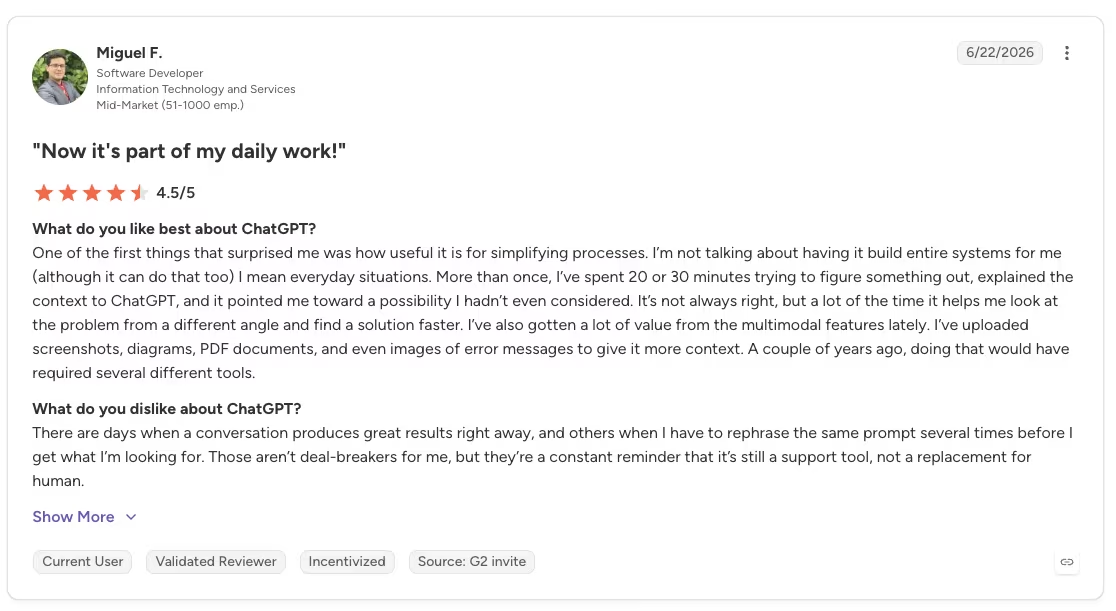
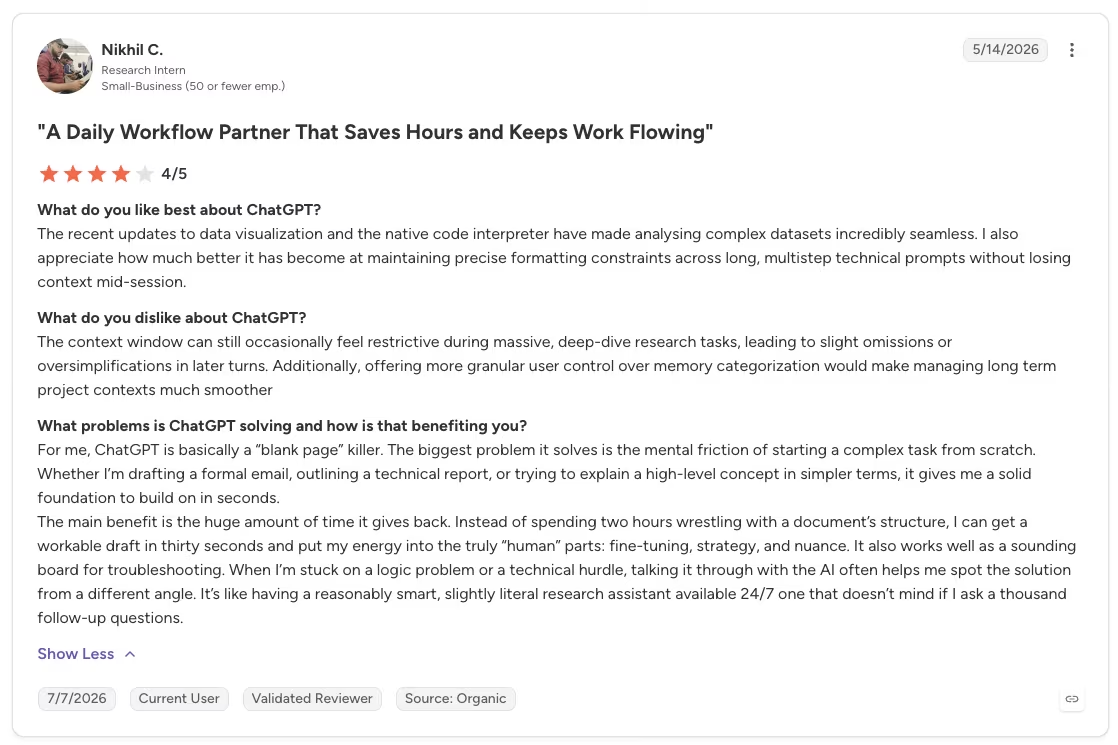
“The context window can still occasionally feel restrictive during massive, deep-dive research tasks, leading to slight omissions or oversimplifications in later turns.” - Nikhil C., G2
Pricing
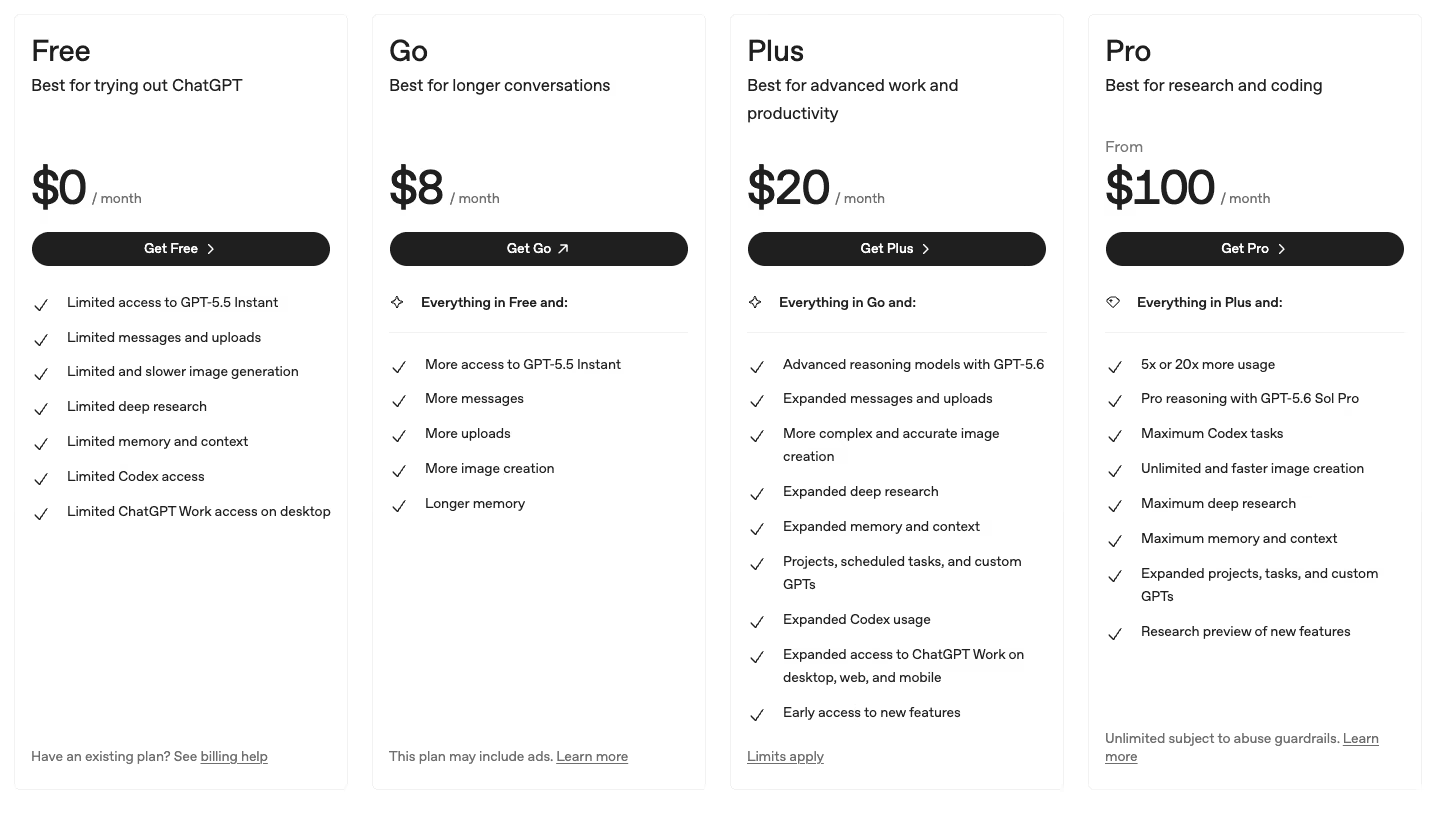
- Free: $0 per month with access to a capable model.
- Go: $8 per month
- Plus: $20 per month.
- Business: $25 per user per month.
The free tier is enough to decide whether ChatGPT earns a spot in your week. Most solo owners live on it fine, and you only move to a paid tier when limits or team features start to pinch.
Bottom Line
The day your bottleneck becomes careful long-form writing or code that has to run, Claude will serve you better. Until then, nothing gets a small team off a blank page faster or cheaper, which makes ChatGPT the first tool I'd hand them.
2. Claude: Best for Long-Form Writing and Analysis
What it does: Claude handles long-form writing, careful document analysis, and coding, keeping structure and tone across big inputs.
Best for: Owners who live in long documents, need a careful writing voice, or want code that runs.
I handed Claude a long, messy scope document with three different asks tangled into one and told it to pull out the structure. It did, and more usefully, it flagged the parts that were genuinely ambiguous instead of smoothing them over with a confident guess.
That single habit is why I started reaching for Claude over ChatGPT whenever the writing had to be careful, or the code had to run on the first try.
It thinks in paragraphs, keeping a long train of thought. Feed it a dense contract, a policy, or a brief that has to hold one voice across several pages, and it keeps the thread instead of drifting halfway down.
On the coding side, I used Claude to generate and debug a small tool. Its code came closer to working on the first try than what I got elsewhere, with fewer invented function names that forced a rewrite. That reliability helps when the output has to run or ship.
On lower tiers, you can hit usage limits quickly on a heavy day, and Claude feels slower than ChatGPT for quick brainstorming. I trust Claude more for customer-facing work and code that has to run correctly, while ChatGPT remains faster for casual idea generation.
The already-in-your-stack option lives here too. If your team runs on Google Workspace, Gemini gives you a general assistant sitting on data you already trust. I cover that option in full at entry 15.
Key Features
- Long-document handling: It reads a big, messy file and returns a clean structure without losing the thread.
- Careful tone: Its default voice is measured, which suits contracts, policies, and client-facing writing.
- Coding strength: It's a strong pick for generating and debugging code that has to run correctly.
Pros and Cons
Pros:
- It's the better choice for dense analysis and long-form drafting.
- One plan spans the web app, its coding tools, and its work assistant.
- It flags uncertainty instead of confidently inventing an answer.
Cons:
- Lower tiers hit usage limits faster than you'd like on a heavy day.
- It's less snappy than ChatGPT for quick, throwaway brainstorming.
What Users Say
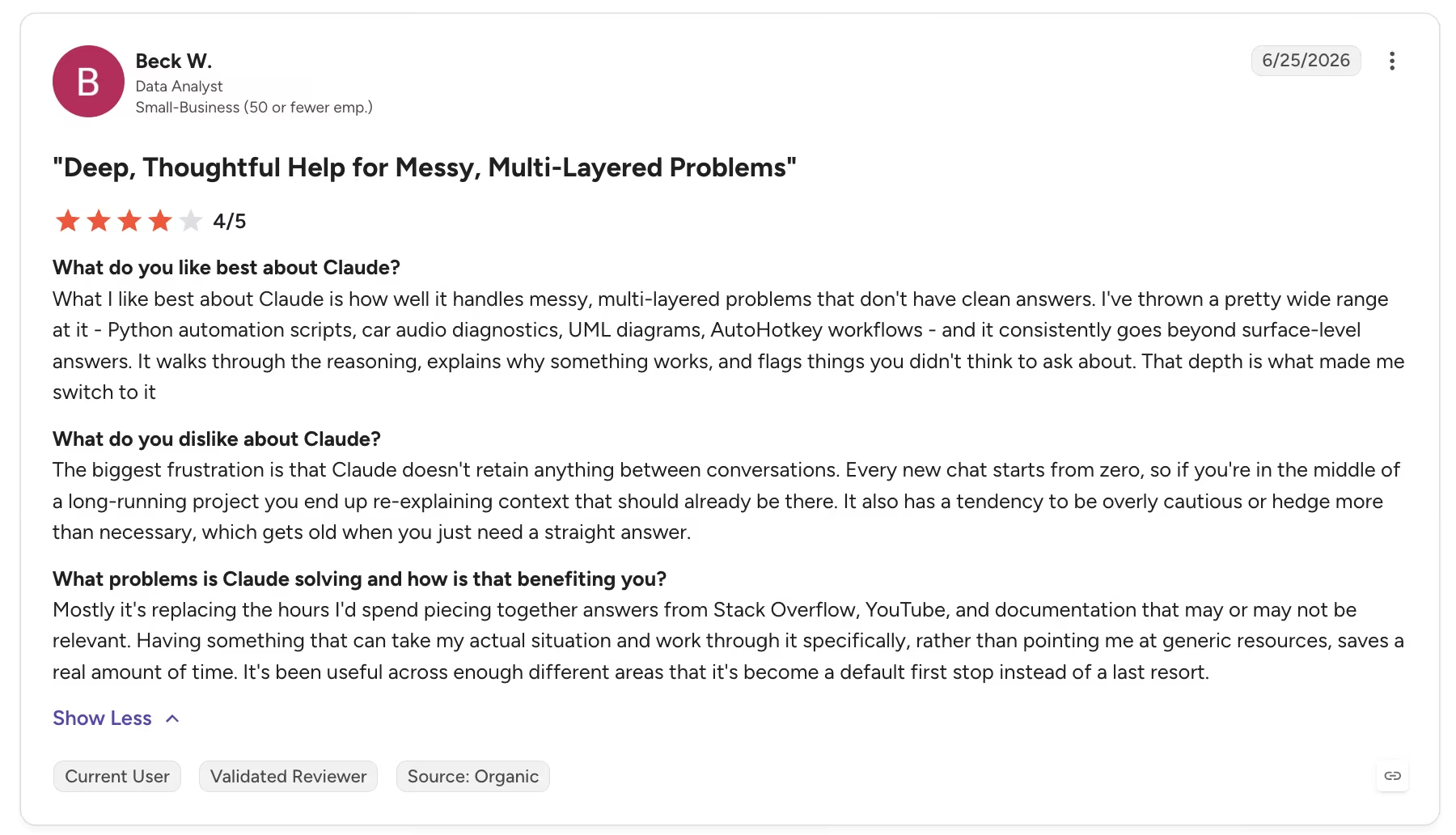
“What I like best about Claude is how well it handles messy, multi-layered problems that don't have clean answers. I've thrown a pretty wide range at it - Python automation scripts, car audio diagnostics, UML diagrams, AutoHotkey workflows - and it consistently goes beyond surface-level answers.” - Beck W., G2
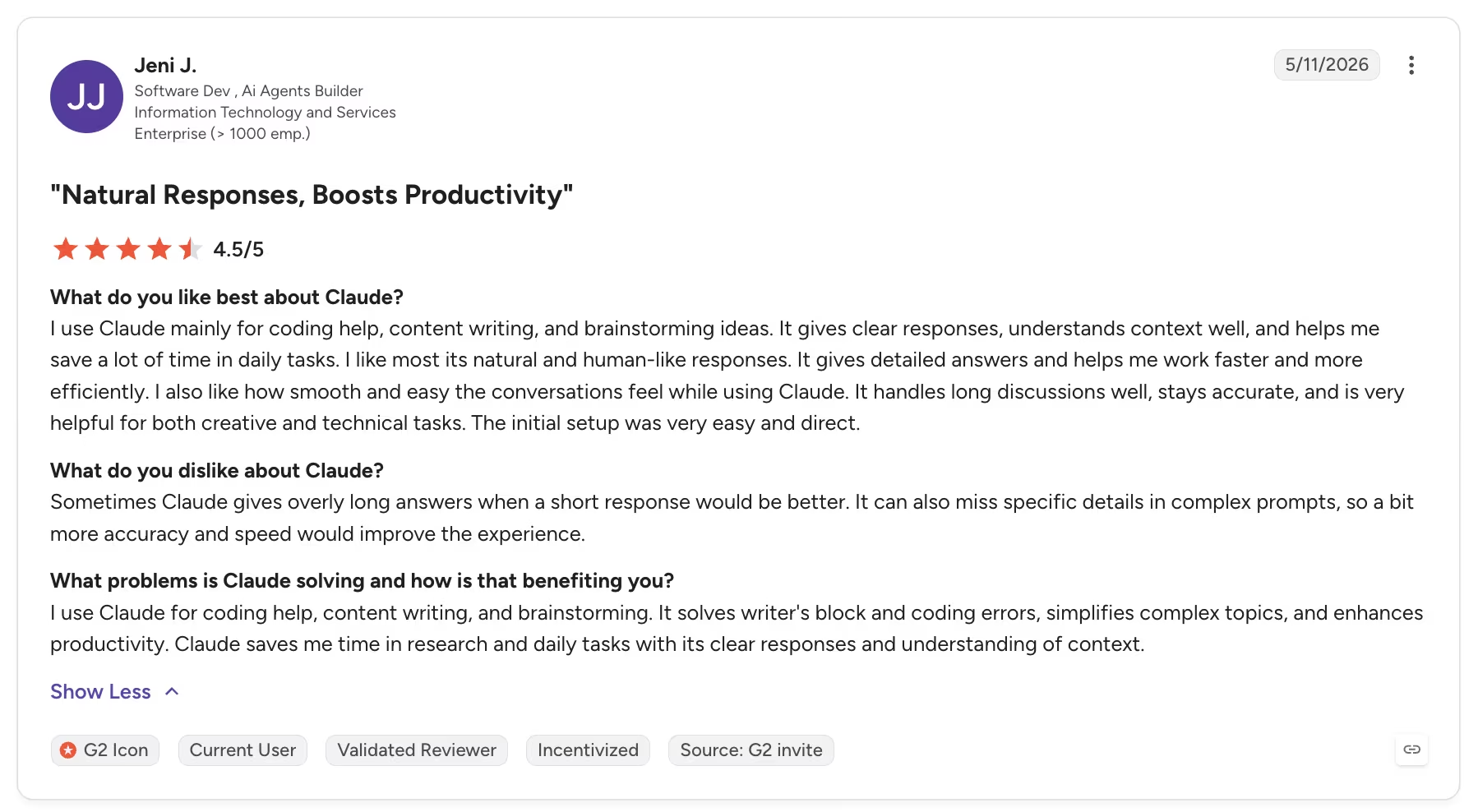
“Sometimes Claude gives overly long answers when a short response would be better. It can also miss specific details in complex prompts, so a bit more accuracy and speed would improve the experience.” - Jeni J., G2
Pricing
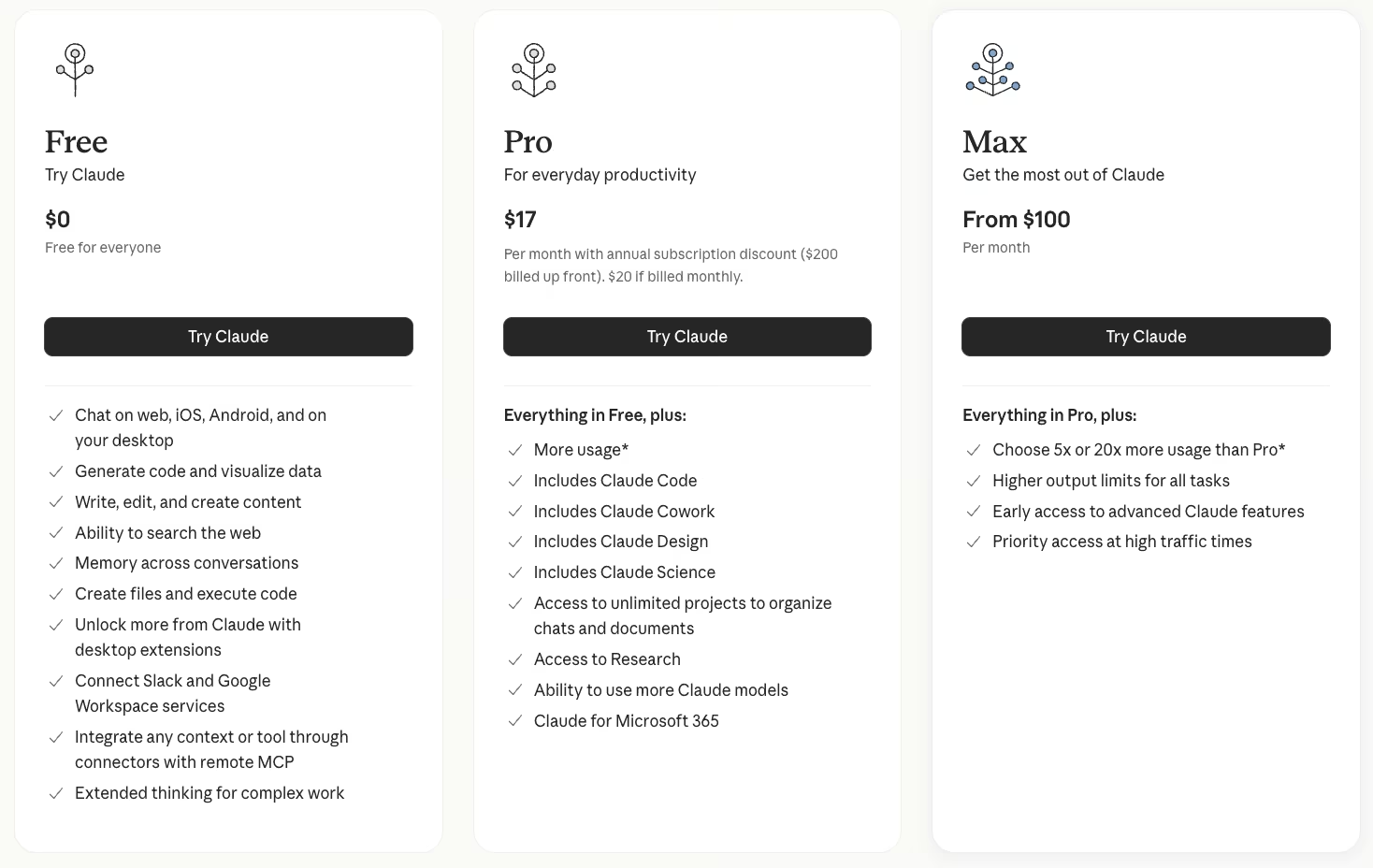
- Free: $0 per month with limited daily usage.
- Pro: $20 per month.
- Max: $100 per month.
The Pro tier is where Claude earns its keep for anyone who writes or codes daily. The free tier is fine for testing, but you'll bump the ceiling quickly if it becomes your main workhorse.
Bottom Line
What you're paying for is consistency at length. Claude holds structure and tone across a dense contract or a long code file where other tools start to drift. Day to day, quick casual brainstorming still runs faster in ChatGPT.
3. Emergent: Best for Building a Custom Customer-Facing App
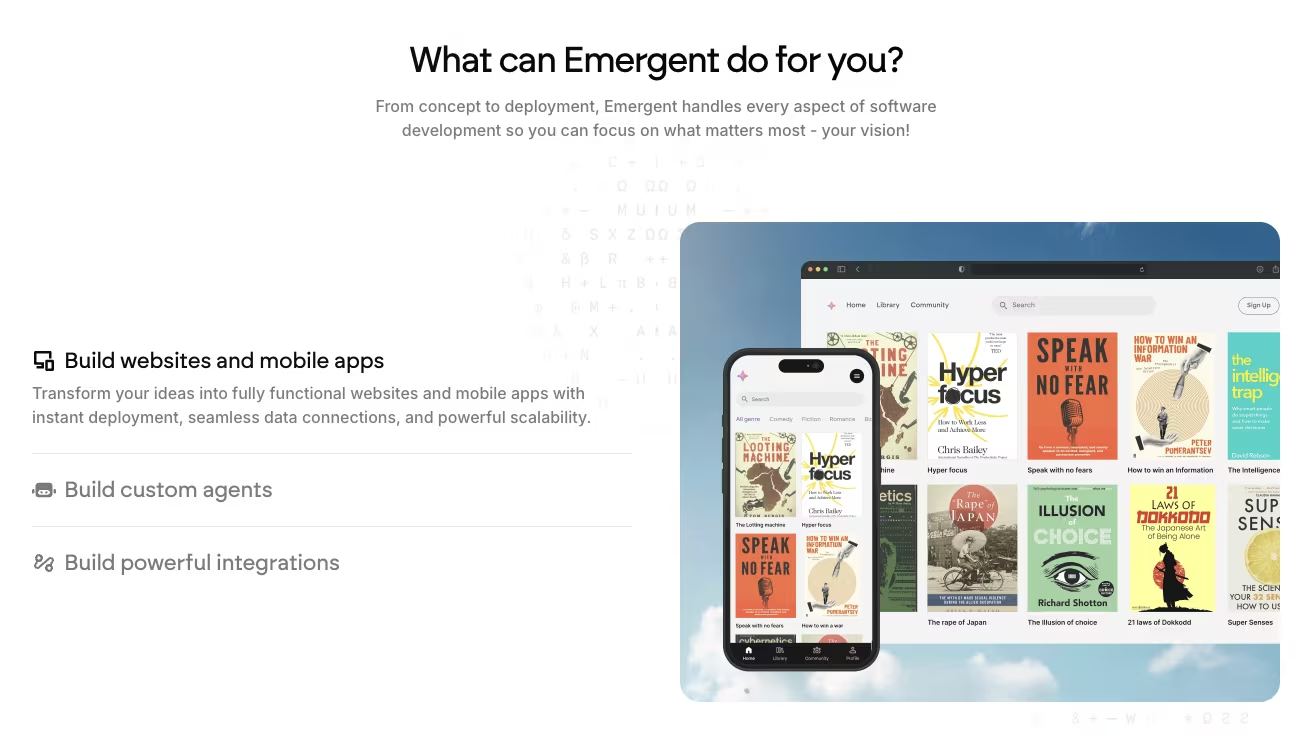
What it does: Emergent is an AI app builder that creates a working all-in-one app from a plain-language prompt, handling the interface, logic, data, and deployment.
Best for: Small teams that need a real customer-facing app that goes beyond a workflow or an internal tracker.
To see what Emergent could finish, I described a reporting portal with logins and per-account dashboards. It was the kind of small production-ready app a team would otherwise pay a developer to build.
Emergent split the build across agents handling the interface, logic, data, and a final build check before deployment. I could see the work pass between those agents as the app came together.
The free tier's 10 credits let me test the workflow. Finishing an actual build requires a paid tier. The result was a working app I could open and click through.
Then I did what you should always do with generated software. I reviewed what still needed a human, especially the trickier edge-case logic, before trusting any of it in front of real users.
Complex or unusual logic still needs a careful review. Use a simpler internal tool builder when the job is only a tracker.
Emergent turned a plain-English description into a deployable app without me writing code, giving a small team with no engineer a direct path to a custom app.
Emergent fits when no existing tool covers the customer-facing app your team needs. The specialist tools above remain better suited to their stated jobs.
Key Features
- Prompt-to-app builds: You spell out what you need, like a client reporting portal with logins and per-client dashboards, and it builds the working stack.
- End-to-end coverage: It handles interface, logic and data, and deployment together, so you're not stitching pieces yourself.
- Human-review points: It gives you a real codebase you can inspect, which is what customer-facing work needs.
Pros and Cons
Pros:
- It goes from a plain-language brief to a working, deployable app.
- It covers the whole stack end-to-end.
- You get real code you can open and review.
Cons:
- Complex or edge-case logic still wants a careful human review before launch.
- The 10 free credits are enough to test the workflow, but not finish a full app.
What Users Say
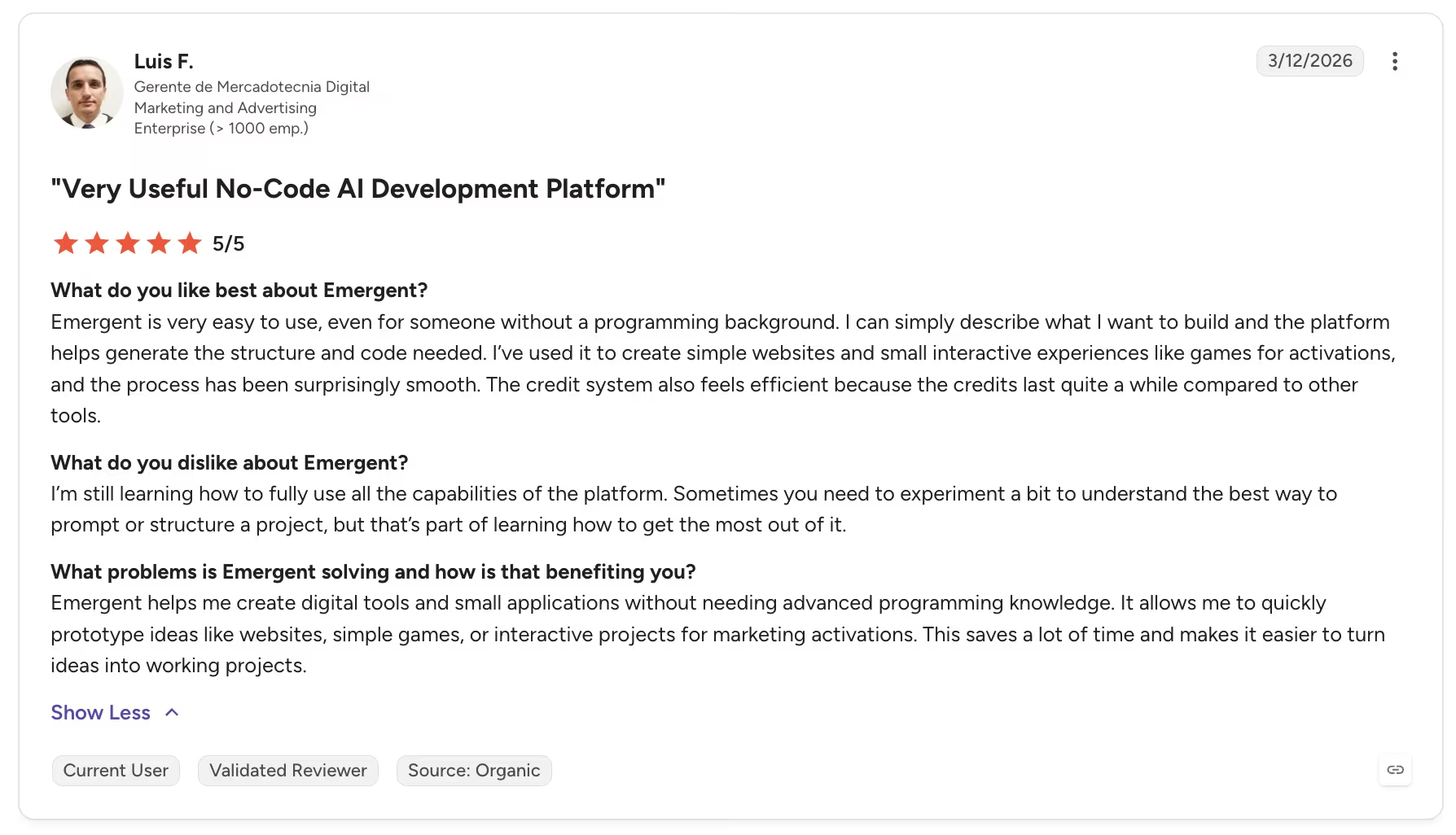
“Emergent is very easy to use, even for someone without a programming background. I can simply describe what I want to build and the platform helps generate the structure and code needed. I’ve used it to create simple websites and small interactive experiences like games for activations, and the process has been surprisingly smooth.” - Luis F., G2
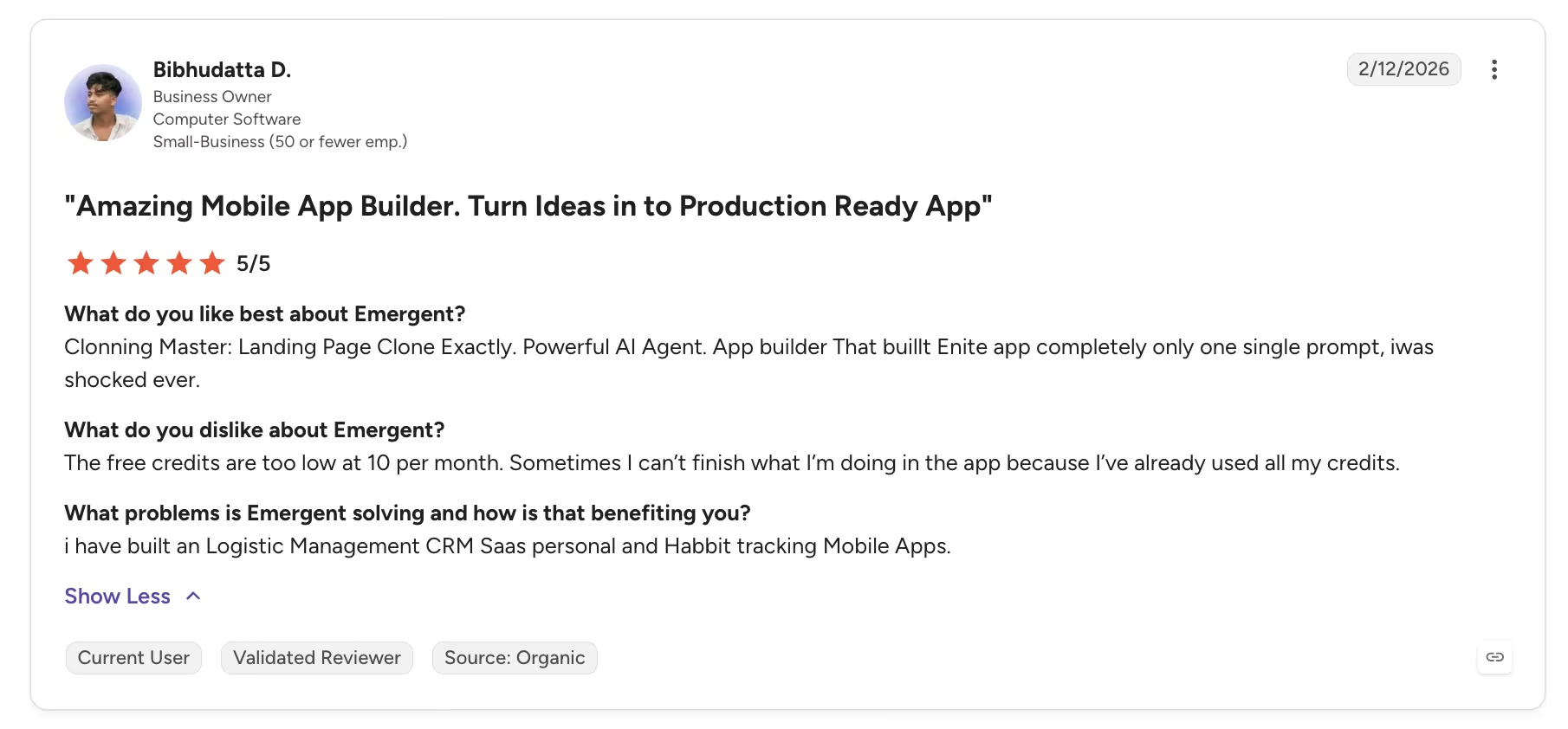
“The free credits are too low at 10 per month. Sometimes I can’t finish what I’m doing in the app because I’ve already used all my credits.” - Bibhudatta D., G2
Pricing
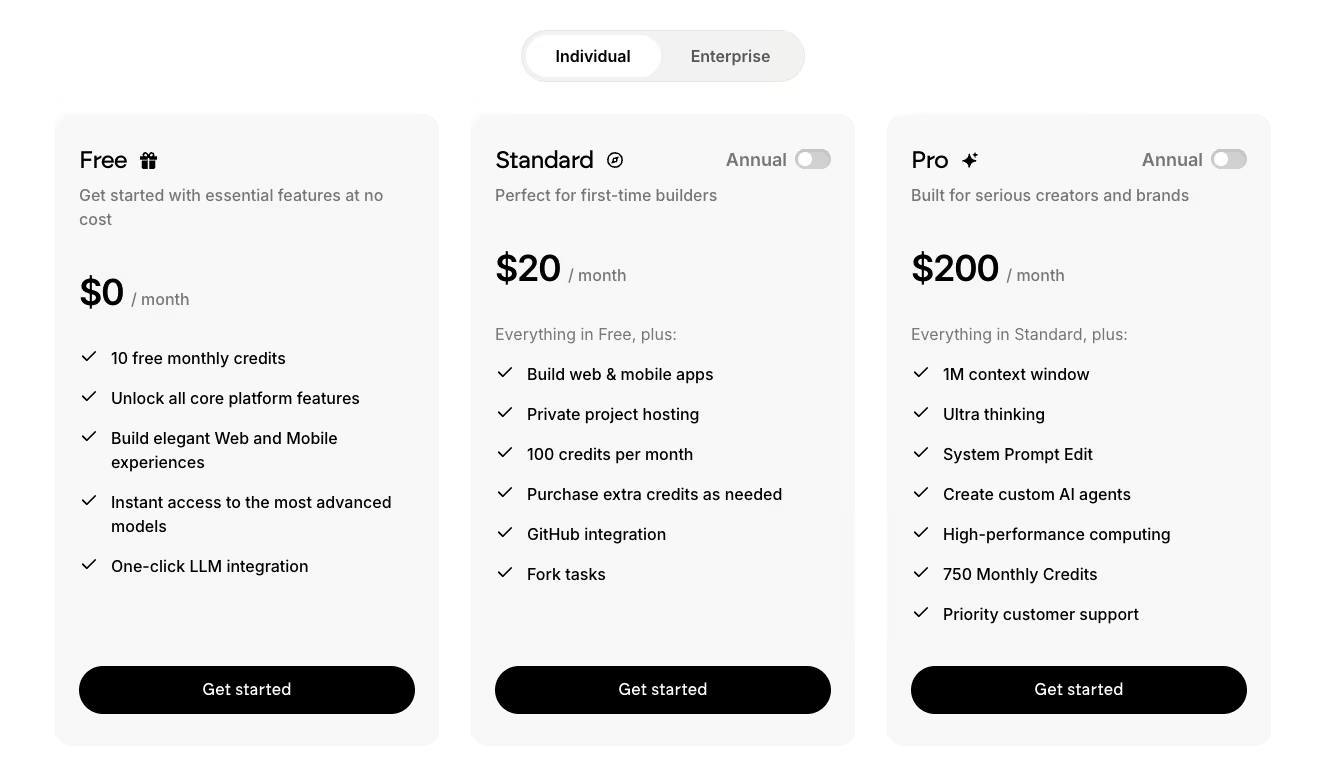
- Free: $0 per month with 10 monthly credits.
- Standard: $20 per month.
- Pro: $200 per month.
Emergent's value shows up when the job is a genuine app, the kind a spreadsheet can't stand in for. Price it against what a developer would charge for the same portal or reporting build, then judge the fit.
Bottom Line
One thing earns Emergent its place: the custom customer-facing app that a small team needs and has no engineer to build. Describe it in plain English, and you get back a deployable, working app, interface, data, and hosting included, with review time set aside for any unusual logic.
4. Zite: Best for Building Internal Tools and CRMs No-Code
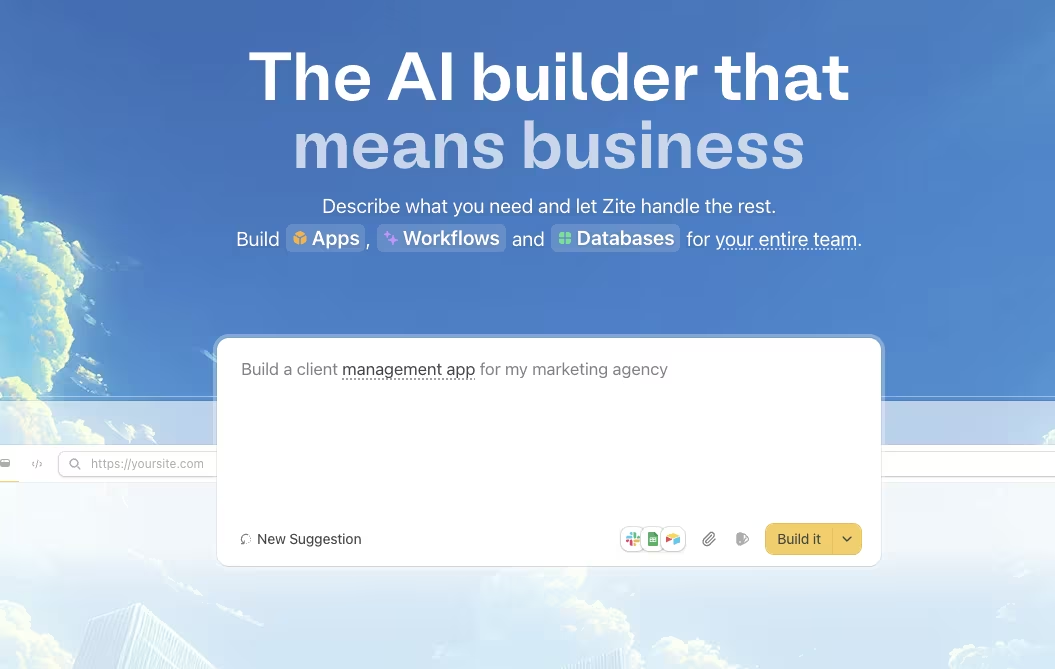
What it does: Zite builds internal tools, CRMs, and dashboards from a description, without code or an engineer on staff.
Best for: Non-technical teams that need an internal tracker or lightweight CRM that off-the-shelf apps don't quite fit.
The tool I kept rebuilding in spreadsheets was a content calendar wired to a simple reporting tracker, and it broke a little more every time someone else touched it. So I described that exact thing to Zite, with the columns, statuses, and views I used, and it gave me a working internal app without pulling a developer into it.
The main difference is who uses the finished tool. Emergent builds customer-facing apps that people outside your team log into. Zite builds internal trackers, dashboards, and lightweight CRMs for your team.
Getting that distinction right is most of the decision, because building a customer app when you needed an internal tracker (or the reverse) wastes the most time and money.
Zite reaches its limit when a tool needs extensive branching rules, edge-case logic, or deep integrations. And because you're building on one platform, there's some lock-in to weigh over the long run.
Neither limitation changed my recommendation. For a non-technical owner who knows the workflow cold but doesn't want to code it, Zite turns "I wish we had a tool for this" into a working tool the same afternoon. If customers will ever log into it, though, that's Emergent's job.
Key Features
- No-code internal builds: You describe the tool and get a working internal app without hiring an engineer.
- CRM and dashboards: It's aimed at trackers, dashboards, and light CRMs; the tools spreadsheets outgrow.
- Non-technical fit: It's built for non-technical owners who know their workflow inside out.
Pros and Cons
Pros:
- It replaces a fragile spreadsheet with a real internal tool fast.
- Non-technical owners can build without waiting on a developer.
- It fits the exact back-office job that generic apps don't cover.
Cons:
- Highly complex logic can hit a no-code ceiling.
- Building on one platform can create lock-in over time.
What Users Say
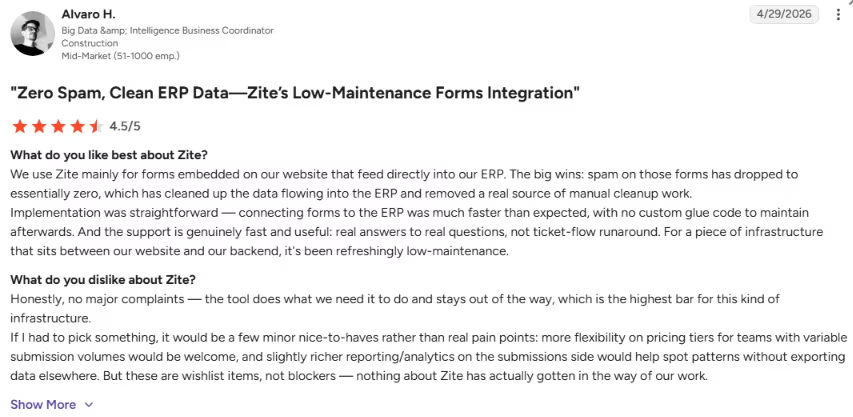
“The support is genuinely fast and useful: real answers to real questions, not ticket-flow runaround.” - Alvaro H., G2
Pricing
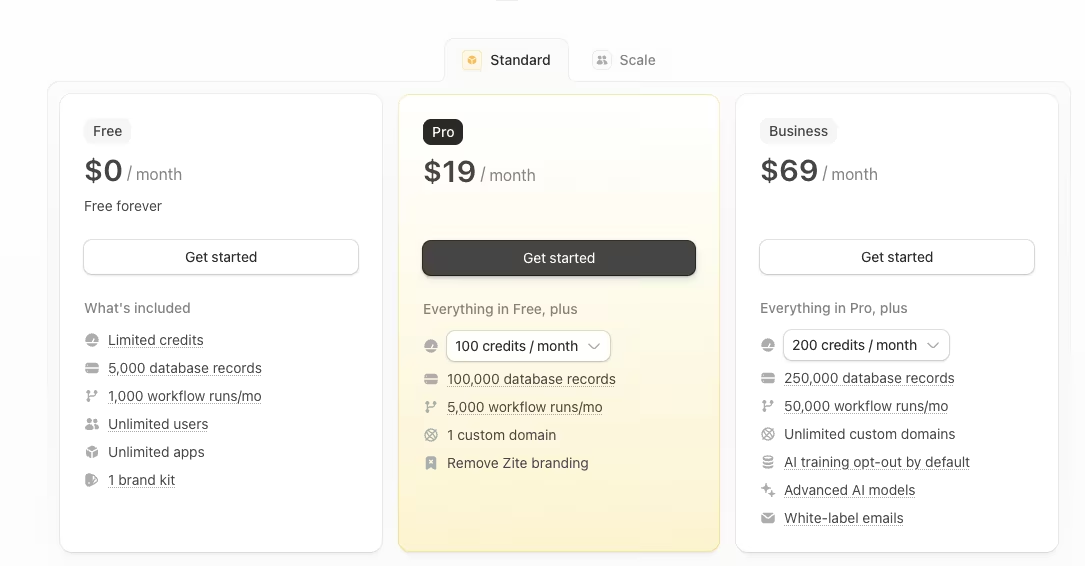
- Free: $0 per month with unlimited users.
- Pro: $19 per month.
- Business: $69 per month.
Zite makes sense when your internal process is duct-taped together in spreadsheets and forms. Weigh it against the hours you lose maintaining that patchwork every week.
Bottom Line
Spreadsheets that break every time a new person touches them are the cue to try Zite, which turns the tracker or CRM you describe into a working internal tool without a developer. The moment customers need to log in, you've crossed into Emergent's territory.
5. Lindy: Best for an AI Assistant You Text

What it does: Lindy is an AI assistant you message to run tasks like inbox triage, scheduling, and follow-ups, and it carries out the actions.
Best for: Owners who want an assistant that executes admin work out of the box.
I connected Lindy to my inbox and calendar to test whether it could carry out admin work. I asked it to triage my inbox, book a meeting, and chase a quiet follow-up. Lindy sent the follow-up, added the meeting to my calendar, and reduced the messages waiting in my inbox.
The difference from something like Zapier is where the setup lives. With an automation tool, you assemble the workflow first, and then it runs. With Lindy, you hand off the task in plain language and let it work out the steps, closer to delegating than to building.
For an owner whose mornings disappear into admin, the appeal is obvious. Lindy uses a message-based interface, which keeps the learning curve low.
Because Lindy can send emails on your behalf, I reviewed its queued actions before letting it work independently. Connecting your accounts also takes some setup before the time savings appear.
My read is that Lindy is worth it specifically for people buried in inbox and scheduling busywork who are comfortable letting software take real actions with oversight. If that autonomy makes you nervous, that instinct is correct, and you should ease into it slowly.
Key Features
- Takes real actions: You ask in plain language, and it performs the task, like sending the follow-up.
- Admin coverage: It handles inbox triage, scheduling, and reminders, the busywork that eats mornings.
- Text-first control: You direct it by message, so there's no dashboard to learn.
Pros and Cons
Pros:
- It takes real actions on your behalf instead of drafting instructions.
- You run it by messaging, which keeps the barrier to entry low.
- It clears repetitive admin so you can stay on client work.
Cons:
- Autonomous email actions need oversight before you fully trust them.
- Connecting it to your accounts takes some setup up front.
What Users Say
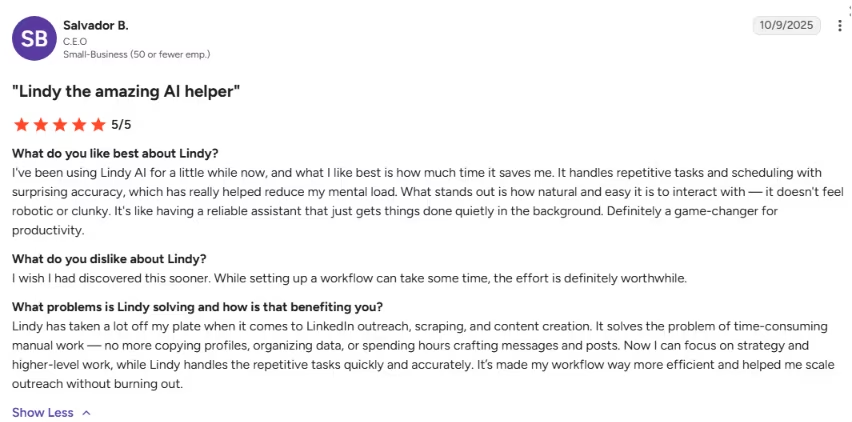
“It handles repetitive tasks and scheduling with surprising accuracy, which has really helped reduce my mental load.” - Salvador B., G2
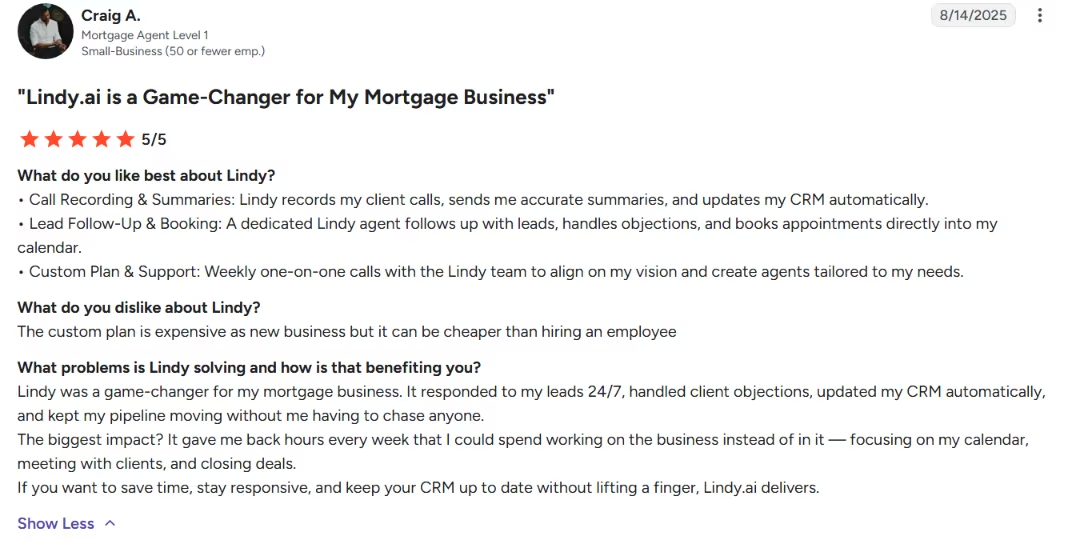
“The custom plan is expensive as [a] new business but it can be cheaper than hiring an employee.” - Craig A., G2
Pricing
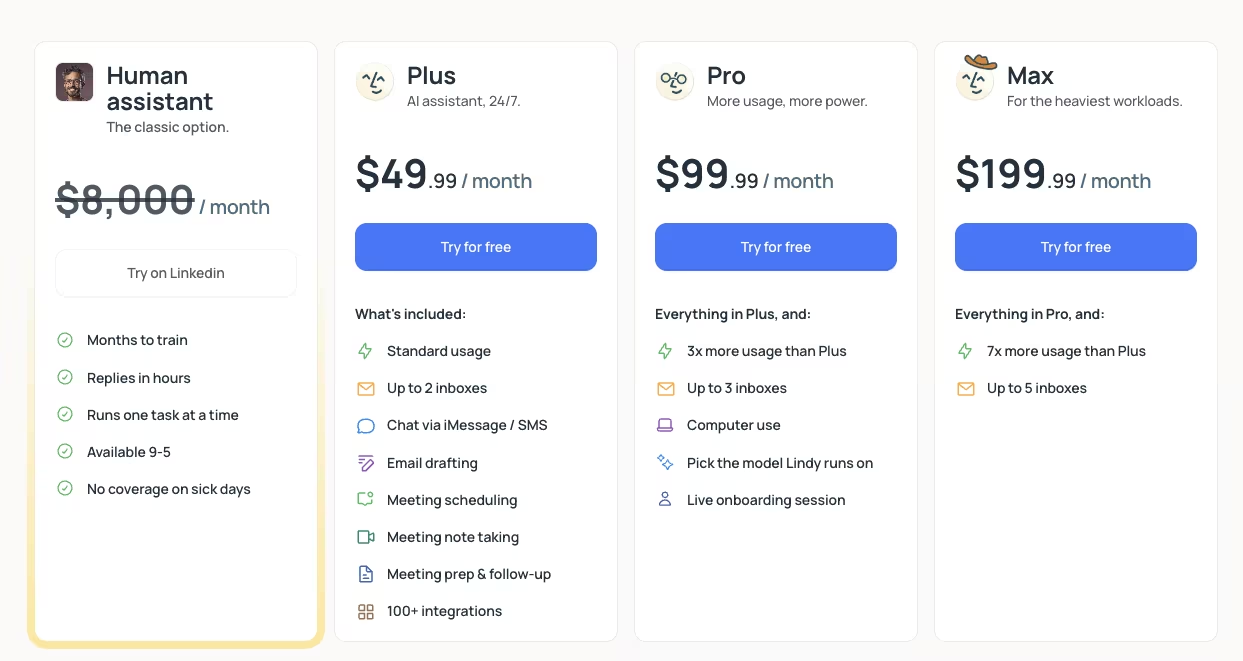
- Plus: $49.99 per month.
- Pro: $99.99 per month.
- Max: $199.99 per month.
Lindy pays off when admin tasks are the thing stealing your focus. Judge it on how much inbox and scheduling time it gives back in a week.
Bottom Line
Lindy takes the action itself, sending the reply or booking the slot for you. For an owner whose mornings disappear into inbox triage and scheduling, that saves the step that eats the time. Keep it on a short leash until you trust it to send email on your behalf.
6. Perplexity: Best for AI Research and Search
What it does: Perplexity answers research questions with cited, current sources, working more like a search engine than a chatbot.
Best for: Owners doing market, competitor, or pricing research who need answers they can trace.
I started with a specific competitor-pricing question that usually costs me a dozen open tabs. Perplexity returned a current answer with sources under each claim, so I could open them and confirm the numbers.
That verify-at-the-source loop is the biggest win over chatbots that sound sure and show you nothing.
Then I asked a broad, half-formed question and got a soft, generic answer. Perplexity rewards precise prompts, while broad questions usually need another pass.
For a small business, the wins are the concrete jobs like market checks, competitor and pricing research, or a quick read on a topic you're about to decide on. It collapses a long Google session into one answer you can act on, and because it pulls recent sources, it beats a general model's stale training data for anything time-sensitive.
In my experience, if your research tends to be specific and you'll click the citations, Perplexity earns a spot in the stack. If your questions run broad and exploratory, a general model like ChatGPT feels more forgiving, and you won't miss what Perplexity does best.
Key Features
- Cited answers: Every response links its sources, so you can check the claim instead of trusting it blindly.
- Current results: It pulls recent information, which is exactly what pricing and competitor research need.
- Search replacement: It collapses a long Google session into one traceable answer.
Pros and Cons
Pros:
- Citations let you verify before you act on an answer.
- It's far faster than manual searching for specific questions.
- It surfaces current sources for anything time-sensitive.
Cons:
- Vague prompts return underwhelming, surface-level answers.
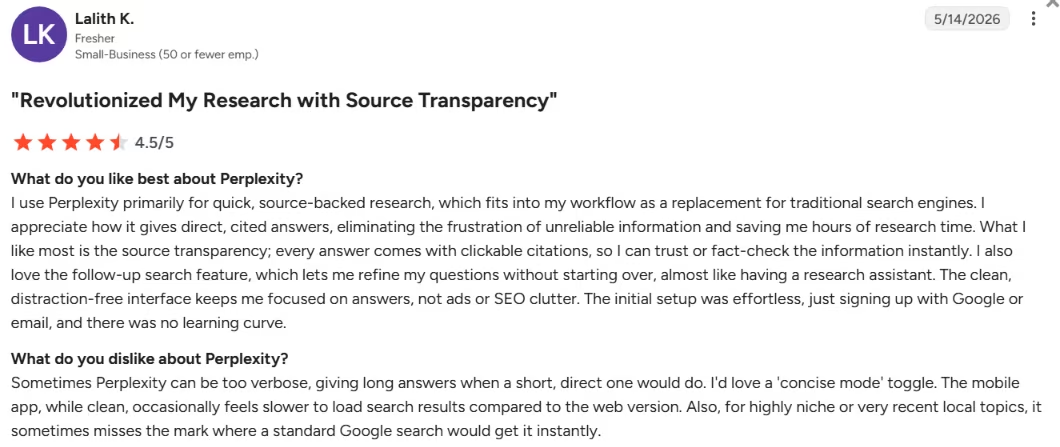
- Answers can be too long when you need a quick result.
What Users Say
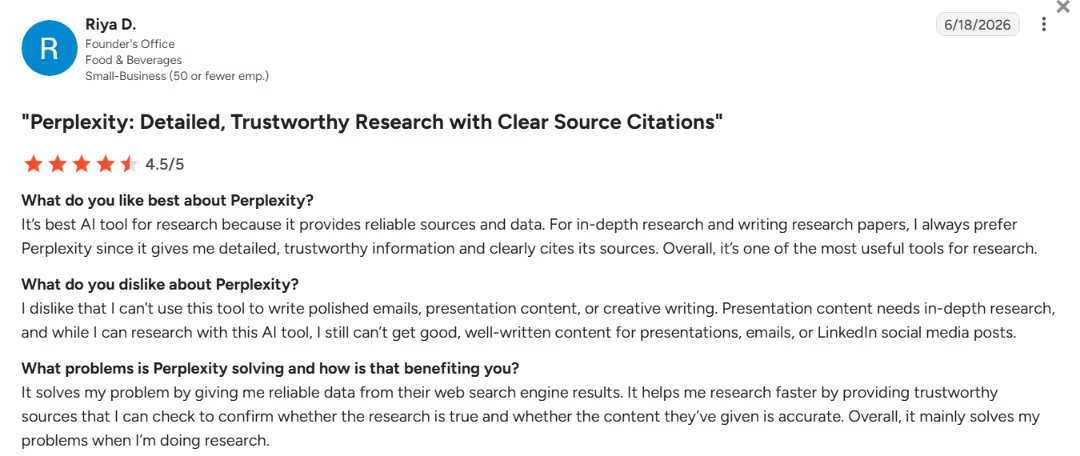
"It’s [the] best AI tool for research because it provides reliable sources and data." – Riya D., G2
“Sometimes Perplexity can be too verbose, giving long answers…” – Lalith K., G2
Pricing
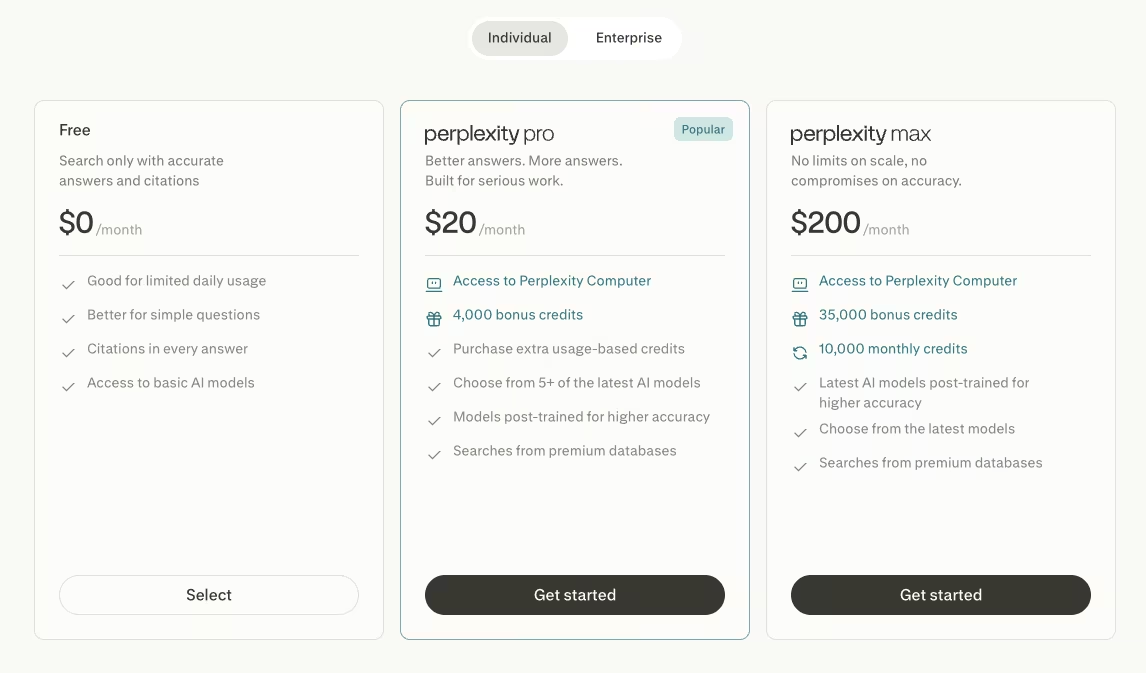
- Free: $0 per month with core search.
- Pro: $20 per month.
- Max: $200 per month
The free tier covers most one-off research a small business runs into. Pro is worth it once research becomes a daily habit.
Bottom Line
Reach for Perplexity when the answer has to be traceable. It cites current sources under each claim, which is what makes it the pick for market, competitor, and pricing research. Broad, exploratory questions still favor a general model like ChatGPT.
Also read our best Perplexity alternatives guide for what else is worth trying if you need more than cited search answers.
7. Canva: Best for Fast Design and Visual Content
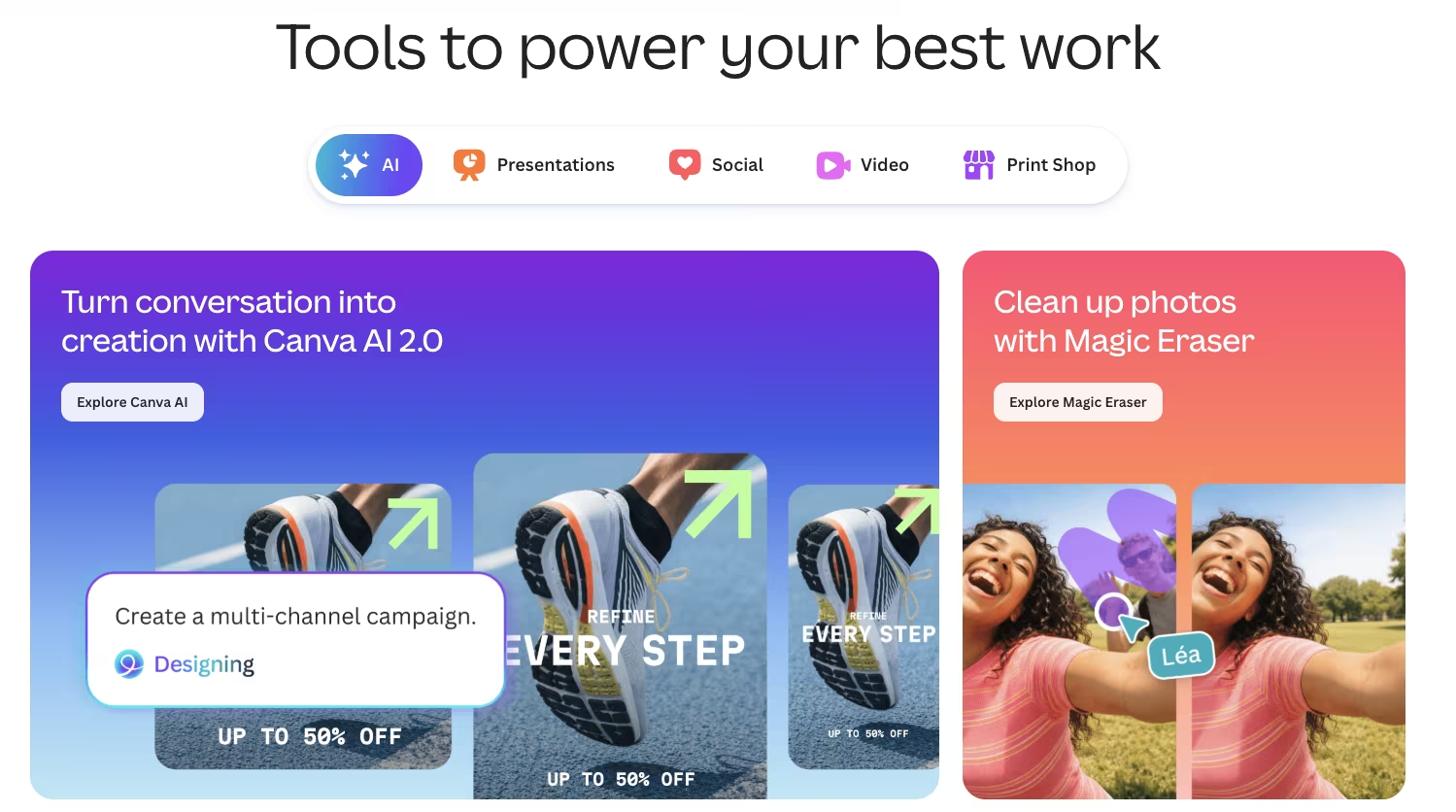
What it does: Canva builds branded graphics, social posts, and marketing visuals fast, with AI templates and one-click editing tools.
Best for: Small teams that need decent visuals quickly without hiring a designer.
I opened Canva to make a promo graphic for a test campaign and had something passable in a few minutes. I chose a template, added the brand colors, replaced the text, and exported it. For a social post, a quick mockup, or a slide I needed before a call, that's exactly the right amount of effort.
Magic Design turned a rough idea into an on-brand layout in a couple of clicks, and the one-click background remover and resize tools handled the fiddly parts I usually put off.
Canva does not handle brand strategy. It produces useful drafts on a thin budget, but you still need to make the decisions behind your logo and the visual system customers will recognize.
Use it for low-stakes, high-speed visuals, and don't confuse "looks fine" with "is the right brand call." Templated output also looks templated the moment you stop customizing it, so loading your brand kit early is worth the 10 minutes.
For a small team that needs decent visuals fast with no designer on call, Canva's free tier alone carries you further than you'd expect.
If your brand identity drives the business, hire a designer and use Canva for everyday output. I would use the designer for the identity system and Canva for recurring production work.
Key Features
- Magic Design templates: It turns a rough idea into an on-brand layout in a couple of clicks.
- One-click editing: Background removal and quick resizing cut the fiddly parts of design work.
- Brand kit: Loading your colors and fonts keeps everything you make consistent.
Pros and Cons
Pros:
- The free tier is useful for real work.
- It produces branded graphics in minutes with no design skills.
- Its editing tools handle the tedious parts fast.
Cons:
- It's a good-enough draft tool that stops short of real brand strategy.
- Templated output can look templated if you don't customize it.
What Users Say
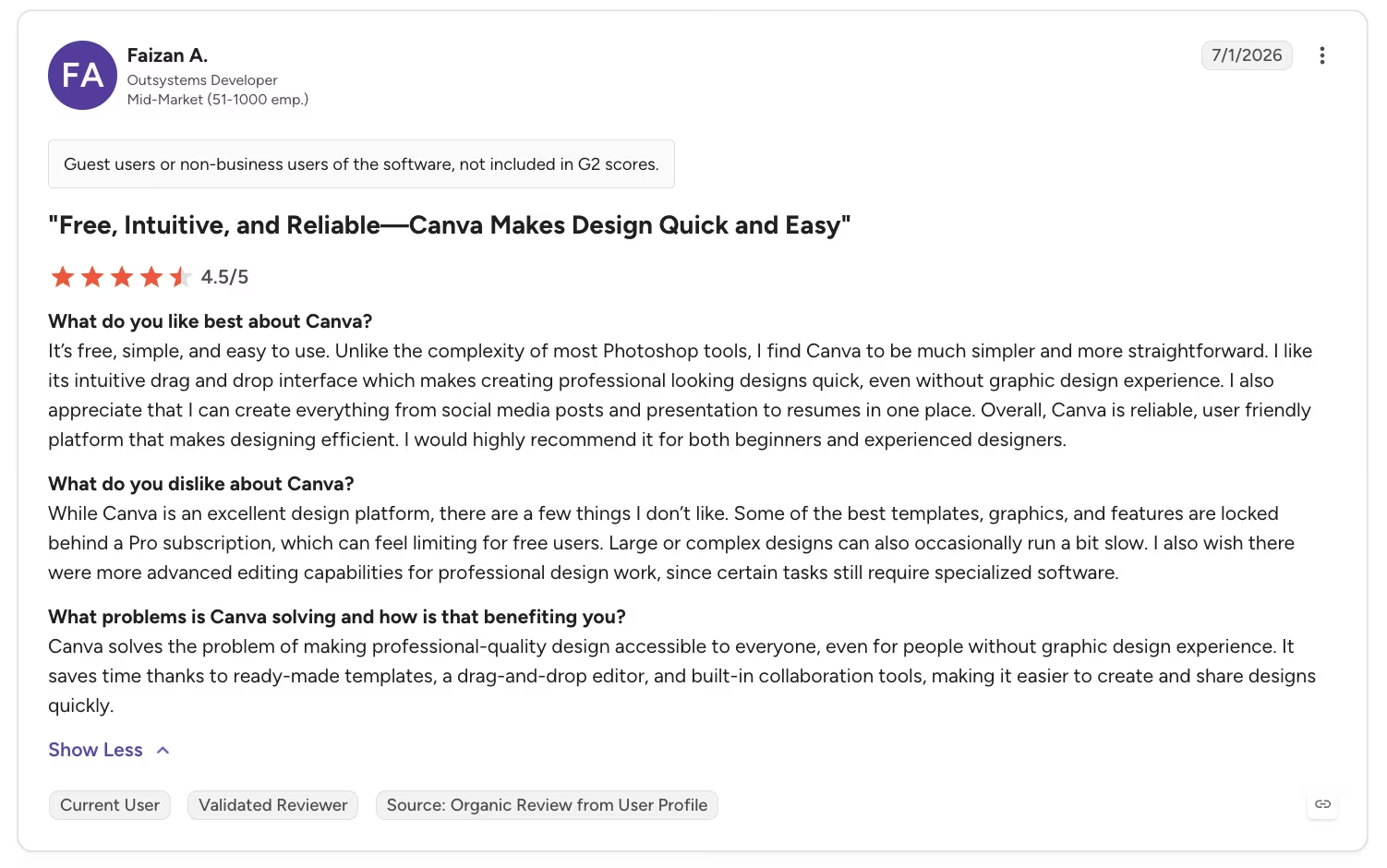
“Unlike the complexity of most Photoshop tools, I find Canva to be much simpler and more straightforward. I like its intuitive drag-and-drop interface, which makes creating professional- looking designs quick, even without graphic design experience. I also appreciate that I can create everything from social media posts and presentations to resumes in one place.” - Faizan A., G2
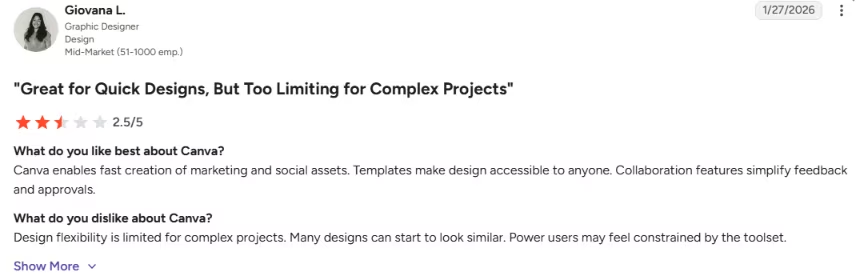
“Design flexibility is limited for complex projects. Many designs can start to look similar. Power users may feel constrained by the toolset.” - Giovana L., G2
Pricing
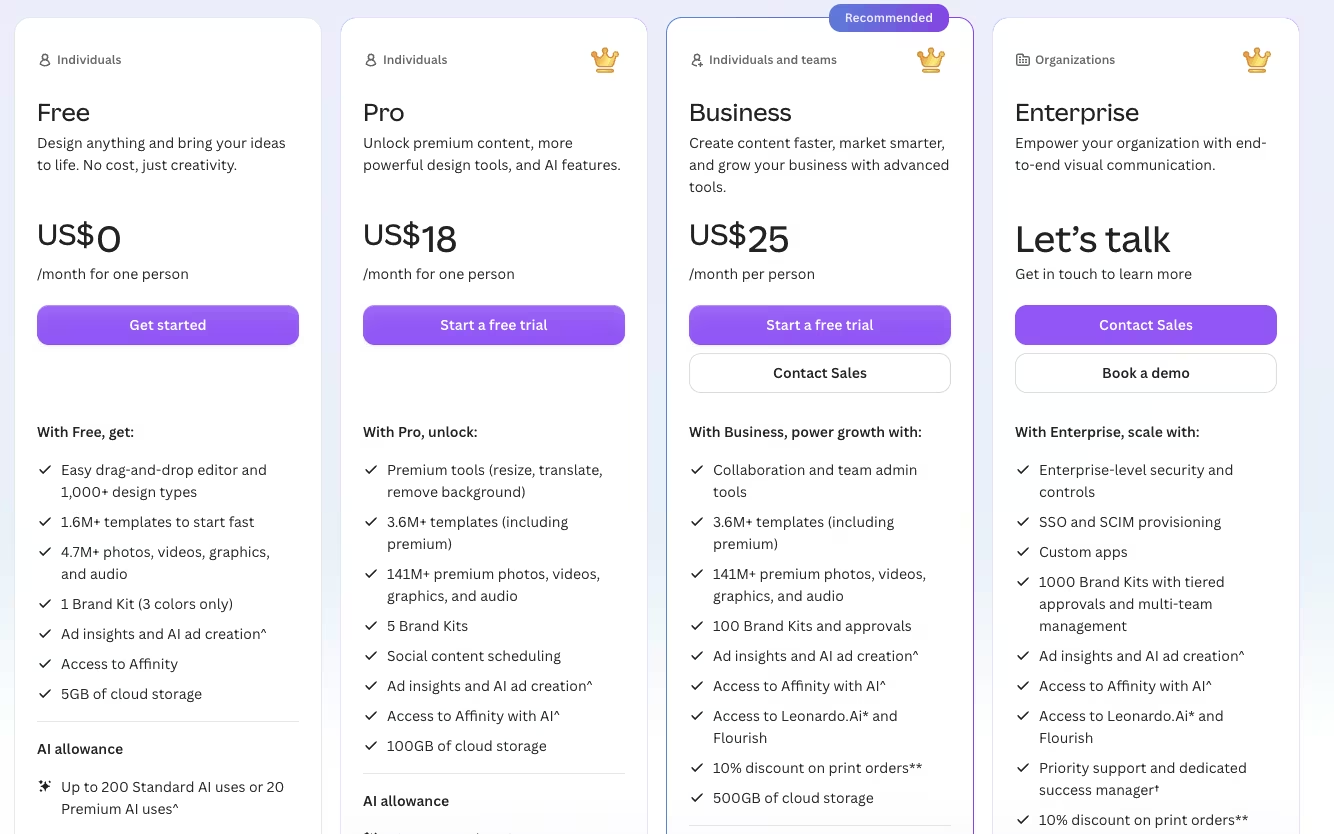
- Free: $0 per month with a large template and tool set.
- Pro: $18 per user per month.
- Business: $25 per user per month.
The free tier carries most small businesses further than they expect. Pro is worth it for the brand kit, premium assets, and background remover once visuals are a regular task.
Bottom Line
For quick branded visuals with no designer on call, Canva takes you from template to finished graphic in minutes. Save the budget for a real designer when your brand identity itself is on the line.
8. Fireflies.ai: Best for Meeting Notes and Transcription
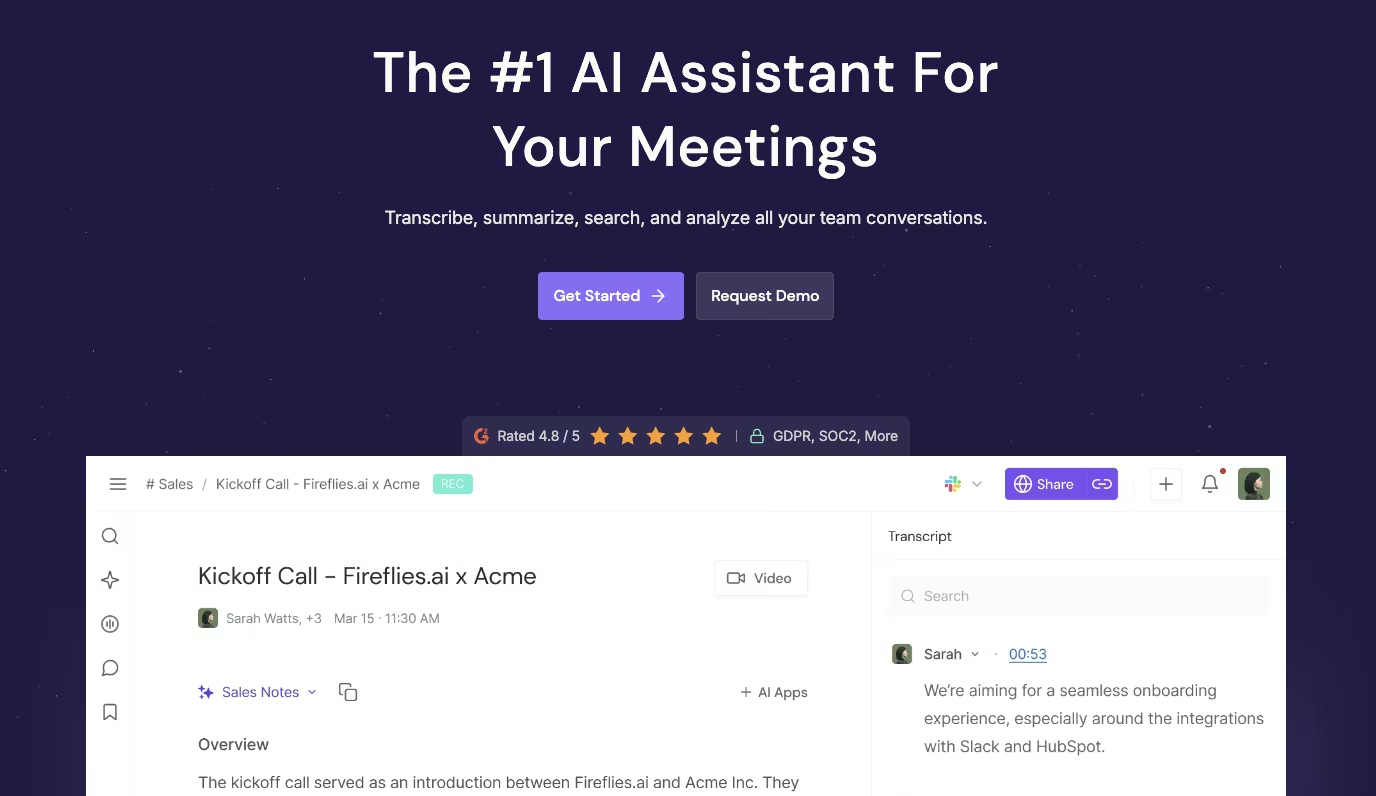
What it does: Fireflies.ai auto-joins your calls, transcribes them, and sends a summary with action items and searchable topics.
Best for: Owners who run client calls and keep losing the follow-ups buried in their notes.
I didn't have to do anything to test Fireflies. It auto-joined a call I'd set up, sat quietly through it, and by the time I'd finished my coffee, a summary with clean action items was already in my inbox.
That meant I could stay in the conversation instead of scrambling to take notes, and no decision or follow-up quietly evaporated by the next day.
A meeting is only as good as what happens after it, and the gap where good meetings go to die is the follow-up nobody wrote down.
Fireflies turns the call into a record you can search by topic later, so the decision from three weeks ago is one query away instead of lost. It syncs those notes to your CRM too, which keeps the account history in one place instead of scattered across notebooks and memory.
There are a couple of caveats. The free tier caps how much you can record each month, and basic note-taking is table stakes now, so it's worth weighing against lighter free options before you pay. But for an owner who runs regular calls and keeps losing the thread afterward, the summary-in-your-inbox habit quietly changes how the whole week runs.
If you only meet occasionally, this is genuinely overkill, and a lighter free notetaker will cover you fine. If meetings are most of your job, this is the one I'd wire in first and stop thinking about.
Key Features
- Auto-join and record: It shows up to your Zoom, Meet, or Teams call so you don't have to hit record.
- Summary and action items: It sends the recap plus the to-dos within minutes of the call ending.
- Searchable transcripts: You can search past calls by topic instead of rewatching recordings.
Pros and Cons
Pros:
- It captures action items you'd otherwise forget from a busy call.
- Searchable transcripts turn old meetings into a reference library.
- It syncs notes to your CRM, so records stay in one place.
Cons:
- The free tier caps how much you can record each month.
- Note-taking alone is table stakes now, so weigh it against lighter free options.
What Users Say
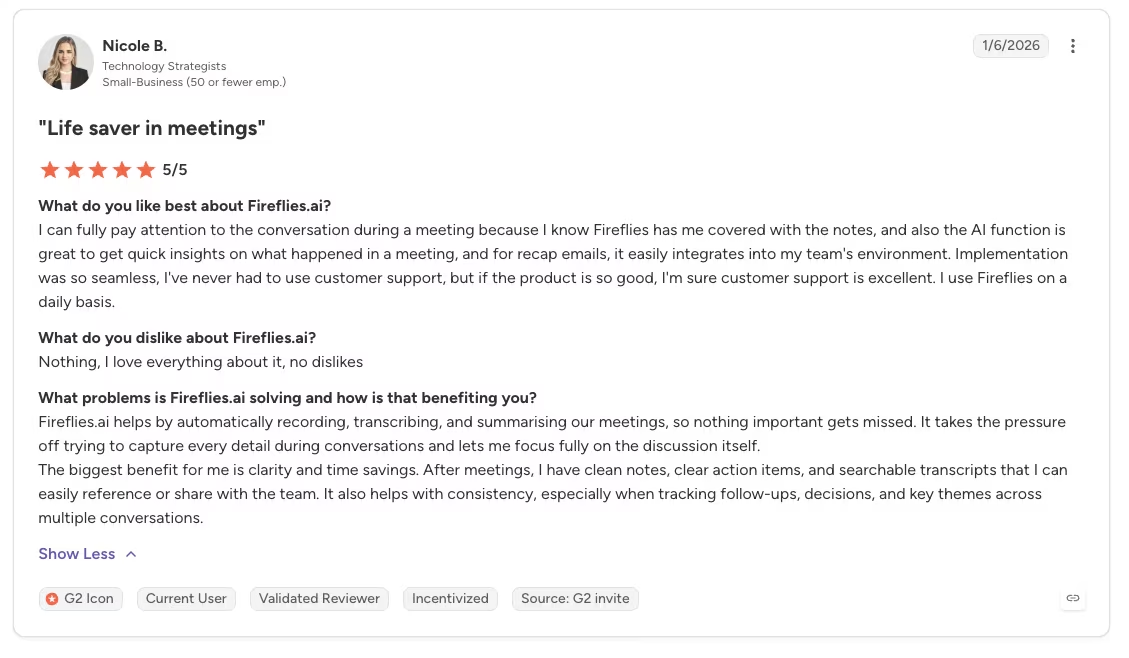
“I can fully pay attention to the conversation during a meeting because I know Fireflies has me covered with the notes, and also the AI function is great to get quick insights on what happened in a meeting, and for recap emails, it easily integrates into my team's environment.” - Nicole B., G2
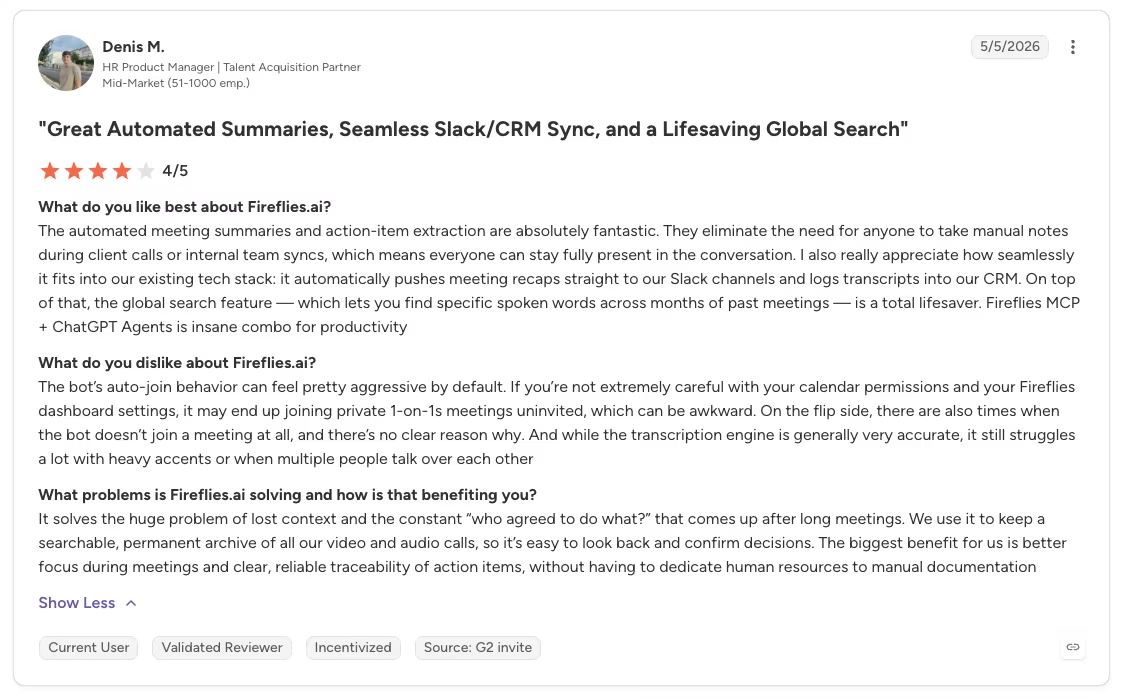
“The bot’s auto-join behavior can feel pretty aggressive by default. If you’re not extremely careful with your calendar permissions and your Fireflies dashboard settings, it may end up joining private 1-on-1s meetings uninvited, which can be awkward.” - Denis M., G2
Pricing
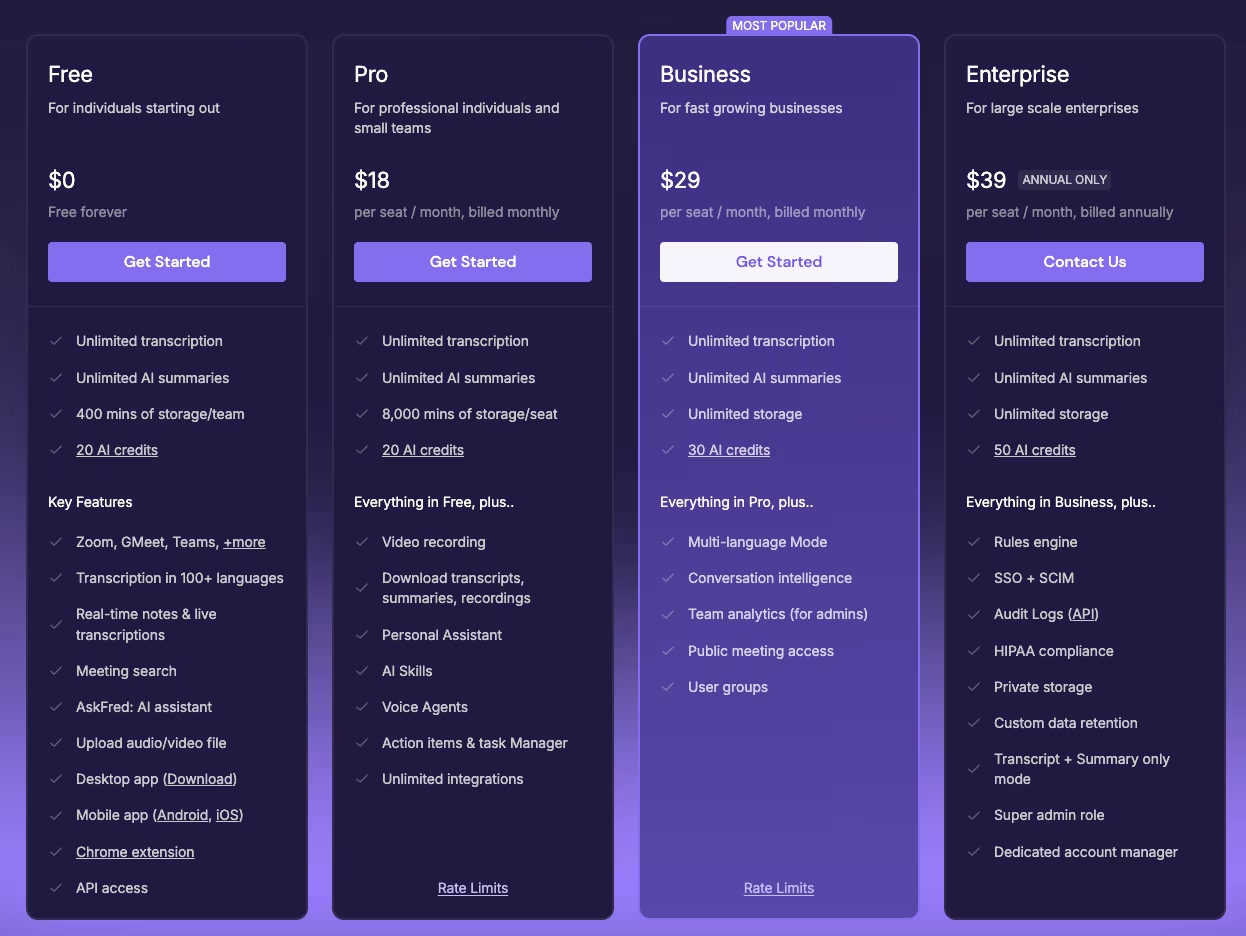
- Free: $0 per month with limited recordings.
- Pro: $18 per seat per month.
- Business: $29 per seat per month.
- Enterprise: $39 per seat per month (billed annually only)
The free tier is enough to see whether automated notes change how you run calls. Pro, Business, and Enterprise make sense once meetings are frequent and you need the recording headroom.
Bottom Line
Frequent client calls and slipping follow-ups are where Fireflies shines, dropping a summary and action items in your inbox minutes after you hang up. Occasional meetings don't need it; a free notetaker will do.
9. Zapier: Best for Workflow Automation
What it does: Zapier connects your apps and moves data between them automatically, using plain-English rules instead of code.
Best for: Owners repeating the same copy-paste task between tools every week.
The task that pushed me to Zapier was boring and weekly. I'd been copying invoice details from one app into another by hand for months to trigger a follow-up. Then I wired it into a single Zap, a trigger, and a couple of steps, and never did it by hand again.
Zapier connects your stack, so separate tools behave like one system, and the small repetitive chores that each cost two minutes stop adding up to hours across a month.
The free tier's 100-task cap is enough to test an automation, but one workflow can use it quickly. Daily use will likely require a paid plan. Automate only workflows that already work, because Zapier repeats the same flaws at scale.
Zapier has the clearest value when you repeat the same task between two apps every week. Start with the single chore you resent most, then add more automations after the first one works reliably.
Already hitting Zapier's task cap or need more than two-step automations? Also read our best Zapier alternatives for workflow automation guide for what else is worth trying.
Key Features
- Plain-English automations: You build workflows by describing triggers and actions, no code required.
- Broad app support: It connects thousands of apps, so your existing tools can finally talk to each other.
- Multi-step Zaps: One trigger can fire a whole chain, like log the lead, then email, then update the sheet.
Pros and Cons
Pros:
- It kills recurring copy-paste tasks you didn't realize were costing you hours.
- It connects tools that otherwise live in separate silos.
- You build real automations without any engineering help.
Cons:
- The free tier caps you at 100 tasks a month, so real use needs a paid plan.
- Automation only helps once the underlying process is worth scaling.
What Users Say
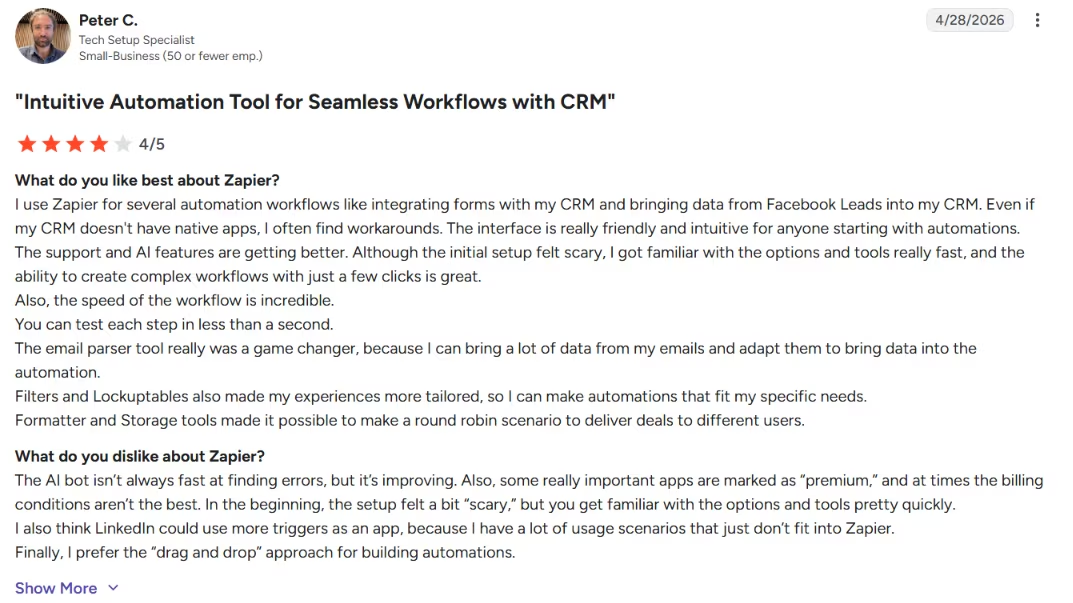
"The interface is really friendly and intuitive for anyone starting with automations." – Peter C., G2
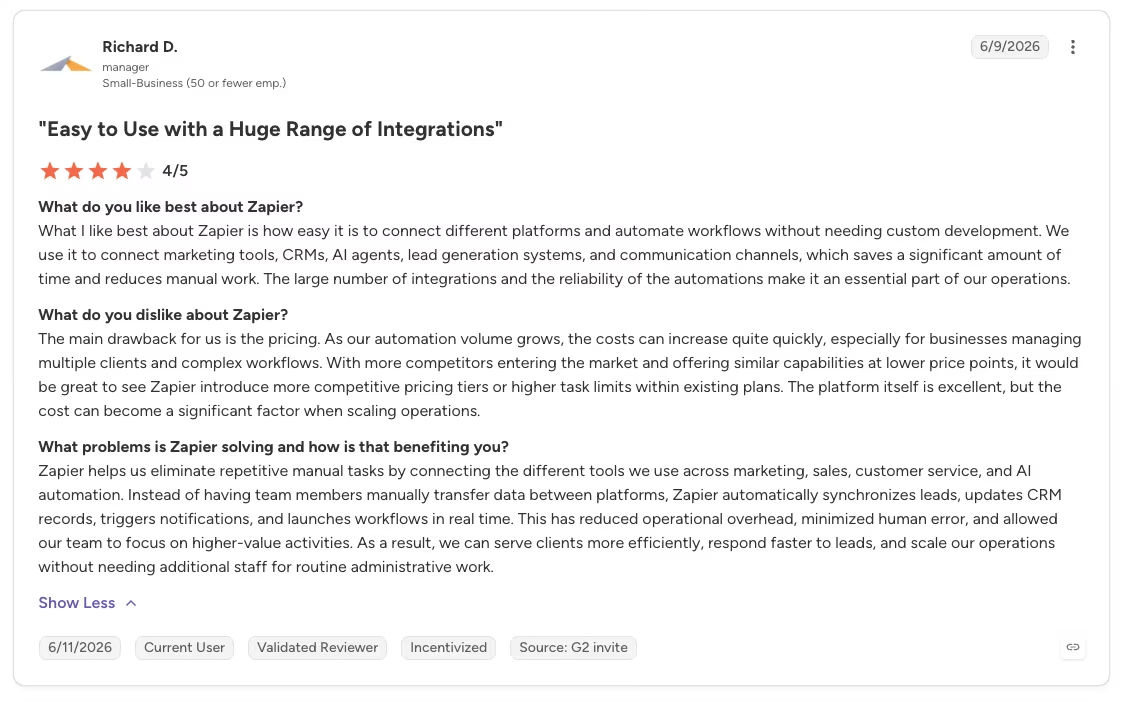
“The main drawback for us is the pricing. As our automation volume grows, the costs can increase quite quickly, especially for businesses managing multiple clients and complex workflows.” - Richard D., G2
Pricing
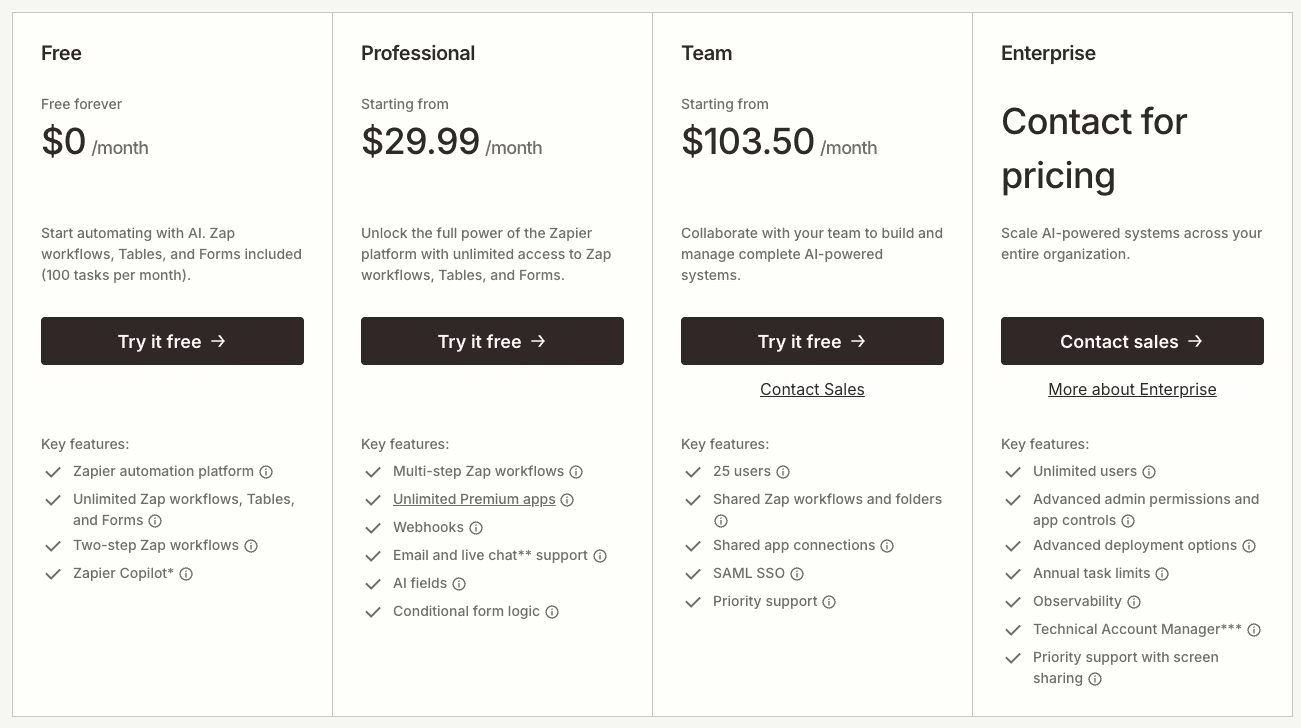
- Free: $0 per month, up to 100 tasks per month.
- Professional: From $29.99 per month.
- Team: From $103.50 per month.
The free tier is a fine way to prove that one automation saves you time. Once you rely on it daily, the task cap pushes you to a paid plan quickly.
Bottom Line
The copy-paste task you run between two apps every week is exactly what Zapier kills. One well-built Zap turns that chore into something you never touch again.
10. Notion AI: Best for Knowledge and Internal Docs
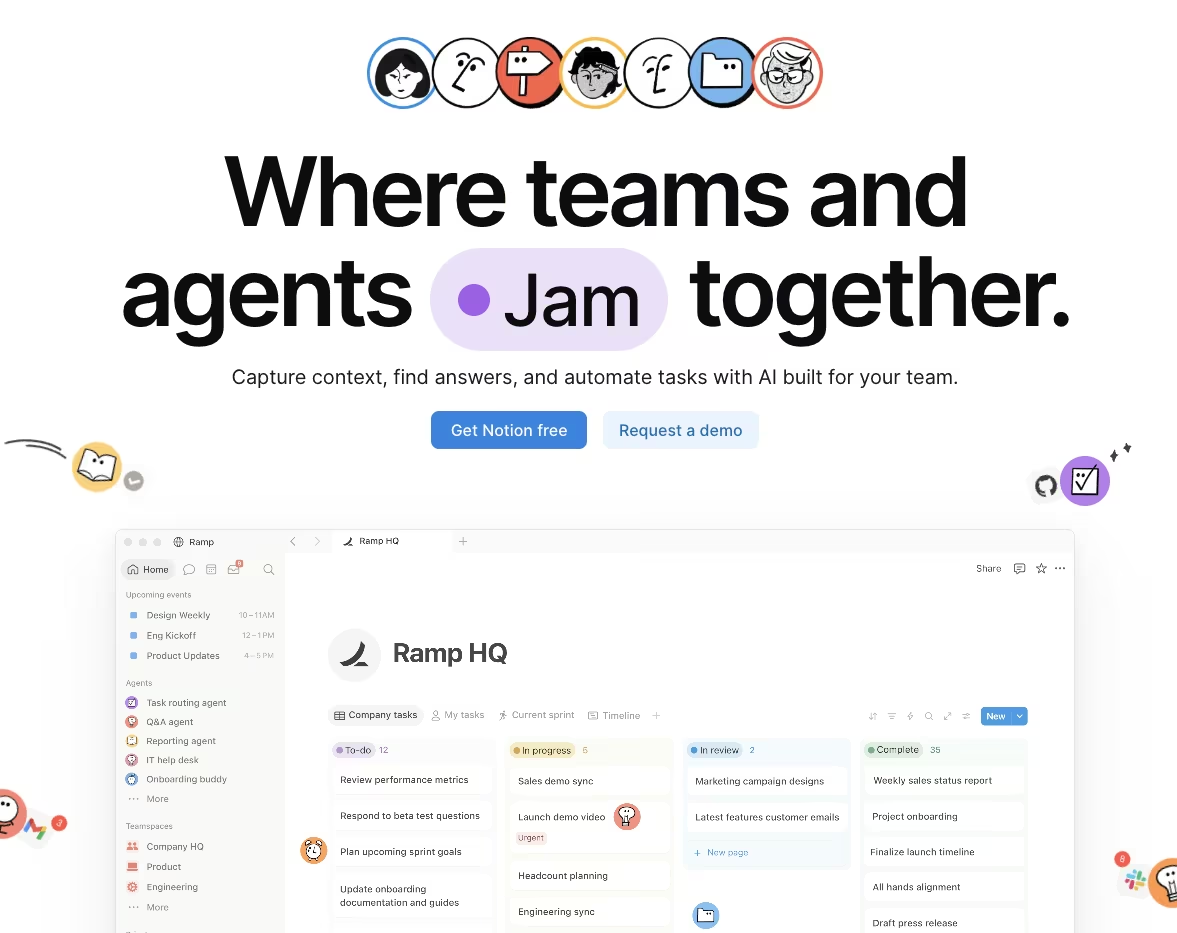
What it does: Notion AI lives inside your workspace and summarizes docs, answers questions across your notes, and extracts action items.
Best for: Teams that want their notes, tasks, and docs to work as one searchable brain.
After setting up the workspace, I pasted a meeting transcript into Notion and asked it to pull the action items. It returned a clean list with owners attached and tasks ready to assign. Notion AI depends on the information already stored in the workspace.
Once the notes are in, the workspace answers questions from your stored information. Notion AI can locate a documented pricing decision or pull the decisions out of ten pages of notes.
For a small team, that shift takes you from a scattered pile of Google Docs and half-remembered Slack threads to a single searchable brain that remembers what you learned last quarter.
The cost here is time and buy-in. There's a real learning curve if you're new to Notion, and getting a whole team to move their docs in and keep them there is more of a habit change than a software install. The AI is only as good as what's in the workspace, so a half-migrated Notion gives you half-useful answers.
If your team already works in Notion, adding the AI requires little extra setup. If they don't, decide whether you're ready to make Notion the hub before you pay for the AI, because without the underlying docs, there's nothing for it to work with.
Key Features
- Workspace-wide answers: It searches across your docs and answers questions from your own content.
- Doc summaries: It condenses long notes or transcripts into the parts that need action.
- Action extraction: It pulls to-dos with owners and dates out of messy meeting notes.
Pros and Cons
Pros:
- It turns a scattered workspace into a searchable company brain.
- It extracts action items with owners straight from raw notes.
- The AI sits where your docs already are, so there's no context switching.
Cons:
- There's a real learning curve if you're new to Notion.
- Onboarding a whole team into the workspace takes time and buy-in.
What Users Say
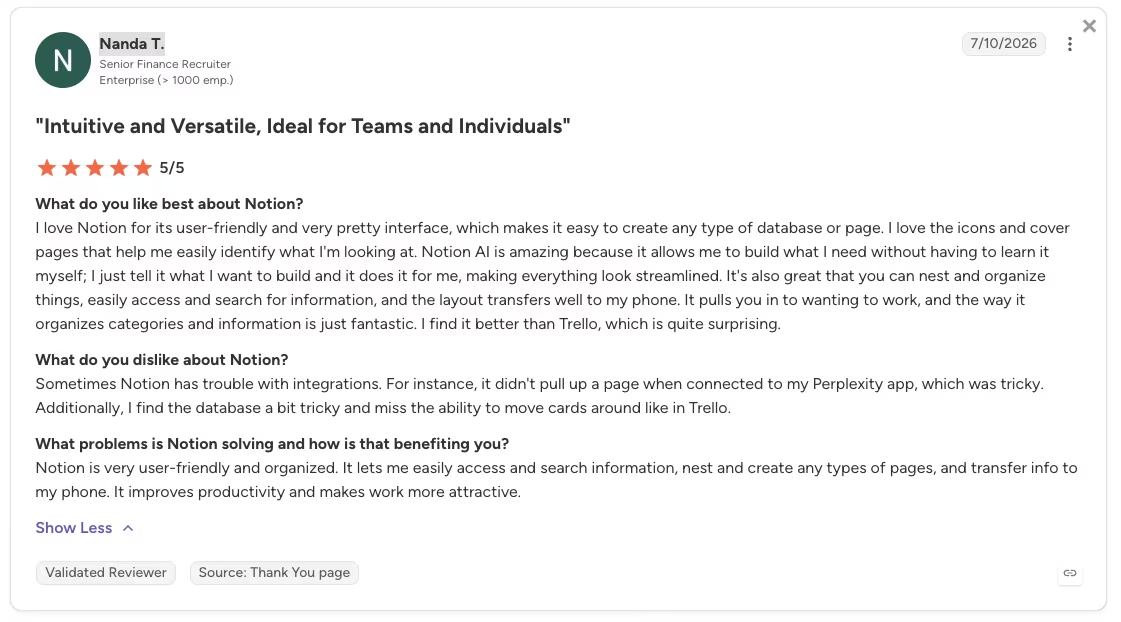
“Notion AI is amazing because it allows me to build what I need without having to learn it myself; I just tell it what I want to build and it does it for me, making everything look streamlined. It's also great that you can nest and organize things, easily access and search for information, and the layout transfers well to my phone.” - Nanda T., G2
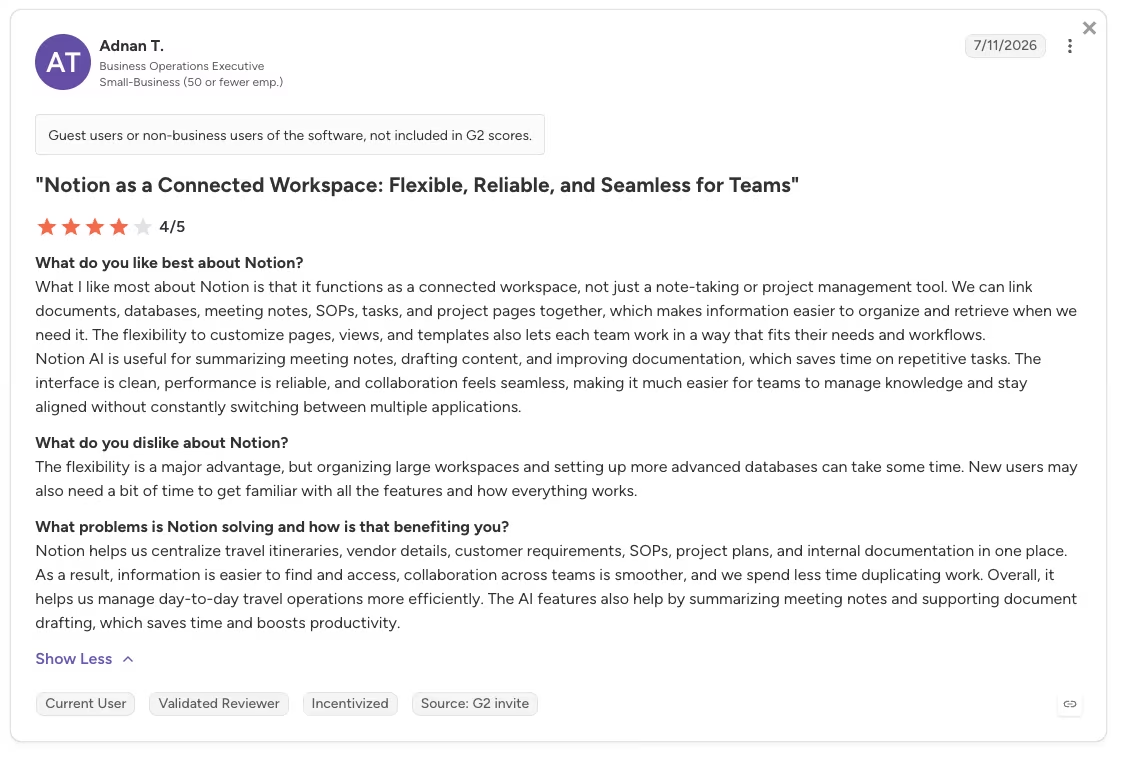
“The flexibility is a major advantage, but organizing large workspaces and setting up more advanced databases can take some time. New users may also need a bit of time to get familiar with all the features and how everything works.” - Adnan T., G2
Pricing
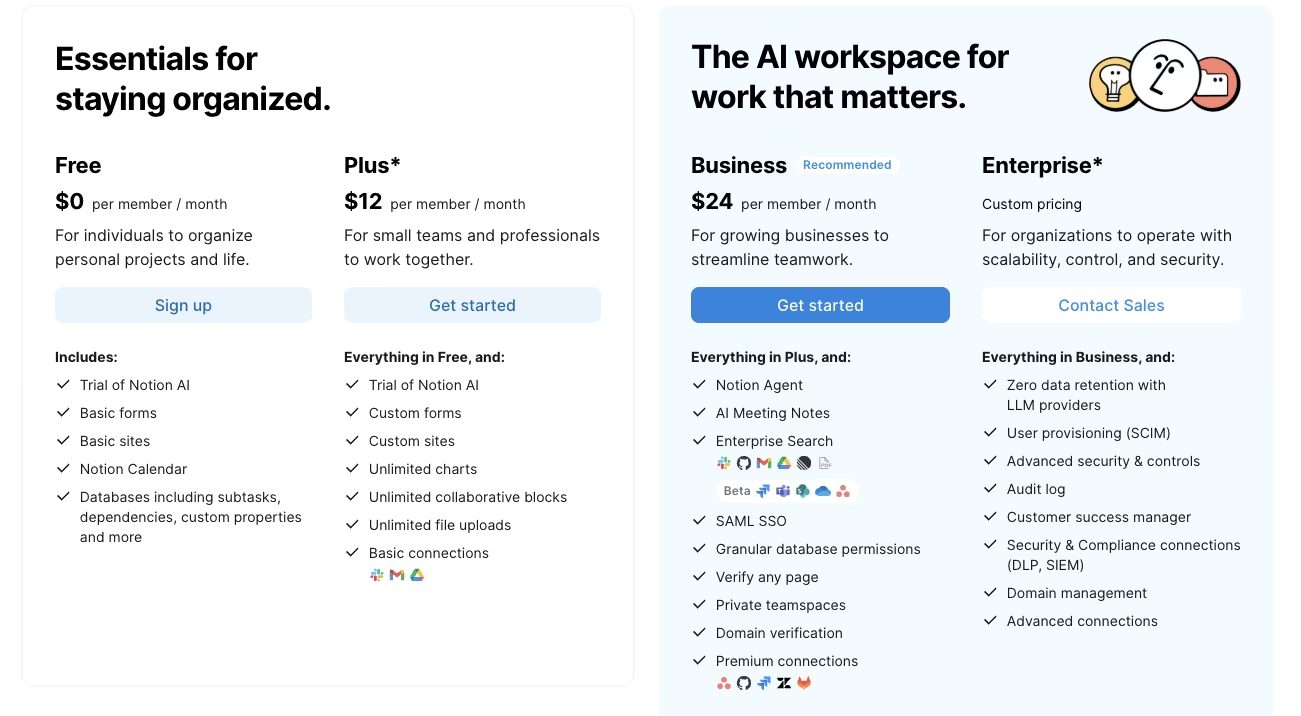
- Free: $0 per month for individuals, with a Notion AI trial.
- Plus: $12 per user per month, which still includes only the Notion AI trial.
- Business: $24 per user per month, where the full Notion AI, including workspace-wide answers and AI meeting notes, is included.
The free tier lets a solo owner test whether Notion becomes their hub. The Business tier is where the full AI and team features earn their place once the workspace is real.
Bottom Line
Notion AI is only as good as the docs beneath it, so it earns its keep once you've moved your notes and databases in. Do that, and it answers questions and pulls action items straight from your own workspace.
11. HubSpot Breeze: Best for CRM and Sales Assistance
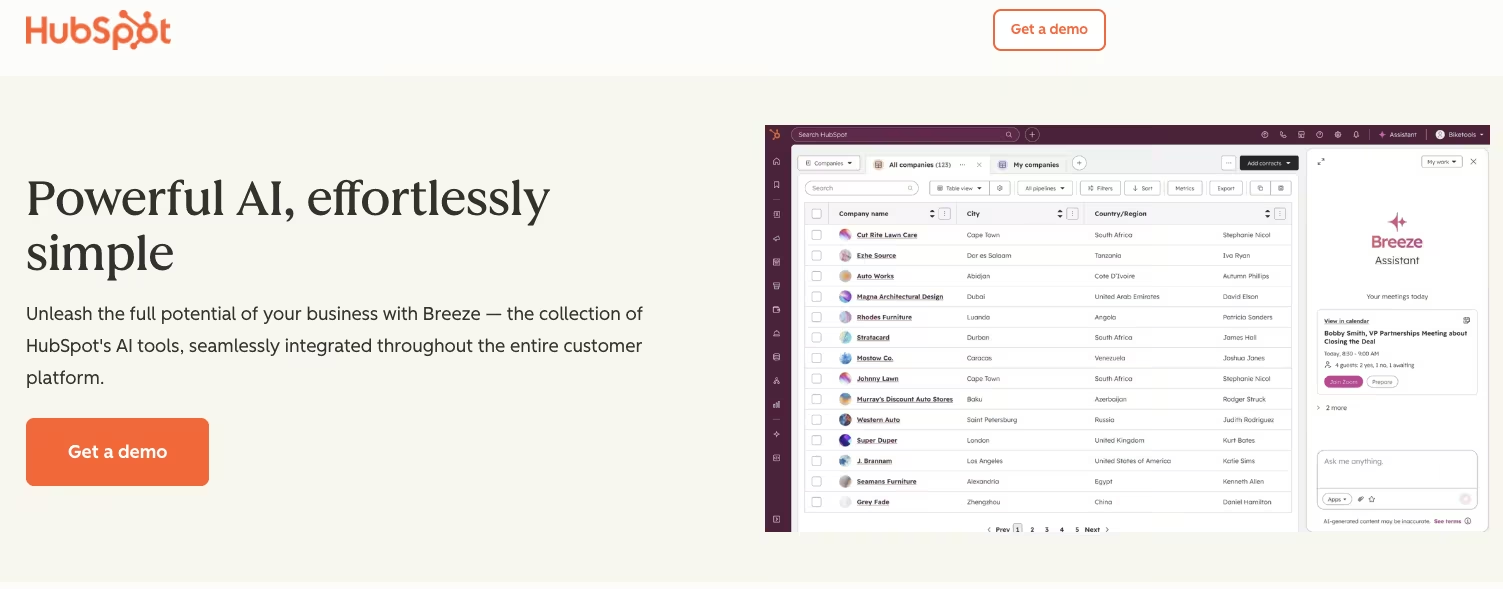
What it does: HubSpot Breeze is AI baked into HubSpot's CRM that drafts email sequences, scores leads, and summarizes contact histories.
Best for: Small teams that want a free CRM with AI help on follow-ups and lead work.
I dropped a batch of test leads into HubSpot's free CRM and pointed Breeze at them to draft the follow-up sequence, summarize each contact's history, and tell me who's worth chasing first. It did all three from data already sitting in the CRM.
The AI works inside the place where your customer data already lives, so the follow-up references the real thread, and the lead score reflects real activity.
For a small sales motion, that's a lot of value sitting on a free base. The free CRM is a genuine starting point, and Breeze runs on the credits included in your plan. The honest limit is that the fuller AI and automation features live behind the paid tiers, and a two-person team can find the whole thing heavier than they need on day one. You grow into it over time.
HubSpot Breeze suits small teams that want AI help with follow-ups and lead work inside their CRM.
Enterprise sales teams may need deeper features, and teams choosing on price alone can find cheaper basic tools. It works best for a small team building its first structured sales pipeline.
Key Features
- Sequence drafting: It writes follow-up email sequences you can edit instead of starting cold.
- Lead scoring: It ranks leads so you spend time on the ones most likely to close.
- Contact summaries: It condenses a long contact history into a quick brief before a call.
Pros and Cons
Pros:
- The AI sits inside a free CRM, so there's a low entry cost to start.
- It drafts sequences and summaries from your own customer data.
- It scales with you as your sales process grows.
Cons:
- The fuller AI and CRM features are gated behind paid tiers.
- It may have more features than a two-person team needs.
What Users Say
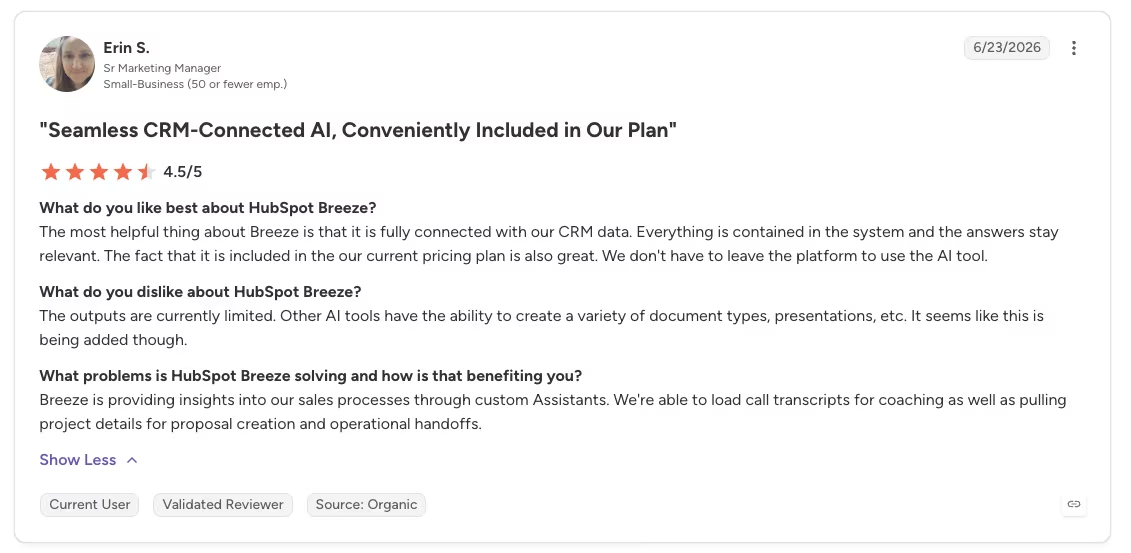
“The most helpful thing about Breeze is that it is fully connected with our CRM data. Everything is contained in the system and the answers stay relevant. The fact that it is included in the current pricing plan is also great. We don't have to leave the platform to use the AI tool.” - Erin S., G2
Pricing
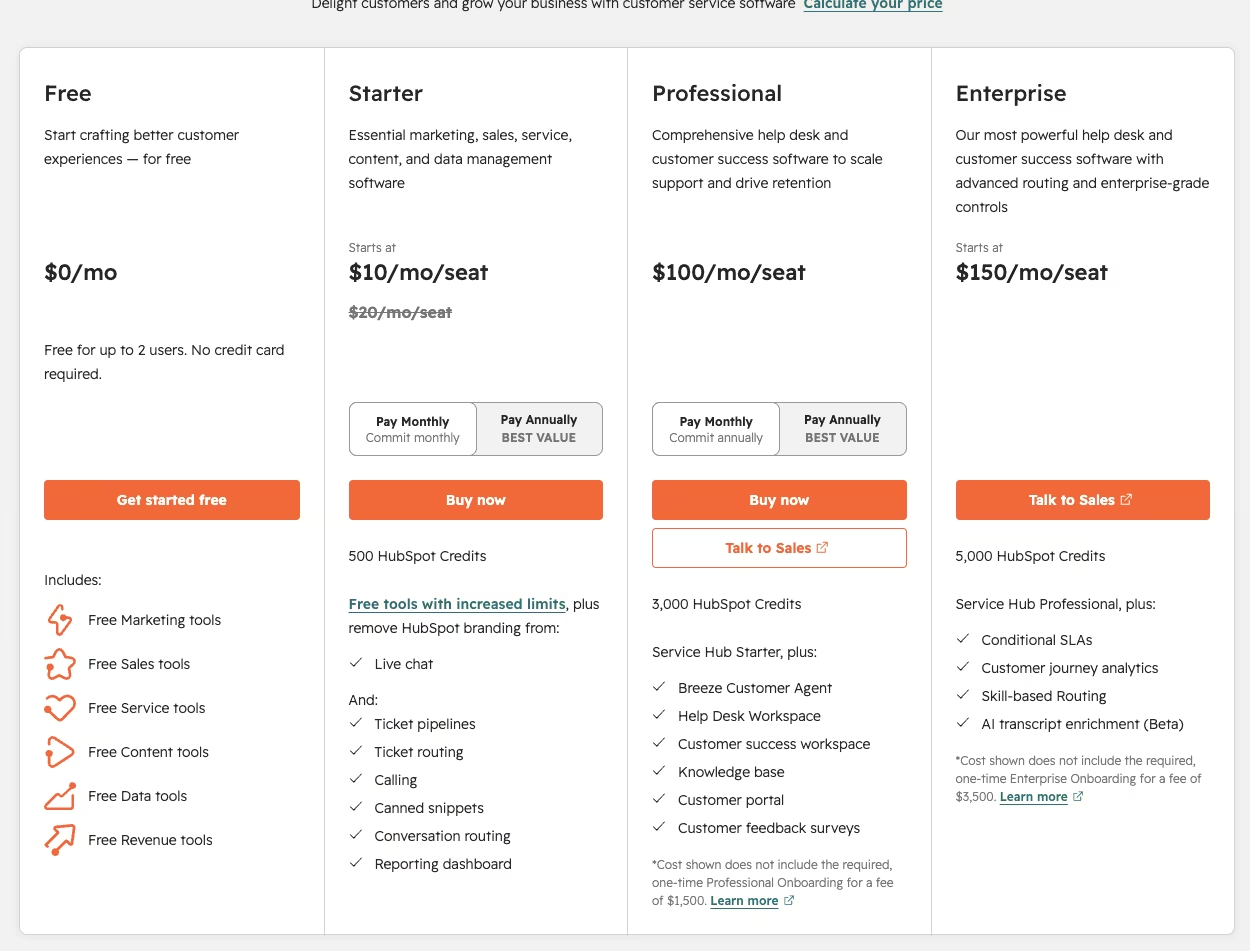
- Free CRM: $0 per month with core CRM features.
- Starter and up: From $10 per seat per month, with Breeze AI running on the HubSpot Credits included in the plan.
The free CRM is a real starting point you can run on. You move up only when you need the deeper AI, automation, and reporting that a growing pipeline demands.
Bottom Line
Enterprise sales orgs will outgrow it, and the strictly budget-conscious can find pieces cheaper elsewhere. For most small teams building a first pipeline, Breeze puts AI on your own customer data inside a CRM that costs nothing to start.
12. Tidio: Best for Customer Service AI
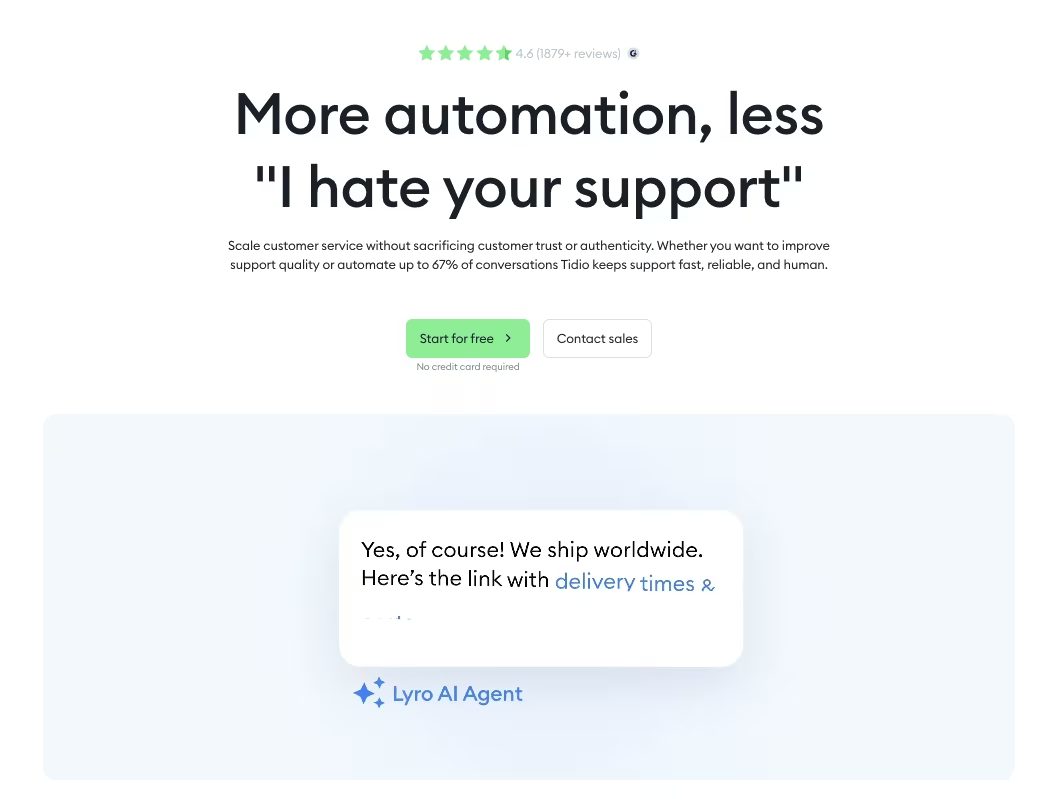
What it does: Tidio combines live chat with an AI bot called Lyro that answers common customer questions around the clock.
Best for: Small teams fielding the same repeat questions that can't staff support 24/7.
I fed Lyro, Tidio's AI bot, a set of questions that small operations receive repeatedly, then let it field them overnight while I was offline. It answered them without me, which is the entire pitch for a team too small to staff support around the clock.
The bot takes the predictable, high-volume questions so a person only steps in for the genuinely tricky ones, and it hands those hard cases off to a human instead of guessing at them.
Lyro depends on the support content you give it. An incomplete or outdated knowledge base occasionally produces wrong answers, which is especially risky in customer-facing chat.
The main work is creating a solid FAQ before setup. Without accurate source content, the bot can give customers disappointing answers at scale.
Tidio fits a small team on a budget that repeatedly receives the same questions and can invest an afternoon in solid source material up front. Keep a person responsible for sensitive issues.
Key Features
- Lyro AI bot: It answers common questions 24/7 by learning from your own support content.
- Live chat: It puts a real-time chat widget on your site so customers can reach you fast.
- Human handoff: It escalates anything sensitive or unusual to a person.
Pros and Cons
Pros:
- It answers repeat questions around the clock without staffing.
- It's budget-friendly for a small support operation.
- It hands the hard cases to a human instead of guessing.
Cons:
- Bot quality depends entirely on the support content you give it.
- Sensitive issues still need a person to handle them.
What Users Say
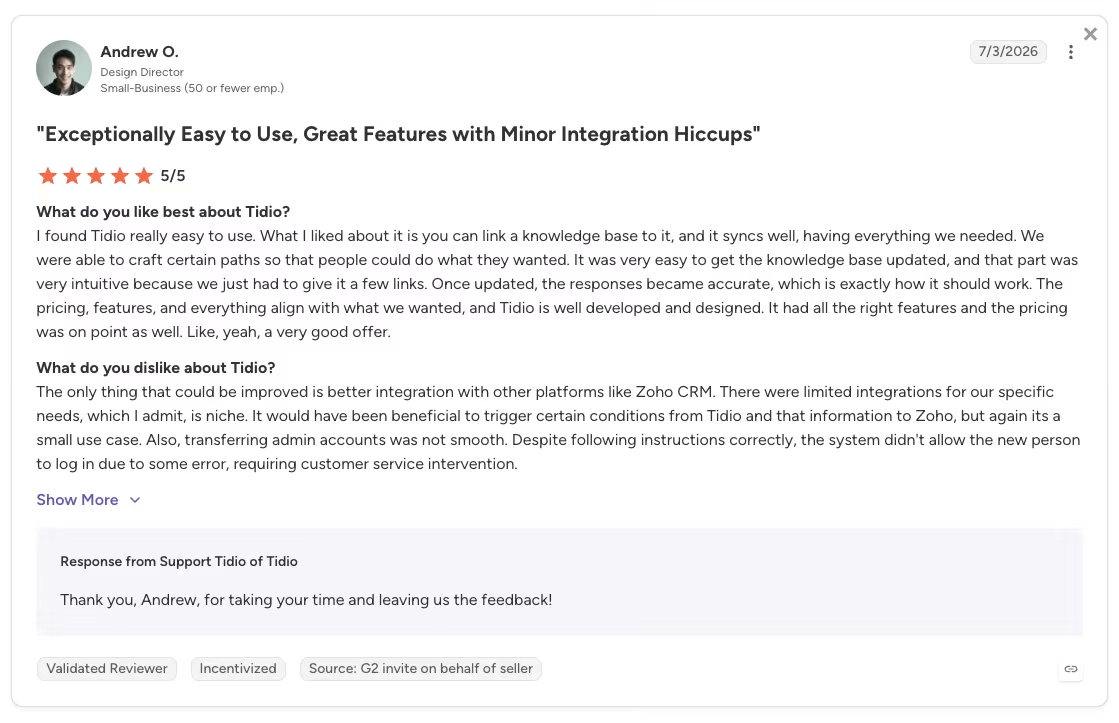
“It was very easy to get the knowledge base updated, and that part was very intuitive because we just had to give it a few links. Once updated, the responses became accurate, which is exactly how it should work.” - Andrew O., G2
Pricing
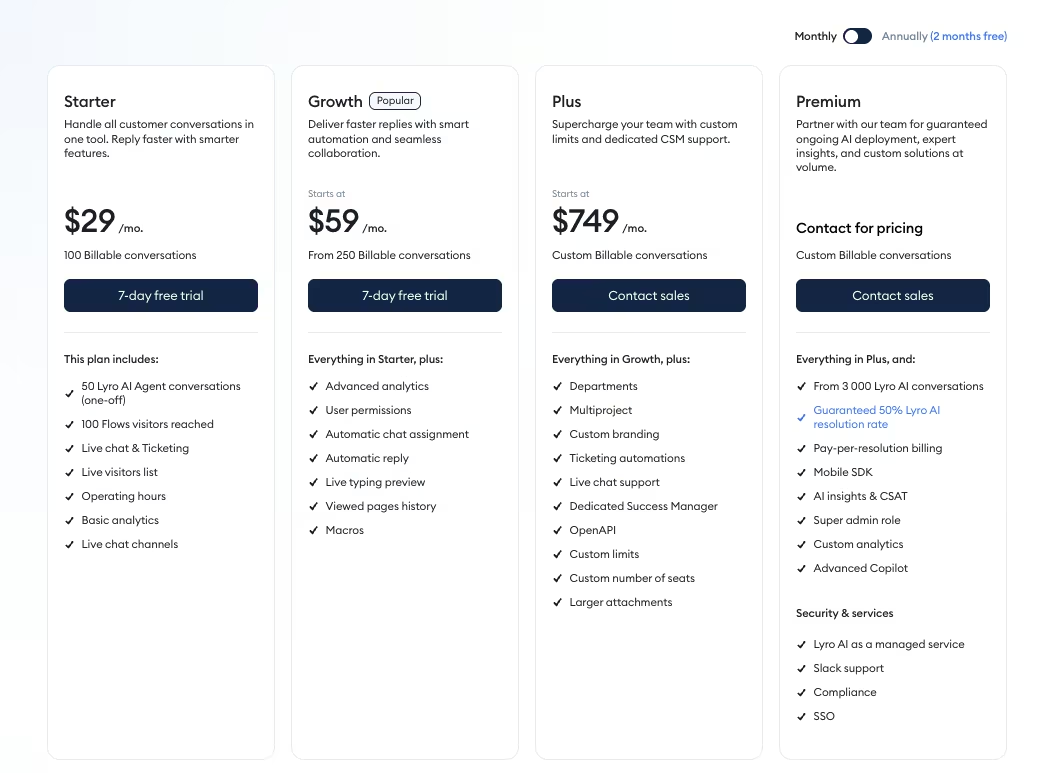
- Free: $0 per month with core live chat and a starter set of Lyro conversations.
- Starter: $29 per month.
- Growth: $59 per month
- Plus: $749 per month
Tidio pays off when the same handful of questions eat your support time. Feed it a solid FAQ first, or the bot's answers will disappoint.
Bottom Line
When the same handful of questions keeps flooding a small team with no way to answer them overnight, Tidio's Lyro can take the predictable ones. It only works off a solid FAQ, though. Skip that step, and you scale bad answers instead.
13. Grammarly: Best for Writing Polish
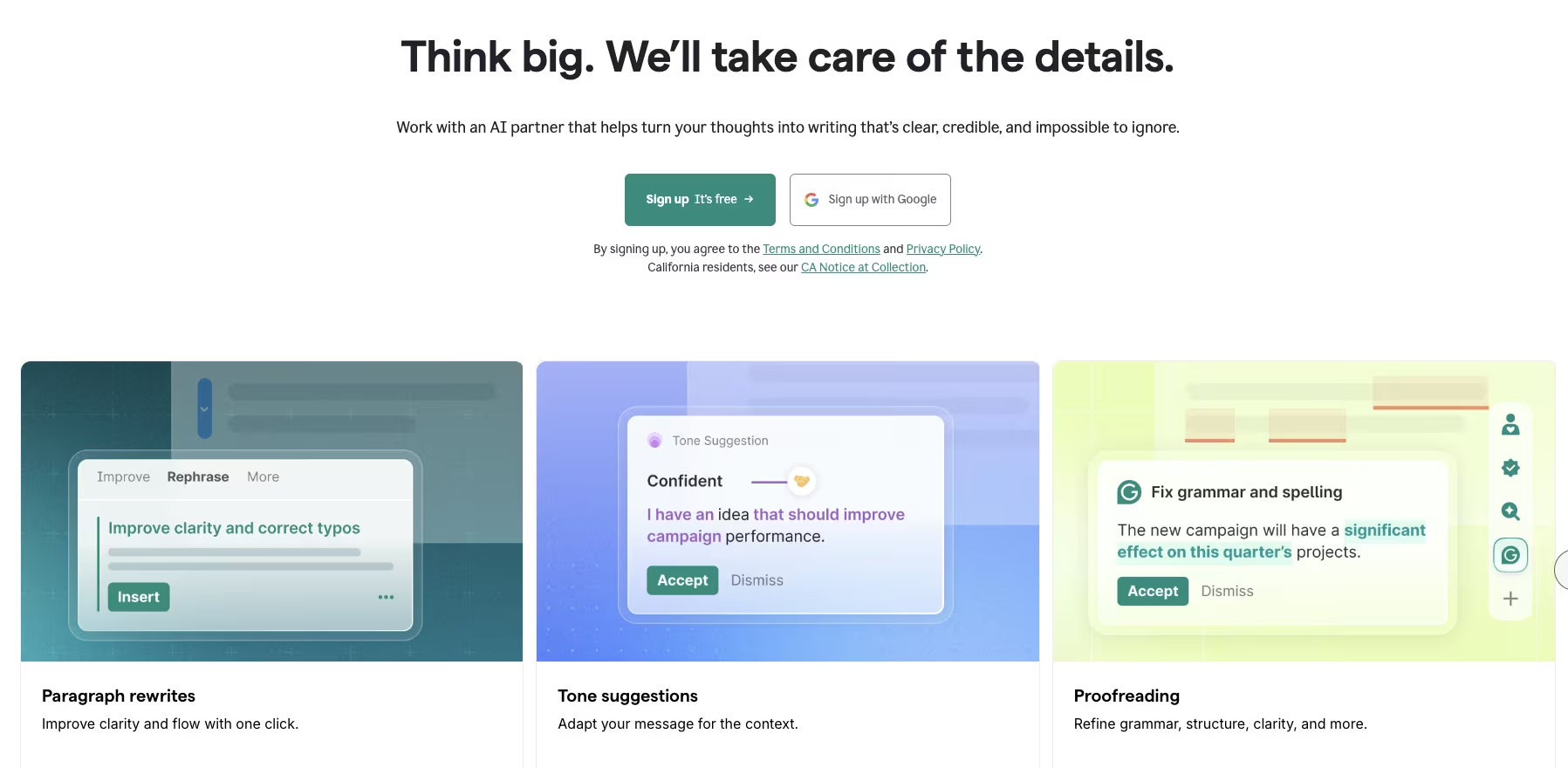
What it does: Grammarly checks spelling, grammar, and tone as you write across email, docs, and the browser.
Best for: Owners who send a lot of client-facing writing and can't afford a typo in a proposal.
Grammarly earned its spot the ordinary way. It caught an embarrassing typo in a proposal about two seconds before it went out the door. That's the job.
In a small business, every message is a brand message, and a typo in a quote or a garbled line in a proposal costs you trust you can't easily win back. Grammarly runs in email, Google Docs, Slack, and the browser, so nothing ships past it unchecked, and that beats any single clever feature it advertises.
Grammarly also tried to flatten my voice into something more corporate by changing a deliberately casual line.
Grammarly is a reliable safety net for spelling, grammar, and tone, and it's also a little too fond of making everyone sound the same. The trick is to take the corrections and ignore the personality edits.
If your client-facing writing has to be clean every time, Grammarly is worth leaving on in the background, and the free tier already catches the errors that embarrass you.
Pro adds tone and clarity, which is useful if polished writing is part of how you sell. But if a distinct voice is your edge, treat its suggestions as optional, and override the ones that smooth away the exact thing that sounds like you.
Key Features
- Works everywhere: It runs in email, Google Docs, Slack, and the browser, so nothing ships unchecked.
- Tone detection: Paid tiers flag whether your message reads the way you intend.
- Real-time fixes: It catches errors as you type instead of after you hit send.
Pros and Cons
Pros:
- It's a safety net that follows you across every writing app.
- The free tier handles the basics that catch most embarrassing errors.
- Tone detection helps client-facing messages land right.
Cons:
- It can flatten your voice toward generic corporate polish.
- Its best features, like tone detection, sit behind the paid tier.
What Users Say
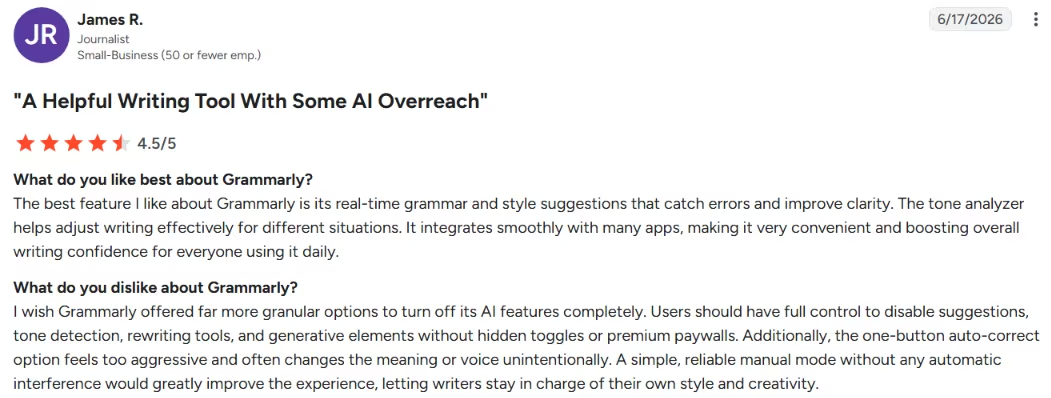
"The best feature I like about Grammarly is its real-time grammar and style suggestions that catch errors and improve clarity" – James R., G2
Pricing
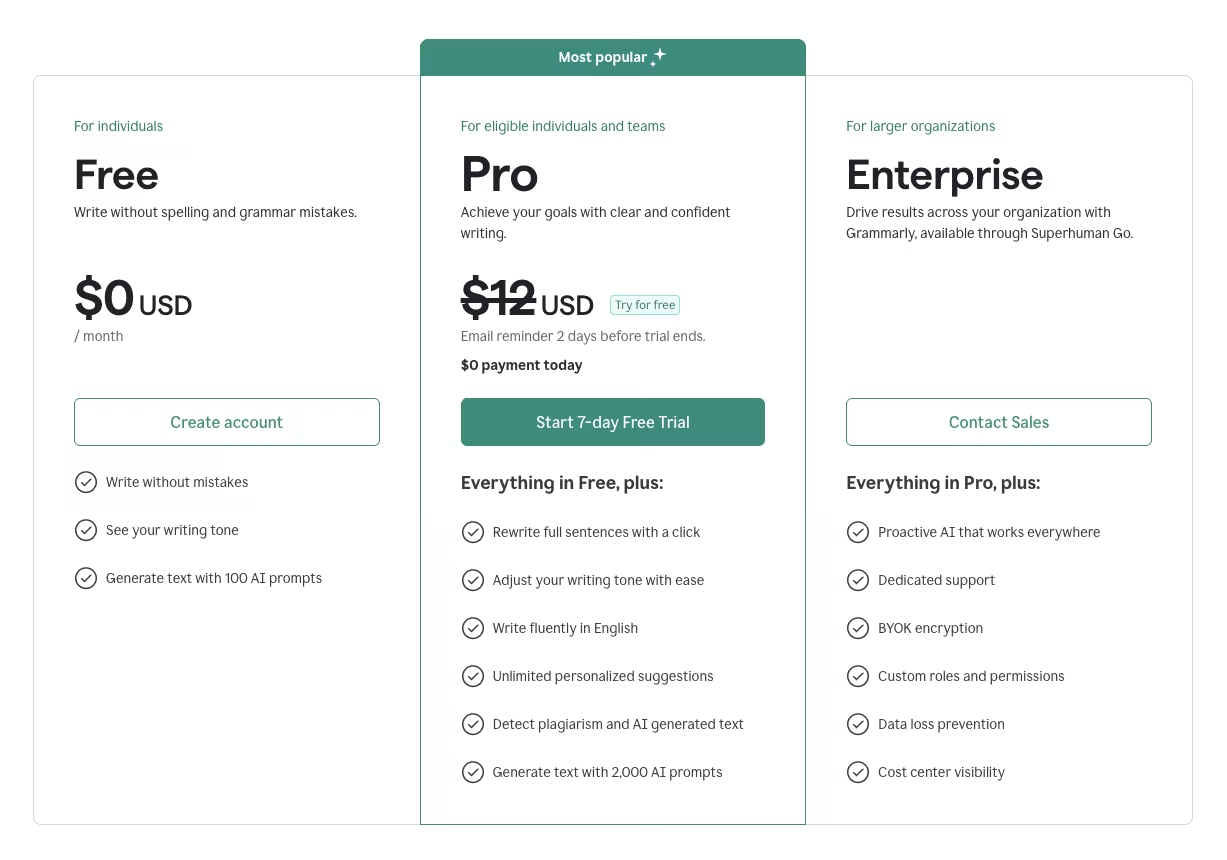
- Free: $0 per month for core spelling and grammar.
- Pro: $12 per month, adding tone and clarity features.
The free tier catches the errors that embarrass you most. Pro is worth it if tone and clarity in client writing are part of how you sell.
Bottom Line
Left running in the background, Grammarly catches the typo in a proposal before it costs you a client, across every app you write in. Wave off the edits that sand down a voice you meant to keep casual.
14. Jasper: Best for Marketing Content at Scale
What it does: Jasper generates on-brand marketing content, like blog posts, ad copy, and captions, after learning your brand voice.
Best for: Teams producing regular marketing content who need volume without losing their voice.
I gave Jasper my brand voice guidelines, a few examples of past posts, and a marketing draft to produce, and the useful surprise was how much of the structure came back already on-brand. On that kind of volume of work, it gave back roughly half my content time.
The voice-matched draft gave me a useful starting point. It focuses on marketing formats such as ad copy, blog posts, and captions, which helps it stay on task across a large batch.
Every draft still needed my editing before it was ready, so Jasper works best as a fast first-draft tool under human review.
Jasper handles volume while keeping a consistent voice, but a hands-off approach pushes the output toward generic.
Jasper is a premium tool, so it only pays off at real volume.
If you're publishing marketing content on a regular cadence and the bottleneck is drafting time, Jasper is worth the price for the voice consistency alone. If you post occasionally, a general model like ChatGPT covers the same ground for a fraction of the cost, and you won't feel the difference.
Key Features
- Brand voice training: It learns your tone, so drafts come back sounding like you.
- Marketing-specific formats: It's built specifically for ad copy, blog posts, and captions.
- Volume: It produces enough usable draft material to roughly halve your content time.
Pros and Cons
Pros:
- It learns and holds your brand voice across pieces.
- It's purpose-built for marketing formats, so it stays on task.
- It gives back hours on high-volume content work.
Cons:
- Output still needs a human editing pass before it ships.
- It's a premium tool, so the cost only pays off at real volume.
What Users Say
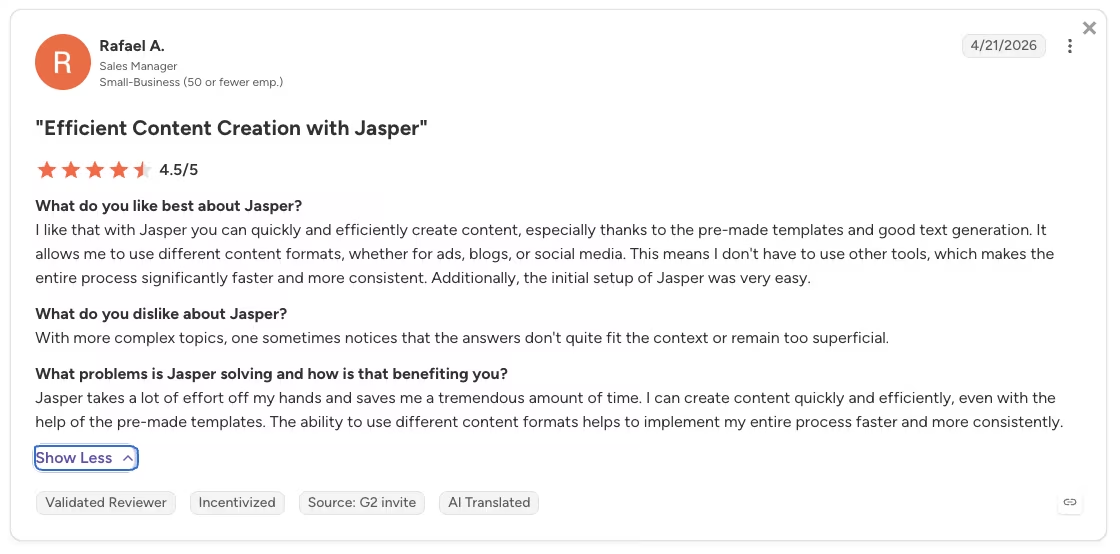
“I like that with Jasper you can quickly and efficiently create content, especially thanks to the pre-made templates and good text generation. It allows me to use different content formats, whether for ads, blogs, or social media.” - Rafael A., G2
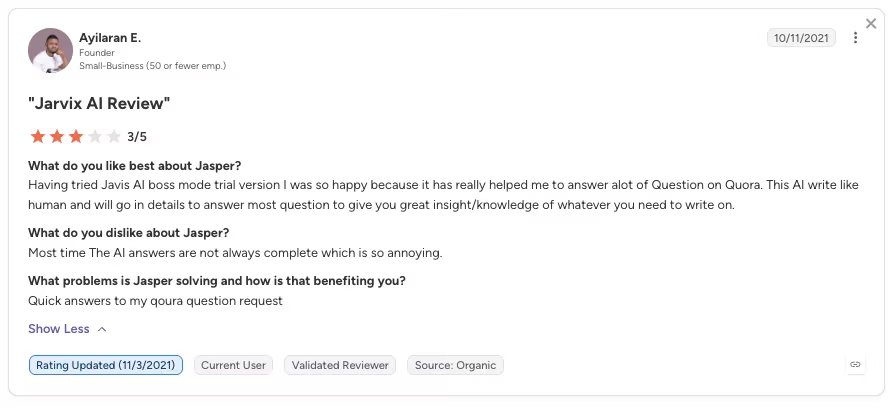
“Most of the time, the AI answers are not always complete, which is so annoying.” - Ayilaran E., G2
Pricing
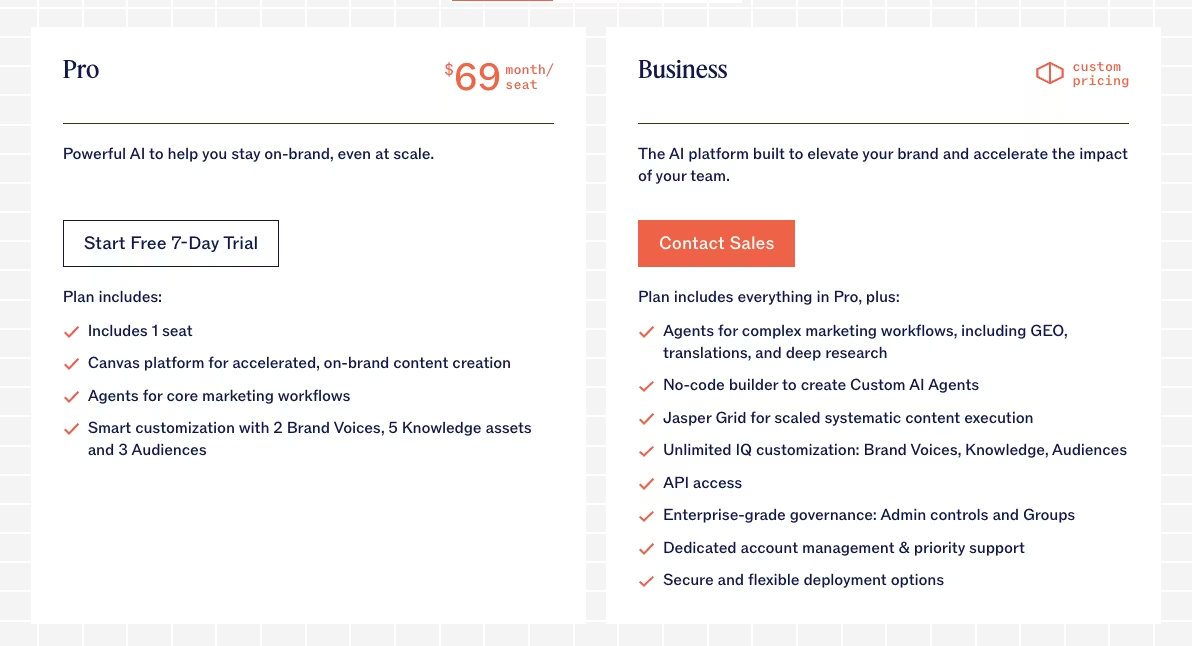
- Pro: $69 per month.
- Business: Custom pricing, contact sales.
Jasper earns its cost when you're publishing marketing content on a regular cadence. For a post here and there, a general model like ChatGPT covers it for less.
Bottom Line
The math on Jasper works at real publishing volume: it holds your brand voice across drafts and hands back roughly half your content time, and the subscription pays for itself. Below that, ChatGPT does the same job for far less.
15. Gemini: Best for AI Already in Google Workspace
What it does: Gemini is Google's AI assistant built into Workspace, helping you write, summarize, and analyze inside Gmail, Docs, and Sheets.
Best for: Teams already on Google Workspace who want AI sitting on data they already trust.
I ran the same draft through Gemini inside my Google account. It could draw on the existing context, which saved me from copying information into another tab or re-explaining the background.
All that skipped busywork is the quiet advantage of the assistant already in your stack. It's sitting on the Gmail threads, Docs, and Sheets you work in all day, so it starts with context instead of a cold prompt.
For a small team, that changes the math in two places. The training curve is lower because your people already live in these apps, so "use the AI" is a button where they already work, with no new tool to learn.
And the security overhead drops because you're not shuttling sensitive data out to yet another service just to get an answer. On a busy day, staying in one place is worth more than a marginally better answer from a specialist you have to feed by hand.
Results vary more by task than they do with a dedicated specialist, and Gemini's value depends on how deep you already are in Google's apps. If you already use Google Workspace, test Gemini before adding a standalone assistant. It may cover enough work to remove the need for another subscription.
Key Features
- In-app assistance: It works inside Gmail, Docs, and Sheets, so there's no context to paste in.
- Data proximity: It operates on files you already keep in Workspace, reducing setup and risk.
- Familiar surface: Your team uses it where they already work, which lowers the learning curve.
Pros and Cons
Pros:
- It's already connected to the data and files you use daily.
- It lowers training and security overhead versus a new standalone tool.
- It fits naturally into a stack you already pay for.
Cons:
- Results vary by task compared with a dedicated specialist tool.
- Its value is tied to the suite you already pay for.
What Users Say
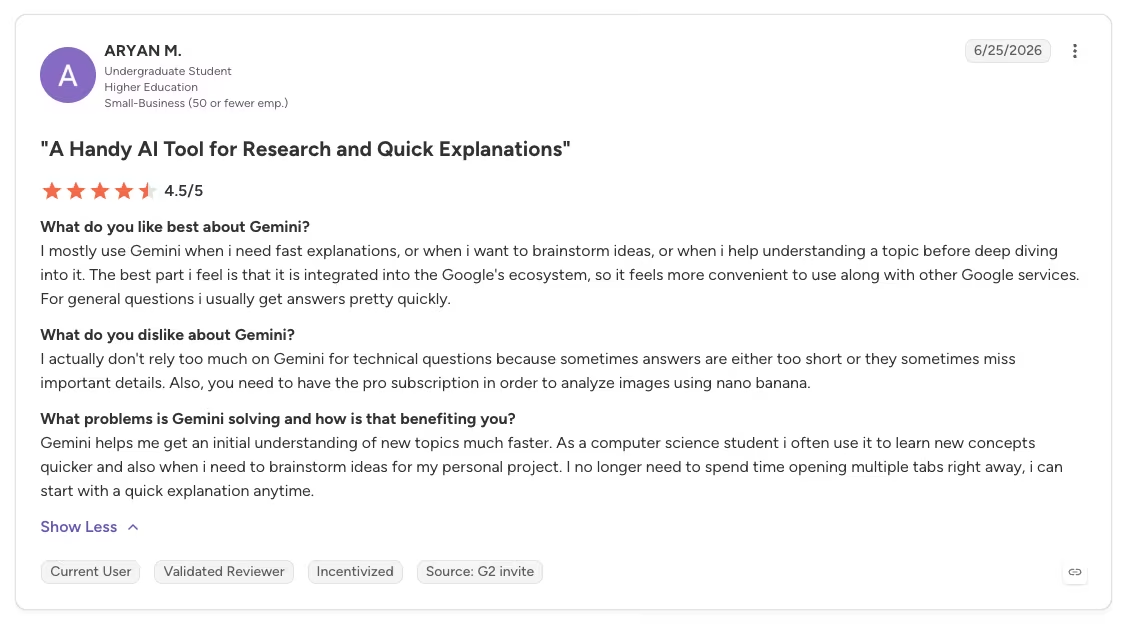
“I mostly use Gemini when I need fast explanations, or when I want to brainstorm ideas, or when I help understand a topic before deep diving into it. The best part, I feel, is that it is integrated into Google's ecosystem, so it feels more convenient to use along with other Google services. For general questions, I usually get answers pretty quickly.” - Aryan M., G2
Pricing
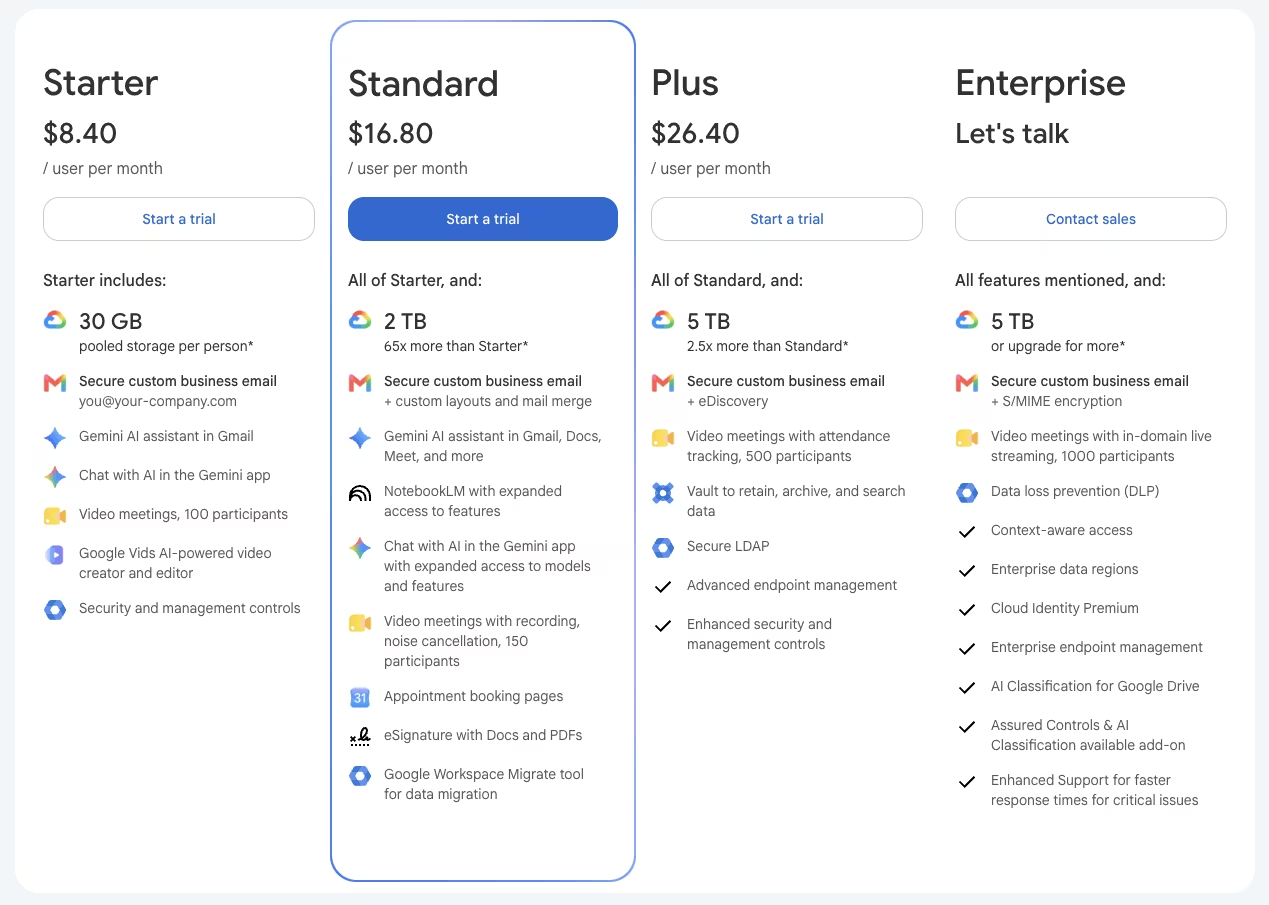
- Business Starter: From $8.40 per user per month, with Gemini in Gmail.
- Business Standard: $16.80 per user per month, with Gemini across Docs, Sheets, Meet, and more.
- Business Plus: $26.40 per user per month, with Gemini across Docs, Sheets, Meet, and more.
Gemini makes the most sense when you already pay for Workspace. Test whether the built-in assistant covers your needs before you add a separate subscription.
Bottom Line
Already paying for Google Workspace? Gemini works right inside Gmail, Docs, and Sheets with nothing to move or re-explain, so try it before you bolt on a standalone assistant.
Also read our best Gemini alternatives guide for what else is worth trying if you need more than what Workspace offers.
Which AI Tool for Small Business Should You Choose?
Build a small stack around the one or two tools that clear your biggest bottlenecks.
Choose ChatGPT if you:
- Need one versatile assistant to start with before specializing.
- Spend hours drafting emails, proposals, and first passes at everything.
Choose Claude if you:
- Live in long documents, careful client-facing writing, or code that has to run.
- Want an assistant that flags uncertainty instead of confidently guessing.
Choose Emergent if you:
- Need a real customer-facing app with logins and payments.
- Have no engineer on staff to build it for you.
Choose Zite if you:
- Need an internal tracker, dashboard, or CRM your spreadsheets have outgrown.
- Want to build it without hiring a developer.
Choose Lindy if you:
- Want an assistant that executes inbox triage, scheduling, and follow-ups.
- Are comfortable letting software take real actions with oversight.
Choose Perplexity if you: run market, competitor, or pricing research that has to trace back to a source.
Choose Canva if you: need quick, decent branded visuals without a designer on call.
Choose Fireflies.ai if you: run regular client calls and keep losing the follow-ups.
Choose Zapier if you: keep repeating the same copy-paste task between apps every week.
Choose Notion AI if you: want your notes, tasks, and docs to work as one searchable brain.
Choose HubSpot Breeze if you: want a free CRM with AI help on follow-ups and lead work.
Choose Tidio if you: are buried in repeat customer questions you can't answer 24/7.
Choose Grammarly if you: need your client-facing writing clean every time.
Choose Jasper if you: produce marketing content at real volume and need on-brand drafts fast.
Choose Gemini if you: are already on Google Workspace and want AI on data you already trust.
Skip this category entirely if:
- You already have one bottleneck that a single tool you own solves well.
- Automating the task too early would risk customer trust.
Final Verdict
After a few months of testing these AI tools for small businesses, I found that a small stack used daily worked best. Start with a general model like ChatGPT, add one tool for your single biggest bottleneck, and add anything else only once it clearly earns its keep.
Where you go next depends on the job. Claude fits careful writing and code, while Perplexity fits cited research. Zapier handles repetitive tasks, and Emergent or Zite can build tools that existing software does not cover. Pick for the bottleneck in front of you right now.
How Emergent Helps Small Teams Build the Custom Tool That This List Can't

Most off-the-shelf tools in this roundup eventually hit the limits of their templates and preset workflows. You can adapt ChatGPT, Canva, or a CRM to your business, but they cannot become the exact customer-facing app your business needs.
That gap appeared before I tested Emergent. I could automate parts of the workflow, but the reporting portal and customer-facing intake form still required a custom build.
Emergent coordinates multiple agents across the interface, logic, data, and final checks to turn a plain-language brief into a deployable app with logins and payments.
You can even start that build from a chat you already keep open. Emergent's MCP connector lets you kick off an app straight from Claude or ChatGPT, no separate dashboard required.
Use the specialist tools above for their stated jobs, and Emergent when none of them cover the app you need. Complex logic still deserves human review before launch. Try describing your first app on Emergent and see how far a simple brief gets you.

Most AI app builders stop at prototypes. Emergent creates production-ready apps you can actually launch.
- Production-ready apps
- Web & mobile apps
- Deploy in minutes