
TL;DR
- Start with one clear job: Decide what someone should be able to do from start to finish before you add extra features.
- Pick a build route that fits your skills: React Native, Flutter, Kotlin Multiplatform, .NET MAUI, Ionic, and prompt-first builders all take different approaches.
- Plan the shared parts first: Map your screens, saved data, and phone features before building.
- Write one detailed first prompt: My QuickQuote prompt named the users, fields, calculations, platforms, and scope limits.
- Test with known results: QuickQuote returned the expected $137.50 total and passed my save, edit, and share checks in Emergent’s preview.
- Test on a physical phone: My Android Expo Go test wouldn’t open, a problem the browser preview didn’t reveal.
- Check both platforms separately: Shared code still needs separate checks for navigation, keyboards, screen sizes, sharing, and other device behavior on iOS and Android.
- Keep store publishing separate: Apple and Google have their own developer accounts, build requirements, store listings, and review processes.
A cross-platform app lets you build for iOS and Android from a shared project. To learn how to build a cross platform app in practice, I tested the process by building QuickQuote, a small quoting app for service professionals, with Emergent.
The first preview took 15 minutes, and I spent another six minutes testing the quote flow. The build and browser checks used 18 credits. The Android phone test failed to open. By the end of this guide, you’ll know what to plan before your first prompt, what you can check in a preview, and what needs a real phone test.
I tested the device build on Android. Step 9 gives you the same checks to run on iOS before you publish.
What Is Cross-Platform App Development?
Cross-platform app development is a way to build an app for more than one operating system from shared code. For a mobile app, that usually means one project serves both iOS and Android.
The amount of shared code depends on the framework. Flutter can share the interface and app logic. React Native also shares much of the project while giving you access to native phone features. Kotlin Multiplatform lets a team share logic, the interface, or both.
One main product to build, test, and update is the practical benefit. Screen sizes, permissions, phone features, keyboards, and store rules can differ, so check iOS and Android separately.
That makes cross-platform development a strong fit for business apps, booking tools, customer portals, field-service apps, trackers, and other products where both phone platforms need the same core workflow.
What You’ll Need Before Starting
Keep the starting kit small. You need enough detail to give your build direction, plus a way to test what comes back.
Have these ready:
- One main app job: Write one sentence that explains why someone opens the app.
- A first-version feature list: Include only what supports that main job.
- Your target platforms: Decide whether you’re building for iOS, Android, or both.
- A build route: Choose a coding framework or a prompt-first app builder.
- Fake test data: Keep real customer or business data out of early tests.
- A physical phone: Browser previews can't show every device issue.
My test app had one clear job. QuickQuote lets a service professional enter job details, calculate a quote, save it, edit it, and share it.
Time required: I reached the first preview in 15 minutes and spent another six minutes on core tests. A public release takes longer because store preparation and review come later. This mobile app timeline explains where that extra time tends to go.
How to Build a Cross-Platform App Step-by-Step
Step 1: Give the App One Clear Job
Write down the action a person needs to finish. Then use that action to decide what belongs in your first version.
For QuickQuote, that action was creating and sending a customer quote.
My first-version scope included:
- Customer name
- Job description
- Labor hours
- Hourly rate
- Materials cost
- Optional tax
- Automatic subtotal and total
- Saved quotes
- Edit and delete
- Native sharing
Login, payments, notifications, stored data on a server, and outside services stayed out of the first build.
A small complete flow gives you something useful to test. A long wish list gives you more places for the build to go wrong.
The same planning habit works when you build your own CRM with AI. Start with the records people need and the actions they repeat each day. Add the extras after that flow works.
Step 2: Choose How You’ll Build the App
You can write the app with a cross-platform framework or use a prompt-first builder that creates the project for you.
Here’s how the main routes differ:
- React Native: A strong fit if you or your developer already knows JavaScript or TypeScript. React Native recommends using a framework such as Expo for new projects.
- Flutter: A good fit when you want tight control over how the interface looks across devices. Flutter supports mobile, web, desktop, and embedded devices from one codebase.
- Kotlin Multiplatform: Useful for Kotlin teams that want to share business logic, interface code, or both while keeping access to native platform tools.
- .NET MAUI: Built for C# and .NET developers. Microsoft supports Android, iOS, macOS, and Windows from one shared project.
- Ionic: Fits web teams using HTML, CSS, and JavaScript. Ionic can target iOS, Android, and Progressive Web Apps from one codebase.
- Prompt-first app builders: These let you describe your app in plain English, then the builder handles the project setup and code generation.
If you don't write code and your app is a normal business or utility app, a prompt-first path gets you to something testable quickly. Emergent has a dedicated cross-platform app builder for this workflow. Its mobile documentation says Mobile Agent builds with Expo and React Native for iOS and Android from one codebase.
If you write code, choose based on the language you already use and how much platform-specific control your app needs.
Read More: How to Build an Android App With AI (Step-by-Step)
Step 3: Map the Screens, Data, and Phone Features
List each screen and write down what a person can do there. Then list what the app needs to remember.
QuickQuote needed only two main areas.
New Quote: Enter the customer and job details, calculate the price, and save the quote.
Saved Quotes: Find a previous quote, open it, edit it, delete it, or share it.
Next, list any phone feature your app needs.
Common examples include:
- Camera
- Photos
- Location
- Push notifications
- Files
- Bluetooth
- Share sheet
- Offline storage
A quote form is fairly simple. An app that depends on background location, Bluetooth hardware, live video, or advanced graphics needs deeper device testing.
Write the screen list before asking the builder to design anything. It keeps navigation tied to the job the app needs to do.
Read More: How to Build a CRM in 13 Steps (Tested on a Real Business)
Step 4: Write a Detailed First Prompt
Your first prompt should name the person using the app, the core actions, the fields, the target platforms, and the boundaries.
If the blank prompt box slows you down, Emmy can help shape the brief. Emmy is Emergent's built-in AI chat assistant. Emergent says it's free to use, costs no credits, asks follow-up questions, and can turn a rough idea into a build-ready prompt.
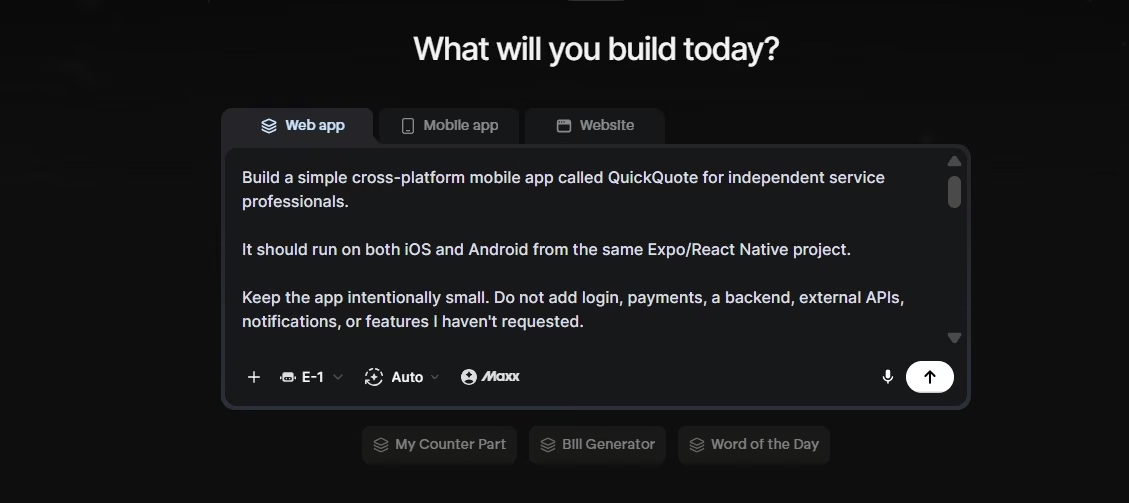
I used this prompt for QuickQuote:
Build a simple cross-platform mobile app called QuickQuote for independent service professionals.
It should run on both iOS and Android from the same Expo/React Native project.
Keep the app intentionally small. Do not add login, payments, a backend, external APIs, notifications, or features I haven't requested.
The app should let a user:
- Create a quote with: Customer name Job description Labor hours Hourly rate Materials cost Optional tax percentage
- See the subtotal, tax, and final total calculated automatically as the values are entered.
- Save quotes locally on the device so they are still there after the app is closed and reopened.
- See saved quotes on a simple Saved Quotes screen with the customer name, job description, total, and date.
- Open a saved quote to view, edit, or delete it.
- Share a plain-text quote summary using the phone's native share sheet.
Add basic validation so negative numbers aren't accepted and required fields can't be left blank.
Use USD for currency. Keep the design clean, simple, and easy to use with one hand on a phone. Use large tap targets and readable text.
Do not add anything beyond this scope unless you ask me first.
The detail paid off. Emergent had enough to build from on the first pass.
Step 5: Answer the Clarifying Questions
Emergent asked three questions before it completed the build.
Here’s what I chose:
- Color theme: Trustworthy blue + clean white.
- App layout: Two tabs, "New Quote" + "Saved Quotes."
- Light or dark mode: Light only.
The layout question mattered most. Two tabs made each job obvious: one area creates a quote, and the other holds previous quotes. That settled the navigation before Mobile Agent continued.

Give clear answers when the builder asks about layout or navigation. Those decisions shape how people move through the app.
Step 6: Review the First Preview Before Adding Features
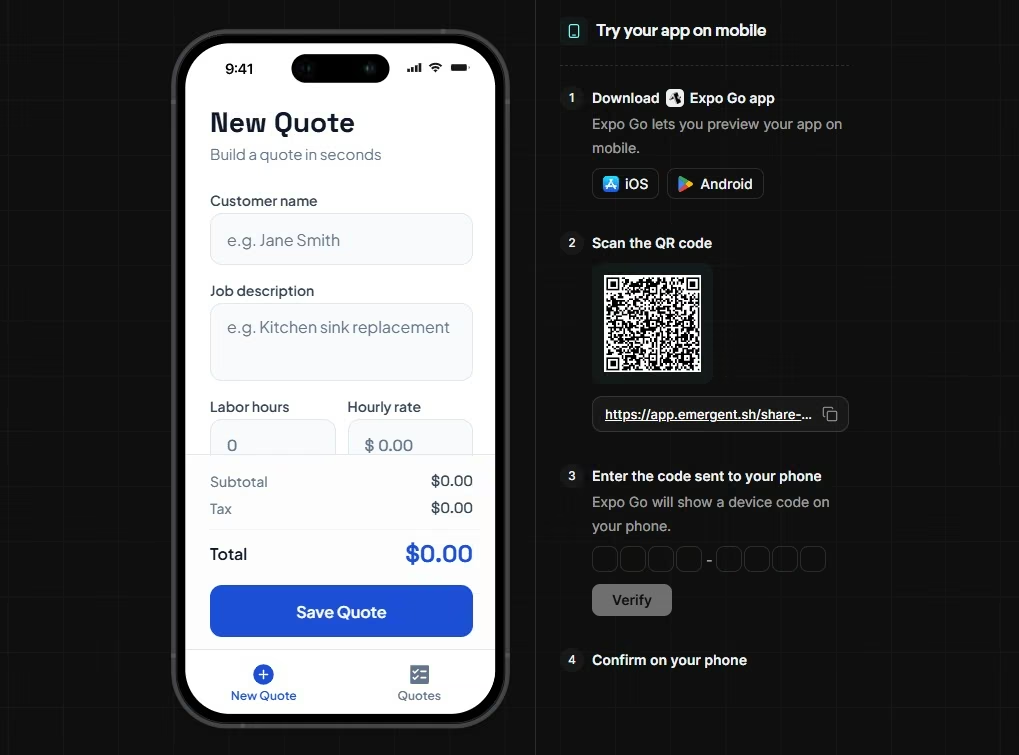
The first QuickQuote preview appeared after 15 minutes.
I kept that version unchanged while I checked it against the original request.
Emergent also suggested four possible additions after the preview.
The suggestions were:
- Duplicate Quote
- Search & Sort
- Business Header
- PDF Export
I left all four out. QuickQuote already had enough to prove its main workflow.
Step 7: Test the Main Flow With Numbers You Can Check Yourself
Use test values where you already know the right answer.
For QuickQuote, I created a quote for Sarah Miller.
My test data was:
- Job: Kitchen faucet replacement
- Labor: 2 hours
- Hourly rate: $50
- Materials: $25
- Tax: 10%
The labor came to $100. Adding materials produced a $125 subtotal. Ten percent tax added $12.50.
The expected total was $137.50. QuickQuote returned $137.50.
I saved the quote, opened it again, and edited it. I then opened the share action and sent the quote to friends, so the share check passed.
Those tests took another six minutes. The build and browser-test session came to 21 minutes and used 18 credits. I tried the Android phone preview afterward.

Test each calculation with numbers you can solve yourself. Do the same for status changes, filters, saved records, and permissions.
Step 8: Test the App on a Physical Phone
The browser checks passed. My Android phone test gave me a different result.
I scanned the QR code shown in Emergent. I also tried opening the Expo link. Both attempts ended on an Expo screen that said, "Something went wrong."
The screen gave no reason for the failure, so I logged it as open instead of guessing at one.
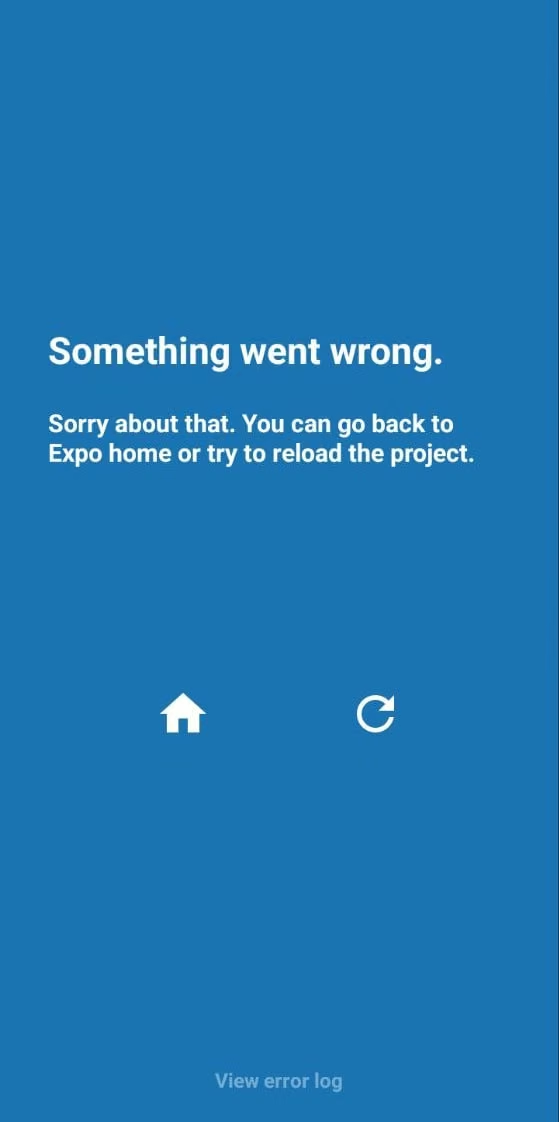
At that point, I’d stop the release process and investigate the phone build before moving to store preparation.
If your Expo project won't open, check these first:
- Check the network: Emergent’s FAQ page recommends confirming that the devices share the same Wi-Fi network when an Expo app won’t load.
- Reload the project: A temporary connection or preview issue can clear after a reload.
- Check your Expo SDK version: Expo Go supports specific SDK versions. The installed Expo Go version needs to match the project.
- Read the error log: The log gives you something specific to fix.
- Use a development build when needed: Expo describes Expo Go as a testing environment. A development build gives the project control over its native dependencies.
If you’re working inside Emergent on the web, Emmy accepts image attachments. You can give the AI chat assistant a screenshot of a confusing screen and ask about it in the context of your project.
Step 9: Check iOS and Android Separately
Shared code saves duplicate work, and each platform still earns its own test pass.
Open the important screens on both platforms. Follow the same actions in the same order.
Test these areas:
- Navigation: Back actions, tabs, modal windows, and links.
- Forms: Open the keyboard and check whether fields stay visible.
- Screen sizes: Try a smaller phone and a larger phone.
- Permissions: Check camera, photos, location, files, and notifications when your app uses them.
- Sharing: Open the native share sheet on each platform.
- Offline use: Turn off your connection if the app should work offline.
- Accessibility: Check larger text, labels, tap targets, and screen-reader behavior.
- Performance: Test longer lists, images, and heavier screens on a slower phone.
Both Flutter and Kotlin Multiplatform provide ways to add platform-specific code when a shared implementation isn't enough. React Native also supports platform-specific files and native integrations.
Apps that handle payments, account permissions, health information, financial records, or other sensitive data need a deeper security review before release. OWASP's Mobile Application Security Verification Standard covers areas such as storage, authentication, network communication, platform interaction, and privacy.
Step 10: Build and Submit Each Store Version
One project can feed both mobile platforms, and each store runs its own release process.
Emergent’s Mobile Agent documentation points you to Expo Application Services (EAS) for the native Android and iOS builds. You download your project first, then EAS builds the packages in the cloud. An iOS EAS build doesn’t require a Mac or Xcode.
For Apple: The Apple Developer Program costs $99 per membership year. Apple organizes its App Review Guidelines into five sections: Safety, Performance, Business, Design, and Legal.
For Google Play: Google charges a one-time $25 registration fee for a developer account. Since August 31, 2026, new apps and updates have had to target Android 16 (API level 36) or higher. Wear OS and Android Automotive apps must target Android 15 (API level 35) or higher, while Android TV and Android XR apps must target Android 14 (API level 34) or higher. Google allows developers to request an extension to November 1, 2026.
Prepare these release items:
- App name
- App description
- App icon
- Store screenshots
- Privacy information
- Content or age rating
- Signed release build
- Test credentials where required
- Store listing
- Final device tests
The store stage deserves its own time in your schedule. A working preview and a store-ready build are two different milestones.
Common Mistakes to Avoid
Most early problems come from scope, testing, or vague instructions.
- Building too much at once: Get one complete flow working first. QuickQuote stayed small enough that I could test the main actions in six minutes.
- Writing a vague first prompt: Name the screens, fields, actions, saved data, and target devices. Specific prompts give the builder fewer gaps to fill on its own.
- Adding new features before testing: Test the first version first. That gives you a baseline when something breaks later.
- Checking only the browser preview: My QuickQuote preview worked. The Android Expo Go attempt failed. A phone test can surface problems the browser never shows.
- Treating shared code as shared QA: Run the same core tests on iOS and Android.
- Using real data during early testing: Fake names and records give you room to experiment without exposing customer information.
- Giving the builder several fixes at once: Report one problem, state what you expected, and test the change before moving to the next issue.
When Should You Choose Native Development Instead?
Cross-platform development fits a wide range of mobile products. Native development deserves a closer look when the operating system or hardware sits at the center of the product.
Consider a native build for:
- Advanced 3D or graphics-heavy apps
- Deep Bluetooth or hardware integrations
- New platform features that your chosen framework hasn't added yet
- Products where every part of the interface follows one platform's design closely
- Heavy background processing tied to platform services
For the kind of app I tested here (a quote calculator with local records and sharing), cross-platform is a practical starting point.
My rule for a first business app is simple: Start cross-platform when both phone platforms need the same core job. Move toward native work when a specific device feature gives you a clear reason.
How Emergent Fits This Cross-Platform Workflow
Emergent gives you a prompt-first route to the process above. Its Mobile Agent uses Expo and React Native for iOS and Android builds from one shared codebase. Emergent’s current documentation lists Flutter, native Kotlin, and native Swift as unsupported in Mobile Agent.
That route matched my QuickQuote test well. I described the product in one prompt, answered three design questions, and had the first preview in 15 minutes.
The 18-credit test also gave me a clearer view of where the work goes. Past the first generated screen, I still had to calculate a known result, save records, edit them, share a quote, and try the app on a phone.
Here’s where Emergent helped in my test:
- Prompt-based building: One plain-English prompt covered the whole first version, including the scope limits.
- Clarifying questions: Mobile Agent asked about color, navigation, and display mode before it finished the build.
- Shared mobile project: One Expo codebase covered both platforms, so I didn’t have to keep two QuickQuote projects in sync.
- Browser preview: I could test the quote workflow before moving to a physical device.
- Phone testing path: The preview provided a QR code and Expo route for mobile testing.
- AI chat help: Emmy can answer project questions, accept screenshots, and help shape a build-ready prompt without using credits.
When you’re ready to try the same process, start with Emergent’s AI app builder.
Final Takeaway: How to Build a Cross-Platform App
The clearest way to learn how to build a cross-platform app is to start with one shared project and one complete user flow. Choose a build route that fits your skills. Write down the screens and data. Build the first version. Then test the same actions on the platforms you plan to support.
My QuickQuote build reached its first preview in 15 minutes. Six more minutes covered the core browser workflow, and the build and browser tests used 18 credits.
The $137.50 test quote passed. Saving, editing, and sharing worked in Emergent’s preview. The Android Expo Go test failed to open.
That last result is part of the process: A useful first version proves the workflow. Real-device testing tells you what still needs work before release.
Most AI app builders stop at prototypes. Emergent creates production-ready apps you can actually launch.
- Production-ready apps
- Web & mobile apps
- Deploy in minutes
Most AI app builders stop at prototypes. Emergent creates production-ready apps you can actually launch.
- Production-ready apps
- Web & mobile apps
- Deploy in minutes