
TL;DR
- Set your day-one scope: Decide what customers need on the page and leave ordering, reservations, and loyalty tools for later.
- Build from one brief: My first Juniper & Smoke version took about seven minutes and used roughly three credits.
- Check the first build: Read every price, opening time, and phone digit before asking for changes.
- Edit in batches: I grouped several related changes into one focused prompt.
- Check the phone version: Review menu prices, hours, the phone link, and button spacing on a smaller screen.
- Run launch checks: My own launch-review prompt and Emergent’s health check each caught an issue before I published.
- Publish and verify: Open the public URL and check the restaurant details one last time.
I gave Emergent one written brief for Juniper & Smoke and had a live restaurant site the same afternoon. If you want to launch a restaurant website in one day, these are the seven steps I followed, including the two issues I caught before publishing.
What You’ll Need Before Starting
I prepared the restaurant information before I opened the builder. So I never had to stop halfway down the page to decide on a price or an opening time.
What I had ready:
- Restaurant name and short description.
- Menu items with prices.
- Opening hours.
- Address and phone number.
- One main call to action.
- A simple color and style direction.
Time required: I blocked out one day for the whole process. The first site took only a few minutes to generate, but I still needed time to review it, make changes, check the mobile version, run the launch checks, and publish.
The same prep works for any site you build with an AI website builder, because content decisions are easier to make before you start changing the design.
If online ordering has to work on day one, our best restaurant website builders guide covers which five handle it and how.
How to Launch a Restaurant Website in One Day: The 7 Steps
Step 1: Decide What Needs to Go Live Today
I started by deciding what Juniper & Smoke needed on its first day online. I kept the site focused on the restaurant name, a short About section, menu and prices, hours, address, phone number, and one button that takes visitors to the menu.
For your own launch, write down the information a customer is most likely to look for before visiting or calling. Write that list first, and you have a clear version-one scope, which makes everything after it easier to check.
I left online ordering, reservations, loyalty features, and other extras for later. The goal for this build was a useful restaurant website that could go live in one day.
Note: Keep your first version small enough that you can read every menu item, click every important button, and check every business detail before publishing.
Step 2: Give Emergent One Clear Restaurant Brief
I used Emergent because its restaurant website builder lets you describe the site in plain English and then refine the result from the same project. How long the build takes depends on the scope. A simple restaurant page can be ready in minutes, while more features and customization push the work into hours.
I front-loaded the first prompt with the content, layout, and visual direction in one go.
The prompt I used:
Build a mobile-friendly website for Juniper & Smoke, a neighborhood restaurant in Austin, Texas, serving modern Texas-inspired food. Use warm, modern colors and a relaxed feel. Include a hero section, About section, menu with prices, opening hours, address, phone number, and a View Menu button. Keep the site simple and don’t add extra sections or advanced features.
Tagline: “Modern Texas cooking, made for long lunches and late dinners.”
Menu: Charred Corn Dip $10, Smoked Tomato Bruschetta $12, Crispy Potatoes $9, Hill Country Chicken $19, Smoked Mushroom Tacos $16, Texas Wagyu Burger $21, House Lemonade $5, Prickly Pear Spritz $7, Cold Brew $5.
Hours: Monday to Thursday 11 AM to 9 PM, Friday to Saturday 11 AM to 10 PM, Sunday 11 AM to 8 PM.
Address: 1204 Juniper Street, Austin, TX 78701.
Phone: (512) 555-0148.
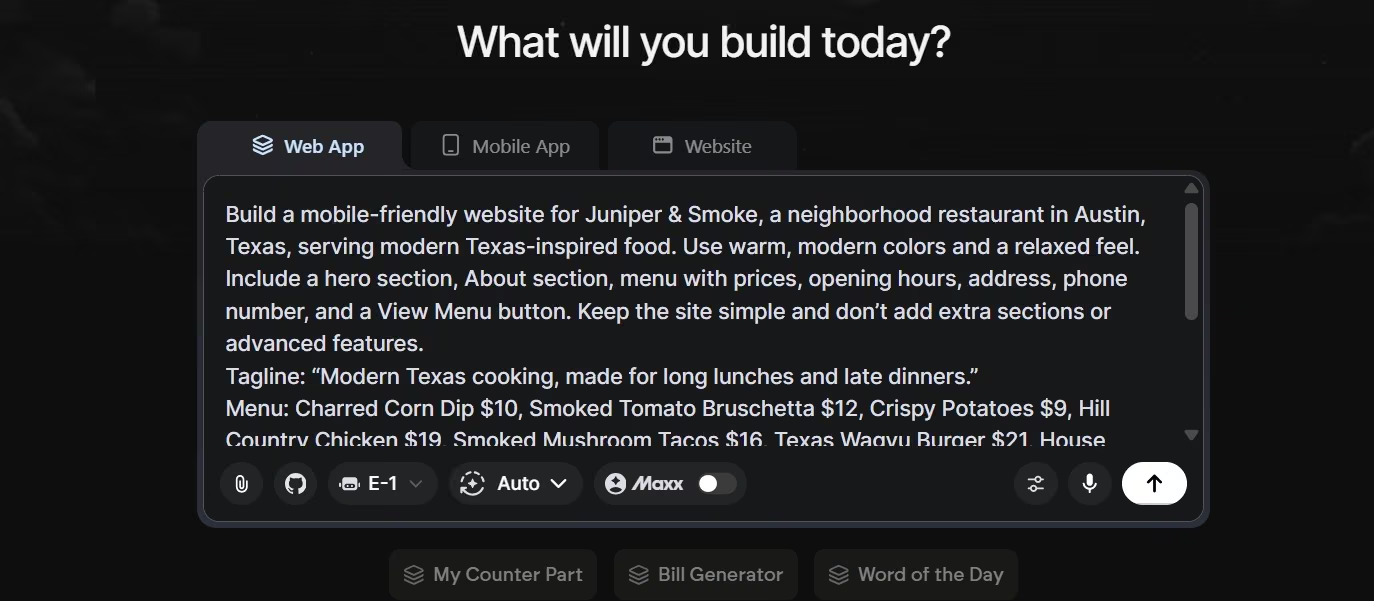
In about seven minutes, I had the first version of Juniper & Smoke on screen. The build used roughly three credits and already included the main sections, restaurant details, and menu prices I had requested.
Note: Juniper & Smoke isn’t a real restaurant. I invented the name, menu, address, and phone number so I could run a complete build without touching a live business.
Step 3: Check the First Version Before You Start Editing
I checked the first version against my original brief before asking for anything new. I read every menu price, checked the hours and phone number, and confirmed each section I’d asked for was actually there.
The first Juniper & Smoke build got those basics right. I also liked the overall visual direction, so I didn’t need to spend the rest of the day rebuilding the design. Emergent also added a contact form I hadn’t asked for. I kept it because it fit the page, but I made a note to test it before launch.
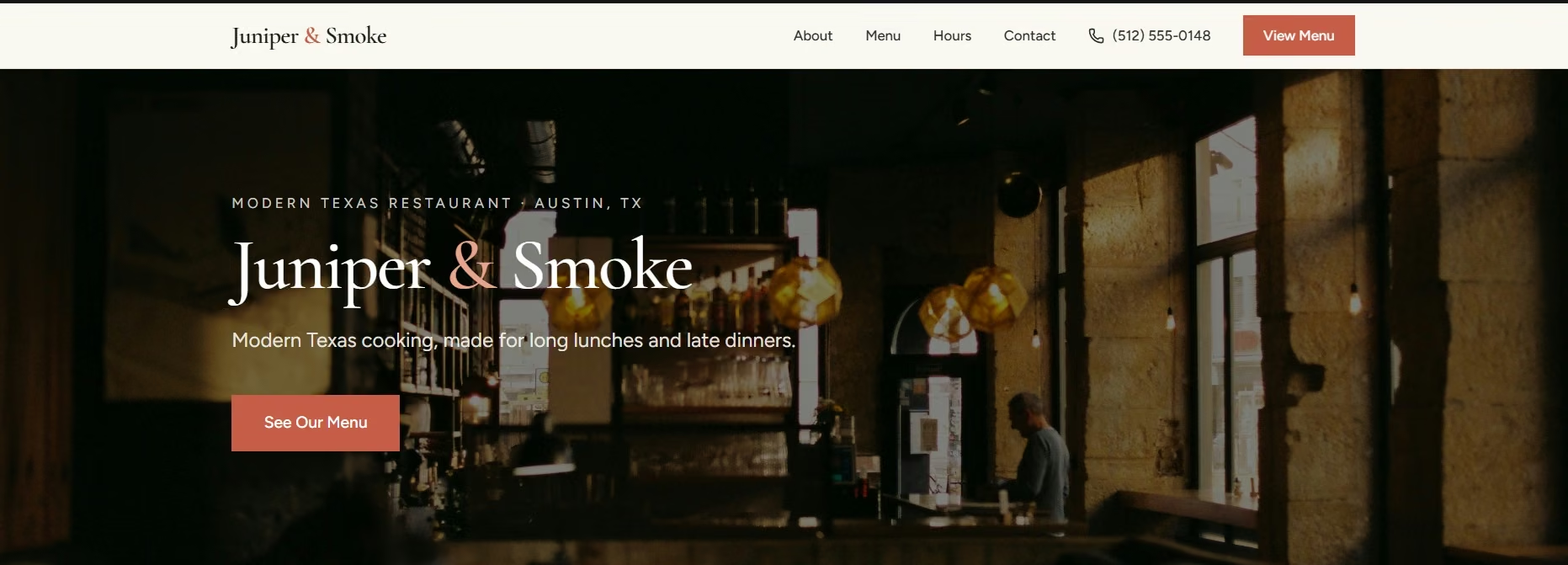
Note: Check facts first. A beautiful page still needs another pass if a price, phone number, or opening time is wrong.
Step 4: Group Small Changes Into One Prompt
Once the main page looked right, I grouped the four small edits into one prompt.
The edit prompt I used:
Change “View Menu” to “See Our Menu.” Move the menu above the About section. Change Smoked Mushroom Tacos from $16 to $17. Add Peach Iced Tea for $5. Keep the current design and style. Don’t add new sections.
Emergent made all four changes without replacing the rest of the layout. The menu moved, the taco price changed, the new drink appeared, and the design stayed consistent.
Batching also made the review easy because I knew exactly which four details should look different.
Step 5: Check the Mobile Version
Before moving toward launch, I reviewed the phone-sized version. I wanted the restaurant name and main button easy to find, menu prices easy to scan, hours readable, the phone number tappable, and enough space between buttons.
I asked Emergent to improve the mobile layout without changing the restaurant content. I then opened the smaller preview myself and checked the page from top to bottom.
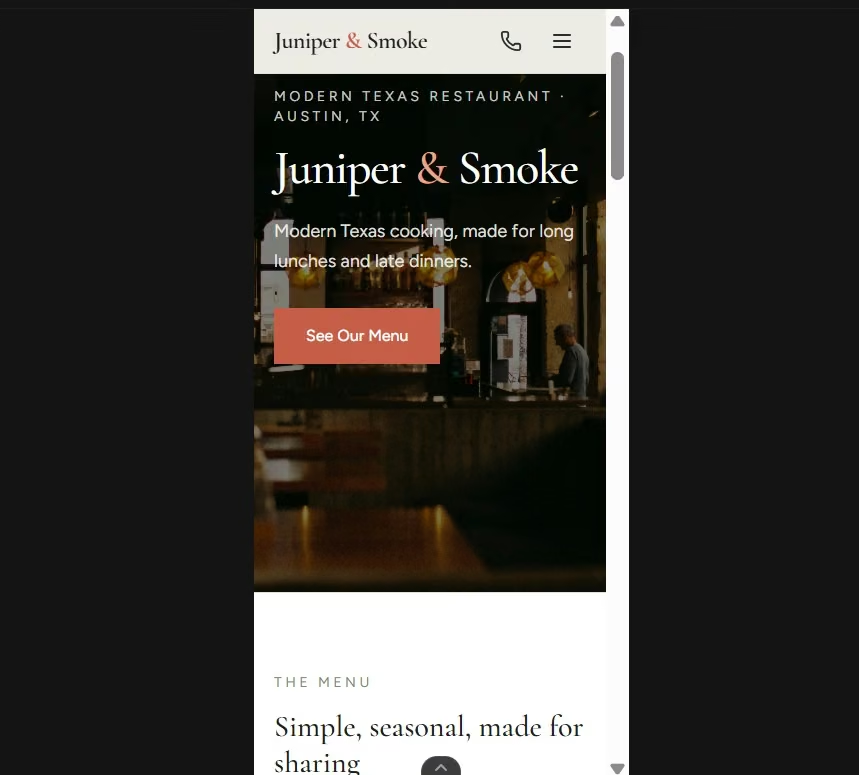
I checked the menu prices, hours block, phone link, and button spacing at phone width, and nothing needed changing. The phone number stayed tappable, the prices were easy to scan, and the page didn’t scroll sideways.
Step 6: Ask for a Launch Review, Then Run the Health Check
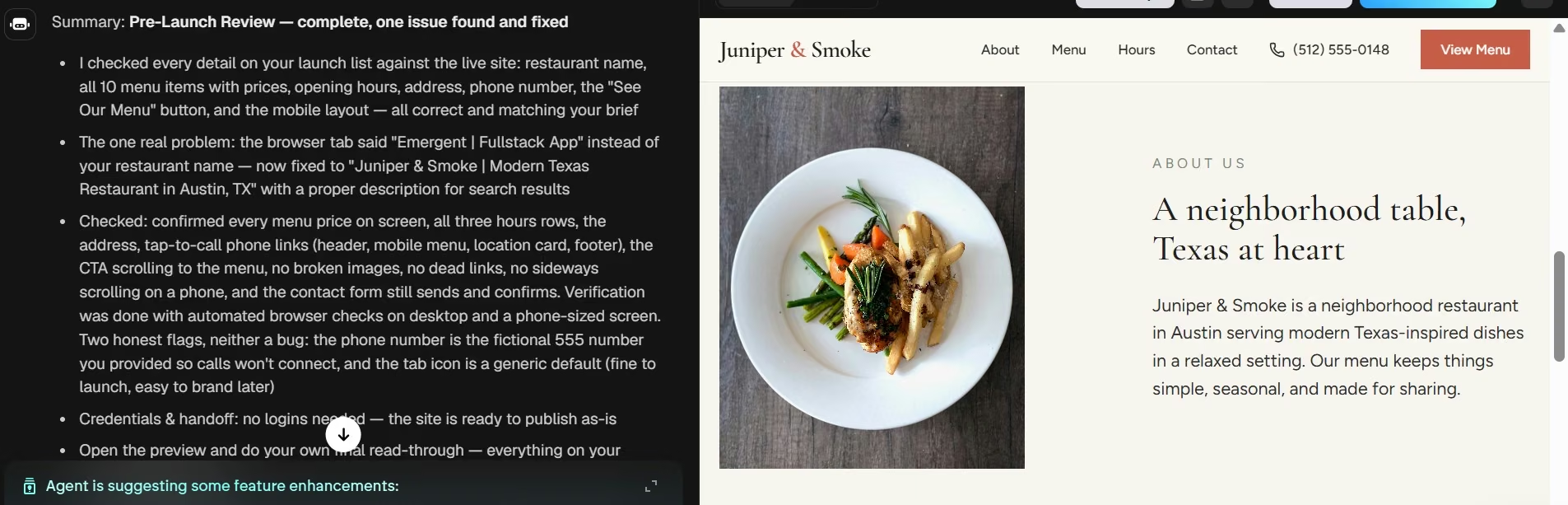
Before publishing, I asked Emergent to review the current Juniper & Smoke site as if it were going live that day. I asked it to check the restaurant name, menu and prices, opening hours, address, phone number, main button, and mobile layout.
My launch-review prompt caught a detail I’d have shipped: the browser tab still read ‘Emergent | Fullstack App.’ Emergent changed it to ‘Juniper & Smoke | Modern Texas Restaurant in Austin, TX’ and wrote a description for search results.
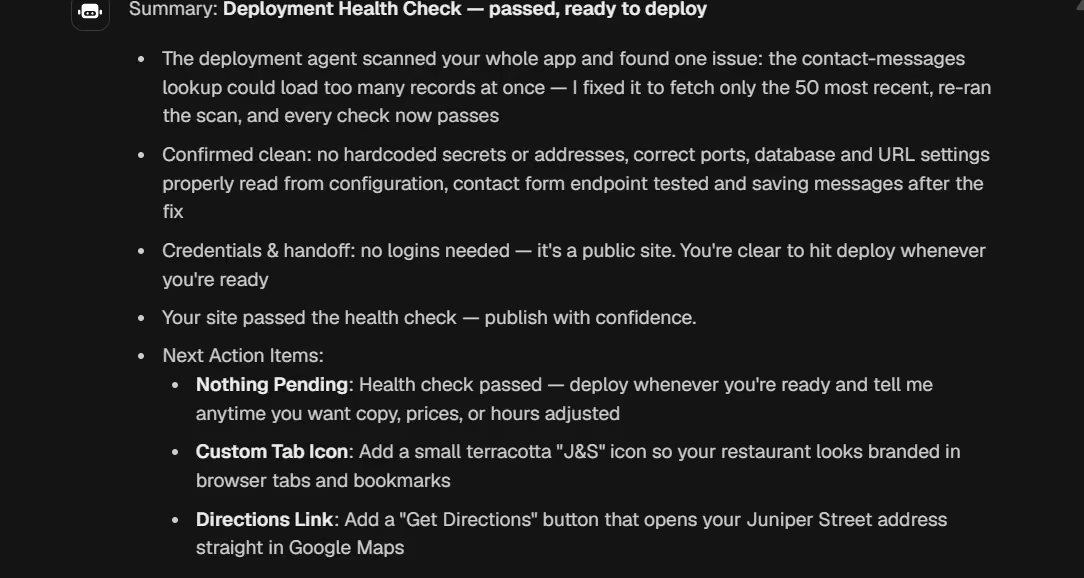
From the Publish panel, I clicked Run Health Check, which gave the site one final check before it went public. The health check also flagged the extra contact form. It was set to pull up to 1,000 saved messages at once. Emergent changed that to the 50 newest messages, ran the check again, and returned ‘passed, ready to deploy.’
If you get stuck around publishing, Emmy is the assistant built into every Emergent project. She already knows your build and can walk you through the sequence in order, from opening Publish to running the health check and starting the launch.
Step 7: Publish the Site and Check the Live Version
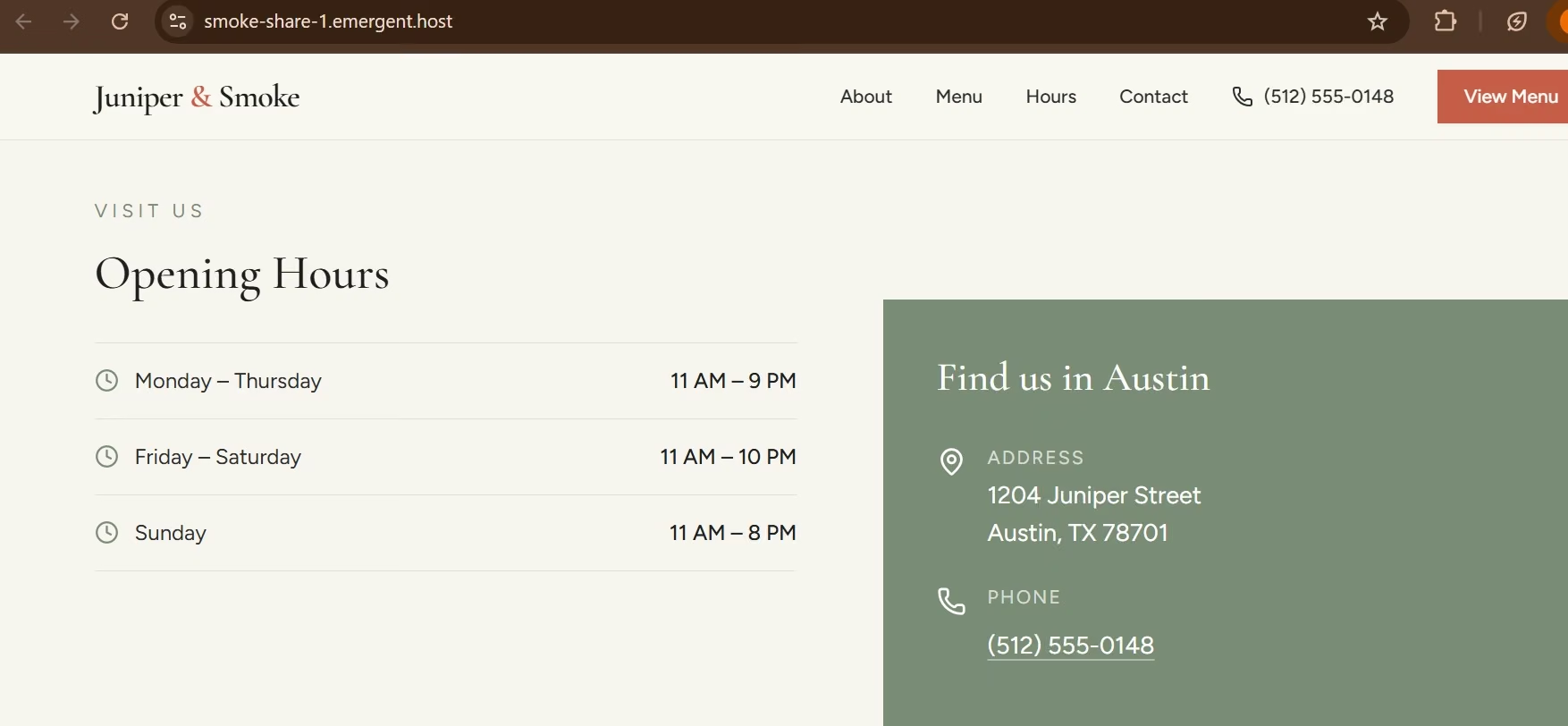
After the health check passed, I clicked Publish in Emergent and opened the live site at smoke-share-1.emergent.host.
Once it was live, I opened the public URL and read the page from top to bottom before I called the job finished. The hours, Austin address, phone number, navigation, and menu button were all visible on the published page.
What This Restaurant Website Cost Me
The first Juniper & Smoke build used about three credits. Emergent’s Free plan is $0/month with 10 monthly credits. Standard costs $20/month ($17/month billed annually), while Pro costs $200/month ($167/month billed annually).
I published from Pro. My Publish panel showed the first launch (making the site live) as free with Pro, and Emergent's Emmy tutorial says keeping your site live afterward costs 50 credits a month. A custom domain is optional, and Emergent’s IONOS option includes the first year free.
Common Mistakes to Avoid
Three small issues came up in my own build:
- Leaving default browser text in place: My page still had Emergent’s default tab title until my launch-review prompt caught it.
- Ignoring an extra section you didn’t request: Emergent added a contact form. I kept it, but the health check later found a problem with how its saved messages were loaded.
- Treating the preview as the finished site: Open the public URL after launch and check what customers can actually see.
Taking Your Restaurant Website Further After Launch
Once the main site is live, you can work through the smaller upgrades you chose to skip on launch day.
For Juniper & Smoke, Emergent suggested a branded browser-tab icon and a Get Directions button. Menu photos would also be an easy next improvement once the basic information is settled.
A simple next prompt:
Add a Get Directions button beside the address. Have it open the restaurant address in Google Maps. Keep the current design and don’t change any other sections.
That turns the section from an idea list into an actionable next step.
For a real restaurant, keep your Google Business Profile consistent with the website too. Google lets restaurant owners manage details such as their address, phone number, business hours, and ordering or booking links from the profile.
If your site needs more than a menu and a booking form, our how to build your own website guide covers the general 10-step build.
Final Takeaway: What Actually Took the Time
If you want to launch a restaurant website in one day, generating the page is the quick part. Most of my time went into checking the restaurant details, testing the phone view, and fixing the small issues that appeared before Juniper & Smoke went public.
I’d use Emergent for the same kind of one-day build because those checks and the final launch stayed in the same project.
Most AI app builders stop at prototypes. Emergent creates production-ready apps you can actually launch.
- Production-ready apps
- Web & mobile apps
- Deploy in minutes