Choosing between Framer and Webflow used to be a design-tool decision. Now both ship an AI builder that turns a prompt into a live site in minutes. So how do these AI builders compare?
To find out, I gave them the same prompt. I briefed a four-page portfolio site for a freelance brand designer, built on each tool's free plan. I logged what got built, how long it took, and what it cost me in credits.
By the end of this article, you'll know which builder gets you a finished, publishable site on a free account, which one hits a wall, and which one is worth paying for depending on what you're building.
Framer vs Webflow: What's the Difference?
The short version: the difference is what each tool hands you for free. Framer builds and publishes your whole site on a free plan.
Webflow gives you the more powerful platform, but its free tier stops at two pages. Framer is a design-first builder with an agent that plans, builds, and reviews its own work before showing you the result. Webflow is a professional web design platform with a deep CMS, now fronted by an AI builder that generates a polished first draft in minutes.
How I Tested Framer and Webflow
I built the site in both tools, using the exact same prompt:
"Build a 4-page portfolio site for a freelance brand designer: a home page with a hero and a grid of featured projects, a Projects collection with individual project pages, an about page, and a contact page with a form. Modern, minimal, lots of whitespace."
Choosing a freelance portfolio was intentional. It's a common use case for these tools, and it forces both a design test and a CMS test into one build. The homepage has to look good enough to win work, and the Projects collection has to generate individual case study pages from a single template rather than four hand-placed pages.
I built both sites on free accounts, with no templates and no starter content. I used Framer’s personal workspace and Webflow’s Starter site plan. I let each tool's AI build until the end, then judged it on what each produced against the brief. I logged what happened along the way.
Meet Framer: What It's Like to Build With
Before Framer started building, it stopped to ask me a question: should it build the repeated portfolio elements as reusable systems, or as one-off layers?
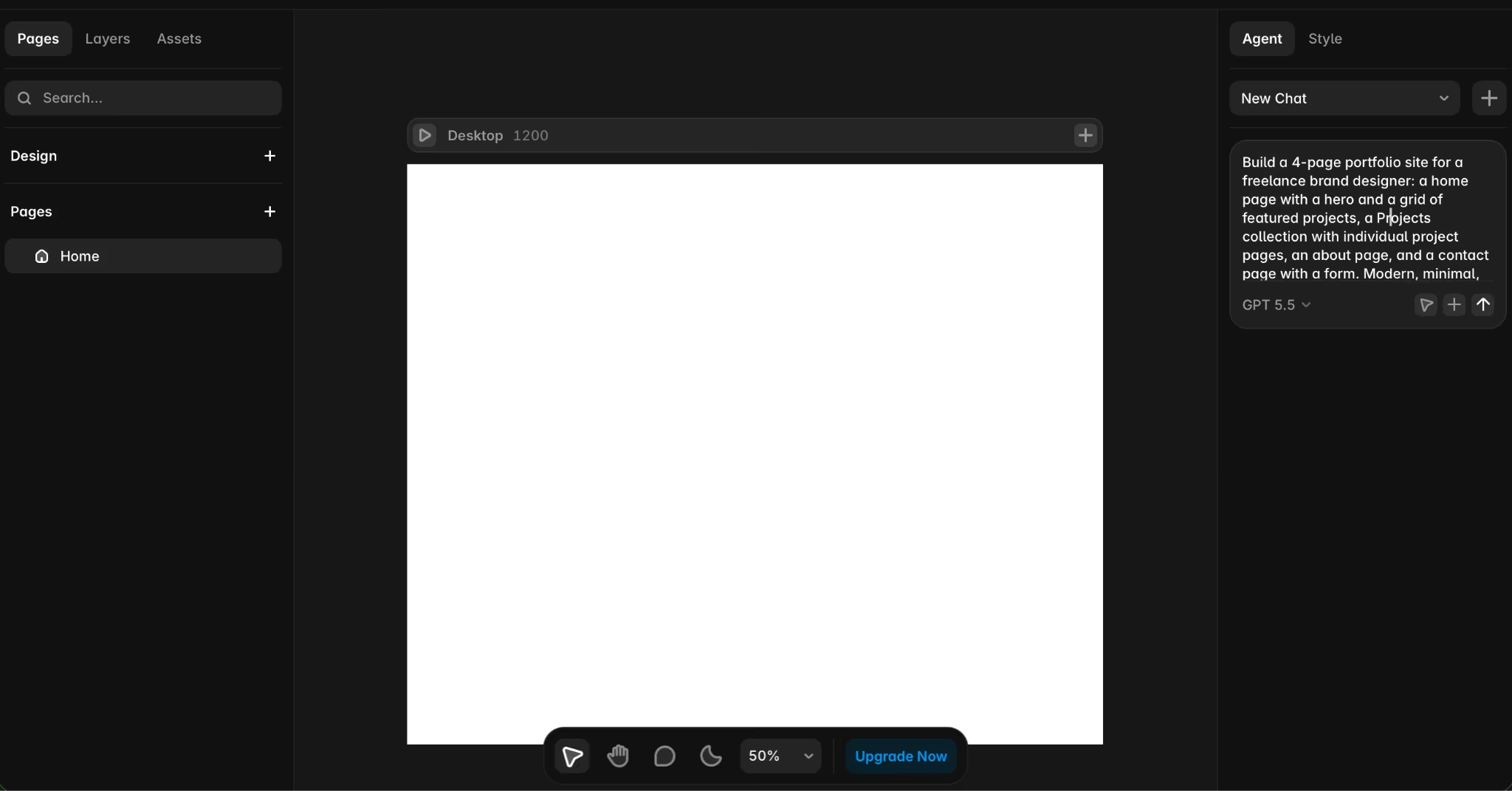
I picked reusable systems, and from there it showed me a running commentary of everything it did. It set up shared styles and components, then the Projects CMS collection, and then composed the pages against it.
Then it started correcting itself. It flagged a button icon setup before moving on. It also fixed the menu so every link pointed at a real page, then swapped in a proper submit button so the contact form would actually send.
Near the end, it took its own screenshots, ran a visual check, and caught three things I hadn't spotted: project previews rendering as image slots when they should have been color fields, a footer crossing the banner on the case study page, and a layout break on the contact page.
Eight minutes in and I had the full spec: a homepage with a proper hero and a three-up featured grid, a Projects collection with sample case studies, individual project detail pages, an about page, and a contact form.
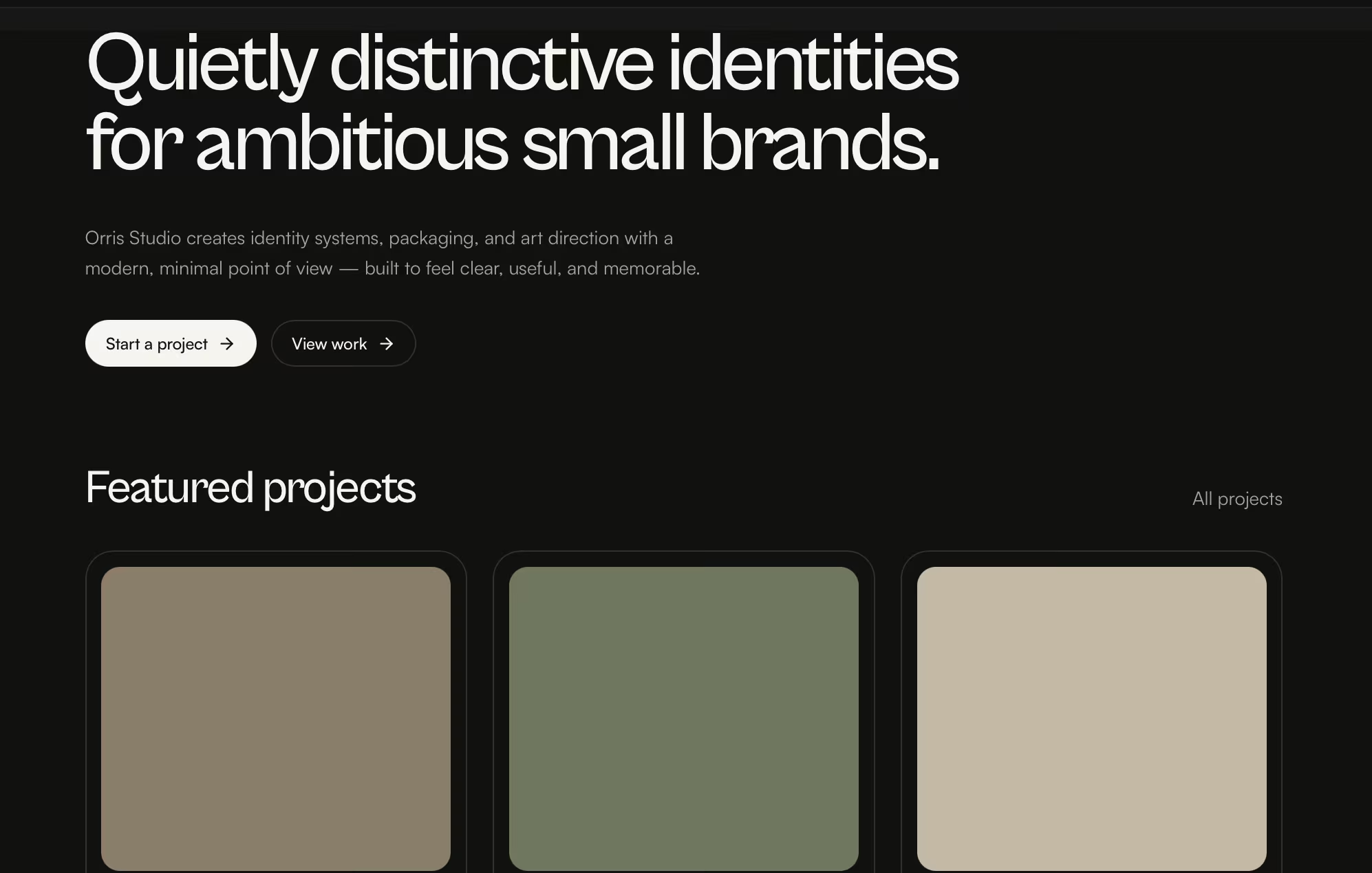
Then it ran out of credits. I asked it to swap my own name out for a studio name, but I had to wait until the credits reset. The free plan gives you 500 a day, and this build used them all.
Here's my take: Framer's agent is doing more than autocomplete with a nice loading screen, and the self-review pass is the closest thing to a second pair of eyes I've seen in a builder. But that 500-a-day allowance maxes out at 1,000 a month, so in practice it's closer to two builds a month than one a day. Treat it as a monthly budget rather than a daily sandbox. If you want to iterate fast, you’ll need to pay.
Key Features
- Agentic build with clarifying questions: It asks how you want the site structured before it commits, then narrates each step as it builds.
- CMS collections that auto-generate a page per entry: The Projects collection and its individual case study pages are generated and bound automatically.
- Self-review visual pass: The agent screenshots its own output, spots rendering and layout faults, and fixes them without being asked.
Pros and Cons
Pros
- It covers the whole brief: All four pages, the collection, the detail pages, and an active form.
- The output is reusable: Shared colors and text styles.
Cons
- 500 daily credits go fast: One four-page build exhausted the free allowance. I had to wait for the reset before asking it to change the name of the website.
- Desktop-only on the first build: Tablet and phone breakpoints are a follow-up job rather than something it handles upfront.
Meet Webflow: What It's Like to Build With
I gave Webflow the identical brief. The AI builder page shows a "Start fast. Build right." prompt box that's separate from the blank Designer you’re shown if you access a site from the dashboard.
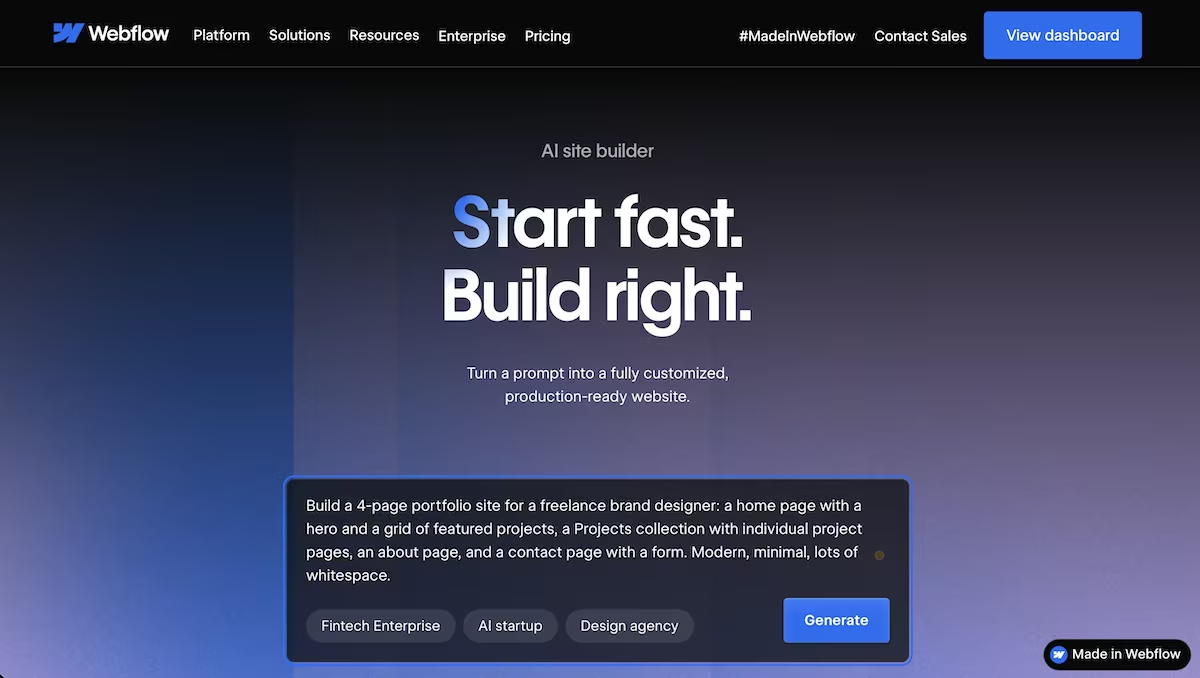
Before it built, it showed me a structure preview: Home, Projects, About, and Contact, each broken into labeled sections like hero, feature list, gallery, testimonial, contact form, and footer. Seeing the skeleton and being able to cut sections before committing was reassuring.
Next, it showed me a banner, which said that the Starter plan includes only two pages, and the next screen made me choose which two of the four to keep. It warned me that everything I unchecked would be permanently removed, which I wasn’t too happy about.
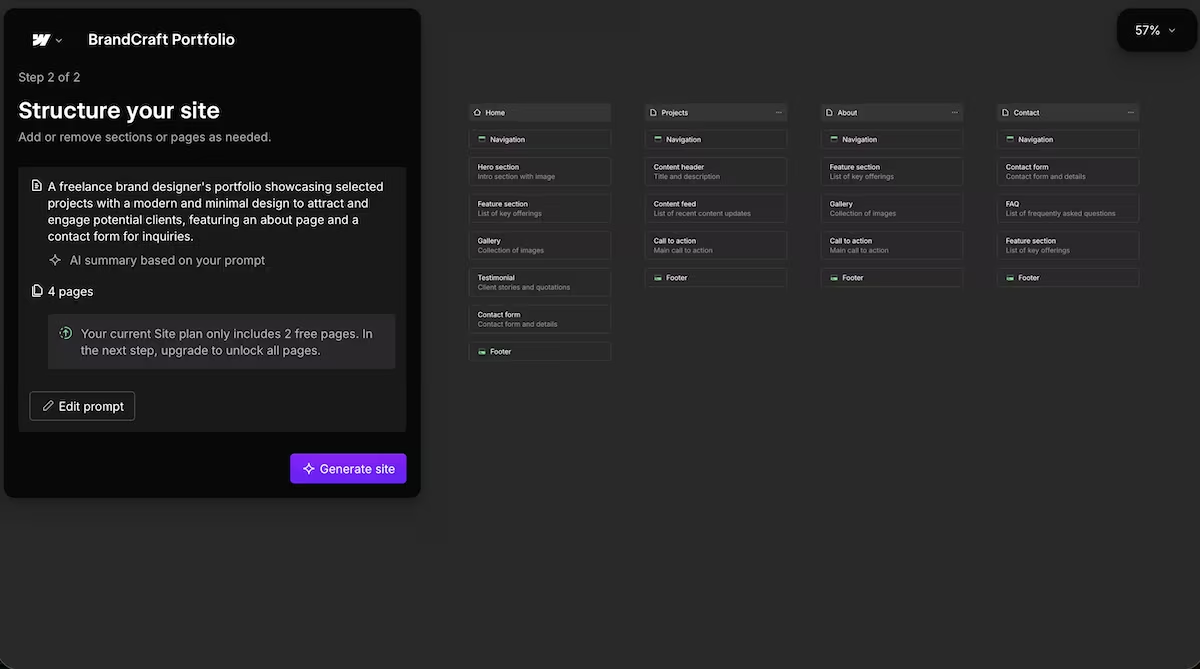
I kept Home and About and lost the CMS-driven project pages before the site even rendered. Framer had already built all of those pages.
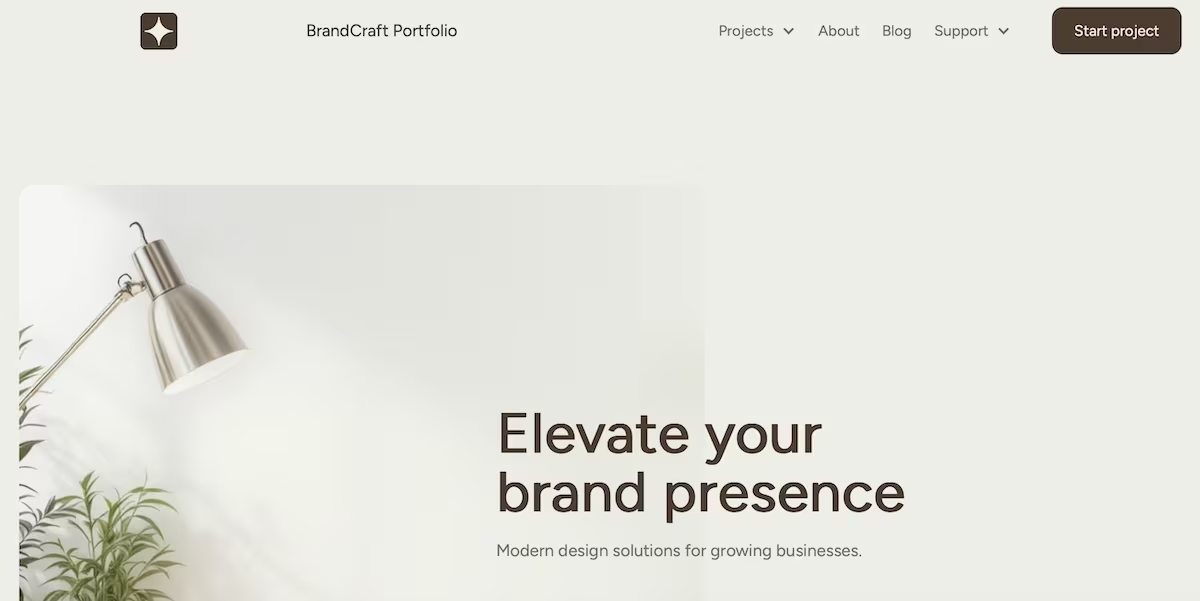
The generated navigation still lists Projects, along with a Blog and a Support dropdown that weren’t even in my brief. So the finished free site has a menu pointing at non-existent pages. Trimming might be a two-minute job, but it's a reminder that the builder plans for the site you asked for, then ships a smaller one.
What it did render, it rendered well. Four minutes from prompt to a finished, previewable site: a clean hero ("Elevate your brand presence"), coherent type, real whitespace, and stock imagery already integrated.
From there, it takes you to the Designer with the AI Assistant docked on the right, offering to create sections, rewrite copy, or build a CMS collection. A Get started checklist tracks what's left, two of six done at that point.
So the AI doesn't stop when the site is done. It just moves from building to editing, which is a different approach from Framer's, where the agent finishes the job and asks you what's next.
Here's my take: Webflow's builder is fast and the pre-build preview is a helpful feature, letting you see the whole structure before committing. However, the two-page Starter ceiling means a four-page portfolio won't fit on the free plan. So you have to choose which half of your site to keep before it even renders.
As a way to draft and then edit in the Designer, Webflow is strong. As a free way to ship a small site, Framer leaves you with more.
Key Features
- Prompt-to-site generation: One brief produces a multi-page site with structured sections in minutes.
- Editable structure preview: The pre-build step shows you every page and section so you can trim before generating.
- Full Designer hand-off: The generated site triggers Webflow's Designer, with the AI Assistant ready for follow-up edits.
Pros and Cons
Pros
- Speed to a polished draft: Four minutes to a coherent, on-brand-looking homepage with imagery and copy all done.
- Shows you the page cap before it builds: You pick which pages you want to keep instead of Webflow choosing on your behalf and you finding out later.
Cons
- A two-page free ceiling limits the use case: Having to cut a freelancer’s portfolio's project pages is a serious limitation.
- The AI builder is easy to miss: Accessing the site from the homepage shows you the blank Designer with no prompt option, so you have to find the AI site builder’s URL before you can generate anything.
Also read our best Webflow alternatives guide for what else is worth trying when the two-page free ceiling and Designer complexity become a barrier.
Framer vs Webflow: At a Glance
Framer vs Webflow: Feature-by-Feature Comparison
The AI Build Experience
The two builders behave completely differently, even when given the exact same brief.
Framer treats the build as a conversation. It asked how I wanted repeated elements structured before committing, narrated each step, and performed a self-review at the end that found faults I hadn't noticed.
Webflow treats the build as a generation. It showed me the planned structure, made me cut it down to fit the plan, then produced the site in one go with no back-and-forth.
Winner: Framer. It asked a question before it built, checked its own work, and followed the brief exactly.
CMS and Dynamic Pages
This is where the free tiers separate.
Framer built the Projects collection, populated it with sample case studies, and generated the individual detail pages from a single template, all inside the free build.
Webflow has the more capable CMS of the two, but the Starter plan's two-page cap meant the Projects collection was the first thing I had to cut.
Winner: Webflow on capability, Framer on access. On the free plan, there's no contest.
Speed to First Draft
Webflow went from a prompt to a finished homepage in around four minutes.
Framer took roughly eight minutes, spending that time asking questions, building systems, and self-reviewing.
Winner: Webflow. It's twice as fast to build a homepage, although it builds half the number of pages.
Free Plan Limits
Framer restricts you to 500 AI credits per day on its free plan. My four-page build exhausted them.
Webflow caps you at two pages on its Starter plan, the same forced cut covered above.
Winner: Framer. A daily allowance can cause a delay, but it gives you a finished site with no two-page limit.
Responsive Design
Framer shipped a desktop-only site for the initial build, before offering to add tablet and phone breakpoints as a follow-up.
Webflow generated the site in the Designer with its full breakpoint system available, although having to cut two pages made that less impactful.
Winner: Tie. Neither tool generated a responsive site from the first prompt.
Animations & Interactivity
Animations weren't part of my portfolio build, so here I'm going on what each tool offers rather than what I saw. Framer keeps animations built in: drag a hover, tap, or scroll trigger onto an element and it's live, no setup.
Webflow uses a keyframe-based Interactions system that gives more granular control over multi-step, timed sequences at the cost of more setup time for anything complex.
Winner: Framer, for expressive motion with minimal setup. Webflow, for precise, multi-step choreography if you don't mind the extra configuration.
SEO Controls
I didn't put either tool's SEO settings through the build, so this round is on paper. Framer covers the fundamentals through its built-in SEO tools: editable metadata, clean page hierarchy, and publishing controls.
Webflow goes further: it manages your sitemap and metadata for you and can send visitors from an old page to a new one without breaking links (a 301 redirect).
Winner: Webflow, for sites that will scale and need redirect/sitemap control built in.
Code Export & Portability
Exporting code wasn't something my build needed, but here's how the two differ. Framer keeps your site inside its own platform. There's no way to export the underlying code and host it elsewhere.
Webflow generates clean HTML, CSS, and JS you can inspect and export, and paid plans can bring custom React components into the canvas via Webflow Code Components.
Winner: Webflow, if keeping the option to self-host or hand off to a dev team matters to you.
Collaboration & Permissions
Team collaboration was outside my solo test, so I'm relying on documented features here. Framer supports real-time multiplayer editing, comments, and branching for exploring changes without touching the live project.
Webflow adds controls over who on your team can edit what, a safe place to preview changes before they go live, and sign-off steps before anything publishes, on top of the same real-time editing, plus SOC 2 Type II and ISO 27001 certification for teams with compliance requirements.
Winner: Webflow, for teams that need permission tiers and audited compliance. Framer is plenty for a small team working directly on one project.
What Real Users Are Saying
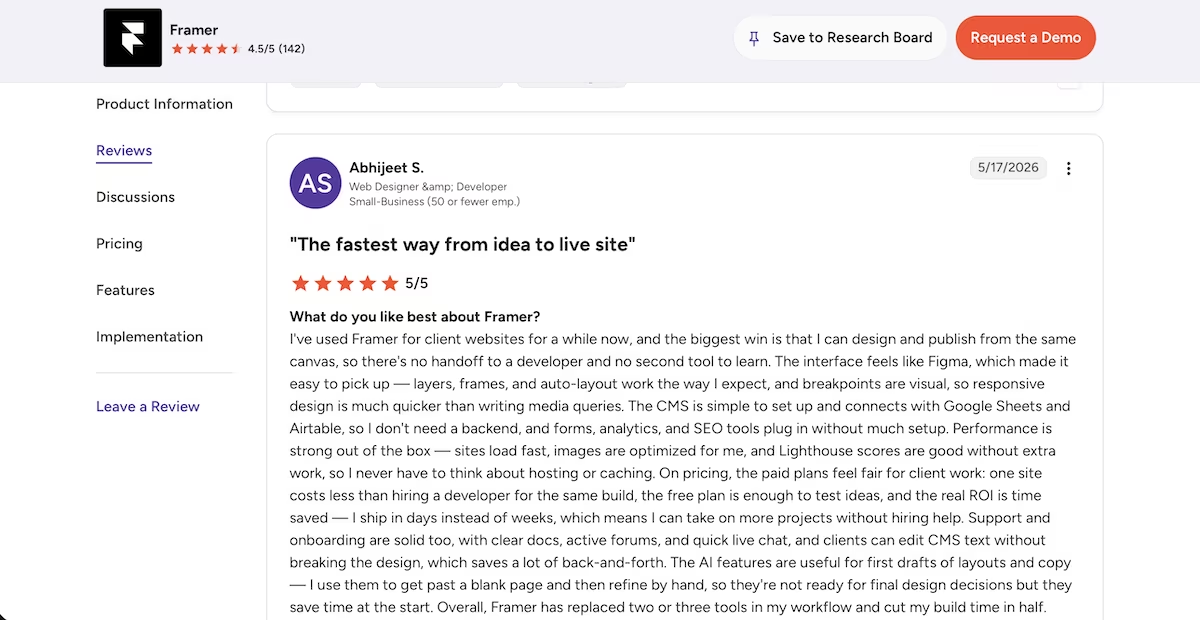
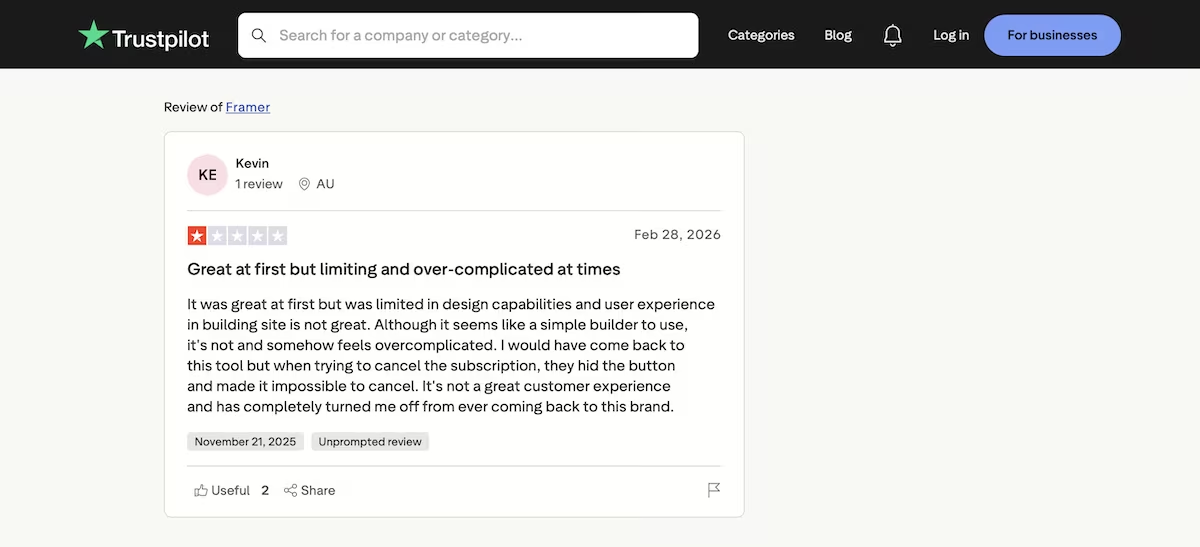
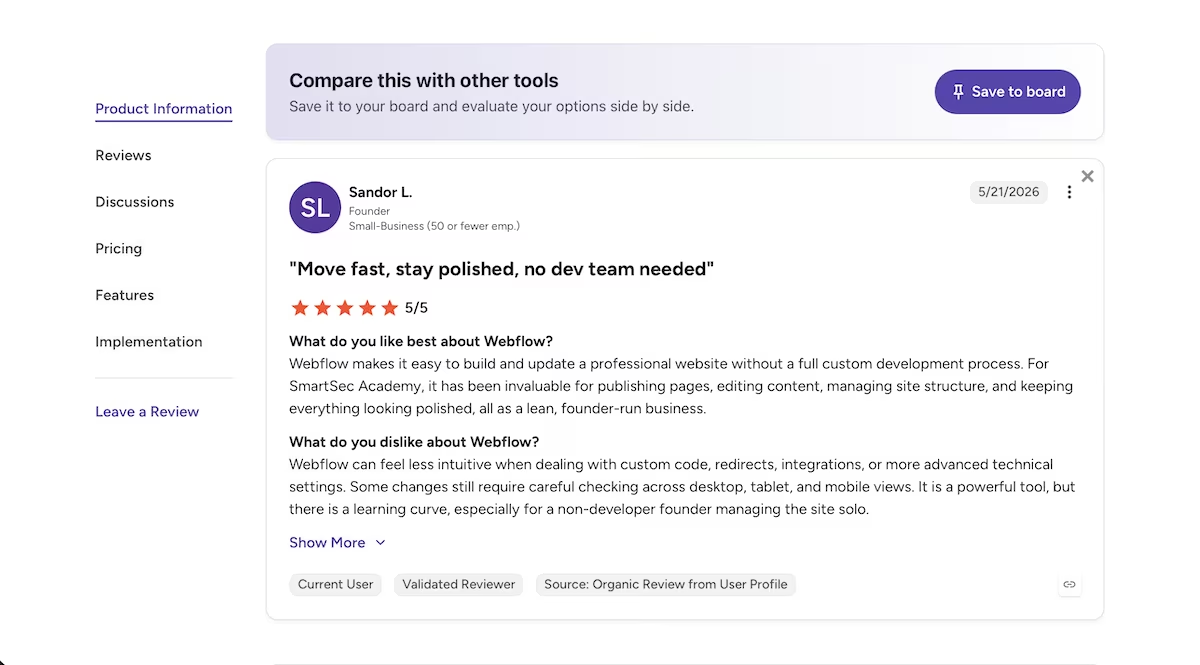
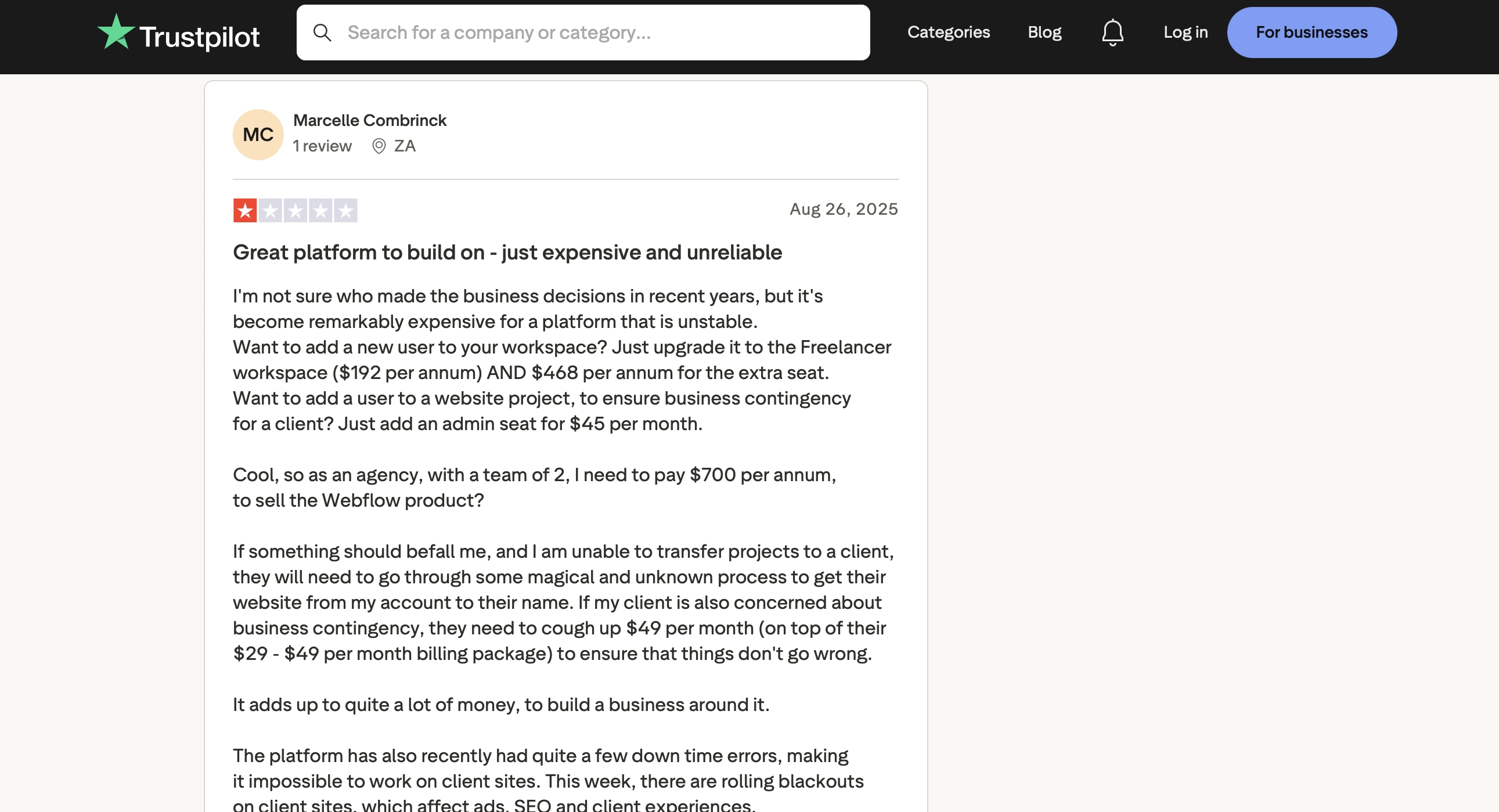
As my testing covered just one build with each tool, I looked online for what other Framer and Webflow users experienced. Here’s a small sample of what came up on G2 and Trustpilot.
Framer
"The fastest way from idea to live site" Abhijeet S. G2
“Great at first but limiting and over-complicated at times” Kevin (Trustpilot)
Webflow
“Move fast, stay polished, no dev team needed" Sandor L. G2
“Great platform to build on - just expensive and unreliable”, Marcelle Combrinck (Trustpilot)
Also read our Webflow Review for a closer look at what users actually ran into beyond the headline ratings.
Who Each Tool Is Actually For
If you're building a portfolio or a small marketing site and you want it live without paying, Framer wins based on what it delivers for free. If you're building something with real content volume, Webflow's CMS and hosting are the stronger foundation, although you're paying from the start.
Framer is Better For:
- Freelancers and designers who need a complete site up and running today
- Anyone who wants CMS-driven pages without upgrading
- People who prefer a builder that tells you what it’s doing while it works
Webflow is Better For:
- Teams building content-heavy sites that will grow
- Anyone who wants the deepest CMS and hosting of the two
- Projects with a budget for a site plan from day one
My Verdict
Framer wins this one, but only on the terms I tested. Given the same brief and the same free account, it gave me every page in the spec, including the CMS collection. It even found (and fixed) its own mistakes before finishing. Webflow gave me a better-looking first draft faster, then made me delete half the site to keep it.
Neither of these is the right tool if you're vibe coding an app rather than a site. They're great for portfolios, marketing pages, and content sites. If you need logins, payments, and data behind the interface, that's a different category of tool.
Emergent is an AI app builder that uses specialized agents to handle design, integrations, testing, and deployment. It also connects to services like Stripe when you need to take money, and you can even build straight from Claude or ChatGPT through the Emergent MCP connector.
Try Framer and Webflow for Free
If you're building a portfolio or a small site, start with Framer's free plan and see how far 500 daily credits gets you. If you know you're building something bigger, consider a Webflow Site plan before you start rather than having to lose half of your pages.
And if what you're describing is closer to an app than a website, start building for free with Emergent instead.

Most AI app builders stop at prototypes. Emergent creates production-ready apps you can actually launch.
- Production-ready apps
- Web & mobile apps
- Deploy in minutes