TL;DR
- My verdict: OpenClaw made more sense to me once I got through setup, but my fresh Windows retest showed how much friction sits between “installed” and “ready to use.” I’d recommend it if you have recurring jobs for an assistant and don’t mind troubleshooting. It isn’t my first pick if you want a simple AI assistant that works straight away.
- Fresh Windows test: Installation took me about 8 to 10 minutes. I reached the Control UI and connected OpenAI, but my first live memory task returned an authentication error after about 25 seconds. Even after I completed the OpenAI sign-in, the agent still failed before producing a reply.
- What I liked from earlier use: I used OpenClaw for coding help, lists, reminders, short briefs, and calendar organization. When it worked, it felt closer to handing off a task than asking a chatbot for another answer.
- Biggest drawback: The first few minutes can scare off the exact person who wants a simple AI assistant. You have to get through installation, a local service, and model setup before the useful part begins.
OpenClaw sounds like the AI assistant people have been asking for. Give it work, let it remember things, and come back later without starting from zero every time.
Then you install it.
On Windows, I watched the installer pull in Node.js, add Git, install OpenClaw, prepare its local service, and eventually ask me which AI model I wanted to use. Nothing broke. Still, if black terminal windows make you nervous, it isn’t the warmest welcome.
I’d used OpenClaw before, so I already knew there was something useful on the other side. Once setup was behind me, the appeal came back quickly. I could use it for coding help, reminders, old lists, short briefs, and planning work.
Most OpenClaw reviews seem to land on one side of the same split. Either the setup is too much, or the assistant is worth the trouble.
My experience landed between those two. I got through the Windows installation, reached the Control UI, and connected OpenAI. When I tried a fresh task for this review, though, the agent still failed before producing a reply.
That gap between getting OpenClaw installed and getting it ready to do useful work became the real focus of this review.
How I Tested OpenClaw
I tested OpenClaw on Windows and used OpenAI/ChatGPT as my model provider.
For this review, I also repeated the Windows setup so I could see the installation process again rather than writing from an old memory of it. My fresh install took about 8 to 10 minutes.
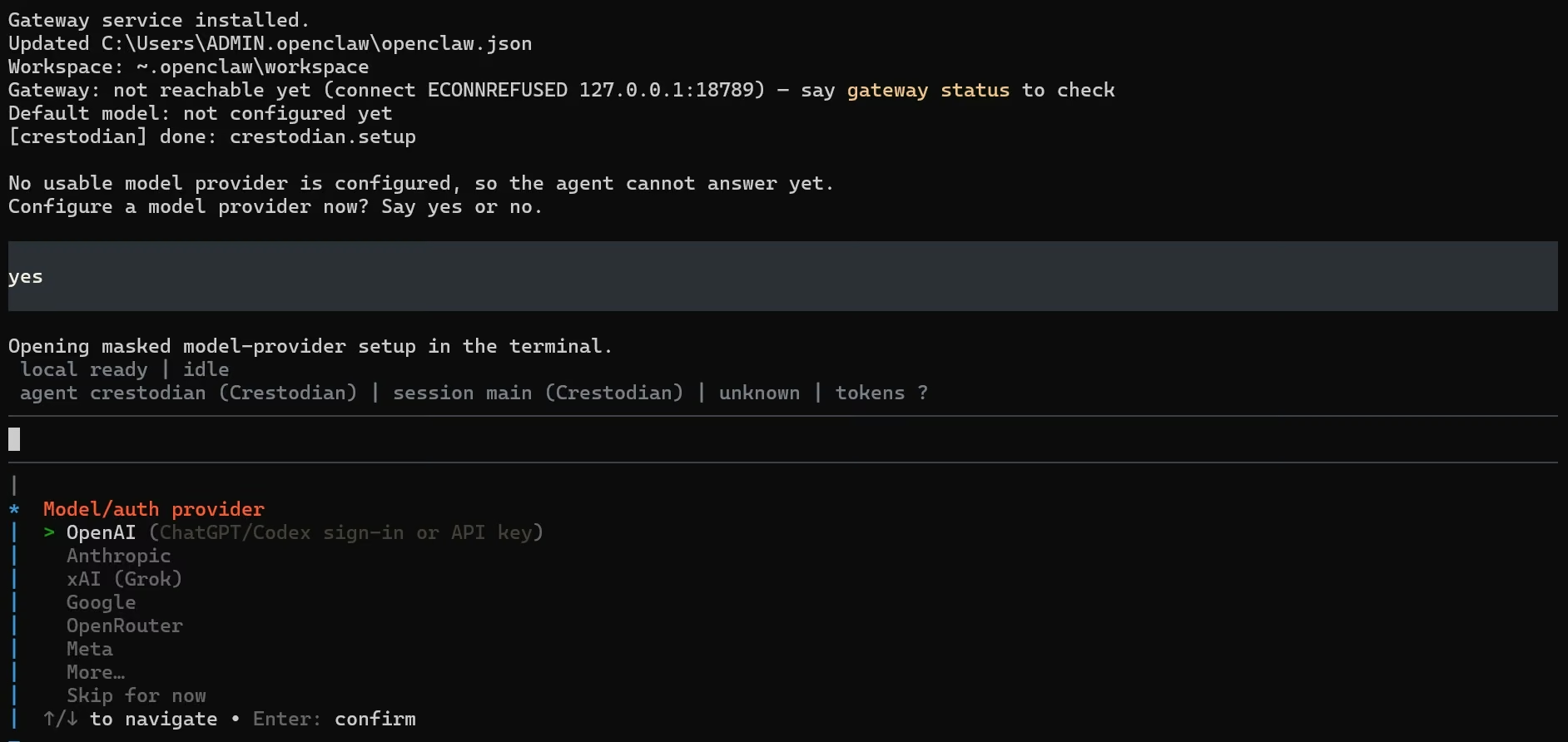
The installer detected that Node.js wasn’t on the laptop and installed it. It then added Git, installed OpenClaw, created the local workspace, prepared the background service, and moved me to model setup.
There was a point where the installer sat on “Installing OpenClaw” long enough for me to wonder whether anything was still happening. It was. That little moment sums up my biggest problem with the setup. It works, but a non-technical person doesn’t always know whether they should wait, click something, or start worrying.
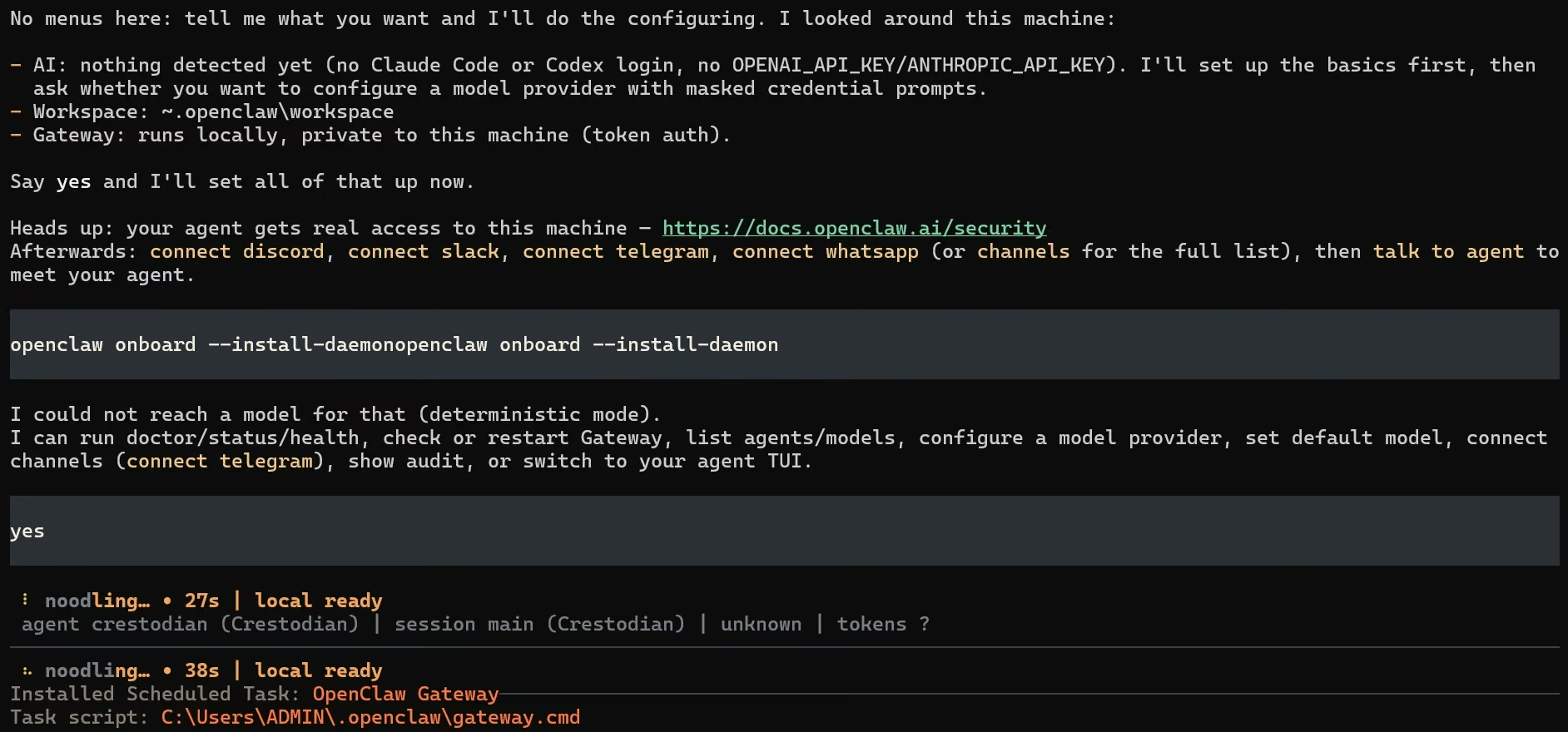
Once I reached model setup, I chose OpenAI/ChatGPT. The provider screen also gave me several other options, so I wasn’t locked into a single AI company.
I also wanted one fresh task in this review instead of relying only on what I remembered from earlier use. I gave OpenClaw this prompt:
“Remember this for my review test. The Q3 landing page brief is due Thursday. Sam is reviewing it. The target length is 1,200 words. Reply only with ‘Saved.’”
It didn’t save it. After about 25 seconds, my first attempt returned an OpenAI authentication error instead of an answer.
I went back into Command Prompt, completed OpenAI OAuth, and OpenClaw confirmed that an OpenAI model had been set as the default. I returned to the Control UI and tried again. The agent still failed before producing a reply.
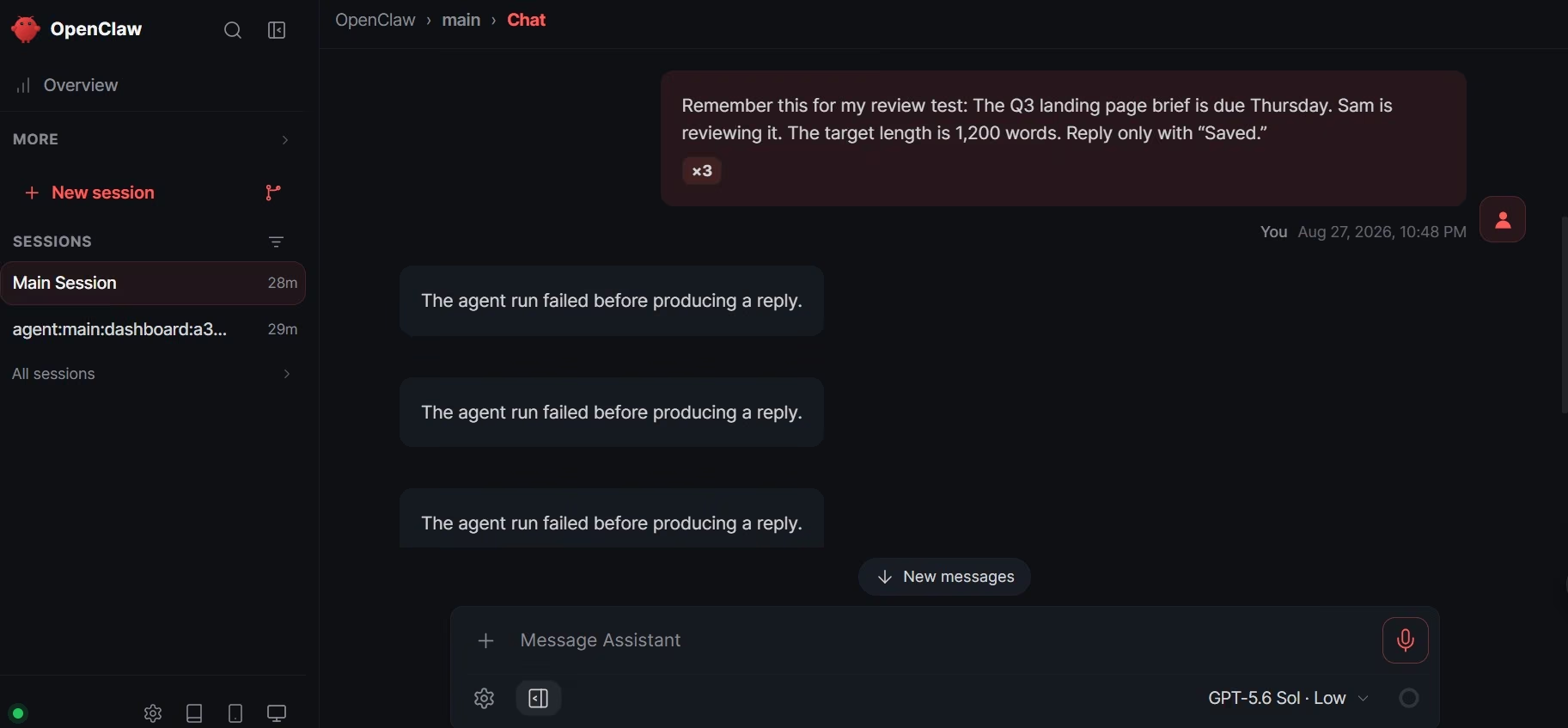
So I couldn’t complete the memory recall test during this fresh run. That’s also useful information. I’d made it through installation and reached the chat interface, but I still wasn’t at the point where I could simply give the assistant a task and move on.
My earlier use went beyond installation. I used OpenClaw for coding-related work, keeping and recalling lists, reminders, short briefs, and calendar organization. It did what I asked without a major failure.
I don’t have every old prompt saved, so I’m not going to recreate quotes from memory. I’m sticking to the tasks I actually remember using.
What Is OpenClaw?
OpenClaw is a self-hosted personal AI assistant. In plain English, part of it runs on your computer or server instead of living entirely inside someone else’s website.
At the center is something OpenClaw calls the Gateway. Think of the Gateway as the background service keeping your assistant connected to its model, memory, tools, sessions, and any messaging apps you choose to add.
OpenClaw’s own documentation describes it as a tool aimed at developers and power users who want more control over how their assistant runs.
That local setup is a big part of how OpenClaw works. It also explains why the product feels different from opening ChatGPT and typing a question.
The useful part is action. OpenClaw can remember information, work with tools, run scheduled jobs, and stay available through connected chat services. You decide how much access it gets.
OpenClaw’s Main Features
OpenClaw became easier for me to judge once I stopped looking at the long list of things it can technically do and focused on one question. Does this save me from doing work myself?
For a few parts of the product, the answer is yes.
Setup and Day-to-Day Control
When I installed OpenClaw, the setup felt more technical than the work I eventually wanted it to do.
I started in Windows PowerShell.
I’d also seen OpenClaw reviews make Docker sound like part of the setup, but it wasn’t part of the Windows path I used. I installed through PowerShell, and the installer handled Node.js and Git for me. That’s better than being sent away to find each dependency yourself.
Still, you see plenty happening on screen. There are installation messages, paths, services, status updates, and model choices. None of mine failed, but I can picture someone who simply wants “an AI assistant” giving up halfway through.
The stable 2026.7.1 release shipped on July 13, 2026, with major changes to onboarding and the Control UI. The team has clearly been working on making that first setup less awkward.
Chat Access Across the Tools You Already Use
With OpenClaw, you can connect the same assistant to messaging channels such as WhatsApp, Telegram, Slack, Signal, Discord, and others. Its Gateway keeps those connections tied back to the same assistant.
I kept my own setup simple. I didn’t spend the test wiring every possible messaging channel.
That’s the approach I’d recommend to you too. Get one setup working first. Add another service when you have a reason for it.
The attraction is easy to understand. If your assistant can live somewhere you already check all day, you don’t have to remember to open another dashboard before asking it to do something.
If your assistant can live somewhere you already check all day, you don’t have to remember to open another dashboard before asking it to do something.
Memory and Ongoing Context
The memory side of OpenClaw was one of the parts I found easiest to appreciate.
During my earlier use, I could leave it lists or short briefs and later return to that information when I needed a reminder. I also used it for the sort of planning I’d normally scatter between notes, a calendar, and whichever app I happened to have open.
OpenClaw stores memory in files inside your agent workspace. Its current memory system separates stable preferences, longer-term information, and dated notes rather than relying on some invisible memory sitting behind the chat.
For a non-tech reader, the useful part is simpler. You spend less time repeating yourself.
I wouldn’t use it as the only place I store something I absolutely cannot afford to lose. For normal reminders, lists, and ongoing context, though, I understood the appeal quickly.
Scheduled and Background Work
OpenClaw can also handle work that needs to happen later.
That fits the way I used it for reminders and organization. Instead of treating every interaction like a fresh chat, you can set up work that belongs to a future time.
OpenClaw’s built-in scheduler can save a job, wake the agent at the right time, and send the result to a chat channel or webhook. OpenClaw has to stay running for scheduled jobs to fire.
I didn’t build some huge business automation during my test. I used this much more like a personal assistant.
That’s probably where I’d start again. A reminder, a daily brief, a recurring check, or a simple planning task gives you a reason to keep OpenClaw running without handing it half your digital life on day one.
Skills and Model Choice
OpenClaw gives you a fair amount of freedom over the AI behind the assistant.
I used OpenAI/ChatGPT. During setup, I could also see other model-provider choices.
I liked having that option because it keeps OpenClaw from feeling tied to one AI provider. If your preferred model changes later, you aren’t rebuilding the entire assistant from scratch.
OpenClaw also supports Skills, which give the agent instructions for handling particular tools or jobs. That can make the assistant far more useful, although I wouldn’t start installing a pile of community Skills simply because they’re available.
Start with the job you need done. Add more when the current setup gives you a reason to.
Security and Permissions
This is where I’d slow down with OpenClaw.
The assistant becomes more useful when you give it access to useful things. Files, calendars, browsers, messages, and other accounts can all make its work more practical.
Each new connection also gives it another place where a bad instruction or poor permission choice can cause a problem.
OpenClaw’s own security guidance assumes one trusted operator for each Gateway and recommends separating environments when people don’t share the same level of trust.
OpenClaw can run agent tools inside a sandbox to limit what they can reach. Sandboxing is off by default, so you have to turn it on yourself.
Microsoft’s security team takes a stricter view than OpenClaw’s own guidance. It says OpenClaw should be treated like untrusted code running with persistent credentials and that it isn’t appropriate for a standard personal or work computer.
If you still want to evaluate it, Microsoft recommends a dedicated virtual machine or separate device, non-privileged credentials, and non-sensitive data.
That’s worth weighing against my own test. I installed OpenClaw on a Windows laptop, which isn’t the setup Microsoft recommends.
If you’re new to this kind of tool, keep one rule in mind. Connect only what you need.
I wouldn’t give it my primary email, every work file, my calendar, and several business accounts on the first afternoon.
OpenClaw Pricing and Running Costs
OpenClaw is free to download and use. It is released under the MIT License and doesn’t have a normal OpenClaw monthly or annual subscription.
That doesn’t mean every setup costs $0 to run. Your AI provider can charge separately, and hosting or optional paid services can add more costs. Model replies and tool calls are usually the main source of usage spending.
So when someone calls OpenClaw free, I’d read that as free software. Your actual monthly spend depends on how you run it.
OpenClaw Reviews and What Real Users Are Saying
The OpenClaw reviews I read were surprisingly close to the split I felt while using it.
One group looks at the setup and asks why an AI assistant needs this much work. Another group gets through that stage, gives it real jobs, and starts seeing the convenience.
The Reddit discussion captures both sides. One commenter felt OpenClaw mainly combined tools that were already possible. Other people described using it for files, calendars, research, home systems, reminders, and recurring routines from one chat interface.
That disagreement makes sense to me.
OpenClaw doesn’t need every individual capability to be brand new for the combination to be useful. If putting memory, tools, reminders, and chat access in one place saves you from stitching them together yourself, the packaging has value.
Pros
My time with OpenClaw made three benefits stand out.
The first is continuity. I liked being able to use earlier lists and information instead of treating every task as a blank conversation.
The second is the feeling of delegation. Coding help, reminders, and planning felt closer to handing something over than asking for an answer and then doing the rest myself.
The third is control. You can choose your model, decide where the assistant runs, and be selective about what it can reach.
Those strengths also show up on Product Hunt. As of September 2026, OpenClaw has a 5.0 rating from 73 reviews. Reviewers praise its memory, local control, familiar chat channels, and recurring automation, while setup remains one of the clearest complaints.
Cons
The first weakness of OpenClaw is still its setup.
The time itself wasn’t my biggest problem. The confusing part was not always knowing whether OpenClaw was still working, waiting for me, or stuck.
The second drawback is responsibility. Once you connect important accounts or give the assistant broader system access, security becomes part of running the tool.
Cost is another variable. OpenClaw itself is free, but your model and outside services can turn that into a monthly bill that changes with usage.
For coding-heavy work, I can also understand why someone might prefer a narrower tool. OpenClaw can help with coding and do plenty around it. Claude Code stays much closer to coding work itself.
My Take on OpenClaw
My view of OpenClaw changed once I separated getting it installed from actually being ready to use it.
That distinction is my whole review.
I got through the Windows installation. I reached the Control UI. I connected OpenAI. When I gave it a fresh memory task, though, the agent failed before producing an answer. I fixed the first authentication problem, completed OpenAI sign-in, and tried again. It still didn’t give me a reply.
My earlier experience with OpenClaw had been better. I’d used it successfully for reminders, lists, coding help, short briefs, and planning. So I know the useful side exists.
This retest reminded me that getting there can ask more of you than a simple AI assistant should.
If you enjoy troubleshooting, that may not bother you much. If you want to sign in and immediately start handing over work, I think this is the biggest reason to hesitate.
Is OpenClaw Right for You?
I’d choose OpenClaw if you like the idea of an assistant that stays around instead of disappearing at the end of every chat.
It fits you better if you already know what you want to hand over. That could be reminders, research, regular briefs, coding-related tasks, calendar organization, or other work you repeat.
You should also be comfortable spending a few minutes setting things up and learning what access you’re giving the assistant.
If your main goal is automating work across a company rather than building one personal assistant, looking at other AI agents for business can help you see where a broader work agent fits.
Who Should Skip OpenClaw
I’d skip OpenClaw if you want to click one button, sign in, and start talking.
I’d also skip it if the sight of a terminal immediately makes you uncomfortable and you have no interest in learning what the setup steps mean.
That doesn’t make OpenClaw a bad product. It means the person who wants the simplest AI assistant and the person OpenClaw was originally built for are still quite different.
I’d be especially careful if you plan to connect sensitive work accounts but don’t want to think about permissions, isolation, or security. The product gives you control, and some responsibility comes with that control.
If OpenClaw isn't holding up for what you're building, our OpenClaw alternatives guide compares six tools gaining ground on it.
Where Emergent Fits Instead of OpenClaw
OpenClaw and Emergent solve different jobs, so I wouldn’t pretend one replaces the other in every situation.
Choose OpenClaw when the thing you want is a personal assistant. You want it remembering context, helping with ongoing tasks, working across tools, and staying available.
Choose Emergent when the thing you want at the end is software.
Say you run a small service business and want a client portal. Or you want a booking app, an internal dashboard, a mobile product, or a custom tool your team can use.
That’s closer to Emergent’s job. You describe the app in plain language, and its agents work through the screens, app logic, data, integrations, testing, and launch process.
For the non-technical reader I’m writing this review for, the difference is easy to feel.
With OpenClaw, you’re setting up an assistant you control.
With Emergent, you’re describing the product you want built.
If I wanted an assistant living around my existing work, I’d pick OpenClaw. If I wanted to turn an idea into an app without dealing with OpenClaw-style setup, I’d pick Emergent.
Emergent Pricing
As of September 2026, Emergent has a Free plan at $0/month. Standard is $20/month ($17/month billed annually), and Pro is $200/month ($167/month billed annually).
Business and Enterprise use custom pricing. Emergent uses credits while you build and revise, so your usage depends on how much work you ask its agents to do.
Our best AI agent builders guide compares six platforms, each tested on the same build.
Final Verdict on OpenClaw
OpenClaw is worth the hype for a smaller group of people than the hype sometimes suggests.
I enjoyed it more after setup than I expected to during setup.
OpenClaw gives you a lot of freedom. Memory, reminders, model choice, coding help, and background work make it feel more useful than a basic question-and-answer chatbot.
If you’re a non-technical reader looking for the easiest possible AI assistant, I wouldn’t start here. The product still asks you to understand more of what is happening behind the scenes than most consumer AI tools.
My recommendation is to try OpenClaw when you can already name two or three jobs you want it doing regularly. That gives you something concrete to judge after installation.
If you’re installing it only because everyone else seems excited about it, the setup is probably going to feel like a lot of work for no clear payoff.
Most AI app builders stop at prototypes. Emergent creates production-ready apps you can actually launch.
- Production-ready apps
- Web & mobile apps
- Deploy in minutes