
TL;DR
- Use a spreadsheet: Choose one for formulas, forecasts, charts, quick analysis, and small trackers. In my 12-row test, changing one repeated client email left three stale copies.
- Use a database: Choose one for clients, projects, bookings, invoices, and other linked records that need one source of truth. In my portal test, the project stage lived in one record, so the admin and client views showed the same update.
- Use both: Keep recurring business records in a database, then use a spreadsheet for analysis, modeling, and quick reports. Watch the workflow before the row count.
A spreadsheet can feel completely fine until the same client appears in four rows and one detail changes. That is exactly where my test came apart.
I then checked the same type of update in an existing database-backed client portal I had built with Emergent. One project-stage change showed up in the client view with zero extra edits.
That pair of results captures the spreadsheet vs database question in miniature. The sheet gave me a fast working tracker. The database-backed app kept one stored project stage consistent across two views.
Spreadsheet vs Database and the Core Difference
The core difference is flexibility versus structure.
A spreadsheet stores values in cells arranged in rows and columns. You can type directly into those cells, write formulas, sort records, add charts, and change the layout quickly.
A database stores records under defined fields and rules. A database management system (DBMS) is the software that handles those records. Many relational databases use Structured Query Language (SQL) to find, add, change, and remove data.
For the examples below, I focus mainly on relational databases. They fit common business workflows where clients connect to projects, projects connect to invoices, or customers connect to orders.
In short:
- Choose a spreadsheet when you need a quick working grid, calculations, or flexible analysis.
- Choose a database when the same people, jobs, orders, or projects show up across several parts of your workflow.
Both can display rows and columns. In a flat spreadsheet, repeated values can live in separate cells. In a relational database, linked tables can store a fact once and reference it from other records.
How I Tested Spreadsheet vs Database
I kept the test small on purpose. A 12-row tracker can expose repeated-data problems without pretending to measure huge databases or enterprise workloads.
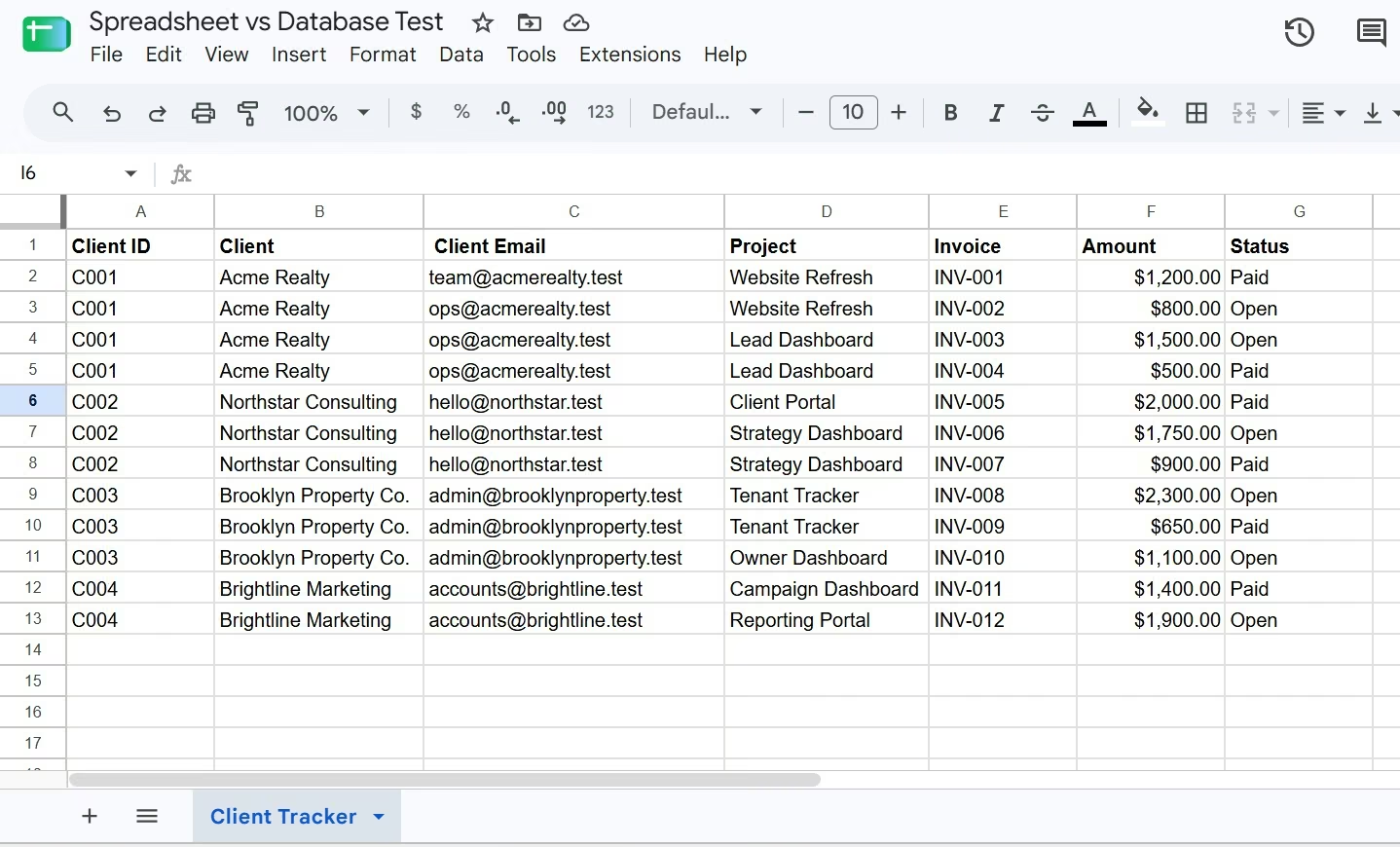
I started with Google Sheets. I created 12 invoice rows across four fictional clients. The sheet had columns for Client ID, Client, Client Email, Project, Invoice, Amount, and Status.
It took me 16 minutes to go from a blank sheet to a tracker I could use.
Acme Realty appeared in four rows because it had several projects and invoices. I changed its email from [email protected] to [email protected] in one row.
Three rows still showed the old address. The sheet already had a Client ID column. That ID was copied down the flat table, so it identified the client without giving the email one stored home. The email still lived in four separate cells.
I now had four rows referring to one client, with two different versions of the same fact. Fixing the tracker meant finding and changing three more cells. That part was quick. The bigger problem was that the sheet gave me no warning that those three copies were stale.
For the database side, I used an existing Northline Creative client portal I had already built in Emergent. The original build took 17 minutes and included three client accounts and four projects.
I treat that 17-minute build time as context. The portal covered a much wider job than my simple spreadsheet.
The original build prompt included this instruction:
Build a client portal for a creative agency called Northline Creative. Clients can sign in and see only projects that belong to their client account.
For the controlled test, I spent another 3 minutes. I opened the Admin view and changed the LEUT Rebrand 2026 project stage from Design to Review.
Then I switched into the LEUT client account.
The client-facing project page already showed Review. I made one edit, and the client view needed zero extra edits.
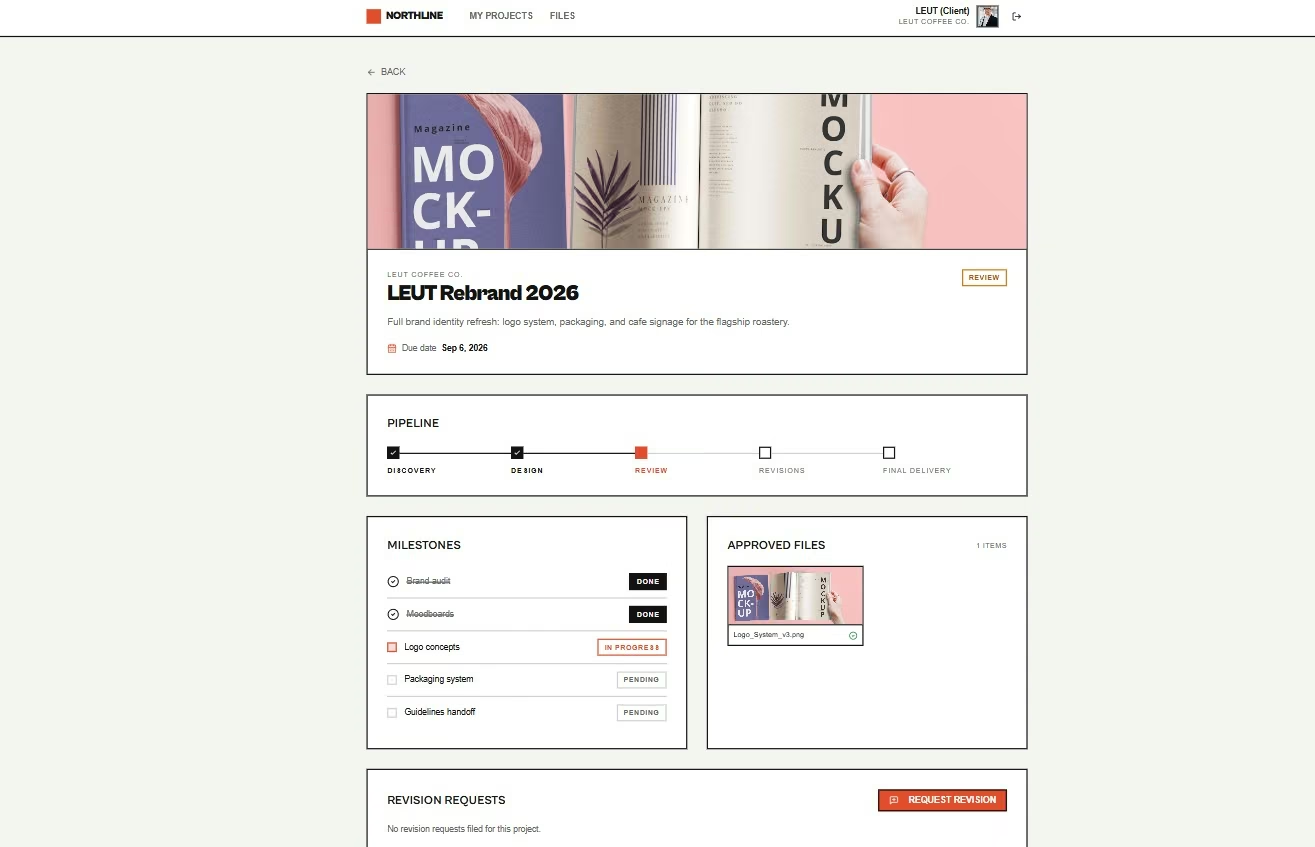
I kept the conclusion narrow. This test covers two different checks. The sheet test asks whether a repeated fact stays consistent across copied cells. The portal test asks whether one stored record stays consistent across two views of an app.
Repeating one fact across the sheet gave me several cells to keep in sync. Storing one project stage once gave both portal views the same value.
Spreadsheet vs Database at a Glance
| Area | Spreadsheet | Database |
|---|---|---|
| Best for | Analysis and models | Recurring business records |
| Basic shape | Cells and sheets | Records and tables |
| Relationships | Added manually | Built into the data model |
| Calculations | Formula-first | Queries and app logic |
| Data rules | Optional controls | Central rules |
| Shared work | File collaboration | Concurrent record access |
| Access | File or range | Role and record rules |
| Initial work | Faster | More planning |
| Growth | File-centered | App-centered |
The table gives you the short version. The day-to-day work is where the decision gets made.
Where Spreadsheets Work Best
Spreadsheets are strongest when you need to think with the data.
You can paste a dataset, change assumptions, write a formula, sort a column, and build a chart without designing a whole system first. That speed is useful for budgets, forecasts, financial models, campaign analysis, one-off reports, and small trackers.
My own test showed that advantage. I had a useful client tracker in 16 minutes.
Modern spreadsheets carry more structure than they used to.
Google Sheets tables let you assign column types such as number, text, date, dropdown, and checkbox. Sheets can flag a value that doesn't match the chosen column type.
Excel goes further with its Data Model. You can combine data from several tables and use that data in PivotTables and PivotCharts. Microsoft describes this as building a relational data source inside an Excel workbook.
Those features give a spreadsheet more life when your tracker starts getting structured.
Airtable and Google Sheets sit close to this boundary. The Airtable vs Google Sheets comparison is useful when your work starts moving from formulas and free-form cells toward linked records and workflow views.
My pick for quick analysis is a spreadsheet. I wouldn't build a database for a one-off budget, a short forecast, or a simple list one person can manage easily.
Where Databases Work Best
A database starts earning its extra planning when the same records keep showing up in different parts of the business.
Picture a consulting agency with Clients, Projects, and Invoices.
One client can have several projects. One project can have several invoices. Instead of typing the client's email into every project and invoice row, you store the client once and link the related records back to it.
That is the idea my spreadsheet test exposed in miniature.
Relational databases use keys to create those links. A primary key gives a record a unique identity. A foreign key points one record to a record in another table.
PostgreSQL, for example, can use primary keys, foreign keys, unique constraints, check constraints, and not-null constraints. A foreign key can stop a related record from pointing to something that doesn't exist.
The practical gain is fewer places to fix the same fact.
That becomes useful for client portals, booking systems, inventory apps, order systems, customer relationship management tools, and internal business apps.
Spreadsheet vs Database Feature-by-Feature
My test supports the calls on data structure and setup. For multi-user work, scale, and product limits, I use current product documentation and link it where I rely on it.
Data Structure and Relationships
A database wins when one type of record connects to another.
My sheet stored Acme Realty's email four times. Each cell was independent, so changing one copy didn't update the other three.
A relational database can keep the client in one table and connect projects or invoices through an ID.
Excel deserves some credit here. Its Data Model can create one-to-one and one-to-many relationships. Microsoft's customer-order example shows the same issue. Repeating a customer email on each order creates duplicate data, and changing the email means updating every copy.
A regular flat spreadsheet still leaves you managing those relationships yourself. A database starts from a record-and-relationship model.
Winner: Database.
Calculations and Analysis
Spreadsheet wins when you're exploring numbers.
You can see the inputs and formulas together. Change one assumption, and the result updates in front of you. That makes spreadsheets a natural fit for budgets, pricing models, forecasts, and quick analysis.
A database can also calculate totals, group records, and answer detailed questions. You usually work through a query, report, dashboard, or app screen.
For a finance model that changes every hour, I would reach for a spreadsheet first.
For the source records feeding that model, I would choose a database once those records support several workflows.
Winner: Spreadsheet.
Data Rules and Accuracy
Database wins when the same rules must apply every time data gets written.
Google Sheets tables can warn you when a cell doesn't match its column type. That is useful for catching simple entry mistakes.
PostgreSQL can reject data that breaks a declared constraint. You can require a field, block duplicates, restrict values, or require a linked record to exist.
That central rule becomes useful once several screens, forms, people, or automations write to the same records.
You have one place defining what valid data looks like.
Winner: Database.
Multi-User Work
Database wins when people and apps update records throughout the day.
Google Sheets already handles shared editing well. Google Drive supports Viewer, Commenter, and Editor roles, so a small group can work from one shared file.
The job changes when a booking form creates records, an employee updates a status, an automation sends reminders, and a manager opens a report at the same time.
Databases are built for that kind of overlapping work.
PostgreSQL uses Multi-Version Concurrency Control (MVCC) to give database sessions consistent views of data as reads and writes happen together. In plain English, several sessions can work with the same database without treating the whole thing like one shared editable grid.
Winner: Database, based on documented concurrent-access behavior.
Access and Permissions
Database-backed apps win when each person should see a different slice of the records.
A spreadsheet usually starts with access to a file. Google Drive lets you choose Viewer, Commenter, or Editor access.
An app can work with a database and apply rules around individual records.
That is what I saw in the Northline portal. The Admin view could change the project stage. The LEUT client account saw its own project information.
That pattern fits customer portals, employee tools, property-management apps, and other workflows where people need different views of the same source data.
Winner: Database.
Scale and Performance
Database wins as record volume and repeated queries grow.
Excel has a worksheet limit of 1,048,576 rows and 16,384 columns. That is a hard product limit, not a target for how large your workbook should become.
A workbook can become awkward much earlier if it contains heavy formulas, links, imports, several sheets, and repeated lookups.
Watch the workflow before the row count. A relatively small set of linked client, project, invoice, and permission records can create more upkeep than a much larger flat export used only for analysis.
Winner: Database, based on documented product limits and database behavior.
Setup and Learning
Spreadsheet wins for speed to the first useful result.
My sheet took 16 minutes. I could see every row, change the structure freely, and start using it right away. The Northline portal took 17 minutes and included sign-in, two views, and linked project records. The scopes were too different for a clean speed race.
A database asks you to think about record types, IDs, relationships, required fields, and the screens people will use.
That extra thought can save work later. It still raises the starting effort.
AI app builders now reduce some of that friction. You can describe the records and relationships in plain language and let the builder create the first version. I cover that approach later in this guide.
Winner: Spreadsheet for the fastest simple first result.
What People Run Into With Spreadsheet-Based Systems
I also read a 2021 Reddit discussion, “What's the difference between an Excel and a database?” because the replies describe the kind of problems that don't show up in a feature table.
One commenter sketched a point where spreadsheet work starts getting painful: 13 spreadsheet pages, 60 columns, 4,000 rows, no data validation, and a five-minute load time. Other comments focused on formulas that become hard to support when the original author leaves and the value of rules that keep related records consistent.
That scenario stacks several problems at once, so no single row count explains it.
My 12-row test hit a different warning sign. Performance was fine. Repeated client information had already created stale copies.
The shape of the work tells you more than the size alone.
When a Spreadsheet Stops Working Well
A spreadsheet has probably moved past its easiest role when keeping the records clean becomes a regular task of its own.
Common warning signs:
- One fact appears in many places: A customer email, address, product price, or supplier detail keeps getting copied into new rows.
- Records start linking to records: Clients have projects, projects have invoices, or customers have orders.
- Different people need different views: A client should see their own records, while an admin needs a wider view.
- Automations write to the same data: Forms, scripts, reminders, and apps create or change records throughout the day.
- Formula ownership gets risky: One person understands the lookup chains, hidden tabs, or scripts that keep the workbook running.
- Cleanup becomes routine: People spend time finding duplicates, comparing copies, or checking which value is current.
- The file changes how people work: Staff avoids filters, reports, or updates because opening or recalculating the workbook takes too long.
If several of those sound familiar, take one workflow and test a database-backed first version.
Start with the workflow creating the most repeated edits. You don't need to replace every spreadsheet your business uses.
If you test a database-backed first version, our comparison of no-code backend tools shows which ones you can still edit after the first build.
How to Make Your Choice
You can make this decision by looking at what happens to the data after someone enters it.
Choose a Spreadsheet If…
- You need formulas, forecasts, charts, or quick analysis.
- One person or a small group owns the data.
- You expect the layout to change often.
- Most records stand on their own.
- Mistakes are easy to find and fix.
- You need a useful tracker quickly.
Choose a Database If…
- The same records appear across several workflows.
- Clients, projects, orders, invoices, products, or jobs connect to each other.
- People and apps update records throughout the day.
- Different roles should see different records.
- Data rules need to apply every time.
- The records power a portal, booking system, CRM, or internal app.
Use Both If…
Keep recurring operational records in the database.
Move selected data into a spreadsheet when you need analysis, scenario planning, or a quick working model.
For many growing service businesses, this is the setup I would choose. It keeps customer and job records organized without taking spreadsheets away from the people who use them for calculations.
How to Move From a Spreadsheet to a Database
You can move one workflow at a time. Start with the records creating the most duplicated work.
Step 1: Find Repeated Facts
Look for values copied into several rows.
A customer email, supplier address, employee department, or product price is a good example.
If one change sends you through several tabs, that fact probably needs one clear home.
Step 2: Give Each Record a Stable ID
Use an ID such as C001 for a client or P001 for a project.
Names can change. An ID gives related records a steady reference. The ID starts doing useful relational work once there is a separate client record for projects or invoices to point to. The next step creates that structure.
In a relational database, the primary key identifies the record. A foreign key connects another record back to it. PostgreSQL uses these constraints to preserve links between related tables.
Step 3: Split Different Record Types
A tracker like mine could become three groups.
Clients:
- Client ID
- Client
- Client Email
Projects:
- Project ID
- Client ID
- Project
Invoices:
- Invoice
- Project ID
- Amount
- Status
Now the client's email has one clear location. An invoice reaches it through its project, and the project links to its client. The email is stored once and reused wherever that workflow needs it.
Step 4: Add Rules to the Records
Decide which fields are required, which values should stay unique, and which records can connect.
For example, you could require every invoice to have an invoice ID and a valid project reference.
These rules give each form, screen, and automation the same expectations.
Step 5: Give People the Views They Need
A database stores the records. People still need a useful way to work with them.
An admin might need every client and invoice. A customer might need one account. A manager might need totals, overdue work, and current status.
That is where dashboards and app screens become useful.
If the view you need is a dashboard, an AI dashboard builder can turn those linked records into
How to Use a Spreadsheet and Database Together
A database and spreadsheet can work well in the same business.
Keep your recurring source records in the database. Send the slice you need into a spreadsheet when you want a forecast, a quick model, or an ad hoc report.
Google Sheets supports this split through Connected Sheets for BigQuery. Connected Sheets runs queries on BigQuery data and lets you analyze the results inside a familiar spreadsheet interface.
A reporting layer can sit on top too. An analytics dashboard can pull selected metrics into one view so managers can track performance without rebuilding the same report every week.
A useful division of work gives each tool a clear job.
Operations can use the database-backed app. Analysts can use a spreadsheet. Managers can use a dashboard.
Turn Your Spreadsheet Workflow Into a Custom App
If your spreadsheet workflow now needs forms, client screens, permissions, or several connected record types, an AI app builder or web app builder can shorten the path from a rough workflow to a working first version.
Emergent can turn the records and relationships you describe into a working app with the screens you need to view and update them.
That is close to how I used the Northline portal in my test.
The app had separate Admin and Client views connected to project records. I changed the LEUT Rebrand 2026 stage once in the Admin view. The client view then showed Review.
You still need to test the result before you move real business data into the app.
If turning a spreadsheet workflow into a build prompt feels unclear, Emmy can help with that first step. Emergent's built-in chat assistant asks follow-up questions about your records and who needs to see them, then turns your answers into a build-ready prompt. It's free and costs no credits.
A simple starting prompt could look like this:
Build a client operations tracker with Clients, Projects, and Invoices. One client can have multiple projects, and one project can have multiple invoices. Give admins access to all records and give each client access to their own projects and invoices.
Then test the exact problem that made your spreadsheet annoying.
Change one client detail. Create two linked records. Switch between roles. Try an invalid value. Those checks tell you much more than staring at a generated dashboard.
When you have one workflow that clearly needs connected records, start building with Emergent.
My Verdict
Spreadsheets win for speed, flexibility, and analysis. Databases win for connected operational records.
My spreadsheet took 16 minutes to build, and for a flat tracker that speed was useful.
The weakness showed up with one edit. I changed one client email and had three stale copies left in the sheet.
My database-backed portal stored the project stage once. I changed it in the admin view, switched to the client account, and the same stage was already there.
I would keep a spreadsheet as long as it stays easy to understand and easy to update.
Once repeated facts, linked records, different access levels, or recurring cleanup start eating time, I would move the core records into a database and keep the spreadsheet for analysis. Pick the workflow causing the most repeated work. Move those core records first.

Describe it. Build it. Launch it.
- End-to-End Creation
- No Code Needed
- Live in Minutes

Most AI app builders stop at prototypes. Emergent creates production-ready apps you can actually launch.
- Production-ready apps
- Web & mobile apps
- Deploy in minutes