
Your food is good enough to fill the room. The problem is nobody outside your regulars knows you exist yet.
A search for your restaurant's name shouldn't end with a Google Maps pin and a phone number nobody picks up during the dinner rush. Most owners in that spot end up stuck between hiring a developer and losing a weekend to a blank builder.
Every step below comes from a real build: Marisol's Kitchen, a Mexican restaurant with 12 tables, 23 minutes of hands-on time, live Stripe checkout, and three test reservations I put through the form myself.
You'll see the prompts and the setup questions at each step, so you can run the same seven steps with your own restaurant in place of mine. By the end, you’ll know how to go from a blank page to a published site with a working menu, reservations, and online ordering.
What a Restaurant Website Needs
A restaurant website needs to make ordering, booking, and contacting the restaurant easy, which is where most sites actually fall short.
Every restaurant website needs:
- Menu as text, not a PDF or image
- One-tap ordering or reservations from the homepage
- Hours and location visible without scrolling
- Photos that show the actual food and space, not stock images
- A layout that works before anyone touches a desktop
- A phone number that works as a tap-to-call link
Before you start building, gather these for your prompt:
- Your restaurant's name, address, and hours
- A menu with prices, organized into sections (starters, mains, desserts, drinks)
- A handful of photos of the dishes, dining room, and exterior
- A short paragraph on what makes the restaurant worth visiting
- Account details for any payment gateway you plan to connect, such as Stripe, PayPal, or your POS provider
Time required: Building a restaurant website with AI takes about 23 minutes of hands-on build time, not counting the time you spend gathering content or reviewing what the agent generates.
How to Build a Restaurant Website: Step-by-Step
To create a restaurant website with AI, choose a build method, describe the site in one prompt, then refine it with follow-up prompts for reservations, ordering, and payments.
The seven steps below follow one build from start to finish. Marisol's Kitchen is the example throughout, so everywhere you see its name, its menu, or its 12 tables, put your own in. The prompts work the same way either way.
Step 1: Choose Your Build Method
Of the three realistic paths to a restaurant website, hiring a developer or agency costs the most. A freelancer project runs $300 to $9,000, and an agency project runs $500 to $12,000, more than most restaurants need for a menu and a reservation button.
Using a traditional drag-and-drop builder or building from scratch keeps you in the driver's seat, but you place every section by hand and troubleshoot layout yourself, trading cost for your own time. Keep the from-scratch link on "building from scratch."
Going further still, building it from scratch trades even more of that time for even more control.
Describing it to an AI website builder skips both trade-offs. You write what you want in plain language, and the AI website builder generates the structure, menu pages, and layout in one pass.
The AI path is the fastest way to build a restaurant website without coding, so the rest of these steps follow it.
You will also choose a domain before publishing. Emergent gives every project a free subdomain by default, so you don't need to decide on this now, but you can connect your own domain later for a more distinct web address. Step 6 covers how.
If you haven't picked a tool yet, our best AI website builders guide compares the options first.
Step 2: Plan the Build With Emmy
Before writing the generation prompt, I opened Emmy, Emergent's free, always-on in-app assistant, and asked her to help plan the build first rather than jumping straight to a prompt. The planning question:
I want to build a website for Marisol's Kitchen, a modern Mexican restaurant. It needs online ordering and table reservations. What do I need to plan for before I start building?
Swap in your own restaurant, your cuisine, and the two or three things the site has to handle. That is the whole template: what you are, and what it needs to do.
Emmy came back with a scoped plan. She flagged three areas to decide on first:
- Menu and ordering flow: A simple call-in menu versus full online payments, which needs a Stripe account, plus where kitchen orders should land, email, dashboard, or printer
- Reservation logic: A basic email form versus real-time availability tied to something like Google Calendar
- Visual identity: Photos of the food and space, described in plain language like "minimalist with vibrant terracotta accents"
She recommended building the menu and brand feel first, then adding reservations and ordering once the site looked right, and closed by asking what dish the restaurant is known for.
I answered birria tacos, then a follow-up about table count, and got two more scoped suggestions: a hero built around the tacos and a simple reservation form, on the way to the actual prompt.
I noticed the menu, about, and hours/location pages from the original brief were still missing, so I sent one more message pulling those in and asking for the prompt directly.
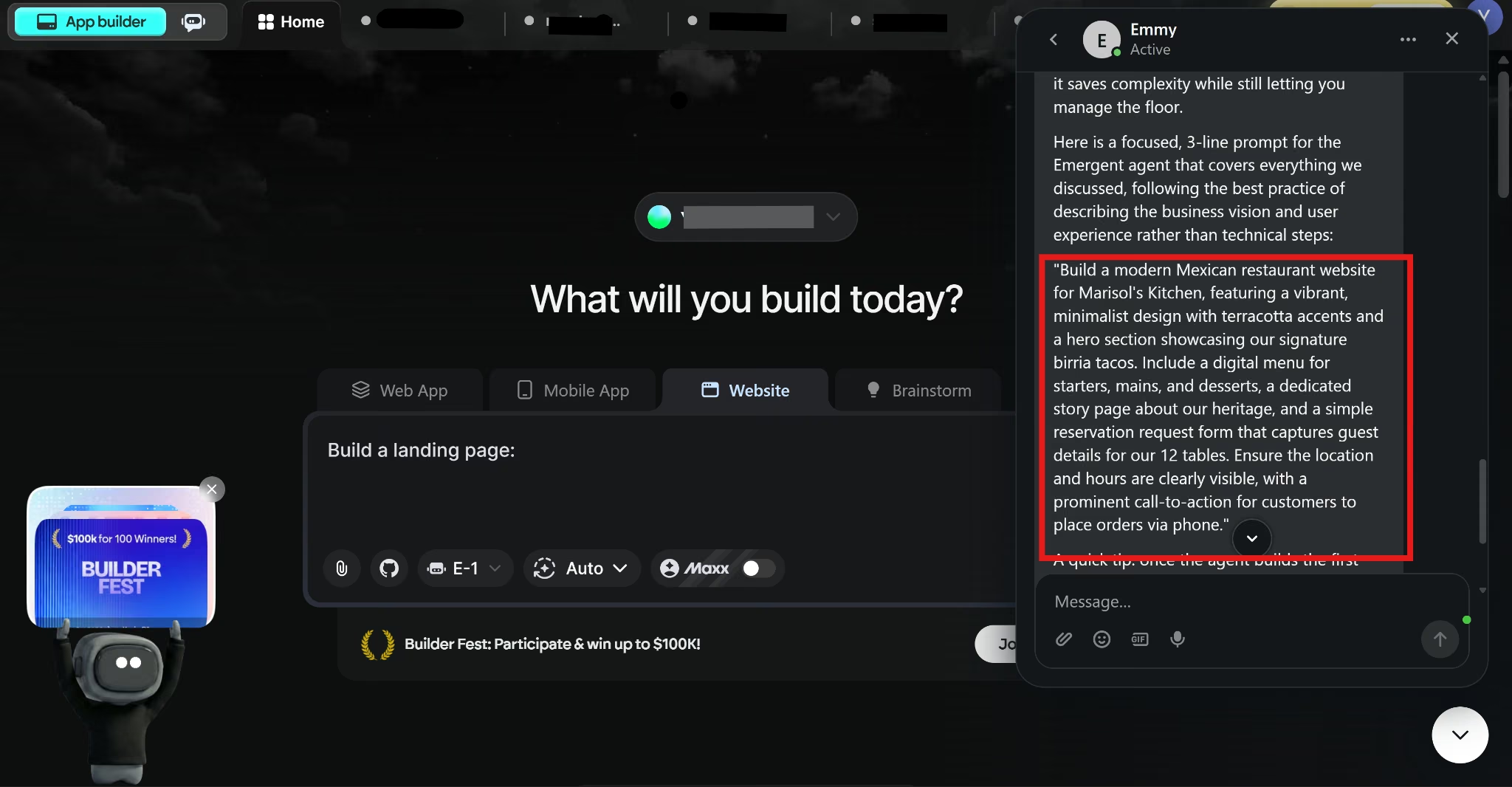
Emmy answered with the actual prompt this time.
"Build a modern Mexican restaurant website for Marisol's Kitchen, featuring a vibrant, minimalist design with terracotta accents and a hero section showcasing our signature birria tacos. Include a digital menu for starters, mains, and desserts, a dedicated story page about our heritage, and a simple reservation request form that captures guest details for our 12 tables. Ensure the location and hours are clearly visible, with a prominent call-to-action for customers to place orders via phone."
Step 3: Describe the Site to Emergent
Emmy's prompt is a starting point. I made two small tweaks to mine: marigold as a second accent color alongside terracotta, and example dishes with prices so the menu wasn't empty. Yours is where your colors, your signature dish, and your real prices go. Everything else matched what Emmy wrote in Step 2.
Emergent asked me four rounds of questions before anything started building. Three of them come up for every restaurant, so decide them before you start:
- Where reservations should live: A database with a staff view and confirmation emails, or a plain email form. I chose the database.
- How the site should be structured: One long page, or separate pages for menu, story, and location. I took the default, multi-page.
- What contact details to use: Your real phone and address, or placeholders you swap in later. I took placeholders.
I answered the last question and the build took 8 minutes.
I got more than I asked for. Alongside the reservation database, the build came back with a private staff view, scroll-triggered animations, hover effects, and smooth scrolling throughout.
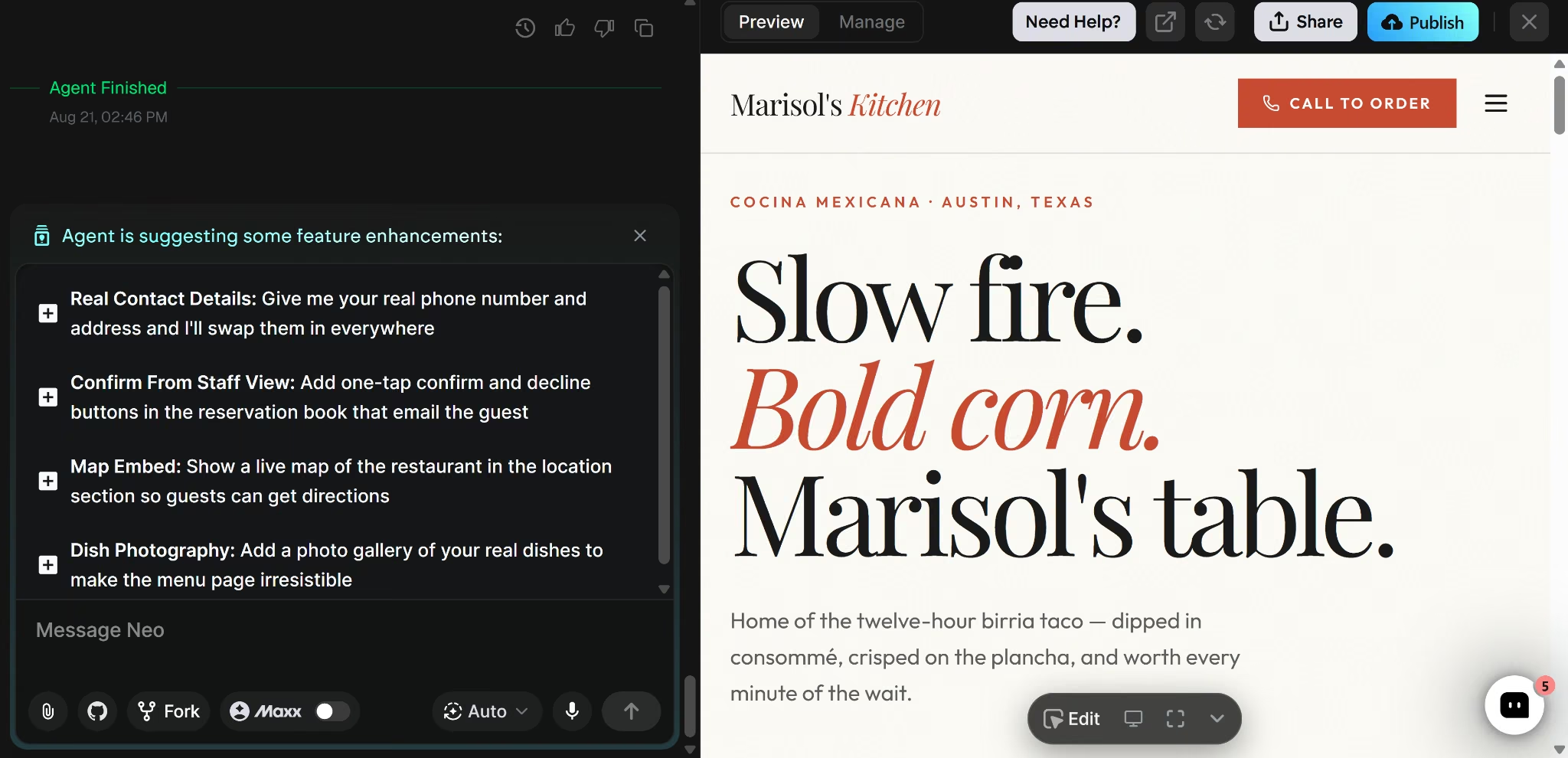
I ran two test reservations through the form. Both saved and triggered a confirmation email, then appeared in the staff view under the guest name and time I had entered.
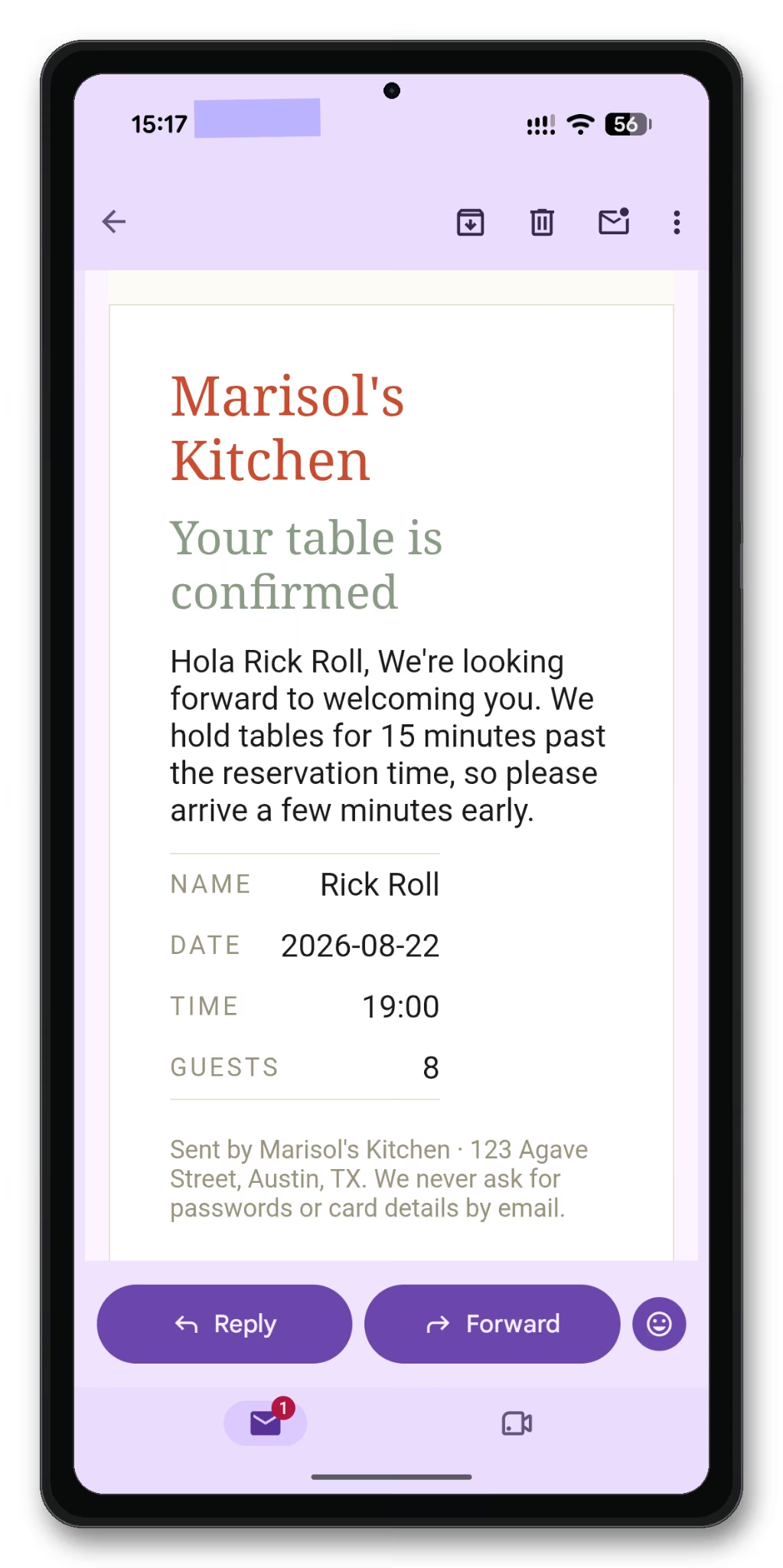
The staff view blocked a wrong passcode and threw an error message. I made a third reservation myself and got both the on-screen confirmation and the email.
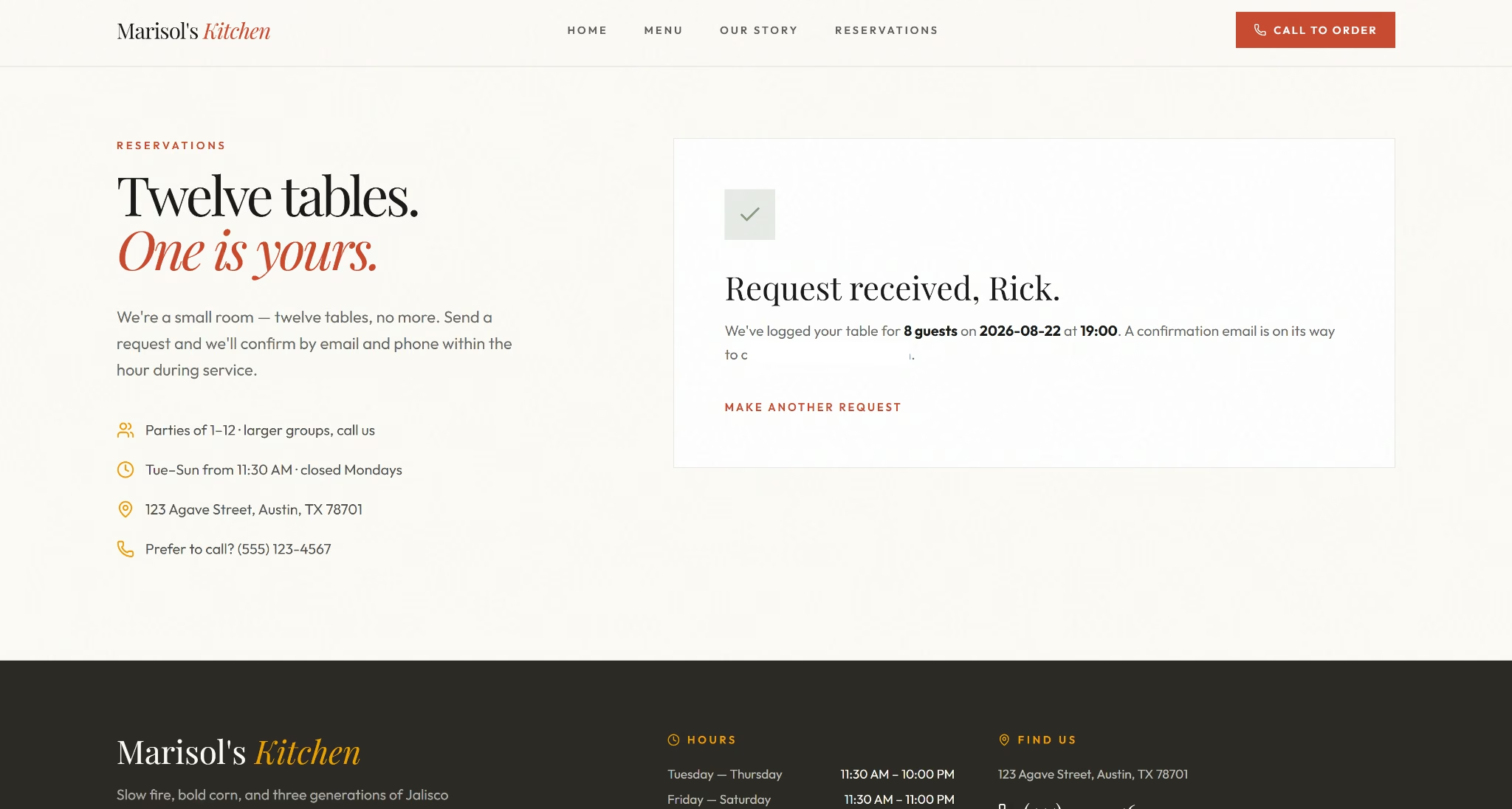
The agent closed with a few refinements of its own. Step 4 covers three of them. I set aside the fourth, swapping in real contact details, because Marisol's Kitchen is an example build. On your site, that is the one worth doing first.
Comparing your build against our restaurant website examples guide is a good way to spot what else is worth refining.
Step 4: Review and Refine the Generated Site
The next round covered three refinements from Step 3. One-tap confirm and decline buttons went on the staff reservation view, a live map went on the location page, and a photo gallery went on the menu page.
The refinement took 4 minutes.
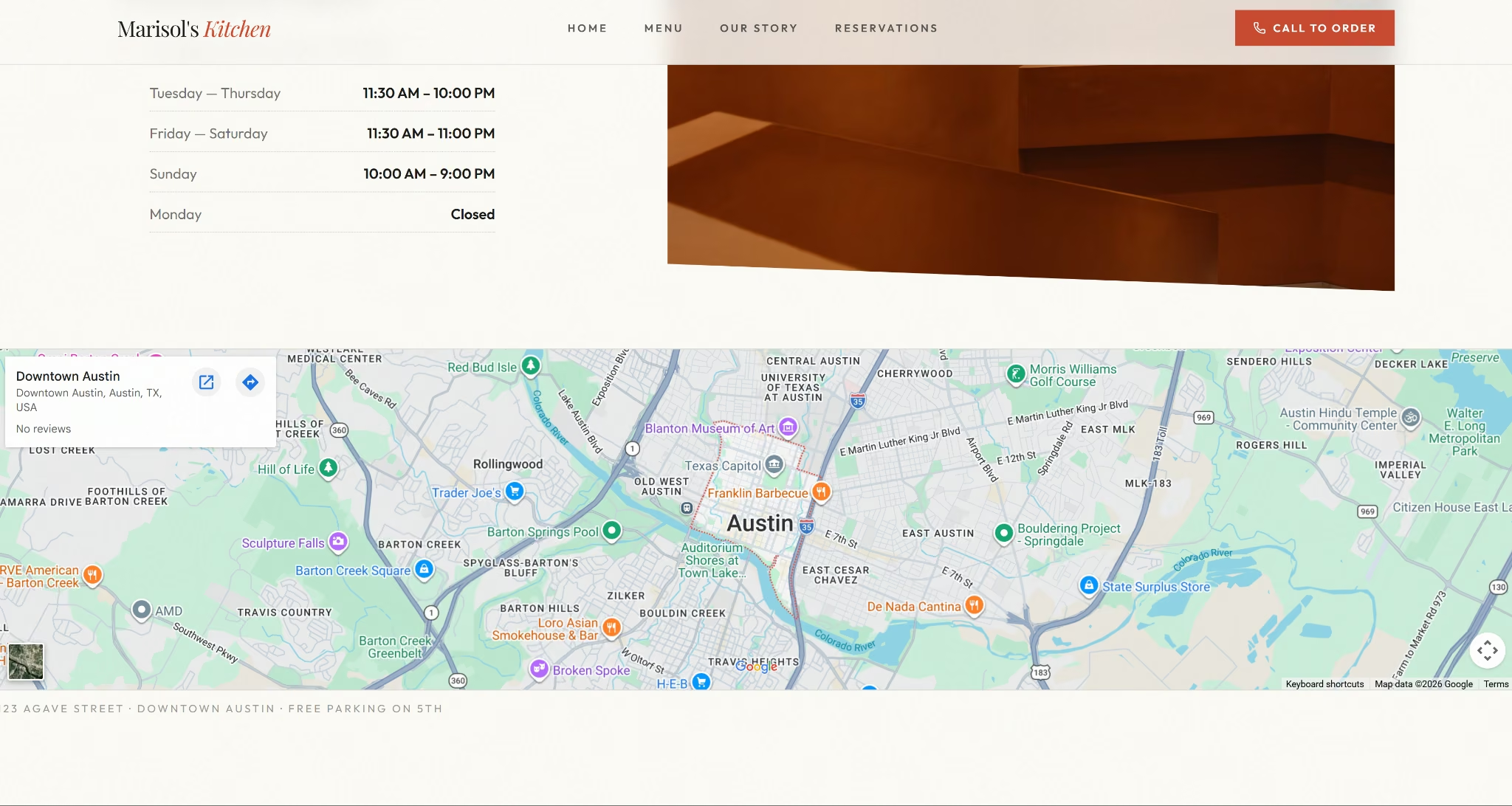
Confirming and declining reservations from the staff view sent both guest emails successfully, and it still rejected wrong passcodes.
All six gallery photos loaded without a single broken image, and the map let me zoom and drag without freezing.
A confirmed test reservation also triggered a live email to whatever address was entered. Test with an email address you do check, since confirmations get sent for real. They are not simulated.
Three more ideas came back from the agent:
- Automatic table availability tracking to stop double-bookings
- A third "Seated" status for the staff view, so it doubles as a floor board during service
- A lightbox so guests can tap a dish photo to see it full-screen with the name and price
I didn't run any of those, but they show how much one more prompt can add.
Step 5: Set Up Online Ordering and Payments
Ordering is still call-in only, so I moved on to that next. I chose full online ordering with payment rather than a simple order-ahead form. This is the prompt I sent:
I want people to be able to order and pay for dishes online.
After a minute, I was asked to pick my payment method and how to send the food. I picked Stripe for payment, with hosted checkout, card, and Apple/Google Pay support. It was a sandboxed test, though.
For order type, I chose pickup and delivery, with an address field, instead of pickup only.
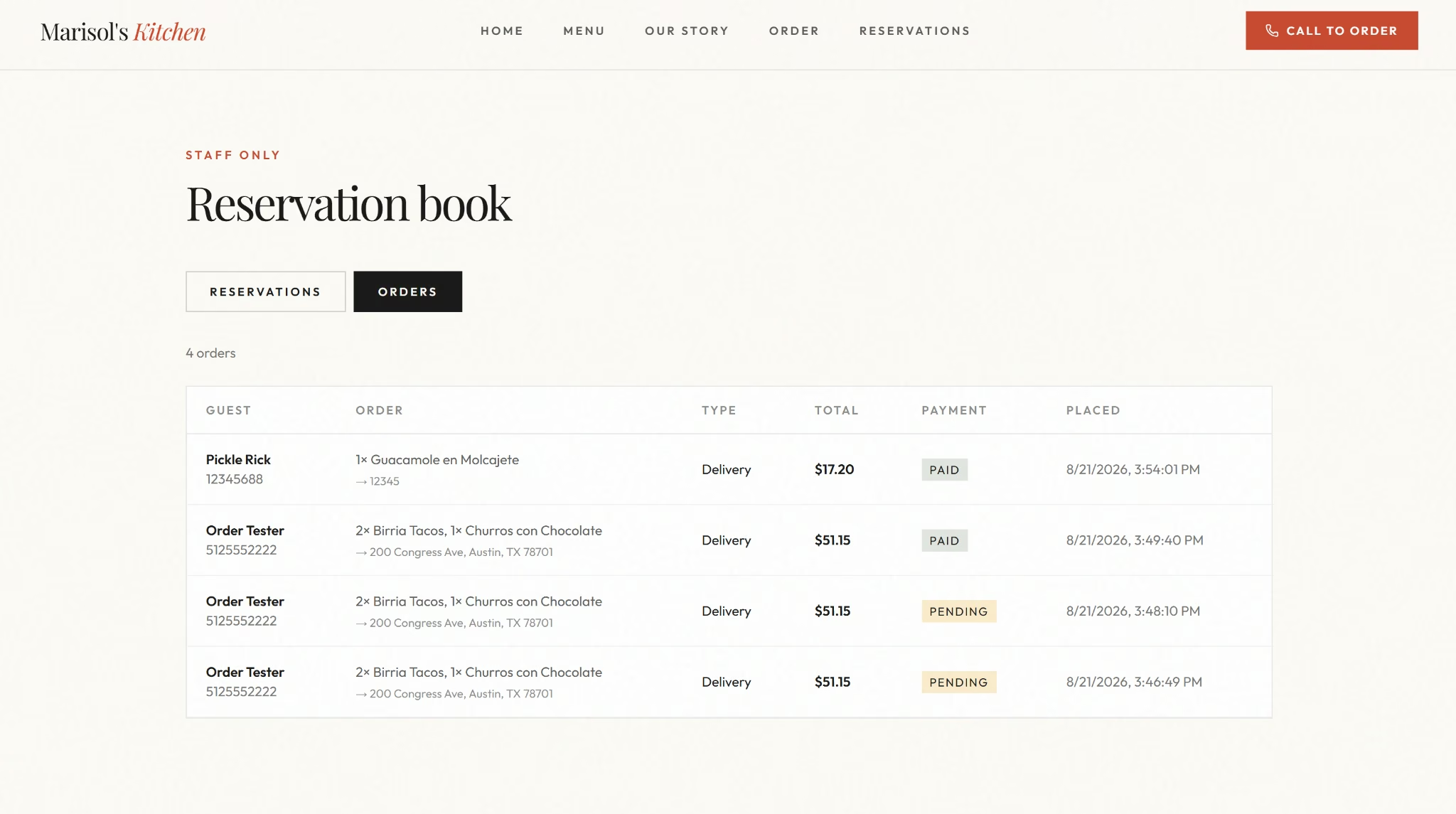
I turned on tipping and kept new orders inside the existing staff reservation book.
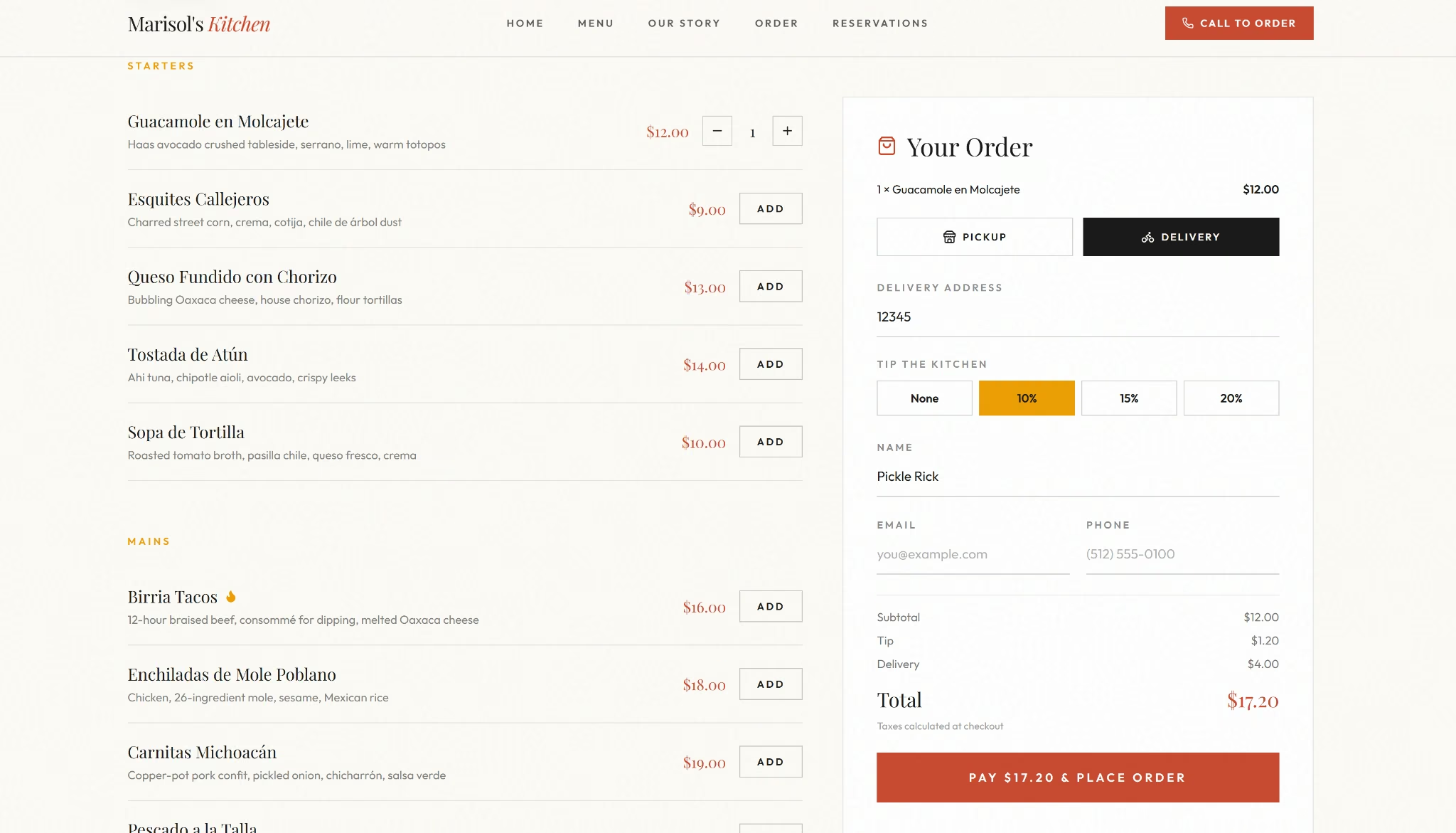
The payment build took 11 minutes once I submitted. It shipped a new Order page with a basket with quantity steppers, a pickup/delivery toggle with a delivery fee, and tip options, all leading to Stripe's hosted checkout.
Clicking checkout opened up a tab to Stripe's own hosted payment page.
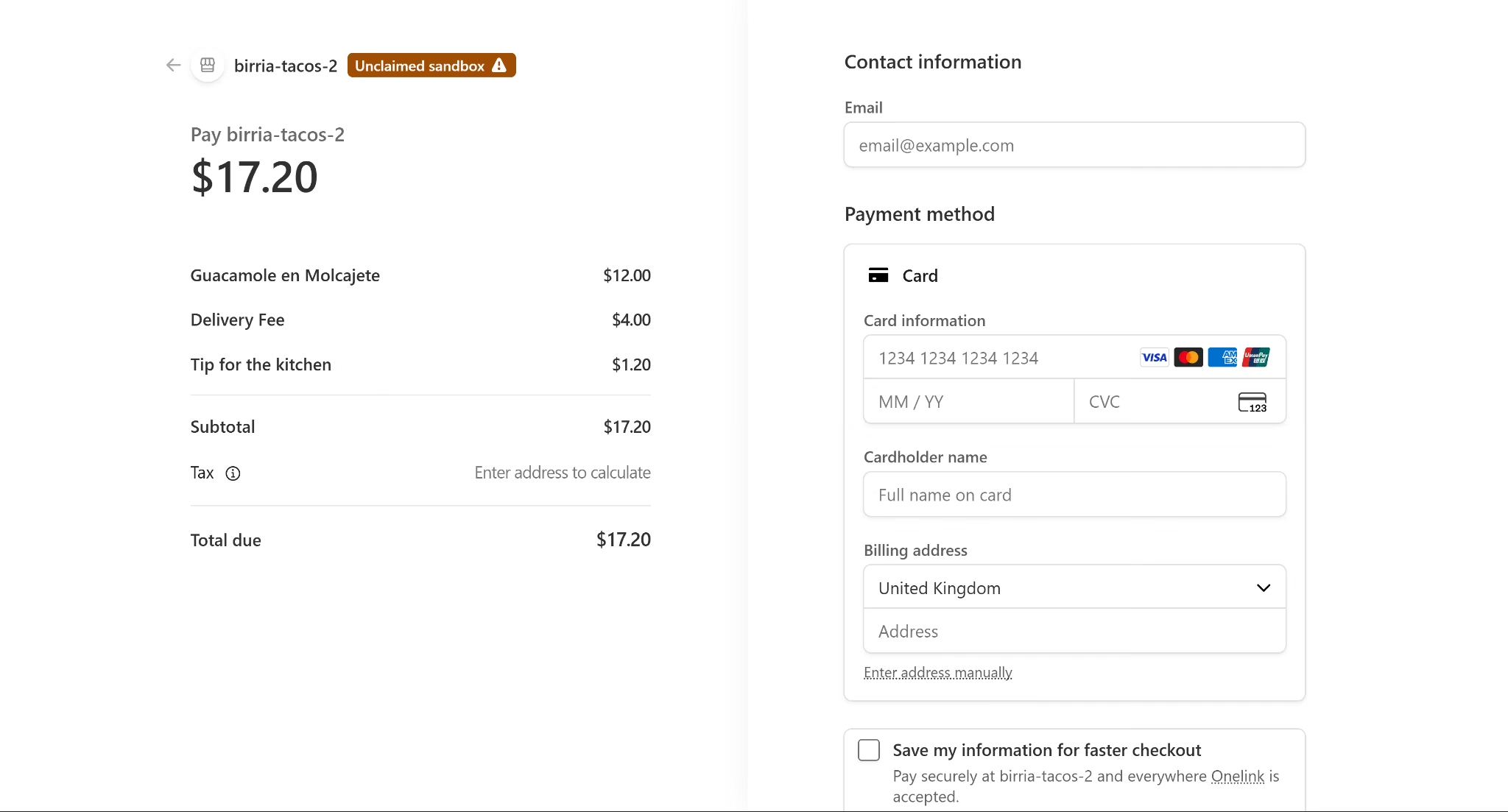
Prices are pulled from the server at checkout, so you can't edit them in the browser.
Two earlier checkouts I abandoned mid-payment still showed up in the order list. Both were marked PENDING, never PAID.
Going live on Stripe means claiming the Stripe account and completing an identity check, after which the keys switch over automatically.
Four more suggestions never made it into the build:
- A kitchen status flow for tracking tickets
- Pickup time slots
- Order notifications to the kitchen
- One-tap reordering for returning guests
Step 6: Publish and Test Before Promoting
Before telling a single customer the site exists, run through it the way a hungry stranger would. Open the menu page and confirm every price matches what is actually on the table.
Tap the reservation button and complete a booking. Place a test order if online ordering is live.
Check if your site looks okay on mobile too. Then open the live URL on your own phone. That is the screen most of your diners will use, and it catches cramped menus and untappable buttons faster than any desktop check.
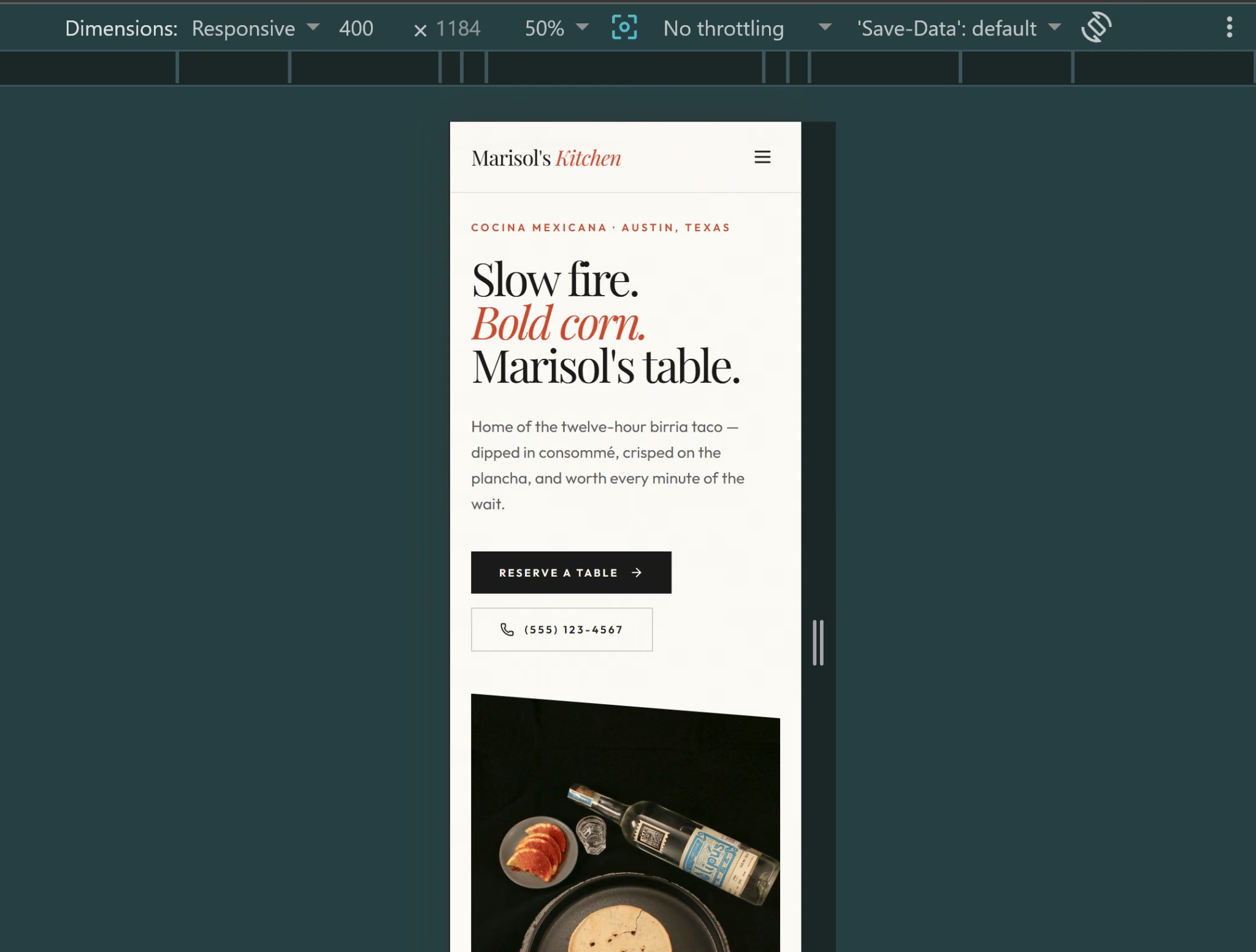
Other common issues to check for:
- Broken links to social pages
- A hero image that loads slowly on mobile data
- A phone number formatted in a way your phone will not recognize as tappable
- Placeholder phone number, address, or photos still showing instead of the real ones
- Test reservations or orders still sitting in the staff view
- A payment gateway still running in test mode instead of live
A custom domain is optional. Publishing without one still gets you a live site on a default Emergent subdomain.
Want your own web address? Emergent can search for and register a domain for you through IONOS, which offers free registration for the first year. You can also connect a domain you already own with a few DNS records.
Publishing on Emergent is one click and takes about 15 minutes. Keeping the site live costs 50 credits a month, roughly $10 at Standard-plan rates, in line with what basic web hosting costs elsewhere.
Step 7: Promote the Site
Once the site side is settled, the rest of the promotion happens off the site. Claim or update your Google Business Profile listing and point it at the new site.
Add the link to every platform you already post on: Instagram bio, Facebook page, delivery app profiles.
Ask a handful of regulars to leave a review once they book or order through the new site, since reviews feed the prominence signal, one of the three factors Google weighs in local results alongside relevance and proximity.
Common Restaurant Website Mistakes to Avoid
The most common mistakes are skipping menu prices, burying the reservation button, and leaving hours inconsistent across platforms, along with AI-specific habits like following every follow-up question without checking your original plan.
The full list to check before launch:
- Skipping the menu prices: A menu without prices sends visitors straight to a competitor. List prices, even approximate ones for daily specials.
- Burying the reservation button: If booking takes more than one tap from the homepage, most visitors call a different restaurant instead.
- Leaving hours inconsistent across platforms: Hours should match Google Business Profile and delivery app listings exactly. A mismatch reads as a red flag.
- Chasing every follow-up suggestion: The agent will keep offering refinements after the build is done. Check each one against the plan you started with, or you will ship a site with features your diners never asked for.
Our restaurant website features guide covers what actually earns its place, which makes the suggestions easier to judge.
Why Emergent Makes This Easier
Emergent covers most of what makes it hard to build a restaurant website and keep it running, saving time on updates, keeping the code yours, and reaching customers beyond the site itself.
Where that shows up:
- Prompt-driven content updates: Content and copy update across any page by describing the change, which covers swapping menu items, prices, or seasonal specials without opening a page editor.
- Reservation and ordering support: Booking flows and lead capture pages come built in, and payment gateways like Stripe connect through a prompt rather than a manual setup flow.
- Mobile-first by default: Sites are automatically responsive, with no separate mobile design pass needed.
- Local SEO support: A built-in toggle under the Domain tab turns on search engine crawling, and you can prompt the agent directly to place your name, address, and phone number where local search looks for them.
Ready to see your own site take shape? Build your restaurant website on Emergent.
Most AI app builders stop at prototypes. Emergent creates production-ready apps you can actually launch.
- Production-ready apps
- Web & mobile apps
- Deploy in minutes