TL;DR
- Detail the prompt first: learning how to build a web app with AI comes down to naming the roles, movement types, and must-have features up front, since a one-line request leaves the agent guessing and forces a rebuild.
- AI beats hiring on cost and time: a custom web app runs $15,000 to $40,000 and weeks of back-and-forth to have built, while an AI builder produces a first working version in about five minutes.
- Build in passes, review each one: the agent pauses between stages so you catch a wrong assumption before it pours time and credits into it, which makes each pause a checkpoint rather than a delay.
- Deploy cost is fixed, build cost varies: publishing takes 10 to 15 minutes and a set number of credits whether the app is one page or a full multi-user tool, while the build's complexity is what drives credit use.
- Match the tool to the job: Emergent fits software that needs logins, stored data, and a team, while a marketing page suits Webflow and writing code faster suits Cursor or Claude Code.
Most small teams track their stock across spreadsheets, sticky notes, and chat threads until someone asks how many units are actually left and nobody can answer. If that sounds familiar, the good news is that building a web app no longer requires learning to code or hiring a developer.
AI app builders have gotten good enough to turn a plain-English description into a working app in minutes. Everything below is a hands-on walkthrough, and each screenshot shows the app these exact prompts produced.
This guide covers the whole process end to end, using one worked example, a multi-user inventory tracker with team logins, product and stock pages, and a summary dashboard. By the end, you will know how to go from a blank prompt to a live app that other people can log in to.
What Is a Web App?
A web app is interactive software you use in a browser, without installing anything on your computer. Gmail, Trello, and your bank's online dashboard are all web apps: you log in, get your work done, and your data is saved for the next time you visit.
That is the difference between a web app and a plain website. A website mostly shows you information, like a menu or an about page. A web app lets you take actions, create accounts, and store data, which is what makes it useful for running a business or a team.
Why Build a Web App With AI Instead of Hiring a Developer?
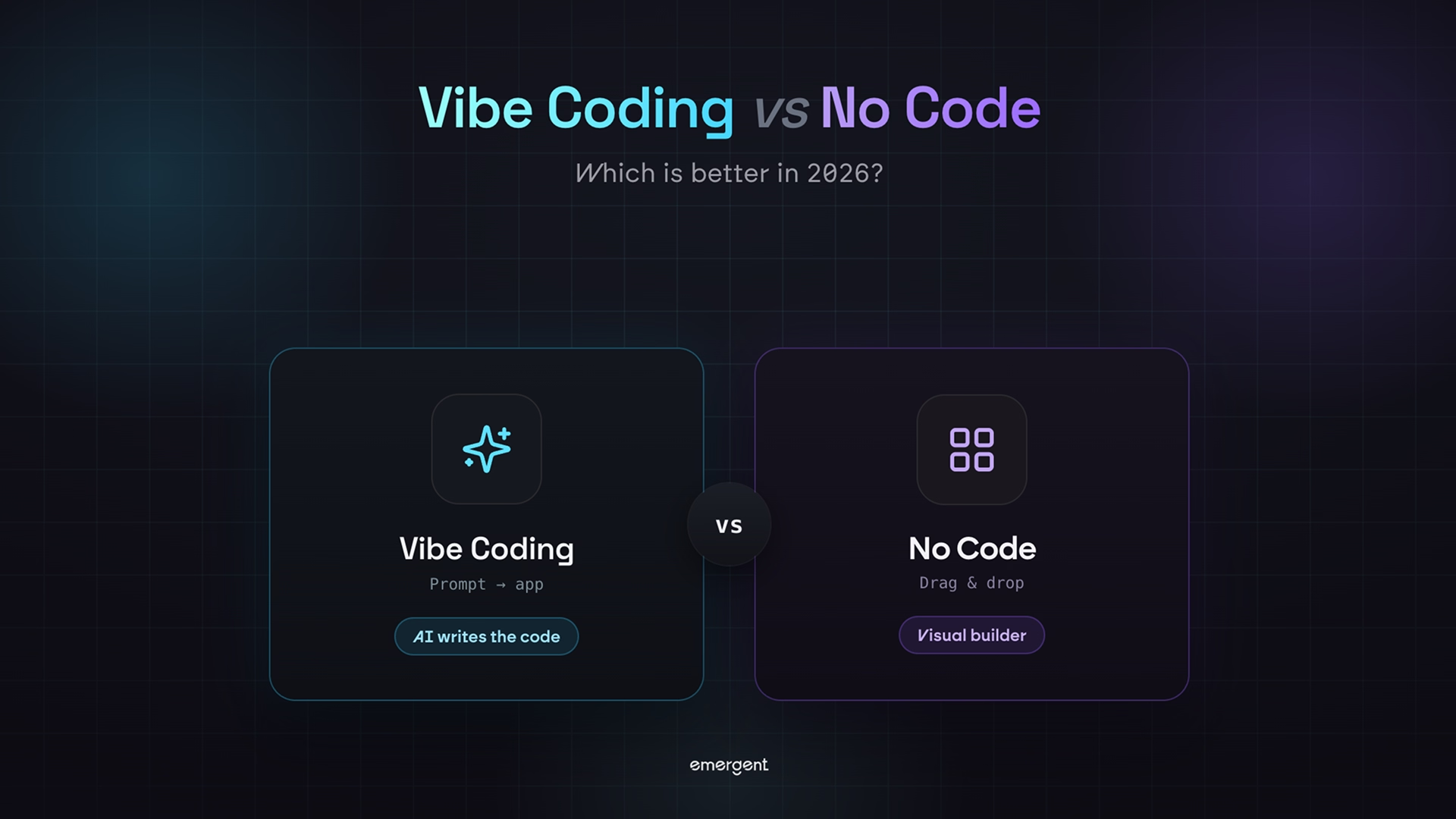
There are really three ways to get a web app built. You can code it yourself, you can pay a developer, or you can tell an AI builder what you want and let it handle the build. The first takes months of learning, the second takes a budget most businesses would rather not spend, and the third is what this guide walks through.
Building a web app with AI is faster and cheaper than hiring a developer, which is why so many small teams now start there. A custom web app usually costs between $15,000 and $40,000 to have built, and often more once you add multiple user roles and integrations. It also takes weeks of back-and-forth before you see anything working.
An AI app builder changes that math on time and budget. You describe the tool you want in plain language, and a coordinated system of specialized agents does the work behind the scenes.
Some plan the app, others build the screens people see and wire up the logic, and testing agents run the finished app end to end and rewrite anything that breaks.
If you want to understand what is happening behind the scenes, Emergent's guide on how vibe coding works breaks it down.
For this guide, I am using Emergent, an AI web app-building platform built for vibe coding, which means describing software in everyday words and letting the AI write it.
It is a strong fit here because an inventory tracker is exactly the kind of tool it is built for, with its own logins, stored data, and a live view for everyone.
A spreadsheet can fake some of that, but it cannot give each person their own login, control who edits what, or update live for the whole team the moment stock changes.
What You'll Need Before You Start
You do not need much to follow along. The whole thing runs in your browser:
- An Emergent account: Sign up at emergent.sh. The free plan includes 10 credits, which are enough to test a prompt or two and see the tool in action.
- A clear idea of what you want: A sentence or two on who uses the app and what they need to do. You will turn this into a fuller prompt in Step 2.
- A Pro plan for this exact build: The agent I use here is on Emergent's Pro plan ($200/month, or $167/month billed annually). You can build a simpler version on a lower plan with a different agent, covered in Step 2.
Time required: about five minutes to a first working version, and under an hour from signup to a complete app you can share.
How to Build a Web App: Step-by-Step
The full build runs in seven steps, from creating an account to putting the app live on the internet.
Step 1: Sign Up and Start a New Build
Create an account at emergent.sh, and you land on a large prompt box with a few build types to choose from. This is where every project begins: you type what you want, and the AI takes it from there.
The tabs you see depend on your plan. On the Pro plan, you also get a Brainstorm tab for talking an idea through with the AI before any building starts, which is handy when you are still shaping what the app should do.
Do not overthink this screen. You are not committing to anything yet, so it is worth opening a blank note and drafting your prompt before you touch the prompt box, because that prompt is where the work happens.
Step 2: Pick Your Agent and Describe the App
Emergent lets you choose which agent runs your build, and the right one depends on your app's type. For this inventory tracker, I selected E3, the more autonomous agent that plans, builds, and tests on its own after a short interview.
E3 is on the Pro plan, so if you are on a lower plan, pick E1 instead and answer its questions as you go. Whichever you choose, the same team of agents does the work behind the scenes.
With the agent selected, I typed the full description of the app into the prompt box. This is the exact prompt I used:
"Build a full-stack, multi-user inventory management application where users can create accounts, invite team members, and manage stock across multiple warehouses or storage locations. Users should be able to add products, organize them by category, record suppliers, generate SKUs, set unit costs and selling prices, and define low-stock thresholds. Track every stock movement, including purchases, sales, returns, transfers, damaged items, and manual adjustments, with a complete activity history. Add role-based permissions for owners, inventory managers, staff, and viewers. Include a dashboard showing total inventory value, available stock, low-stock and out-of-stock products, recent movements, category distribution, fast-moving items, and products that need reordering. Add searchable and filterable product tables, barcode or QR code support, CSV import and export, notifications, responsive layouts, loading states, validation, and error handling. Use a secure relational database connecting users, organizations, memberships, products, categories, suppliers, locations, stock levels, and inventory transactions. Implement authentication, authorization, real-time stock updates, and audit logging where appropriate."
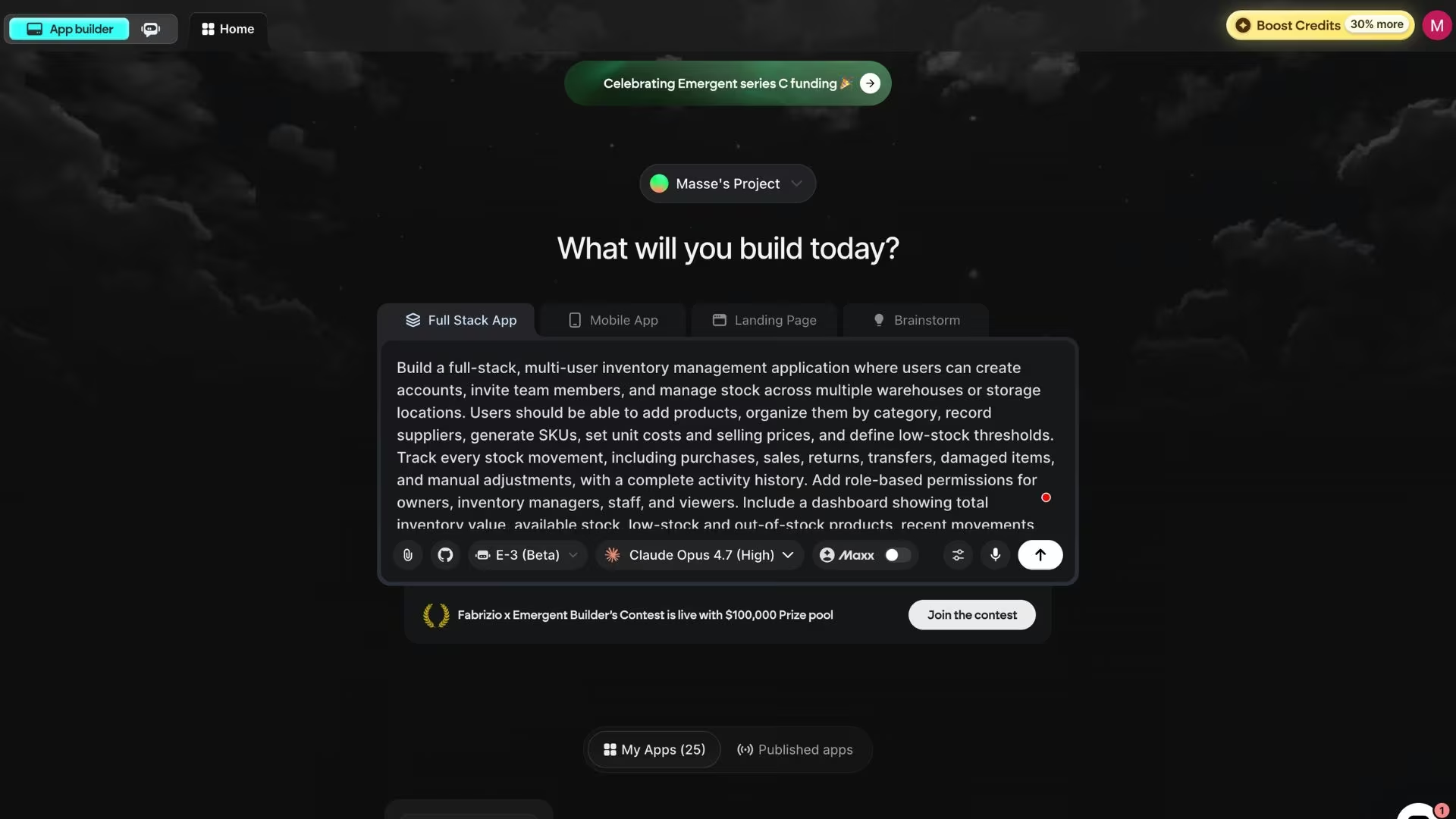
The length of this prompt is the whole point. A one-line request like "build me an inventory app" leaves the agent guessing at the roles, the locations, and the permissions, and you end up rebuilding half of it.
I spend a few minutes naming the roles, the movement types, and the must-have features first, because that front-loaded detail is what gets you a usable app on the first try.
Step 3: Answer the Setup Questions
Instead of building right away, the agent asks a handful of setup questions first. This is a good sign, because it means the AI is pinning down decisions it would otherwise have to guess at. For this build, it asked four:
- Sign-in: Use Emergent's one-click Google sign-in, or wire up my own? I chose the built-in Google sign-in for the fastest setup.
- Look and feel: The agent proposed a few design directions for the app. I picked a clean light theme with a warm amber accent and serif headings.
- Build setup: The agent caught a mismatch in my own brief. I had named one tool for assembling the app's screens, but the project template it starts from uses a different one, so it asked which to keep. I kept the template's setup, the default, and the faster path.
- Test account: The agent offered to seed the app with a demo session under a placeholder email, so there would be sample data to explore on first login. I said yes.
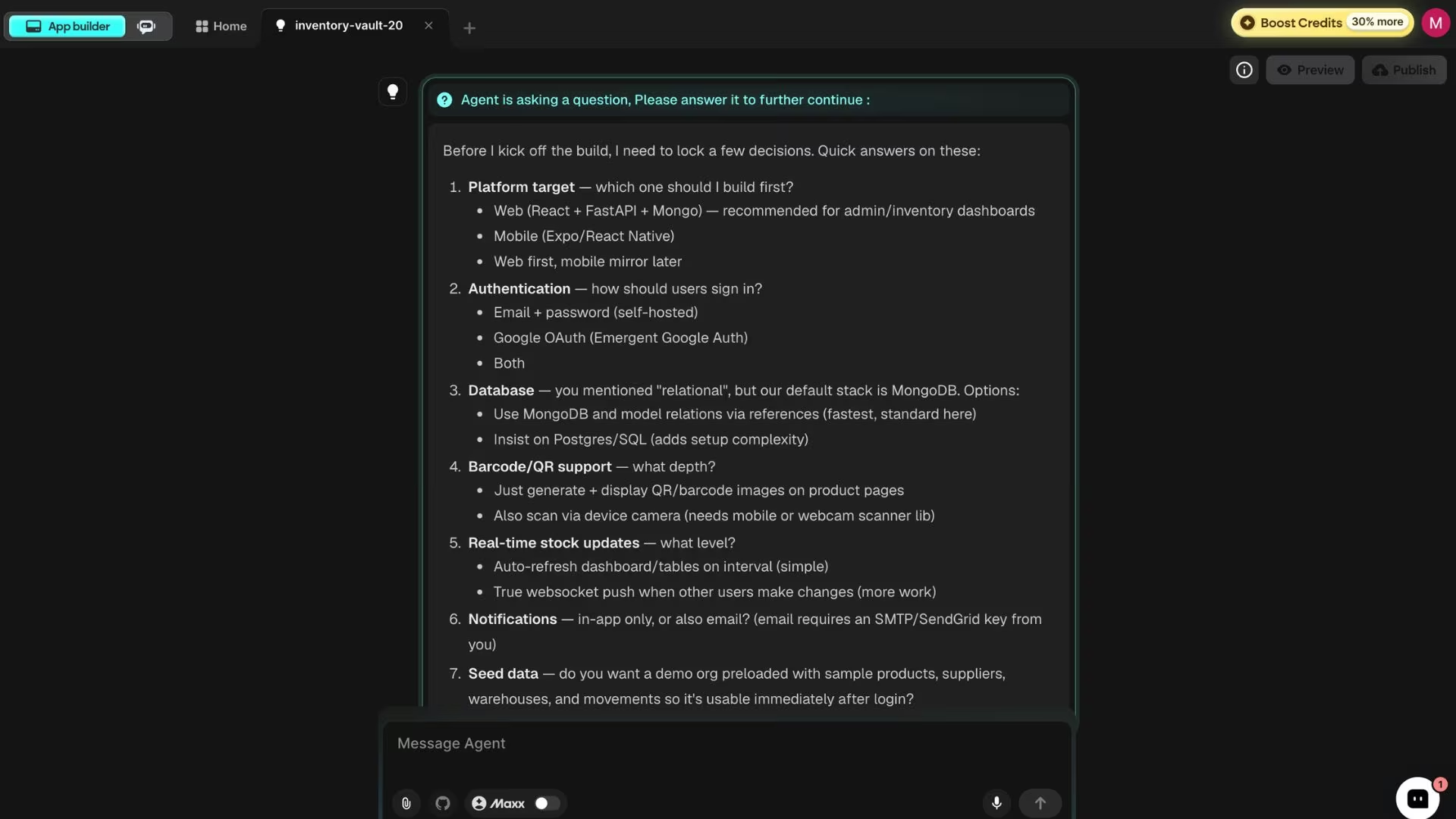
That build-setup question was the one snag of the whole setup, and it worked in my favor: the agent caught the mismatch in my brief and asked instead of guessing.
When a setup question turns more technical than you expected, take the default. The defaults exist because they are the fastest path to a working app, and you can revisit the choice in a later prompt if it ever matters.
Step 4: Let the Agent Build in Passes
Once you confirm your answers, the agent starts building. It splits the work into passes and pauses between them so you can review progress and make decisions. For this app, it confirmed a detailed first-phase plan before writing anything, then filled in the remaining features over the later passes.
You do not have to manage any of this. Follow the on-screen prompts through each pass, approving or adjusting as it goes. The first working version of the app appeared on the right side of the screen after the opening pass, and the later passes layered in the rest.
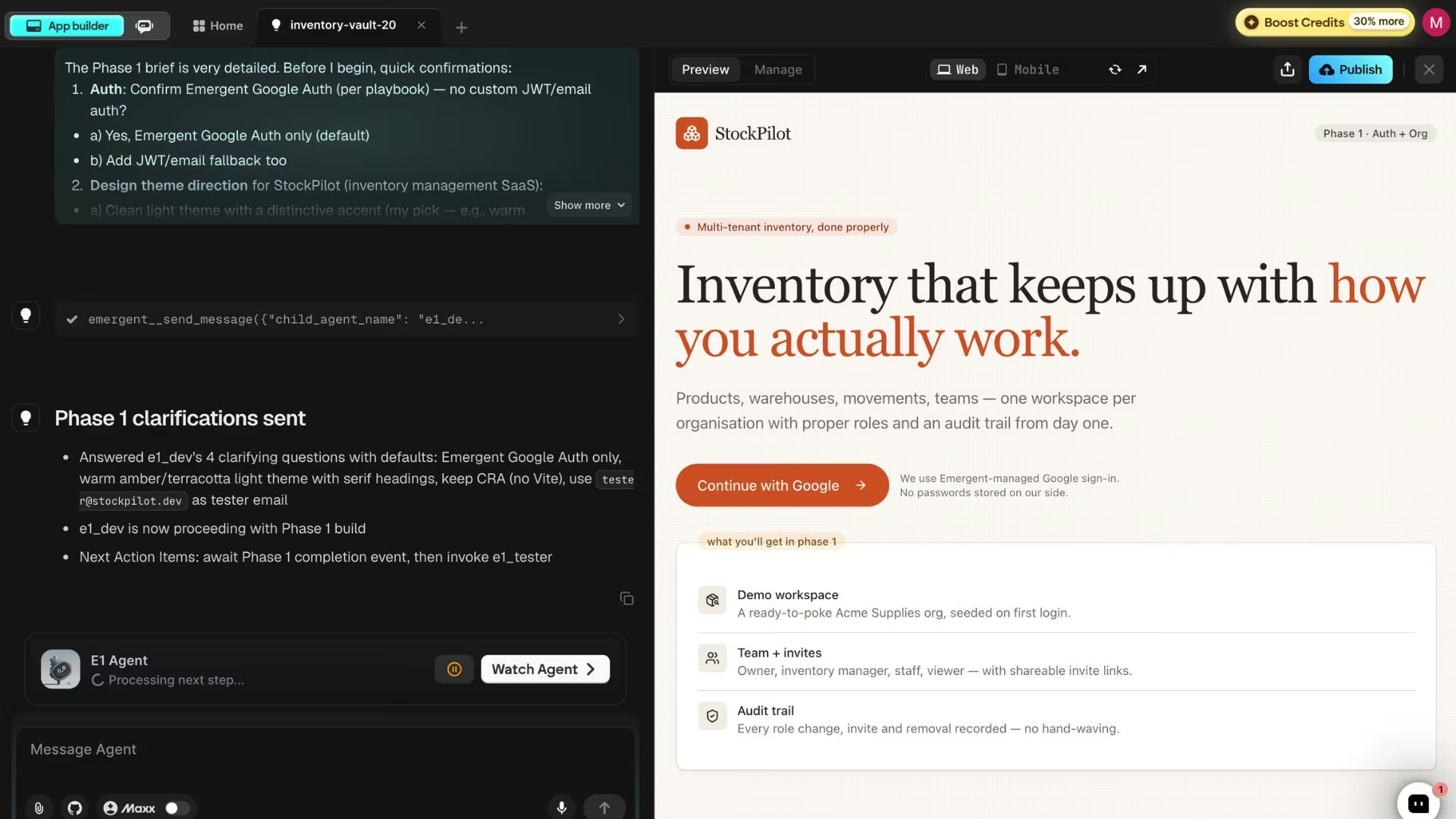
Treat the pauses between passes as the useful part. Building in stages gives you a chance to catch a wrong assumption early, before the agent has poured time and credits into it. Read what it says at each pause instead of clicking straight through, and you will spend far less time fixing problems later.
Step 5: Log In and Explore Your App
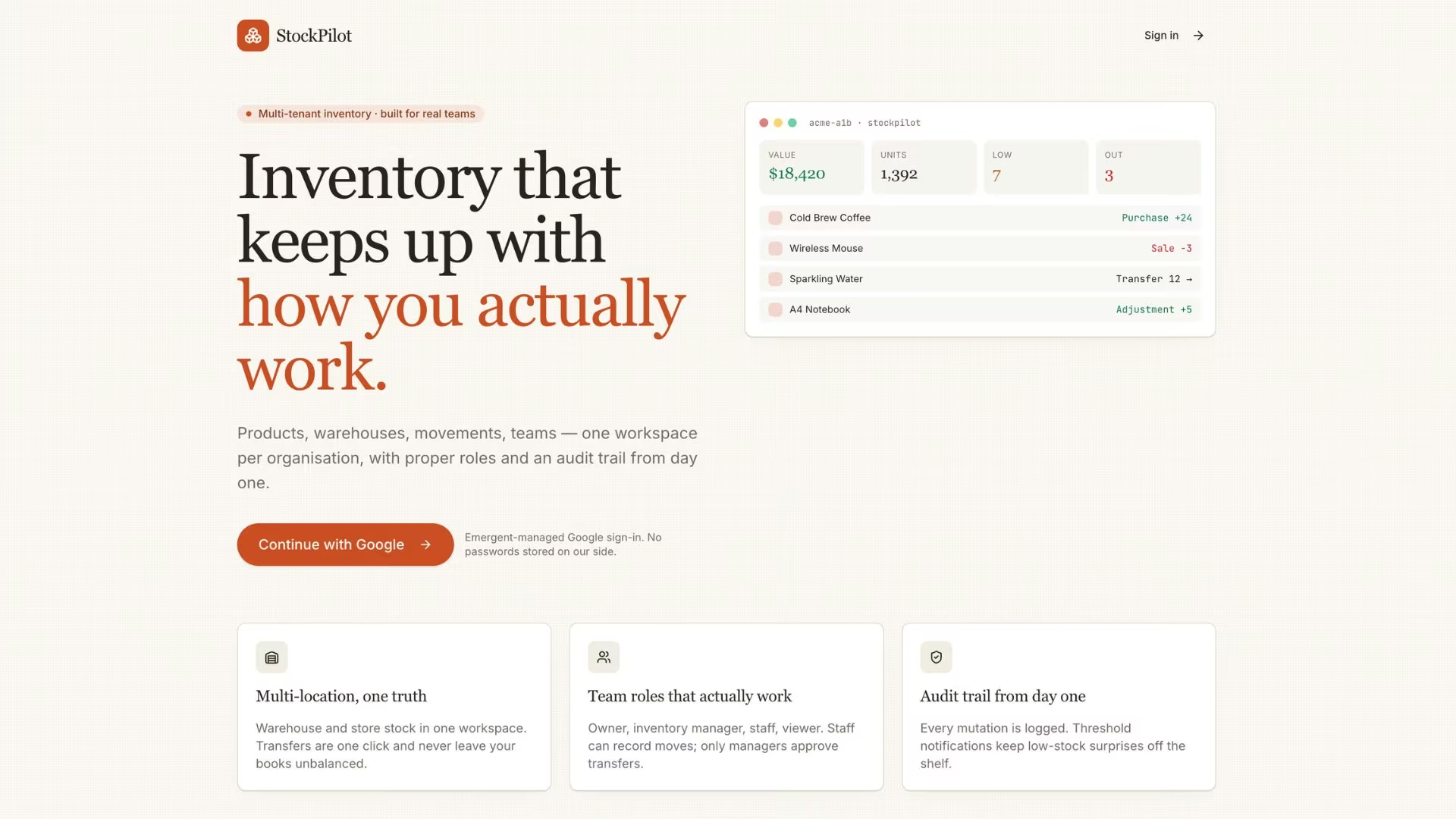
When the build finished, I had a working app named StockPilot with a clean landing page, a warm amber accent, and a Sign in with Google button right up front. One click signed me in.
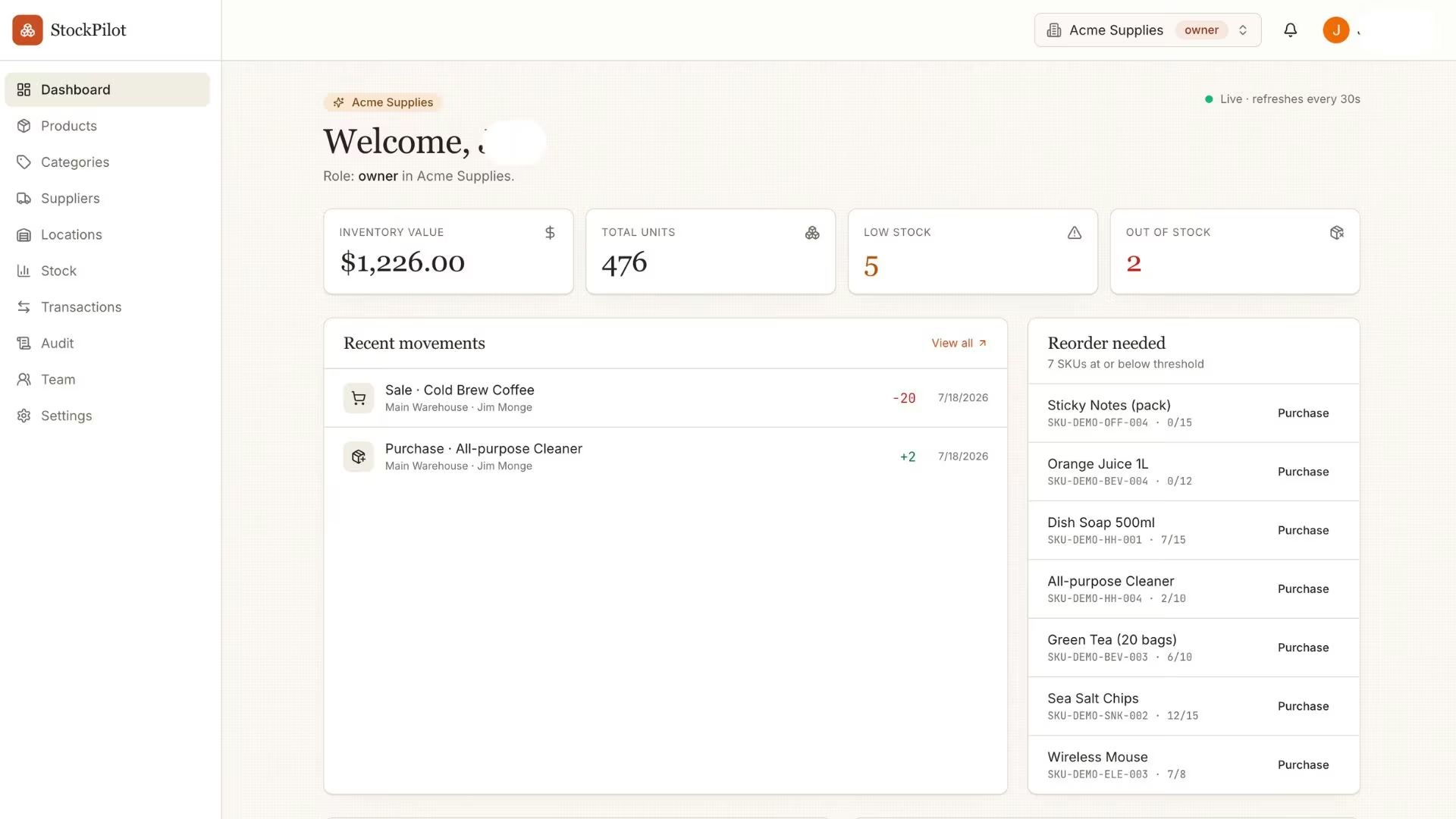
After signing in, you land on the main dashboard, which reads like a health check for your whole operation: total inventory value, units in stock, and a feed of recent transactions. Because the agent seeded a demo session, those numbers were already filled in with sample data I could explore.
This is the moment to click everything. Open the product catalog, record a movement, check the summary numbers. You are looking for anything that does not match what you pictured, because the fix is almost always a follow-up prompt describing the change, without touching any code.
Step 6: Add Products and Record Your First Transactions
The day-to-day work happens across three pages, and each one maps to a job your team already does.
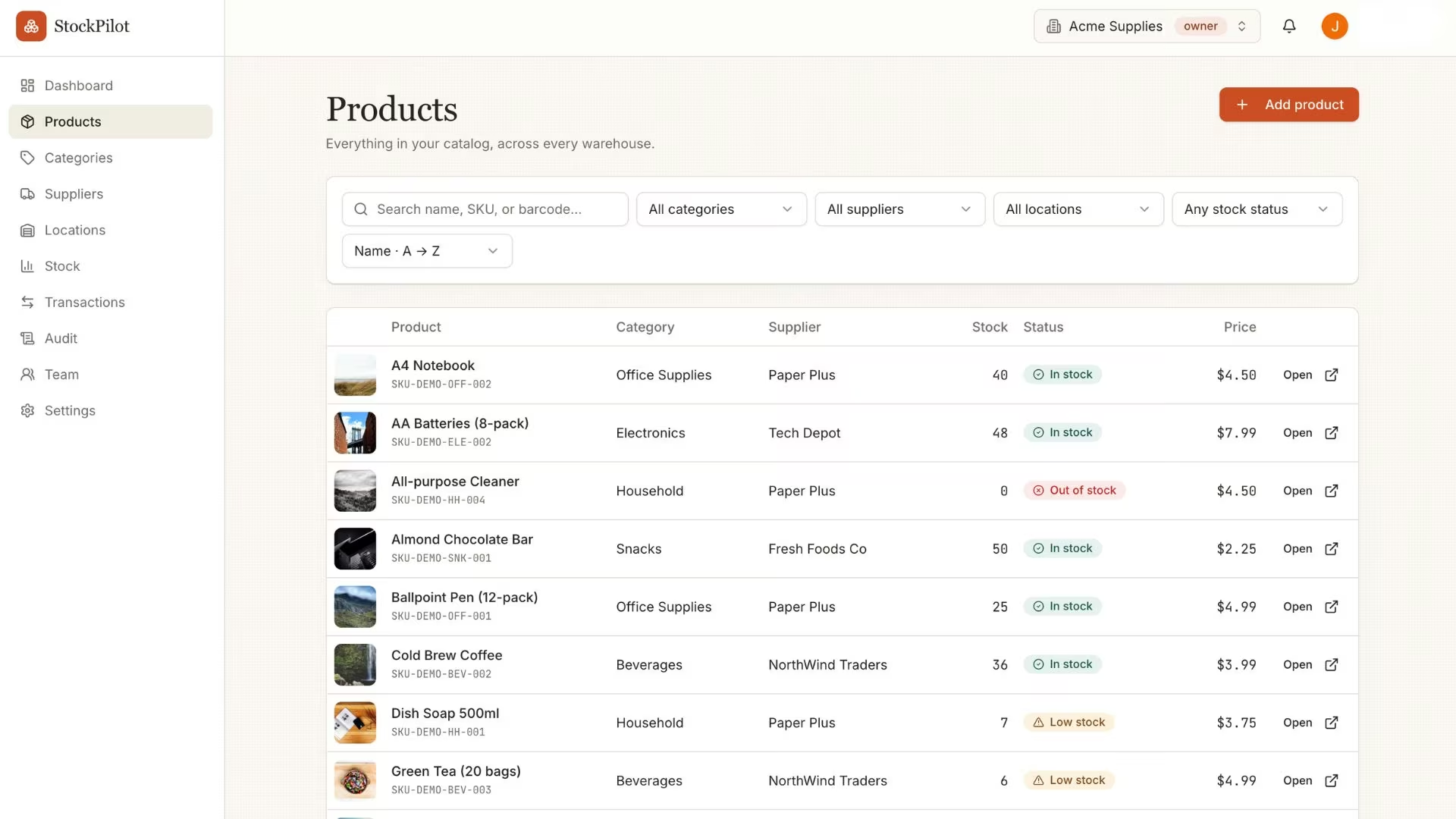
The Products page holds your whole catalog. From here you can view any item's details, add new products, and reorder the ones running low.
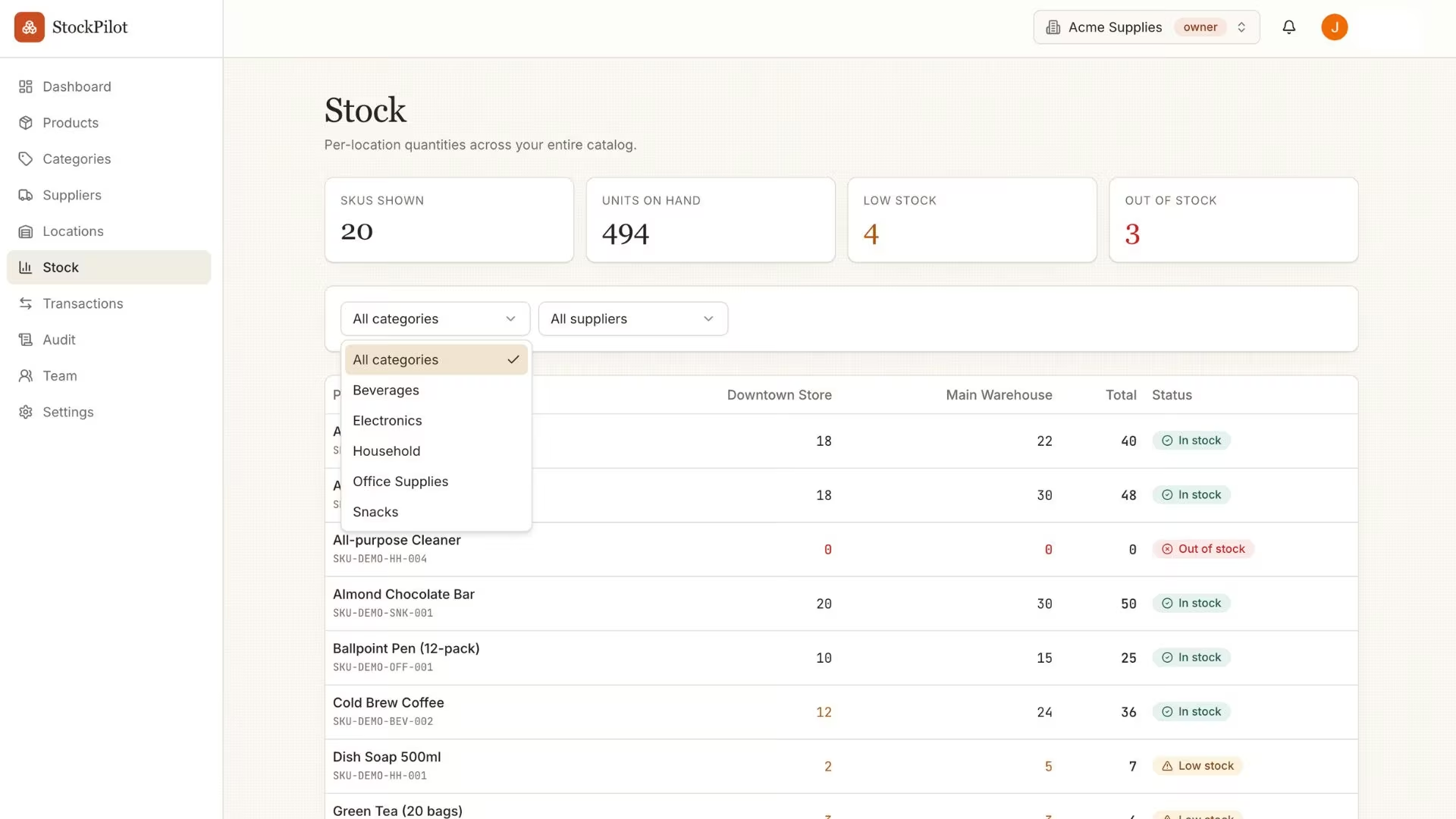
The Stock page tracks how many units of each product you have on hand, so a short count surfaces before it becomes an empty shelf.
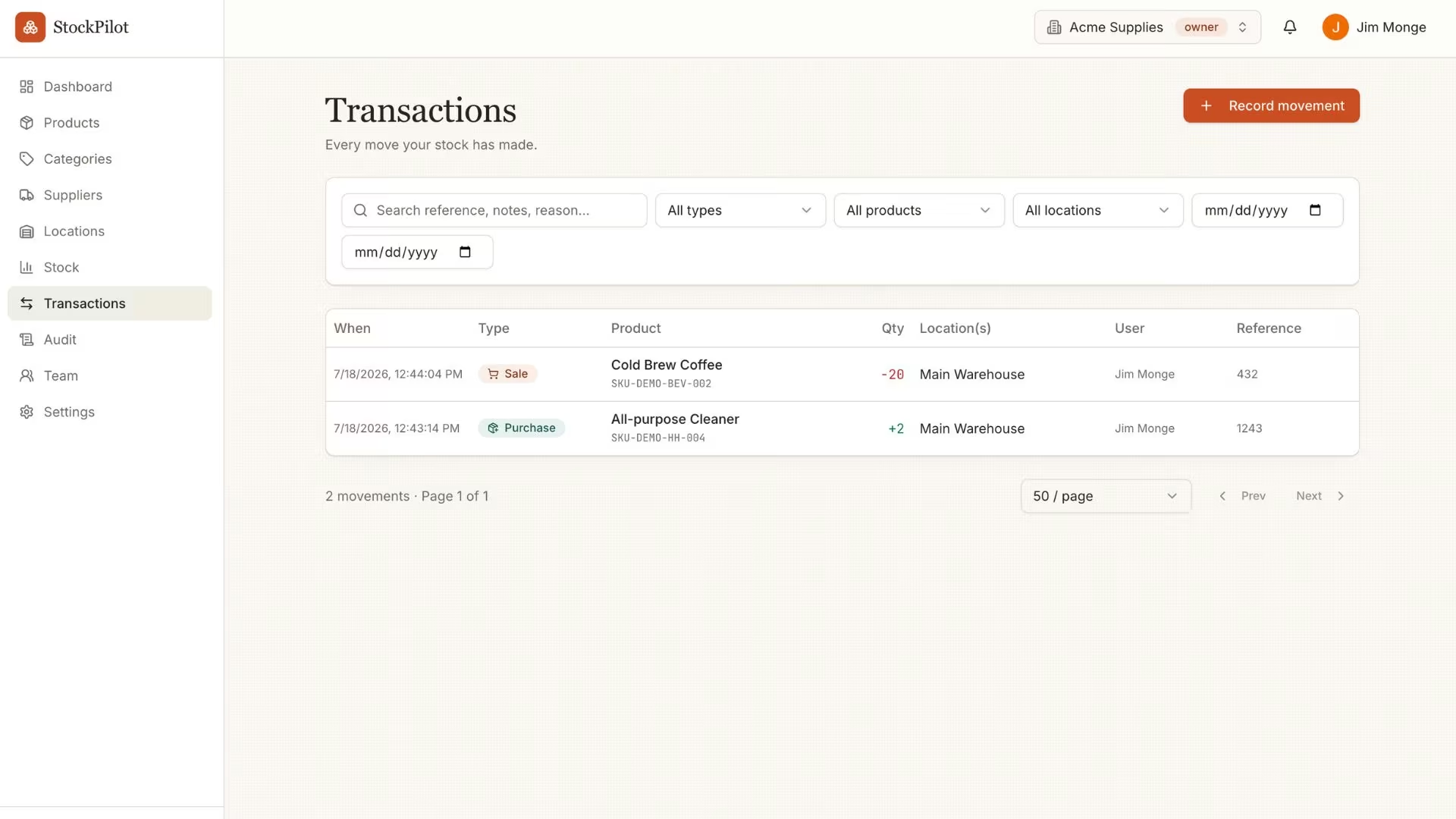
The Transactions page is where the numbers change. Record a purchase or a sale there, and every movement lands in a complete history, which keeps the books easy to audit later.
An inventory app earns its keep on the Transactions page, so test it the way your business actually runs. Add a product, record a sale against it, and confirm the dashboard totals update to match. If the stock numbers do not move the way your business works, say so in the next prompt and rebuild that piece.
Step 7: Deploy Your Web App
A preview that only you can see is not much use to a team, so the last step is to put the app live. In Emergent, you click the Deploy button, and after roughly 10 to 15 minutes, your app is live on a free web address ending in .emergent.host that you can share right away.
Deploying costs a fixed number of credits, the same whether you are publishing a one-page site or a full multi-user tool like this one. What varies is the build itself: the more complex the app, the more credits the agents use to get it working. Once it is live, you can keep refining with follow-up prompts and redeploy whenever you are ready.
When you want the app to live at your own name instead of a free address, you have two ways to add a custom domain.
You can buy a new domain through Emergent's built-in IONOS connection, free for the first year. Or connect a domain you already own from another provider with a quick setup step. Both paths are handled inside Emergent.
Hold off on deploying until the app does what you need in the preview. Each new version uses credits, so batch your changes and deploy once you are happy, instead of republishing after every small tweak.
Live demo: The inventory app from this guide is live at stock-management-web.emergent.host so that you can click through the exact app these prompts produced.
Common Mistakes to Avoid
Most problems with an AI-built app trace back to a handful of avoidable slips:
- Writing a vague prompt: "Build me an inventory app" gets you a generic tool nobody wants to use. Spell out who uses the app, what they can do, and the features you cannot live without in one paragraph, and the first version comes back far closer to what you pictured.
- Skipping the setup questions: The agent asks about sign-in, live updates, and sample data for a reason. A clear answer here saves you a rebuild later.
- Leaving roles and permissions fuzzy: Decide who can add products, who can record stock movements, and who can only view before you build. Fuzzy permissions are among the most common reasons a team tool needs to be reworked.
- Expecting one pass to be the finished product: The agent builds in stages and pauses for your input. Treat each pause as a checkpoint to correct course, and refine with follow-up prompts.
- Republishing after every tweak: Each new version uses credits, and after several deploy cycles your preview data can drift from the live version. Batch your changes, then deploy.
Final Thoughts
Building a web app is no longer a project that needs a developer and a five-figure budget. For an internal tool like an inventory tracker, a clear description refined over a few passes gets you a working, shareable app in an afternoon, and you own the code at the end.
It is not the right tool for every job, and that is worth knowing before you spend the credits. If you only need a marketing page, a site builder like Webflow is a cleaner fit.
Developers who want to write code faster will be happier with tools like Cursor or Claude Code. And a throwaway demo that only needs to survive one pitch meeting is what most of the category already does well.
Emergent is built for the opposite case: software that has to work, with logins, stored data, and a whole team using it at once. If that describes the tool you have been putting off building, this is the shortest path to having it live.
Build Your First Web App on Emergent
If the steps above made this feel doable, Emergent is built for exactly this kind of team tool:
- Go from idea to a working app in an afternoon: Tell the agent what you need, and it handles the build, from the screens people use to the part that stores your data.
- Skip the login and payment plumbing: Ask for Google sign-in or Stripe checkout once, and it is wired into your app for you.
- Keep full ownership of what you build: On the Standard plan ($20/month) and up, your project syncs to a code repository under your account, so you can export it and host it anywhere later.
- See finished builds before you start: Emergent's vibe coding examples walk through five working apps, from a landing page to a booking tool.
Emergent's free plan includes 10 credits, enough to build a first app and judge it for yourself. Try building your first app on Emergent.
Most builders stop at a prototype. Emergent ships real web and mobile apps, with accounts, databases, and payments included.
- Production-ready apps
- Web & mobile apps
- Deploy in minutes