
TL;DR
- Decide what the chatbot covers: List the questions it should answer and what it should do when it can't.
- Write one detailed prompt: Include the page layout, the chatbot's rules, and your business facts in a single message.
- Let the agents build and test: Read the end summary before you evaluate the build in preview mode.
- Review the chat and inquiries pages: Check what’s on the page against your business facts.
- Add a balance to the Universal Key: The chatbot's replies draw from this balance, which is separate from your build credits.
- Add features one prompt at a time: One change per prompt gives the builder a single clear instruction, so it doesn't mix up separate requests.
If you run a small business, learning how to build an AI chatbot can take the same weekly questions off your plate: what you offer, what it costs, and how soon you can start. A chatbot on your website can answer those questions right away.
I wanted to see how far one prompt could go, so I built a chatbot on Emergent for a small consultancy. I set it up to answer visitors' questions about the consultancy's services, prices, and availability, and to ask for a name and email whenever a question fell outside what it knew.
The build took 6 minutes and 6.04 credits, and two follow-up features took about a minute each. This guide walks through every step with the exact prompts I used, what each one produced, and the settings you need to change before your chatbot can reply to users. By the end, you'll be able to build your own AI chatbot and estimate the time and credits it'll take.
What You'll Need Before Starting
Here's what to have ready:
- An Emergent account: You build everything in the browser, so there's no code editor or hosting to set up.
- Your business information: Write down your services, prices, hours, location, process, and anything you don't offer.
- A Universal Key balance: The chatbot's AI replies use Emergent's Universal Key, which has its own credit balance. Adding credits to the key requires a paid plan.
- About 10 minutes of build time: Plan for 10 minutes across the first build and a couple of small follow-up changes.
- About 13 credits: The build used 6.04 credits, and two follow-up changes used 7.16 credits. Note that your build will likely vary from mine, so this is just an estimate. Publishing the chatbot so visitors can reach it costs 50 credits a month.
How I Built This
I built a website chatbot for Northbank Growth Partners, a fictional business-to-business (B2B) consultancy. The chatbot had to answer frequently asked questions (FAQ) from a short list of business facts, say when it didn't know something, and collect the visitor's name and email in those cases.
Each saved inquiry also had to appear on a separate page, so the business could follow up. The first build came from one prompt of just over 200 words, and it took 6 minutes and 6.04 credits.
I then added two features with one short prompt each. The first was a comma-separated values (CSV) export for the inquiries page, which took one minute and 2.16 credits. The second was a "Book a free discovery call" button in the header, which took under a minute and 5 credits.
How to Build an AI Chatbot: Step-by-Step
Step 1: Decide What Your Chatbot Should Cover
Before I wrote the prompt, I decided the chatbot should do two jobs. It would answer common questions about the business and capture a lead whenever it couldn't answer one.
I chose a consultancy because service businesses are asked the same few questions again and again: what they offer, what it costs, and how soon they can start.
Then I wrote the facts the chatbot could answer from. I limited them to six lines covering services, pricing, availability, location, process, and what the business doesn't offer:
- Services: Marketing strategy for B2B service firms, website copy audits, LinkedIn content plans.
- Pricing: Strategy sessions from $450; copy audits from $900; monthly retainers from $2,000.
- Availability: New projects start within 2 weeks. Hours are Monday to Friday, 9am to 5pm Eastern.
- Location: Fully remote, US clients only.
- Process: Free 20-minute discovery call, then a proposal within 3 business days.
- Not offered: Paid ads management, SEO link building, web development.
I added the "Not offered" line so that the chatbot would have a clear answer for questions like "Do you run Google Ads?" Without it, the AI would have to guess whether the business offers something, which I wanted to avoid.
This is also what makes an AI chatbot different from an older scripted one. According to Google Cloud, scripted chatbots can only give answers to questions written in advance, while AI chatbots generate their own replies.
Write your business facts as short labeled lines. A line like "Pricing: strategy sessions from $450" is easier for the chatbot to match to a visitor's question than a paragraph of policy text.
Step 2: Write One Prompt That Describes the Whole Chatbot
I included everything in a single message: the page layout, the chatbot's three rules, the inquiries page, and the business facts from step one. Here's the part of the prompt that came before the business information:
"Build a website chatbot for a small consultancy called Northbank Growth Partners. One page: a simple header with the business name, and a chat window where visitors type questions and get answers.
- Answer questions using only the business information below. Keep replies to 2–3 sentences, friendly and plain.
- If the answer isn't in the business information, say so honestly, then ask for the visitor's name and email so someone can follow up. Save the name, email, and original question.
- Show saved inquiries on a simple second page at /leads, newest first.
Don't add login, payments, or any other pages. Keep the design clean and mobile-friendly. Build it in one pass without asking me clarifying questions, using sensible defaults."
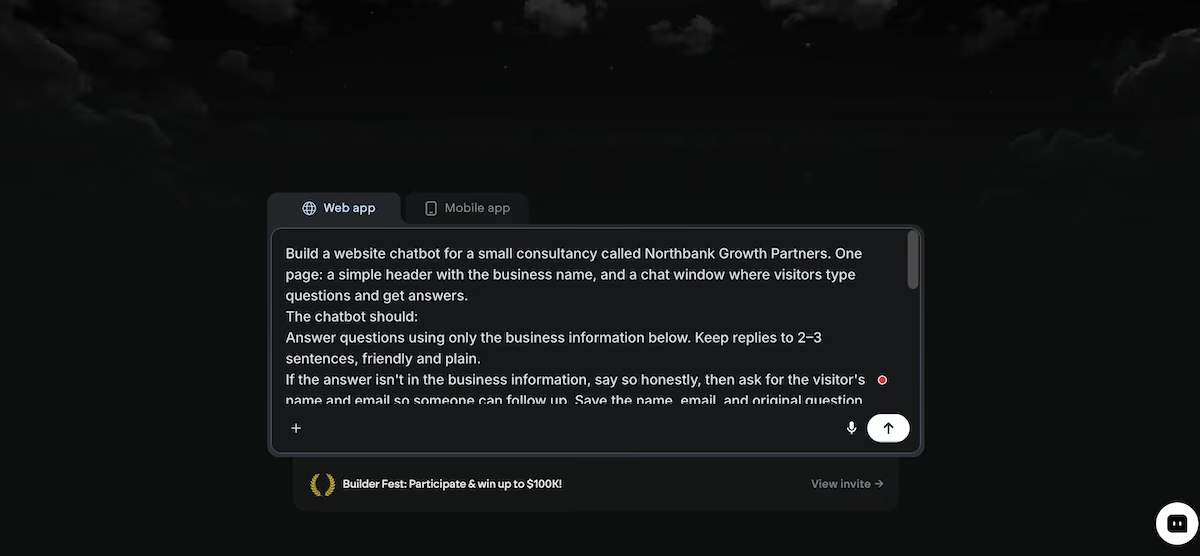
Two of the instructions were designed to keep the build tight. "Don't add login, payments, or any other pages" stopped the agent from adding features I didn't need, and "Build it in one pass without asking me clarifying questions" meant it started building right away.
Describing an app in everyday language and letting AI write the code is often called vibe coding, and the same approach works for building a website or a customer portal. The quality of the result depends heavily on the prompt, so this is the step worth slowing down on. Mine ran just over 200 words and covered the layout, the rules, and the facts before I sent it.
Tell the agents to skip clarifying questions when your prompt already answers them. Each extra round of questions and answers adds time and uses credits.
Step 3: Let the Agents Build and Check the Work
The agents read the instruction to skip clarifying questions and started right away. Within a minute, it had sent the design work to a design agent while it gathered its design guidelines and integration instructions.
About 4 minutes in, it connected the Universal Key and restarted the app to test the chat. That test failed. The agents checked the app's logs and found the cause: the Universal Key had a balance of zero, so the chatbot couldn't reach an AI model.
The agents then confirmed the code was correct and tested the inquiries feature by saving a sample entry. It also took its own screenshot of the preview to check the design had rendered, and wrote a short product requirements document that summarized the build.
The build finished 6 minutes after I gave it the prompt and used 6.04 credits. Emergent's agents split the work between design, building, and testing, and the testing agents checked it before I opened the chatbot in preview mode.
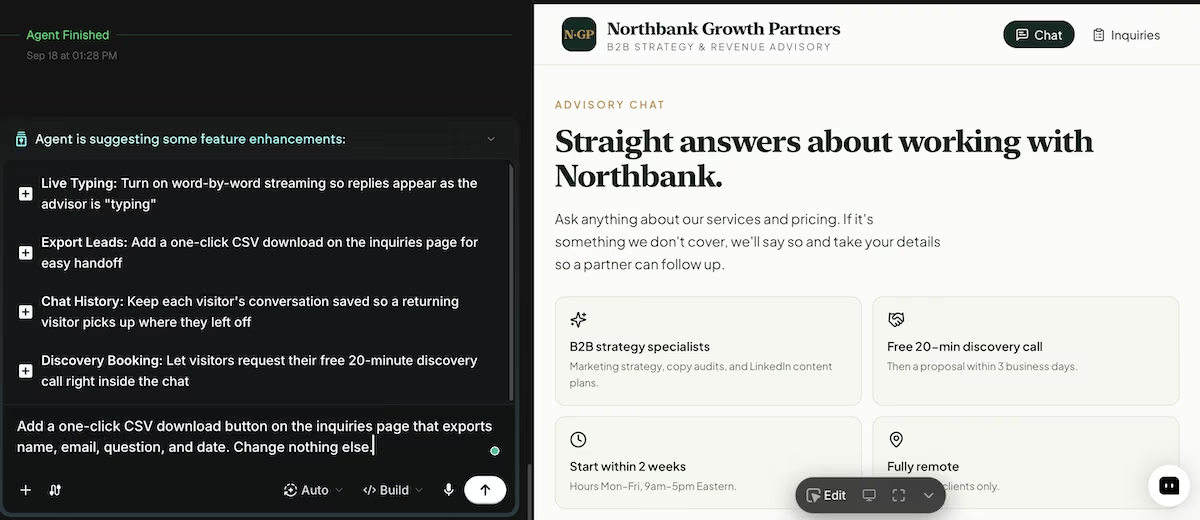
Emergent's agent after finishing the build, with suggested next features.
Read the end summary before you open the preview. Mine listed what worked, what didn't, and the setting I needed to change, which saved me from assuming the chatbot was broken.
Step 4: Review the Chat and Inquiries Pages
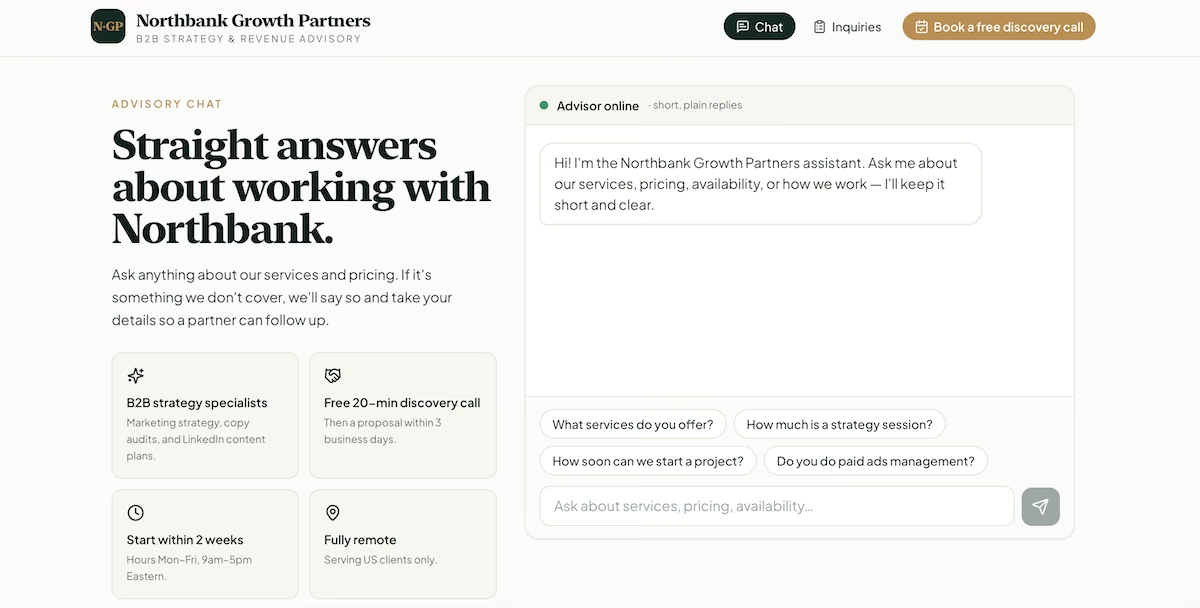
The chat page opened with the headline "Straight answers about working with Northbank." Below it, the agent had turned my six lines of business facts into four info cards: B2B strategy specialists, a free 20-minute discovery call, start within two weeks, and fully remote.
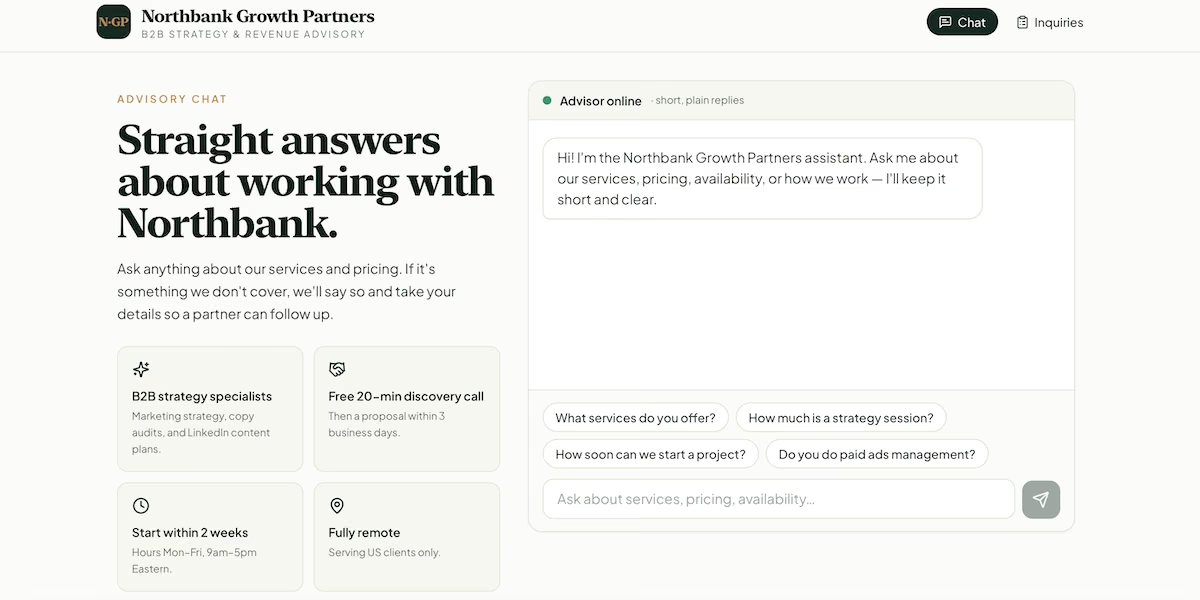
The finished chat page, with info cards, a greeting, and suggested questions.
The chat panel showed an "Advisor online" label, a greeting that listed what visitors could ask about, and four suggested questions as buttons. One of them was "Do you do paid ads management?", which came straight from the "Not offered" line. None of these extras were in my prompt.
The inquiries page, titled "Follow-up ledger," had a search bar, a total count, and a copy button next to each email address. It already had one inquiry: the agent's own test entry from "Jane Doe" asking "Do you do TikTok editing?" That entry confirmed the save-and-list flow worked.

The inquiries page with the agent's test entry.
Try the suggested question buttons first. They show which of your business facts the agents picked out, and they're the questions visitors are most likely to click.
Step 5: Add a Balance to the Universal Key
Emergent's Universal Key gives your app access to GPT, Claude, and Gemini models through one credential. It runs on Emergent credits, but it holds them in its own balance that you top up separately from the credits you build with, so funding the key is a step of its own.
You'll find it by clicking your account icon > Account Settings > Universal Key. The page shows your key, its balance, an Add Credits button, and an auto-recharge setting.
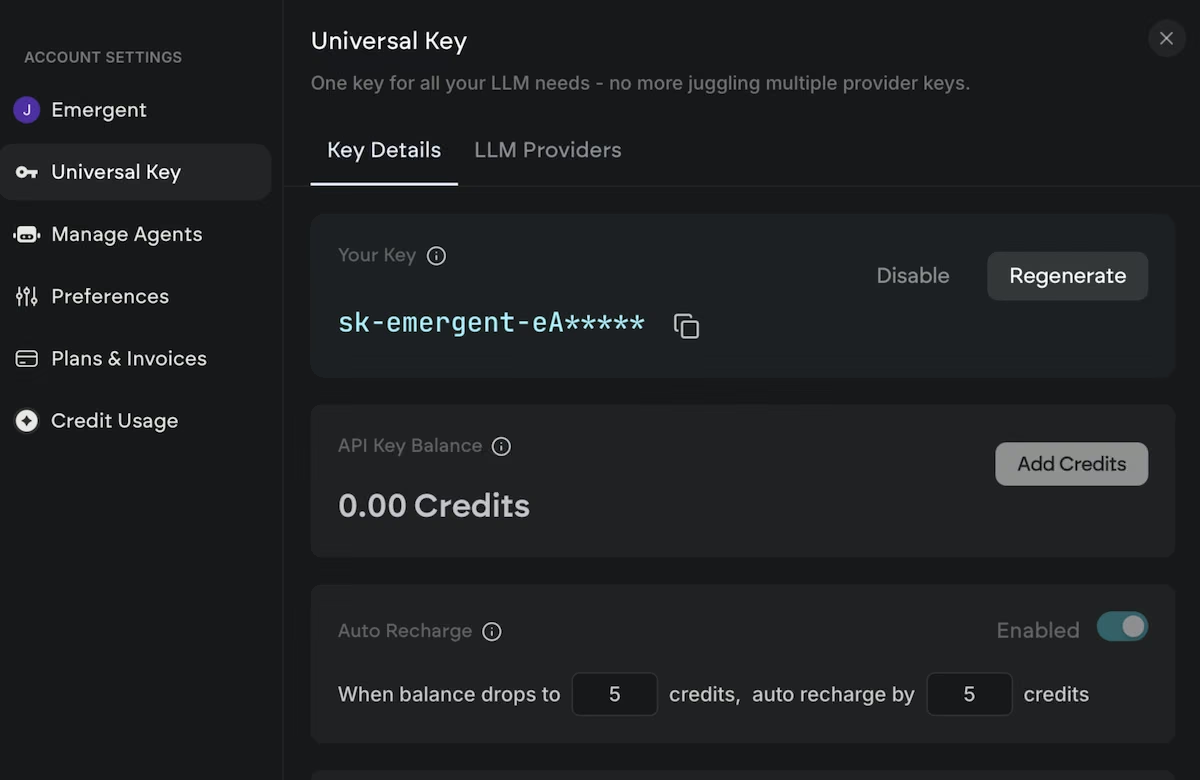
Fund the key before you test the chat. Click Add Credits, then send the chatbot a few questions of your own: two or three your business facts cover, and one they don't. The answers show whether it's using your facts and keeping to the length you asked for, and the unanswerable one should end with a request for the visitor's name and email.
Check the inquiries page afterward. Your test question should be at the top of the list, which confirms the lead capture end-to-end.
Turn on auto-recharge before you share the chatbot. An empty balance means visitors get an error message instead of an answer, and Emergent recommends a refill threshold of 5 credits.
Step 6: Add Features One Prompt at a Time
When the build finished, the agents suggested four next features: live typing, a CSV export for inquiries, saved chat history, and discovery-call booking inside the chat.
I chose the CSV export and typed my own version of the request so I could control what changed:
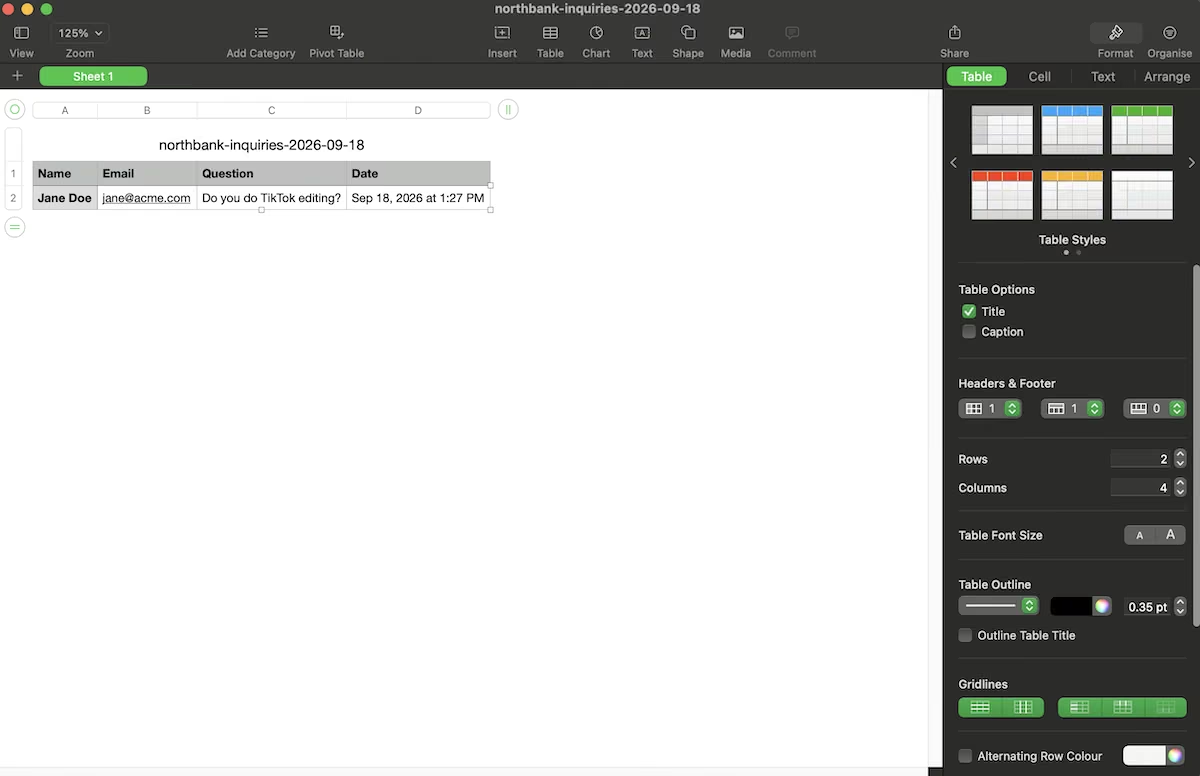
"Add a one-click CSV download button on the inquiries page that exports name, email, question, and date. Change nothing else."
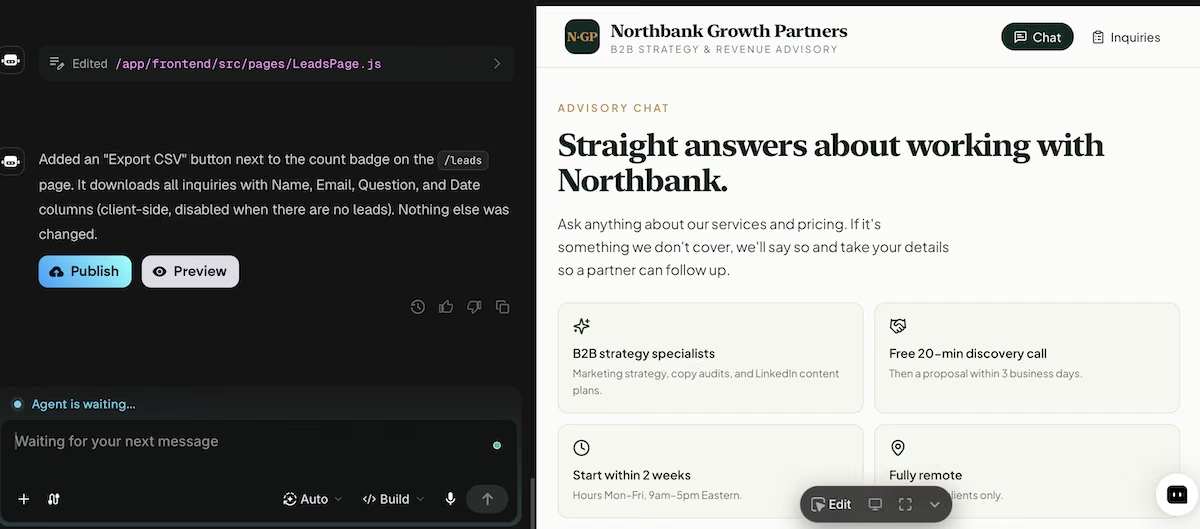
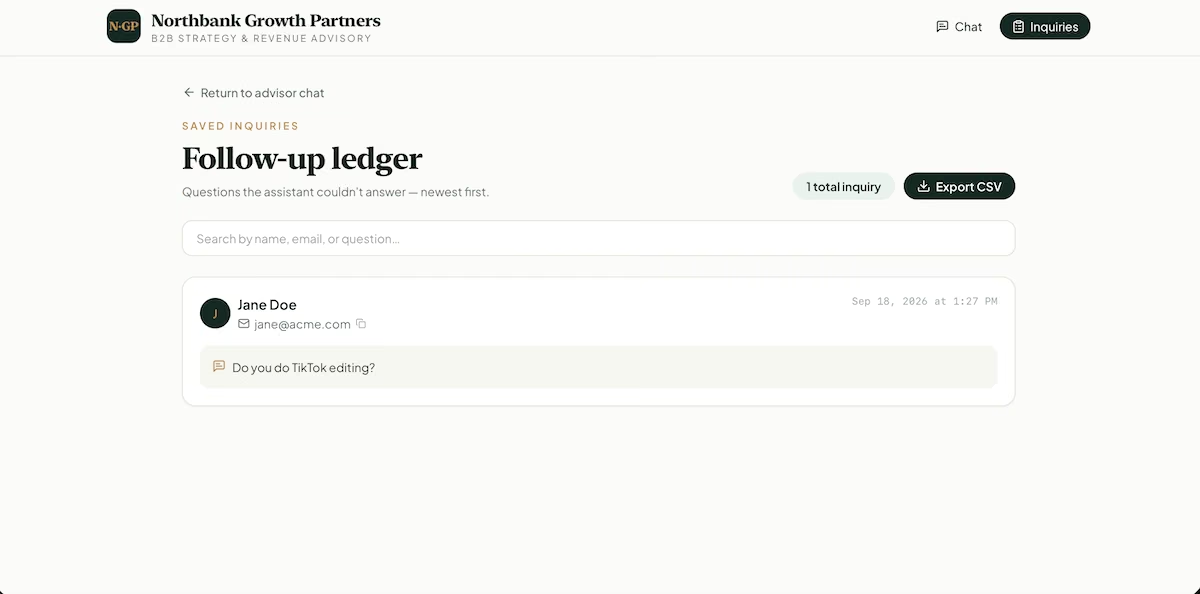
It took one minute and 2.16 credits. The agent added an "Export CSV" button next to the inquiry count, and it disabled the button when there weren't any inquiries to export.
For the second change, I added a way for every visitor to contact the business, even when the chatbot can't answer:
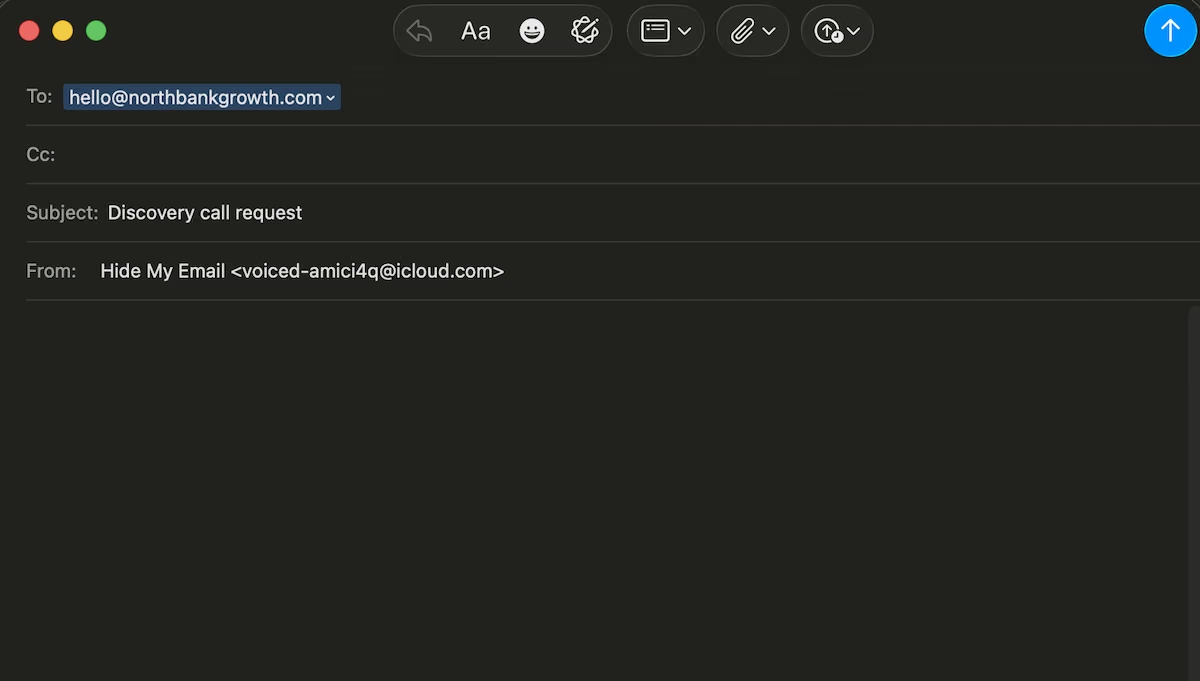
"Add a "Book a free discovery call" button in the header that opens an email to [email protected] with the subject ‘Discovery call request.’ Change nothing else."
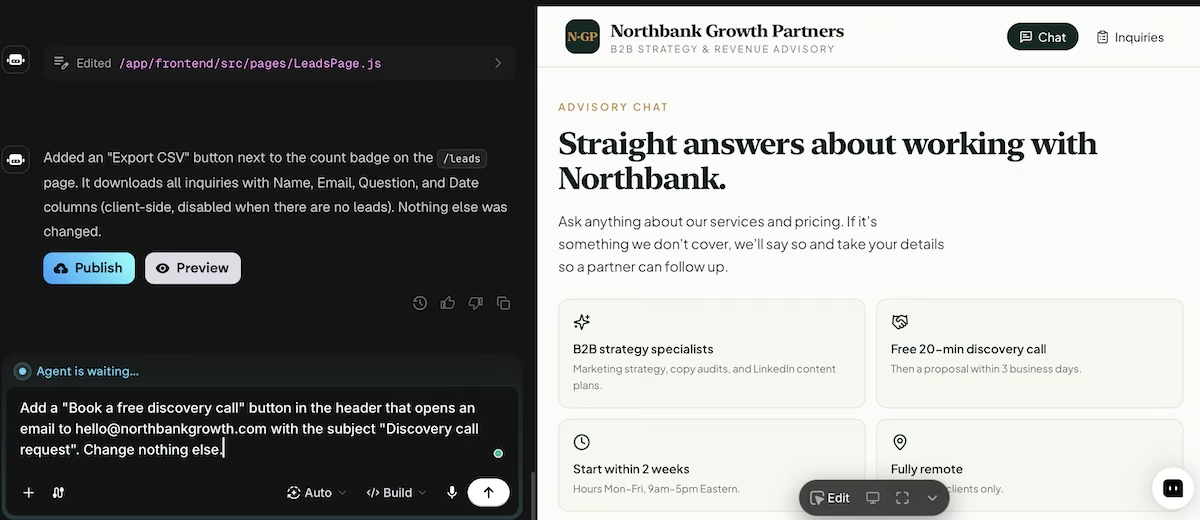
The button appeared in under a minute, in a brass color that matched the rest of the design. Clicking it opened a new email in the Mail app with the address and subject already filled in. Both of the agent's summaries ended with "Nothing else was changed."
End every follow-up prompt with "Change nothing else." Short requests like these finished in about a minute, much faster than the six-minute first build, and neither change touched the rest of the app.
Common Mistakes to Avoid
- Asking for a chatbot without giving it facts: A prompt like "build a chatbot for my business" leaves the AI to invent answers. Include your real services, prices, and policies in the prompt.
- Leaving out a fallback: All chatbots are asked questions they can't answer. Tell yours what to do in those cases, such as collecting an email or pointing to a contact page, so those visitors become leads.
- Forgetting that AI replies cost money to run: Building a chatbot and running its AI replies are often billed separately. Check how your tool charges for replies before you launch, and set a budget so the chatbot keeps answering.
- Testing only with your own wording: Customers rarely phrase questions the way you wrote your business facts. Ask someone else to try the chatbot before it goes live.
- Bundling several changes into a single follow-up: Large, mixed requests make it harder to see what changed and to fix anything that breaks. Ask for one change per prompt.
Also read our comparison of AI chatbot builders for what else is worth weighing once your first chatbot is working.
Taking It Further
Once the chatbot answers questions reliably, these are the next steps to consider:
- Publish: Publishing puts the chatbot on its own web address so visitors can use it. According to Emergent's deployment guide, deployment costs 50 credits a month per app.
- Add the AI-dependent features: Live typing, saved chat history, and booking inside the chat all need a Universal Key balance before they'll work.
- Match the chatbot to a use case: Lead qualification, customer support, and appointment booking each require different rules. These chatbot use cases show how the goal changes the setup.
- Build a bigger app around it: The same one-prompt method works for a full AI app with logins, dashboards, or payments.
Emergent Makes Building an AI Chatbot Easier
Building an AI chatbot used to mean choosing a model, writing code, and setting up hosting before it was even usable. Emergent's AI chatbot builder turns a detailed description of your business into a chatbot app, then lets you add features one short prompt at a time.
Here's how Emergent helps with building an AI chatbot:
- One prompt for the whole app: Describe your business and your rules, and the agents build the chat page, the lead capture, and the inquiries page together.
- Checks before handover: Emergent's testing agents check the work and report anything that needs your attention.
- AI models without separate accounts: The Universal Key connects your chatbot to GPT, Claude, and Gemini models using Emergent credits, so there are no provider accounts to manage.
- Fast, contained changes: Small follow-up requests update the app in about a minute and leave the rest of it alone.
Emergent offers a Free plan with 10 monthly credits. The Standard plan costs $20/month, or $17/month billed annually, and includes 100 monthly credits. The Pro plan costs $200/month and includes 750 monthly credits.

Start building on Emergent and have a first version of your chatbot ready in minutes.
Most AI app builders stop at prototypes. Emergent creates production-ready apps you can actually launch.
- Production-ready apps
- Web & mobile apps
- Deploy in minutes
Most AI app builders stop at prototypes. Emergent creates production-ready apps you can actually launch.
- Production-ready apps
- Web & mobile apps
- Deploy in minutes