
You've got a folder of contracts, policies, and reports somewhere, and every few days you open three of them to find one clause or one number.
This guide covers how to make your own AI assistant that reads that folder and answers questions about it. I built one on Emergent in an afternoon and put it online. It takes PDFs and Word documents, answers only from what you upload, and tags every answer with the filename and page it came from so you can check the source yourself.
Below you'll find the prompt that produced it, the setup choices that shaped the result, the parts worth testing before you show anyone, and a quick way to work out whether building your own beats buying something off the shelf.
What You'll Need Before You Start
Building an assistant like this takes surprisingly little setup. Here's the short list of prerequisites:
- An Emergent account: The free plan comes with 10 monthly credits, which is enough to start the loop and see how it works. This build ran to 23 credits, so budget for the Standard plan at $20/month if you want to finish and publish one.
- A job you can say in one sentence: "Answer questions about my uploaded documents" works. "Help me be more productive" doesn't.
- Five or six test files: Real ones, including a messy scanned PDF and something long enough to have page numbers worth citing.
- A Google account: Only if you want sign-in, which you probably do if anyone else will use it.
Time required: Two to four hours for a first version you can actually use, and a bit longer if you keep adding features.
How to Make Your Own AI Assistant in Five Steps
The whole build follows one loop. You describe what you want, the agent asks what it still needs to know, you answer, and it builds. Each step below is that loop getting more specific.
Step 1: Write the Prompt Before You Touch the Builder
The prompt is the whole job. Emergent is an AI app builder made for vibe coding, so you describe the thing you want in plain English, and it produces the whole app, the screens people see, the place your data lives, and the sign-in on the front door. That makes the description the only real input you control.
Emergent also ships a chat assistant called Emmy in the bottom right corner of every page, and she's free to talk to (she costs no credits), so the cheapest way to start is to describe your idea badly and let her ask the follow-up questions.
I told Emmy I wanted something that takes in documents and lets me ask questions about them. She came back with this:
"Build a web app where I upload PDFs and Word docs and then ask questions about them in a chat window. Answers must come only from the uploaded files and must cite the filename and page number. If the answer isn't in the documents, say so and offer to search the web instead, labeling that answer as coming from the web. Keep chat history between sessions. Use my Universal Key for the LLM."
Read that again and count the rules in it. It says where answers may come from, how every answer has to be sourced, what to do when there's no answer in the files, how to label a web answer, and whether conversations survive a page refresh.
Those five decisions are what separate a document assistant you trust from one you double-check every time. A prompt that stops at "let me chat with my PDFs" leaves all of them to the agent's judgment.
Also read: Our guide to vibe coding prompts for how to spell out the rules, sources, and fallbacks before you build.
Step 2: Choose the Build Type, Agent, and Model
Paste the prompt into the box, and you'll have three quick choices to make.
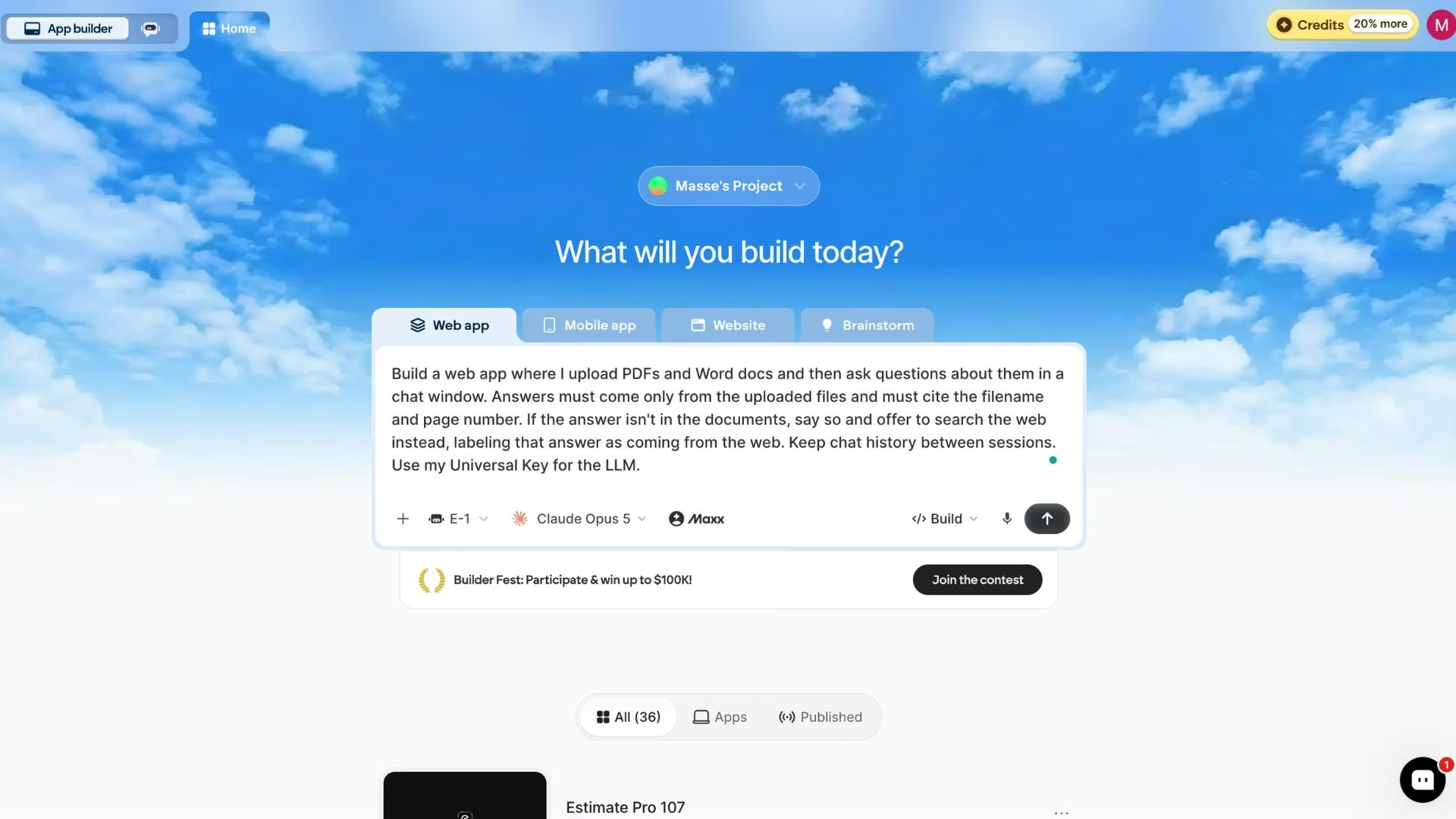
I picked the web app tab (the AI web app builder path) because a document tool gets used at a desk. Then I set the agent to E-1 from the dropdown, the steady default that's available on every plan and a reasonable choice for a first project.
Emergent offers several agents, and they behave differently, so if you're unsure which suits your build, Emmy will lay out the tradeoffs before you commit. From here on, I'll just call it the agent.
Last, I set the model to Claude Opus 5. Model choice affects how well the agent reasons through the build itself, and it's separate from the model your finished assistant uses to answer questions (that one gets decided in the next step).
Step 3: Answer the Setup Questions
Emergent opens with clarifying questions before it builds anything, and your answers get baked into the app, so this is the part to slow down on.
Mine asked five, and here's what I said:
- Which model answers questions: GPT-5, running through my Universal Key.
- Web search fallback: Use a model that already has web search built in.
- Accounts and login: Google sign-in.
- File storage: Emergent's own built-in storage, since I had no reason to bring my own.
- Design preference: Skipped, and I let the agent pick something.
That second mention of the Universal Key is worth explaining. The Universal Key is a single credential that lets your app call GPT, Claude, and Gemini models, with the usage billed through your Emergent credits.
Without it, you'd be signing up with three providers, managing three sets of access keys, and reconciling three bills before your assistant answers its first question.
Skipping the design question was deliberate. Early on, an opinionated default from the agent gets you to something you can judge faster than a paragraph describing the shade of blue you had in mind.
Step 4: Check Every Screen Before You Add Anything
Getting to that first version took 21 minutes and 23 credits, start to finish. A live preview of the app came up on the right side of the screen, next to the agent's build summary.
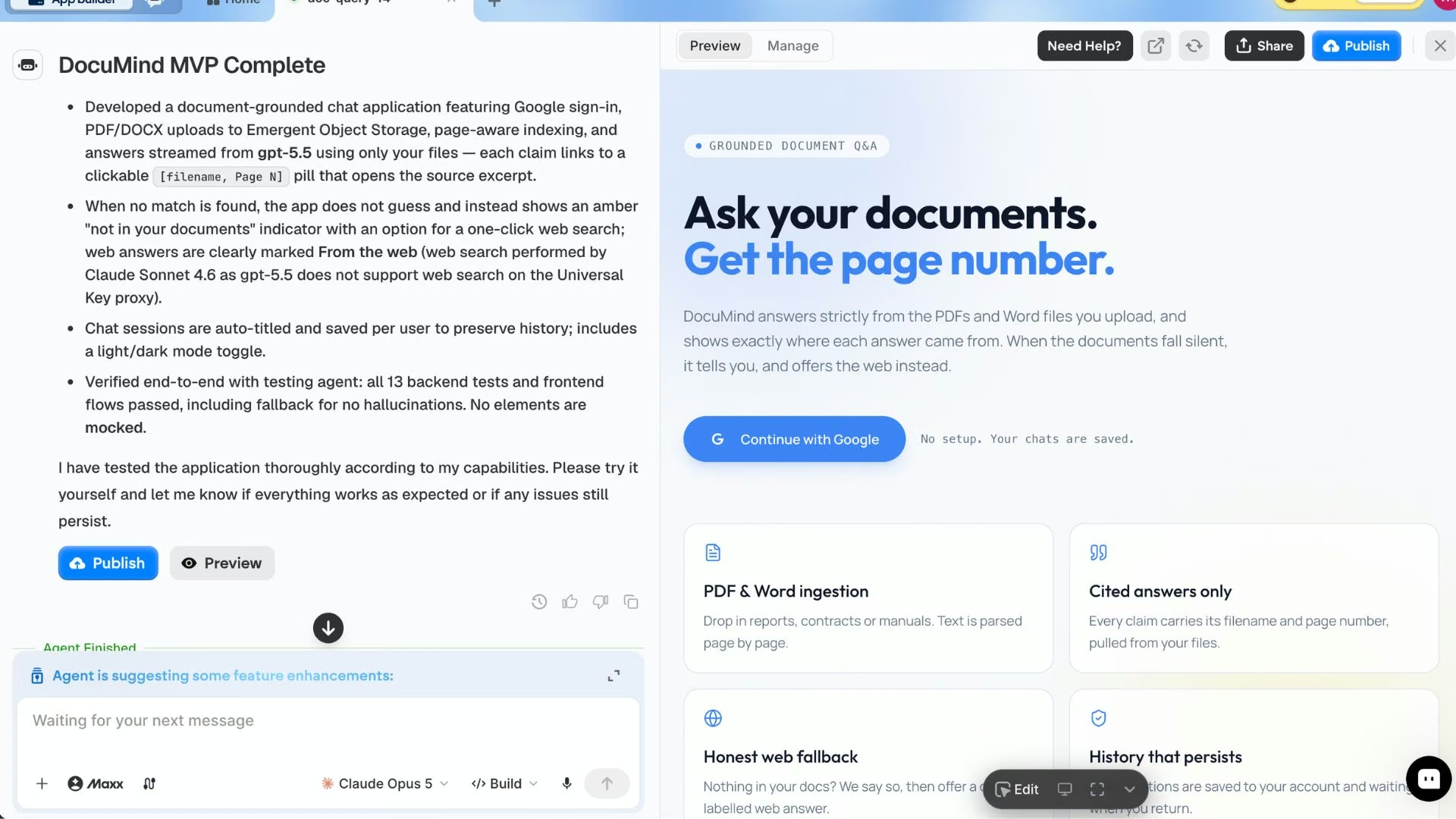
The summary also flagged a change it made on its own. Because GPT-5 can't run web searches through the Universal Key, the agent routed labeled web answers through Claude Sonnet 4.6 and said so up front. Emergent's testing agents then ran 13 automated tests plus the screen flows, including the no-guessing fallback, and everything passed.
Then I went through it screen by screen, which is where most people rush and the cheapest place to catch a wrong assumption.
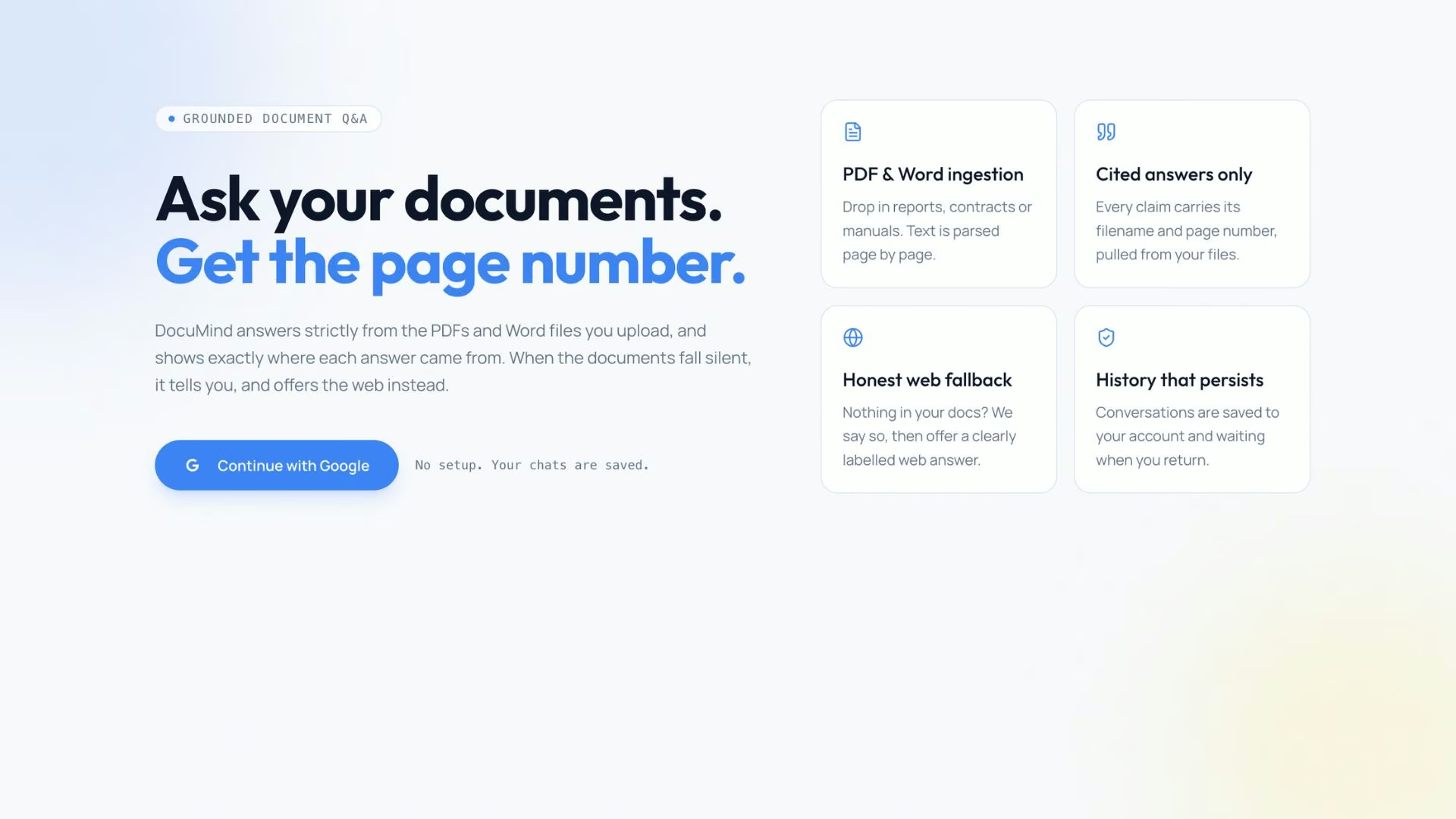
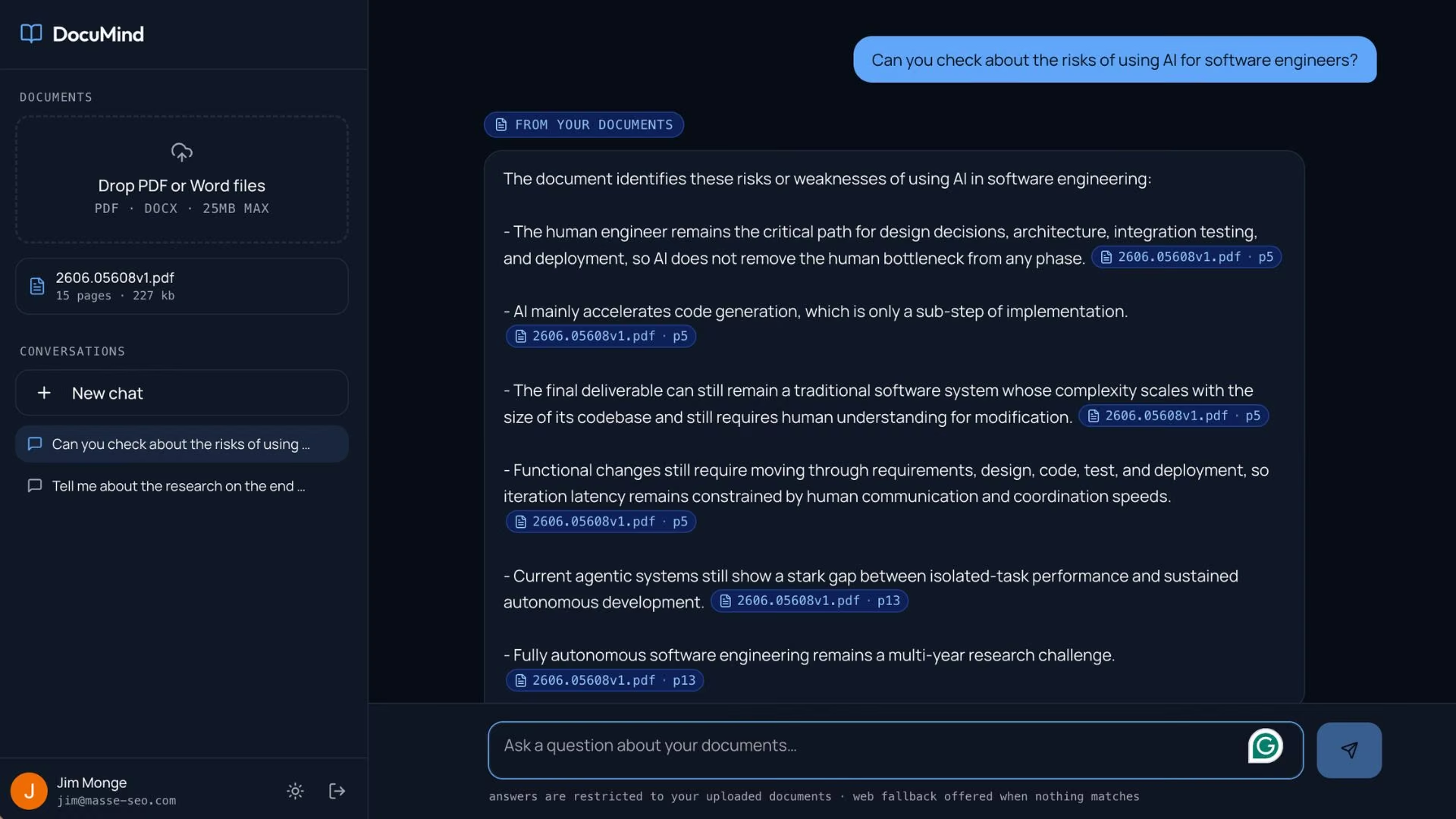
The landing page came back with a name I liked, DocuMind, and it covered the right things: PDF and Word ingestion, answers cited straight from the documents, saved search history, and a Google sign-in button. Nothing on it needed a follow-up request.
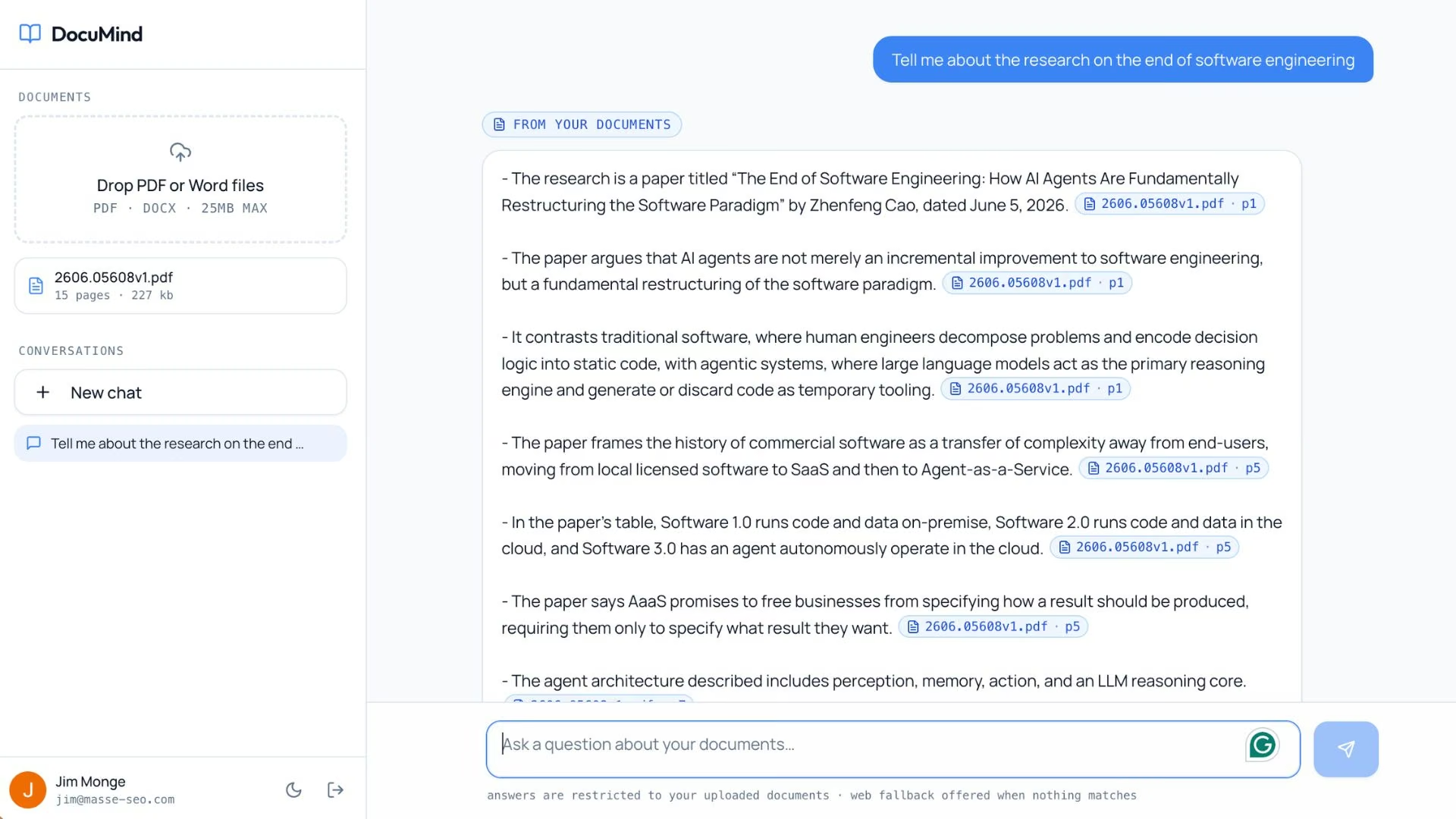
The chat screen is where the app earns its keep. After signing in, you upload a file and talk to it like any chatbot, and each answer carries a clickable tag that jumps to the exact spot in the PDF the answer came from.
That tag is the feature that makes the thing usable for anything serious, because you can confirm an answer in about two seconds instead of trusting it.
Dark mode shipped without my asking, which was a small bonus for anyone reading contracts at night.
Before you move on, run three tests. Upload a file and ask something it plainly answers. Ask something the files don't cover at all, and watch whether the assistant says so and offers the web instead of guessing.
Then close the tab, come back, and check that your history is still there. Any of those three failures is fixable with a follow-up prompt.
Step 5: Deploy It
Deployment is a button, and it's yours to press. Click Deploy, and the app goes live on its own .emergent.host address in roughly 15 minutes. Keeping it live costs 50 credits a month, which is half of what the Standard plan gives you, so budget for it before you press the button.
Mine ended up at doc-query-14.emergent.host, which is a fine address for a personal tool and a slightly odd one to put on a business card.
If you want a proper web address, you can buy one through the built-in IONOS integration or point a domain you already own at the app instead.
Read More: How to Deploy Your First App on Emergent
Three Routes to Your Own AI Assistant
There are really only three ways to do this, and they differ in how much of the thing you end up owning.
Route one is configuring an existing assistant. You take a product you already pay for, give it instructions, upload some reference files, and you're done in 20 minutes. It's the fastest route by a distance.
The limit is that your assistant lives inside somebody else's product, so you don't control the interface, who can reach it, or what happens when the host changes its features. Anyone weighing this route against a dedicated chat product will find the ChatGPT alternatives landscape a useful starting point.
Route two is a dedicated builder. Assistant and chatbot platforms give you a visual editor, hosting, and a widget you can drop on a site. If your assistant mostly answers questions from a knowledge base, an AI chatbot builder covers it.
If it needs to take actions on your behalf, that's closer to an AI agent builder, and the distinction between an agent and a chatbot decides which category you're shopping in.
Before you build anything, browse our comparison of AI agent builders and our comparison of AI chatbot builders.
Route three is building the app itself, which is what this guide walked through. It takes the longest of the three; call it an afternoon, and in exchange you get your own sign-in, your own storage, your own address, and code you can export and take elsewhere.
This is vibe coding applied to a narrow problem, and the honest tradeoff is that you're now responsible for a piece of software, including the bits that break.
Pick route one if you're still testing whether the idea is useful at all. Route two suits an assistant that works as one feature of a business you already run. Route three earns its extra hours once other people have to log in, or once the documents involved are ones you'd rather keep out of a general-purpose chat tool.
Common Mistakes to Avoid
Most of the problems people hit are set in the first five minutes.
These are the ones worth heading off:
- Starting with a vague prompt: "Build me an AI assistant" produces something generic that nobody uses. Prompt quality drives output quality more than any other factor, which is exactly why Step 1 is a whole step.
- Leaving out the refusal rule: If you never say what the assistant should do when the answer isn't in your files, it'll fill the gap from general knowledge and sound just as confident doing it.
- Stacking 10 changes into one request: Ask for one change, look at the result, then ask for the next. Batched requests are harder to unpick when something goes sideways.
- Testing with clean files only: Scanned pages, two-column layouts, and 200-page reports behave differently from the tidy PDF you tried first.
- Expecting polished PDF reports out of it: Emergent handles reading documents well, though generating heavy PDF reports is a known weak spot, since charts can break across page boundaries. Plan on a different tool for that part.
What to Add After the First Version
A first build is a starting point, and every addition runs through the same loop you've already been through five times.
The additions worth considering early are a print button, so answers come out on paper properly, a download option for exporting an answer with its sources, and web research for questions your files were never going to cover. Sharing comes next if colleagues will use it, which usually means thinking about who can see which documents.
Two practical notes on the running cost. Every request spends credits, so the plan you're on sets the pace of your iteration.
The Standard plan runs $20/month ($17/month billed annually) and includes 100 credits, private project hosting, and GitHub integration, while Pro is $200/month ($167/month billed annually) for 750 credits, a 1M context window, and custom AI agents.
Credits stretch much further on a small change to one screen than on a build that touches the whole app, so early requests feel cheaper than later ones.
The second note is a limit worth knowing before you get attached to a build. Your preview and your live app use two separate databases from the very first deploy, and they never share data. Anything you uploaded while testing won't be in the live version, so re-upload your files once it's live.
Who Should Skip Building Their Own
Emergent is built for people who want a piece of software other people actually use, and a document assistant with sign-in, storage, and a live address fits that squarely. Plenty of situations don't.
If you write code for a living and you want to write it faster, a coding tool is the better answer. Claude Code and Cursor sit in that category, and we cover the field in our roundup of the best AI coding assistants.
If what you need is a marketing site with a chat widget bolted on, Webflow will get you there with less effort. And if your assistant only has to survive a single pitch meeting, a configured off-the-shelf assistant is enough.
AI use among US businesses sat between 17% and 20% from December 2025 through May 2026, and use climbs with company size, from under 20% at firms with four or fewer employees to 37% at firms with 250 or more. Small teams have the most to gain here, and they're also the ones who can least afford a week spent on software nobody asked for.
Write down the question you want answered before you open the builder, and if you can't finish that sentence, you're not ready to build yet.
Final Thoughts
The software is now the easy part of building an AI assistant. The hard part is the specification.
Everything that makes DocuMind useful (the rule about answering only from uploaded files, the filename and page citation, the labeled web fallback, the history that survives a refresh) came from one paragraph of plain English that took longer to think about than the build took to run.
That's also the uncomfortable part. Knowing how to make your own AI assistant no longer protects you from building the wrong one. The tool will faithfully produce whatever you describe, including something nobody wants, and it'll do it fast enough that you won't notice until it's deployed.
So spend the first hour on the paragraph. The version that names what your assistant refuses to answer is the one worth building, and everything after that is mostly waiting for a deploy to finish.
Should You Build Your AI Assistant on Emergent?
Build your assistant on Emergent when it needs its own sign-in, its own storage, and a web address other people can log into.
Here's what that gets you:
- Go from a paragraph to a live address the same day: Describe the assistant in plain English, answer the setup questions, and click Deploy to get it online in roughly 15 minutes.
- Run several AI models through one credential: The Universal Key lets your assistant call GPT, Claude, and Gemini models with usage billed through your Emergent credits.
- Skip the sign-in and file-upload plumbing: Google sign-in and file storage come with the build, so your first prompt can be about what the assistant does.
- Keep the code if you outgrow the platform: GitHub integration on the Standard plan and up means your project can move with you.
- Try the loop for nothing first: The free plan includes 10 monthly credits, enough to describe your assistant and watch the first build take shape before you commit.
Also read: Our guide to an AI personal assistant for business for how teams use assistants like this on real work.

Most AI app builders stop at prototypes. Emergent creates production-ready apps you can actually launch.
- Production-ready apps
- Web & mobile apps
- Deploy in minutes