You've got a clear picture of the site in your head. You know the pages, the colors, and the one job it has to do, which is getting people interested enough to reach out.
Then you open the first design tool on your list, spend an evening getting the homepage right, and reach the contact form with no idea where the responses will go.
I went through a long list of website design software and narrowed it down to eight. I built the same five-page site in six of them, spent about seven hours testing, and reviewed the other two based on their plans and help pages.
You'll finish knowing which kind of tool fits the site you're building and what each one costs once you're ready to go live.
Web Design Software vs. Website Builders: What's the Difference?
Web design software plans how a site looks, while a website builder publishes that site to a live address. Most tools sold under the "website design software" label now do some of both, so compare them on what each one leaves for you to handle after the design is finished.
Design Tools Plan How a Site Looks
Design tools give you a shared canvas to lay out pages, click through prototypes, and agree on the look before anyone builds. Some now publish simple sites too, but saving what visitors submit usually still takes another tool.
Website Builders Publish a Live Site
Website builders pair a visual editor with hosting, so the page you design is the page visitors see. Most handle the basics a small business needs, including templates, a custom domain, and a simple contact form. Custom logic, such as client logins or a database you can search and update, usually means add-ons, plugins, or code.
AI App Builders Handle Sites That Store Data
AI app builders generate the design, database, and logic from a written description. You trade some hands-on canvas control for a site that can store and manage information from the first version. They suit sites that behave more like small applications, such as booking systems, client portals, and member areas.
How I Tested
I gave six of the tools the same site to build, pasting the brief into each one's AI builder. WordPress.com's AI builder needs a paid plan, and Dreamweaver has no prompt-based builder, so I reviewed those two from their pricing and support pages instead.
"Design and build a five-page website for Nightjar Records, an independent vinyl shop. Use a deep navy background with mustard yellow accents and a bold, condensed display font for headings. The homepage needs a large hero with a scrolling carousel of new arrivals and a sticky navigation bar. The Shop page shows records in a grid, and hovering over a cover reveals the artist and price. The Events page lists upcoming listening nights with an RSVP form, and the shop owner needs to see every RSVP in one place. On mobile, the record grid drops to two columns."
For each build, I checked five things:
- Design fidelity: How closely the finished site matched the spec, including the colors, fonts, hero carousel, sticky navigation, and hover effects on the record grid.
- Design control: How much of the layout, spacing, and typography I could adjust by hand after the first version.
- Responsive behavior: How well the mobile layout followed the spec without separate rework.
- Form handling: Where RSVP submissions ended up and how the owner could review them.
- Live URL and second tools: Which shareable address the site published to, if any, and what I'd still need another tool, plugin, or developer for.
I also looked at several tools I didn't include:
- Sketch: A capable interface design tool, but its editor runs only on Mac and covers the same ground as Figma. Worth it if your whole team is on Macs and prefers a native desktop app.
- Google Web Designer: Built mainly for HTML5 ads and animated banners. Handy when you're producing ad creative, not a full website.
- Squarespace: Covers the same template-builder ground as Wix and WordPress.com here. Worth it if polished templates for a portfolio or creative business are your top priority.
- Duda: Built around white-label website building for agencies. A good fit when you manage client sites under your brand.
- Relume: Builds sitemaps, wireframes, and marketing sites from a brief, and can publish them or export to Figma, Webflow, or React. Worth it as a planning step before you design in another tool.
Disclosure: Emergent is our product, so we listed it first. The list isn't a ranking. Each of the other seven tools suits a different kind of website project, and every section explains who it's for.
Website Design Software Pricing and Best Uses Compared
Prices show each tool's lowest paid plan, monthly first, with annual billing in parentheses.
The eight tools side by side:
Pricing correct as of September 2026.
The 8 Best Website Design Software Tools
1. Emergent
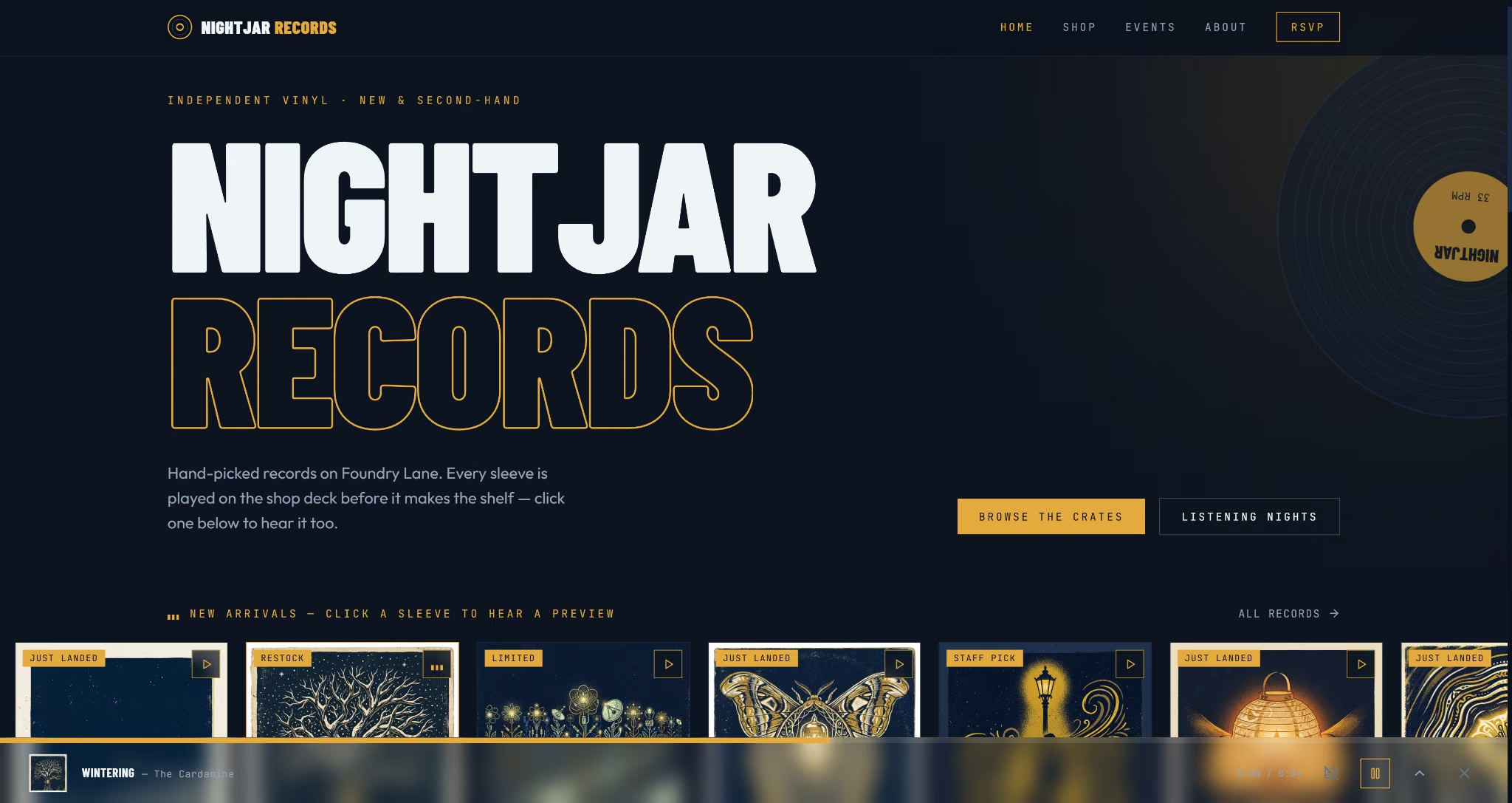
Emergent is our AI app builder, and it builds the design, database, and hosting for a site from one written description. I held it to the same brief and the same checks as the other five builds.
Emergent finished the site in about 13 minutes. It also composed eight original preview tracks and generated its own sleeve art. Clicking a sleeve played its track with synced lyric captions.
The shop name filled the hero in heavy white type, with the second word outlined in mustard, beside a spinning vinyl disc. The navigation stayed pinned, and each night on the Events page got a large date block with time, genre, and capacity tags.
The Shop grid showed the artist, genre, condition, and price on hover, and dropped from three columns to two on mobile. Emergent's automated browser tests caught and fixed a small scroll bug there. Later tweaks happen through chat, since there's no drag-and-drop canvas.
My test RSVP saved to a database behind a passcode-protected owner page, so visitors couldn't see the guest list. No confirmation email arrived. I published the site to a live Emergent address from the same project.
Best for: Small businesses that want customer information collected in one private dashboard from launch, without wiring up extra tools.
Key Features
- Build from a written description: You describe the site once, and Emergent's AI website builder creates the pages and the database together, so a sign-up or contact form saves every response to the database.
- Private project hosting: Your site goes live on paid plans with private project hosting included, so you skip setting up and paying for a separate host.
- GitHub integration: You can sync the project to GitHub on paid plans, which lets you or a developer take the code elsewhere later.
- Emmy in-app assistant: You can ask Emmy questions about your project inside the editor when you're unsure what to change or ask for next.
Pros
- Built-in testing found and fixed a mobile scroll bug on its own
- The guest list stayed private, with search and CSV export
- 10 free monthly credits let you try it first
Cons
- No freeform canvas, so design changes go through prompts
- Every prompt and fix uses credits
- My RSVP didn't trigger a confirmation email
Pricing
The Free plan costs $0 and includes 10 monthly credits.
The Standard plan costs $20 per month ($17 per month billed annually) and includes 100 monthly credits and private hosting. Keeping a site deployed costs 50 credits a month.
The Pro plan costs $200 per month ($167 per month billed annually) and includes 750 monthly credits.
Business and Enterprise plans use custom pricing, with team workspaces and admin controls.
2. Figma
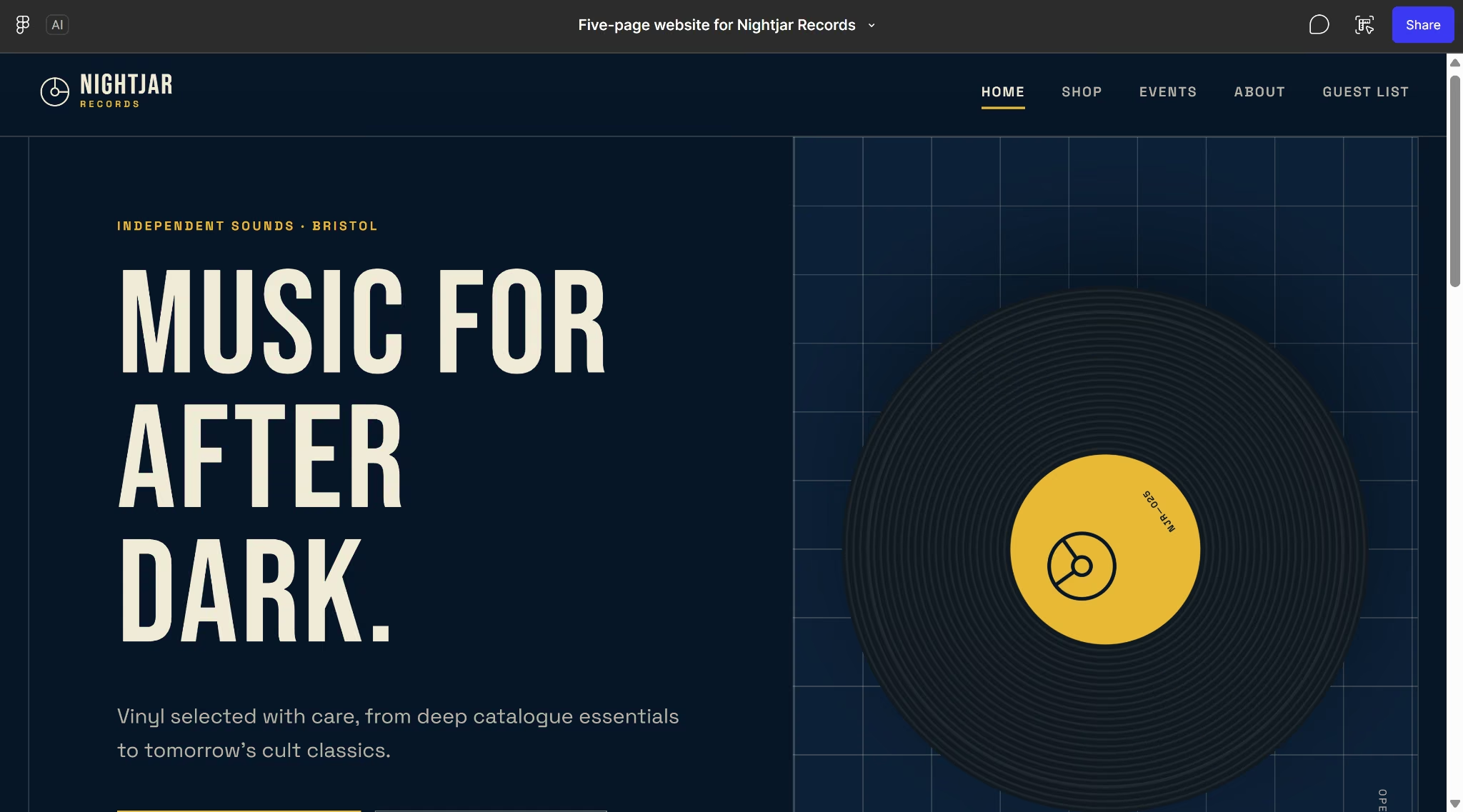
Figma is a browser-based design tool where teams lay out, prototype, and review a website together before it's built. For this test, I used Figma Make, Figma's prompt-to-app tool.
I pasted the brief into Figma Make, and it had all five pages ready in about three minutes.
The design was the strongest part. It paired deep navy with mustard accents, set the headings in tall Bebas Neue capitals, and put a spinning vinyl record in the homepage hero, a nice touch I didn't ask for. The sticky navigation, self-scrolling carousel, and hover details all worked.
On mobile, the grid dropped to two columns without extra prompting. For small fixes, I could select an element in the preview and adjust it by hand.
The RSVP form accepted my submission, but nothing followed, not even a confirmation email. The guest list page had no login, and Figma Make stored RSVPs in the browser's local storage, so the list only showed RSVPs from my own device.
Publishing to a figma.site address was free, but on the Starter plan the file also went to Figma's public Community. Collecting RSVPs from other visitors would need a separate service to store them.
Best for: Designers and founders who need a high-fidelity version of their pages to share, test, and refine, with a developer or another tool handling forms and data.
Key Features
- Real-time collaboration: You and your team can edit the same file, leave comments, and chat with cursors, so feedback on a page happens right on the design instead of in long email threads.
- Reusable components and variables: You set a button, color, or text style once and update it everywhere at once, which saves you fixing the same detail on every page.
- Figma Make: You can turn a written prompt or an existing design into a working prototype or web app, then point at parts of the preview to change them.
- AI agent in the canvas: You can ask the AI agent for new design directions or bulk text and image edits when you want to try ideas fast.
Pros
- The free Starter plan includes unlimited drafts
- Viewers and commenters don't need a paid seat
- A single prompt produced a finished-looking multi-page site
Cons
- Figma Sites is still in beta and limited to Full seats
- Full Figma Make access needs a paid Full seat
- Form submissions stayed on the visitor's own device
- The owner's guest list had no password protection
- Starter plan publishing makes your file public on Figma's Community
Pricing
Figma's Starter plan is free and includes unlimited drafts.
The Professional plan costs $20 per Full seat per month ($16 per Full seat per month billed annually). Dev and Collab seats cost less.
The Organization plan costs $55 per Full seat per month, billed annually only, and adds shared libraries across teams.
The Enterprise plan costs $90 per Full seat per month, billed annually only, and adds advanced admin controls.
Read More: Best AI Tools for UI/UX Design in 2026 for Different Use-Cases
3. Webflow
Webflow is a visual website design tool that writes production HTML and CSS as you design, then hosts the finished site. It suits designers who want the control of hand-coded layouts without writing the code.
I first had to archive an old project, since the free Starter Workspace only holds two unhosted sites. I then pasted the brief into Webflow's AI site builder, and it had a first version ready in about five minutes.
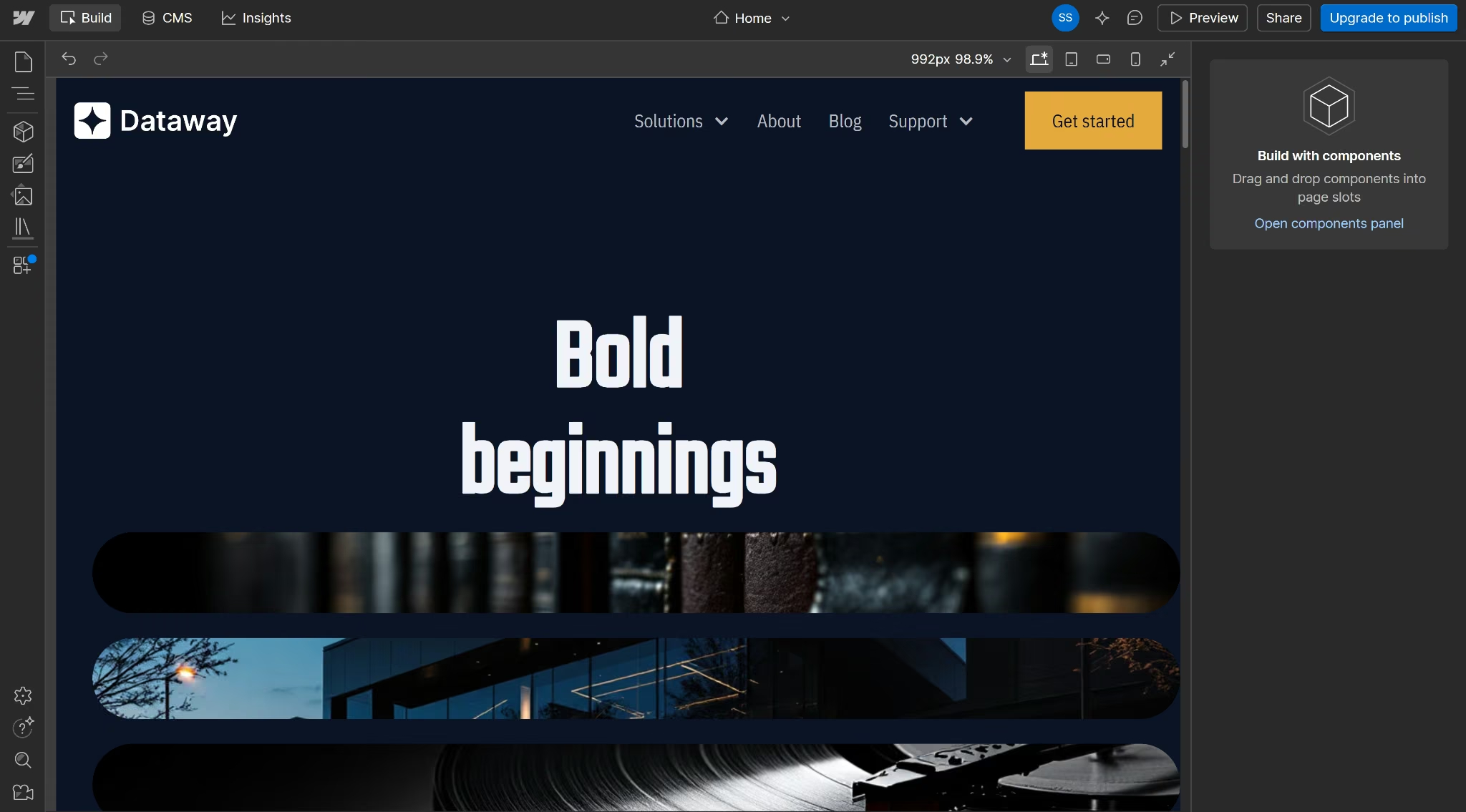
It drafted a sitemap, let me pick a theme, and opened the draft in the Designer, where every element was editable and the mobile view held up.
The theme came close on style, with a condensed headline, navy background, and mustard buttons, but the content ignored the brief. The site carried another brand name, plus software testimonials, logo placeholders, and empty image boxes, and I found no RSVP form on any page.
The AI draft worked as a layout starting point, and every Nightjar-specific detail still had to be built from scratch.
Publishing needed the $39 per month Premium plan, because the draft used more CMS collections than the free plan allows.
Best for: Freelancers and agencies comfortable with CSS concepts who plan to build most of the layout themselves and host it on Webflow.
Key Features
- Full layout control: You can build complex layouts with flexbox, CSS grid, and absolute positioning visually, straight on the canvas.
- Class-based styling and variables: You can change your brand color or spacing in one place with reusable classes and variables, and the whole site updates to match.
- Built-in CMS: You get the Webflow CMS on the Premium plan, so you can design blog posts or portfolio entries with your own content before they go live.
- Figma to Webflow app: You can bring designs from Figma into Webflow, so a layout you already approved doesn't start from scratch.
Pros
- The free Starter plan lets you try the Designer
- Paid site plans include unlimited form submissions
- Hosting, a custom domain, and a CMS come in one plan
- The AI sitemap mapped out sections for every page quickly
Cons
- Class-based styling takes time to learn
- Monthly billing costs up to $14 more than annual
- The free Starter Workspace caps you at two unhosted sites
- The AI draft left out the RSVP form and used placeholder copy
- Publishing the AI draft required the Premium plan
If Webflow's learning curve or per-site pricing is a sticking point, our Webflow alternatives guide covers what else is worth trying.
Pricing
The Starter plan is free and includes a webflow.io domain and two static pages.
The Basic plan costs $25 per month ($15 per month billed annually) and adds a custom domain.
The Premium plan costs $39 per month ($25 per month billed annually) and adds the Webflow CMS.
The Team plan costs $2,500 per month on an annual contract, and Enterprise pricing is custom.
All site plans are priced per site. For a plan-by-plan breakdown of what each tier includes, see our Webflow pricing guide.
4. Framer
Framer is a design-first website builder where you lay out pages on a freeform canvas and publish them as a live site. Designers used to Figma will find the interface familiar.
Framer's AI worked on the brief for about four minutes before I ran out of AI credits.
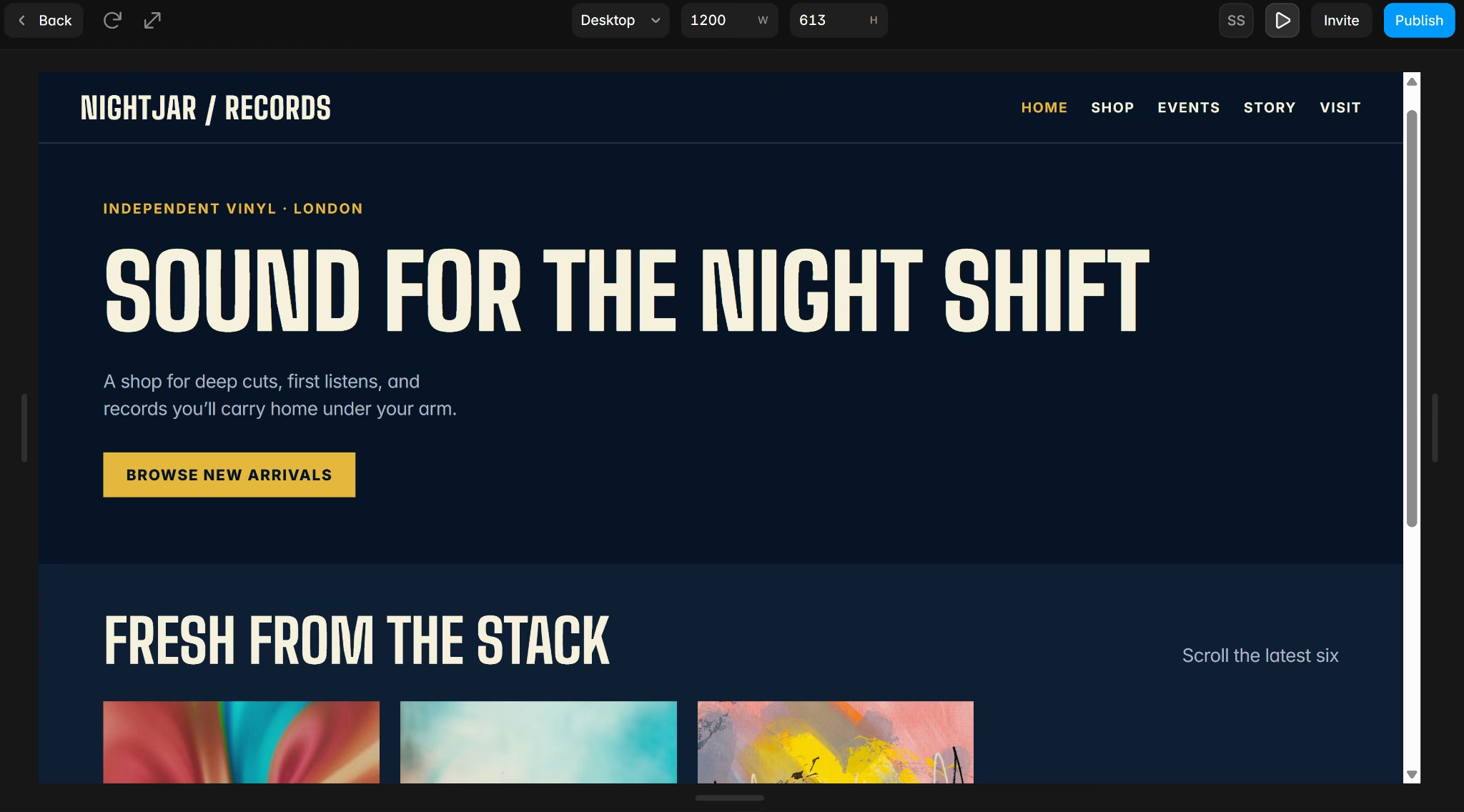
Before stopping, it laid out five pages with a shared navy and mustard design system, a sticky navigation bar, and a scrolling new arrivals carousel. The pages looked clean and on-brand, with tall cream headlines in condensed type, bright abstract record covers, and a bold mustard band on the Story page.
The Shop grid moved on hover and dropped to two columns on mobile, though some artist and price labels were hard to read over busy covers. Framer created editable collections for records and RSVPs, so the owner could update listings without touching the layout. Everything else stayed open to hand edits.
The Events page had a styled RSVP form, but the submit button didn't respond when I clicked it, so no RSVP went through. Publishing worked on the free plan, and the site went live on a framer.app address with a Framer badge in the corner.
Best for: Creative freelancers and small studios who think visually and would rather arrange layouts themselves than write code or use templates.
Key Features
- Freeform canvas: You can place and size elements anywhere on the page, so you're not boxed into a template grid.
- CMS collections: You get two CMS collections on the Basic plan, enough to run a portfolio or a small blog without another tool.
- Built-in SEO and custom domains: You can set SEO controls and connect your own domain on paid plans, so your site is ready for search from launch day.
- Localization and A/B testing add-ons: You can translate your site with AI or test two versions of a page once you're ready to reach more visitors.
Pros
- A live site on a Framer domain costs nothing
- Clients can view and comment for free
- The AI set up a full navy-and-mustard design system
Cons
- Each extra editor costs $30 per month on monthly billing
- AI credits ran out before the build finished
- The RSVP submit button didn't work
If AI credits or form handling are the sticking points, our Framer alternatives guide covers what else is worth trying.
Pricing
You can publish to a Framer domain for free.
The Basic plan costs $15 per month ($10 per month billed annually) and adds a custom domain.
The Pro plan costs $45 per month ($30 per month billed annually) and adds more pages, CMS collections, and a staging environment.
Enterprise pricing is custom. Extra editors cost $30 per month ($20 per month billed annually).
For what each Framer plan includes and how extra editors are billed, see our Framer pricing guide.
5. Wix
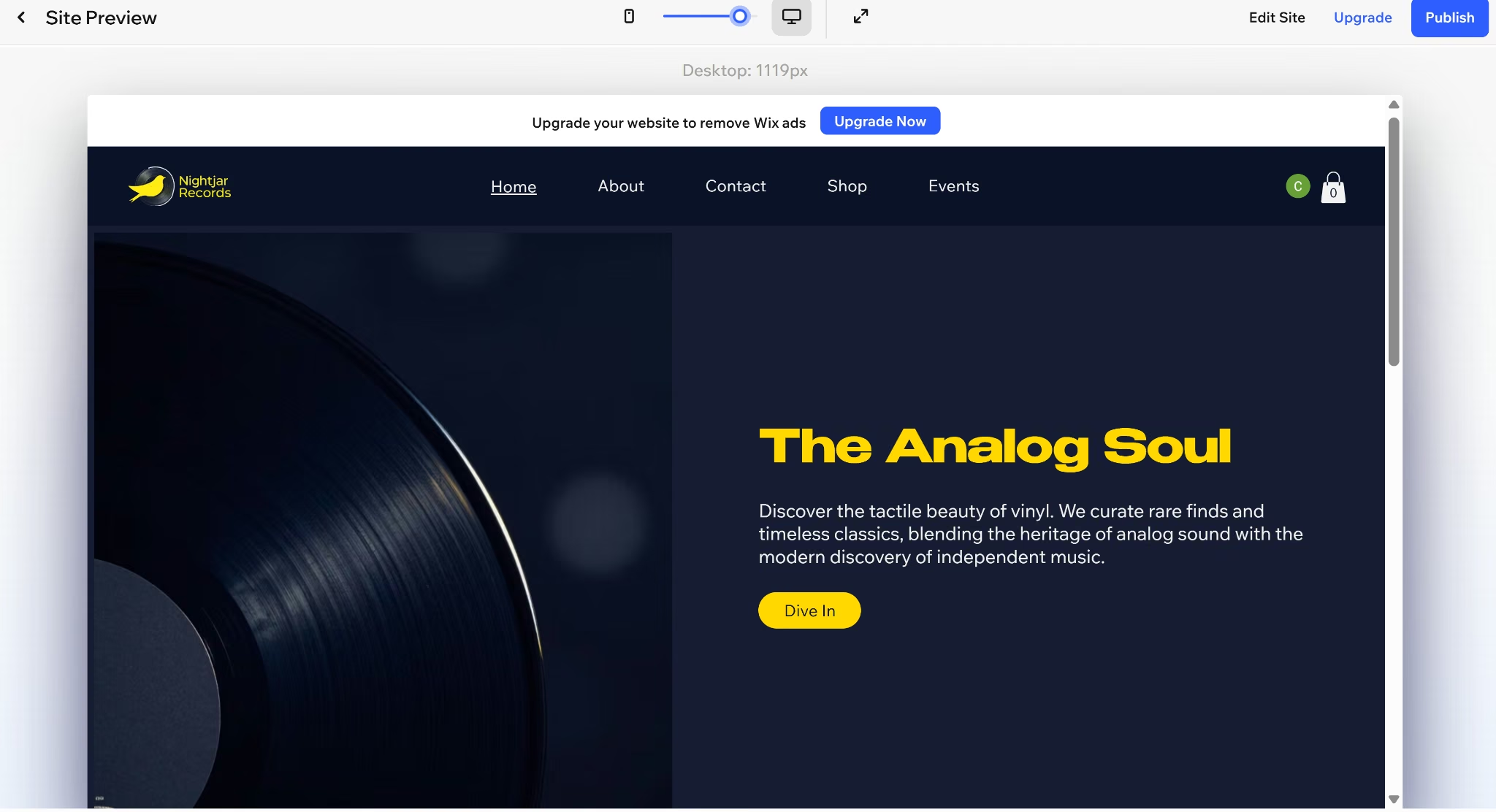
Wix is a template-based website builder with a drag-and-drop editor and built-in hosting, made for people building their first site. A template or its AI site builder can produce the first draft.
I chose Wix Harmony, Wix's AI editor, pasted the brief, and had a first version in about six minutes.
It kept the Nightjar name, drew a bird-on-record logo, and put a large vinyl photo beside the headline. The navy background matched the brief, but the accents came out lemon yellow and the headline used a wide typeface, where the brief called for mustard and condensed type.
Wix turned the Shop page into a full online store with a cart, categories, filters, and nine products, though a few merch images had warped text. Mobile worked, but the store showed one product per row instead of two.
It also added a dark-themed map with the shop's pin and a directions link, useful for a shop people visit in person.
The RSVP form worked end to end, sending a confirmation email to the address I used, and I could add the event to my calendar. Harmony let me switch to drag-and-drop for hand edits, and the free plan put it online with a Wix ads banner.
Best for: Shopkeepers and event hosts who need sign-ups, bookings, and online sales handled in one dashboard, without any technical setup.
Key Features
- Templates and drag-and-drop editing: You can start from one of 2,000+ website templates and move anything on the page with the drag-and-drop editor, so you're never starting from a blank screen.
- Wix Harmony: You can generate a site from one prompt and refine it by chatting with Aria, Wix's AI agent, then take over manually whenever you want.
- Scheduling and services: You can let customers book appointments and services from the Core plan up, without paying for a separate booking tool.
- Site collaborators: You can invite between two and 100 collaborators, depending on your plan, so a partner or freelancer can edit the site with you.
Pros
- You can build and publish before paying anything
- Bookings, forms, and hosting share one dashboard
- Event sign-ups included an add-to-calendar option
Cons
- Free sites show Wix ads and a wixsite.com address
- Taking payments requires Core or higher
- The mobile store showed one product per row
If Wix’s plan gates or mobile store layout are sticking points, our Wix alternatives guide covers what else is worth trying.
Pricing
Wix's Free plan puts your site on a wixsite.com address with Wix ads.
The Light plan costs $24 per month ($17 per month billed annually) and adds a custom domain.
The Core plan costs $36 per month ($29 per month billed annually) and adds payments and basic ecommerce.
The Business plan costs $46 per month ($39 per month billed annually) and adds standard ecommerce.
The Business Elite plan costs $172 per month ($159 per month billed annually) and adds advanced ecommerce.
For what each Wix plan includes and when the free tier stops being enough, see our Wix pricing guide.
Read more: Best Business Website Builders I Tested in 2026, a hands-on look at builders for small businesses.
6. Canva
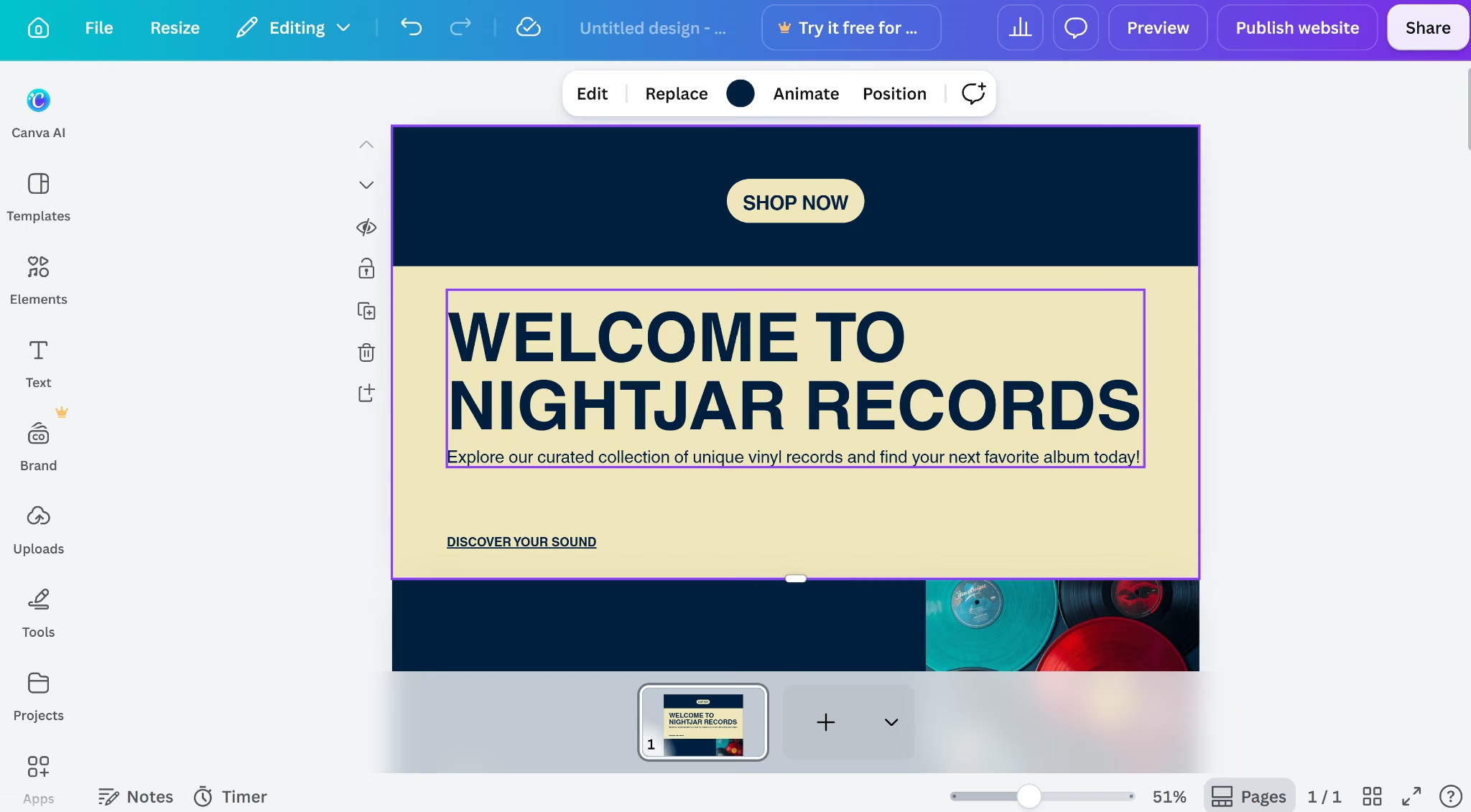
Canva is a graphic design platform with a website builder that turns a Canva design into a scrolling, published site. It's the quickest route for people who already make their social posts and flyers in Canva.
I gave the brief to Canva AI, and it produced a design in about one minute.
It came back as a single long page instead of five, with no navigation menu to move between sections. The look was tidy, with navy and cream blocks, large bold headlines, star accents, and moody photos of records and turntables. The mustard accent and condensed type from the brief didn't appear.
The two buttons it added didn't link anywhere, so there was no shop, record grid, or RSVP form to test. Every element stayed editable on the drag-and-drop canvas, and an RSVP form would come from a third-party app in the Apps panel, such as Jotform or Easy RSVP.
The layout reflowed cleanly on mobile, and it went live on the free plan.
Best for: Marketers and makers whose brand assets already sit in that editor and who want one scrolling layout up the same afternoon.
Key Features
- Drag-and-drop editor: You can design pages in an editor you already know, so there's nothing new to learn.
- Large template library: You can start from 1.6M+ templates on the free plan, or 3.6M+ with Pro, which gets a first draft together quickly.
- Brand Kits: You can save your colors and fonts in Brand Kits on Pro, so your website matches the rest of your marketing.
- AI design tools: You can resize, translate, and remove backgrounds with Pro's AI tools, which speeds up preparing images for your pages.
Pros
- The layout held up on mobile without extra fixes
- A polished first design took about a minute
- It published without a paid upgrade
Cons
- Adding team members requires the per-person Business plan
- The page had no navigation or working buttons
- Its accent color and heading font drifted from the brief
Pricing
Canva's Free plan includes 1.6M+ templates.
The Pro plan costs $18 per month for one person ($12 per month billed annually) and adds premium content and AI tools.
The Business plan costs $25 per person per month ($20.83 per person per month billed annually) and adds team collaboration tools.
Enterprise uses custom quotes, and annual billing saves from 16%.
7. WordPress.com
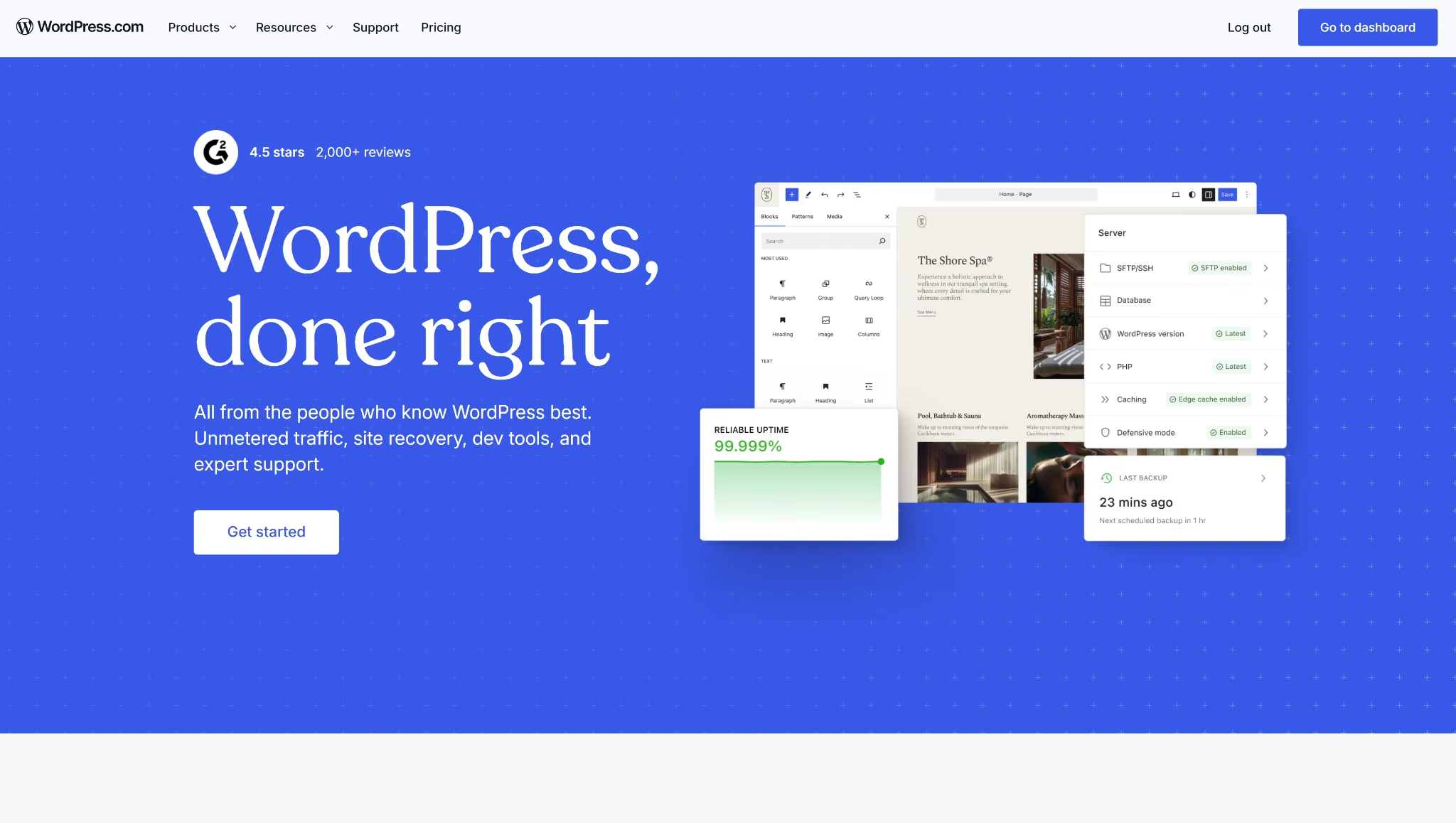
WordPress.com is the hosted version of WordPress, where you design pages with themes and blocks and scale the site with plugins. It suits sites that publish a lot of content or need features only a plugin can add.
I couldn't run the Nightjar brief through WordPress.com, because its AI website builder is only available on paid plans. The rest of this section covers what the platform supports rather than a test build, so I can't speak to how its design or mobile layout would have handled the brief.
On a paid plan, the AI asks a few questions, shows a site brief to review, and takes several minutes to build. After that, you can change colors, fonts, and sections, or edit every page by hand in the block editor.
The Form block includes a ready-made RSVP template. Responses collect in a Forms dashboard where you can read, filter, and export them, with email notifications for new entries.
The free plan publishes to a wordpress.com subdomain, shows WordPress.com ads to visitors, and doesn't allow plugins.
Best for: Bloggers and small businesses that want 60,000+ plugins on hand for future features like memberships, stores, or SEO tools.
Key Features
- AI website builder: You can describe your site in a chat and get a complete WordPress site with layouts, images, and content, then keep refining it with AI or by hand.
- Block editor: You can make manual changes and add pages after the AI build, so the generated site never locks you into its first draft.
- Forms dashboard: You can collect RSVPs, registrations, or appointment requests with ready-made form templates and export every response as a CSV when you need a guest list.
- Plugin library: You can add features like SEO tools, memberships, or a store from more than 60,000 plugins.
Pros
- Plugins open up on every paid plan
- New form entries can trigger email notifications
- Longer billing terms lower the monthly cost
Cons
- AI site generation is paid-only
- Free sites show WordPress.com ads
- The free plan blocks plugin installs
If paid-only AI generation or plugin limits are sticking points, our WordPress alternatives guide covers what else is worth trying.
Pricing
A free WordPress.com site publishes to a WordPress.com subdomain.
The Personal plan costs $9 per month ($4 per month billed annually) and adds plugin installs.
The Premium plan costs $18 per month ($8 per month billed annually) and adds payments on your site.
The Business plan costs $40 per month ($25 per month billed annually) and adds priority support.
The Commerce plan costs $70 per month ($45 per month billed annually) and adds online store features.
8. Adobe Dreamweaver
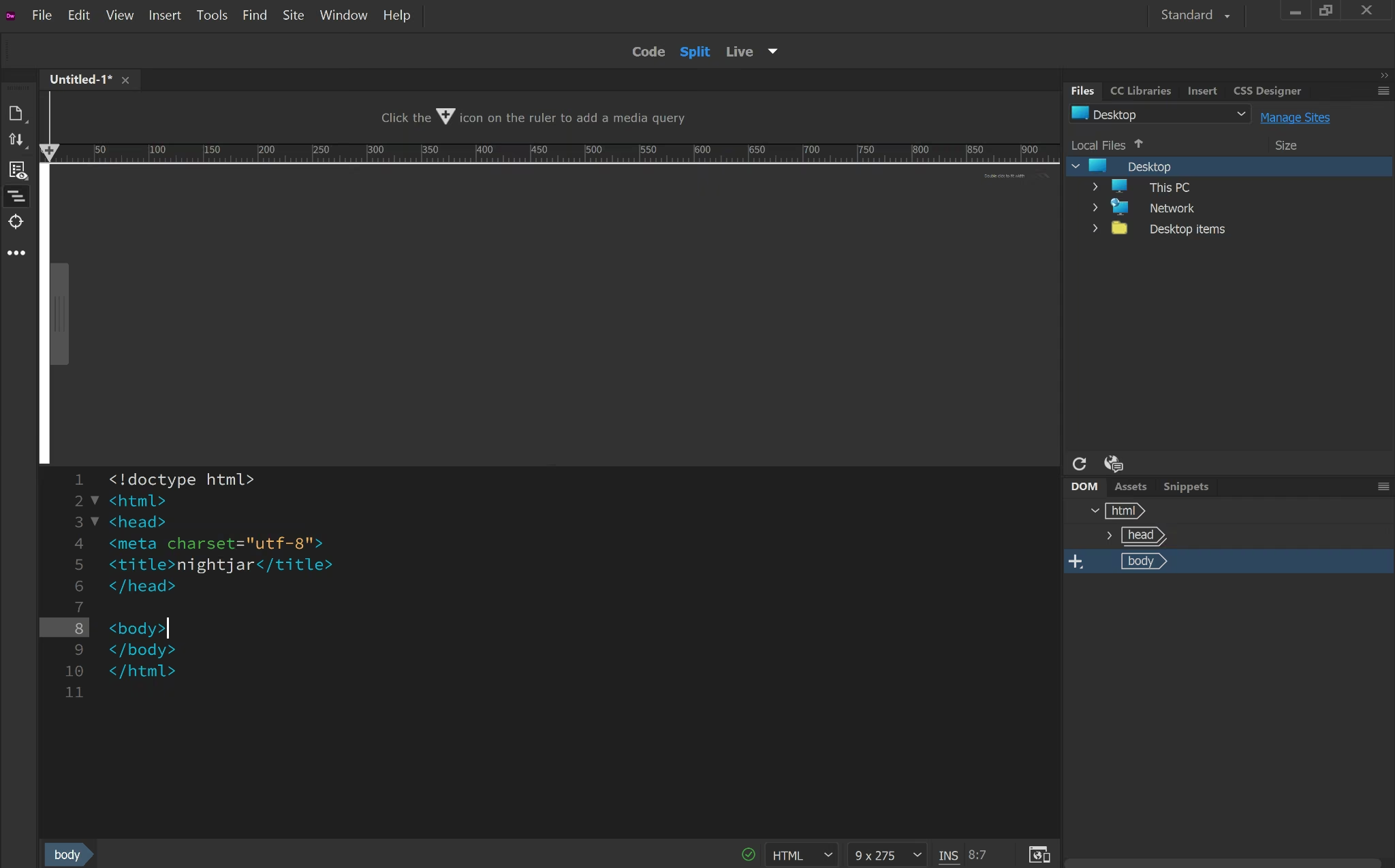
Adobe Dreamweaver is a desktop code editor for HTML, CSS, and JavaScript with a live visual preview beside the code. It's for people who want to write the site themselves and see each change as they make it.
I opened Dreamweaver to run the Nightjar brief, but it had no prompt-based builder, just a blank HTML file waiting for code. Everything below comes from the editor and Adobe's plans rather than a finished build.
You'd write every design detail by hand, with media queries from the ruler handling mobile.
Dreamweaver can lay out the RSVP form, but saving the responses takes server-side code or a separate form service, since the editor doesn't store submissions. Publishing means connecting your own web server over FTP or SFTP.
Best for: Coders and students learning HTML and CSS who prefer typing each page themselves.
Key Features
- Code hints: You get code hints for HTML, CSS, and other web standards as you type, which helps you write clean code faster and learn as you go.
- Live View editing: You can edit text and images directly in Live View and see each change instantly, without switching back to the code.
- Starter templates: You can begin from starter templates for blogs, About pages, portfolios, and ecommerce, instead of writing every page from zero.
- Git support: You can manage your source code and run common Git operations from a panel inside Dreamweaver, so version control stays in the same window as your code.
Pros
- You own and control every line of code
- Git support is built in
- Starter templates cut setup time
Cons
- No AI builder to turn a brief into pages
- Hosting and form storage need outside services
- There's no free plan, only a 7-day trial
Pricing
The Dreamweaver Single App plan costs $34.49 per month ($22.99 per month on an annual plan billed monthly).
The Creative Cloud Pro plan costs $69.99 per month on an annual plan billed monthly and adds 20+ Creative Cloud apps. New subscribers could get 50% off the first three months at the time of writing.
The Creative Cloud Pro plan for students and teachers costs $19.99 per month on an annual plan billed monthly.
The Business plan costs $99.99 per license per month on an annual plan billed monthly.
A 7-day free trial is available before you commit to a paid plan.
How to Evaluate Website Design Software
Start with the job your site does after launch, then pick the tool that gets you there with the least extra setup. Judge each tool on how it handles your forms, your publishing, and your next round of edits.
Six things to check before you choose:
- Your site's job: Decide what finished looks like before you compare features. A design file works when a developer is building the site, a published page works for a brochure, and a site that takes RSVPs or bookings, like most restaurant websites, needs somewhere to store them from the start.
- Where form responses go: Submit a test form before you commit. A form can look finished and still send responses nowhere, so confirm you can see every entry and that visitors get a confirmation.
- Who handles updates: Think about who will edit the site six months from now. When that person is you, pick a tool where swapping a photo or adding an event takes a few minutes.
- Control vs. speed: Canvas tools and code editors let you place every element yourself, while AI builders get you to a first version in minutes. Choose the trade-off your project needs up front, because switching tools later usually means rebuilding.
- What going live costs: Look past the headline price to what it includes. Check for a custom domain, ad removal, form limits, extra editors, and AI credits, and compare monthly with annual billing on the same plan.
- Your way out: Check whether you can export your code or content when you outgrow the tool. Code export or GitHub sync keeps your options open, while a closed platform means starting over.
Which Website Design Software Should You Choose?
Each tool above fits a different kind of project.
- Choose Emergent if: Your site has to store what visitors send you, out of the box, and you're happy editing through prompts instead of a canvas.
- Choose Figma if: You want a polished, clickable version to sign off on before anyone sets up forms and data storage.
- Choose Webflow if: You're a designer who wants hands-on layout control and doesn't mind paying for a site plan to publish.
- Choose Framer if: You want a design-led marketing or portfolio site live on a free domain, and forms aren't a priority.
- Choose Wix if: You want events, confirmation emails, and a store in one dashboard.
- Choose Canva if: You already design in Canva and only need one scrolling promo page.
- Choose WordPress.com if: You plan to publish a lot and want plugins, which start on the $9 per month Personal plan.
- Choose Adobe Dreamweaver if: You write your own HTML and CSS and already have hosting.
Stick with your current builder if your site already works and you only want a fresh look.
What the RSVP Test Showed
Most of the website design software I tested produced a polished first draft within minutes, and a few tools added flourishes of their own.
Of the six builds, only Emergent and Wix took a sign-up from start to finish, while the rest left the form out, saved entries to one browser, or had a button that did nothing.
So when you compare tools, fill in a form or book something yourself and see where it ends up.
Emergent builds the pages and the database behind them in one project, so the form on your finished page already saves every entry somewhere only you can see.
Hand Emergent your brief, and your first customer's details could be waiting in your dashboard before your coffee goes cold.
Describe it. Build it. Launch it.
- End-to-End Creation
- No Code Needed
- Live in Minutes
Most AI app builders stop at prototypes. Emergent creates production-ready apps you can actually launch.
- Production-ready apps
- Web & mobile apps
- Deploy in minutes