Build File Management Automation That Files Every Upload
Build file management automation that renames each upload, files it in the right folder, and logs each move in a database you own.
Build file management automation that runs on its own and logs every step.
Trusted by Builders Worldwide
Active Builders Worldwide
Apps Successfully Created
Countries Globally Reached



The Rules Behind Every File Move
Shared drives fill up with files named scan0042 and final-v3. The app you build with Emergent names and files each one by rule.
A naming pattern for every file
Write the convention once, such as CLIENT_DocType_YYYY-MM. The app renames each new file to match it, and the log keeps each file's original name beside the one it now carries.
Every file sent to its folder
Say where each kind of file belongs. A file moves to its folder as soon as a rule matches it, and a file that matches no rule stays in intake with a named owner who places it.
AI that reads what a file is
An AI step reads each upload and pulls fields such as the client, document type, and statement month. A person checks any field the AI is unsure of before the file is renamed.
Changes picked up as they happen
Through your storage service's API, the app runs its rules each time a file is added or changed. A scan that lands in intake at 2 AM has its new name and folder by morning.
A log of every rename and move
Every rename or move is one row: the old path beside the new one, the rule that fired, and the time. The log sits in a database you own. Finding a lost file takes one search.
Your file app's code, in your GitHub
Export the file app's full code to your GitHub repository on paid plans. Your IT team can read each rule that renames or moves a file before that rule runs on a shared drive.
Four Shared Folders, Each With Its Own Rules
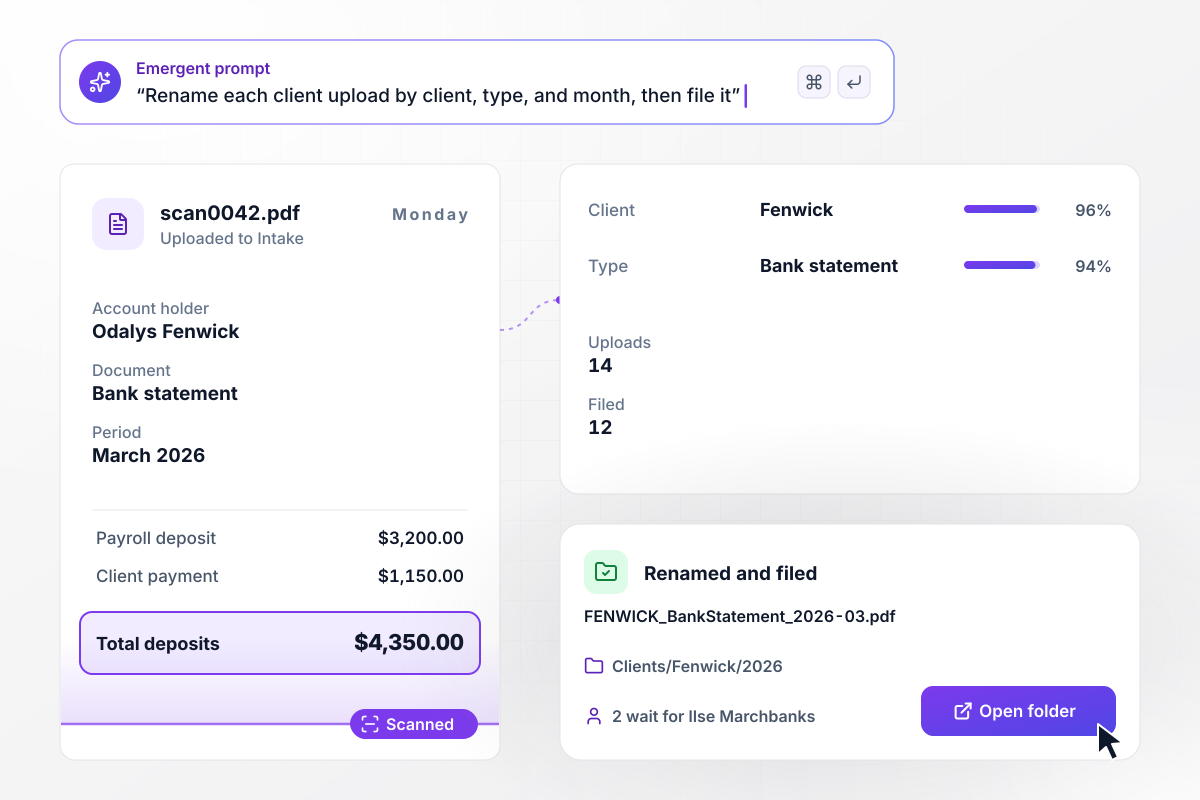
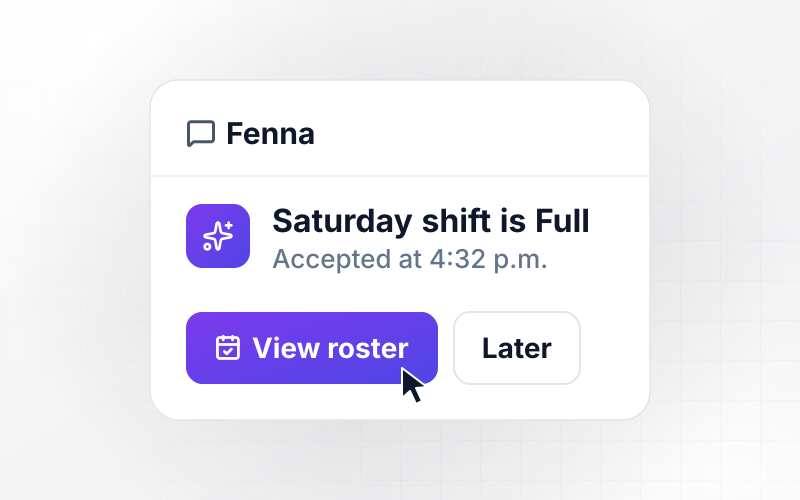
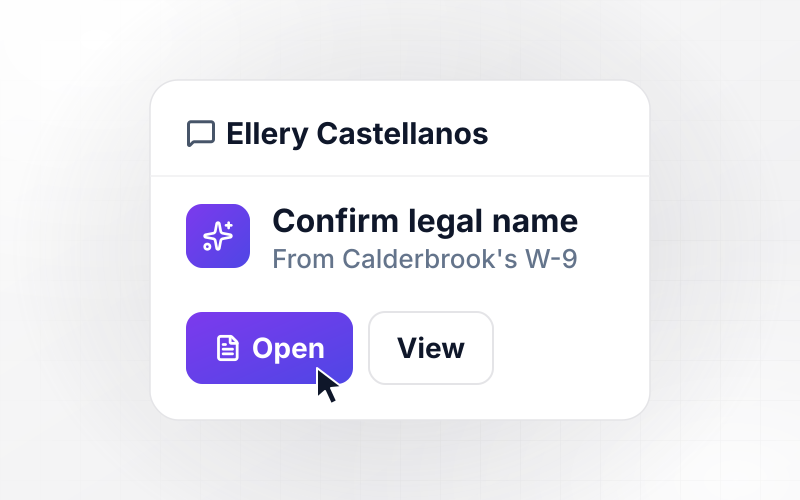
Fenwick's scan0042.pdf moves from intake into 2026
Bramwell and Tosh CPAs gets 14 uploads in its client intake folder. The AI step reads Odalys Fenwick's scan0042.pdf as a March 2026 bank statement and files it in Clients/Fenwick/2026 as FENWICK_BankStatement_2026-03.pdf. The app files 12 this way, and 2 it cannot read with confidence wait for Ilse Marchbanks.
window.awbMockup = { clientIntake: "Watch our client intake folder. For each upload, read the client name, the document type, and the month it covers. Rename the file as CLIENT_DocType_YYYY-MM and move it to that client's folder for the year. If the AI is unsure of any field, leave the file in intake and send it to Ilse to place.", projectSetup: "When a project moves to Won in our CRM, create a folder in the shared drive named with the project number and name. Inside it, create our 5 standard subfolders: Contracts, Drawings, Consultants, Site Photos, and Invoices. Then send the project lead a direct message with the folder link.", brandLibrary: "When someone uploads an image to our brand library, compare its checksum with every file already stored there. If it matches a stored file, hold the upload instead of saving a second copy, and send the uploader a direct message asking them to keep both or use the existing file.", jobArchive: "On the 1st of each month, check every closed job folder in Jobs. If no file in a folder has changed in 24 months, move it to Archive, unless the job is tagged Warranty open. Email our office manager a list of every folder checked and where each one went." };
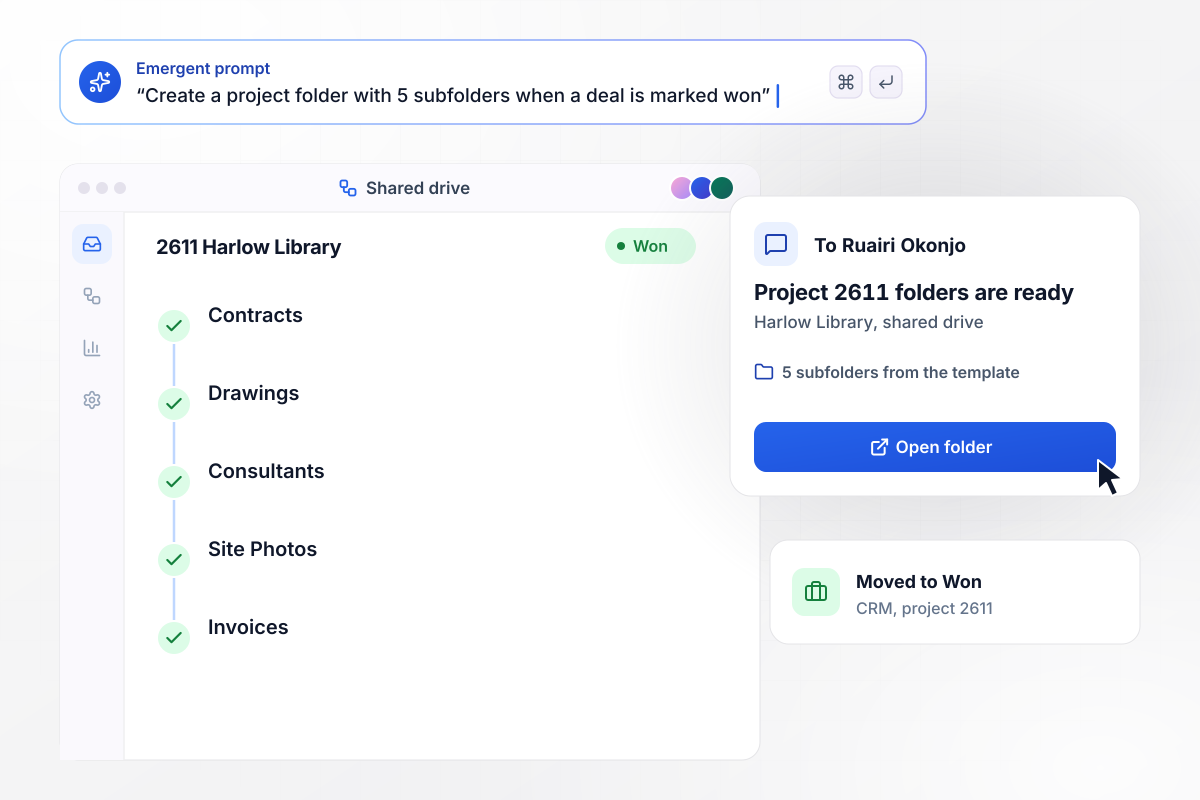
When project 2611 is won, its 5 folders appear
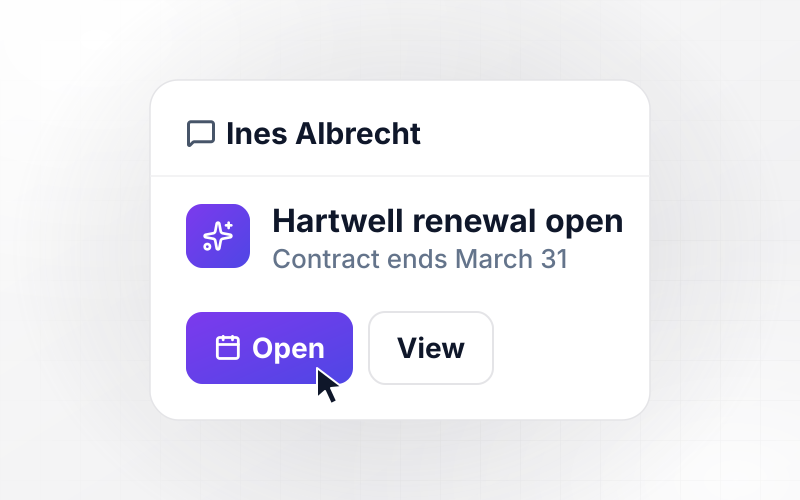
Quenby Ashworth Architects starts each project from one folder template. When project 2611, Harlow Library, moves to Won in the CRM, the app creates its folder with 5 subfolders: Contracts, Drawings, Consultants, Site Photos, and Invoices. Project lead Ruairi Okonjo gets a direct message with the link.
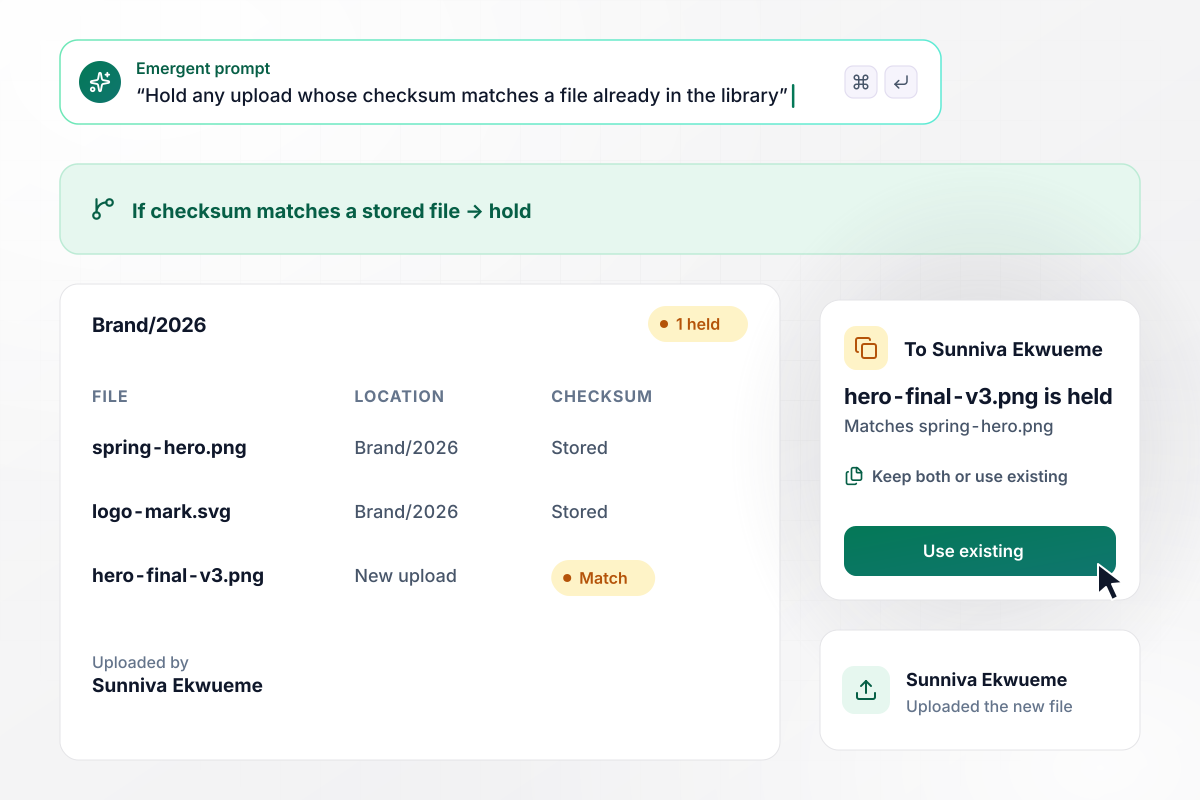
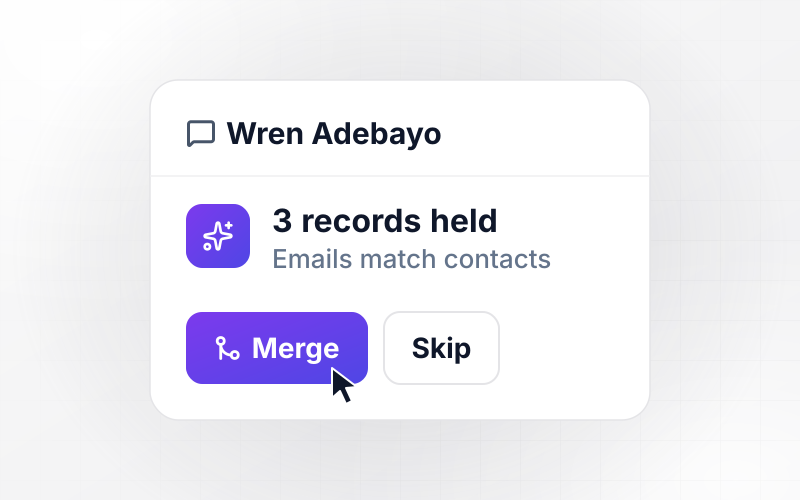
Its checksum matches spring-hero.png, so it waits
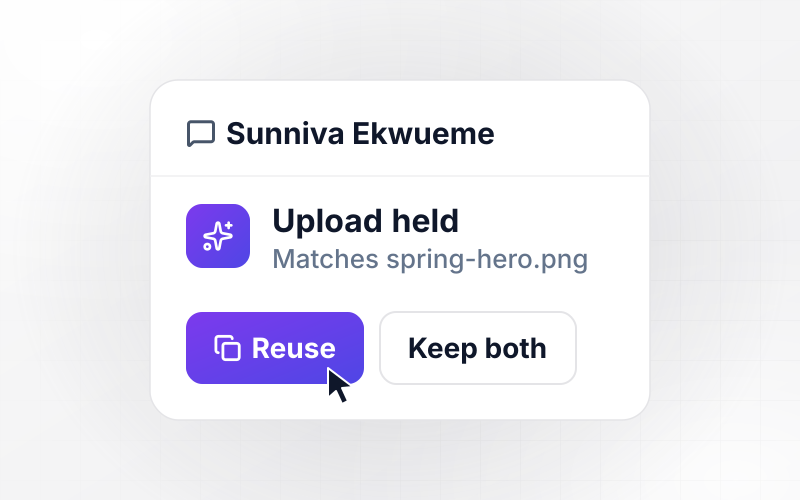
Sunniva Ekwueme exports a hero image for Larchfield Creative's brand library and uploads it as hero-final-v3.png. Its checksum matches spring-hero.png, already stored in Brand/2026. The app holds the upload instead of saving a second copy, and Sunniva gets a direct message: keep both, or use the existing file.
7 closed jobs move to Archive on the 1st
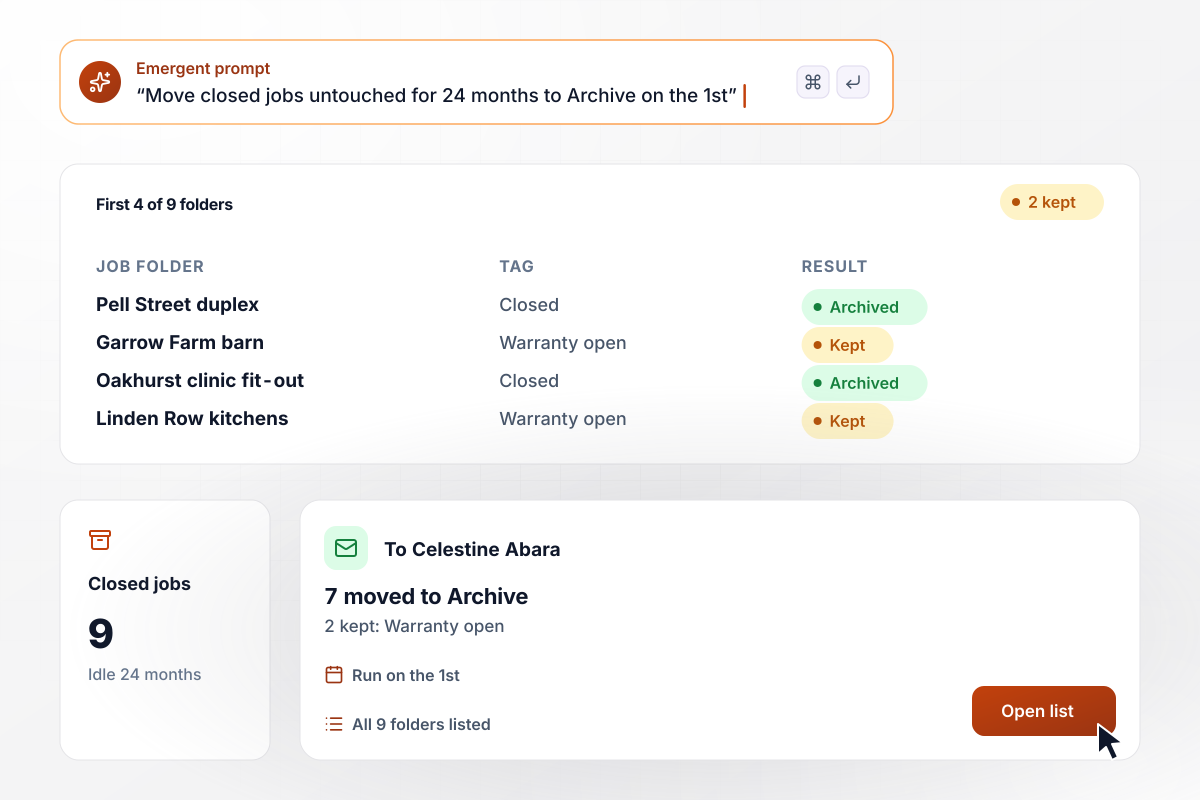
On the 1st of each month, Dunmore Build Co. runs its archive rule on the Jobs folder. This month it finds 9 closed job folders with no file changed in 24 months. The app moves 7 to Archive and leaves the 2 tagged Warranty open in place. Office manager Celestine Abara gets an email listing all 9 and where each went.






How to Build File Management Automation
Seven steps to write the naming and filing rules for file management automation, then build and test it with Emergent.
Open three folders your team uses every day and list how files get there: client uploads, email attachments, and exports from other tools. Copy down the names people give them now, such as scan0042 or final-v3. Start the rules from those real examples.
Write the naming convention as a pattern with fixed parts, such as CLIENT_DocType_YYYY-MM. Choose one date format for every rule, and put the year before the month so that names sort by date in any folder list.
For each document type, name the folder it belongs in, such as Clients, then the client, then the year. Decide what happens to a file that no rule matches: leave it in intake and name the person who places it by hand.
Choose how the app spots a copy. A matching name misses a renamed copy, while a checksum compares content. In Google Drive, the MD5 checksum applies only to files with binary content. Plan another test for files without one.
Write which folders the archive rule covers, how long a folder must sit unchanged before it moves, and which tags keep it in place, such as Warranty open. Have the app move old folders to an archive instead of deleting them.
Open Emergent and describe the automation in plain English: the folders from step 1, the pattern from step 2, and the duplicate and archive rules you wrote after them. Emergent builds the app and its log from that prompt.
Point the app at a test folder first, filled with 20 real files copied from intake. Check each new name and location in the log, then connect the live shared drive through its API. Change any rule later by prompting.
Why Build File Automation With Emergent?
Every rename and move your rules make runs with no task cap, and each one is logged in a database you own.

|
Zapier | Make (Integromat) | n8n | |
|---|---|---|---|---|
| How you build | Prompt for the workflow and the app around it | Templates and editor, AI copilot | Visual canvas | Visual canvas, self-hosted or cloud |
| What you get | Workflow + trigger form + database + dashboard, as code you own | Zaps, plus Tables and Interfaces inside Zapier | Scenarios inside Make | Workflows inside n8n |
| Behavior at cap | Keeps running, no task cap | Overage billed at up to 1.25× the base rate | Runs pause | Cloud workflows stop until the reset or an upgrade |
| AI and agent steps | Native, share the same credit pool | Priced by model tier, drawn from the task pool | AI modules cost variable credits | Bring your own model API key, billed by the provider |
| Code ownership | Full code export to GitHub on paid plans | None | None | Yes on Community Edition |



Pick the Pricing Plan That Works for You
Choose the plan that fits your building ambitions. From weekend projects to enterprise applications, we've got you covered.




Find the right workflow automation
for you and your business
Frequently Asked Questions
Your Questions, Answered
Don't change this element unless you know what you are doing
More things you can build
with Emergent
on Emergent today