Build WhatsApp Automation for Orders, Bookings, and Support
Build WhatsApp automation that sends order and booking updates, answers chats, and saves each message in a database you own.
Build WhatsApp automation that sends shipping updates, booking reminders, and support replies to customers who opted in.
Trusted by Builders Worldwide
Active Builders Worldwide
Apps Successfully Created
Countries Globally Reached



What Runs Inside a WhatsApp Automation
Emergent builds the workflow, its contact database and a dashboard from one prompt, tied to your business number.
Sends a template when an event fires
Connects to your WhatsApp business number through its API. A shipped order or a new booking starts the run, and the app sends the approved template with the customer's details in it.
Replies from your own records
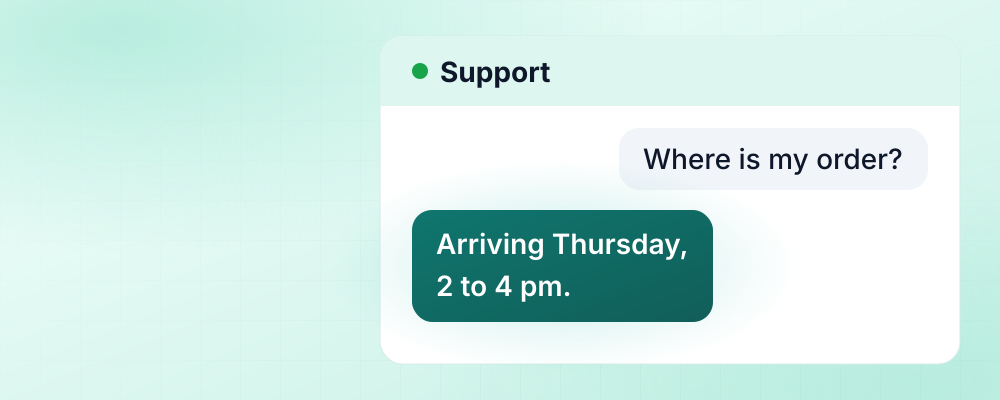
Reads the question, looks up the order or booking in your database, and answers with its real status while the customer service window is open. Each reply is logged on the contact.
Hands the hard chats to a person
You name the topics a person must take, such as refunds or complaints. The app stops replying on those, sends the chat to a teammate by Slack direct message, and keeps the thread.
Asks one question per message
Runs a short question flow inside the chat: one question, wait for the answer, then the next. Each answer is saved to its own field on the lead, so a later rule can act on it.
Keeps opt-in on every contact
Stores where and when each contact opted in, and checks that record before any template goes out. Every message and reply sits in a database you own, with no cap on tasks.
Your WhatsApp app's code, in GitHub
Exports the full code to your GitHub repository on paid plans. A developer can read every template call and routing rule, and point the app at another tool through its API.
Four Customer Chats to Automate First
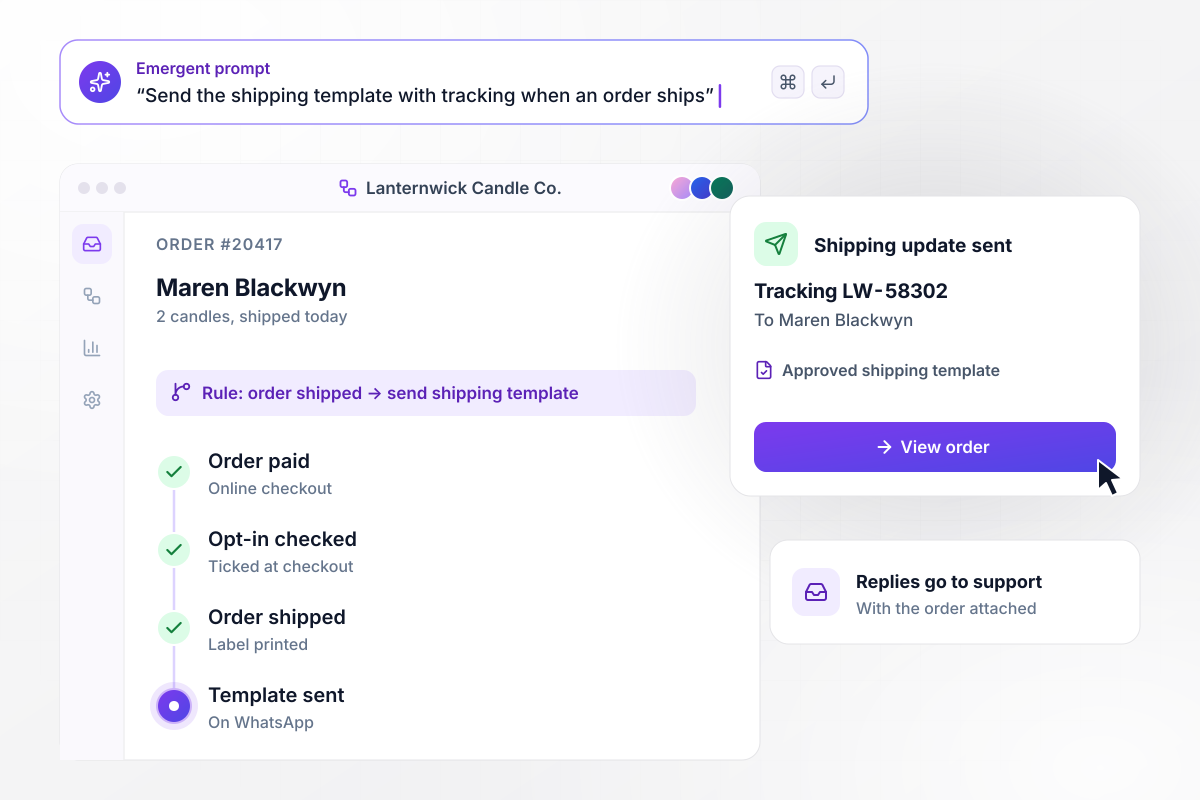
As soon as a box ships, its tracking number follows
When Lanternwick Candle Co. marks order #20417 shipped, the app sends Maren Blackwyn the approved shipping template with tracking number LW-58302. She ticked the WhatsApp opt-in box at checkout, and the app checks that record first. Her replies land in the support inbox with the order attached.
window.awbMockup = { orderUpdates: "Send WhatsApp shipping updates for my candle store. When an order is marked shipped, check that the customer ticked the WhatsApp opt-in at checkout, then send our approved shipping template with their name, order number and tracking number. If the customer writes back, put the message in our support inbox with the order attached, and log every message on the customer's record.", bookingReminders: "Build WhatsApp booking reminders for my bike repair shop. Send our reminder template 24 hours before each service, asking the customer to reply 1 to confirm or 2 to change. When someone replies 1, mark the booking confirmed. When someone replies 2, send them our booking page, open their old slot on the shop calendar, and log the reply on the booking.", supportReplies: "Set up WhatsApp support replies for my pet supply store. Answer order-status questions from our order table with the real status and tracking. Send any chat about a refund to our support lead by Slack direct message and stop the automatic replies on that chat. Track the 24-hour window on every open chat and move chats with under 2 hours left to the top of the inbox.", leadQualification: "Qualify WhatsApp leads for my real estate agency. When a buyer taps the WhatsApp button on a listing, ask for their move-in date, wait for the answer, then ask how many bedrooms they need. Save both answers on the lead. If the move is within 30 days, send the listing agent a Slack direct message with the answers and a note to call that day." };
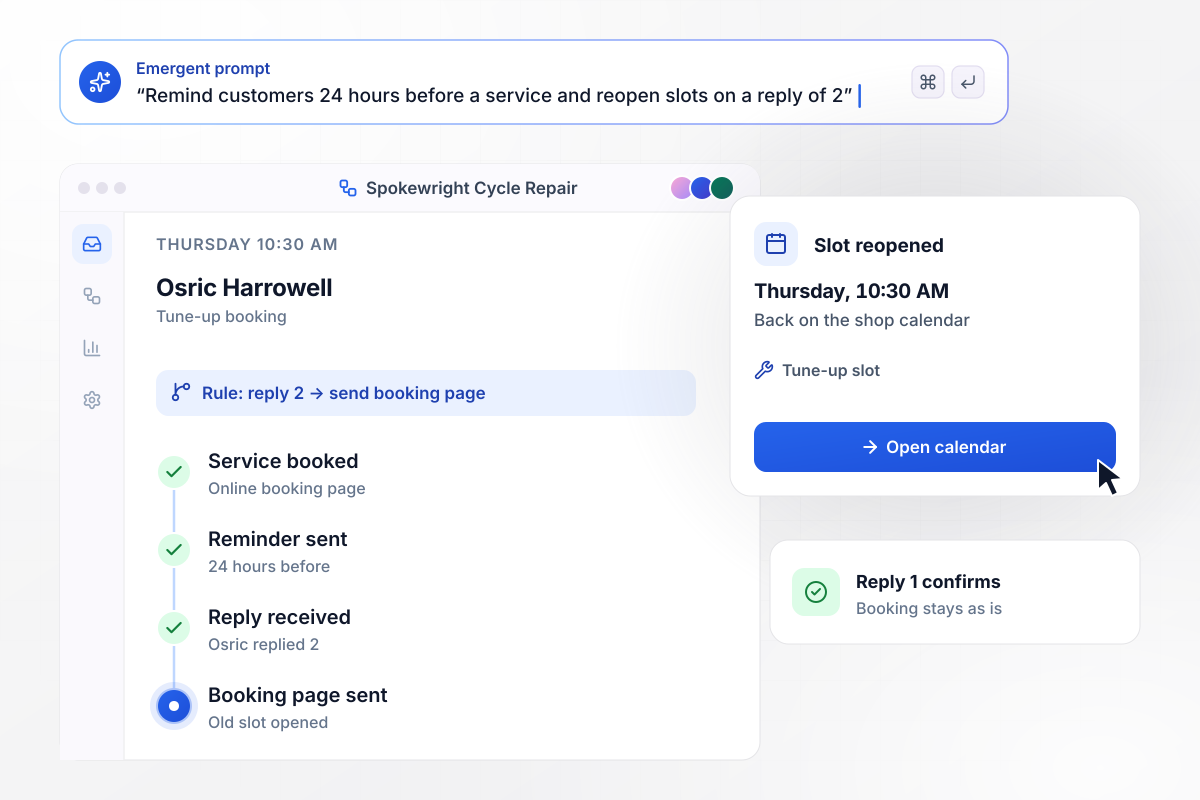
Reply 2 and a new time is one tap away
Every booking at Spokewright Cycle Repair gets a reminder template 24 hours before the service: reply 1 to confirm or 2 to change. When a customer replies 2, the app sends the booking page and opens the slot. Osric Harrowell replies 2 about his Thursday 10:30 AM tune-up, and that slot is back on the shop calendar.
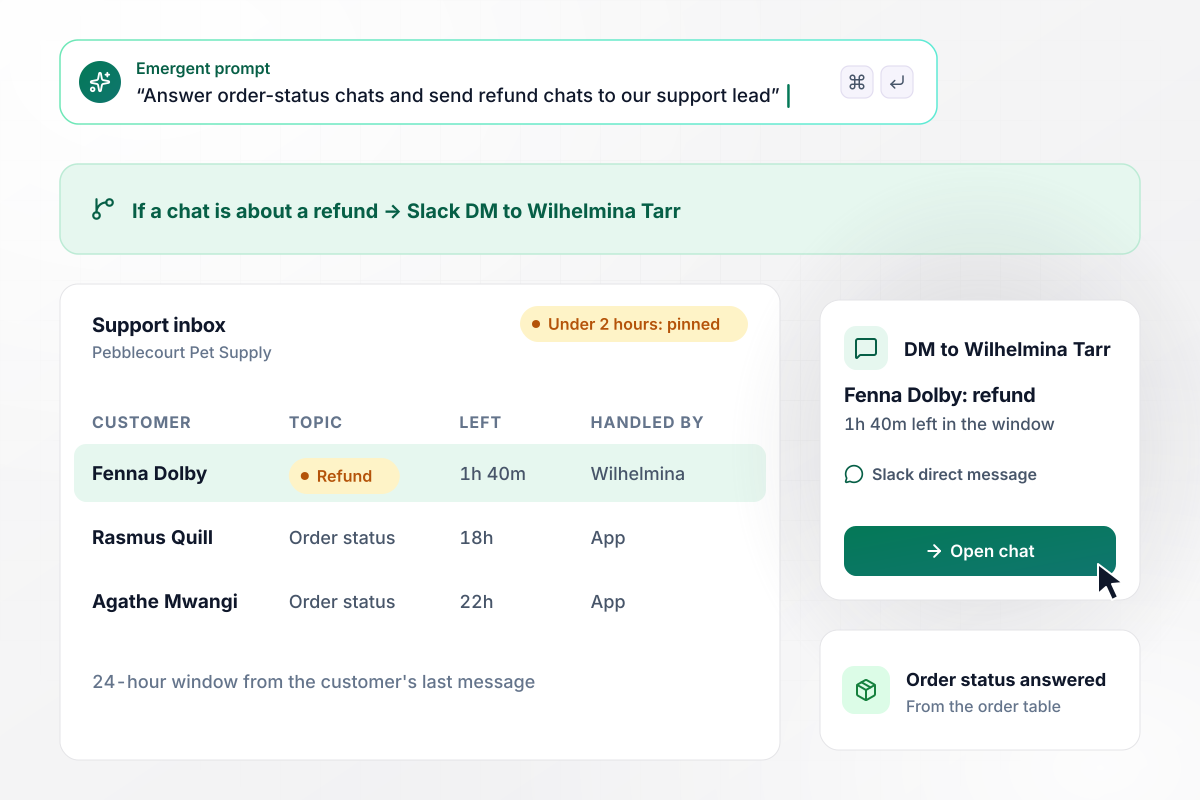
Refund chats reach a person with hours to spare
Pebblecourt Pet Supply's support inbox fills up on Monday mornings. The app answers order-status questions from the order table. Any chat about a refund goes to support lead Wilhelmina Tarr by Slack direct message. Chats with under 2 hours left in the 24-hour window move to the top of her inbox.
Under 30 days to move means a call today
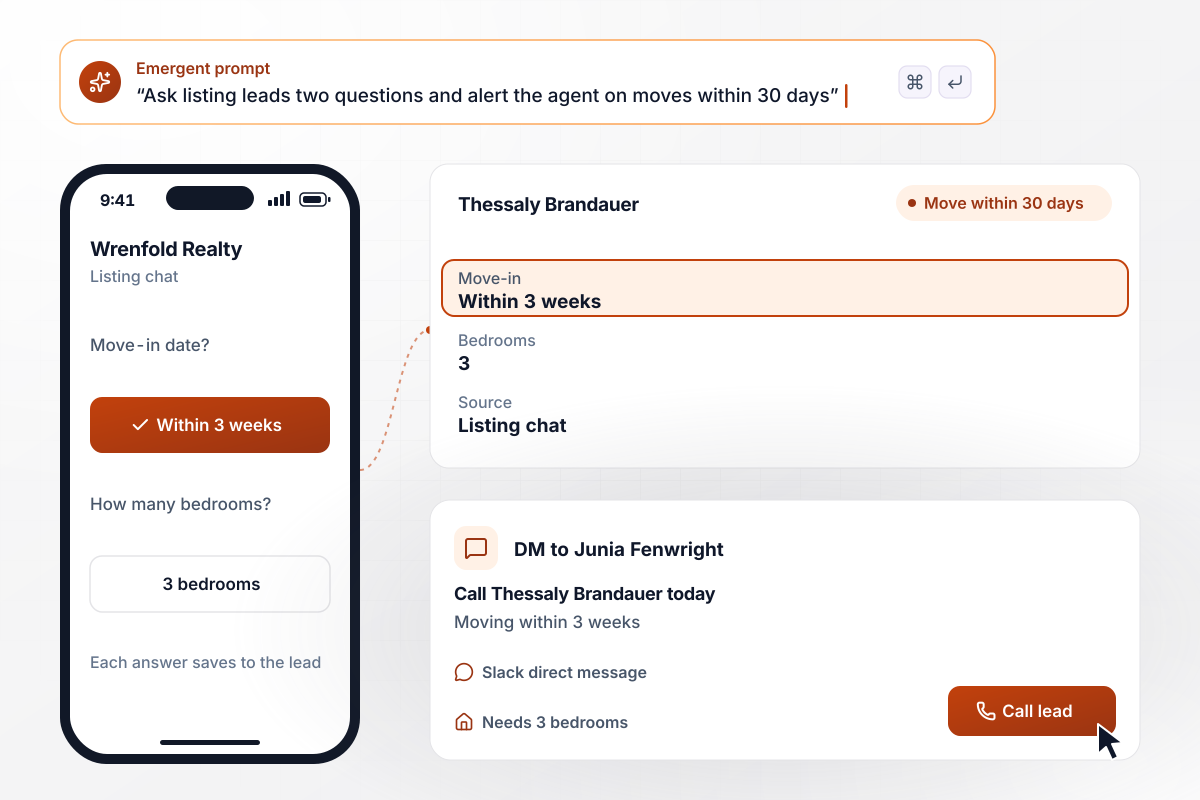
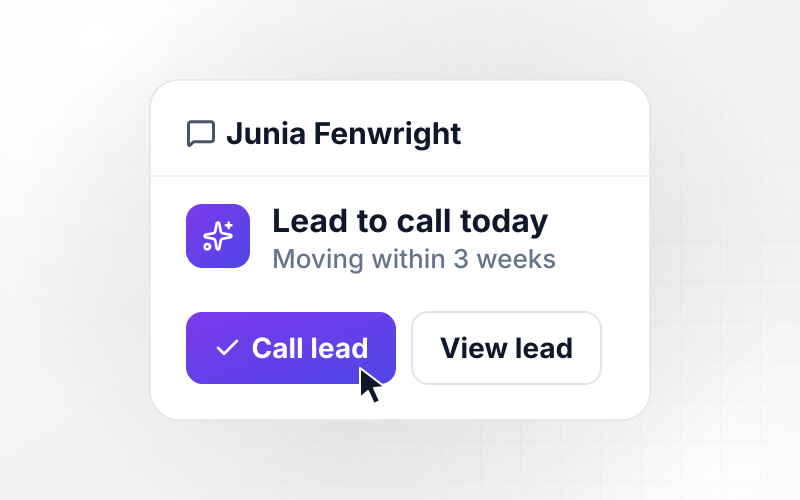
A buyer taps the WhatsApp button on a Wrenfold Realty listing, and the app asks for a move-in date, then the bedroom count. Thessaly Brandauer plans to move within 3 weeks and needs 3 bedrooms. Any move within 30 days goes to agent Junia Fenwright by Slack direct message, with a note to call that day.






How to Build WhatsApp Automation
Seven steps to set up WhatsApp automation for one customer conversation, test it on your own number, then add the next.
Count a normal week of WhatsApp messages and sort them by what they are about: order status, bookings, refunds, new leads. Start with the conversation your team answers by hand most often, because it pays back first and shows where replies need a person.
Give the app access to your WhatsApp business phone number through its API, along with the order system or booking calendar it will read. Use a number apart from anyone's personal phone, and the whole team sees the same threads.
Draft each message the app will start on its own, such as a shipping update or a reminder, with fields for the name and order number. Submit them early: once the 24-hour window closes, only pre-approved templates can go out.
Add a WhatsApp opt-in checkbox wherever you collect phone numbers: checkout, the booking page, a listing inquiry. Save the time and the source of each opt-in on the contact, and have the app check it before any template goes out.
Tell Emergent the trigger, the template, the questions the app answers on its own, and the topics that go to a person. Emergent builds the workflow, the contact database, and an inbox screen, and you change any rule later by prompting.
Opt in with a teammate's number and run the whole conversation: trigger the template, reply with each option, ask a refund question. Check that every message lands on the right contact and that the hand-off reaches the person you named.
Read the chats the app passed to a person and the ones it answered. Where the app handed off a question it could have answered from your records, add that rule by prompting, then move on to the next conversation on your list.
Why Build WhatsApp Workflows on Emergent?
Emergent builds the WhatsApp workflow together with its contact records and team inbox, and you change any rule by prompting.

|
Zapier | Make (Integromat) | n8n | |
|---|---|---|---|---|
| How you build | Prompt for the workflow and the app around it | Templates and editor, AI copilot | Visual canvas | Visual canvas, self-hosted or cloud |
| What you get | Workflow + trigger form + database + dashboard, as code you own | Zaps, plus Tables and Interfaces inside Zapier | Scenarios inside Make | Workflows inside n8n |
| Behavior at cap | Keeps running, no task cap | Overage billed at up to 1.25× the base rate | Runs pause | Cloud workflows stop until the reset or an upgrade |
| AI and agent steps | Native, share the same credit pool | Priced by model tier, drawn from the task pool | AI modules cost variable credits | Bring your own model API key, billed by the provider |
| Code ownership | Full code export to GitHub on paid plans | None | None | Yes on Community Edition |


Pick the Pricing Plan That Works for You
Choose the plan that fits your building ambitions. From weekend projects to enterprise applications, we've got you covered.




Find the right workflow automation
for you and your business
Frequently Asked Questions
Your Questions, Answered
Don't change this element unless you know what you are doing
More things you can build
with Emergent
on Emergent today